Run the R1 demo
Agora has partnered with Wi-Fi chip manufacturers to release the R1 open-source development kit based on Broadcom's BK7258 chip. To try the sample or review the source code, view the GitHub repository.
Convo AI Device Kit sample
Follow this guide to run the demo project and get started quickly with the Convo AI Device Kit.
Prerequisites
Before you begin, ensure you have the following:
- Python 3.7 or later for running the server-side components
- R1 development board: Contact Agora Sales to purchase the R1 development board jointly developed by Agora and Broadcom. Refer to the BK official documentation to set up your development environment.
- Android device for installing and testing the mobile app
- Third-party AI services: API keys and service endpoints for your chosen Large Language Model (LLM) and Text-to-Speech (TTS) providers
- Agora project credentials: An Agora project with Conversational AI Engine enabled, including:
- App ID
- App Certificate
- Customer ID
- Customer Key
Set up the sample project
Follow these steps to download and set up the sample project on your local machine.
-
Clone the
Conversational-AI-IOT-Samplerepository to your local machine: -
Switch to the
bk7258/v2.0.1branch:
Configure and run the server
This section shows you how to install the required Python dependencies and configure the server with your project credentials.
This server-side example is provided solely for demonstration and testing purposes and must not be used in a production environment. For production use, implement a dedicated server-side service that meets your security and scalability requirements.
Install Python dependencies
Install the required Python packages:
Configure server settings
The /server/aiot_server_demo_example/config.json file contains the server configuration parameters. Update this file with your project credentials and service settings.
For detailed parameter descriptions, see Start a conversational AI agent.
Configuration file structure:
Run the server
Run the server from the /server/aiot_server_demo_example directory:
The server runs on port 5001 by default at http://localhost:5001. To use a different port, modify the port configuration in the code.
The server provides three REST APIs to support device-side business operations. For details, see the server-side interface documentation.
Configure network access
The R1 kit includes an Android app in the app folder for configuring device network access through Bluetooth Low Energy (BLE). The app provides a simple interface for connecting your R1 device to Wi-Fi.
This app is built using Agora's Bluetooth configuration library. After installation, the app interface looks like this:
Before configuring network access, ensure the following:
- Bluetooth and location services are enabled on your Android device.
- The R1 device is in discoverable mode.
- Your Android device is within 5 meters of the R1 device.
- Your Android device is connected to a 2.4 GHz Wi-Fi network with internet access. Network configuration fails without internet connectivity.
- For Android 12 and later, you have granted
BLUETOOTH_SCANandBLUETOOTH_CONNECTpermissions to the app.
Connect your device to Wi-Fi
Follow these steps to connect your R1 device to Wi-Fi:
-
Grant the required permissions when prompted by the app.
-
Verify your current Wi-Fi network information.
-
Enter your Wi-Fi password.
-
Scan for and select your target Bluetooth device.
-
Click Connect to establish a connection with the device.
-
After the connection succeeds, click Configure Network to send the Wi-Fi credentials to the device.
-
After the network configuration completes, click Disconnect to end the Bluetooth connection.

Set up network access
Follow these steps to set up network access:
-
Request permissions. When you first open the app, grant the required permissions:
- Tap Request Permissions. The app requests Bluetooth and location permissions needed for scanning and connecting to Bluetooth devices.
- Tap Allow in the system permission dialog.
-
Verify Wi-Fi permissions. Tap Check Wi-Fi Permissions. The app checks whether it has the necessary Wi-Fi permissions and displays the result.
-
Get Wi-Fi information. Tap Get Current Wi-Fi Information. The app retrieves and displays your current Wi-Fi network name (SSID) in a card below the button.
-
Enter Wi-Fi password. Enter your Wi-Fi network password in the password field. The device uses this password to connect to your Wi-Fi network.
-
Scan for Bluetooth devices:
- Tap Start Scan. The app scans for nearby Bluetooth devices. The button text changes to Stop Scanning during the scan.
- Scanned devices appear in the list below.
- Tap Stop Scanning to end the scan.
-
Connect to your device. Each device card in the list displays:
- Device name
- MAC address
- Signal strength (RSSI)
- Connect: Establishes a Bluetooth connection with the device
- Configure Network: Sends Wi-Fi credentials to the device
- Disconnect: Ends the Bluetooth connection
If network configuration fails, reconnect the device or restart the app.
Troubleshooting
If you encounter issues during network configuration, try the following solutions:
- Cannot scan for devices: Verify that Bluetooth and location services are enabled on your Android device.
- Connection fails: Rescan for the device or restart the R1 device.
- Network configuration fails: Verify that you entered the correct Wi-Fi password.
Run the demo project
Download and configure the device firmware
Follow these steps to set up the R1 device firmware with the example project.
-
Clone the
bk_aidkproject from GitHub: -
Replace the
projectsdirectory with the example demo directory. Replace<bk_aidk_path>with your actual path:infoTo avoid conflicts, delete the original
projectsdirectory before copying. -
Update the server URL in
projects/common_components/network_transfer/agora_rtc/agora_config.hto point to your deployed server:
Replace http://192.168.1.100:5001 with your server address.
Build the firmware
Build the sample project firmware from the bk_aidk directory:
Replace <bk_aidk_path> with your actual bk_aidk directory path.
Flash the firmware
After the firmware builds successfully, flash it to your R1 device. For detailed instructions, see the BK official documentation.
Run the example
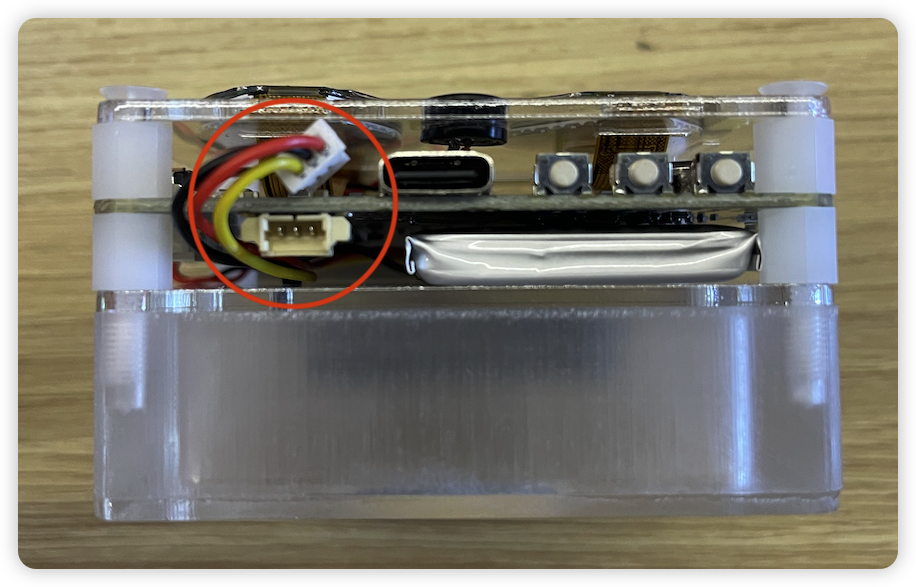
Connect the R1 development board to your computer using a Type-C cable connected to the USB TO UART interface. Follow these steps to test the voice AI functionality:
-
Configure Wi-Fi (first-time setup): Press and hold the S1 button for 5 seconds to enter network configuration mode. Use the Android app to complete the Wi-Fi setup.
-
Wake the device: Say "hi, Amino" to wake the device and start a conversation with the AI agent.
-
End the conversation: Say "bye bye, Amino" to exit the conversation with the AI agent.
-
Restart from sleep: The device enters deep sleep mode after 3 minutes of inactivity. Press the RST button to restart.
- The
USB TO UARTinterface also charges the battery. The device automatically activates when you connect a battery or data cable. - If the programming tool fails to restart the development board automatically, press the RST button to manually restart and restore programming capability.
Reference
Sample project
Server-side interface documentation
The server provides three RESTful APIs for device operations. This example project does not implement authentication. You can add authentication as needed.
Base URL: https://your-domain.com/
Authentication: None
Get device RTC token
Retrieves RTC credentials for the device to join a channel.
-
Method: POST
-
Endpoint:
/device -
Request body:
Start conversational AI agent
Starts the Conversational AI Engine for the specified channel.
-
Method: POST
-
Endpoint:
/agent/start -
Request body:
Stop conversational AI agent
Stops the Conversational AI Engine.
-
Method: POST
-
Endpoint:
/agent/stop -
Request body: