# Use whiteboard tools (/en/realtime-media/whiteboard/build/draw-and-edit-content/whiteboard-tools)
> For AI agents: see the complete documentation index at [llms.txt](/llms.txt).
After successfully joining an Interactive Whiteboard room, you can use the default tool to write and draw on the whiteboard. The Whiteboard SDK provides rich basic editing tools, such as pencil, arrow, straight line, eraser, and various shapes. In addition, the Whiteboard SDK supports modifying the font size, stroke width, and stroke color.
This feature is for web only.
This page describes using whiteboard tools in the following ways:
* Directly set the whiteboard tool in the code. This method applies when you need only a simple editing tool.
* Implement a simple toolbar and switch whiteboard tools by clicking buttons. This method applies when you want to provide varied tools for users to choose from.
## Understand the tech [#understand-the-tech]
The Whiteboard SDK provides the [`setMemberState`](/en/api-reference/whiteboard/web) method for setting the whiteboard tools used in the current whiteboard room. By modifying the [`MemberState`](/en/api-reference/whiteboard/web) properties of the current room, you can switch tools, select shapes, and change the font size, stroke width, and color.
The `MemberState` type contains the following properties:
* `currentApplianceName`: The name of the whiteboard tool currently in use, which can be set as one of the following values:
* `arrow`: Arrow
* `clicker`: Clicker
* `ellipse`: Ellipse
* `eraser`: Eraser
* `hand`: Hand
* `laserPointer`: Laser pointer
* `pencil`: Pencil
* `rectangle`: Rectangle
* `selector`: Selector. If you set the `floatBar` property in [`JoinRoomParams`](/en/api-reference/whiteboard/web) as `true`, when the user uses the `selector` tool, a floating bar that provides more text editing options displays.
* `shape`: Shape. When setting `currentApplianceName` as `shape`, you can set `shapeType` to choose a shape; if you do not set `shapeType`, the SDK uses `triangle` by default.
* `straight`: Straight line
* `text`: Text. If you set the `floatBar` property in `JoinRoomParams` as `true`, when the user uses the `text` tool, a floating bar that provides more text editing options displays.
* `shapeType`: (Optional) The shape type, which can be set as one of the following values:
* `pentagram`: Pentagram
* `rhombus`: Rhombus
* `speechBalloon`: Speech balloon
* `triangle`: Triangle
* `strokeColor`: The stroke color in RGB format. For example, `[0,0,255]` represents blue.
* `strokeWidth`: The stroke width. This parameter does not take effect for text.
* `textSize`: The font size. This parameter takes effect only for text.
The presentation of these tools is related to the interactive design and visual style of a specific web application. Considering this, the Whiteboard SDK does not provide the user interface (UI) of these tools. You need to implement the UI yourself.
## Prerequisites [#prerequisites]
To follow the procedure on this page, ensure that you have integrated the Whiteboard SDK into your project and implemented joining a room. For details, see [Join the Whiteboard Room](../set-up-and-build-your-first-app/get-started-uikit/#join-the-whiteboard-room).
## Set the whiteboard tool in the code [#set-the-whiteboard-tool-in-the-code]
You can directly set the whiteboard tool used in the current room in the program. This section uses the [Join the Whiteboard Room](../set-up-and-build-your-first-app/get-started-uikit/#join-the-whiteboard-room) sample code as an example.
Add the following code to the `joinWhiteboard.js` file:
```javascript
whiteWebSdk.joinRoom(joinRoomParams).then(function(room) {
room.bindHtmlElement(document.getElementById("whiteboard"));
// Use the rectangle tool and set the stroke width and color.
room.setMemberState({currentApplianceName: "rectangle", strokeColor: [255,182,193], strokeWidth: 12,});
}).catch(function(err) {
console.error(err);
});
```
Save the changes, and refresh the `index.html` page. Now you can click and drag the mouse to draw a pink rectangle on the whiteboard.
To change the whiteboard tool, you can modify the newly added code as follows:
```javascript
whiteWebSdk.joinRoom(joinRoomParams).then(function(room) {
room.bindHtmlElement(document.getElementById("whiteboard"));
// Use the pentagram shape tool and set the stroke width and color.
room.setMemberState({currentApplianceName: "shape", shapeType: "pentagram", strokeColor: [255,90,193], strokeWidth: 20,});
}).catch(function(err) {
console.error(err);
});
```
Save the changes, and refresh the `index.html` page. Now you can click and drag the mouse to draw a blue pentagram on the whiteboard.
## Switch whiteboard tools through the UI [#switch-whiteboard-tools-through-the-ui]
In use-cases where you want to offer multiple whiteboard tools and switch the tool based on a user's choice, you can design and implement a toolbar.
This section extends the [Join the Whiteboard Room](../set-up-and-build-your-first-app/get-started-uikit/#join-the-whiteboard-room) sample code to show the implementation of a simple toolbar.
1. Add the following code to the `joinWhiteboard.js` file:
```javascript
...
whiteWebSdk.joinRoom(joinRoomParams).then(function(room) {
room.bindHtmlElement(document.getElementById("whiteboard"));
// Define a toolbar and buttons.
var toolbar = document.getElementById("toolbar");
var toolNames = ["clicker","selector","rectangle","eraser","text","arrow","ellipse","hand","laserPointer","shape","straight"];
for(var idx in toolNames){
var toolName = toolNames[idx];
var btn = document.createElement("BUTTON");
btn.setAttribute("id","btn"+toolName);
var t=document.createTextNode(toolName);
btn.appendChild(t);
// Listen for the event of clicking a button.
btn.addEventListener("click", function(obj){
var ele = obj.target;
// Call the setMemberState method to set the whiteboard tool.
room.setMemberState(
{currentApplianceName: ele.getAttribute("id").substring(3),
shapeType: "pentagram",
strokeColor: [255,182,200],
strokeWidth: 12,
textSize: 40,});
});
toolbar.appendChild(btn);
console.log(btn.getAttribute("id"));
}
}).catch(function(err) {
console.error(err);
});
```
2. Add the following code to the `index.html` file to display the toolbar on the web page:
```text
```
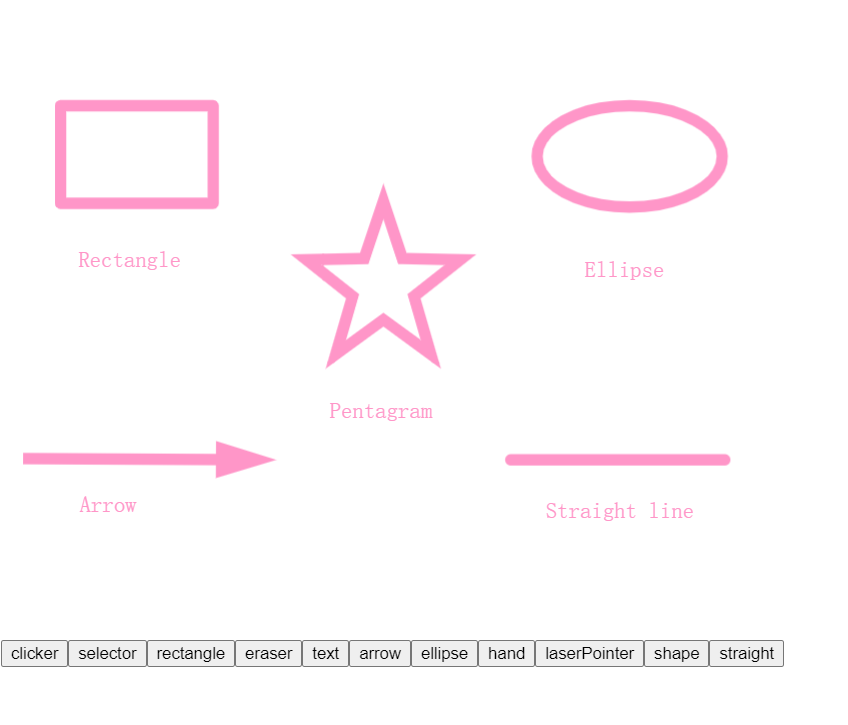
Save the changes, and refresh the `index.html` page. The following toolbar displays in the lower left corner of the page. You can click any button and use the corresponding tool to write and draw on the whiteboard.
## Reference [#reference]
### More whiteboard tools [#more-whiteboard-tools]
In addition to the basic editing tools listed in the [Understand the tech](#tech) section, the Whiteboard SDK provides additional editing functions through the following methods:
| Methods | Description |
| :------------------------------------------------------ | :------------------------------------------------------------ |
| [copy](/en/api-reference/whiteboard/web) | Copies the selected content. |
| [paste](/en/api-reference/whiteboard/web) | Pastes the copied content. |
| [duplicate](/en/api-reference/whiteboard/web) | Duplicates the selected content. |
| [delete](/en/api-reference/whiteboard/web) | Deletes the selected content. |
| [redo](/en/api-reference/whiteboard/web) | Redoes an undone action. |
| [undo](/en/api-reference/whiteboard/web) | Undoes an action. |
| [disableeraseimage](/en/api-reference/whiteboard/web) | Disables the eraser from erasing images on the whiteboard. |
| [disabledeviceinputs](/en/api-reference/whiteboard/web) | Disables the whiteboard from responding to users' operations. |
These methods, which are also members of the `Room` interface, also do not have user interfaces provided by the SDK. You can implement these functions by designing a UI and calling the corresponding methods according to your business needs.