# Quickstart (/en/realtime-media/voice/quickstart/electron)
> For AI agents: see the complete documentation index at [llms.txt](/llms.txt).
This Electron quickstart shows you how to create a basic Voice Calling app using the Agora Voice SDK.
## Understand the tech [#understand-the-tech-5]
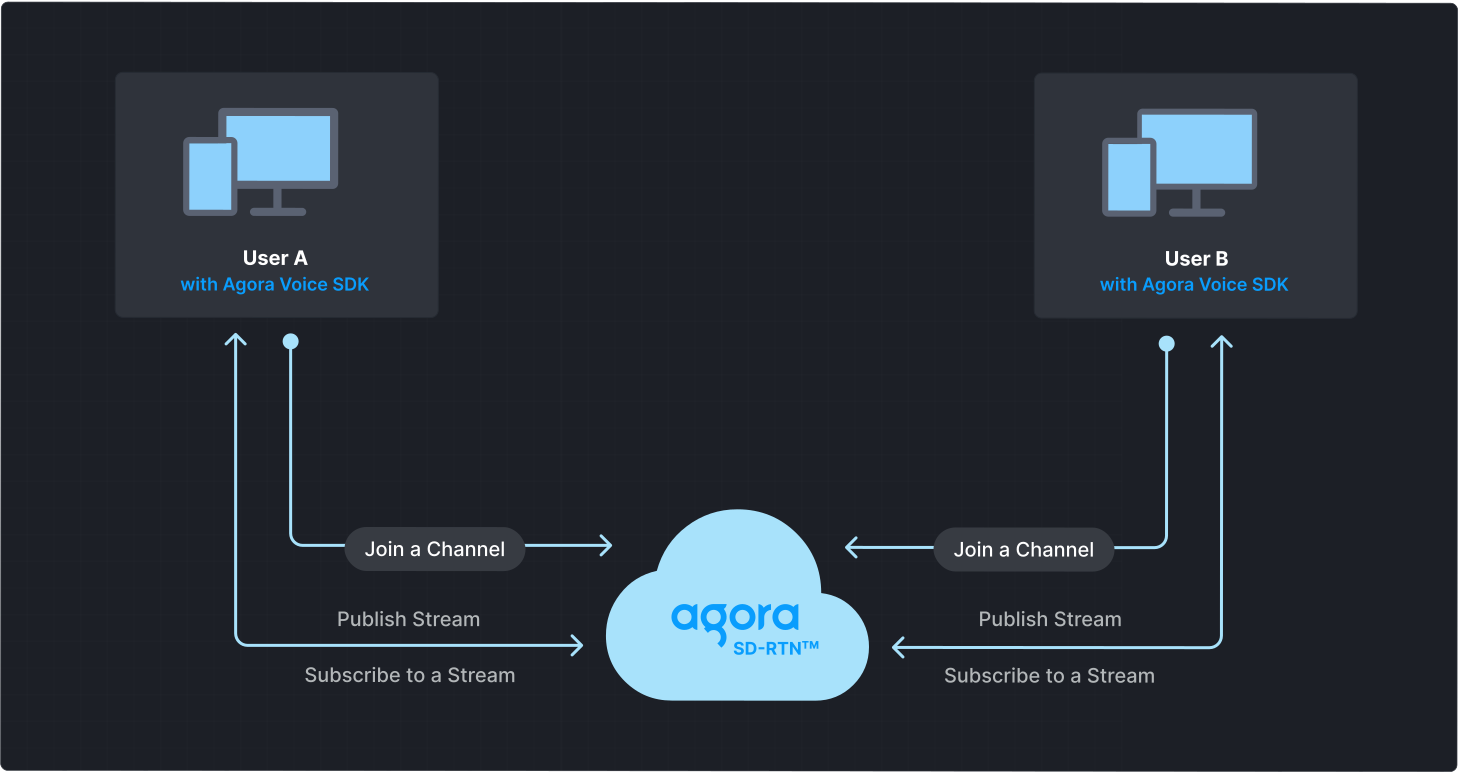
To start a Voice Calling session, implement the following steps in your app:
* **Initialize the Agora Engine**: Before calling other APIs, create and initialize an Agora Engine instance.
* **Join a channel**: Call methods to create and join a channel.
* **Send and receive audio**: All users can publish streams to the channel and subscribe to audio streams published by other users in the channel.
## Prerequisites [#prerequisites-5]
* [Node.js](https://nodejs.org/en/download/) 14 or higher.
* A microphone
* A valid Agora account and project. Please refer to [Agora account management](manage-agora-account.md) for details.
## Set up your project [#set-up-your-project-5]
This section shows you how to set up your Electron project and install the Agora Voice SDK.
1. Create a new directory for your Electron project in a local folder. Add the following files to the root of the project directory:
* `package.json`: Manages project dependencies and scripts.
* `index.html`: Defines the app's user interface.
* `main.js`: The main process entry point.
* `renderer.js`: The renderer process script, responsible for interacting with the Agora Electron SDK.
2. Create a user interface for your app based on your use-case.
Refer to [Create a user interface](#create-a-user-interface) to get a bare bones sample layout.
### Install the SDK [#install-the-sdk-5]
npm integration
Add the Voice SDK to your project using `npm`:
1. Configure `package.json`
* macOS
```json
{
"name": "electron-demo-app",
"version": "0.1.0",
"author": "your name",
"description": "My Electron app",
"main": "main.js",
"scripts": {
"start": "electron ."
},
"agora_electron": {
"platform": "darwin",
"prebuilt": true
},
"dependencies": {
"agora-electron-sdk": "latest"
},
"devDependencies": {
"electron": "latest"
}
}
```
* Windows
```json
{
"name": "electron-demo-app",
"version": "0.1.0",
"author": "your name",
"description": "My Electron app",
"main": "main.js",
"scripts": {
"start": "electron ."
},
"agora_electron": {
"platform": "win32",
"prebuilt": true,
"arch": "ia32"
},
"dependencies": { "agora-electron-sdk": "latest" },
"devDependencies": {"electron": "latest" }
}
```
**Configuration parameters**
* `agora-electron-sdk`: Version number of the Agora Electron SDK. Set to latest for the most recent version, or specify a version number. See [`agora-electron-sdk`](https://www.npmjs.com/package/agora-electron-sdk) on npm for available versions.
* `electron`: Electron version number. Versions 5.0.0 and above are supported. For macOS devices with M1 chips, use version 11.0.0 or higher.
* `platform` (Optional): Target platform. Set to `darwin` for macOS or `win32` for Windows.
* `prebuilt` (Optional): Set to `true` by default to prevent compatibility issues between Electron, Node.js, and the SDK.
* `arch` (Optional): Target architecture. Defaults to your system architecture.
Different versions of Electron have different environment requirements. If you see errors due to a mismatched environment when running the project, refer to the official [Electron documentation](https://releases.electronjs.org/releases/stable) to choose the appropriate Electron and Node.js versions.
2. To install the dependencies, open a terminal in your project root directory and run the following commands::
* macOS
```bash
npm install
```
* Windows
```bash
npm install -D --arch=ia32 electron
npm install
```
* On Windows, you must first install the 32-bit version of Electron by running `npm install -D --arch=ia32 electron`, and then run `npm install`. Otherwise, you may encounter the error: “Not a valid Win32 application.”
* If a `node_modules` folder exists in the project root directory, delete it before running `npm install` to avoid potential errors.
**Manual Integration**
Compile the latest SDK from the [Electron SDK repository](https://github.com/AgoraIO-Extensions/Electron-SDK/tree/main/) and integrate it into your application.
## Implement Voice Calling [#implement-voice-calling-5]
This section guides you through the implementation of basic real-time audio interaction in your app.
The following figure illustrates the essential steps:
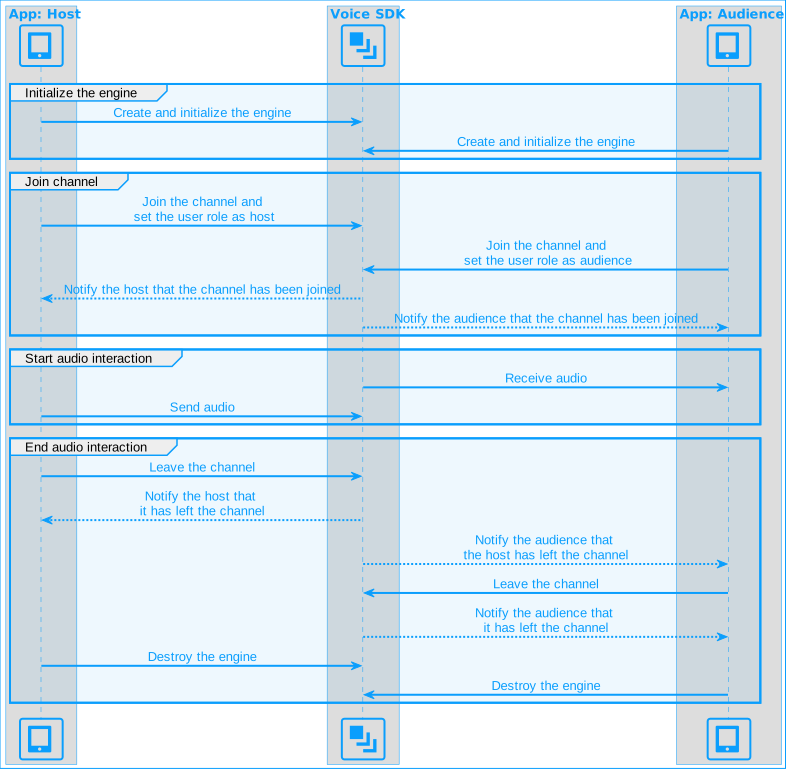
This guide includes [complete sample code](#complete-sample-code) that demonstrates implementing basic real-time interaction. To understand the core API calls in the sample code, review the following implementation steps.
### Set up the main process [#set-up-the-main-process]
The `main.js` file is the entry point for your Electron application. It defines the main process, which is responsible for creating and managing browser windows. This script initializes the app, loads the UI from `index.html`, and ensures proper behavior across platforms.
```js
const { app, BrowserWindow } = require("electron");
const path = require("path");
// If using Electron 9.x or later, set allowRendererProcessReuse to false
app.allowRendererProcessReuse = false;
function createWindow() {
// Create the browser window
const mainWindow = new BrowserWindow({
width: 800,
height: 600,
webPreferences: {
// preload: path.join(__dirname, "renderer.js"),
// Enable Node integration and disable context isolation
nodeIntegration: true,
contextIsolation: false,
},
});
// Load the contents of the index.html file
mainWindow.loadFile("./index.html");
// Open the Developer Tools
mainWindow.webContents.openDevTools();
}
// Manage the browser window for the Electron app
app.whenReady().then(() => {
createWindow();
// On macOS, create a new window if none are open
app.on("activate", function () {
if (BrowserWindow.getAllWindows().length === 0) {
createWindow();
}
});
});
// Quit the Electron app when all windows are closed (except on macOS)
app.on("window-all-closed", function () {
if (process.platform !== "darwin") app.quit();
});
```
### Handle permissions [#handle-permissions-3]
Perform this step only when the target platform is macOS. Starting with macOS v10.14, you must check and obtain permission before accessing the microphone. Use Electron’s `askForMediaAccess` method to request the permission from the user.
Add the following code to the `main.js` file:
```js
// Check and request microphone permission
async function checkAndApplyDeviceAccessPrivilege() {
const micPrivilege = systemPreferences.getMediaAccessStatus('microphone');
console.log(`Microphone privilege before applying: ${micPrivilege}`);
if (micPrivilege !== 'granted') {
await systemPreferences.askForMediaAccess('microphone');
console.log('Requested microphone access from user');
}
}
checkAndApplyDeviceAccessPrivilege();
```
### Import dependencies [#import-dependencies]
Import the modules and functions required to build the app using Voice SDK. Add the following code to `renderer.js`:
```js
const {
createAgoraRtcEngine,
ChannelProfileType,
ClientRoleType,
} = require("agora-electron-sdk");
```
### Specify connection parameters [#specify-connection-parameters]
Provide the App ID, temporary token, and the channel name you used when generating the token. The engine uses these values to initialize and join the channel.
```json
// Enter your App ID
const APPID = "<-- Insert App Id -->";
// Enter your temporary token
let token = "<-- Insert Token -->";
// Enter the channel name used when generating the token
const channel = "<-- Insert Channel Name -->";
// Specify a unique user ID for this session
let uid = 123;
```
### Initialize the engine [#initialize-the-engine-4]
For real-time communication, create an `IRtcEngine` object by calling `createAgoraRtcEngine` and then call `initialize` with `RtcEngineContext` to specify the [App ID](manage-agora-account.md). Call `registerEventHandler` to register a custom [event handler](#subscribe-to-voice-sdk-events) for managing user interactions within the channel.
```js
let rtcEngine;
const os = require("os");
const path = require("path");
const sdkLogPath = path.resolve(os.homedir(), "./test.log");
// Create RtcEngine instance
rtcEngine = createAgoraRtcEngine();
// Initialize RtcEngine instance
rtcEngine.initialize({
appId: APPID,
logConfig: { filePath: sdkLogPath }
});
```
### Join a channel [#join-a-channel-5]
To join a channel, call `joinChannel` with the following parameters:
* **Channel name**: The name of the channel to join. Clients that pass the same channel name join the same channel. If a channel with the specified name does not exist, it is created when the first user joins.
* **Authentication token**: A dynamic key that authenticates a user when the client joins a channel. In a production environment, you obtain a token from a [token server](build/set-up-token-authentication/deploy-token-server.mdx) in your security infrastructure. For the purpose of this guide [Generate a temporary token](manage-agora-account.md).
* **User ID**: A 32-bit signed integer that identifies a user in the channel. You can specify a unique user ID for each user yourself. If you set the user ID to `0` when joining a channel, the SDK generates a random number for the user ID and returns the value in the `onJoinChannelSuccess` callback.
* **Channel media options**: Configure `ChannelMediaOptions` to define publishing and subscription settings, optimize performance for your specific use-case, and set optional parameters.
For Voice Calling, set the `channelProfile` to `ChannelProfileCommunication` and the `clientRoleType` to `ClientRoleBroadcaster`.
```js
// Join the channel using a temporary token
rtcEngine.joinChannel(token, channel, uid, {
// Set the channel profile to communication
channelProfile: ChannelProfileType.ChannelProfileCommunication,
// Set the user role to broadcaster; keep the default value for audience role
clientRoleType: ClientRoleType.ClientRoleBroadcaster,
// Publish audio collected from the microphone
publishMicrophoneTrack: true,
// Automatically subscribe to all audio streams
autoSubscribeAudio: true,
});
```
### Register event handlers [#register-event-handlers]
Call the `registerEventHandler` method to register the following callback events:
* `onJoinChannelSuccess`: Triggered when the local user successfully joins a channel.
* `onUserJoined`: Triggered when a remote user joins the current channel.
* `onUserOffline`: Triggered when a remote user leaves the current channel.
```js
const EventHandles = {
// Listen for the local user joining the channel
onJoinChannelSuccess: ({ channelId, localUid }, elapsed) => {
console.log('Successfully joined channel: ' + channelId);
},
// Listen for remote users joining the channel
onUserJoined: ({ channelId, localUid }, remoteUid, elapsed) => {
console.log('Remote user ' + remoteUid + ' joined');
},
// Listen for users leaving the channel
onUserOffline: ( { channelId, localUid }, remoteUid, reason ) => {
console.log('Remote user ' + remoteUid + ' left the channel');
},
};
// Register the event handler
rtcEngine.registerEventHandler(EventHandles);
```
To ensure that you receive all Voice SDK events, set the Agora Engine event handler before joining a channel.
### Start and close the app [#start-and-close-the-app-3]
When a user launches your app, start Voice Calling. When a user closes the app, stop Voice Calling and release resources.
1. To start Voice Calling, [initialize the engine](#initialize-the-engine) and [join a channel](#join-a-channel).
2. When Voice Calling ends, leave the channel and clean up resources:
```javascript
// Leave the channel
rtcEngine.leaveChannel();
```
When you no longer need to interact, unregister the event handler and call `release` to release engine resources.
```javascript
// Unregister the event handler
rtcEngine.unregisterEventHandler(EventHandles);
// Release the engine
rtcEngine.release();
```
After destroying the engine, you can no longer use SDK methods and callbacks. To use the real-time interaction functions again, create a new engine instance. See [Initialize the engine](#initialize-the-engine) for details.
### Complete sample code [#complete-sample-code-5]
A complete code sample demonstrating the basic process of real-time interaction is provided for your reference. Replace the entire contents of the `main.js` and `renderer.js` with the following code samples:
**`main.js`**
```js
const { app, BrowserWindow, systemPreferences } = require("electron");
const path = require("path");
// If using Electron 9.x or later, set allowRendererProcessReuse to false
app.allowRendererProcessReuse = false;
// Check and request device permissions (macOS only)
async function checkAndApplyDeviceAccessPrivilege() {
if (process.platform === "darwin") {
// Check and request microphone permission
const micPrivilege = systemPreferences.getMediaAccessStatus('microphone');
console.log(`Microphone privilege before applying: \${micPrivilege}`);
if (micPrivilege !== 'granted') {
await systemPreferences.askForMediaAccess('microphone');
console.log('Requested microphone access from user');
}
}
}
function createWindow() {
// Create a browser window
const mainWindow = new BrowserWindow({
width: 800,
height: 600,
webPreferences: {
// preload: path.join(__dirname, "renderer.js"),
// Set nodeIntegration to true and contextIsolation to false
nodeIntegration: true,
contextIsolation: false,
},
});
// Load the content of the index.html file
mainWindow.loadFile("./index.html");
// Open Developer Tools
mainWindow.webContents.openDevTools();
}
// Manage the browser window for the Electron app
app.whenReady().then(async () => {
await checkAndApplyDeviceAccessPrivilege();
createWindow();
// Create a new window if none are open (macOS specific)
app.on("activate", function () {
if (BrowserWindow.getAllWindows().length === 0) {
createWindow();
}
});
});
// Quit the Electron app when all windows are closed (Windows specific)
app.on("window-all-closed", function () {
if (process.platform !== "darwin") app.quit();
});
```
**`renderer.js`**
```js
const {
createAgoraRtcEngine,
ChannelProfileType,
ClientRoleType,
} = require("agora-electron-sdk");
let rtcEngine;
// Enter your App ID
const APPID = "<-- Insert App Id -->";
// Enter your temporary token
let token = "<-- Insert Token -->";
// Enter the channel name used when generating the token
const channel = "<-- Insert Channel Name -->";
// User ID, must be unique within the channel
let uid = 123;
const EventHandles = {
// Listen for the local user joining the channel
onJoinChannelSuccess: ({ channelId, localUid }, elapsed) => {
console.log('Successfully joined channel: ' + channelId);
},
// Listen for remote users joining the channel
onUserJoined: ({ channelId, localUid }, remoteUid, elapsed) => {
console.log('Remote user ' + remoteUid + ' joined');
},
// Listen for users leaving the channel
onUserOffline: ( { channelId, localUid }, remoteUid, reason ) => {
console.log('Remote user ' + remoteUid + ' left the channel');
},
};
window.onload = () => {
const os = require("os");
const path = require("path");
const sdkLogPath = path.resolve(os.homedir(), "./test.log");
// Create an instance of RtcEngine
rtcEngine = createAgoraRtcEngine();
// Initialize the RtcEngine instance
rtcEngine.initialize({
appId: APPID,
logConfig: { filePath: sdkLogPath }
});
// Register the event callbacks
rtcEngine.registerEventHandler(EventHandles);
// Join the channel using a temporary token
rtcEngine.joinChannel(token, channel, uid, {
// Set the channel profile to communication
channelProfile: ChannelProfileType.ChannelProfileCommunication,
// Set the user role to broadcaster; keep default for audience
clientRoleType: ClientRoleType.ClientRoleBroadcaster,
// Publish audio captured by the microphone
publishMicrophoneTrack: true,
// Automatically subscribe to all audio streams
autoSubscribeAudio: true,
});
};
```
* In `renderer.js`, replace the values for `APPID`, `token`, and `channel` with your App ID, the temporary token from Agora Console, and the channel name you used to generate the token.
* If you're targeting macOS v10.14 or later, add the device permission code to `main.js`. For more details, see [Get device permissions](#set-up-the-main-process).
To test the complete code, see [Test the sample code](#test-the-sample-code).
### Create a user interface [#create-a-user-interface-5]
To create a minimal interface, add the following code to `index.html`:
**Sample code to create the user interface**
```html
Electron Voice Quickstart
Electron Voice Quickstart
```
## Test the sample code [#test-the-sample-code-5]
Take the following steps to test the sample code:
1. Update the `APPID`, `token`, and `channel` parameter values in your code.
2. To run the app, execute the following command in the project root directory:
```bash
npm start
```
3. Invite a friend to run the demo app on a second device. Alternatively, use the [Web demo](https://webdemo.agora.io/basicVideoCall/index.html) to join the same channel.
* If users on both devices join the channel as hosts, they can hear each other.
* If one user joins as host and the other as audience, the audience can hear the host.
## Reference [#reference-5]
This section contains content that completes the information on this page, or points you to documentation that explains other aspects to this product.
* If a firewall is deployed in your network environment, refer to [Connect with Cloud Proxy](build/manage-connection-and-quality/cloud-proxy.mdx) to use Agora services normally.
### Next steps [#next-steps-5]
After implementing the quickstart sample, read the following documents to learn more:
* To ensure communication security in a test or production environment, best practice is to obtain and use a token from an authentication server. For details, see [Secure authentication with tokens](build/set-up-token-authentication/use-tokens.mdx).
### Sample project [#sample-project-5]
Agora provides open source sample projects on [GitHub](https://github.com/AgoraIO-Extensions/Electron-SDK/tree/main/example/src/renderer/examples) for your reference. Download or view the [JoinChannelAudio](https://github.com/AgoraIO-Extensions/Electron-SDK/blob/main/example/src/renderer/examples/basic/JoinChannelAudio/JoinChannelAudio.tsx) project for a more detailed example.
### API Reference [#api-reference-5]
* [`createAgoraRtcEngine`](https://api-ref.agora.io/en/voice-sdk/electron/4.x/API/class_irtcengine.html#api_createagorartcengine)
* [`joinChannel`](https://api-ref.agora.io/en/voice-sdk/electron/4.x/API/class_irtcengine.html#api_irtcengine_joinchannel2)
* [`IRtcEngineEventHandler`](https://api-ref.agora.io/en/voice-sdk/electron/4.x/API/class_irtcengineeventhandler.html#class_irtcengineeventhandler)
* [`leaveChannel`](https://api-ref.agora.io/en/voice-sdk/electron/4.x/API/class_irtcengine.html#api_irtcengine_leavechannel2)
* [`release`](https://api-ref.agora.io/en/voice-sdk/electron/4.x/API/class_irtcengine.html#api_irtcengine_release)
### Frequently asked questions [#frequently-asked-questions-4]
* [How can I listen for audience joining or leaving a channel?](/en/api-reference/faq/integration/audience_event)
* [How can I solve channel-related issues?](/en/api-reference/faq/integration/channel)
* [How can I set the log file?](/en/api-reference/faq/integration/set_log_file)
### See also [#see-also-5]
* [Error codes](reference/error-codes.mdx)
* [Connection status management](build/manage-connection-and-quality/connection-status-management.mdx)