# Manage media and devices (/en/realtime-media/voice/build/control-audio-and-devices/volume-control-and-mute/android)
> For AI agents: see the complete documentation index at [llms.txt](/llms.txt).
This page shows you how to configure volume settings for audio recording, audio playback, and for the playback of music files.
## Understand the tech [#understand-the-tech]
Agora Voice SDK supports adjusting the audio volume for both recording and playback to meet practical application use-cases. For example, during a two-person call, you can mute a remote user by adjusting the playback volume setting to 0.
The figure below shows the workflow of adjusting the volume.
**Volume adjust workflow**
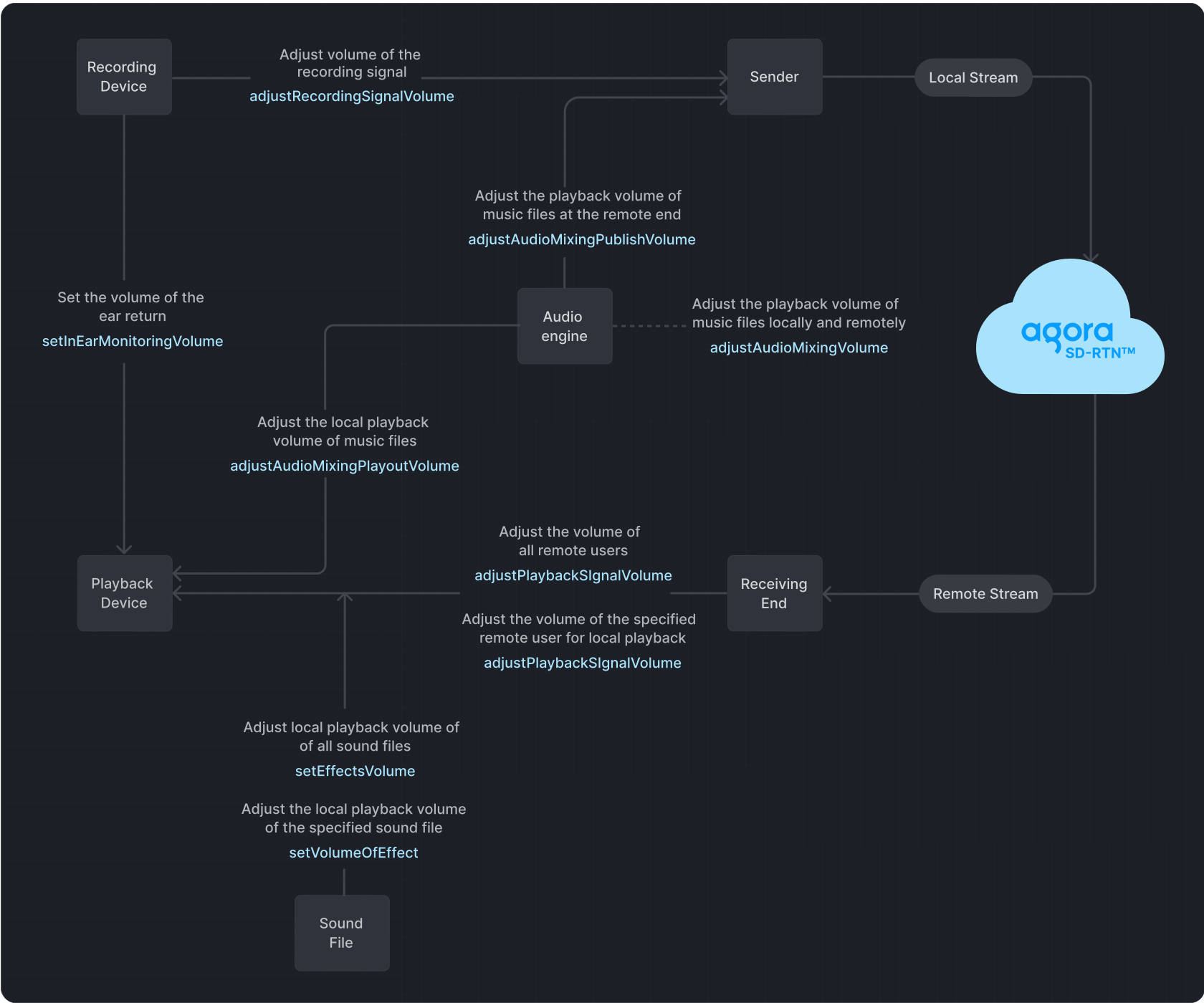
**Playback** refers to transmitting an audio signal from a sender to a recipient, where it is played back through a playback device.
**In-ear monitoring** refers to the process of playing audio captured by a device.
**Recording** refers to the process in which audio signals are captured by a recording device and then sent to the transmitter.
If you set the volume too high using the signal volume adjustment methods, it may lead to audio distortion on some devices.
## Prerequisites [#prerequisites]
Ensure that you have implemented the [SDK quickstart](../index.mdx) in your project.
## Implement volume control [#implement-volume-control]
Use one or more of the following volume control methods to adjust volume settings.
### Mute and unmute users [#mute-and-unmute-users]
To mute or unmute the local audio stream, call `muteLocalAudioStream`:
Java
Kotlin
```java
// Stop publishing the local audio stream
mRtcEngine.muteLocalAudioStream(true);
// Resume publishing the local audio stream
mRtcEngine.muteLocalAudioStream(false);
```
```kotlin
// Stop publishing the local audio stream
mRtcEngine.muteLocalAudioStream(true)
// Resume publishing the local audio stream
mRtcEngine.muteLocalAudioStream(false)
```
To mute or unmute a remote user, call `muteRemoteAudioStream` with the `uid` of the remote user:
Java
Kotlin
```java
// Stop subscribing to the audio stream of the remote user
mRtcEngine.muteRemoteAudioStream(remoteUid, true);
// Resume subscribing to the audio stream of the remote user
mRtcEngine.muteRemoteAudioStream(remoteUid, false);
```
```kotlin
// Stop subscribing to the audio stream of the remote user
mRtcEngine.muteRemoteAudioStream(remoteUid, true)
// Resume subscribing to the audio stream of the remote user
mRtcEngine.muteRemoteAudioStream(remoteUid, false)
```
To mute remote users without unsubscribing, set their [playback volume](#adjust-the-playback-volume) to `0`.
### Adjust the playback volume [#adjust-the-playback-volume]
Call `adjustPlaybackSignalVolume` or `adjustUserPlaybackSignalVolume` to adjust the volume of the audio playback signal.
Java
Kotlin
```java
int volume = 50;
int uid = 123456;
// Set the local playback volume for all remote users
mRtcEngine.adjustPlaybackSignalVolume(volume);
// Set the local playback volume for a specific remote user. For example, a user with uid=123
mRtcEngine.adjustUserPlaybackSignalVolume(uid, volume);
```
```kotlin
val volume = 50
val uid = 123456
// Set the local playback volume for all remote users
mRtcEngine.adjustPlaybackSignalVolume(volume)
// Set the local playback volume for a specific remote user (e.g., user with uid=123)
mRtcEngine.adjustUserPlaybackSignalVolume(uid, volume)
```
### Adjust the in-ear monitoring volume [#adjust-the-in-ear-monitoring-volume]
During the process of audio capture, mixing, and playback, Agora enables you to adjust the in-ear monitoring volume. Enable and set the volume using `enableInEarMonitoring` and `setInEarMonitoringVolume`.
Java
Kotlin
```java
// Enable in-ear monitoring
mRtcEngine.enableInEarMonitoring(true);
int volume = 50;
// Adjust in-ear monitoring volume
mRtcEngine.setInEarMonitoringVolume(volume);
```
```kotlin
// Enable in-ear monitoring
mRtcEngine.enableInEarMonitoring(true)
val volume = 50
// Adjust in-ear monitoring volume
mRtcEngine.setInEarMonitoringVolume(volume)
```
### Adjust the recording volume [#adjust-the-recording-volume]
Call `adjustRecordingSignalVolume` to adjust the volume of the audio recording signal.
Java
Kotlin
```java
ChannelMediaOptions options = new ChannelMediaOptions();
options.clientRoleType = Constants.CLIENT_ROLE_BROADCASTER;
mRtcEngine.joinChannel(token, channelName, 1234, options);
// Adjust the recording signal volume to 50
int vol = 50;
mRtcEngine.adjustRecordingSignalVolume(vol);
```
```kotlin
// Create ChannelMediaOptions and set client role
val options = ChannelMediaOptions().apply {
clientRoleType = Constants.CLIENT_ROLE_BROADCASTER
}
// Join channel
mRtcEngine.joinChannel(token, channelName, 1234, options)
// Adjust the recording signal volume to 50
val vol = 50
mRtcEngine.adjustRecordingSignalVolume(vol)
```
When configuring audio settings, it's essential to understand the default behavior and the options available. Here are the key points to keep in mind:
* The SDK defaults to a device volume of `85` when using the recording device to capture audio signals.
* A volume of `0` means mute, and a volume of `255` represents the maximum volume of the device.
* If the SDK detects that the recording volume is too low in the current environment, it automatically increases the volume of the recording device.
* The volume of the recording device directly influences the global volume of the device.
* If the default recording device volume does not meet your requirements, adjust it by regulating the signal amplitude captured by the microphone or sound card.
### Get volume information of users [#get-volume-information-of-users]
Voice SDK enables you to obtain the user IDs and corresponding volumes of the three users with the highest instantaneous volumes in a channel during the process of audio recording, mixing, and playback. You use the `onAudioVolumeIndication` callback to obtain this information. A returned `uid` of `0` in the callback indicates the local user.
Java
Kotlin
```java
private final IRtcEngineEventHandler mRtcEventHandler = new IRtcEngineEventHandler()
{
// ...
// Retrieve the user IDs of the three users with the highest instantaneous speaking volume,
// their respective volumes, and determine whether the local user is speaking.
@Override
public void onAudioVolumeIndication(AudioVolumeInfo[] speakers, int totalVolume) {
}
};
```
```kotlin
private val mRtcEventHandler = object : IRtcEngineEventHandler() {
// Retrieve the user IDs of the three users with the highest instantaneous speaking volume,
// their respective volumes, and determine whether the local user is speaking.
override fun onAudioVolumeIndication(speakers: Array?, totalVolume: Int) {
// Your implementation here
}
}
```
Call `enableAudioVolumeIndication` to enable reporting of the users' volume in the callback.
Java
Kotlin
```java
// Enable the onAudioVolumeIndication callback
mRtcEngine.enableAudioVolumeIndication(1000, 3, true);
```
```kotlin
// Enable the onAudioVolumeIndication callback
mRtcEngine.enableAudioVolumeIndication(1000, 3, true)
```
## Reference [#reference]
This section contains content that completes the information on this page, or points you to documentation that explains other aspects to this product.
### API reference [#api-reference]
* [`adjustRecordingSignalVolume`](https://api-ref.agora.io/en/video-sdk/android/4.x/API/class_irtcengine.html#api_irtcengine_adjustrecordingsignalvolume)
* [`adjustPlaybackSignalVolume`](https://api-ref.agora.io/en/video-sdk/android/4.x/API/class_irtcengine.html#api_irtcengine_adjustplaybacksignalvolume)
* [`adjustUserPlaybackSignalVolume`](https://api-ref.agora.io/en/video-sdk/android/4.x/API/class_irtcengine.html#api_irtcengine_adjustuserplaybacksignalvolume)
* [`adjustAudioMixingPlayoutVolume`](https://api-ref.agora.io/en/video-sdk/android/4.x/API/class_irtcengine.html#api_irtcengine_adjustaudiomixingplayoutvolume)
* [`enableInEarMonitoring` \[2/2\]](https://api-ref.agora.io/en/video-sdk/android/4.x/API/class_irtcengine.html#api_irtcengine_enableinearmonitoring2)
* [`setInEarMonitoringVolume`](https://api-ref.agora.io/en/video-sdk/android/4.x/API/class_irtcengine.html#api_irtcengine_setinearmonitoringvolume)
* [`onAudioVolumeIndication`](https://api-ref.agora.io/en/video-sdk/android/4.x/API/class_irtcengineeventhandler.html#callback_irtcengineeventhandler_onaudiovolumeindication)
* [`muteLocalAudioStream`](https://api-ref.agora.io/en/video-sdk/android/4.x/API/class_irtcengine.html#api_irtcengine_mutelocalaudiostream)
* [`muteRemoteAudioStream`](https://api-ref.agora.io/en/video-sdk/android/4.x/API/class_irtcengine.html#api_irtcengine_muteremoteaudiostream)
### Sample projects [#sample-projects]
Agora offers the following open-source sample project for adjusting recording, playback, and in-ear monitoring volumes for your reference.
* GitHub: [JoinChannelAudio](https://github.com/AgoraIO/API-Examples/blob/main/Android/APIExample/app/src/main/java/io/agora/api/example/examples/basic/JoinChannelAudio.java)
### Frequently asked questions [#frequently-asked-questions]
* [How can I solve the problem of low volume?](/en/api-reference/faq/quality/audio_low)
### See also [#see-also]
* [Custom audio source](custom-audio.mdx)
* [Custom video source](/en/realtime-media/video/build/capture-and-render-video/custom-video)