# Quickstart (/en/realtime-media/video/get-started-sdk/android)
> For AI agents: see the complete documentation index at [llms.txt](/llms.txt).
This page provides a step-by-step guide on how to create a basic Video Calling app using the Agora Video SDK.
## Understand the tech [#understand-the-tech]
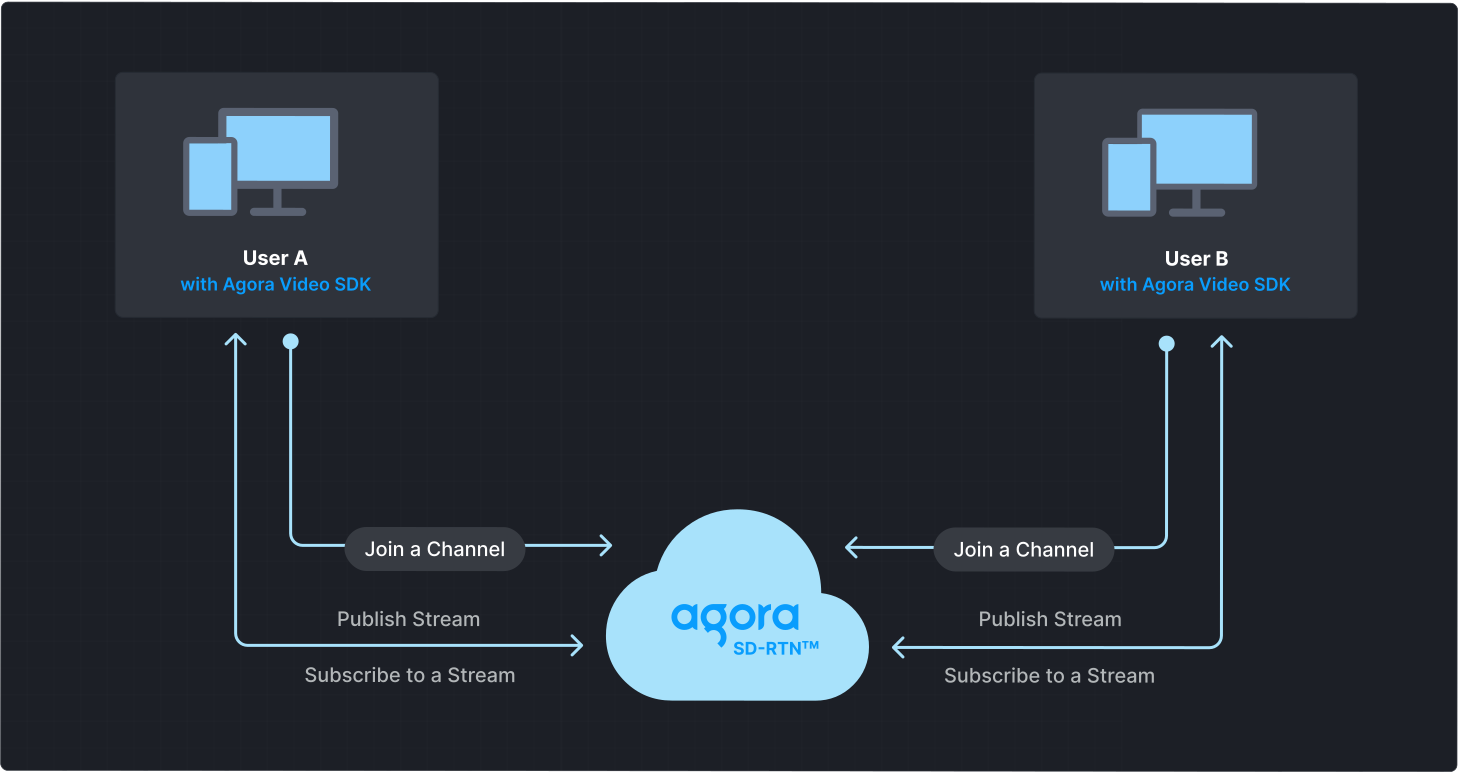
To start a Video Calling session, implement the following steps in your app:
* **Initialize the engine**: Before calling other APIs, create and initialize an engine instance.
* **Join a channel**: Call methods to create and join a channel.
* **Send and receive audio and video**: All users can publish streams to the channel and subscribe to audio and video streams published by other users in the channel.
## Prerequisites [#prerequisites]
* A camera and a microphone.
* A valid Agora account and project. See [Agora account management](/en/realtime-media/video/manage-agora-account) for details.
* [Android Studio](https://developer.android.com/studio) 4.2 or higher.
* Android SDK API Level 21 or higher.
* Two mobile devices running Android 5.0 or higher.
## Set up your project [#set-up-your-project]
Create a new project
Add to an existing project
1. Create a [new project](https://developer.android.com/studio/projects/create-project).
1. Open Android Studio and select **File > New > New Project...**.
2. Select **Phone and Tablet** > **Empty Activity** and click **Next**.
3. Set the project name and storage path.
4. Select **Java** or **Kotlin** as the language, and click **Finish** to create the Android project.
Note
After you create a project, Android Studio automatically starts gradle sync. Ensure that the synchronization is successful before proceeding to the next step.
1. Add a new activity to your project.
1. Open your project in Android Studio.
2. Right-click on the `app/src/main/java/` folder.
3. Select **New → Activity → Empty Activity**.
4. Enter an activity name and click **Finish**.
This guide uses `MainActivity` as the activity name in the sample code. Replace it with your activity name where required.
2. Add a layout file for your activity.
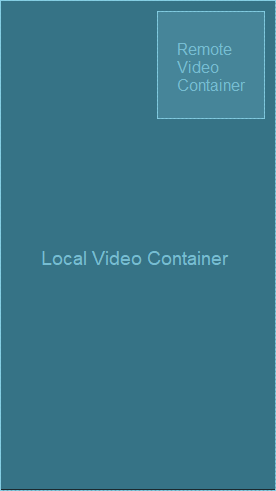
Set up two container elements in your activity to display local and remote video streams. Refer to [Create a user interface](#create-a-user-interface) to get a bare bones sample layout.
### Install the SDK [#install-the-sdk]
Use either of the following methods to add Video SDK to your project.
Maven Central
Manual download
1. Open the `settings.gradle` file in the project's root directory and add the Maven Central dependency, if it doesn't already exist:
```groovy
repositories {
mavenCentral()
}
```
If your Android project uses [dependencyResolutionManagement](https://docs.gradle.org/current/userguide/declaring_repositories.html#sub\:centralized-repository-declaration), the method of adding the Maven Central dependency may differ.
2. To integrate the Video SDK into your Android project, add the following to the `dependencies` block in your project module `build.gradle` file:
* Groovy `build.gradle`
```groovy
implementation 'io.agora.rtc:full-sdk:x.y.z'
```
* Kotlin `build.gradle.kts`
```kotlin
implementation("io.agora.rtc:full-sdk:x.y.z")
```
Replace `x.y.z` with the specific SDK version number, such as `4.5.0`.
To get the latest version number, check the [Release notes](/en/realtime-media/video/reference/release-notes). To integrate the Lite SDK, use `io.agora.rtc:lite-sdk` instead.
3. Prevent code obfuscation
Open the `/app/proguard-rules.pro` file and add the following lines to prevent the Video SDK code from being obfuscated:
```java
-keep class io.agora.** { *; }
-dontwarn io.agora.**
```
1. Download the latest version of Video SDK from the [SDKs](/en/api-reference/sdks?platform=android) page and unzip it.
2. Open the unzipped file and copy the following files or subfolders to your project path.
| File or folder | Project path |
| :----------------------------------- | :----------------------- |
| `agora-rtc-sdk.jar` file | `/app/libs/` |
| `arm64-v8a` folder | `/app/src/main/jniLibs/` |
| `armeabi-v7a` folder | `/app/src/main/jniLibs/` |
| `x86` folder | `/app/src/main/jniLibs/` |
| `x86_64` folder | `/app/src/main/jniLibs/` |
| `high_level_api` in `include` folder | `/app/src/main/jniLibs/` |
3. Select the file `/app/libs/agora-rtc-sdk.jar` in the left navigation bar of Android Studio project files, right-click, and select **add as a library** from the drop-down menu.
4. Prevent code obfuscation
Open the `/app/proguard-rules.pro` file and add the following lines to prevent the Video SDK code from being obfuscated:
```java
-keep class io.agora.** { *; }
-dontwarn io.agora.**
```
## Implement Video Calling [#implement-video-calling]
This section guides you through the implementation of basic real-time audio and video interaction in your app.
The following figure illustrates the essential steps:
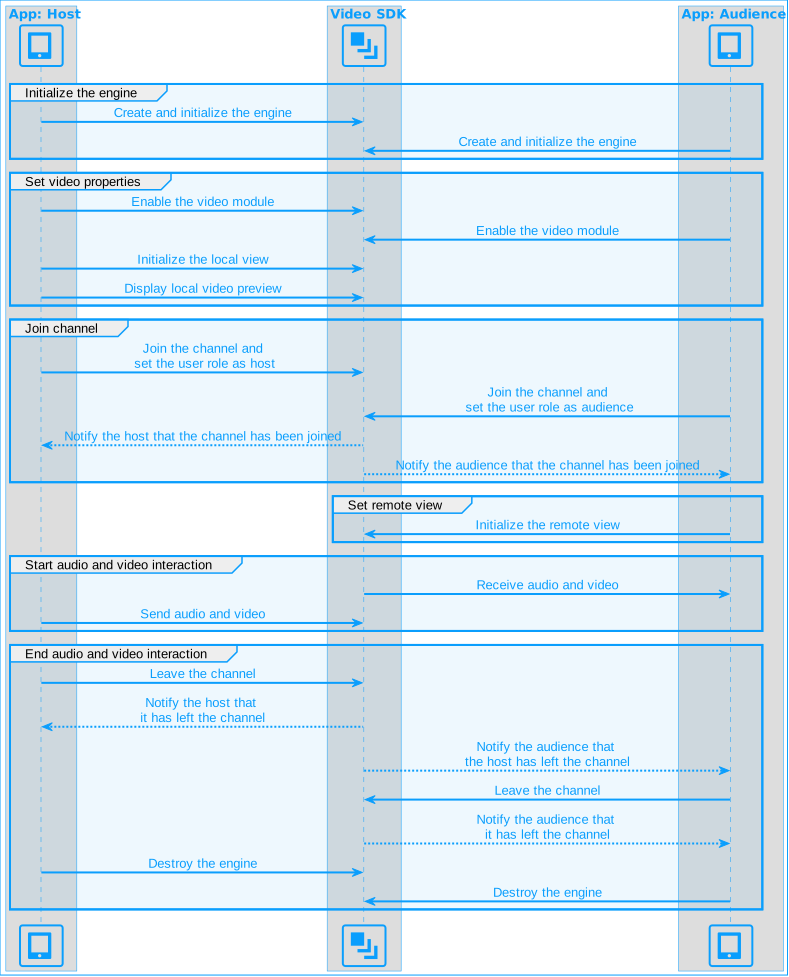
This guide includes [complete sample code](#complete-sample-code) that demonstrates implementing basic real-time interaction. To understand the core API calls in the sample code, review the following implementation steps and use the code in your `MainActivity` file.
### Import Agora classes [#import-agora-classes]
Import the relevant Agora classes and interfaces:
Java
Kotlin
```java
import io.agora.rtc2.Constants;
import io.agora.rtc2.IRtcEngineEventHandler;
import io.agora.rtc2.RtcEngine;
import io.agora.rtc2.RtcEngineConfig;
import io.agora.rtc2.video.VideoCanvas;
import io.agora.rtc2.ChannelMediaOptions;
```
```kotlin
import io.agora.rtc2.Constants
import io.agora.rtc2.IRtcEngineEventHandler
import io.agora.rtc2.RtcEngine
import io.agora.rtc2.RtcEngineConfig
import io.agora.rtc2.video.VideoCanvas
import io.agora.rtc2.ChannelMediaOptions
```
### Initialize the engine [#initialize-the-engine]
For real-time communication, initialize an `RtcEngine` instance and set up event handlers to manage user interactions within the channel. Use `RtcEngineConfig` to specify the application context, [App ID](/en/realtime-media/video/manage-agora-account#get-the-app-id), and custom [event handler](#subscribe-to-video-sdk-events), then call `RtcEngine.create(config)` to initialize the engine, enabling further channel operations. In your `MainActivity` file, add the following code:
Java
Kotlin
```java
// Fill in the app ID from Agora Console
private String myAppId = "";
private RtcEngine mRtcEngine;
private void initializeAgoraVideoSDK() {
try {
RtcEngineConfig config = new RtcEngineConfig();
config.mContext = getBaseContext();
config.mAppId = myAppId;
config.mEventHandler = mRtcEventHandler;
mRtcEngine = RtcEngine.create(config);
} catch (Exception e) {
throw new RuntimeException("Error initializing RTC engine: " + e.getMessage());
}
}
```
```kotlin
// Fill in the App ID obtained from the Agora Console
private val myAppId = ""
private var mRtcEngine: RtcEngine? = null
private fun initializeRtcEngine() {
try {
val config = RtcEngineConfig().apply {
mContext = applicationContext
mAppId = myAppId
mEventHandler = mRtcEventHandler
}
mRtcEngine = RtcEngine.create(config)
} catch (e: Exception) {
throw RuntimeException("Error initializing RTC engine: ${e.message}")
}
}
```
### Join a channel [#join-a-channel]
To join a channel, call `joinChannel` with the following parameters:
* **Channel name**: The name of the channel to join. Clients that pass the same channel name join the same channel. If a channel with the specified name does not exist, it is created when the first user joins.
* **Authentication token**: A dynamic key that authenticates a user when the client joins a channel. In a production environment, you obtain a token from a [token server](/en/realtime-media/video/build/authenticate-users/deploy-token-server) in your security infrastructure. For the purpose of this guide [Generate a temporary token](/en/realtime-media/video/manage-agora-account#generate-temporary-tokens).
* **User ID**: A 32-bit signed integer that identifies a user in the channel. You can specify a unique user ID for each user yourself. If you set the user ID to `0` when joining a channel, the SDK generates a random number for the user ID and returns the value in the `onJoinChannelSuccess` callback.
* **Channel media options**: Configure `ChannelMediaOptions` to define publishing and subscription settings, optimize performance for your specific use-case, and set optional parameters.
For Video Calling, set the `channelProfile` to `CHANNEL_PROFILE_COMMUNICATION` and the `clientRoleType` to `CLIENT_ROLE_BROADCASTER`.
Java
Kotlin
```java
// Fill in the channel name
private String channelName = "";
// Fill in the temporary token generated from Agora Console
private String token = "";
private void joinChannel() {
ChannelMediaOptions options = new ChannelMediaOptions();
options.clientRoleType = Constants.CLIENT_ROLE_BROADCASTER;
options.channelProfile = Constants.CHANNEL_PROFILE_COMMUNICATION;
options.publishCameraTrack = true;
options.publishMicrophoneTrack = true;
mRtcEngine.joinChannel(token, channelName, 0, options);
}
```
```kotlin
// Fill in the channel name
private val channelName = ""
// Fill in the temporary token generated from Agora Console
private val token = ""
private fun joinChannel() {
val options = ChannelMediaOptions().apply {
clientRoleType = Constants.CLIENT_ROLE_BROADCASTER
channelProfile = Constants.CHANNEL_PROFILE_COMMUNICATION
publishMicrophoneTrack = true
publishCameraTrack = true
}
mRtcEngine.joinChannel(token, channelName, 0, options)
}
```
### Subscribe to Video SDK events [#subscribe-to-video-sdk-events]
The Video SDK provides an interface for subscribing to channel events. To use it, create an instance of `IRtcEngineEventHandler` and implement the event methods you want to handle.
To ensure that you receive all Video SDK events, set the engine event handler before joining a channel.
Java
Kotlin
```java
private final IRtcEngineEventHandler mRtcEventHandler = new IRtcEngineEventHandler() {
// Triggered when the local user successfully joins the specified channel.
@Override
public void onJoinChannelSuccess(String channel, int uid, int elapsed) {
super.onJoinChannelSuccess(channel, uid, elapsed);
showToast("Joined channel " + channel);
}
// Triggered when a remote user/host joins the channel.
@Override
public void onUserJoined(int uid, int elapsed) {
super.onUserJoined(uid, elapsed);
runOnUiThread(() -> {
// Initialize and display remote video view for the new user.
setupRemoteVideo(uid);
showToast("User joined: " + uid);
});
}
// Triggered when a remote user/host leaves the channel.
@Override
public void onUserOffline(int uid, int reason) {
super.onUserOffline(uid, reason);
runOnUiThread(() -> {
showToast("User offline: " + uid);
});
}
};
```
```kotlin
private val mRtcEventHandler = object : IRtcEngineEventHandler() {
override fun onJoinChannelSuccess(channel: String?, uid: Int, elapsed: Int) {
super.onJoinChannelSuccess(channel, uid, elapsed)
runOnUiThread {
showToast("Joined channel $channel")
}
}
override fun onUserJoined(uid: Int, elapsed: Int) {
runOnUiThread {
showToast("User joined: $uid")
}
}
override fun onUserOffline(uid: Int, reason: Int) {
super.onUserOffline(uid, reason)
runOnUiThread {
showToast("User offline: $uid")
}
}
}
```
### Enable the video module [#enable-the-video-module]
Follow these steps to enable the video module:
1. Call `enableVideo` to enable the video module.
2. Call `startPreview` to enable local video preview.
Java
Kotlin
```java
private void enableVideo() {
mRtcEngine.enableVideo();
mRtcEngine.startPreview();
}
```
```kotlin
private fun enableVideo() {
mRtcEngine?.apply {
enableVideo()
startPreview()
}
}
```
### Display the local video [#display-the-local-video]
Call `setupLocalVideo` to initialize the local view and set the local video display properties.
Java
Kotlin
```java
private void setupLocalVideo() {
FrameLayout container = findViewById(R.id.local_video_view_container);
SurfaceView surfaceView = new SurfaceView(getBaseContext());
container.addView(surfaceView);
mRtcEngine.setupLocalVideo(new VideoCanvas(surfaceView, VideoCanvas.RENDER_MODE_FIT, 0));
}
```
```kotlin
/**
* Initializes the local video view and sets the display properties.
* This method adds a SurfaceView to the local video container and configures it.
*/
private fun setupLocalVideo() {
val container: FrameLayout = findViewById(R.id.local_video_view_container)
val surfaceView = SurfaceView(baseContext)
container.addView(surfaceView)
mRtcEngine.setupLocalVideo(VideoCanvas(surfaceView, VideoCanvas.RENDER_MODE_FIT, 0))
}
```
### Display remote video [#display-remote-video]
When a remote user joins the channel, call `setupRemoteVideo` and pass in the remote user's `uid`, obtained from the `onUserJoined` callback, to display the remote video.
Java
Kotlin
```java
private void setupRemoteVideo(int uid) {
FrameLayout container = findViewById(R.id.remote_video_view_container);
SurfaceView surfaceView = new SurfaceView(getBaseContext());
surfaceView.setZOrderMediaOverlay(true);
container.addView(surfaceView);
mRtcEngine.setupRemoteVideo(new VideoCanvas(surfaceView, VideoCanvas.RENDER_MODE_FIT, uid));
}
```
```kotlin
private fun setupRemoteVideo(uid: Int) {
val container = findViewById(R.id.remote_video_view_container)
val surfaceView = SurfaceView(baseContext).apply {
setZOrderMediaOverlay(true)
}
container.addView(surfaceView)
mRtcEngine.setupRemoteVideo(VideoCanvas(surfaceView, VideoCanvas.RENDER_MODE_FIT, uid))
}
```
### Handle permissions [#handle-permissions]
To access the media devices on Android devices, declare the necessary permissions in the app's manifest and ensure that the user grants these permissions when the client starts.
1. Open your project's `AndroidManifest.xml` file and add the following permissions before ``:
```xml
```
2. Use the following code to handle runtime permissions in your Android app. The logic ensures that the necessary permissions are granted before starting Video Calling. In your `MainActivity` file, add the following code:
Java
Kotlin
```java
private static final int PERMISSION_REQ_ID = 22;
private void requestPermissions() {
ActivityCompat.requestPermissions(this, getRequiredPermissions(), PERMISSION_REQ_ID);
}
private boolean checkPermissions() {
for (String permission : getRequiredPermissions()) {
if (ContextCompat.checkSelfPermission(this, permission) != PackageManager.PERMISSION_GRANTED) {
return false;
}
}
return true;
}
private String[] getRequiredPermissions() {
if (android.os.Build.VERSION.SDK_INT >= android.os.Build.VERSION_CODES.S) {
return new String[]{
Manifest.permission.RECORD_AUDIO,
Manifest.permission.CAMERA,
Manifest.permission.READ_PHONE_STATE,
Manifest.permission.BLUETOOTH_CONNECT
};
} else {
return new String[]{
Manifest.permission.RECORD_AUDIO,
Manifest.permission.CAMERA
};
}
}
@Override
public void onRequestPermissionsResult(int requestCode, @NonNull String[] permissions, @NonNull int[] grantResults) {
super.onRequestPermissionsResult(requestCode, permissions, grantResults);
if (requestCode == PERMISSION_REQ_ID && checkPermissions()) {
startVideoCalling();
}
}
```
```kotlin
private val PERMISSION_REQ_ID = 22
private fun requestPermissions() {
ActivityCompat.requestPermissions(this, getRequiredPermissions(), PERMISSION_REQ_ID)
}
private fun checkPermissions(): Boolean {
for (permission in getRequiredPermissions()) {
if (ContextCompat.checkSelfPermission(this, permission) != PackageManager.PERMISSION_GRANTED) {
return false
}
}
return true
}
private fun getRequiredPermissions(): Array {
return if (Build.VERSION.SDK_INT >= Build.VERSION_CODES.S) {
arrayOf(
Manifest.permission.RECORD_AUDIO,
Manifest.permission.CAMERA,
Manifest.permission.READ_PHONE_STATE,
Manifest.permission.BLUETOOTH_CONNECT
)
} else {
arrayOf(
Manifest.permission.RECORD_AUDIO,
Manifest.permission.CAMERA
)
}
}
override fun onRequestPermissionsResult(
requestCode: Int,
permissions: Array,
grantResults: IntArray
) {
super.onRequestPermissionsResult(requestCode, permissions, grantResults)
if (requestCode == PERMISSION_REQ_ID && checkPermissions()) {
startVideoCalling()
}
}
```
### Start and close the app [#start-and-close-the-app]
When a user launches your client, start real-time interaction. When a user closes the app, stop the interaction.
1. In the `onCreate` callback, check whether the client has been granted the required permissions. If the permissions have not been granted, request the required permissions from the user. If permissions are granted, initialize `RtcEngine` and join a channel.
Java
Kotlin
```java
@Override
protected void onCreate(Bundle savedInstanceState) {
super.onCreate(savedInstanceState);
setContentView(R.layout.activity_main);
if (checkPermissions()) {
startVideoCalling();
} else {
requestPermissions();
}
}
```
```kotlin
override fun onCreate(savedInstanceState: Bundle?) {
super.onCreate(savedInstanceState)
setContentView(R.layout.activity_main)
if (checkPermissions()) {
startVideoCalling()
} else {
requestPermissions()
}
}
```
2. When a user closes the client, or switches the client to the background, call `stopPreview` to stop the video preview and then call `leaveChannel` to leave the current channel and release all session-related resources.
Java
Kotlin
```java
private void cleanupAgoraEngine() {
if (mRtcEngine != null) {
mRtcEngine.stopPreview();
mRtcEngine.leaveChannel();
mRtcEngine = null;
}
}
```
```kotlin
private fun cleanupAgoraEngine() {
mRtcEngine?.apply {
stopPreview()
leaveChannel()
}
mRtcEngine = null
}
```
### Complete sample code [#complete-sample-code]
A complete code sample demonstrating the basic process of real-time interaction is provided for your reference. To use the sample code, copy the following lines into the `MainActivity` file in your project. Then, replace `` in package `com.example.` with your project's name.
Java
Kotlin
```java
package com.example.;
import android.Manifest;
import android.content.pm.PackageManager;
import android.os.Bundle;
import android.view.SurfaceView;
import android.widget.FrameLayout;
import android.widget.Toast;
import androidx.annotation.NonNull;
import androidx.appcompat.app.AppCompatActivity;
import androidx.core.app.ActivityCompat;
import androidx.core.content.ContextCompat;
import io.agora.rtc2.ChannelMediaOptions;
import io.agora.rtc2.Constants;
import io.agora.rtc2.IRtcEngineEventHandler;
import io.agora.rtc2.RtcEngine;
import io.agora.rtc2.RtcEngineConfig;
import io.agora.rtc2.video.VideoCanvas;
public class MainActivity extends AppCompatActivity {
private static final int PERMISSION_REQ_ID = 22;
private String myAppId = "";
private String channelName = "";
private String token = "";
private RtcEngine mRtcEngine;
private final IRtcEngineEventHandler mRtcEventHandler = new IRtcEngineEventHandler() {
// Callback when successfully joining the channel
@Override
public void onJoinChannelSuccess(String channel, int uid, int elapsed) {
super.onJoinChannelSuccess(channel, uid, elapsed);
showToast("Joined channel " + channel);
}
// Callback when a remote user or host joins the current channel
@Override
public void onUserJoined(int uid, int elapsed) {
super.onUserJoined(uid, elapsed);
runOnUiThread(() -> {
// When a remote user joins the channel, display the remote video stream for the specified uid
setupRemoteVideo(uid);
showToast("User joined: " + uid); // Show toast for user joining
});
}
// Callback when a remote user or host leaves the current channel
@Override
public void onUserOffline(int uid, int reason) {
super.onUserOffline(uid, reason);
runOnUiThread(() -> {
showToast("User offline: " + uid); // Show toast for user going offline
});
}
};
@Override
protected void onCreate(Bundle savedInstanceState) {
super.onCreate(savedInstanceState);
setContentView(R.layout.activity_main);
if (checkPermissions()) {
startVideoCalling();
} else {
requestPermissions();
}
}
private void requestPermissions() {
ActivityCompat.requestPermissions(this, getRequiredPermissions(), PERMISSION_REQ_ID);
}
private boolean checkPermissions() {
for (String permission : getRequiredPermissions()) {
if (ContextCompat.checkSelfPermission(this, permission) != PackageManager.PERMISSION_GRANTED) {
return false;
}
}
return true;
}
private String[] getRequiredPermissions() {
if (android.os.Build.VERSION.SDK_INT >= android.os.Build.VERSION_CODES.S) {
return new String[]{
Manifest.permission.RECORD_AUDIO,
Manifest.permission.CAMERA,
Manifest.permission.READ_PHONE_STATE,
Manifest.permission.BLUETOOTH_CONNECT
};
} else {
return new String[]{
Manifest.permission.RECORD_AUDIO,
Manifest.permission.CAMERA
};
}
}
@Override
public void onRequestPermissionsResult(int requestCode, @NonNull String[] permissions, @NonNull int[] grantResults) {
super.onRequestPermissionsResult(requestCode, permissions, grantResults);
if (requestCode == PERMISSION_REQ_ID && checkPermissions()) {
startVideoCalling();
}
}
private void startVideoCalling() {
initializeAgoraVideoSDK();
enableVideo();
setupLocalVideo();
joinChannel();
}
private void initializeAgoraVideoSDK() {
try {
RtcEngineConfig config = new RtcEngineConfig();
config.mContext = getBaseContext();
config.mAppId = myAppId;
config.mEventHandler = mRtcEventHandler;
mRtcEngine = RtcEngine.create(config);
} catch (Exception e) {
throw new RuntimeException("Error initializing RTC engine: " + e.getMessage());
}
}
private void enableVideo() {
mRtcEngine.enableVideo();
mRtcEngine.startPreview();
}
private void setupLocalVideo() {
FrameLayout container = findViewById(R.id.local_video_view_container);
SurfaceView surfaceView = new SurfaceView(getBaseContext());
container.addView(surfaceView);
mRtcEngine.setupLocalVideo(new VideoCanvas(surfaceView, VideoCanvas.RENDER_MODE_FIT, 0));
}
private void joinChannel() {
ChannelMediaOptions options = new ChannelMediaOptions();
options.clientRoleType = Constants.CLIENT_ROLE_BROADCASTER;
options.channelProfile = Constants.CHANNEL_PROFILE_COMMUNICATION;
options.publishCameraTrack = true;
options.publishMicrophoneTrack = true;
mRtcEngine.joinChannel(token, channelName, 0, options);
}
private void setupRemoteVideo(int uid) {
FrameLayout container = findViewById(R.id.remote_video_view_container);
SurfaceView surfaceView = new SurfaceView(getBaseContext());
surfaceView.setZOrderMediaOverlay(true);
container.addView(surfaceView);
mRtcEngine.setupRemoteVideo(new VideoCanvas(surfaceView, VideoCanvas.RENDER_MODE_FIT, uid));
}
@Override
protected void onDestroy() {
super.onDestroy();
cleanupAgoraEngine();
}
private void cleanupAgoraEngine() {
if (mRtcEngine != null) {
mRtcEngine.stopPreview();
mRtcEngine.leaveChannel();
mRtcEngine = null;
}
}
private void showToast(String message) {
runOnUiThread(() -> Toast.makeText(MainActivity.this, message, Toast.LENGTH_SHORT).show());
}
}
```
```kotlin
package com.example.
import android.Manifest
import android.content.pm.PackageManager
import android.os.Bundle
import android.view.SurfaceView
import android.widget.FrameLayout
import android.widget.Toast
import androidx.appcompat.app.AppCompatActivity
import androidx.core.app.ActivityCompat
import androidx.core.content.ContextCompat
import io.agora.rtc2.ChannelMediaOptions
import io.agora.rtc2.Constants
import io.agora.rtc2.IRtcEngineEventHandler
import io.agora.rtc2.RtcEngine
import io.agora.rtc2.RtcEngineConfig
import io.agora.rtc2.video.VideoCanvas
class MainActivity : AppCompatActivity() {
companion object {
private const val PERMISSION_REQ_ID = 22
}
private val myAppId = ""
private val channelName = ""
private val token = ""
private var mRtcEngine: RtcEngine? = null
private val mRtcEventHandler = object : IRtcEngineEventHandler() {
override fun onJoinChannelSuccess(channel: String?, uid: Int, elapsed: Int) {
super.onJoinChannelSuccess(channel, uid, elapsed)
showToast("Joined channel $channel")
}
override fun onUserJoined(uid: Int, elapsed: Int) {
super.onUserJoined(uid, elapsed)
runOnUiThread {
setupRemoteVideo(uid)
showToast("User joined: $uid")
}
}
override fun onUserOffline(uid: Int, reason: Int) {
super.onUserOffline(uid, reason)
runOnUiThread {
showToast("User offline: $uid")
}
}
}
override fun onCreate(savedInstanceState: Bundle?) {
super.onCreate(savedInstanceState)
setContentView(R.layout.activity_main)
if (checkPermissions()) {
startVideoCalling()
} else {
requestPermissions()
}
}
private fun requestPermissions() {
ActivityCompat.requestPermissions(this, getRequiredPermissions(), PERMISSION_REQ_ID)
}
private fun checkPermissions(): Boolean {
return getRequiredPermissions().all {
ContextCompat.checkSelfPermission(this, it) == PackageManager.PERMISSION_GRANTED
}
}
private fun getRequiredPermissions(): Array {
return if (android.os.Build.VERSION.SDK_INT >= android.os.Build.VERSION_CODES.S) {
arrayOf(
Manifest.permission.RECORD_AUDIO,
Manifest.permission.CAMERA,
Manifest.permission.READ_PHONE_STATE,
Manifest.permission.BLUETOOTH_CONNECT
)
} else {
arrayOf(
Manifest.permission.RECORD_AUDIO,
Manifest.permission.CAMERA
)
}
}
override fun onRequestPermissionsResult(
requestCode: Int,
permissions: Array,
grantResults: IntArray
) {
super.onRequestPermissionsResult(requestCode, permissions, grantResults)
if (requestCode == PERMISSION_REQ_ID && checkPermissions()) {
startVideoCalling()
}
}
private fun startVideoCalling() {
initializeAgoraVideoSDK()
enableVideo()
setupLocalVideo()
joinChannel()
}
private fun initializeAgoraVideoSDK() {
try {
val config = RtcEngineConfig().apply {
mContext = applicationContext
mAppId = myAppId
mEventHandler = mRtcEventHandler
}
mRtcEngine = RtcEngine.create(config)
} catch (e: Exception) {
throw RuntimeException("Error initializing RTC engine: ${e.message}")
}
}
private fun enableVideo() {
mRtcEngine?.apply {
enableVideo()
startPreview()
}
}
private fun setupLocalVideo() {
val container: FrameLayout = findViewById(R.id.local_video_view_container)
val surfaceView = SurfaceView(baseContext)
container.addView(surfaceView)
mRtcEngine?.setupLocalVideo(VideoCanvas(surfaceView, VideoCanvas.RENDER_MODE_FIT, 0))
}
private fun joinChannel() {
val options = ChannelMediaOptions().apply {
clientRoleType = Constants.CLIENT_ROLE_BROADCASTER
channelProfile = Constants.CHANNEL_PROFILE_COMMUNICATION
publishMicrophoneTrack = true
publishCameraTrack = true
}
mRtcEngine?.joinChannel(token, channelName, 0, options)
}
private fun setupRemoteVideo(uid: Int) {
val container: FrameLayout = findViewById(R.id.remote_video_view_container)
val surfaceView = SurfaceView(applicationContext).apply {
setZOrderMediaOverlay(true)
container.addView(this)
}
mRtcEngine?.setupRemoteVideo(VideoCanvas(surfaceView, VideoCanvas.RENDER_MODE_FIT, uid))
}
override fun onDestroy() {
super.onDestroy()
cleanupAgoraEngine()
}
private fun cleanupAgoraEngine() {
mRtcEngine?.apply {
stopPreview()
leaveChannel()
}
mRtcEngine = null
}
private fun showToast(message: String) {
runOnUiThread {
Toast.makeText(this@MainActivity, message, Toast.LENGTH_SHORT).show()
}
}
}
```
For the `myAppId` and `token` variables, replace the placeholders with the values you obtained from Agora Console. Ensure you enter the same `channelName` you used when generating the temporary token.
### Create a user interface [#create-a-user-interface]
To connect the sample code to your existing UI, ensure that your XML layout includes the container UI element IDs used to [Display the local video](#display-the-local-video) and [Display remote video](#display-remote-video).
Alternatively, use the following sample code to generate a basic user interface. Replace the existing content in `/app/src/main/res/layout/activity_main.xml` with this code.
### Sample code to create the user interface [#sample-code-to-create-the-user-interface]
```xml
```
## Test the sample code [#test-the-sample-code]
Take the following steps to test the sample code:
1. In `MainActivity` update the values for `myAppId`, and `token` with values from Agora Console. Fill in the same `channelName` you used to generate the token.
2. Enable developer options on your Android test device. Turn on USB debugging, connect the Android device to your development machine through a USB cable, and check that your device appears in the Android device options.
3. In Android Studio, click  **Sync Project with Gradle Files** to resolve project dependencies and update the configuration.
4. After synchronization is successful, click  **Run app**. Android Studio starts compilation. After a few moments, the app is installed on your Android device.
5. Launch the App, grant recording and camera permissions. If you set the user role to host, you will see yourself in the local view.
6. On a second Android device, repeat the previous steps to install and launch the client. Alternatively, use the [Web demo](https://webdemo.agora.io/basicVideoCall/index.html) to join the same channel and test the following use-cases:
* If users on both devices join the channel as hosts, they can see and hear each other.
* If one user joins as host and the other as audience, the host can see themselves in the local video window; the audience can see the host in the remote video window and hear the host.
## Reference [#reference]
This section contains content that completes the information on this page, or points you to documentation that explains other aspects of this product.
* If a firewall is deployed in your network environment, refer to [Connect with Cloud Proxy](/en/realtime-media/video/build/manage-connection-and-quality/cloud-proxy) to use Agora services normally.
### Next steps [#next-steps]
After implementing the quickstart sample, read the following documents to learn more:
* To ensure communication security in a test or production environment, best practice is to obtain and use a token from an authentication server. For details, see [Secure authentication with tokens](/en/realtime-media/video/build/authenticate-users/authentication-workflow).
### Sample project [#sample-project]
Agora provides open source sample projects on [GitHub](https://github.com/AgoraIO/API-Examples) for your reference. Download or view the [JoinChannelVideo](https://github.com/AgoraIO-Community/Agora-RTC-QuickStart/tree/main/Android/Agora-RTC-QuickStart-Android) project for a more detailed example.
### API reference [#api-reference]
* [`RtcEngineConfig`](https://api-ref.agora.io/en/video-sdk/android/4.x/API/class_rtcengineconfig.html)
* [`create`](https://api-ref.agora.io/en/video-sdk/android/4.x/API/class_irtcengine.html#api_irtcengine_create)
* [`ChannelMediaOptions`](https://api-ref.agora.io/en/video-sdk/android/4.x/API/class_channelmediaoptions.html)
* [`joinChannel`](https://api-ref.agora.io/en/video-sdk/android/4.x/API/class_irtcengine.html#api_irtcengine_joinchannel2)
* [`enableVideo`](https://api-ref.agora.io/en/video-sdk/android/4.x/API/class_irtcengine.html#api_irtcengine_enablevideo)
* [`startPreview`](https://api-ref.agora.io/en/video-sdk/android/4.x/API/class_irtcengine.html#api_irtcengine_startpreview)
* [`leaveChannel`](https://api-ref.agora.io/en/video-sdk/android/4.x/API/class_irtcengine.html#api_irtcengine_leavechannel)
* [`IRtcEngineEventHandler`](https://api-ref.agora.io/en/video-sdk/android/4.x/API/class_irtcengineeventhandler.html#class_irtcengineeventhandler)
### Frequently asked questions [#frequently-asked-questions]
* [How can I fix black screen issues?](/en/api-reference/faq/quality/video_blank#black-screen-on-the-local-side)
* [Why can't I turn on the camera?](/en/api-reference/faq/quality/video_camera)
* [How can I listen for audience joining or leaving a channel?](/en/api-reference/faq/integration/audience_event)
* [How can I solve channel-related issues?](/en/api-reference/faq/integration/channel)
* [How can I set the log file?](/en/api-reference/faq/integration/set_log_file)
* [Why do apps on some Android versions fail to capture audio and video after screen locking or switching to the background?](/en/api-reference/faq/quality/android_background)
### See also [#see-also]
* [SDK error codes](/en/realtime-media/video/reference/error-codes)
* [Connection status management](/en/realtime-media/video/build/manage-connection-and-quality/connection-status-management)