# Pre-call tests (/en/realtime-media/video/build/manage-connection-and-quality/pre-call-tests/react-native)
> For AI agents: see the complete documentation index at [llms.txt](/llms.txt).
In video calling implementations that demand high communication quality, pre-call detection helps identify and troubleshoot issues beforehand, ensuring seamless real-time interaction.
This page shows you how to use Video SDK to run pre-call tests to identify and troubleshoot communication quality issues in your app.
## Understand the tech [#understand-the-tech]
Pre-call testing typically covers two aspects:
* **Equipment quality test**
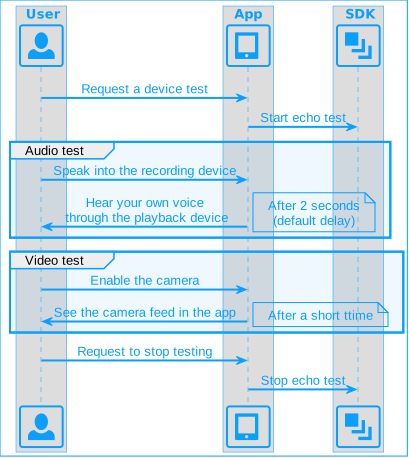
To test whether the local microphone, speaker, and camera are working properly, you run an echo test. The basic process of conducting an echo test is as follows:
* **Network quality analysis**
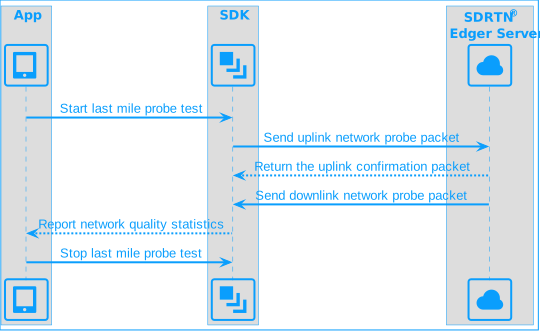
The quality of the last mile network affects the smoothness and clarity of the audio and video that the user sends and receives. Last mile refers to the last leg of communication network between the edge server of the Agora SDRTN® and the end-user devices. Network quality analysis enables you to get feedback on the available bandwidth, packet loss rate, network jitter, and round-trip delay of the upstream and downstream last-mile networks. The following figure shows the basic process of running a last-mile probe test.
information
Best practice is to run the device test first and then perform a network test.
## Prerequisites [#prerequisites]
Ensure that you have implemented the [SDK quickstart](/en/realtime-media/video/get-started-sdk) project and that your app has obtained permissions to use the relevant devices.
## Implement pre-call testing [#implement-pre-call-testing]
This section shows you how to implement pre-call testing in your project.
### Equipment quality test [#equipment-quality-test-4]
The SDK provides the `startEchoTest` method to test the network connection and whether the audio and video devices are working properly. Refer to the following steps to implement the device quality test:
1. Before joining a channel, call `startEchoTest`. Specify the `intervalInSeconds` parameter to set the delay time for the echo test. The value range is 2-10 seconds and the default value is 10.
2. After starting the test, speak into the microphone. The user's audio is played back after a short delay. If the playback is normal, it means that the user's devices and upstream and downstream network are working normally.
3. To stop the test, call `stopEchoTest`, and then call `joinChannelByToken` to join a channel.
To implement running an echo test in your app, refer to the following code:
```typescript
this.engine.startEchoTest(10);
this.engine.stopEchoTest();
```
### Network quality analysis [#network-quality-analysis-4]
The SDK provides the `startLastmileProbeTest` method to probe the last-mile network quality before joining a channel. The method returns information about the network quality score and network statistics. Take the following steps to run a last-mile network quality probe test:
1. Before joining a channel or switching user roles, call `startLastmileProbeTest` to start the network test. Set the probe configuration and the expected maximum bitrate in `LastmileProbeConfig`.
2. After you start the test, the SDK triggers the following callbacks:
* `onLastmileQuality`: This callback is triggered two seconds after `startLastmileProbeTest` is called. It provides feedback on the upstream and downstream network quality through a subjective `quality` score.
* `onLastmileProbeResult`: This callback is triggered 30 seconds after `startLastmileProbeTest` is called. It returns objective real-time network statistics, including `packetLossRate`, network `jitter`, and `availableBandwidth`.
3. Call `stopLastmileProbeTest` to stop last-mile network testing.
To implement network quality testing in your app, refer to the following code:
```typescript
this.engine.registerEventHandler({
onLastmileQuality(quality: QualityType) {},
onLastmileProbeResult(result: LastmileProbeResult) {},
});
this.engine.startLastmileProbeTest({
probeUplink: true,
probeDownlink: true,
expectedUplinkBitrate: 100000,
expectedDownlinkBitrate: 100000,
});
this.engine.stopLastmileProbeTest();
```
## Reference [#reference]
This section contains content that completes the information on this page, or points you to documentation that explains other aspects to this product.
### Troubleshooting device and network issues [#troubleshooting-device-and-network-issues]
If you encounter problems while running pre-call tests, first ensure that you have implemented the API calls properly. To troubleshoot device and network issues, refer to the following table:
| Problem | Solution |
| :-------------------------------------------------------------------------------- | :---------------------------------------------------------------------------------------------------------------------------------------------------------------------------------------------------------------------------------------------------------------------------------------------------------------------------------------------------------------------------------------------------------------------------------------------------------------------------------------------------------------------------------------------------------------------------------------------------------------------- |
| Can't hear sound when testing audio devices. | - Check that the recording device and the playback device are working properly, and are not occupied by other programs. |
| Cannot see the screen when testing video devices. | - Check that the video device is working properly and not occupied by other programs. |
| Poor uplink network quality detected (packet loss > 5%; network jitter > 100ms) | - Check that the local network is working properly. |
| Poor downlink network quality detected (packet loss > 5%; network jitter > 100ms) | * Check that the local network is working properly.
* Ensure that the total bandwidth of the local subscription does not exceed the available downstream bandwidth by:
* Reducing the number of subscribed audio and video streams on the receiving end or reducing the bitrate of published audio and video streams on the sending end.
* Enabling dual-stream mode on the sending side and requesting to receive small streams on the receiving side to reduce bandwidth consumption.
* Enabling the video stream fallback function or the multiple streams by priority fallback function at the receiving end. |
This feature guide is not available yet for JavaScript.
### Sample projects [#sample-projects]
Agora provides an open-source Web [JoinChannelAudio](https://github.com/AgoraIO-Extensions/react-native-agora/blob/main/example/src/examples/basic/JoinChannelAudio/JoinChannelAudio.tsx) sample project for your reference. Download and explore this project for a more detailed example.
During the process of adjusting call volume, refer to the [AudioMixing](https://github.com/AgoraIO-Extensions/react-native-agora/blob/main/example/src/examples/advanced/AudioMixing/AudioMixing.tsx) project to adjust the playback volume of a mix or sound file.
### API reference [#api-reference-5]
* [`startEchoTest`](https://api-ref.agora.io/en/video-sdk/react-native/4.x/API/class_irtcengine.html#api_irtcengine_startechotest3)
* [`stopEchoTest`](https://api-ref.agora.io/en/video-sdk/react-native/4.x/API/class_irtcengine.html#api_irtcengine_stopechotest)
* [`startLastmileProbeTest`](https://api-ref.agora.io/en/video-sdk/react-native/4.x/API/class_irtcengine.html#api_irtcengine_startlastmileprobetest)
* [`stopLastmileProbeTest`](https://api-ref.agora.io/en/video-sdk/react-native/4.x/API/class_irtcengine.html#api_irtcengine_stoplastmileprobetest)
* [`adjustRecordingSignalVolume`](https://api-ref.agora.io/en/video-sdk/react-native/4.x/API/class_irtcengine.html#api_irtcengine_adjustrecordingsignalvolume)
* [`adjustPlaybackSignalVolume`](https://api-ref.agora.io/en/video-sdk/react-native/4.x/API/class_irtcengine.html#api_irtcengine_adjustplaybacksignalvolume)
* [`adjustUserPlaybackSignalVolume`](https://api-ref.agora.io/en/video-sdk/react-native/4.x/API/class_irtcengine.html#api_irtcengine_adjustuserplaybacksignalvolume)
* [`adjustAudioMixingPlayoutVolume`](https://api-ref.agora.io/en/video-sdk/react-native/4.x/API/class_irtcengine.html#api_irtcengine_adjustaudiomixingplayoutvolume)
* [`onAudioVolumeIndication`](https://api-ref.agora.io/en/video-sdk/react-native/4.x/API/class_irtcengineeventhandler.html#callback_irtcengineeventhandler_onaudiovolumeindication)