# Optimize video experience in multi-host scenarios (/en/realtime-media/video/build/manage-connection-and-quality/optimize-multihost-video/android)
> For AI agents: see the complete documentation index at [llms.txt](/llms.txt).
In multi-host streaming scenarios where 4 or more hosts stream videos simultaneously, users with the audience role face the following challenges:
* **Device performance and bandwidth pressure**: Subscribing to multiple video streams can put significant pressure on device performance and downstream bandwidth, especially for mid-to-low-end devices. Audience members might experience lag or frame drops, leading to a suboptimal viewing experience.
* **Flexible layout needs**: A custom video layout is often required, allowing viewers to adjust the position of each host's video to suit their individual preferences.
* **Window switching and zooming**: With multiple hosts, the video size of each host may be limited. Flexible switching and resizing allow for a more personalized viewing experience.
Agora offers a video experience optimization solution for multi-host video scenarios through a client-customized composite layout, designed to enhance user experience by focusing on smooth, personalized viewing.
This solution is ideal for scenarios such as:
* Team battle PK
* Multi-person conference
* Online education for large classes
## Understand the tech [#understand-the-tech]
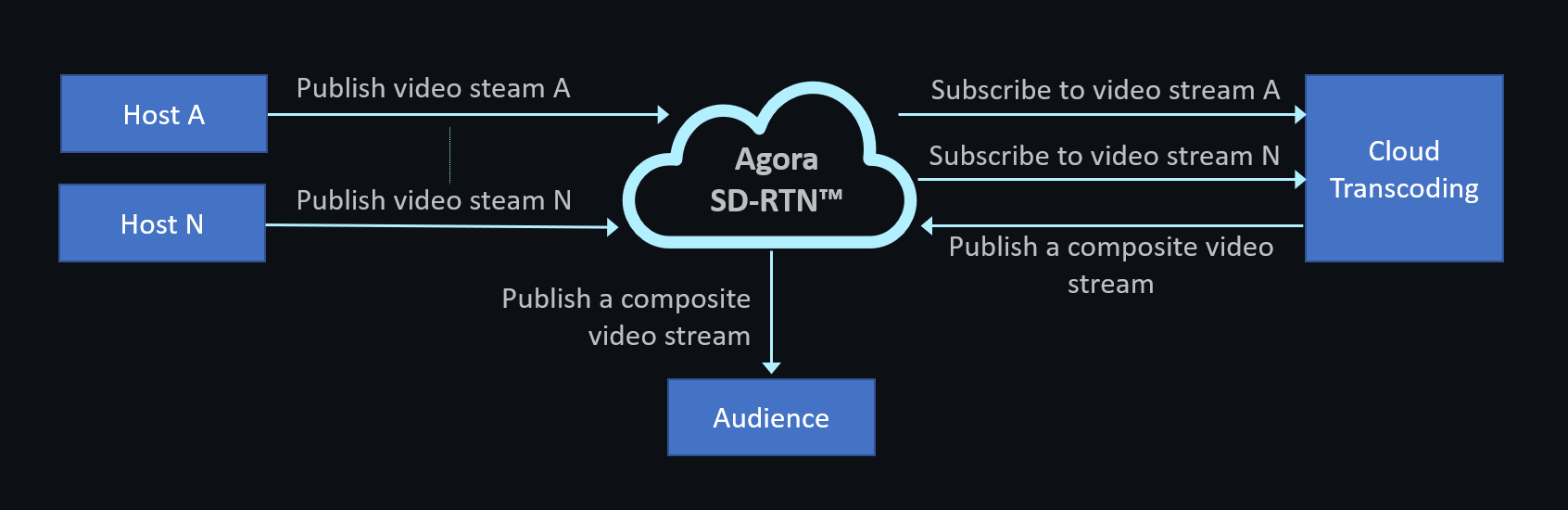
The following figure shows how the client-customized composite layout is used in conjunction with the Cloud Transcoding service:
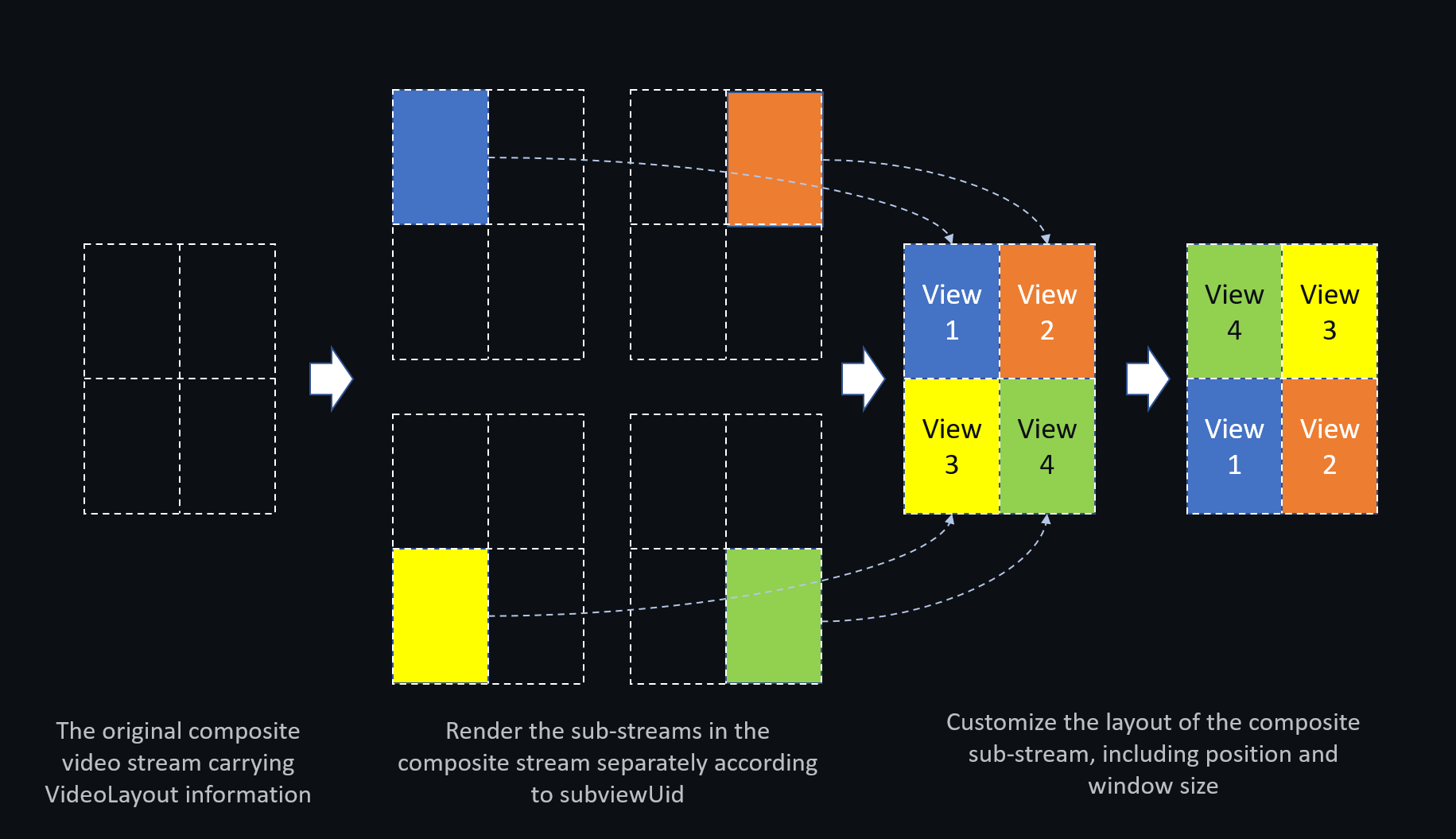
After the audience receives the transcoded composite video stream, the custom composite layout is implemented locally as follows:
## Prerequisites [#prerequisites]
Make sure you have:
* Implemented basic real-time audio and video functionality with SDK version 4.5 or later. See the [SDK quickstart](/en/realtime-media/video/get-started-sdk).
* Implemented [Cloud Transcoding](/en/realtime-media/transcoding) to forward composite video to other channels. Make sure you set the following parameters when you configure transcoding:
```json
"outputs": [
{
"seiOption": {
"source": {
"agora": {
"uidvideoLayout": true
}
},
"sink": {
"type": 100
}
}
}
]
```
## Implementation [#implementation]
This section explains how to implement a client-customized composite layout, with the API call sequence illustrated in the diagram.
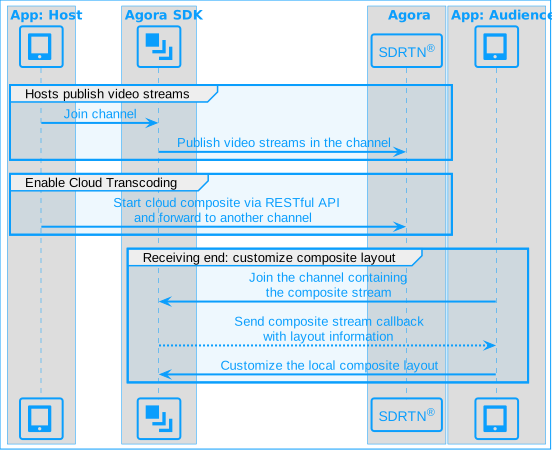
To implement a client-customized composite layout for the audience, follow these steps:
1. Call `joinChannel` \[2/2] to join the channel where the composite stream is located.
2. Obtain the following information about the composite video stream through the `onTranscodedStreamLayoutInfo` callback triggered by the SDK:
* The width and height of the composite stream, and the user ID of the user publishing it.
* The user ID of each host publishing a sub-stream within the composite stream.
* The x and y coordinates of each sub-stream on the composite canvas.
* The width and height of each sub-stream.
* The rendering state of each sub-stream on the composite canvas:
* Normal rendering
* Displayed as a placeholder
* Displayed as a black image
3. Call `setupRemoteVideo` to configure local rendering of the remote video stream. Set the following key parameters:
* `uid`: The user ID of the user forwarding the composite stream to the current channel, obtained from the `onTranscodedStreamLayoutInfo` callback.
* `view`: The remote video view displayed locally. Use this parameter to set the display position of each sub-stream in the local view.
* `subviewUid`: The user ID corresponding to a specific sub-stream within the composite stream.
- When `subviewUid` is not `0`, the default value of `setupMode` is `VIEW_SETUP_MODE_REPLACE` (add a view).
- If `subviewUid` is set, the setting of `rect` does not take effect.
Use the following sample code as a reference for calling `setupRemoteVideoEx` in a multi-channel scenario. Calling `setupRemoteVideo` in a single-channel scenario is similar.
```java
mRtcEngine.joinChannelEx(null, connection, mediaOptions, new IRtcEngineEventHandler() {
@Override
public void onTranscodedStreamLayoutInfo(final int uid, final VideoLayoutInfo info) {
super.onTranscodedStreamLayoutInfo(uid, info);
runOnUiThread(new Runnable() {
@Override
public void run() {
int size = info.layoutNumber;
viewGrids.setChildCount(info.layoutNumber);
for (int i = 0; i < size; i++) {
if (mUserViews.containsKey(info.layoutList[i].uid)) {
continue;
}
// Dynamically add the view
TextureView textureView = new TextureView(VideoChatViewActivity.this);
textureView.setLayoutParams(new ViewGroup.LayoutParams(
ViewGroup.LayoutParams.MATCH_PARENT,
ViewGroup.LayoutParams.MATCH_PARENT));
users.add(info.layoutList[i].uid);
views.add(textureView);
mUserViews.put(info.layoutList[i].uid, textureView);
viewGrids.addView(textureView);
// Configure VideoCanvas; set uid and subviewUid as shown,
// and configure other parameters as needed
VideoCanvas canvas = new VideoCanvas(textureView);
// User ID of the user forwarding the composite stream to the current channel
canvas.uid = uid;
// User ID corresponding to a specific sub-stream
canvas.subviewUid = info.layoutList[i].uid;
canvas.renderMode = Constants.RENDER_MODE_FIT;
mRtcEngine.setupRemoteVideoEx(canvas, connection);
// To remove a specific sub-stream, use the following code
// Do not include this in the same flow as the add code above.
VideoCanvas canvasToRemove = new VideoCanvas(textureView);
canvasToRemove.uid = uid;
canvasToRemove.subviewUid = info.layoutList[i].uid;
canvasToRemove.setupMode = VideoCanvas.VIEW_SETUP_MODE_REMOVE;
mRtcEngine.setupRemoteVideoEx(canvasToRemove);
}
}
});
}
});
```
4. When the layout of the composite stream changes, the `onTranscodedStreamLayoutInfo` callback fires again. Each time it fires, call `setupRemoteVideo` with the updated information to adjust the local rendering layout.
Layout changes can occur in the following situations:
* The coordinates of a sub-stream on the composite canvas change.
* The width or height of the composite stream or a sub-stream changes.
* The state of a sub-stream changes. When the host publishing a sub-stream leaves the channel, the `videoState` parameter for that sub-stream changes from `0` (normal) to `1` (no video available). To stop rendering that host's video, call `setupRemoteVideo` with `subviewUid` set to that host's user ID and `setupMode` set to `VIEW_SETUP_MODE_REMOVE`.
5. Listen for the `onUserOffline` callback. When the user forwarding the composite stream leaves the channel, stop rendering the composite stream on the receiving end.
Note
* Client-customized composite layout is currently supported on mobile platforms only.
* If a watermark is applied to the composite stream, the watermark renders within its designated region and may appear split across sub-stream boundaries.
## Reference [#reference]
This section contains content that completes the information on this page, or points you to documentation that explains other aspects of this product.
### API reference [#api-reference]
* [`onTranscodedStreamLayoutInfo`](https://api-ref.agora.io/en/video-sdk/android/4.x/API/class_irtcengineeventhandler.html#callback_irtcengineeventhandler_ontranscodedstreamlayoutinfo)
* [`setupRemoteVideo`](https://api-ref.agora.io/en/video-sdk/android/4.x/API/class_irtcengine.html#api_irtcengine_setupremotevideo)
* [`setupRemoteVideoEx`](https://api-ref.agora.io/en/video-sdk/android/4.x/API/class_irtcengineex.html#api_irtcengineex_setupremotevideoex)