# Compile and run a sample project (/en/realtime-media/video/build/join-and-manage-channels/compile-run-sample-project)
> For AI agents: see the complete documentation index at [llms.txt](/llms.txt).
<_PlatformTabsGroup groupMode="structured" canonicalPlatform="web" platforms="["android","ios","macos","windows","web","javascript","electron","flutter","react-native","unity","unreal","blueprint"]" showTabs="true">
<_PlatformPanel platform="android">
<_PlatformProcessedMarker groupMode="structured" canonicalPlatform="web" platform="android" />
Agora provides [Open-source sample projects on GitHub](https://github.com/AgoraIO/API-Examples/tree/main) to demonstrate the implementation of basic and advanced Video SDK features.
This page shows how to compile, configure, and run the Video SDK Android sample project.
<_PlatformProcessedMarker close="true" />
<_PlatformPanel platform="ios">
<_PlatformProcessedMarker groupMode="structured" canonicalPlatform="web" platform="ios" />
Agora provides [Open-source sample projects on GitHub](https://github.com/AgoraIO/API-Examples/tree/main) to demonstrate the implementation of basic and advanced Video SDK features.
This page shows how to compile, configure, and run the Video SDK iOS sample project.
<_PlatformProcessedMarker close="true" />
<_PlatformPanel platform="macos">
<_PlatformProcessedMarker groupMode="structured" canonicalPlatform="web" platform="macos" />
Agora provides [Open-source sample projects on GitHub](https://github.com/AgoraIO/API-Examples/tree/main) to demonstrate the implementation of basic and advanced Video SDK features.
This page shows how to compile, configure, and run the Video SDK macOS sample project.
<_PlatformProcessedMarker close="true" />
<_PlatformPanel platform="windows">
<_PlatformProcessedMarker groupMode="structured" canonicalPlatform="web" platform="windows" />
Agora provides [Open-source sample projects on GitHub](https://github.com/AgoraIO/API-Examples/tree/main) to demonstrate the implementation of basic and advanced Video SDK features.
This page shows how to compile, configure, and run the Video SDK Windows sample project.
<_PlatformProcessedMarker close="true" />
<_PlatformPanel platform="web">
<_PlatformProcessedMarker groupMode="structured" canonicalPlatform="web" platform="web" />
Agora provides [Open-source sample projects on GitHub](https://github.com/AgoraIO/API-Examples-Web) to demonstrate the implementation of basic and advanced Video SDK features.
This page shows how to compile, configure, and run the Video SDK Web sample project.
<_PlatformProcessedMarker close="true" />
<_PlatformPanel platform="javascript">
<_PlatformProcessedMarker groupMode="structured" canonicalPlatform="web" platform="javascript" />
Agora provides [Open-source sample projects on GitHub](https://github.com/AgoraIO/API-Examples-Web) to demonstrate the implementation of basic and advanced Video SDK features.
This page shows how to compile, configure, and run the Video SDK JavaScript sample project.
<_PlatformProcessedMarker close="true" />
<_PlatformPanel platform="electron">
<_PlatformProcessedMarker groupMode="structured" canonicalPlatform="web" platform="electron" />
Agora provides [Open-source sample projects on GitHub](https://github.com/AgoraIO-Extensions/Electron-SDK) to demonstrate the implementation of basic and advanced Video SDK features.
This page shows how to compile, configure, and run the Video SDK Electron sample project.
<_PlatformProcessedMarker close="true" />
<_PlatformPanel platform="flutter">
<_PlatformProcessedMarker groupMode="structured" canonicalPlatform="web" platform="flutter" />
Agora provides [Open-source sample projects on GitHub](https://github.com/AgoraIO-Extensions/Agora-Flutter-SDK) to demonstrate the implementation of basic and advanced Video SDK features.
This page shows how to compile, configure, and run the Video SDK Flutter sample project.
<_PlatformProcessedMarker close="true" />
<_PlatformPanel platform="react-native">
<_PlatformProcessedMarker groupMode="structured" canonicalPlatform="web" platform="react-native" />
Agora provides [Open-source sample projects on GitHub](https://github.com/AgoraIO-Extensions/react-native-agora/tree/main/example) to demonstrate the implementation of basic and advanced Video SDK features.
This page shows how to compile, configure, and run the Video SDK React Native sample project.
<_PlatformProcessedMarker close="true" />
<_PlatformPanel platform="unity">
<_PlatformProcessedMarker groupMode="structured" canonicalPlatform="web" platform="unity" />
Agora provides [Open-source sample projects on GitHub](https://github.com/AgoraIO-Extensions/Agora-Unity-Quickstart/tree/main/API-Example-Unity) to demonstrate the implementation of basic and advanced Video SDK features.
This page shows how to compile, configure, and run the Video SDK Unity sample project.
<_PlatformProcessedMarker close="true" />
<_PlatformPanel platform="unreal">
<_PlatformProcessedMarker groupMode="structured" canonicalPlatform="web" platform="unreal" />
Agora provides [Open-source sample projects on GitHub](https://github.com/AgoraIO-Extensions/Agora-Unreal-RTC-SDK/tree/main/Agora-Unreal-SDK-CPP-Example) to demonstrate the implementation of basic and advanced Video SDK features.
This page shows how to compile, configure, and run the Video SDK Unreal Engine sample project.
<_PlatformProcessedMarker close="true" />
<_PlatformPanel platform="blueprint">
<_PlatformProcessedMarker groupMode="structured" canonicalPlatform="web" platform="blueprint" />
Agora provides [Open-source sample projects on GitHub](https://github.com/AgoraIO-Extensions/Agora-Unreal-RTC-SDK/tree/main/Agora-Unreal-SDK-Blueprint-Example) to demonstrate the implementation of basic and advanced Video SDK features.
This page shows how to compile, configure, and run the Video SDK Unreal (Blueprint) sample project.
<_PlatformProcessedMarker close="true" />
## Prerequisites [#prerequisites]
<_PlatformTabsGroup groupMode="structured" canonicalPlatform="web" platforms="["windows","android","ios","macos","web","react-native","javascript","electron","flutter","unity","unreal","blueprint"]" showTabs="true">
<_PlatformPanel platform="windows">
<_PlatformProcessedMarker groupMode="structured" canonicalPlatform="web" platform="windows" />
* A device running Windows 7 or higher.
* Microsoft Visual Studio 2017 or higher with [C++ desktop development](https://devblogs.microsoft.com/cppblog/windows-desktop-development-with-c-in-visual-studio/) support. C++ 11 or above.
* If you use C# for development, you also need the [.NET framework](https://learn.microsoft.com/en-us/dotnet/framework/install/guide-for-developers).
<_PlatformProcessedMarker close="true" />
<_PlatformPanel platform="android">
<_PlatformProcessedMarker groupMode="structured" canonicalPlatform="web" platform="android" />
* [Android Studio](https://developer.android.com/studio) 4.2 or higher.
* Android SDK API Level 21 or higher.
* Two mobile devices running Android 5.0 or higher.
<_PlatformProcessedMarker close="true" />
<_PlatformPanel platform="ios">
<_PlatformProcessedMarker groupMode="structured" canonicalPlatform="web" platform="ios" />
* Xcode 13.0 or higher.
* An Apple developer account.
* If you need to use CocoaPods integrated SDK, make sure [CocoaPods is installed](https://guides.cocoapods.org/using/getting-started.html#getting-started).
* Two devices running iOS 14.0 or higher.
<_PlatformProcessedMarker close="true" />
<_PlatformPanel platform="macos">
<_PlatformProcessedMarker groupMode="structured" canonicalPlatform="web" platform="macos" />
* Xcode 13.0 or higher.
* An Apple developer account.
* If you need to use CocoaPods integrated SDK, make sure [CocoaPods is installed](https://guides.cocoapods.org/using/getting-started.html#getting-started).
* Two devices running macOS 10.10 or higher.
<_PlatformProcessedMarker close="true" />
<_PlatformPanel platform="web">
<_PlatformProcessedMarker groupMode="structured" canonicalPlatform="web" platform="web" />
* A [supported browser](../../reference/supported-platforms#desktop-browsers).
Agora strongly recommends using the latest stable version of Google Chrome.
* [Node.js and npm](https://docs.npmjs.com/downloading-and-installing-node-js-and-npm)
<_PlatformProcessedMarker close="true" />
<_PlatformPanel platform="react-native">
<_PlatformProcessedMarker groupMode="structured" canonicalPlatform="web" platform="react-native" />
* React Native 0.60 or later. For more information, see [Get Started with React Native](https://reactnative.dev/docs/environment-setup).
* Node 16 or later
* The following, depending onyourtarget platform:
Android
iOS
* A machine running macOS, Windows, or Linux
* [Java Development Kit (JDK) 11](https://openjdk.org/projects/jdk/11/) or later
* Latest version of Android Studio
* A physical or virtual mobile device running Android 5.0 or later
* A machine running macOS
* Xcode 10 or later
* CocoaPods
* A physical or virtual mobile device running iOS 9.0 or later.
If you use React Native 0.63 or later, ensure your iOS version is 10.0 or later.
<_PlatformProcessedMarker close="true" />
<_PlatformPanel platform="javascript">
<_PlatformProcessedMarker groupMode="structured" canonicalPlatform="web" platform="javascript" />
* A [supported browser](../../reference/supported-platforms#desktop-browsers).
* A JavaScript package manager such as [npm](https://www.npmjs.com/package/npm).
<_PlatformProcessedMarker close="true" />
<_PlatformPanel platform="electron">
<_PlatformProcessedMarker groupMode="structured" canonicalPlatform="web" platform="electron" />
* [Node.js](https://nodejs.org/en/download/) 14 or higher.
* [Yarn](https://yarnpkg.com/getting-started).
* Python 3.11.x.
<_PlatformProcessedMarker close="true" />
<_PlatformPanel platform="flutter">
<_PlatformProcessedMarker groupMode="structured" canonicalPlatform="web" platform="flutter" />
* [Flutter](https://docs.flutter.dev/get-started/install) 2.10.5 or higher with Dart 2.14.0 or higher.
* [Android Studio](https://developer.android.com/studio), IntelliJ, VS Code, or any other IDE that supports Flutter. See [Set up an editor](https://docs.flutter.dev/get-started/editor).
* Prepare your development and testing environment according to your [target platform](/en/realtime-media/video/reference/supported-platforms).
Run the `flutter doctor` command to confirm that your development environment is set up correctly for Flutter development.
<_PlatformProcessedMarker close="true" />
<_PlatformPanel platform="unity">
<_PlatformProcessedMarker groupMode="structured" canonicalPlatform="web" platform="unity" />
* [Unity Hub](https://unity.com/download) and [Unity Editor](https://unity.com/releases/editor/archive) 2018.4.0 or higher
* A suitable operating system and compiler for your development platform:
| Development platform | Operating system version | Compiler version |
| :------------------- | :----------------------- | :------------------------------------ |
| Android | Android 4.1 or later | Android Studio 4.1 or later |
| iOS | iOS 10.15 or later | Xcode 9.0 or later |
| macOS | macOS 10.15 or later | Xcode 9.0 or later |
| Windows | Windows 7 or later | Microsoft Visual Studio 2017 or later |
<_PlatformProcessedMarker close="true" />
<_PlatformPanel platform="unreal">
<_PlatformProcessedMarker groupMode="structured" canonicalPlatform="web" platform="unreal" />
* Unreal Engine 4.27 or higher
* Prepare your development environment according to your target platform and engine version:
| Dev environment requirements | Other requirements |
| :------------------------------------------------------------------------------------------------------------- | :---------------------------------------------------------------------------------------------------------------------------------------------------------------------------------- |
| [Android](https://docs.unrealengine.com/4.27/us-EN/SharingAndReleasing/Mobile/Android/AndroidSDKRequirements/) | - |
| [iOS](https://docs.unrealengine.com/4.27/us-EN/SharingAndReleasing/Mobile/iOS/SDKRequirements/) | A valid Apple developer signature. |
| [macOS](https://docs.unrealengine.com/4.27/us-EN/Basics/InstallingUnrealEngine/RecommendedSpecifications/) | A valid Apple developer signature. |
| [Windows](https://docs.unrealengine.com/4.27/us-EN/Basics/InstallingUnrealEngine/RecommendedSpecifications/) | 32-bit Windows only supports Unreal Engine 4 and below. To use Unreal Engine with 32-bit Windows, uncomment the code relating to `Win32` in the `AgoraPluginLibrary.Build.cs` file. |
* Two physical devices for testing
<_PlatformProcessedMarker close="true" />
<_PlatformPanel platform="blueprint">
<_PlatformProcessedMarker groupMode="structured" canonicalPlatform="web" platform="blueprint" />
* Unreal Engine 4.27 or higher
* Prepare your development environment according to your target platform and engine version:
| Dev environment requirements | Other requirements |
| :------------------------------------------------------------------------------------------------------------- | :---------------------------------------------------------------------------------------------------------------------------------------------------------------------------------- |
| [Android](https://docs.unrealengine.com/4.27/us-EN/SharingAndReleasing/Mobile/Android/AndroidSDKRequirements/) | - |
| [iOS](https://docs.unrealengine.com/4.27/us-EN/SharingAndReleasing/Mobile/iOS/SDKRequirements/) | A valid Apple developer signature. |
| [macOS](https://docs.unrealengine.com/4.27/us-EN/Basics/InstallingUnrealEngine/RecommendedSpecifications/) | A valid Apple developer signature. |
| [Windows](https://docs.unrealengine.com/4.27/us-EN/Basics/InstallingUnrealEngine/RecommendedSpecifications/) | 32-bit Windows only supports Unreal Engine 4 and below. To use Unreal Engine with 32-bit Windows, uncomment the code relating to `Win32` in the `AgoraPluginLibrary.Build.cs` file. |
* Two physical devices for testing
<_PlatformProcessedMarker close="true" />
{ /*
- If a firewall is deployed in your network environment, refer to [Connect through restricted networks with Cloud Proxy](/en/realtime-media/video/manage-agora-account) to use Agora services normally.
*/ }
* A camera and a microphone
* A valid Agora account and project. Please refer to [Agora account management](/en/realtime-media/video/manage-agora-account) for details.
* Installed [Git](https://git-scm.com/book/en/v2/Getting-Started-Installing-Git)
## Project setup [#project-setup]
<_PlatformTabsGroup groupMode="structured" canonicalPlatform="web" platforms="["blueprint","android","electron","flutter","ios","macos","javascript","react-native","unity","unreal","web","windows"]" showTabs="true">
<_PlatformPanel platform="blueprint">
<_PlatformProcessedMarker groupMode="structured" canonicalPlatform="web" platform="blueprint" />
### Get the sample project [#get-the-sample-project]
1. Run the following command to clone the repository locally:
```bash
git clone git@github.com:AgoraIO-Extensions/Agora-Unreal-RTC-SDK.git
```
2. The Blueprint usage examples are located in `/Agora-Unreal-SDK-Blueprint-Example`. These include:
| Description | Path |
| :-------------------- | :---------------------------------------------------------------- |
| Basic API examples | `/Agora-Unreal-SDK-Blueprint-Example/Content/API-Example/Basic` |
| Advanced API examples | `/Agora-Unreal-SDK-Blueprint-Example/Content/API-Example/Advance` |
### Configure the sample project [#configure-the-sample-project]
Refer to the following steps to integrate the SDK:
1. Go to [SDKs](/sdks) to download the latest version of the Video SDK and unzip it.
2. In `/Agora-Unreal-SDK-Blueprint-Example`, create a folder named `Plugins`.
3. Copy `AgoraPlugin` from the SDK folder to `Plugins`.
<_PlatformProcessedMarker close="true" />
<_PlatformPanel platform="android">
<_PlatformProcessedMarker groupMode="structured" canonicalPlatform="web" platform="android" />
### Get the sample project [#get-the-sample-project-1]
Run the following command to clone the repository locally:
```bash
git clone git@github.com:AgoraIO/API-Examples.git
```
This repository contains sample projects for all native platforms of Agora Video SDK. The API usage examples for Android are located under `/Android`.
| Path | Description |
| :-------------------------- | :------------------------------------- |
| `/Android/APIExample` | API usage examples of Agora Video SDK. |
| `/Android/APIExample-Audio` | API usage examples of Agora Voice SDK. |
### Configure the sample project [#configure-the-sample-project-1]
information
This page refers to the video sample project. If you want to run the audio sample project, please refer to the following steps and operate in the audio folder.
1. Integrate the SDK and install dependencies
The `/APIExample/app/build.gradle` file contains the project dependencies. When you open the project in Android Studio, it automatically downloads the dependencies and integrates the SDK.
2. Set App ID and app certificate
Open the `/APIExample/app/src/main/res/values/string-config.xml` file and fill in the App ID and app certificate you obtained from the Agora Console.
```xml
Your App ID
Your app certificate
```
<_PlatformProcessedMarker close="true" />
<_PlatformPanel platform="electron">
<_PlatformProcessedMarker groupMode="structured" canonicalPlatform="web" platform="electron" />
### Get the sample project [#get-the-sample-project-2]
Run the following command to clone the repository locally:
```bash
git clone git@github.com:AgoraIO-Extensions/Electron-SDK.git
```
This repository contains sample projects for Agora Web Video SDK:
| Description | Path |
| ------------------------------------------------- | ----------------------------------------- |
| Basic functions | `/example/src/renderer/examples/basic` |
| Advanced features | `/example/src/renderer/examples/advanced` |
| [Hook](https://react.dev/reference/react) example | `/example/src/renderer/examples/hook` |
### Configure the sample project [#configure-the-sample-project-2]
1. **Install dependencies**
Switch to the `/example` directory and run the following commands to integrate the SDK and install dependencies:
```bash
yarn
```
<_PlatformProcessedMarker close="true" />
<_PlatformPanel platform="flutter">
<_PlatformProcessedMarker groupMode="structured" canonicalPlatform="web" platform="flutter" />
### Get the sample project [#get-the-sample-project-3]
Run the following command to clone the repository locally:
```bash
git clone git@github.com:AgoraIO-Extensions/Agora-Flutter-SDK.git
```
This repository contains the following sample projects for Agora Web Video SDK:
| Description | Path |
| :---------------- | :------------------------------- |
| Basic functions | `/example/lib/examples/basic` |
| Advanced features | `/example/lib/examples/advanced` |
### Configure the sample project [#configure-the-sample-project-3]
1. **Install dependencies**
In the project root directory, run the following command to install the dependencies:
```bash
flutter pub get
```
2. **Set the App ID and Token**
Open the `/example/lib/config/agora.config.dart` file, fill in the `defaultValue` for the App ID, channel name, and temporary token you obtained from Agora Console.
```dart
String get appId {
return '';
}
String get token {
return '';
}
String get channelId {
return '';
}
```
<_PlatformProcessedMarker close="true" />
<_PlatformPanel platform="ios">
<_PlatformProcessedMarker groupMode="structured" canonicalPlatform="web" platform="ios" />
### Get the sample project [#get-the-sample-project-4]
You can obtain the sample project using the following methods:
* Go to the [SDKs](/sdks) page, download the latest version of the Agora Video SDK, and unzip it.
* Run the following command to clone the Github repository locally:
```bash
git clone git@github.com:AgoraIO/API-Examples.git
```
This repository contains sample projects for all native platforms of Agora Video SDK. The examples for iOS are located under `/iOS`.
| Path | Description |
| ----------------------- | --------------------------------------- |
| `/iOS/APIExample` | API usage examples for Agora Video SDK. |
| `/iOS/APIExample-Audio` | API usage examples for Agora Voice SDK. |
### Configure the sample project [#configure-the-sample-project-4]
information
This page refers to the video sample project. If you want to run the audio sample project, refer to the following steps and operate in the audio folder.
1. Open the `samples/APIExample/APIExample/Common/KeyCenter.swift` file and fill in the App ID and App certificate you obtained from the Agora Console.
```swift
class KeyCenter: NSObject {
// Replace <#Your App ID#> with your App ID
static let AppId: String = "<#Your App ID#>"
// Replace #Your certificate# with your App certificate. Leave this field blank if the project allows joining with the App ID only.
static let Certificate: String? = "<#Your certificate#>"
}
```
2. Open terminal and run `pod install` in the `samples/API-Example` folder to install the SDK and related dependencies. After the installation is complete, the terminal displays 'Pod installation complete!'.
<_PlatformProcessedMarker close="true" />
<_PlatformPanel platform="macos">
<_PlatformProcessedMarker groupMode="structured" canonicalPlatform="web" platform="macos" />
### Get the sample project [#get-the-sample-project-5]
You can obtain the sample project using the following methods:
* Go to the [SDKs](/sdks) page, download the latest version of the Agora Video SDK, and unzip it.
* Run the following command to clone the Github repository locally:
```bash
git clone git@github.com:AgoraIO/API-Examples.git
```
This repository contains sample projects for all native platforms of Agora Video SDK. The API usage examples for macOS are located under `/macOS`.
### Configure the sample project [#configure-the-sample-project-5]
1. Set your App ID and App certificate
Open the `KeyCenter.swift` file and fill in the App ID and App certificate you obtained from the Agora Console.
```swift
struct KeyCenter {
// Replace <#Your App ID#> with your App ID
static let AppId: String = "<#Your App ID#>"
// Replace #Your certificate# with your App certificate. Leave this field blank if the project allows joining with the App ID only
static let Certificate: String? = "<#Your certificate#>"
}
```
2. Open a terminal and run `pod install` in the `/macOS` directory, to install project dependencies. After the installation is complete, the terminal displays `Pod installation complete!`. A file `APIExample.xcworkspace` is generated in the project folder.
<_PlatformProcessedMarker close="true" />
<_PlatformPanel platform="javascript">
<_PlatformProcessedMarker groupMode="structured" canonicalPlatform="web" platform="javascript" />
### Get the sample project [#get-the-sample-project-6]
Run the following command to clone the GitHub repository locally:
```bash
git clone https://github.com/AgoraIO/API-Examples-Web
```
The GitHub examples repository provides the following projects:
| Description | Path |
| :--------------------------- | :-------------------- |
| Feature demos | `/Demo` |
| Extension demos | `/ExtensionDemo` |
| Vue framework examples | `/vue/api-examples` |
| **React framework examples** | `/react/api-examples` |
### Configure the sample project [#configure-the-sample-project-6]
Navigate to `/react/api-examples` and run the following command to install the dependencies.
```bash
npm install
```
<_PlatformProcessedMarker close="true" />
<_PlatformPanel platform="react-native">
<_PlatformProcessedMarker groupMode="structured" canonicalPlatform="web" platform="react-native" />
### Get the sample project [#get-the-sample-project-7]
Run the following command to clone the repository locally:
```bash
git clone git@github.com:AgoraIO-Extensions/react-native-agora.git
```
This repository contains sample projects for Agora Video SDK:
| Description | Path |
| :------------------------------------------------ | :------------------------------- |
| Basic functions | `/example/src/examples/basic` |
| Advanced features | `/example/src/examples/advanced` |
| [Hook](https://react.dev/reference/react) example | `/example/src/examples/hook` |
### Configure the sample project [#configure-the-sample-project-7]
1. Install dependencies
Switch to the root directory and run the following commands to integrate the SDK and install dependencies:
```bash
yarn
```
2. Set your App ID and App Token
Open the `/example/src/config/agora.config.ts` file and fill in the App ID and temporary token you obtained from the Agora Console.
```typescript
// Agora App ID
let localAppId = '';
try {
localAppId = require('./appID').default;
console.log('appID', localAppId);
} catch (error) {
console.warn(error);
}
const config = {
appId: localAppId,
// Agora app token
token: '',
// Agora channel ID
channelId: 'test',
uid: 0,
logFilePath: '',
};
export default config;
```
<_PlatformProcessedMarker close="true" />
<_PlatformPanel platform="unity">
<_PlatformProcessedMarker groupMode="structured" canonicalPlatform="web" platform="unity" />
### Get the sample project [#get-the-sample-project-8]
Obtain the sample project using one of the following methods:
* Go to the [SDKs](/sdks) page, download the latest version of the Video SDK, and unzip it. You see a `.unitypackage` file.
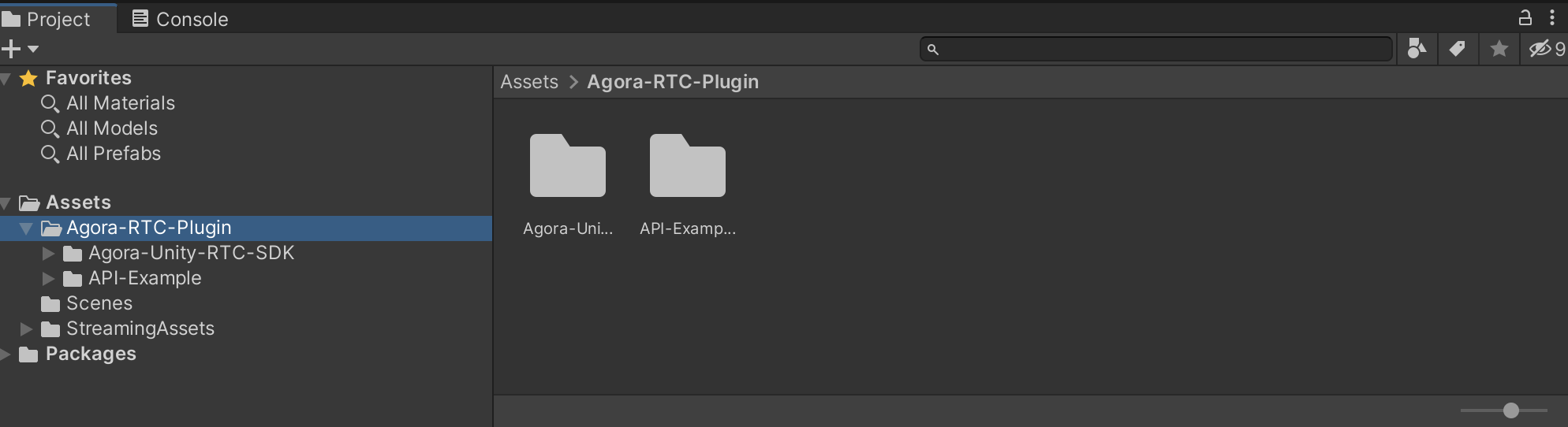
Open the `.unitypackage` file. An **Import Unity Package window** pops up. Click **Import** to import the SDK into your project. After the import is complete, you see the `Agora-RTC-PLUGIN` folder in the project panel.
* Run the following command to clone the repository locally:
```bash
git clone https://github.com/AgoraIO-Extensions/Agora-Unity-Quickstart.git
cd Agora-Unity-Quickstart/API-Example-Unity
```
### Configure the sample project [#configure-the-sample-project-8]
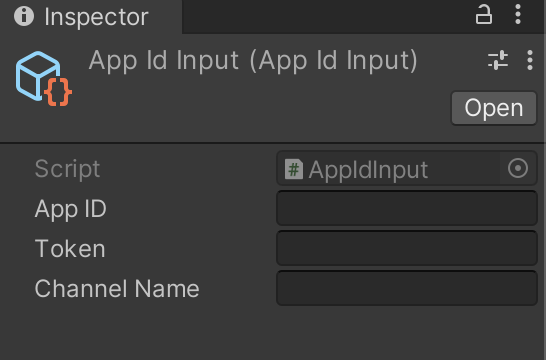
In `Agora-RTC-PLUGIN/API-Example/AppIdInput.asset`, fill in the App ID, temporary token, and channel name you obtained from the Agora Console.
<_PlatformProcessedMarker close="true" />
<_PlatformPanel platform="unreal">
<_PlatformProcessedMarker groupMode="structured" canonicalPlatform="web" platform="unreal" />
### Get the sample project [#get-the-sample-project-9]
1. Run the following command to clone the repository locally:
```bash
git clone git@github.com:AgoraIO-Extensions/Agora-Unreal-RTC-SDK.git
```
2. The C++ API usage examples are located in `/Agora-Unreal-SDK-CPP-Example`. These include:
| Description | Path |
| :-------------------- | :---------------------------------------------------------- |
| Basic API examples | `/Agora-Unreal-SDK-CPP-Example/Content/API-Example/Basic` |
| Advanced API examples | `/Agora-Unreal-SDK-CPP-Example/Content/API-Example/Advance` |
### Configure the sample project [#configure-the-sample-project-9]
Refer to the following steps to integrate the SDK:
1. Go to [SDKs](/sdks) to download the latest version of the Video SDK and unzip it.
2. In `/Agora-Unreal-SDK-CPP-Example`, create a folder named `Plugins`.
3. Copy `AgoraPlugin` from the SDK folder to `Plugins`.
<_PlatformProcessedMarker close="true" />
<_PlatformPanel platform="web">
<_PlatformProcessedMarker groupMode="structured" canonicalPlatform="web" platform="web" />
### Get the sample project [#get-the-sample-project-10]
Obtain the sample project using one of the following methods:
* Go to the [SDKs](/sdks) page, download the latest version of Video SDK, and unzip it.
* Run the following commands to clone the GitHub repository locally:
```bash
git clone https://github.com/AgoraIO/API-Examples-Web
cd API-Examples-Web
git checkout new
```
The `API-Examples-Web` repository provides the following examples:
| Description | Path |
| :---------------------- | :----------------------------- |
| Basic examples | `/src/example/basic` |
| Advanced examples | `/src/example/advanced` |
| Plug-in examples | `/src/example/plugin` |
| Other examples | `/src/example/others` |
| Vue framework example | `/src/example/framework/vue` |
| React framework example | `/src/example/framework/react` |
### Configure the sample project [#configure-the-sample-project-10]
1. Install dependencies
In the project root folder, run the following command to install the dependencies:
```bash
npm install
```
2. To launch the project, run the following command in the project root folder:
```bash
npm run dev
```
After execution is complete, the terminal displays the URL to launch the demo.
3. Set App ID and temporary Token
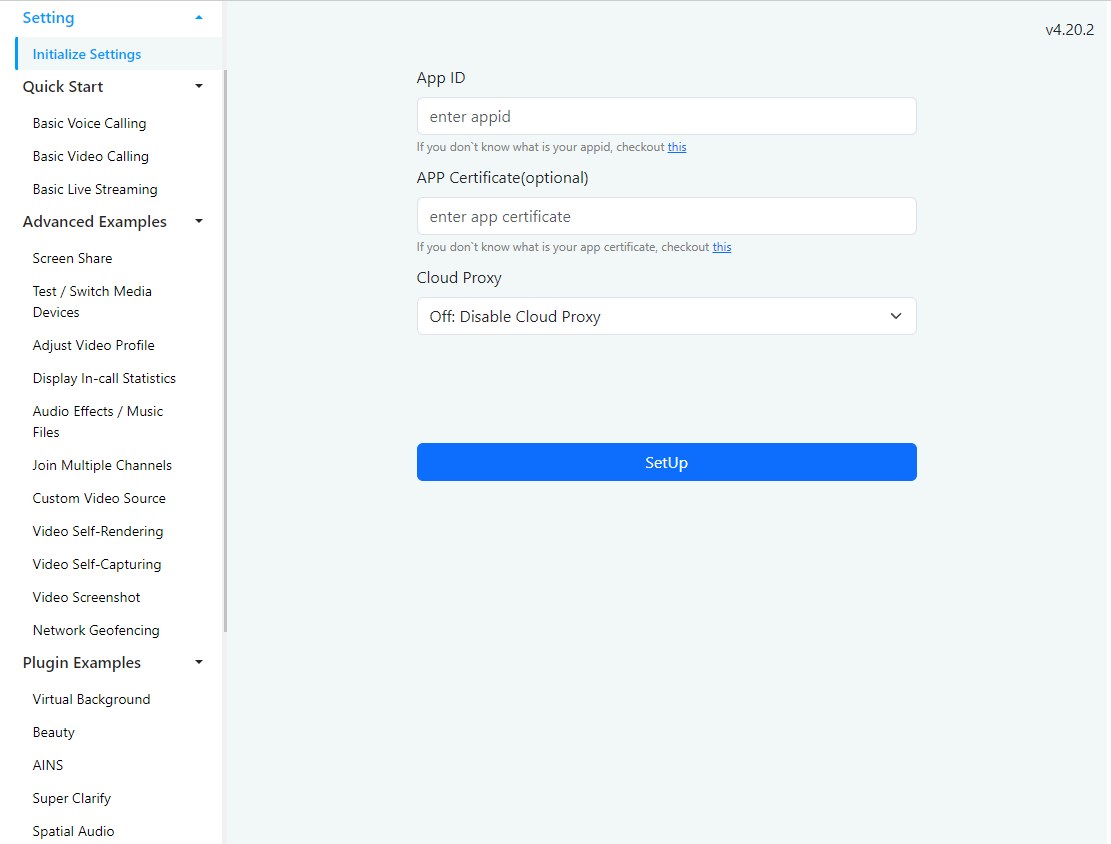
Open `http://localhost:3001/index.html` in your browser , fill in the App ID and App certificate you obtained from the Agora console, and then click **Set**. Both primary and secondary certificates are acceptable.
Information
If you have enabled joining with only the App ID for your project, leave the App certificate field blank.
<_PlatformProcessedMarker close="true" />
<_PlatformPanel platform="windows">
<_PlatformProcessedMarker groupMode="structured" canonicalPlatform="web" platform="windows" />
### Get the sample project [#get-the-sample-project-11]
1. Run the following command to clone the repository locally:
```bash
git clone git@github.com:AgoraIO/API-Examples.git
```
This repository contains sample projects for all native platforms of Agora Video SDK. The API usage examples for Windows are located under `/windows`.
2. Integrate SDK and install dependencies
Run `/APIExample/installThirdParty.bat` to automatically integrate the SDK, download dependencies, and configure the environment.
3. Set App ID and Token
Open the `/APIExample/APIExample/stdafx.h` file and fill in the App ID and temporary token you obtained from the Agora Console.
```cpp
#define APP_ID "enter your App ID"
#define APP_TOKEN "enter your temporary token"
```
<_PlatformProcessedMarker close="true" />
## Run the sample project [#run-the-sample-project]
<_PlatformTabsGroup groupMode="structured" canonicalPlatform="web" platforms="["blueprint","android","electron","flutter","ios","macos","javascript","react-native","unity","unreal","web","windows"]" showTabs="true">
<_PlatformPanel platform="blueprint">
<_PlatformProcessedMarker groupMode="structured" canonicalPlatform="web" platform="blueprint" />
In the Unreal Editor, you can compile and run the sample project at the main level or any sublevel.
Main Level
Sub Level
1. In the path of the Blueprint API example, double-click **AgoraBPExample.uproject** to open the project.
2. Double-click **MainLevel**, then click **Compile** and run the sample project. You see the following interface:
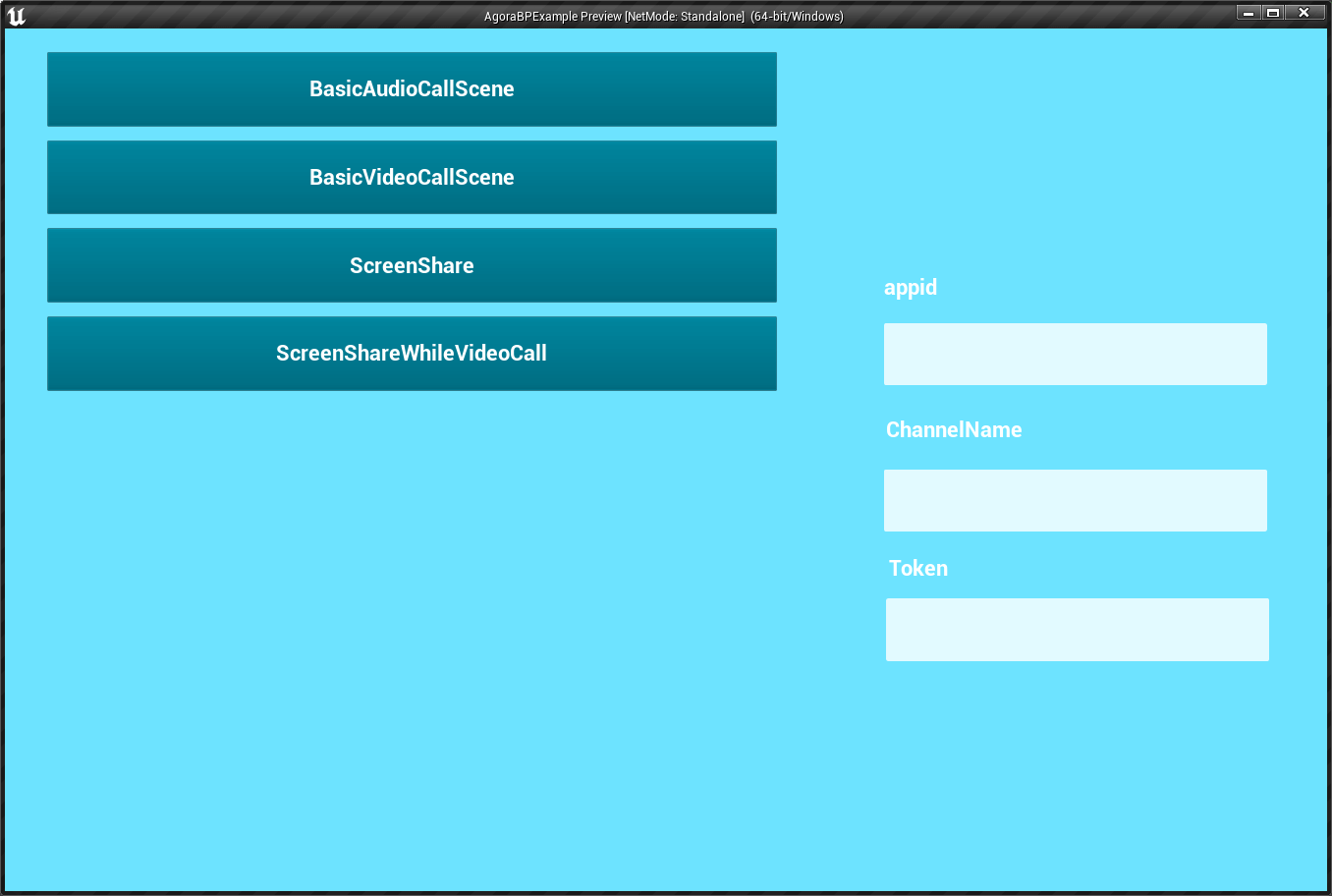
3. Fill in the text box with the App ID and temporary token you obtained from the Agora Console, and the channel name you used to generate the token.
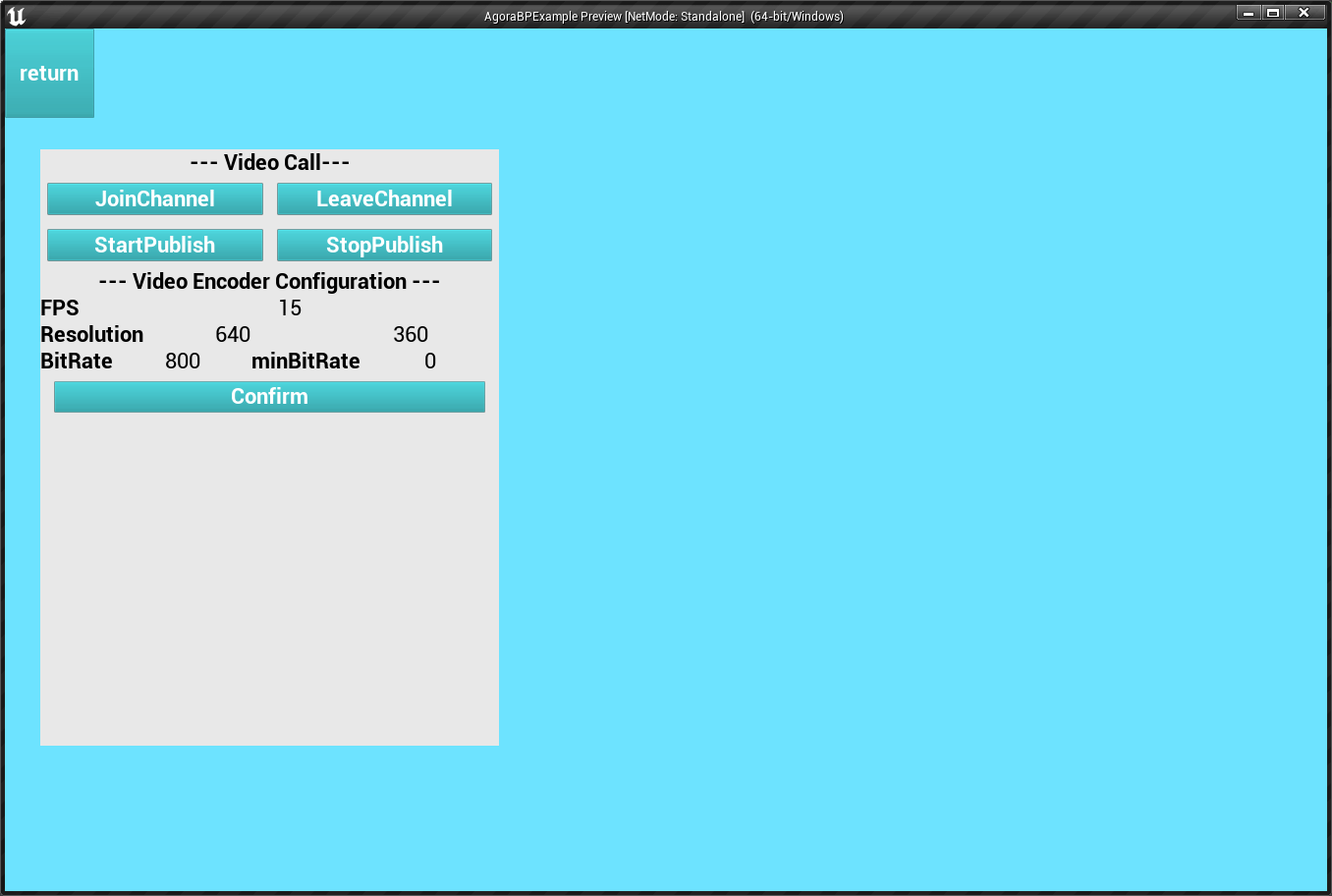
4. Click the button on the left to navigate from the main level to the sub-levels of the API example to experience the selected demo. Choose `BasicVideoCallScene` as an example, click **JoinChannel** to join the channel. You see yourself in the local view.
5. To test various audio and video interaction use-cases, connect to the [Agora web demo](https://webdemo.agora.io/basicVideoCall/index.html), or install and run the sample project on a second device. Make sure you use the same App ID on both devices. When you join the same channel from two devices, you can see and hear each other.
1. In the path of the Blueprint API example,, double-click **AgoraBPExample.uproject** to open the project.
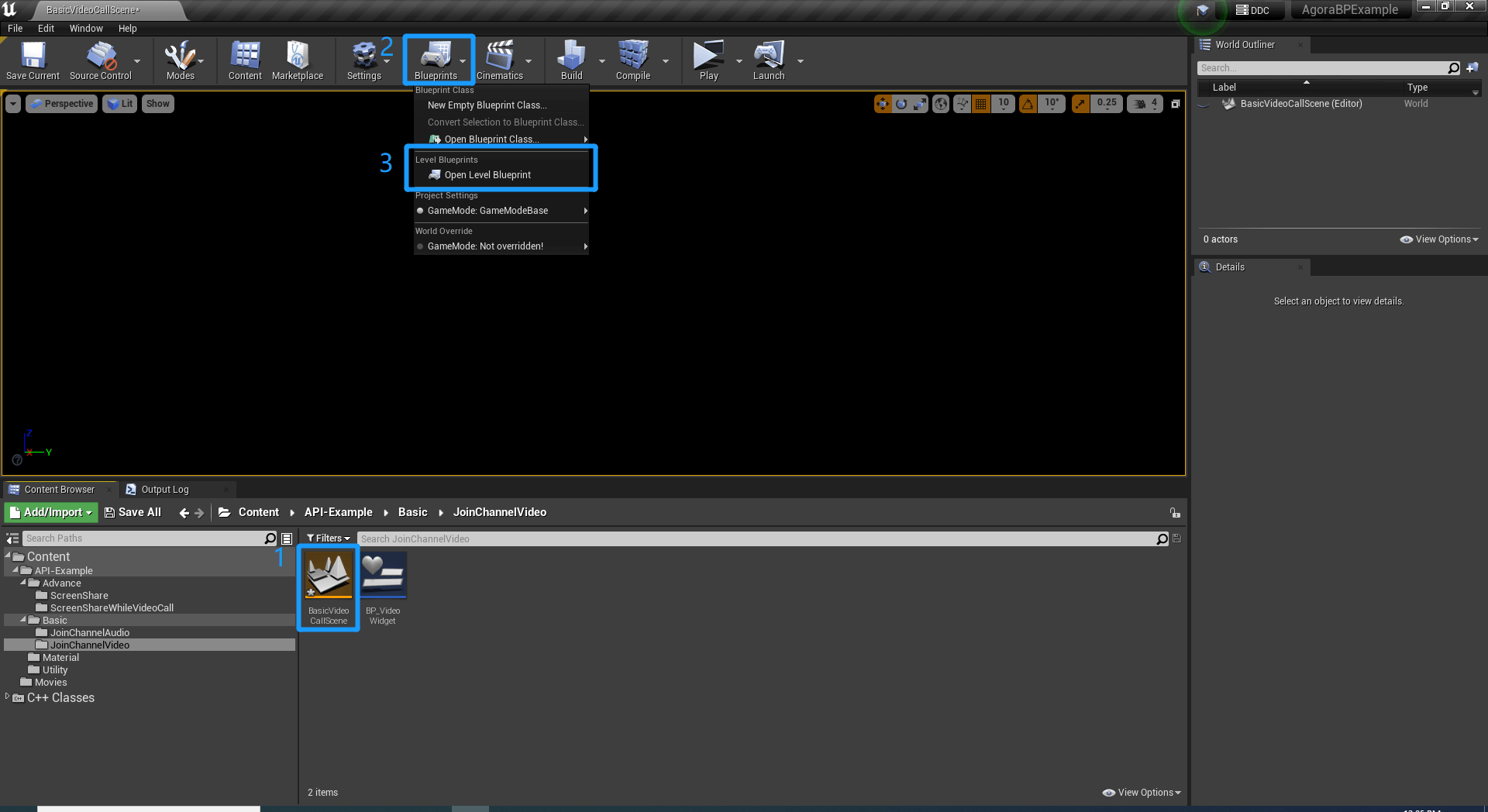
2. Choose **BasicVideoCallScene** as an example, double-click the sub-level in the Content Browser, and then click **Blueprints > Open Level Blueprint** above the editor to open the corresponding level blueprint.
3. Fill in the App ID, temporary token, and channel name of your project.
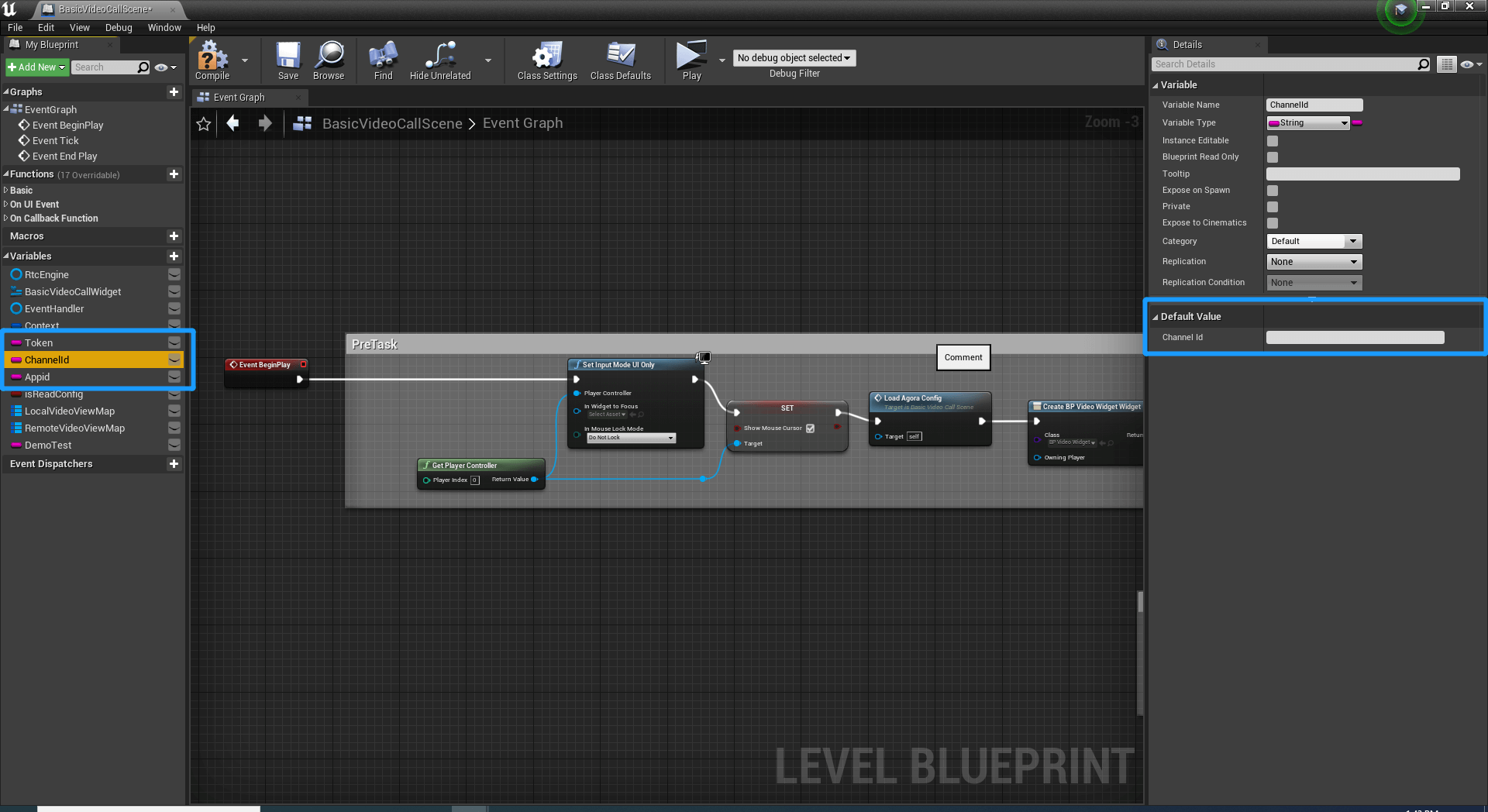
4. Click **Compile** and run the sample project at the sublevel. You see the following interface:
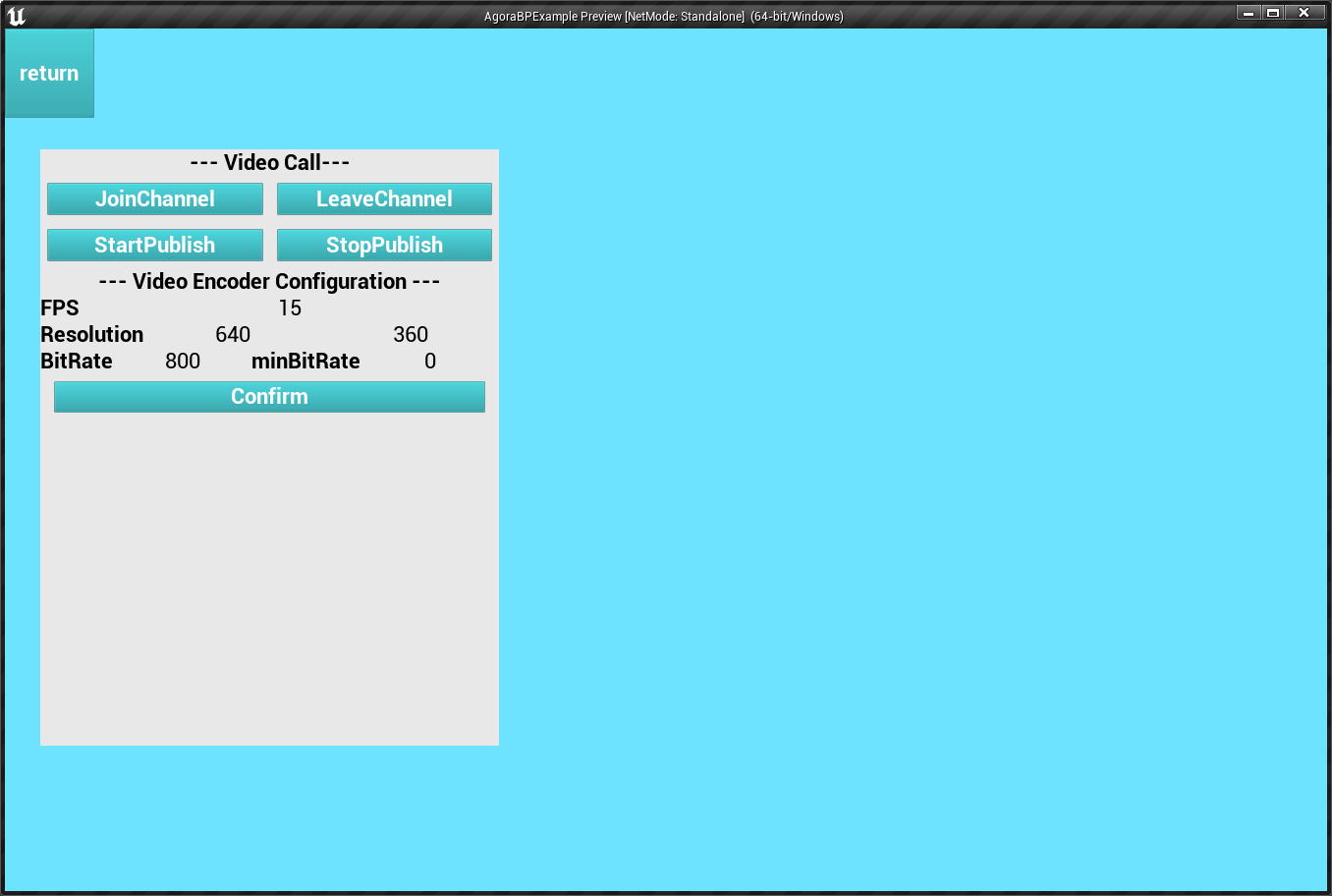
5. Click **JoinChannel** to join the channel. You see yourself in the local view.
6. To test various audio and video interaction use-cases, connect to the [Agora web demo](https://webdemo.agora.io/basicVideoCall/index.html), or install and run the sample project on a second device. Make sure you use the same App ID on both devices. When you join the same channel from two devices, you can see and hear each other.
<_PlatformProcessedMarker close="true" />
<_PlatformPanel platform="android">
<_PlatformProcessedMarker groupMode="structured" canonicalPlatform="web" platform="android" />
1. Open the `/API-Examples/Android/APIExample` folder in Android Studio.
2. Turn on developer options on your Android device, enable USB debugging, and connect the device to the development machine through a USB cable. Your Android device appears in the Android device options.
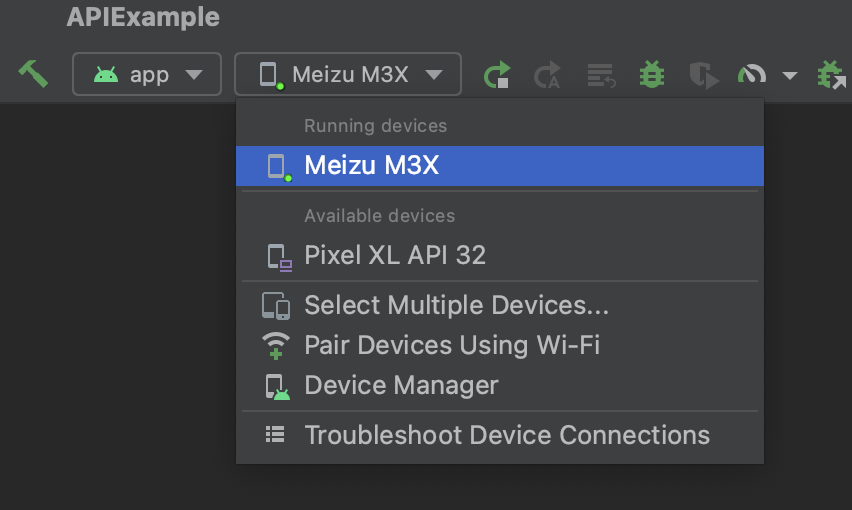
3. In Android Studio, click **Sync Project with Gradle Files** for Gradle synchronization.
4. After synchronization is complete, click **Run 'app'** to start compilation.
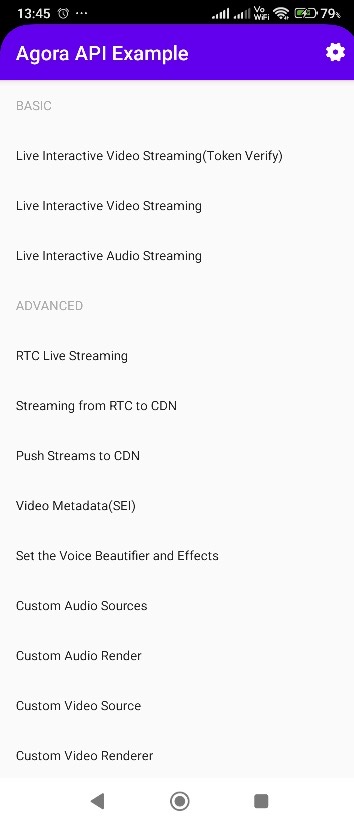
The app is installed as **Agora API Example** on your device.
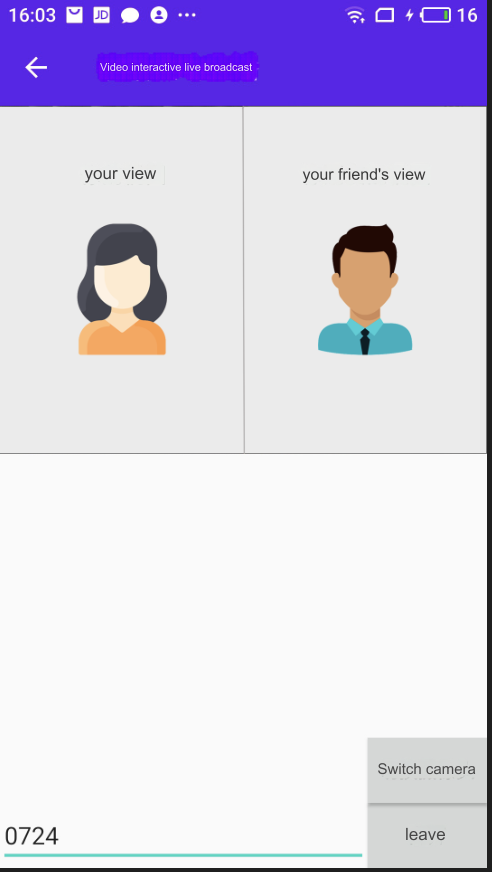
5. Open the app and choose the example you want to run. For example, to test **Live Interactive Video Streaming**, select the option from the menu, enter the channel name, and click **Join**.
6. To test various audio and video interaction use-cases, connect to the [Agora web demo](https://webdemo.agora.io/basicVideoCall/index.html), or install and run the sample project on a second device. Make sure you use the same app ID on both devices. When you join the same channel from two devices, you can see and hear each other.
<_PlatformProcessedMarker close="true" />
<_PlatformPanel platform="electron">
<_PlatformProcessedMarker groupMode="structured" canonicalPlatform="web" platform="electron" />
1. To run the sample project, execute the following command in the `/example` directory:
```bash
yarn start
```
2. After the operation is complete, you see the following application on your screen:
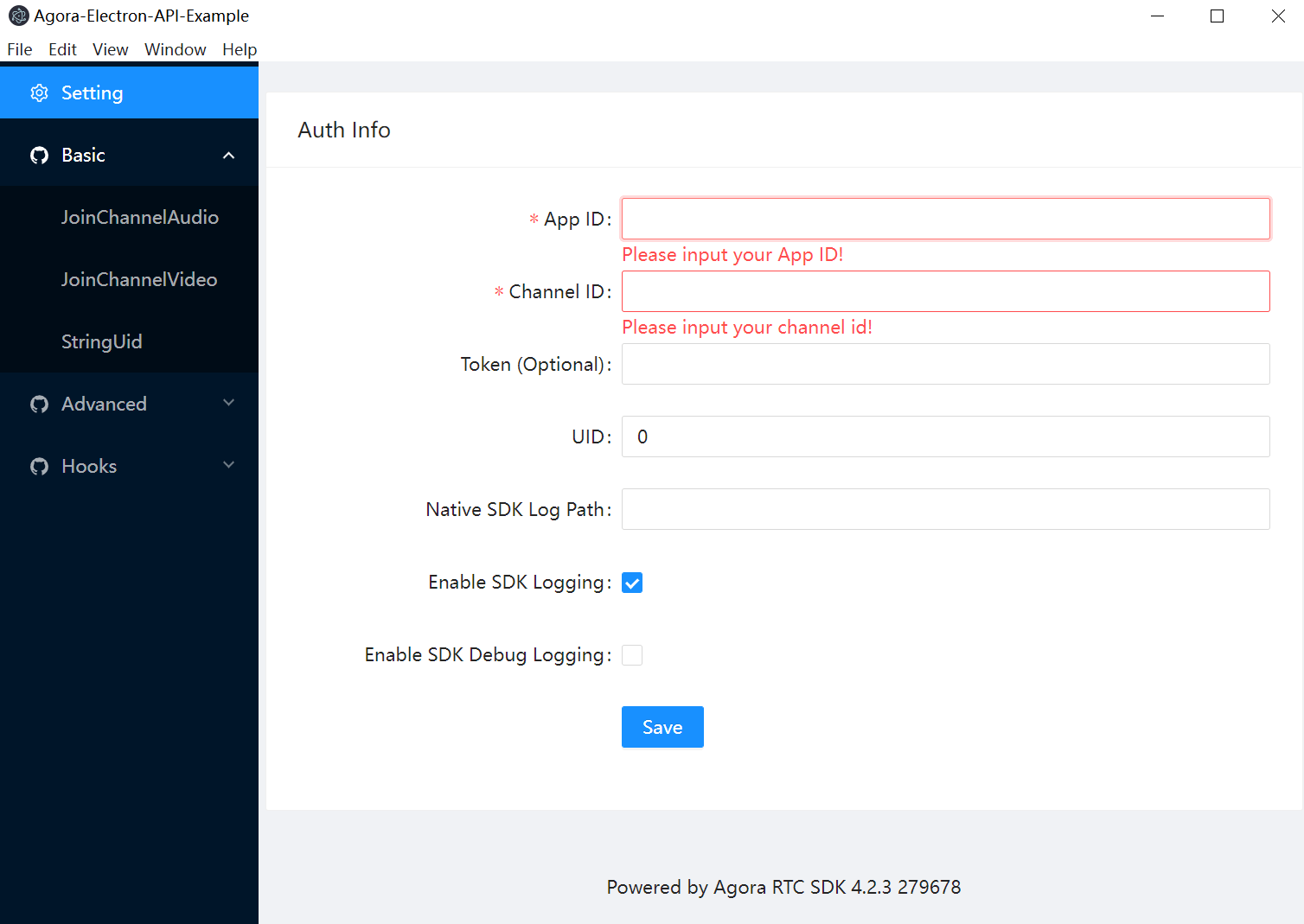
3. On the **Settings** page, fill in the App Id and temporary token you obtained from the Console. Fill in the same channel name you used when generating the temporary token. Click **Save** to save your settings.
4. Select a demo you want to experience from the menu on the left. Choose **JoinChannelVideo**, under **Basic**, as an example and click **join channel**.
5. To test various audio and video interaction use-cases, connect to the [Agora web demo](https://webdemo.agora.io/basicVideoCall/index.html), or install and run the sample project on a second device. Make sure you use the same app ID on both devices. When you join the same channel from two devices, you can see and hear each other.
<_PlatformProcessedMarker close="true" />
<_PlatformPanel platform="flutter">
<_PlatformProcessedMarker groupMode="structured" canonicalPlatform="web" platform="flutter" />
1. Connect the target device to your computer.
2. Open terminal and navigate to the `/examples` directory.
3. Execute the following command to launch the sample project on available devices:
```bash
flutter run
```
4. After compilation is complete, you see the following application on your device:
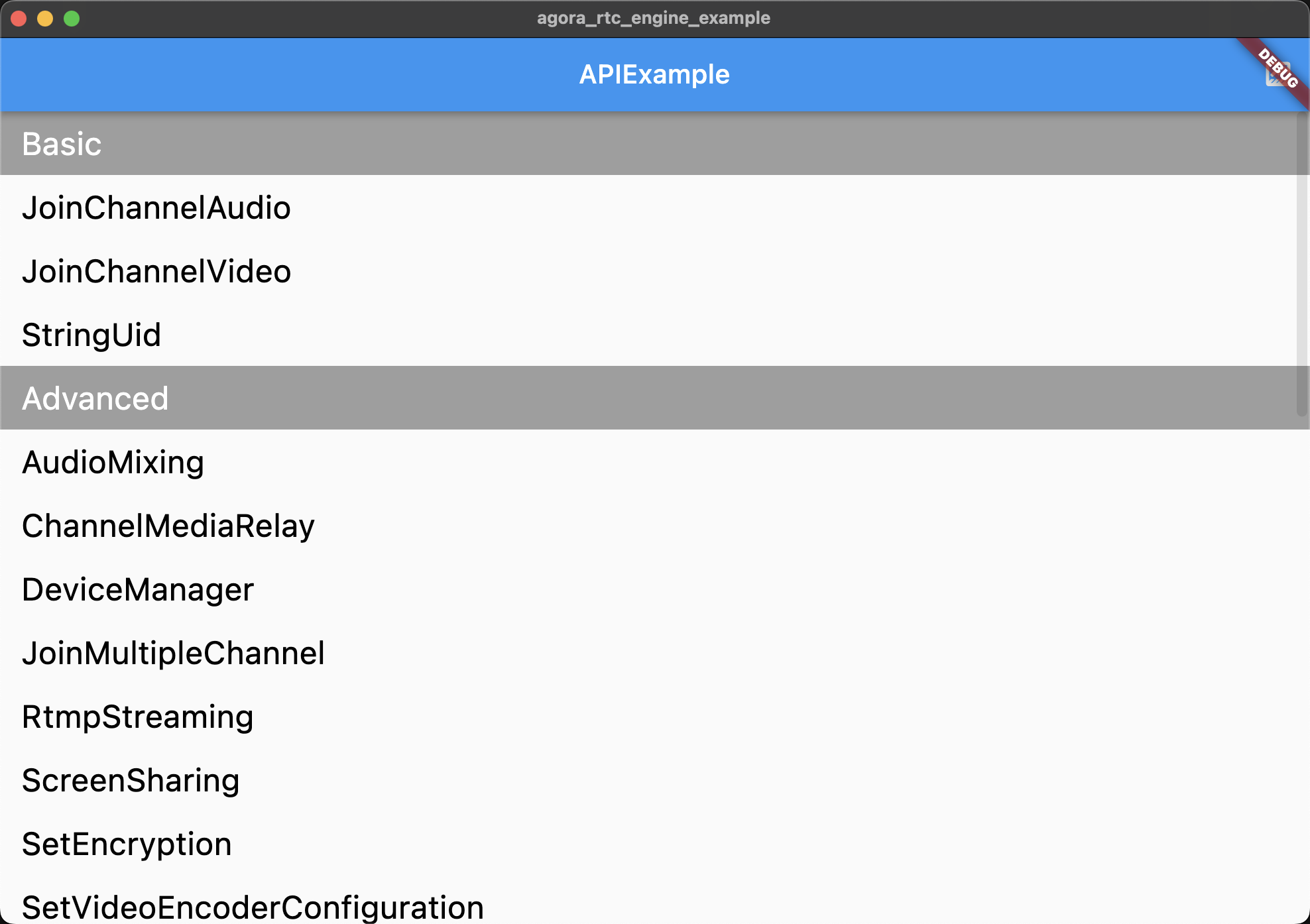
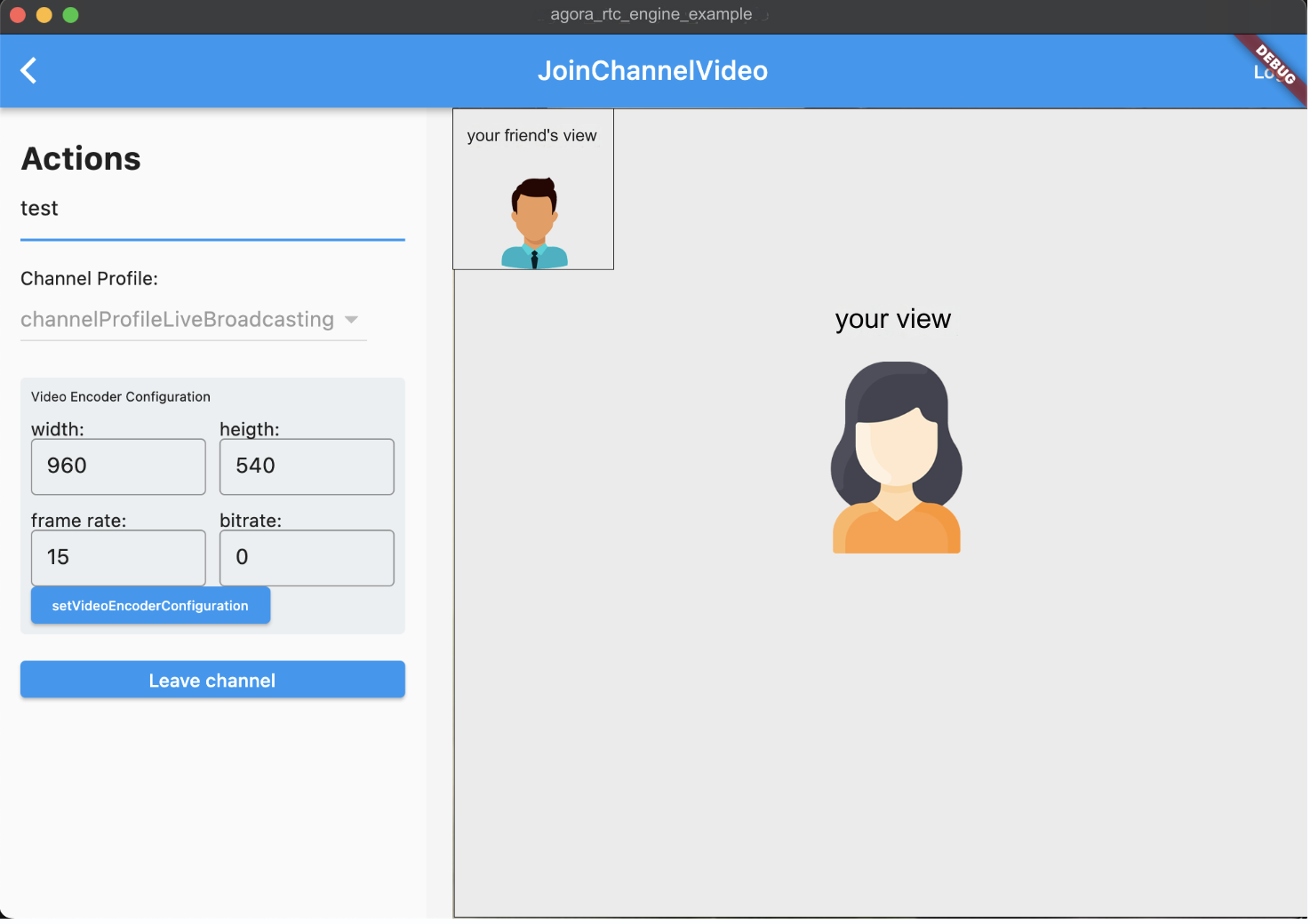
5. Select a demo you want to experience from the menu. Choose **JoinChannelVideo** under **Basic** as an example. Enter the channel name you specified when generating the temporary token in **Channel ID**, and click **Join channel**.
6. To test various audio and video interaction use-cases, connect to the [Agora web demo](https://webdemo.agora.io/basicVideoCall/index.html), or install and run the sample project on a second device. Make sure you use the same app ID on both devices. When you join the same channel from two devices, you can see and hear each other.
<_PlatformProcessedMarker close="true" />
<_PlatformPanel platform="ios">
<_PlatformProcessedMarker groupMode="structured" canonicalPlatform="web" platform="ios" />
1. Connect an iOS device to your development machine, open **Device > Privacy & Security > Security** on the device, and turn on the developer mode.
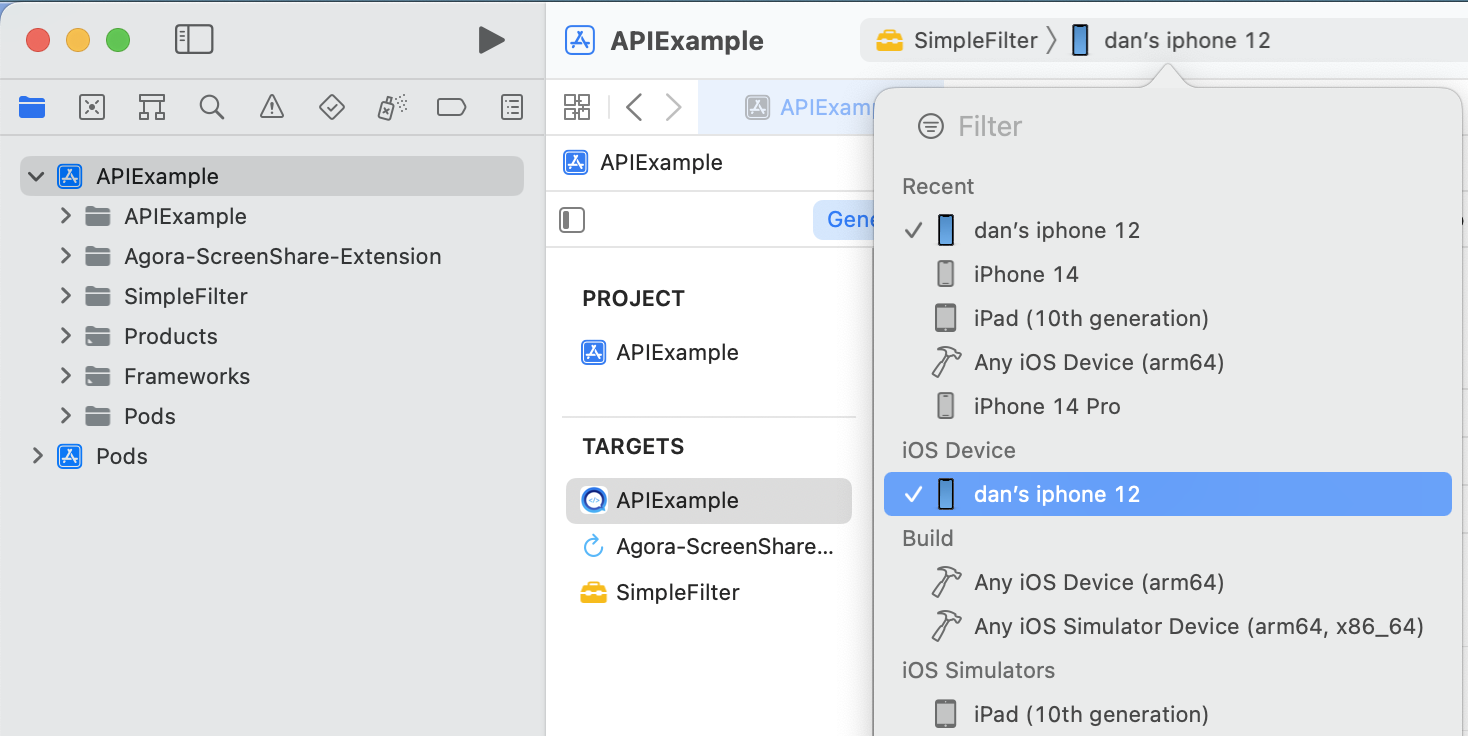
2. Check your iOS device in the **iOS Device** options at the top of the Xcode interface.
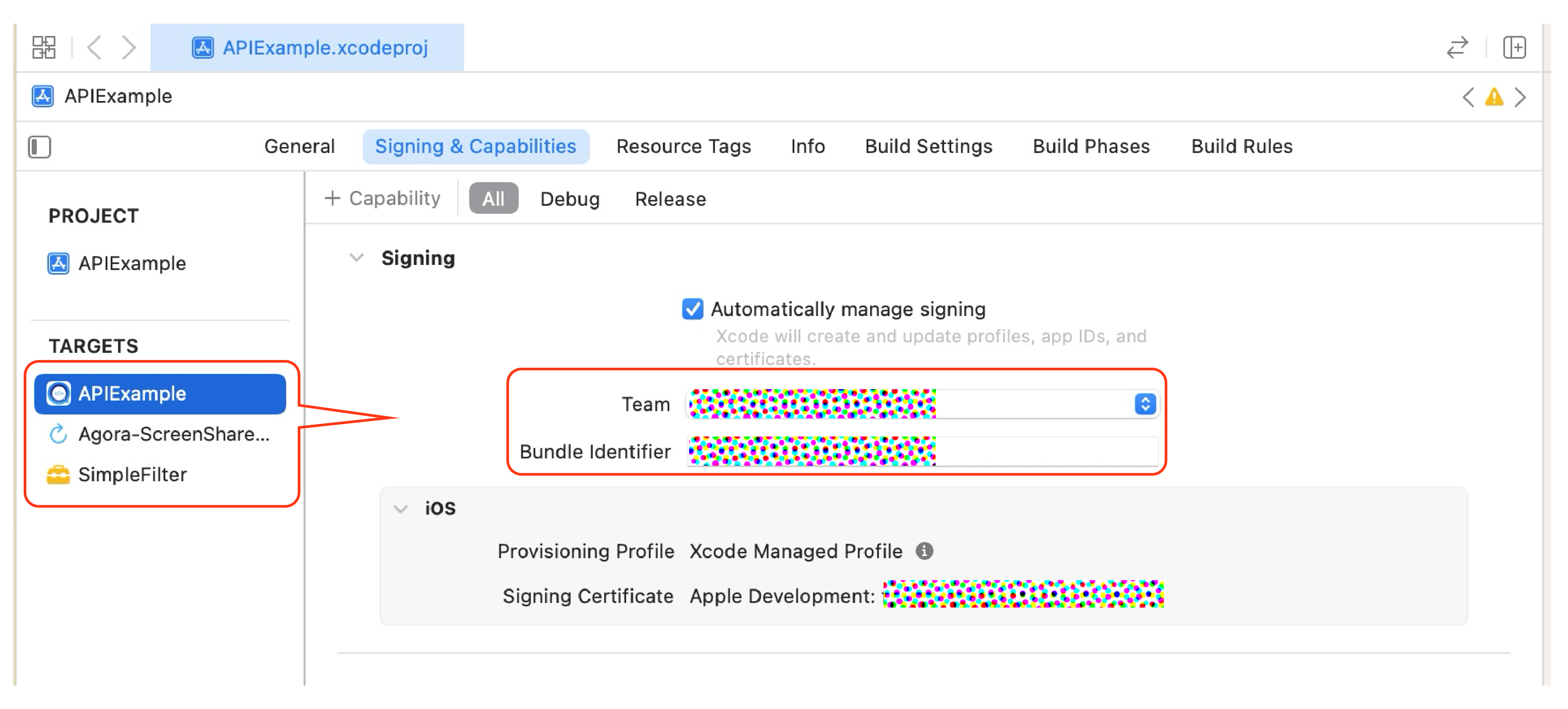
3. Check **Automatically manage signing** in **Signing & Capabilities** under **TARGETS**, then configure your Apple developer account and **Bundle Identifier** under each target.
4. Click **Start compiling**.
5. After successful compilation, you see the app icon on your device.
6. If an untrusted developer prompt pops up on the device, first tap **Cancel** to close the prompt, then open **Settings > General > VPN and Device Management** on the iOS device, and choose to trust the developer.
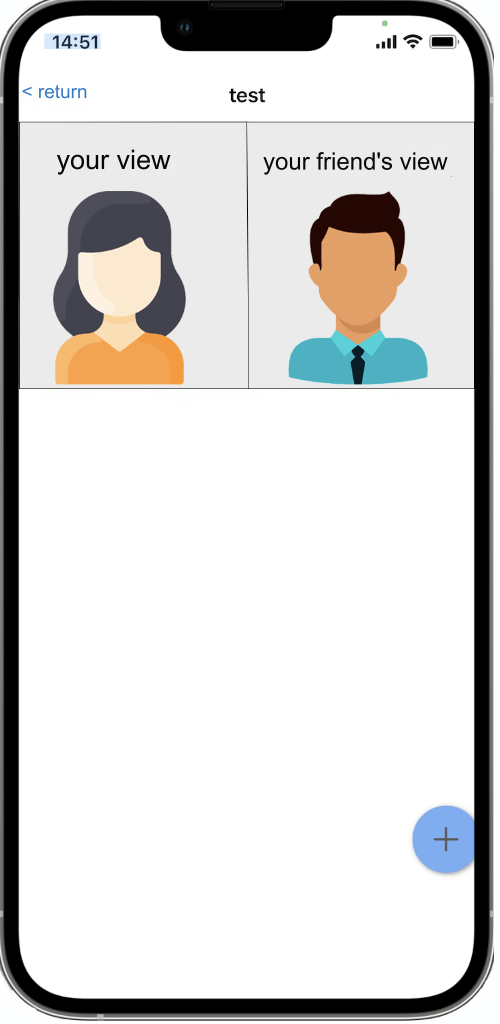
7. Open the **API Example App**, select an example you want to try, then enter the channel name. For example, *test*, and tap **Join Channel**.
8. To test various audio and video interaction use-cases, connect to the [Agora web demo](https://webdemo.agora.io/basicVideoCall/index.html), or install and run the sample project on a second device. Make sure you use the same app ID on both devices. When you join the same channel from two devices, you can see and hear each other.
<_PlatformProcessedMarker close="true" />
<_PlatformPanel platform="macos">
<_PlatformProcessedMarker groupMode="structured" canonicalPlatform="web" platform="macos" />
1. Open the file `APIExample.xcworkspace` in Xcode. Check **Automatically manage signing** in **Signing & Capabilities** under **TARGETS**, and then configure your Apple developer account and **Bundle Identifier** under each target.
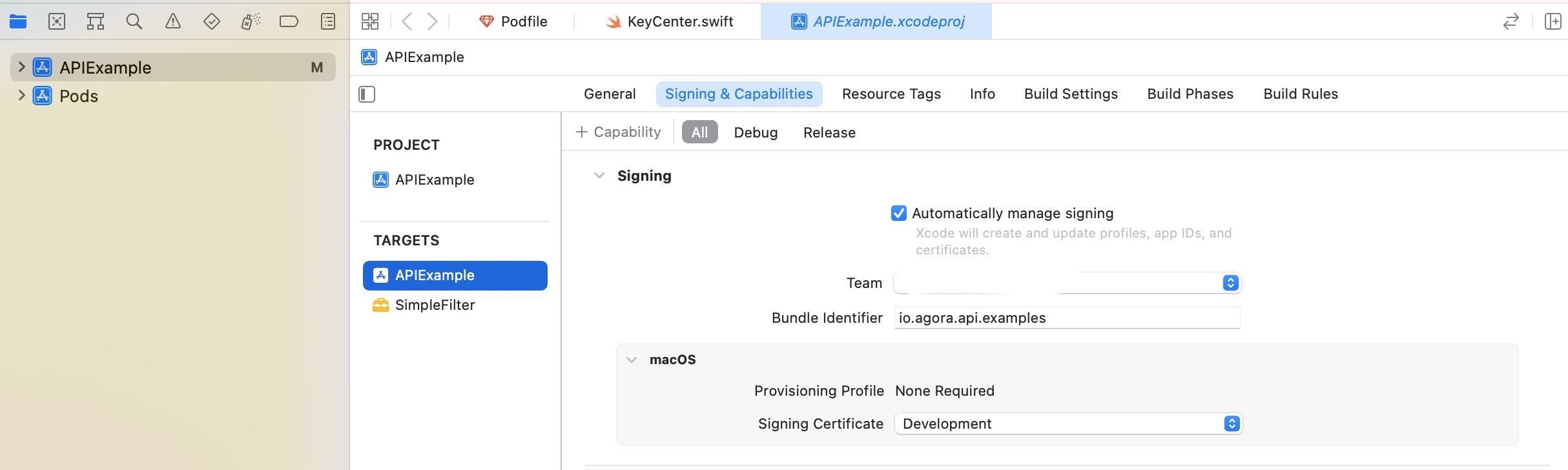
2. Click **Start compiling**.
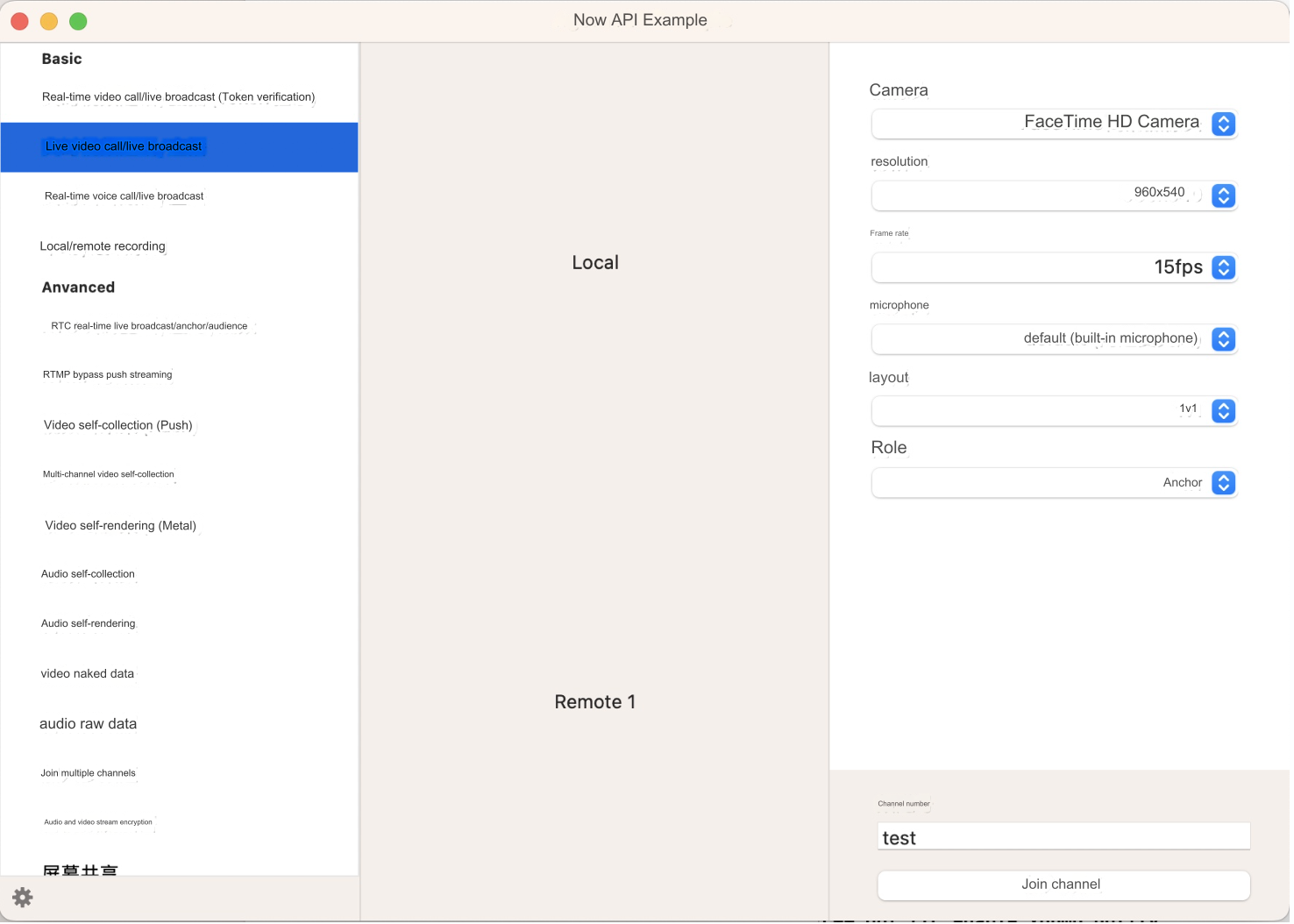
3. After successful compilation, the sample project window pops up.
4. Select an example you want to try, then enter a channel name, such as *test*, and click the **Join Channel**.
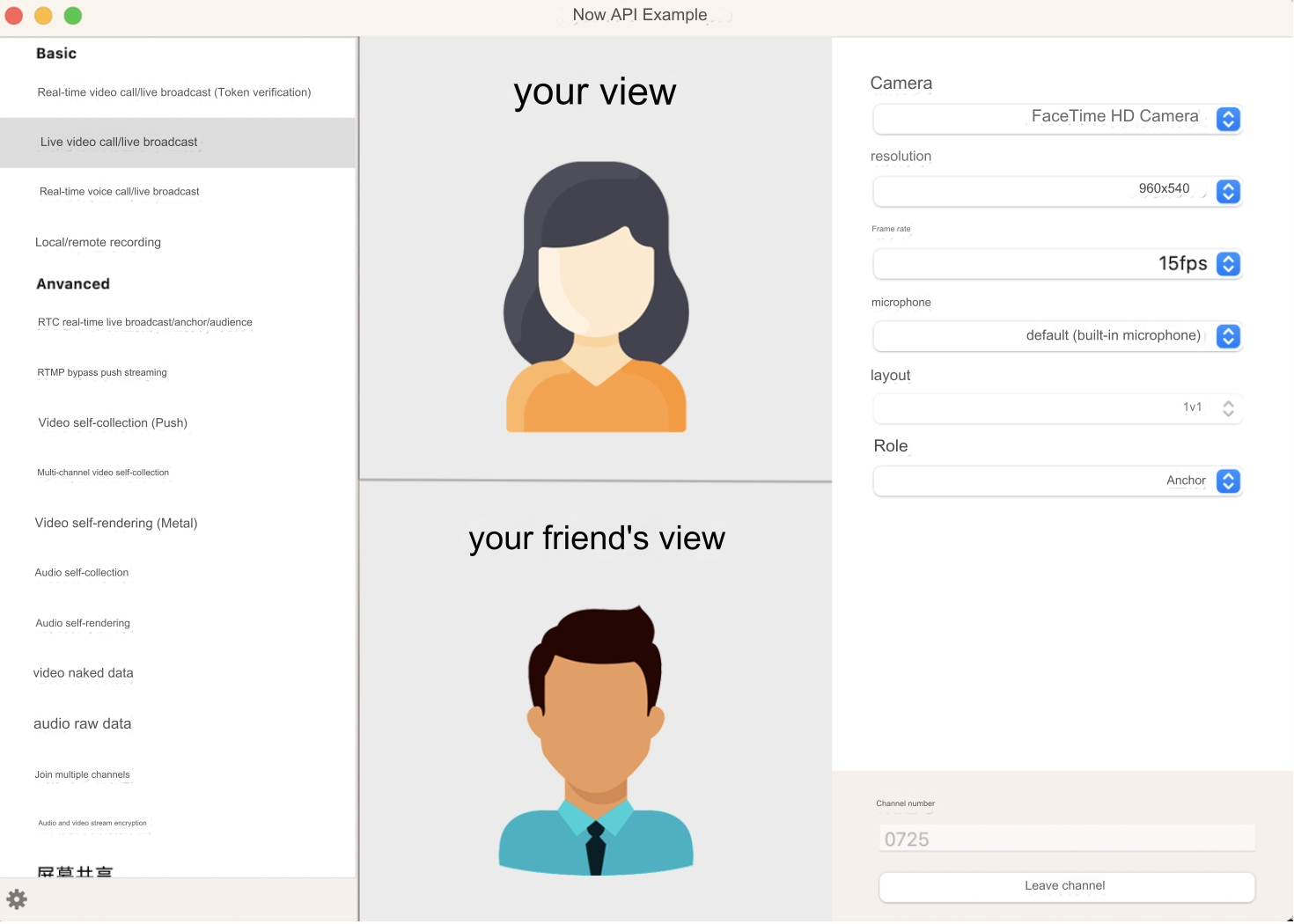
5. To test various audio and video interaction use-cases, connect to the [Agora web demo](https://webdemo.agora.io/basicVideoCall/index.html), or install and run the sample project on a second device. Make sure you use the same app ID on both devices. When you join the same channel from two devices, you can see and hear each other.
<_PlatformProcessedMarker close="true" />
<_PlatformPanel platform="javascript">
<_PlatformProcessedMarker groupMode="structured" canonicalPlatform="web" platform="javascript" />
1. Use the following command to run the sample project.
```bash
npm run dev
```
2. On the demo page, enter your [App ID](/en/realtime-media/video/manage-agora-account#get-the-app-id), [token](/en/realtime-media/video/manage-agora-account#generate-temporary-tokens), and channel name and join the channel.
The channel name must be the same as the channel ID you used to generate the token.
<_PlatformProcessedMarker close="true" />
<_PlatformPanel platform="react-native">
<_PlatformProcessedMarker groupMode="structured" canonicalPlatform="web" platform="react-native" />
1. Execute the following command in the project root directory to run the sample project.
* Target platform Android
```bash
yarn example android
```
* Target platform iOS
```bash
yarn example ios
```
2. After the operation is complete, the following application appears on your device:
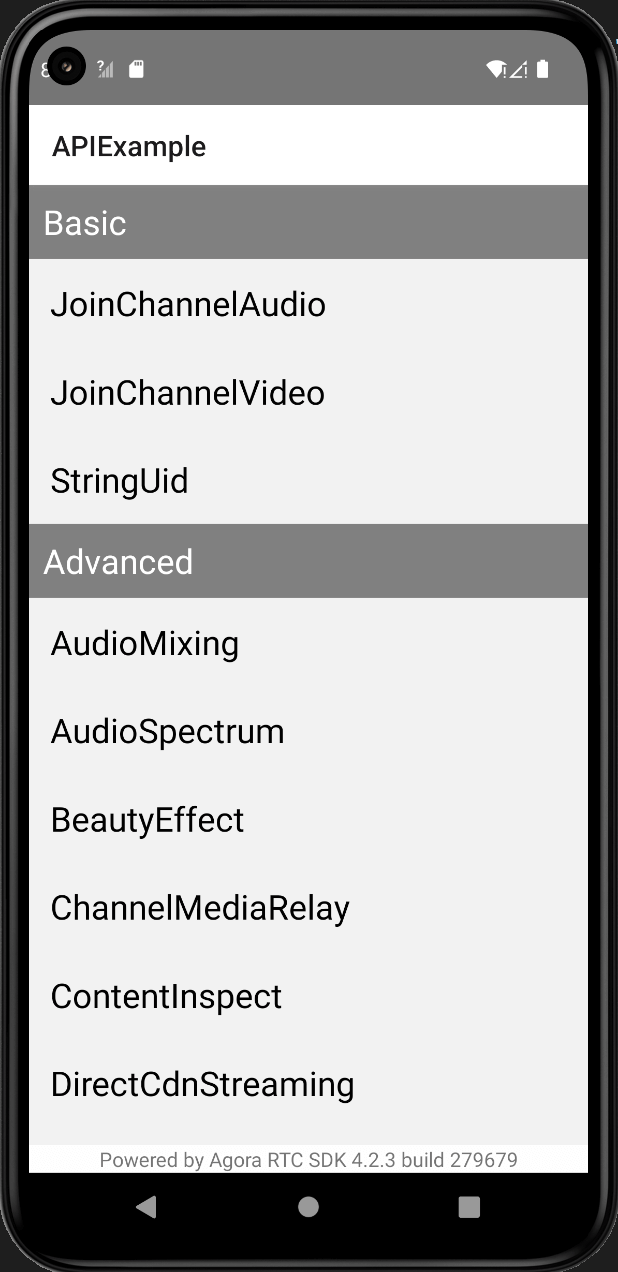
Showing Android as an example
3. Select the demo you want to experience from the menu. Choose **JoinChannelVideo** under **Basic** as an example, and click **join channel**.
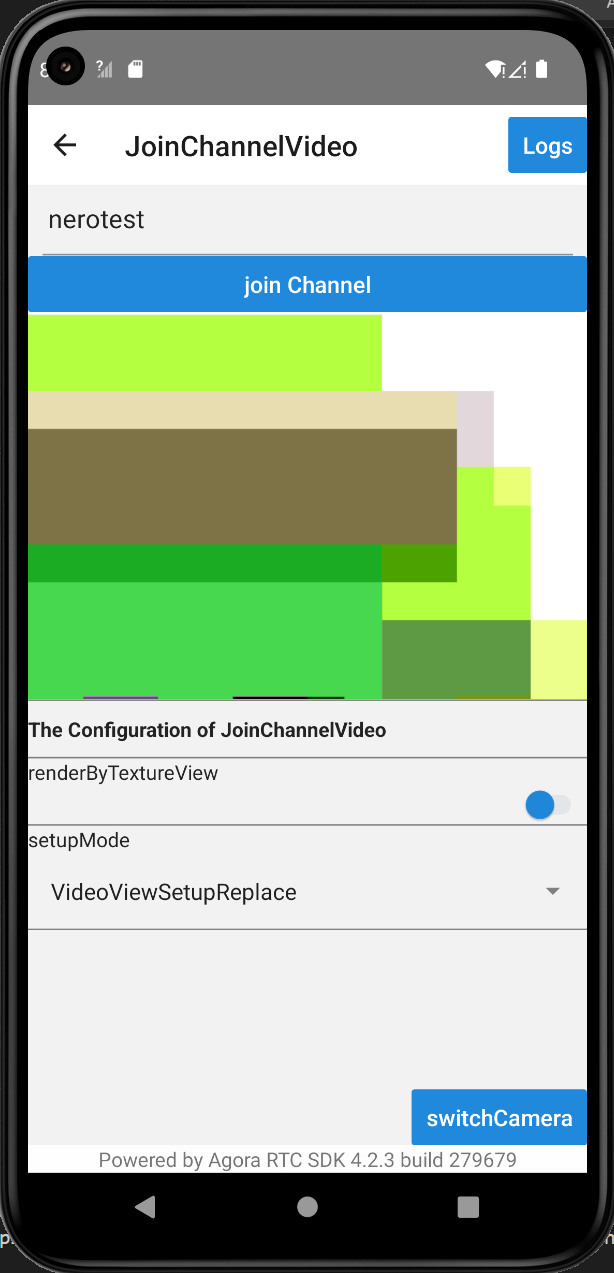
4. To test various audio and video interaction use-cases, connect to the [Agora web demo](https://webdemo.agora.io/basicVideoCall/index.html), or install and run the sample project on a second device. Make sure you use the same app ID on both devices. When you join the same channel from two devices, you can see and hear each other.
<_PlatformProcessedMarker close="true" />
<_PlatformPanel platform="unity">
<_PlatformProcessedMarker groupMode="structured" canonicalPlatform="web" platform="unity" />
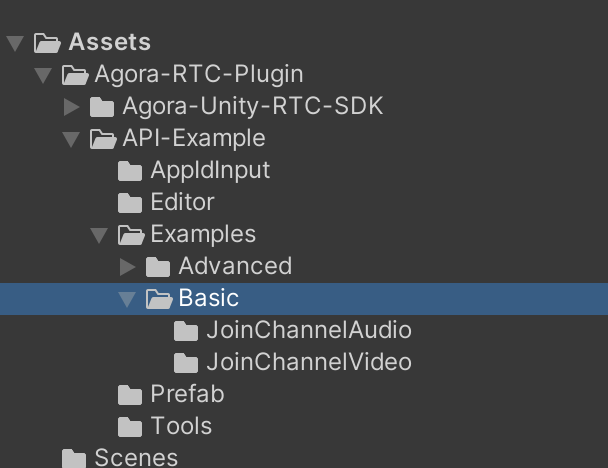
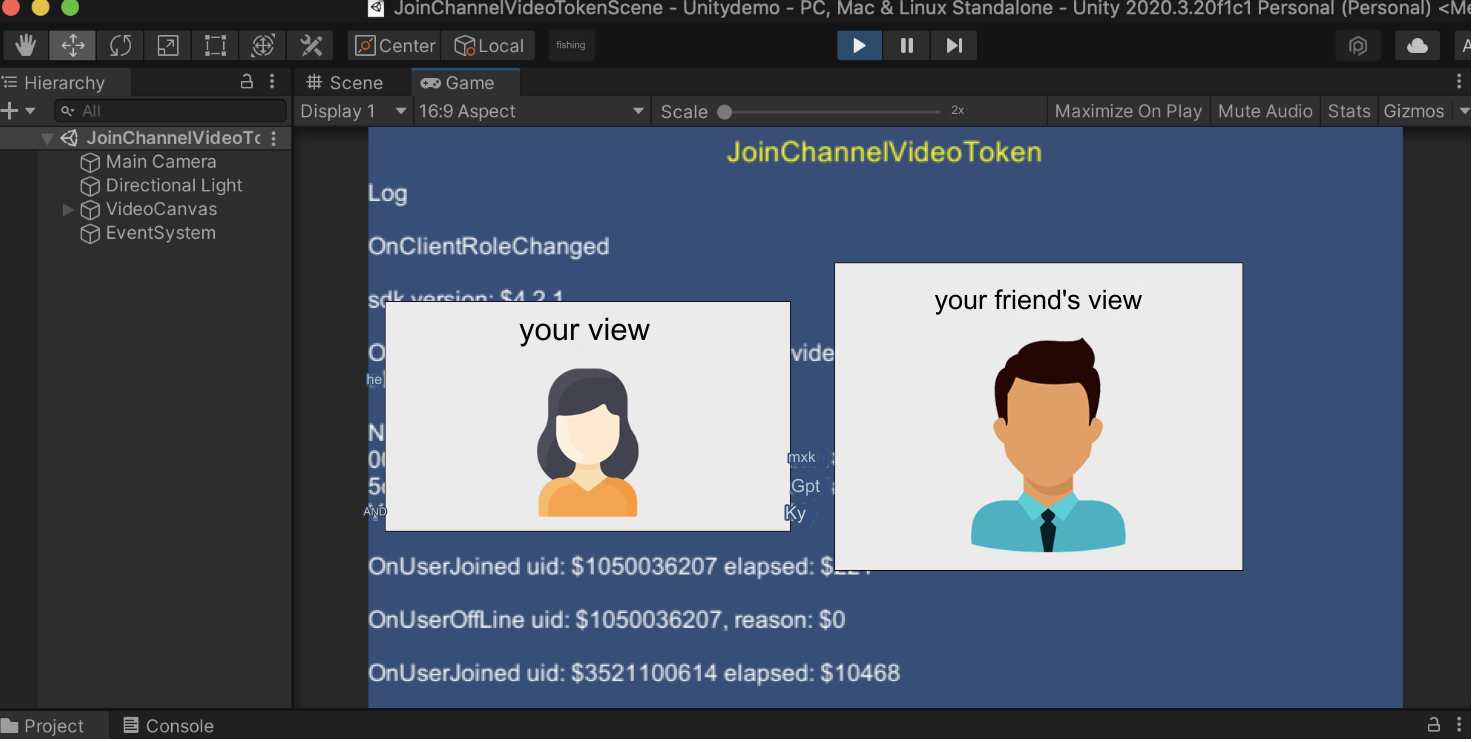
1. The `API-Example` folder contains two folders, `Basic` and `Advanced`, that contain usage examples of basic and advanced use-cases of Agora SDK. Select the demo you want to run and click **Play** to compile.
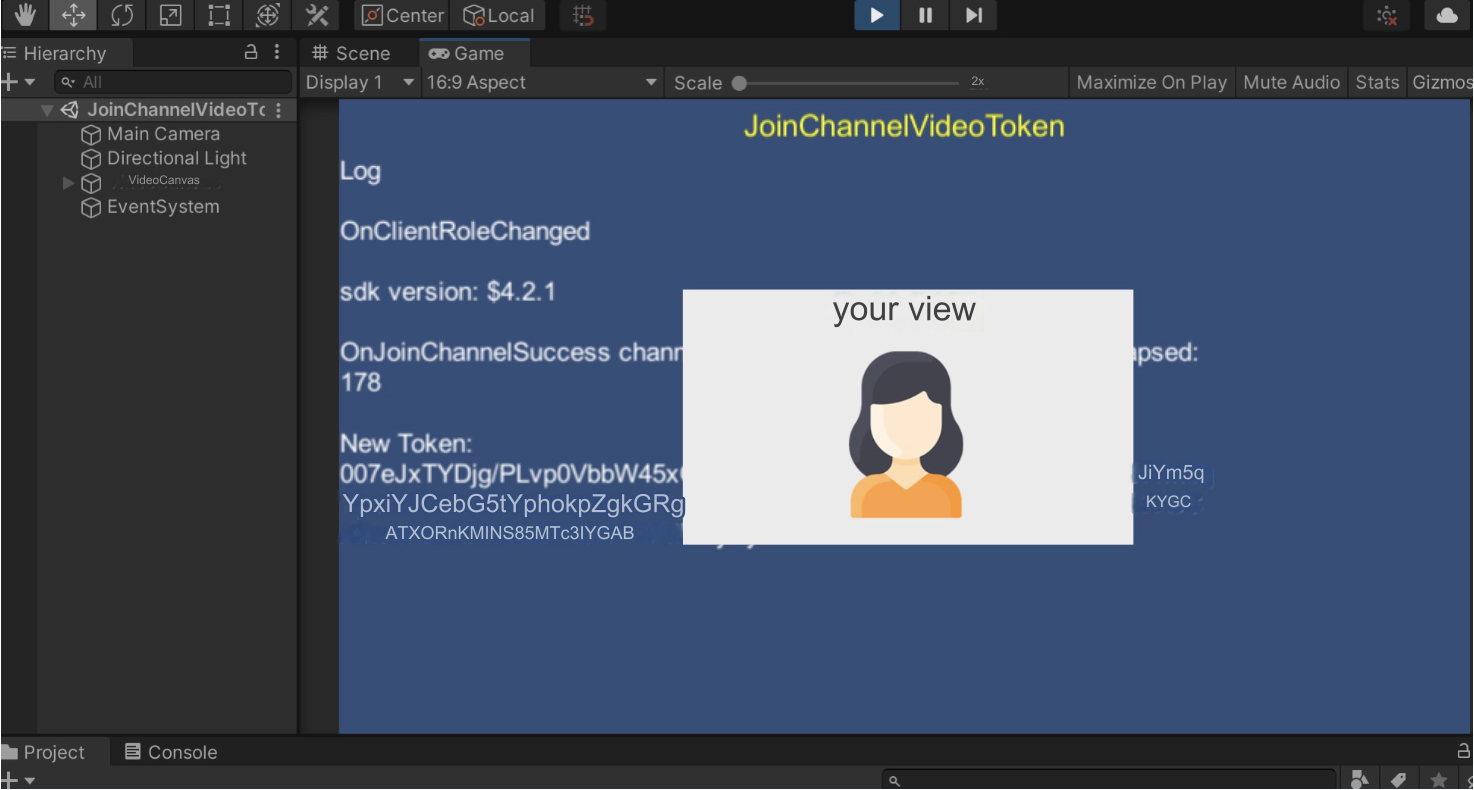
2. Choose video calls as an example. After successful compilation, you see your local video preview.
3. To test various audio and video interaction use-cases, connect to the [Agora web demo](https://webdemo.agora.io/basicVideoCall/index.html), or install and run the sample project on a second device. Make sure you use the same app ID on both devices. When you join the same channel from two devices, you can see and hear each other.
<_PlatformProcessedMarker close="true" />
<_PlatformPanel platform="unreal">
<_PlatformProcessedMarker groupMode="structured" canonicalPlatform="web" platform="unreal" />
In the Unreal Editor, you can compile and run the sample project at the main level or any sublevel.
Main Level
Sub Level
1. In the C++ API example folder, double-click `AgoraExample.uproject` to open the project.
2. Double-click **MainLevel**, then click **Compile** and **Run** the sample project. On Windows, you see the following interface:
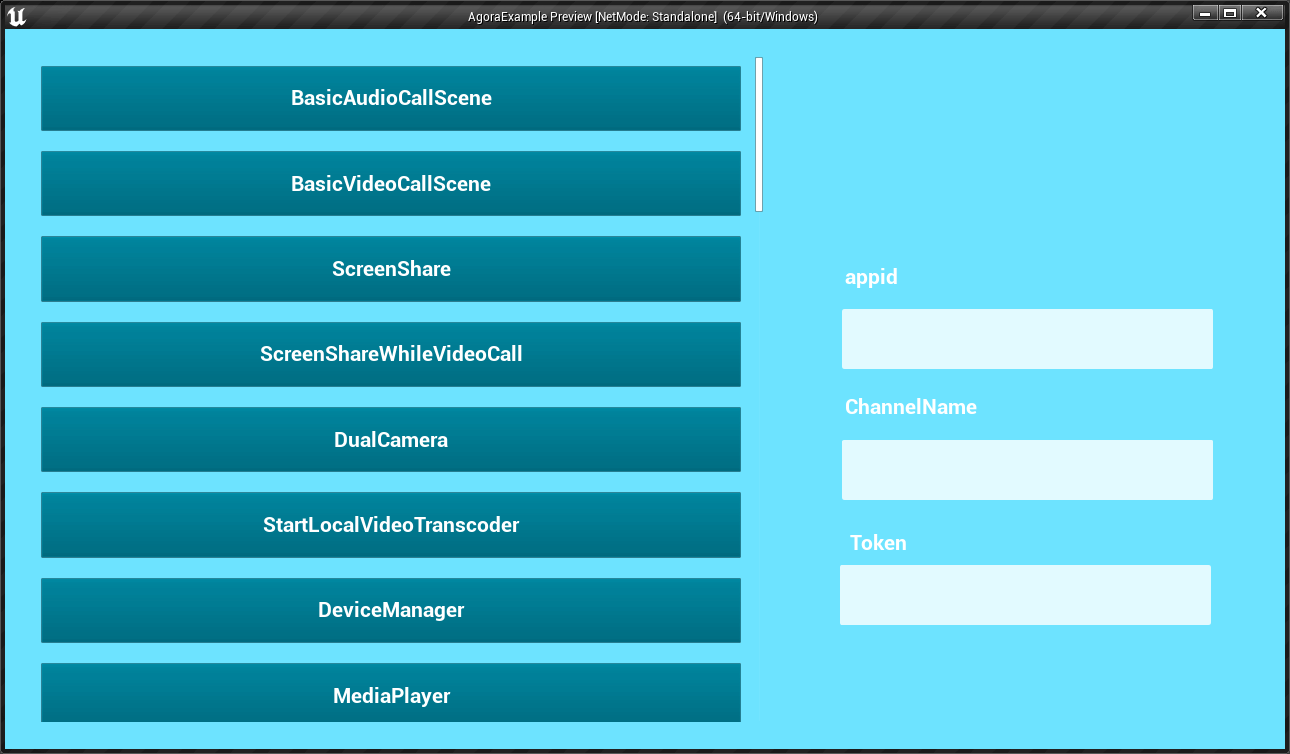
3. Fill in the text box with the App ID and temporary token you obtained from the Agora Console, and the channel name you used to generate the token.
4. Click the button on the left to navigate from the main level to the sub-levels of the API example to experience the selected demo. Choose **BasicVideoCallScene** as an example, click **JoinChannel** to join the channel. You see yourself in the local view.
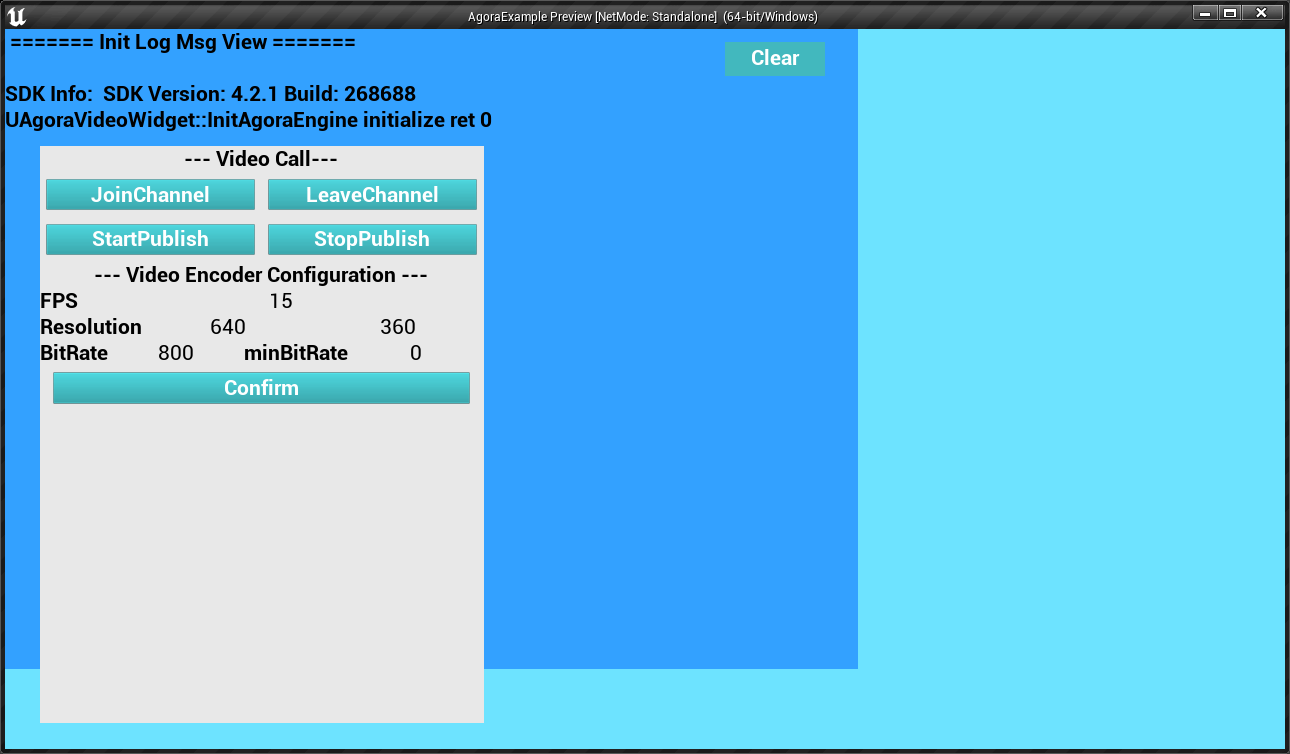
5. To test various audio and video interaction use-cases, connect to the [Agora web demo](https://webdemo.agora.io/basicVideoCall/index.html), or install and run the sample project on a second device. Make sure you use the same App ID on both devices. When you join the same channel from two devices, you can see and hear each other.
1. In the C++ API example folder, double-click `AgoraExample.uproject` to open the project.
2. Choose **BasicVideoCallScene** as an example, double-click the sub-level in the Content Browser, and then click the **BP\_AgoraActor** blueprint in the **World Outliner panel**. Fill in the App ID, temporary token, and channel name of your project in the **Details panel**.
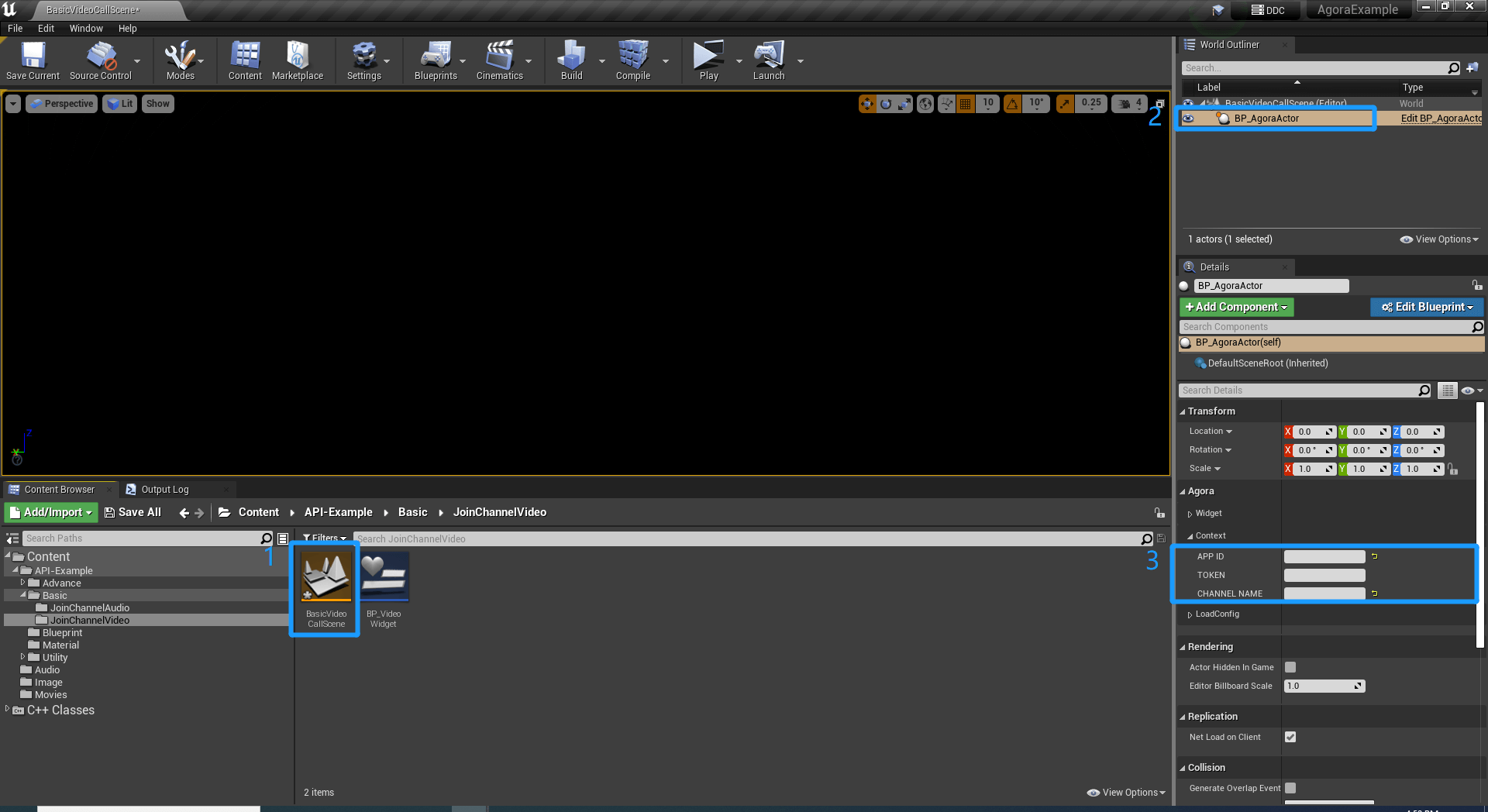
3. Click **Compile** and run the sample project at the sublevel. You see the following interface:
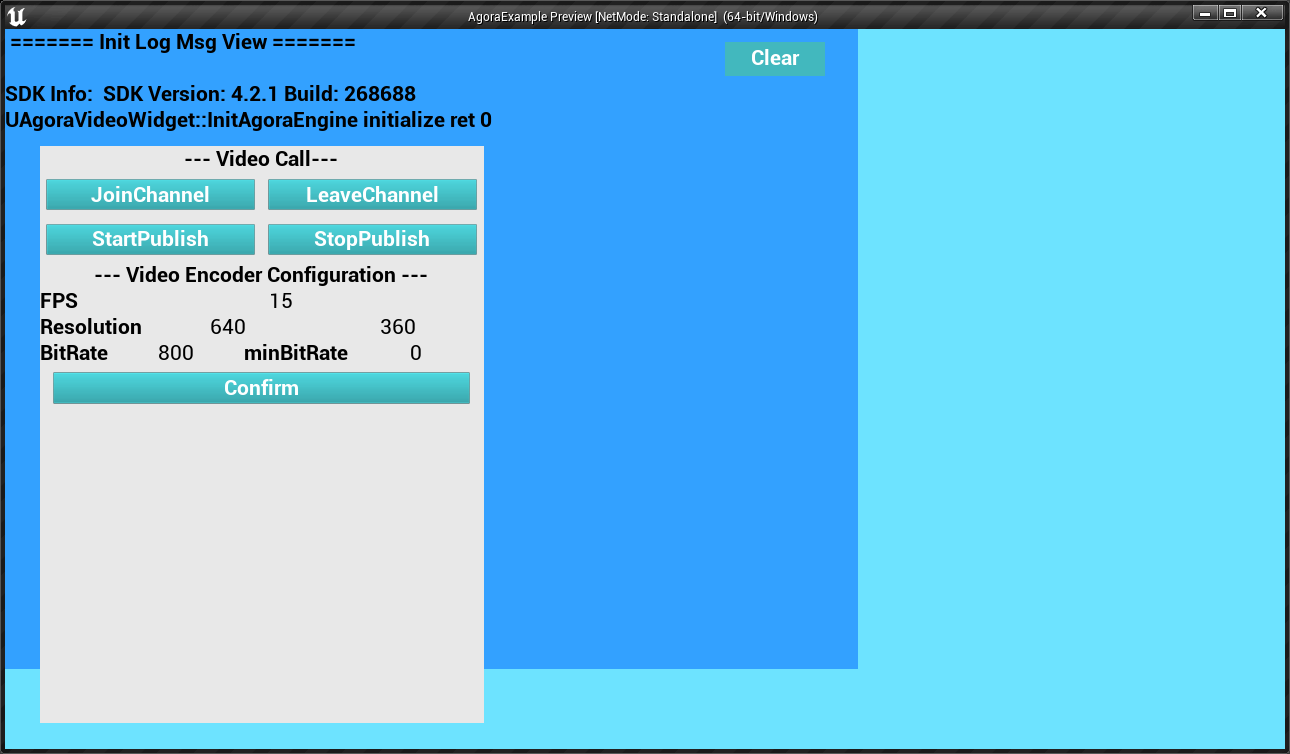
4. Click **JoinChannel** to join the channel. You see yourself in the local view.
5. To test various audio and video interaction use-cases, connect to the [Agora web demo](https://webdemo.agora.io/basicVideoCall/index.html), or install and run the sample project on a second device. Make sure you use the same App ID on both devices. When you join the same channel from two devices, you can see and hear each other.
<_PlatformProcessedMarker close="true" />
<_PlatformPanel platform="web">
<_PlatformProcessedMarker groupMode="structured" canonicalPlatform="web" platform="web" />
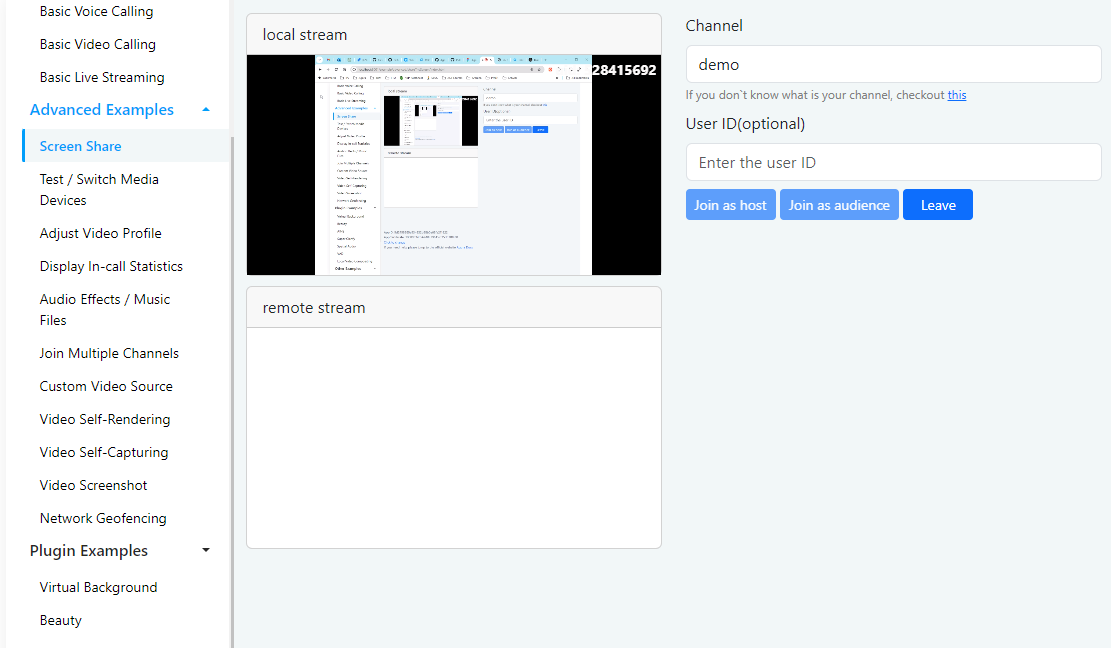
1. From the menu, choose the feature or use-case you want to experience.
2. As an example, try the screen sharing demo, click **Join as host** to join a channel as the host. Ask a friend to run the sample project on another device and **Join as audience**, using the same app ID, app certificate, and channel name. Now you can share the screen with your friend.
<_PlatformProcessedMarker close="true" />
<_PlatformPanel platform="windows">
<_PlatformProcessedMarker groupMode="structured" canonicalPlatform="web" platform="windows" />
1. Open the file `/APIExample/APIExample.sln` in Visual Studio.
2. Click **Start compiling**.
3. After compilation is complete, you see the following window on your device:
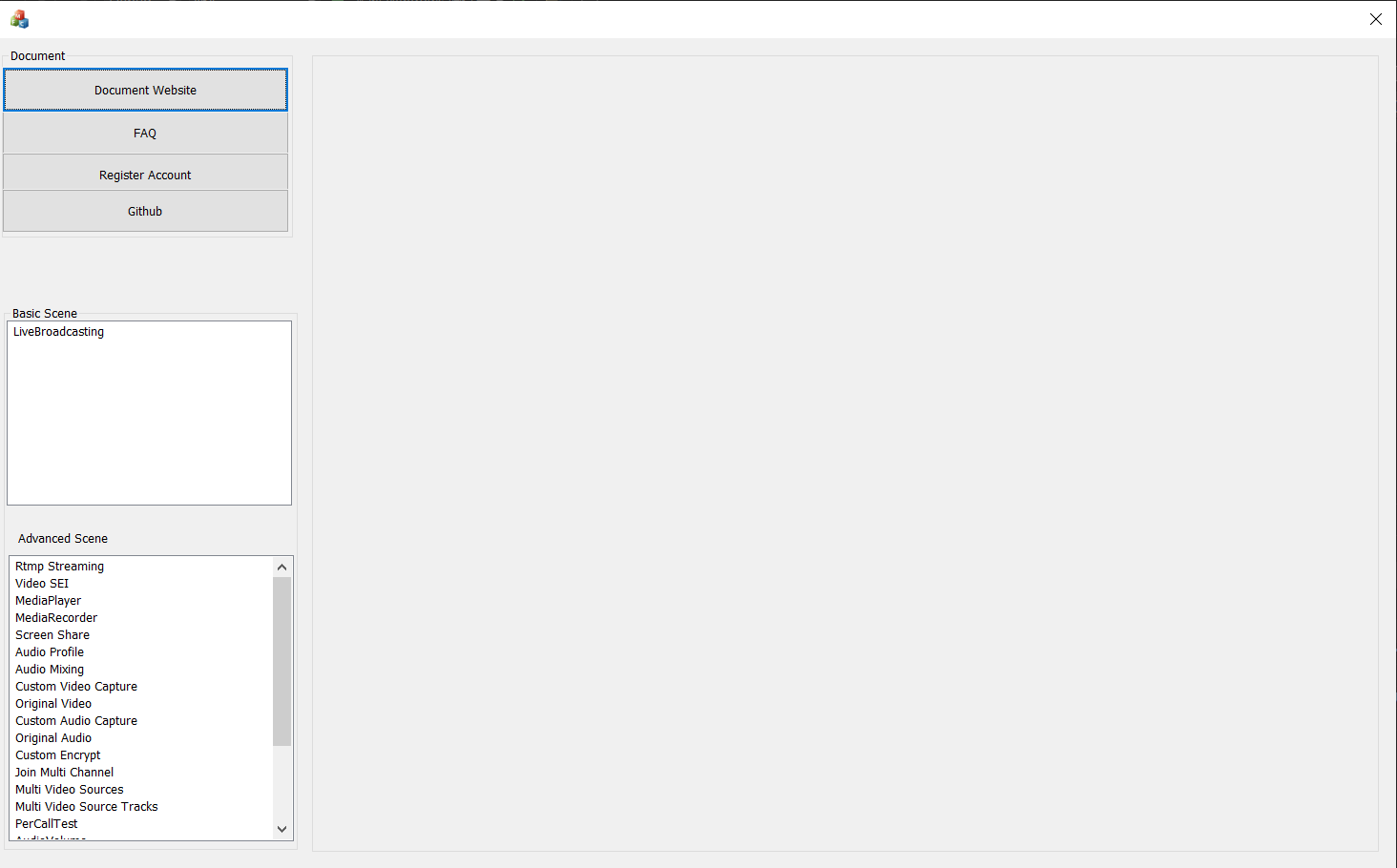
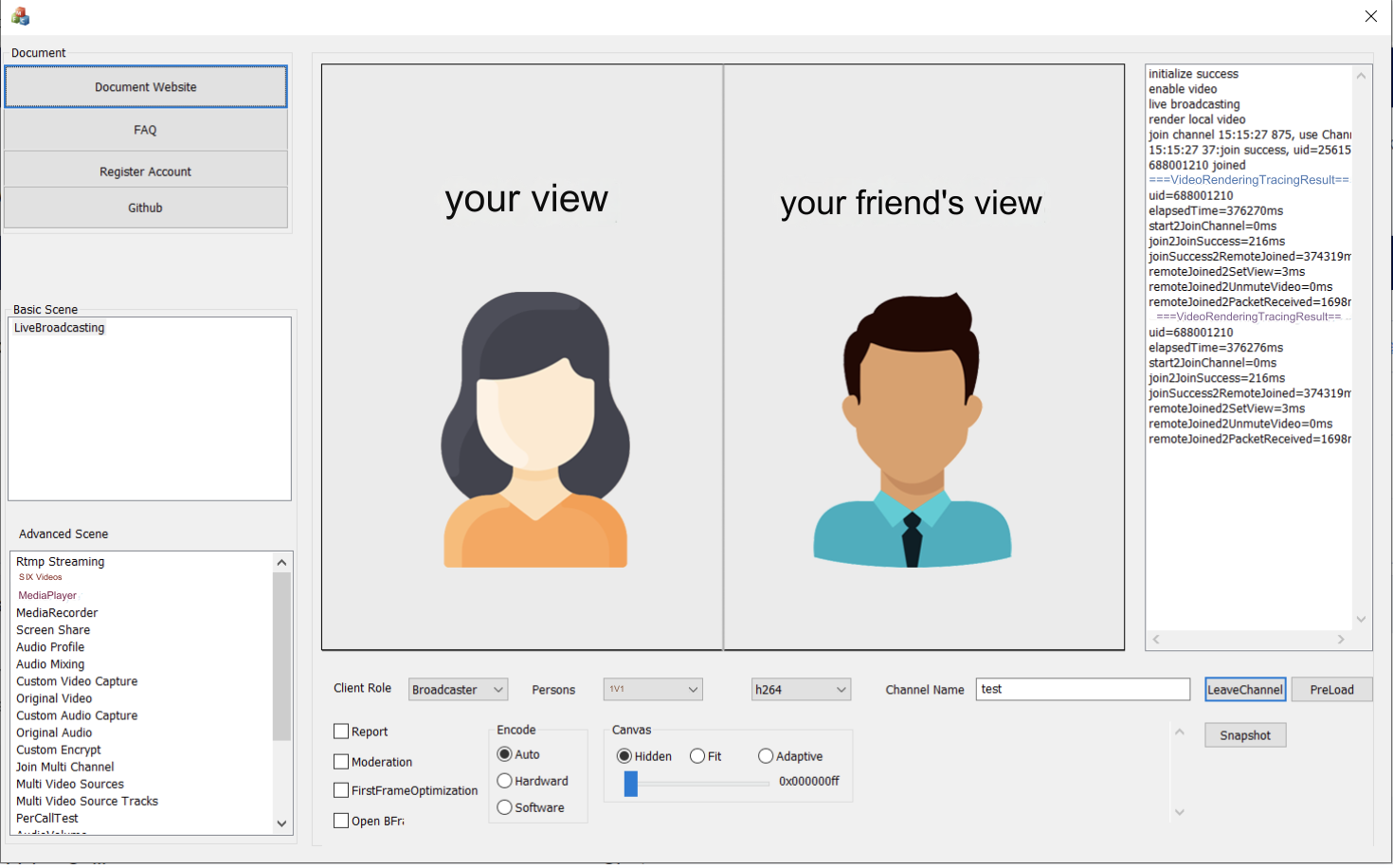
4. Choose any demo you want to experience. Taking the **Live Broadcasting** as an example, enter the channel name you used when generating the temporary token in **Channel Name**, then click **Join Channel**.
5. To test various audio and video interaction use-cases, use the [Agora web demo](https://webdemo.agora.io/basicVideoCall/index.html), or install and run the sample project on a second device. Make sure you use the same app ID on both devices. When you join the same channel from two devices, you can see and hear each other.
<_PlatformProcessedMarker close="true" />