# Alpha transparency effect (/en/realtime-media/video/build/apply-video-effects/alpha-transparency-effect)
> For AI agents: see the complete documentation index at [llms.txt](/llms.txt).
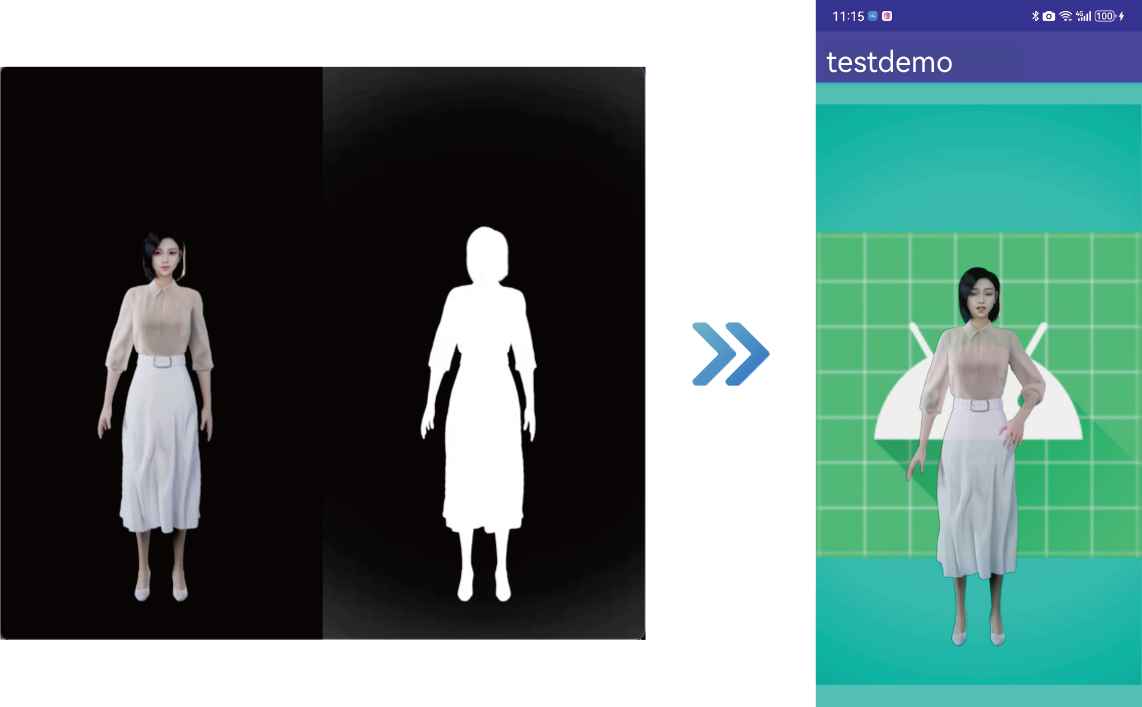
In various real-time video interaction use-cases, segmenting the host's background and applying transparent special effects can make the interaction more engaging, enhance immersion, and improve the overall interactive experience.
<_PlatformTabsGroup groupMode="structured" canonicalPlatform="android" platforms="["android","ios","macos","windows","react-native","unity"]" showTabs="true">
<_PlatformPanel platform="android">
<_PlatformProcessedMarker groupMode="structured" canonicalPlatform="android" platform="android" />
Consider the following sample use-cases:
* **Broadcaster background replacement**: The audience sees the broadcaster's background in the video replaced with a virtual scene, such as a gaming environment, a conference, or a tourist attractions.
* **Animated virtual gifts**: Display dynamic animations with a transparent background to avoid obscuring live content when multiple video streams are merged.
* **Chroma keying during live game streaming**: The audience sees the broadcaster's image cropped and positioned within the local game screen, making it appear as though the broadcaster is part of the game.
## Prerequisites [#prerequisites]
Ensure that you have implemented the [SDK quickstart](/en/realtime-media/video/get-started-sdk) in your project.
## Implement alpha transparency [#implement-alpha-transparency]
Choose one of the following methods to implement the Alpha transparency effect based on your specific business use-case.
### Custom video capture use-case [#custom-video-capture-use-case]
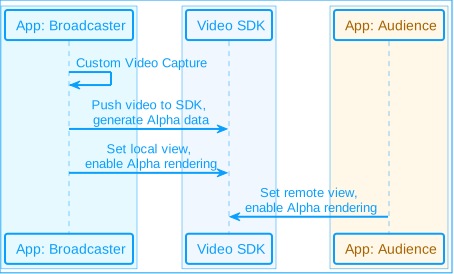
The implementation process for this use-case is illustrated in the figure below:
**Alpha transparency custom video capture use-case**
Take the following steps to implement this logic:
1. Process the captured video frames and generate Alpha data. You can choose from the following methods:
* **Method 1**: Call the `pushExternalVideoFrame`\[2/2] method and set the `alphaBuffer` parameter to specify Alpha channel data for the video frames. This data matches the size of the video frames, with each pixel value ranging from 0 to 255, where 0 represents the background and 255 represents the foreground.
Ensure that `alphaBuffer` is exactly the same size as the video frame (width × height), otherwise the app may crash.
Java
Kotlin
```java
JavaI420Buffer javaI420Buffer = JavaI420Buffer.wrap(width, height, dataY, width, dataU, strideUV, dataV, strideUV, null);
VideoFrame frame = new VideoFrame(javaI420Buffer, 0, timestamp);
ByteBuffer alphaBuffer = ByteBuffer.allocateDirect(width * height);
frame.fillAlphaData(alphaBuffer);
rtcEngine.pushExternalVideoFrame(frame);
```
```kotlin
val javaI420Buffer = JavaI420Buffer.wrap(width, height, dataY, width, dataU, strideUV, dataV, strideUV, null)
val frame = VideoFrame(javaI420Buffer, 0, timestamp)
val alphaBuffer = ByteBuffer.allocateDirect(width * height)
frame.fillAlphaData(alphaBuffer)
rtcEngine.pushExternalVideoFrame(frame)
```
* **Method 2**: Call the `pushExternalVideoFrame` method and use the `setAlphaStitchMode` method in the `VideoFrame` class to set the Alpha stitching mode. Construct a `VideoFrame` with the stitched Alpha data.
Java
Kotlin
```java
JavaI420Buffer javaI420Buffer = JavaI420Buffer.wrap(width, height, dataY, width, dataU, strideUV, dataV, strideUV, null);
VideoFrame frame = new VideoFrame(javaI420Buffer, 0, timestamp);
// Set the Alpha stitching mode, in the example below, Alpha is set to be below the video image
frame.setAlphaStitchMode(Constants.VIDEO_ALPHA_STITCH_BELOW);
rtcEngine.pushExternalVideoFrame(frame);
```
```kotlin
val javaI420Buffer = JavaI420Buffer.wrap(width, height, dataY, width, dataU, strideUV, dataV, strideUV, null)
val frame = VideoFrame(javaI420Buffer, 0, timestamp)
// Set the Alpha stitching mode, in the example below, Alpha is set to be below the video image
frame.setAlphaStitchMode(Constants.VIDEO_ALPHA_STITCH_BELOW)
rtcEngine.pushExternalVideoFrame(frame)
```
2. Render the local view and implement the Alpha transparency effect.
* Create a `TextureView` object for rendering the local view.
* Call the `setupLocalVideo` method to set the local view:
* Set the `enableAlphaMask` parameter to `true` to enable alpha mask rendering.
* Set `TextureView` as the display window for the local video.
Java
Kotlin
```java
// Alpha data input on the sender side and Alpha transmission is enabled
VideoEncoderConfiguration config = new VideoEncoderConfiguration(...);
// Alpha transfer needs to be enabled when setting encoding parameters.
config.advanceOptions.encodeAlpha = true;
rtcEngine.setVideoEncoderConfiguration(videoEncoderConfiguration);
// Set the view to TextureView
TextureView textureView = new TextureView(context);
// Enable transparent mode, allowing transparent portions in the view background and content
textureView.setOpaque(false);
fl_local.addView(textureView, new FrameLayout.LayoutParams(ViewGroup.LayoutParams.MATCH_PARENT, ViewGroup.LayoutParams.MATCH_PARENT));
VideoCanvas local = new VideoCanvas(textureView, RENDER_MODE_FIT, 0);
local.enableAlphaMask = true;
rtcEngine.setupLocalVideo(local);
```
```kotlin
// Alpha data input on the sender side and Alpha transmission is enabled
val config = VideoEncoderConfiguration(...)
// Alpha transfer needs to be enabled when setting encoding parameters.
config.advanceOptions.encodeAlpha = true
rtcEngine.setVideoEncoderConfiguration(videoEncoderConfiguration)
// Set the view to TextureView
val textureView = TextureView(context)
// Enable transparent mode, allowing transparent portions in the view background and content
textureView.isOpaque = false
fl_local.addView(textureView, FrameLayout.LayoutParams(ViewGroup.LayoutParams.MATCH_PARENT, ViewGroup.LayoutParams.MATCH_PARENT))
val local = VideoCanvas(textureView, RENDER_MODE_FIT, 0)
local.enableAlphaMask = true
rtcEngine.setupLocalVideo(local)
```
3. Render the local view of the remote video stream and implement alpha transparency effects.
* After receiving the `onUserJoined` callback, a `TextureView` object is created for rendering the remote view.
* Call the `setupRemoteVideo` method to set the remote view:
* Set the `enableAlphaMask` parameter to true to enable alpha mask rendering.
* Set the display window of the remote video stream in the local video.
Java
Kotlin
```java
// Enable transparent mode at the receiving end
TextureView textureView = new TextureView(context);
textureView.setOpaque(false);
fl_remote.addView(textureView, new FrameLayout.LayoutParams(ViewGroup.LayoutParams.MATCH_PARENT, ViewGroup.LayoutParams.MATCH_PARENT));
VideoCanvas remote = new VideoCanvas(textureView, VideoCanvas.RENDER_MODE_FIT, uid);
remote.enableAlphaMask = true;
rtcEngine.setupRemoteVideo(remote);
```
```kotlin
// Enable transparent mode at the receiving end
val textureView = TextureView(context)
textureView.isOpaque = false
fl_remote.addView(textureView, FrameLayout.LayoutParams(ViewGroup.LayoutParams.MATCH_PARENT, ViewGroup.LayoutParams.MATCH_PARENT))
val remote = VideoCanvas(textureView, VideoCanvas.RENDER_MODE_FIT, uid)
remote.enableAlphaMask = true
rtcEngine.setupRemoteVideo(remote)
```
### SDK Capture use-case [#sdk-capture-use-case]
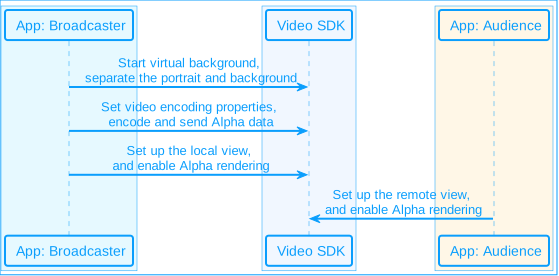
The implementation process for this use-case is illustrated in the following figure:
**Alpha transparency SDK capture use-case**
Take the following steps to implement this logic:
1. On the broadcasting end, call the `enableVirtualBackground` \[2/2] method to enable the background segmentation algorithm and obtain the Alpha data for the portrait area. Set the parameters as follows:
* `enabled`: Set to `true` to enable the virtual background.
* `backgroundSourceType`: Set to `BACKGROUND_NONE`(0), to segment the portrait and background, and process the background as Alpha data.
Java
Kotlin
```java
VirtualBackgroundSource virtualBackgroundSource = new VirtualBackgroundSource(...);
virtualBackgroundSource.backgroundSourceType = VirtualBackgroundSource.BACKGROUND_NONE; // Only generate alpha data, no background replacement
SegmentationProperty segmentationProperty = new SegmentationProperty(...);
rtcEngine.enableVirtualBackground(true, virtualBackgroundSource, segmentationProperty, sourceType);
```
```kotlin
val virtualBackgroundSource = VirtualBackgroundSource(...)
virtualBackgroundSource.backgroundSourceType = VirtualBackgroundSource.BACKGROUND_NONE // Only generate alpha data, no background replacement
val segmentationProperty = SegmentationProperty(...)
rtcEngine.enableVirtualBackground(true, virtualBackgroundSource, segmentationProperty, sourceType)
```
2. Call `setVideoEncoderConfiguration` on the broadcasting end to set the video encoding property and set `encodeAlpha` to `true`. Then the Alpha data will be encoded and sent to the remote end.
Java
Kotlin
```java
VideoEncoderConfiguration videoEncoderConfiguration = new VideoEncoderConfiguration(...);
videoEncoderConfiguration.advanceOptions = new VideoEncoderConfiguration.AdvanceOptions(...);
videoEncoderConfiguration.advanceOptions.encodeAlpha = true;
rtcEngine.setVideoEncoderConfiguration(videoEncoderConfiguration);
```
```kotlin
val videoEncoderConfiguration = VideoEncoderConfiguration(...)
videoEncoderConfiguration.advanceOptions = VideoEncoderConfiguration.AdvanceOptions(...)
videoEncoderConfiguration.advanceOptions.encodeAlpha = true
rtcEngine.setVideoEncoderConfiguration(videoEncoderConfiguration)
```
3. Render the local and remote views and implement the Alpha transparency effect. See the steps in the [Custom Video Capture use-case](#custom-video-capture-use-case) for details.
### Raw video data use-case [#raw-video-data-use-case]
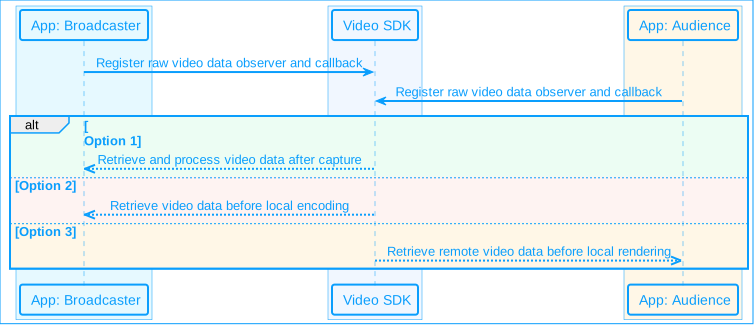
The implementation process for this use-case is illustrated in the following figure:
**Alpha transparency raw video data use-case**
Take the following steps to implement this logic:
1. Call the `registerVideoFrameObserver` method to register a raw video frame observer and implement the corresponding callbacks as required.
Java
Kotlin
```java
// Register IVideoFrameObserver
public class MyVideoFrameObserver implements IVideoFrameObserver {
@Override
public boolean onRenderVideoFrame(String channelId, int uId, VideoFrame videoFrame) {
// ...
return false;
}
@Override
public boolean onCaptureVideoFrame(int type, VideoFrame videoFrame) {
// ...
return false;
}
@Override
public boolean onPreEncodeVideoFrame(int type, VideoFrame videoFrame) {
// ...
return false;
}
}
MyVideoFrameObserver observer = new MyVideoFrameObserver();
rtcEngine.registerVideoFrameObserver(observer);
```
```kotlin
// Register IVideoFrameObserver
class MyVideoFrameObserver : IVideoFrameObserver {
override fun onRenderVideoFrame(channelId: String, uId: Int, videoFrame: VideoFrame): Boolean {
// ...
return false
}
override fun onCaptureVideoFrame(type: Int, videoFrame: VideoFrame): Boolean {
// ...
return false
}
override fun onPreEncodeVideoFrame(type: Int, videoFrame: VideoFrame): Boolean {
// ...
return false
}
}
val observer = MyVideoFrameObserver()
rtcEngine.registerVideoFrameObserver(observer)
```
2. Use the `onCaptureVideoFrame` callback to obtain the captured video data and pre-process it as needed. You can modify the Alpha data or directly add Alpha data.
Java
Kotlin
```java
public boolean onCaptureVideoFrame(int type, VideoFrame videoFrame) {
// Modify Alpha data or directly add Alpha data
ByteBuffer alphaBuffer = videoFrame.getAlphaBuffer();
// ...
videoFrame.fillAlphaData(byteBuffer);
return false;
}
```
```kotlin
override fun onCaptureVideoFrame(type: Int, videoFrame: VideoFrame): Boolean {
// Modify Alpha data or directly add Alpha data
val alphaBuffer = videoFrame.alphaBuffer
// ...
videoFrame.fillAlphaData(byteBuffer)
return false
}
```
3. Use the `onPreEncodeVideoFrame` callback to obtain the local video data before encoding, and modify or directly add Alpha data as needed.
Java
Kotlin
```java
public boolean onPreEncodeVideoFrame(int type, VideoFrame videoFrame) {
// Modify Alpha data or directly add Alpha data
ByteBuffer alphaBuffer = videoFrame.getAlphaBuffer();
// ...
videoFrame.fillAlphaData(byteBuffer);
return false;
}
```
```kotlin
override fun onPreEncodeVideoFrame(type: Int, videoFrame: VideoFrame): Boolean {
// Modify Alpha data or directly add Alpha data
val alphaBuffer = videoFrame.alphaBuffer
// ...
videoFrame.fillAlphaData(byteBuffer)
return false
}
```
4. Use the `onRenderVideoFrame` callback to obtain the remote video data before rendering it locally. Modify the Alpha data, add Alpha data directly, or render the video image yourself based on the obtained Alpha data.
Java
Kotlin
```java
public boolean onRenderVideoFrame(int type, VideoFrame videoFrame) {
// Modify Alpha data, directly add Alpha data, or render the video image yourself based on the obtained Alpha data
ByteBuffer alphaBuffer = videoFrame.getAlphaBuffer();
// ...
videoFrame.fillAlphaData(byteBuffer);
return false;
}
```
```kotlin
override fun onRenderVideoFrame(type: Int, videoFrame: VideoFrame): Boolean {
// Modify Alpha data, directly add Alpha data, or render the video image yourself based on the obtained Alpha data
val alphaBuffer = videoFrame.alphaBuffer
// ...
videoFrame.fillAlphaData(byteBuffer)
return false
}
```
### Development notes [#development-notes]
* Implement the transparency properties of the app window yourself and handle the transparency relationship when multiple windows are stacked on top of each other (achieved by adjusting the `zOrder` of the window).
* On Android, only `TextureView` and `SurfaceView` are supported when setting the view due to system limitations.
## Reference [#reference]
This section contains content that completes the information on this page, or points you to documentation that explains other aspects to this product.
### API reference [#api-reference]
* [`VideoFrame`](https://api-ref.agora.io/en/video-sdk/android/4.x/API/class_videoframe.html)
* [`pushExternalVideoFrame` \[2/2\]](https://api-ref.agora.io/en/video-sdk/android/4.x/API/class_irtcengine.html#api_irtcengine_pushvideoframe4)
* [`setupLocalVideo`](https://api-ref.agora.io/en/video-sdk/android/4.x/API/class_irtcengine.html#api_irtcengine_setuplocalvideo)
* [`setupRemoteVideo`](https://api-ref.agora.io/en/video-sdk/android/4.x/API/class_irtcengine.html#api_irtcengine_setupremotevideo)
* [`enableVirtualBackground`](https://api-ref.agora.io/en/video-sdk/android/4.x/API/class_irtcengine.html#api_irtcengine_enablevirtualbackground2)
* [`registerVideoFrameObserver`](https://api-ref.agora.io/en/video-sdk/android/4.x/API/class_irtcengine.html#api_imediaengine_registervideoframeobserver)
* [`onCaptureVideoFrame`](https://api-ref.agora.io/en/video-sdk/android/4.x/API/class_ivideoframeobserver.html#callback_ivideoframeobserver_oncapturevideoframe)
* [`onPreEncodeVideoFrame`](https://api-ref.agora.io/en/video-sdk/android/4.x/API/class_ivideoframeobserver.html#callback_ivideoframeobserver_onpreencodevideoframe)
* [`onRenderVideoFrame`](https://api-ref.agora.io/en/video-sdk/android/4.x/API/class_ivideoframeobserver.html#callback_ivideoframeobserver_onrendervideoframe)
<_PlatformProcessedMarker close="true" />
<_PlatformPanel platform="ios">
<_PlatformProcessedMarker groupMode="structured" canonicalPlatform="android" platform="ios" />
Consider the following sample use-cases:
* **Broadcaster background replacement**: The audience sees the broadcaster's background in the video replaced with a virtual scene, such as a gaming environment, a conference, or a tourist attractions.
* **Animated virtual gifts**: Display dynamic animations with a transparent background to avoid obscuring live content when multiple video streams are merged.
* **Chroma keying during live game streaming**: The audience sees the broadcaster's image cropped and positioned within the local game screen, making it appear as though the broadcaster is part of the game.

## Prerequisites [#prerequisites-1]
Ensure that you have implemented the [SDK quickstart](/en/realtime-media/video/get-started-sdk) in your project.
## Implement alpha transparency [#implement-alpha-transparency-1]
Sample code is currently available for the Android, Unity, and React Native platforms only. If your target platform is different, please refer to the code samples on the Android page and implement similar logic for your platform using the API reference.
### Development notes [#development-notes-1]
* Implement the transparency properties of the app window yourself and handle the transparency relationship when multiple windows are stacked on top of each other (achieved by adjusting the `zOrder` of the window).
* For iOS, set `opaque` to `false` in the view's `layer` property when setting up the view.
* For macOS, You don't need to additionally set the transparency properties of the window. Follow the settings described for iOS.
<_PlatformProcessedMarker close="true" />
<_PlatformPanel platform="macos">
<_PlatformProcessedMarker groupMode="structured" canonicalPlatform="android" platform="macos" />
Consider the following sample use-cases:
* **Broadcaster background replacement**: The audience sees the broadcaster's background in the video replaced with a virtual scene, such as a gaming environment, a conference, or a tourist attractions.
* **Animated virtual gifts**: Display dynamic animations with a transparent background to avoid obscuring live content when multiple video streams are merged.
* **Chroma keying during live game streaming**: The audience sees the broadcaster's image cropped and positioned within the local game screen, making it appear as though the broadcaster is part of the game.

## Prerequisites [#prerequisites-2]
Ensure that you have implemented the [SDK quickstart](/en/realtime-media/video/get-started-sdk) in your project.
## Implement alpha transparency [#implement-alpha-transparency-2]
Sample code is currently available for the Android, Unity, and React Native platforms only. If your target platform is different, please refer to the code samples on the Android page and implement similar logic for your platform using the API reference.
### Development notes [#development-notes-2]
* Implement the transparency properties of the app window yourself and handle the transparency relationship when multiple windows are stacked on top of each other (achieved by adjusting the `zOrder` of the window).
* For iOS, set `opaque` to `false` in the view's `layer` property when setting up the view.
* For macOS, You don't need to additionally set the transparency properties of the window. Follow the settings described for iOS.
<_PlatformProcessedMarker close="true" />
<_PlatformPanel platform="windows">
<_PlatformProcessedMarker groupMode="structured" canonicalPlatform="android" platform="windows" />
Consider the following sample use-cases:
* **Broadcaster background replacement**: The audience sees the broadcaster's background in the video replaced with a virtual scene, such as a gaming environment, a conference, or a tourist attractions.
* **Animated virtual gifts**: Display dynamic animations with a transparent background to avoid obscuring live content when multiple video streams are merged.
* **Chroma keying during live game streaming**: The audience sees the broadcaster's image cropped and positioned within the local game screen, making it appear as though the broadcaster is part of the game.

## Prerequisites [#prerequisites-3]
Ensure that you have implemented the [SDK quickstart](/en/realtime-media/video/get-started-sdk) in your project.
## Implement alpha transparency [#implement-alpha-transparency-3]
Sample code is currently available for the Android, Unity, and React Native platforms only. If your target platform is different, please refer to the code samples on the Android page and implement similar logic for your platform using the API reference.
### Development notes [#development-notes-3]
* Implement the transparency properties of the app window yourself and handle the transparency relationship when multiple windows are stacked on top of each other (achieved by adjusting the `zOrder` of the window).
* For Windows, create a separate window using `CreateWindowEx` when creating the project and set the `High Transparency` property. If the target window is a child window, you need to additionally specify the `WS_POPUP` property.
<_PlatformProcessedMarker close="true" />
<_PlatformPanel platform="react-native">
<_PlatformProcessedMarker groupMode="structured" canonicalPlatform="android" platform="react-native" />
Consider the following sample use-cases:
* **Broadcaster background replacement**: The audience sees the broadcaster's background in the video replaced with a virtual scene, such as a gaming environment, a conference, or a tourist attractions.
* **Animated virtual gifts**: Display dynamic animations with a transparent background to avoid obscuring live content when multiple video streams are merged.
* **Chroma keying during live game streaming**: The audience sees the broadcaster's image cropped and positioned within the local game screen, making it appear as though the broadcaster is part of the game.

## Prerequisites [#prerequisites-4]
Ensure that you have implemented the [SDK quickstart](/en/realtime-media/video/get-started-sdk) in your project.
## Implement alpha transparency [#implement-alpha-transparency-4]
Choose one of the following methods to implement the Alpha transparency effect based on your specific business use-case.
When using the SDK to capture video frames, you can achieve the Alpha transparency effect in the following ways:
**Alpha transparency use-case**

### Enable virtual background [#enable-virtual-background]
Call `enableVirtualBackground` on the host to enable the background segmentation algorithm and get the alpha data of the portrait area. Set the following parameters:
* `enabled`: Set to `true` to enable virtual background.
* `background_source_type` in `backgroundSource`: Set to `BackgroundNone`. This separates the portrait and background and the background is processed as Alpha data.
```typescript
// Initialize the RtcEngine object
const rtcEngine = createAgoraRtcEngine();
// Enable virtual background
rtcEngine.enableVirtualBackground(
true,
backgroundSource,
{ modelType: SegModelType.SegModelAi },
{ background_source_type: BackgroundSourceType.BackgroundNone }
);
```
### Set video encoding properties [#set-video-encoding-properties]
Call `setVideoEncoderConfiguration` on the host to set the video encoding properties. Set `encodeAlpha` to `true` to encode the alpha data and send to the remote end.
```typescript
rtcEngine.setVideoEncoderConfiguration({advanceOptions: {encodeAlpha: true}});
```
### Enable Alpha rendering [#enable-alpha-rendering]
1. Use the `RtcSurfaceView` component to create local and remote views.
2. In the `canvas` parameter of the `RtcRenderViewProps` property, set `enableAlphaMask` of the `VideoCanvas` to `true` to enable alpha mask rendering and alpha transparency effects.
```tsx
```
<_PlatformProcessedMarker close="true" />
<_PlatformPanel platform="unity">
<_PlatformProcessedMarker groupMode="structured" canonicalPlatform="android" platform="unity" />
Consider the following sample use-cases:
* **Broadcaster background replacement**: The audience sees the broadcaster's background in the video replaced with a virtual scene, such as a gaming environment, a conference, or a tourist attractions.
* **Animated virtual gifts**: Display dynamic animations with a transparent background to avoid obscuring live content when multiple video streams are merged.
* **Chroma keying during live game streaming**: The audience sees the broadcaster's image cropped and positioned within the local game screen, making it appear as though the broadcaster is part of the game.

## Prerequisites [#prerequisites-5]
Ensure that you have implemented the [SDK quickstart](/en/realtime-media/video/get-started-sdk) in your project.
## Implement alpha transparency [#implement-alpha-transparency-5]
Choose one of the following methods to implement the alpha transparency effect based on your specific business use-case.
### Custom video capture use-case [#custom-video-capture-use-case-1]
The following figure illustrates the implementation process for this use-case:
**Alpha transparency custom video capture use-case**

Agora provides the following options to push self-captured video frames with alpha information to the SDK for publishing to the channel. Choose the method that best fits your needs.
Due to limitations of the Unity SDK, it is currently not possible to locally preview the custom captured video streams to be pushed through the `VideoSurfaceYUVA` component. You must view the effects of the push streams on the receiving end.
#### Set alpha information for video frames [#set-alpha-information-for-video-frames]
Refer to the following steps to process the self-captured video data, push the self-captured video stream within the channel, and set the alpha information for each frame individually to realize dynamic visual effects. The following sample code uses the following picture as an example:
1. Process texture data. Extract and convert the color data of the `Texture2D` object into two byte arrays, one containing the RGBA data and the other containing the alpha channel data for subsequent processing and transmission.
```csharp
// The Read/Write enable property is set to true and bound to the TextureWithAlphaBuffer variable
public Texture2D TextureWithAlphaBuffer;
private byte[] _rgbaData = null;
private byte[] _alphaData = null;
private int _textureWidth;
private int _textureHeight;
// Customized video track IDs
private uint _videoTrackId = 0;
// Convert color data from the Color32 array to rgbaData and alphaData arrays
private void ConvertColor32(Color32[] colors, byte[] rgbaData, byte[] alphaData)
{
int i = 0;
int l = 0;
foreach (var color in colors)
{
rgbaData[i++] = color.r;
rgbaData[i++] = color.g;
rgbaData[i++] = color.b;
rgbaData[i++] = color.a;
alphaData[l++] = color.a;
}
}
// Read the color data from the texture and initialize the _rgbaData and _alphaData arrays, as well as record the width and height of the texture
public void InitTextureDataWithAlphaBuffer()
{
Color32[] color32s = TextureWithAlphaBuffer.GetPixels32(0);
_rgbaData = new byte[color32s.Length * 4];
_alphaData = new byte[color32s.Length];
ConvertColor32(color32s, _rgbaData, _alphaData);
_textureWidth = TextureWithAlphaBuffer.width;
_textureHeight = TextureWithAlphaBuffer.height;
this.Log.UpdateLog(string.Format("AlphaBuffer width: {0}, height: {1}", _textureWidth, _textureHeight));
}
```
2. Configure the video encoding parameters to send alpha data to the remote end. Call `SetVideoEncoderConfiguration` to set the video encoding properties and set `encodeAlpha` to `true` to encode and send alpha data to the remote end.
3. Create a video track for posting custom captured video to the channel. Call `CreateCustomVideoTrack` to create a custom video track.
4. Call `JoinChannel`\[2/2] to join the channel and set the channel media options:
* Set `customVideoTrackId` to the video track ID obtained using `CreateCustomVideoTrack`.
* Set `publishCameraTrack` to `false` to stop publishing the video stream captured by the camera.
* Set `publishCustomVideoTrack` to true to publish the custom captured video stream.
Refer to the following sample code:
```csharp
public void OnStartPushVideoFrameWithAlphaBuffer()
{
// Read RGBA data and alpha data from an image
InitTextureDataWithAlphaBuffer();
// Set video encoding properties
VideoEncoderConfiguration videoEncoderConfiguration = new VideoEncoderConfiguration();
videoEncoderConfiguration.dimensions.width = _textureWidth; videoEncoderConfiguration.dimensions.height = _textureHeight;
// Set the Transmit Code alpha Data
videoEncoderConfiguration.advanceOptions.encodeAlpha = true;
RtcEngine.SetVideoEncoderConfiguration(videoEncoderConfiguration);
// Create custom video tracks for posting custom captured video streams within the channel
_videoTrackId = RtcEngine.CreateCustomVideoTrack();
// Set Channel Media Options
var options = new ChannelMediaOptions();
// No release of video streams captured by cameras
options.publishCameraTrack.SetValue(false);
// Publish audio streams captured by microphones
options.publishMicrophoneTrack.SetValue(true);
// Publish custom captured video streams
options.publishCustomVideoTrack.SetValue(true);
// Set customVideoTrackId to the video track ID you returned when calling the CreateCustomVideoTrack method.
options.customVideoTrackId.SetValue(_videoTrackId);
// Join the channel.
RtcEngine.JoinChannel(_token, _channelName, 0, options)
InvokeRepeating("UpdateForPushVideoFrameWithAlphaBuffer", 0.1f, 0.1f);
}
```
5. Push a custom captured video stream to the SDK. Call the `PushVideoFrame` method to push the video frame and set the alpha data for the video frame. Set the alpha channel data for the video frame by setting the `alphaBuffer` or `fillAlphaBuffer` parameter.
* `alphaBuffer`: Alpha channel data. This data is consistent with the size of the video frame, and each pixel point takes the value in the range of \[0,255], where 0 represents the background; 255 represents the foreground (portrait).
* `fillAlphaBuffer`: When set to true, the SDK can extracts and fills the alpha channel data automatically, and you don't need to additionally set an `alphaBuffer`. `fillAlphaBuffer` parameter currently only supports video data in BGRA or RGBA format.
Make sure the `alphaBuffer` is exactly the same size (width × height) as the video frame, otherwise the game may crash.
```csharp
public void UpdateForPushVideoFrameWithAlphaBuffer()
{
var timetick = System.DateTime.Now.Ticks / 10000;
ExternalVideoFrame externalVideoFrame = new ExternalVideoFrame();
// Video buffer type is raw data
externalVideoFrame.type = VIDEO_BUFFER_TYPE.VIDEO_BUFFER_RAW_DATA;
// Video pixels in RGBA format
externalVideoFrame.format = VIDEO_PIXEL_FORMAT.VIDEO_PIXEL_RGBA;
externalVideoFrame.buffer = _rgbaData;
externalVideoFrame.alphaStitchMode = ALPHA_STITCH_MODE.NO_ALPHA_STITCH
externalVideoFrame.alphaBuffer = null;
// Extracts and fills alpha channel data, currently only available for video data in RGBA or BGRA format.
externalVideoFrame.fillAlphaBuffer = true;
// Extracts and fills alpha channel data, currently only available for video data in RGBA or BGRA format.
//externalVideoFrame.alphaBuffer = _alphaData;
//externalVideoFrame.fillAlphaBuffer = false
externalVideoFrame.stride = _textureWidth;
externalVideoFrame.height = _textureHeight;
externalVideoFrame.rotation = 180;
externalVideoFrame.timestamp = timetick;
// Push custom captured video to the SDK
var ret = RtcEngine.PushVideoFrame(externalVideoFrame,
_videoTrackId);
Debug.Log("PushVideoFrame ret = " + ret + " time: " + timetick);
}
```
#### Merge video data and alpha data [#merge-video-data-and-alpha-data]
Refer to the following steps to merge the captured video data with the alpha channel data and push the combined video data to the SDK for publishing to the channel. The following steps show how to integrate the alpha channel data with the video data.
1. Merge the captured video data with the alpha data.
```csharp
public void InitTextureDataWithAlphaStitchMode()
{
// Read raw texture data
Color32[] color32s = TextureWithAlphaBuffer.GetPixels32(0);
// Get the width and height of the original texture
var width = TextureWithAlphaBuffer.width;
var height = TextureWithAlphaBuffer.height;
// Create a new texture that is twice the height of the original texture.
TextureWithAlphaStitchMode = new Texture2D(width, height * 2, TextureFormat.RGBA32, false);
// Initialize a new color array to store the spliced pixel data
Color32[] newColor32s = new Color32[color32s.Length * 2];
// Copy the original color data to the top half of the new color array Array.Copy(color32s, newColor32s, color32s.Length);
// Splice the alpha channel data into the lower half of the new color array
for (int i = color32s.Length; i < newColor32s.Length; i++) {
newColor32s[i].r = color32s[i - color32s.Length].a;
newColor32s[i].g = newColor32s[i].r;
newColor32s[i].b = newColor32s[i].r;
newColor32s[i].a = 255;
}
// Apply the new color array to the new texture
TextureWithAlphaStitchMode.SetPixels32(newColor32s); TextureWithAlphaStitchMode.Apply();
// Convert color data and stores it in _rgbaData and _alphaData arrays
_rgbaData = new byte[newColor32s.Length * 4];
_alphaData = new byte[newColor32s.Length];
ConvertColor32(newColor32s, _rgbaData, _alphaData);
// Update texture width and height
_textureWidth = TextureWithAlphaStitchMode.width;
_textureHeight = TextureWithAlphaStitchMode.height;
this.Log.UpdateLog(string.Format("AlphaStitchMode width: {0}, height: {1}", _textureWidth, _textureHeight));
// Bind the new texture to the RawImage component in the UI.
GameObject.Find("RawImage").GetComponent().texture = TextureWithAlphaStitchMode;
GameObject.Find("RawImage").GetComponent().sizeDelta = new Vector2(_textureWidth, _textureHeight);
}
```
2. Configure the video encoding parameters to send alpha data to the remote end. Call `SetVideoEncoderConfiguration` to set the video encoding properties and set `encodeAlpha` to `true` to encode and send alpha data to the remote end.
3. Create a video track for posting custom captured video to the channel. Call `CreateCustomVideoTrack` to create a custom video track.
4. Call `JoinChannel`\[2/2] to join the channel and set the channel media options:
* Set `customVideoTrackId` to the video track ID obtained by calling `CreateCustomVideoTrack`.
* Set `publishCameraTrack` to `false` to stop publishing the video stream captured by the camera.
* Set `publishCustomVideoTrack` to `true` to publish a custom captured video stream.
The sample code is as follows:
```csharp
public void OnStartPushVideoFrameWithAlphaStitchMode()
{
InitTextureDataWithAlphaStitchMode();
VideoEncoderConfiguration videoEncoderConfiguration = new VideoEncoderConfiguration();
videoEncoderConfiguration.dimensions.width = _textureWidth;
// The actual height sent is half the height of the stitched texture
videoEncoderConfiguration.dimensions.height = _textureHeight / 2;
// Encodes and sends Alpha data to the remote end
videoEncoderConfiguration.advanceOptions.encodeAlpha = true;
// Set video encoding properties
RtcEngine.SetVideoEncoderConfiguration(videoEncoderConfiguration);
// Create custom video tracks for posting custom captured video streams within the channel
_videoTrackId = RtcEngine.CreateCustomVideoTrack();
var options = new ChannelMediaOptions();
// Set not to publish video streams captured by the camera
options.publishCameraTrack.SetValue(false);
// Setting Up Audio Streams for Publishing Microphone Capture
options.publishMicrophoneTrack.SetValue(true);
// Setting up to publish custom captured video streams
options.publishCustomVideoTrack.SetValue(true);
// Set customVideoTrackId to the video track ID you returned when calling the CreateCustomVideoTrack method.
options.customVideoTrackId.SetValue(_videoTrackId);
// Join the channel
RtcEngine.JoinChannel(_token, _channelName, 0, options);
InvokeRepeating("UpdateForPushVideoFrameWithAlphaStitchMode", 0.1f, 0.1f);
}
```
5. Push the merged video frame to the SDK. Call the `PushVideoFrame` method and set the relative position of the alpha data and the video frame with the `alphaStitchMode` parameter.
Refer to the following sample code:
```csharp
public void UpdateForPushVideoFrameWithAlphaStitchMode()
{
var timetick = System.DateTime.Now.Ticks / 10000;
ExternalVideoFrame externalVideoFrame = new ExternalVideoFrame();
// Video buffer type is raw data
externalVideoFrame.type = VIDEO_BUFFER_TYPE.VIDEO_BUFFER_RAW_DATA;
// Video pixels in RGBA format
externalVideoFrame.format = VIDEO_PIXEL_FORMAT.VIDEO_PIXEL_RGBA;
externalVideoFrame.buffer = _rgbaData;
// highlight-start
// Since Unity texture coordinates and SDK coordinates are different, if you need to splice the alpha data to the top of the original data, you need to set the splice position to the bottom when the SDK reads it here.
externalVideoFrame.alphaStitchMode = ALPHA_STITCH_MODE.ALPHA_STITCH_BELOW;
// highlight-end
externalVideoFrame.stride = _textureWidth;
externalVideoFrame.height = _textureHeight;
externalVideoFrame.rotation = 180;
externalVideoFrame.timestamp = timetick;
// Push video frames to SDK
var ret = RtcEngine.PushVideoFrame(externalVideoFrame, _videoTrackId);
Debug.Log("PushVideoFrame ret = " + ret + " time: " + timetick);
}
```
### SDK Capture use-case [#sdk-capture-use-case-1]
The following figure illustrates the implementation process for this use-case:
**Alpha transparency SDK capture use-case**

Take the following steps to implement this logic:
1. When rendering local video using the `VideoSurface` component, call `SetLocalVideoDataSourcePosition` to get the position of the video frame. Setting the position to `POSITION_POST_CAPTURER` means getting the video frame after the local video capture is done.
```csharp
// Set the local video frame position to POSITION_POST_CAPTURER
RtcEngine.SetLocalVideoDataSourcePosition(VIDEO_MODULE_POSITION.POSITION_POST_CAPTURER);
```
2. Call `EnableVirtualBackground` on the host to enable the background segmentation algorithm and get the alpha data of the portrait area. The recommended parameters are as follows:
* `enabled`: Set to `true` to enable virtual background.
* `backgroundSourceType`: Set to `BACKGROUND_NONE` to split the portrait and background and process the background as an alpha channel.
```csharp
var source = new VirtualBackgroundSource();
source.background_source_type = BACKGROUND_SOURCE_TYPE.BACKGROUND_NONE;
var segproperty = new SegmentationProperty();
var nRet = RtcEngine.EnableVirtualBackground(true, source, segproperty, MEDIA_SOURCE_TYPE.PRIMARY_CAMERA_SOURCE);
this.Log.UpdateLog("EnableVirtualBackground true :" + nRet);
```
3. Call `SetVideoEncoderConfiguration` to set `encodeAlpha` to `true`. This encodes the alpha information and sends it to the remote end. Call `JoinChannel`\[2/2] to join the channel.
```csharp
VideoEncoderConfiguration videoEncoderConfiguration = new VideoEncoderConfiguration();
videoEncoderConfiguration.advanceOptions.encodeAlpha = true;
RtcEngine.SetVideoEncoderConfiguration(videoEncoderConfiguration);
RtcEngine.JoinChannel(_token, _channelName, "", 0);
```
4. Render views with alpha transparency effects using the `VideoSurfaceYUVA` component.
```csharp
private VideoSurface MakeImageSurface(string goName)
{
// ......
// Render with VideoSurfaceYUVA
VideoSurface videoSurface = go.AddComponent();
return videoSurface;
}
```
<_PlatformProcessedMarker close="true" />