# MetaKit XR effects (/en/realtime-media/video/build/add-advanced-video-features/metakit)
> For AI agents: see the complete documentation index at [llms.txt](/llms.txt).
The MetaKit extension is an innovative product designed to enhance interactive video experiences. By integrating multiple advanced AI technologies, it provides users with creative and personalized video enhancement functions.
MetaKit can add rich video interactive effects, allowing you to choose flexibly, according to your specific requirements:
* **Social entertainment**: Enhance social entertainment and live broadcasts with features like Animoji and portrait edge flames, providing more creativity and personalization for hosts.
* **Online education**: Create a more vivid and engaging teaching environment with 360-degree backgrounds to enhance students' interest in learning.
* **Online conferences**: Use 3D lighting to create a presentation environment comparable to professional effects, enhancing the visual impact of your presentations.
## Understand the tech [#understand-the-tech]
The MetaKit extension includes the following key functions:
| **Function** | **Description** |
| ------------------- | ----------------------------------------------------------------------------------------------------------------------------------------------------------------------------------------------------------------------------------------------------------------------------------------------------------------------------------------------------------------------------------- |
| Virtual human | Easily generate virtual characters and create unique virtual images with custom options like face pinching and fashion dressup. Capture user expressions in real time and render them back on the virtual image to enhance interaction. |
| Animoji | Apply various Animoji effects to portraits in real time using AR and face capture technology. Show real-time changes in head dynamics and expressions to display a unique personality. |
| Lighting | Provide users with precise and efficient light and shadow effects, including 3D light (one light with customizable motion trajectory), atmosphere light (simulating multiple real light effects with fixed motion trajectory), advertising light, and other modes. Intelligent light and shadow control allows users to experience more realistic effects in a virtual environment. |
| Atmospheric effects | Create an artistic atmosphere using lighting effects, including portrait edge flames, aurora, ripples, and other modes. |
| 360 Background | Provide users with customized panoramic virtual background effects. |
The MetaKit extension offers an open art ecosystem, supporting one-click import of Animoji and avatar images created according to Agora art standards. This provides users with more flexible creation and integration options.
To use this feature, contact [technical support](mailto\:extensions.marketplace@agora.io).
The effects of some functions are as follows:
**Virtual human (girl)**
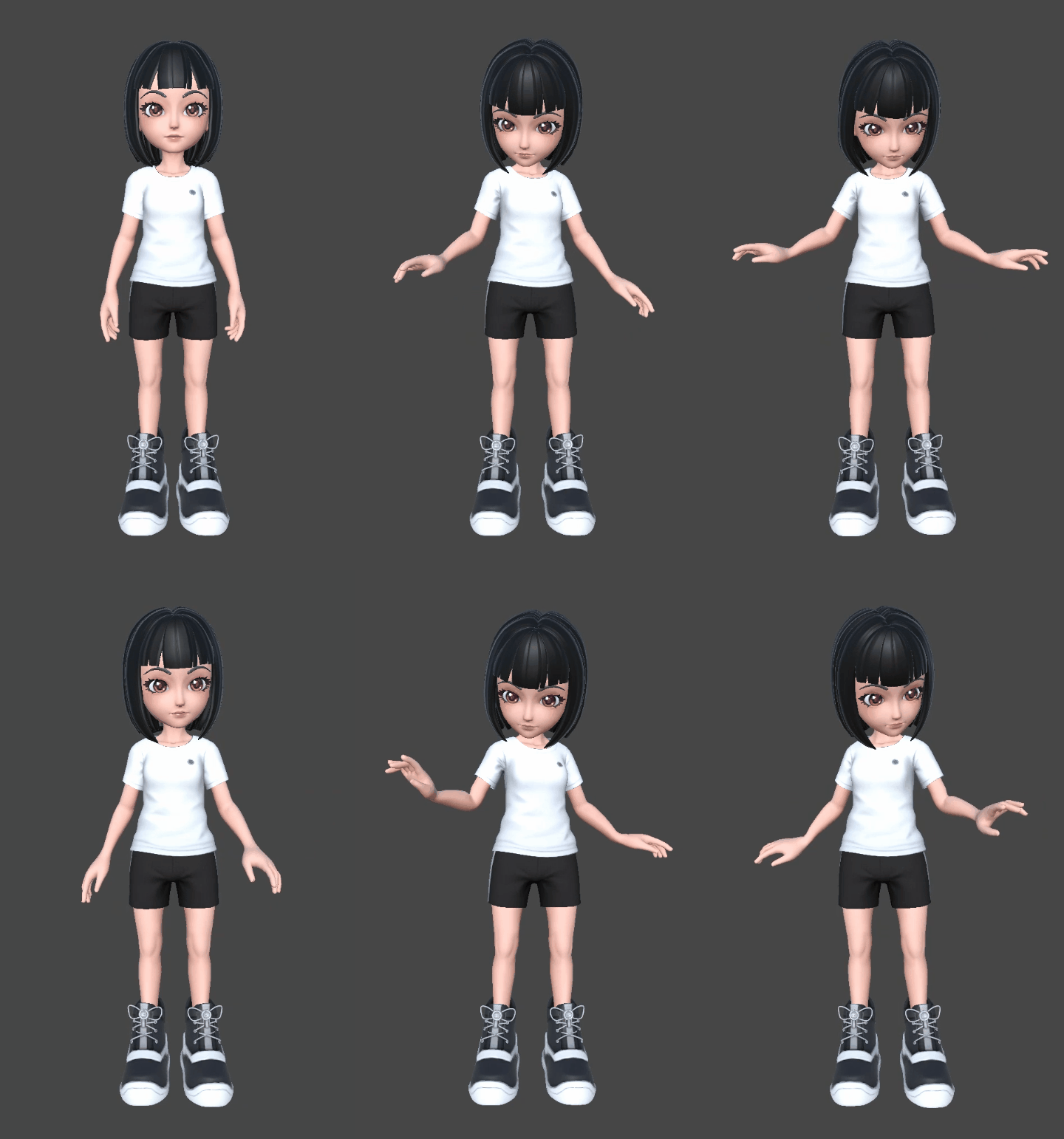
**Animoji (dog)**
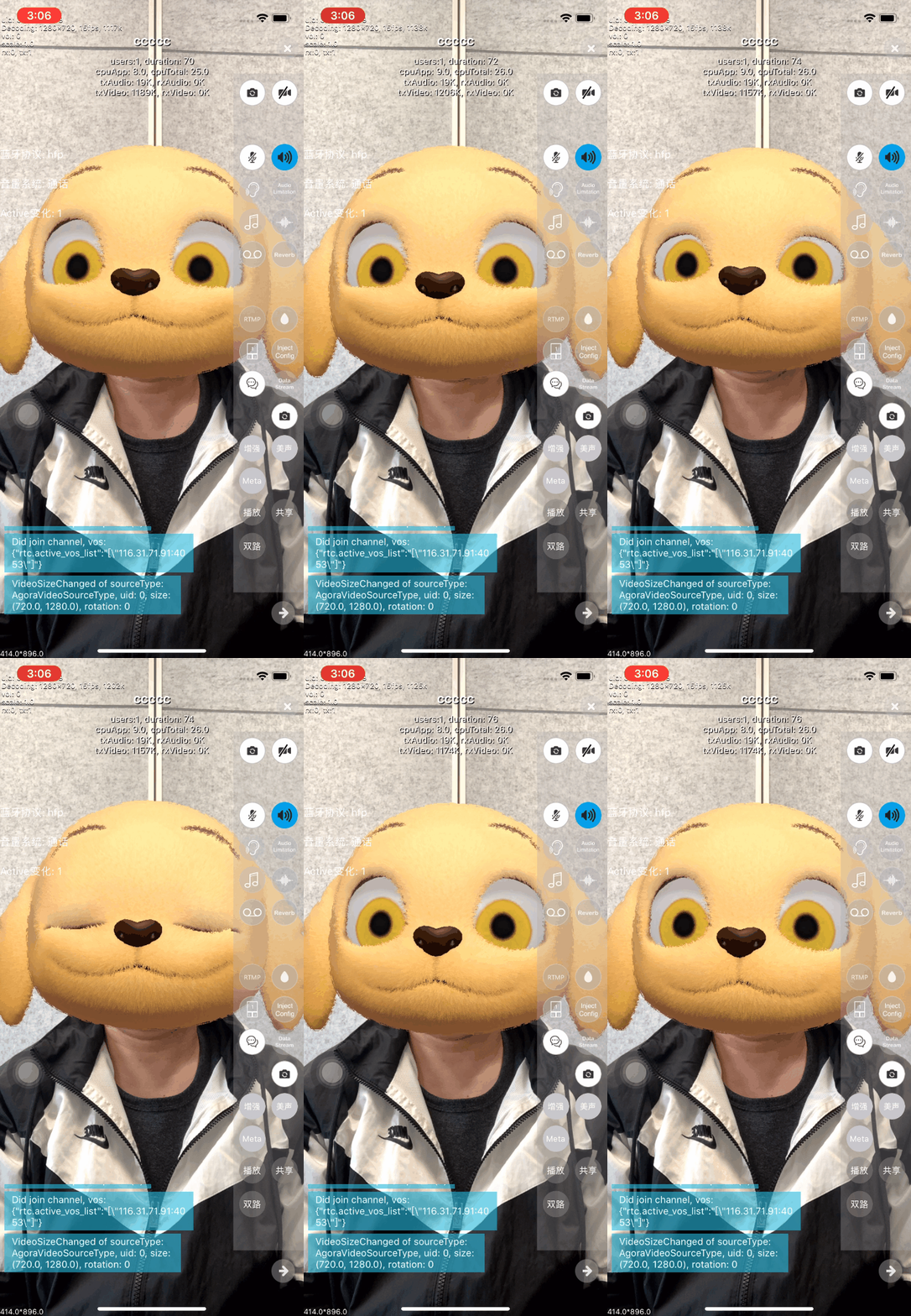
**Atmospheric effects (portrait edge flames)**
**Lighting (ambient light)**
**Lighting (3D light)**
This page explains how to integrate MetaKit extension into your project to utilize the virtual human, Animoji, lighting effects, and 360 background functions.
## Prerequisites [#prerequisites]
To follow this procedure, you must have:
* Integrated the v4.2.x or v4.3.x of the Video SDK and implemented basic real-time audio and video functions in your app. See [SDK quickstart](/en/realtime-media/video/get-started-sdk).
<_PlatformTabsGroup groupMode="structured" canonicalPlatform="android" platforms="["android","ios"]" showTabs="true">
<_PlatformPanel platform="android">
<_PlatformProcessedMarker groupMode="structured" canonicalPlatform="android" platform="android" />
When integrating through Maven Central, specify `io.agora.rtc:full-sdk:x.y.z` and replace `x.y.z` with the specific SDK version number.
The MetaKit extension uses the Face Capture extension ( `libagora_face_capture_extension.so`) and the Virtual Background extension (`libagora_segmentation_extension.so`). You can delete unnecessary extensions as needed to reduce the size of the app.
* Android Studio v4.2 or above.
* An Android device model produced in 2019 or later, to ensure that the front camera and microphone are functioning properly.
* A computer that can access the Internet. If your network environment has a firewall deployed, refer to [Firewall requirements](/en/realtime-media/video/reference/firewall) to use the Agora services normally.
## Project setup [#project-setup]
To implement MetaKit effects in your app, open the [SDK quickstart for Video Calling](/en/realtime-media/video/get-started-sdk) project and take the steps described below.
### Integrate the extension [#integrate-the-extension]
To integrate the MetaKit extension, take the following steps:
1. Download and unzip the [MetaKit](https://download.agora.io/sdk/release/Agora_MetaKit_SDK_for_Android_v2_2_0.zip?_gl=1*dh5j1*_ga*MjA0NDUxNTUwLjE2ODM3MTkwNzY.*_ga_BFVGG7E02W*MTcyNjIxOTY4OS4yODAuMS4xNzI2MjIwMTA3LjAuMC4w) Android extension.
2. Open the folder and copy the `/sdk` files in the path to the corresponding project path.
| Library | Function | Integration path |
| :------------------------------ | :------------------------- | :----------------------------------------------------------------------- |
| `AgoraMetaKit.aar` | Rendering runtime layer | `/app/libs` |
| `metakit.jar` | Wrapper layer Java package | `/app/libs` |
| `libagora_metakit_extension.so` | Wrapper layer | `/app/src/main/jniLibs/arm64-v8a` or `/app/src/main/jniLibs/armeabi-v7a` |
1. In the project's `/app` directory, add dependencies for all `.jar` and `.aar` files located under the `libs` path in the dependencies section of the `build.gradle` file.
```java
implementation fileTree(dir: 'libs', include: ['*.jar', '*.aar'])
```
### Configure MetaKit [#configure-metakit]
To configure the extension, take the following steps:
1. Open the folder of the MetaKit extension for Android. The `/assets/DefaultPackage` path contains the Bundle file resources required for different scenes and functions. The table below lists the resource name, purpose, and size:
| Name | Required/Optional | Usage | Size |
| :------------ | :---------------- | :--------------------------------------------------------------------------------------------------------------------------------------------------------------------------------------------------- | :------------------------------------------------------------------------------------ |
| Base | Required | Basic scene resources. Each functional module is built on this scene resource and includes related resources that support the hot update function. | 2.38 MB |
| Avatar | Function-specific | Virtual human model subpackage resources, including virtual human images such as `girl` and `huamulan`. Supports face capture, face pinching, and dress-up capabilities. | `girl`: 14.8 MB `huamulan`: 3.2 MB (does not support face pinching and dress-up) |
| AvatarAnimoji | Function-specific | Animoji model subpackage resources, including Animoji images such as `dog`, `girlhead`, and `arkit`. Supports face capture. | `dog`: 1.4 MB `girlhead`: 954 KB `arkit`: 44 KB |
| AREffect | Function-specific | Lighting effects and 360 background subpackage resources, including 3D lighting, atmosphere lighting, advertising lighting, screen ripples, aurora effects, portrait edge flames, and other effects. | 3.97 MB |
1. Combine the basic resources (`Base`) and the subpackage resources (`Avatar`, `AvatarAnimoji`, and `AREffect`) of specific functional modules into a complete resource package to experience the corresponding functional module. The functional modules and their corresponding resource package combinations are shown in the following table:
| Functional module | Resource package combination |
| :---------------- | :--------------------------- |
| Virtual human | `Base` + `Avatar` |
| Animoji | `Base` + `AvatarAnimoji` |
| Lighting effects | `Base` + `AREffect` |
| 360 Background | `Base` + `AREffect` |
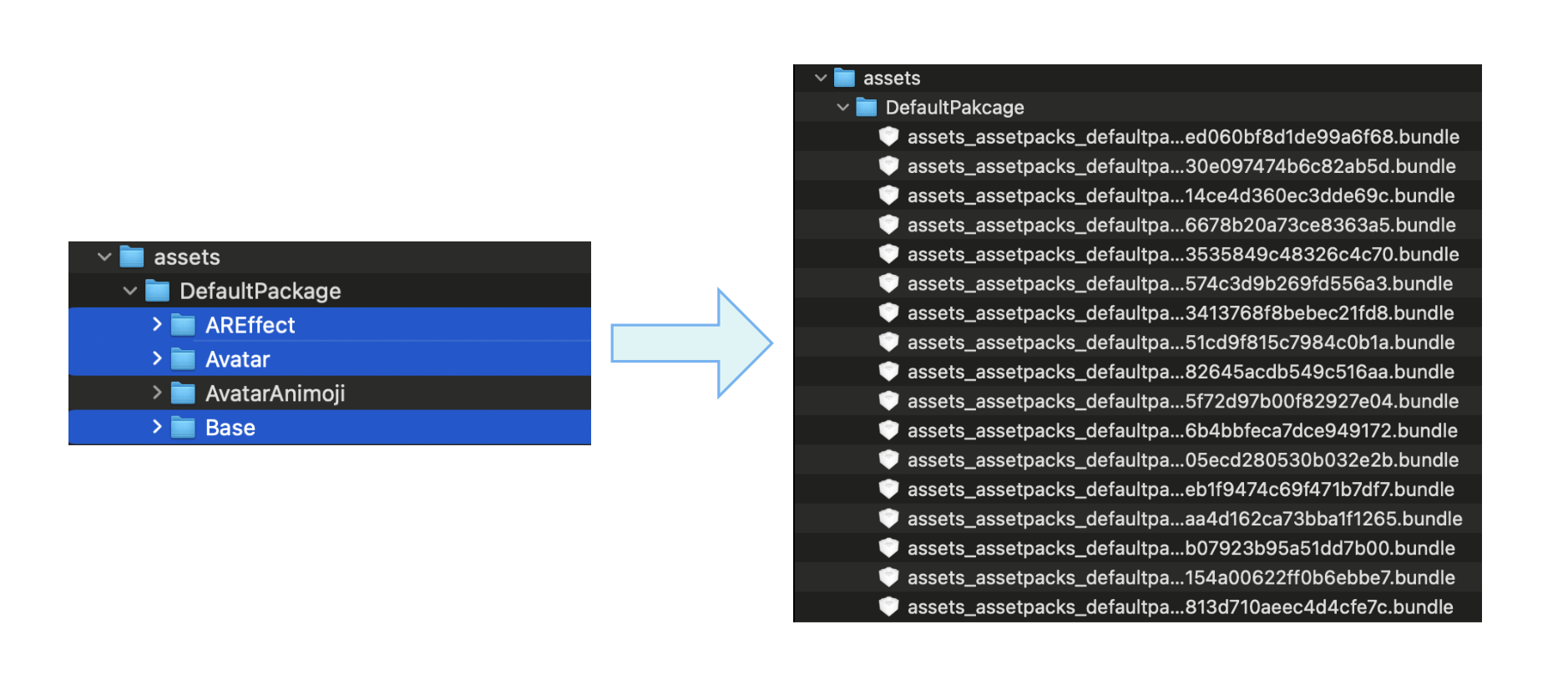
3. To experience the virtual human and 360 background features, combine the `Base`, `Avatar`, and `AREffect` resources into a single directory, as shown below. After preparing the resource directory, place it in the SD card directory of the mobile device, such as `/sdcard/metaAssets/15`. When loading scene resources, set the absolute path of the resource directory to MetaKit.
### Handle Android permissions [#handle-android-permissions]
To request the required permissions, take the following steps:
1. Navigate to the project's `/app/src/main` directory and add the following permissions to the `AndroidManifest.xml` file:
```xml
```
The MetaKit extension primarily uses the following Android system permissions:
| Permissions | Function | Description |
| :----------------------- | :-------------------------- | :-------------------------------------------------------------------------------------------------------------- |
| `CAMERA` | Access your phone's camera. | Functions such as expression driving and background segmentation require access to the camera for AI reasoning. |
| `INTERNET` | Access the network. | Authorize the AI module when the extension is enabled. |
| `READ_EXTERNAL_STORAGE` | Read external storage. | Read the Bundle resource file from the SD card. |
| `WRITE_EXTERNAL_STORAGE` | Write to external storage. | Record SDK-related log files. |
1. Android 6.0 and later versions enforce stricter permission management. Besides declaring permissions statically in `AndroidManifest.xml`, certain permissions must also be requested dynamically within the application's business logic. Here's an example of how this can be implemented:
Java
Kotlin
```java
// Obtain the necessary permissions for real-time audio-video interaction
private String[] getRequiredPermissions() {
if (android.os.Build.VERSION.SDK_INT >= android.os.Build.VERSION_CODES.S) {
// Permissions required for Android 12 (S) and above
return new String[]{
Manifest.permission.RECORD_AUDIO, // Audio recording permission
Manifest.permission.CAMERA, // Camera permission
Manifest.permission.READ_PHONE_STATE, // Read phone state permission
Manifest.permission.READ_EXTERNAL_STORAGE, // Read external storage permission
Manifest.permission.WRITE_EXTERNAL_STORAGE // Write external storage permission
};
} else {
// Permissions required for Android 11 (R) and below
return new String[]{
Manifest.permission.RECORD_AUDIO,
Manifest.permission.CAMERA,
Manifest.permission.READ_EXTERNAL_STORAGE,
Manifest.permission.WRITE_EXTERNAL_STORAGE
};
}
}
// Check if the app has obtained all required permissions
private boolean checkPermissions() {
for (String permission : getRequiredPermissions()) {
int permissionCheck = ContextCompat.checkSelfPermission(this, permission);
if (permissionCheck != PackageManager.PERMISSION_GRANTED) {
return false;
}
}
return true;
}
```
```kotlin
// Obtain the necessary permissions for real-time audio-video interaction
private fun getRequiredPermissions(): Array {
return if (Build.VERSION.SDK_INT >= Build.VERSION_CODES.S) {
// Permissions required for Android 12 (S) and above
arrayOf(
Manifest.permission.RECORD_AUDIO, // Audio recording permission
Manifest.permission.CAMERA, // Camera permission
Manifest.permission.READ_PHONE_STATE, // Read phone state permission
Manifest.permission.READ_EXTERNAL_STORAGE, // Read external storage permission
Manifest.permission.WRITE_EXTERNAL_STORAGE // Write external storage permission
)
} else {
// Permissions required for Android 11 (R) and below
arrayOf(
Manifest.permission.RECORD_AUDIO,
Manifest.permission.CAMERA,
Manifest.permission.READ_EXTERNAL_STORAGE,
Manifest.permission.WRITE_EXTERNAL_STORAGE
)
}
}
// Check if the app has obtained all required permissions
private fun checkPermissions(): Boolean {
return getRequiredPermissions().all { permission ->
ContextCompat.checkSelfPermission(this, permission) == PackageManager.PERMISSION_GRANTED
}
}
```
### Select architecture [#select-architecture]
The MetaKit extension currently supports the `arm64-v8a` and `armeabi-v7a` architectures. To optimize the app size, it's advisable to select only the necessary architecture during integration. Here's an example of how this can be implemented:
Java
Kotlin
```java
ndk {
abiFilters "arm64-v8a"
}
```
```kotlin
ndk {
abiFilters("arm64-v8a")
}
```
## Implement the logic [#implement-the-logic]
Once the project configuration is complete, follow these steps to explore the various functional modules of the MetaKit extension:
### Listen to extension events [#listen-to-extension-events]
When calling `createInitialize` on `RtcEngine`, ensure the following configurations are performed in `RtcEngineConfig`:
1. Call `addExtension` with `AgoraFaceCapturePlugin` (`agora_face_capture_extension`) and `MetaKitPlugin` (`agora_metakit_extension`). Then, implement the `IMediaExtensionObserver` callback interface and register it to receive extension events such as `onEvent`.
Java
Kotlin
```java
// Configure RtcEngineConfig
RtcEngineConfig config = new RtcEngineConfig();
config.mContext = getBaseContext();
config.mAppId = appId;
config.mEventHandler = mRtcEventHandler;
// Add Face Capture extension
config.addExtension("agora_face_capture_extension");
// Add MetaKit extension
config.addExtension("agora_metakit_extension");
// Create the event callback interface class for extensions and register callbacks for extension events such as onEvent
config.mExtensionObserver = new IMediaExtensionObserver() {
public void onEvent(String provider, String extension, String key, String value) {
// Implementation of onEvent callback
}
public void onStarted(String provider, String extension) {
// Implementation of onStarted callback
}
public void onStopped(String provider, String extension) {
// Implementation of onStopped callback
}
public void onError(String provider, String extension, int error, String message) {
// Implementation of onError callback
}
};
// Create and initialize RtcEngine
mRtcEngine = RtcEngine.create(config);
```
```kotlin
// Configure RtcEngineConfig
val config = RtcEngineConfig().apply {
mContext = baseContext
mAppId = appId
mEventHandler = mRtcEventHandler
// Add Face Capture extension
addExtension("agora_face_capture_extension")
// Add MetaKit extension
addExtension("agora_metakit_extension")
// Create the event callback interface class for extensions and register callbacks for extension events such as onEvent
mExtensionObserver = object : IMediaExtensionObserver {
override fun onEvent(provider: String, extension: String, key: String, value: String) {
// Implementation of onEvent callback
}
override fun onStarted(provider: String, extension: String) {
// Implementation of onStarted callback
}
override fun onStopped(provider: String, extension: String) {
// Implementation of onStopped callback
}
override fun onError(provider: String, extension: String, error: Int, message: String) {
// Implementation of onError callback
}
}
}
// Create and initialize RtcEngine
mRtcEngine = RtcEngine.create(config)
```
2. In the callback, specify `provider` as `agora_video_filters_metakit` and `extension` as `metakit` to filter events from the MetaKit extension. The `onEvent` callback transparently passes engine state events such as `unityLoadFinish` (Unity environment loading completed) and `loadSceneResp` (scene resource loading completed).
Java
Kotlin
```java
public void onEvent(String provider, String ext, String key, String msg) {
// Filter events from the MetaKit extension
if (!provider.equals("agora_video_filters_metakit") || !ext.equals("metakit")) return;
// Log event details
Log.i(TAG, "metakitx onEvent: " + key + ", msg: " + msg);
// Handle different event keys
switch(key) {
case "initializeFinish":
runningState = IMetaRunningState.initialized;
break;
// Unity environment loaded
case "unityLoadFinish":
runningState = IMetaRunningState.unityLoaded;
Log.d(TAG, "metakitx to enter scene");
enterScene();
break;
// Scene resource loaded
case "loadSceneResp":
Log.d(TAG,"metakitx receive loadSceneResp");
runningState = IMetaRunningState.sceneLoaded;
setMetaFeatureMode(curFeatrueType);
break;
case "addSceneViewResp":
runningState = IMetaRunningState.sceneViewLoaded;
// If special effects are set, configure background and effects
if (setSpecialEffect) {
setMetaBGMode(BackgroundType.BGTypePano);
configMetaBackgroundEffectMode(curSpecialEffectType, true);
}
break;
case "unloadSceneResp":
runningState = IMetaRunningState.sceneUnloaded;
// Perform scene cleanup if necessary
//destroyScene();
break;
}
isSyncing = false;
}
public void onError(String provider, String ext, int key, String msg) {
// Filter errors from the MetaKit extension
if (!provider.equals("agora_video_filters_metakit") || !ext.equals("metakit")) return;
// Log error details
Log.i("[MetaKit]", "onError: " + key + ", msg: " + msg);
}
public void onStart(String provider, String ext) {
// Filter start events from the MetaKit extension
if (!provider.equals("agora_video_filters_metakit") || !ext.equals("metakit")) return;
// Log start event
Log.i("[MetaKit]", "onStart");
}
public void onStop(String provider, String ext) {
// Filter stop events from the MetaKit extension
if (!provider.equals("agora_video_filters_metakit") || !ext.equals("metakit")) return;
// Log stop event
Log.i("[MetaKit]", "onStop");
}
```
```kotlin
fun onEvent(provider: String, ext: String, key: String, msg: String) {
// Filter events from the MetaKit extension
if (provider != "agora_video_filters_metakit" || ext != "metakit") return
// Log event details
Log.i(TAG, "metakitx onEvent: $key, msg: $msg")
// Handle different event keys
when (key) {
"initializeFinish" -> runningState = IMetaRunningState.initialized
// Unity environment loaded
"unityLoadFinish" -> {
runningState = IMetaRunningState.unityLoaded
Log.d(TAG, "metakitx to enter scene")
enterScene()
}
// Scene resource loaded
"loadSceneResp" -> {
Log.d(TAG, "metakitx receive loadSceneResp")
runningState = IMetaRunningState.sceneLoaded
setMetaFeatureMode(curFeatrueType)
}
"addSceneViewResp" -> {
runningState = IMetaRunningState.sceneViewLoaded
// If special effects are set, configure background and effects
if (setSpecialEffect) {
setMetaBGMode(BackgroundType.BGTypePano)
configMetaBackgroundEffectMode(curSpecialEffectType, true)
}
}
"unloadSceneResp" -> runningState = IMetaRunningState.sceneUnloaded
}
isSyncing = false
}
fun onError(provider: String, ext: String, key: Int, msg: String) {
// Filter errors from the MetaKit extension
if (provider != "agora_video_filters_metakit" || ext != "metakit") return
// Log error details
Log.i("[MetaKit]", "onError: $key, msg: $msg")
}
fun onStart(provider: String, ext: String) {
// Filter start events from the MetaKit extension
if (provider != "agora_video_filters_metakit" || ext != "metakit") return
// Log start event
Log.i("[MetaKit]", "onStart")
}
fun onStop(provider: String, ext: String) {
// Filter stop events from the MetaKit extension
if (provider != "agora_video_filters_metakit" || ext != "metakit") return
// Log stop event
Log.i("[MetaKit]", "onStop")
}
```
### Enable extensions [#enable-extensions]
Before enabling the MetaKit extension, ensure that both the Facial Capture extension and the Virtual Background extension are enabled.
#### Enable the Face Capture extension [#enable-the-face-capture-extension]
To enable the Face Capture extension, follow these steps:
1. Call `registerExtension` and `enableExtension` with the provider name `agora_video_filters_face_capture` and the extension name `face_capture`.
Java
Kotlin
```java
// Register the facial capture extension
mRtcEngine.registerExtension("agora_video_filters_face_capture", "face_capture", Constants.MediaSourceType.PRIMARY_CAMERA_SOURCE);
// Enable the facial capture extension
mRtcEngine.enableExtension("agora_video_filters_face_capture", "face_capture", true);
```
```kotlin
// Register the facial capture extension
mRtcEngine.registerExtension("agora_video_filters_face_capture", "face_capture", Constants.MediaSourceType.PRIMARY_CAMERA_SOURCE)
// Enable the facial capture extension
mRtcEngine.enableExtension("agora_video_filters_face_capture", "face_capture", true)
```
2. Call `setExtensionProperty` to authenticate and authorize the extension. Use `authentication_information` as the key, and a value containing the company name (`company_id`) and the face capture certificate (`license`).
Java
Kotlin
```java
mRtcEngine.setExtensionProperty(
"agora_video_filters_face_capture",
"face_capture",
"authentication_information",
"{\"company_id\":\"agoraDemo\", \"license\":\"xxxxxxxxxx\"}",
Constants.MediaSourceType.PRIMARY_CAMERA_SOURCE
);
```
```kotlin
mRtcEngine.setExtensionProperty(
"agora_video_filters_face_capture",
"face_capture",
"authentication_information",
"{\"company_id\":\"agoraDemo\", \"license\":\"xxxxxxxxxx\"}",
Constants.MediaSourceType.PRIMARY_CAMERA_SOURCE
)
```
Contact [Agora](mailto\:extensions.marketplace@agora.io) to obtain the company name and certificate.
#### Enable the Virtual Background extension [#enable-the-virtual-background-extension]
To enable the Virtual Background extension, take the following steps:
1. Call `setParameters` to set `"rtc.video.seg_before_exts"` to `true`:
Java
Kotlin
```java
mRtcEngine.setParameters("{\"rtc.video.seg_before_exts\":true}");
```
```kotlin
mRtcEngine.setParameters("{\"rtc.video.seg_before_exts\":true}")
```
2. Call `enableVirtualBackground` with the following configurations:
* Set `backgroundSourceType` to `0` to process the background into alpha information, separating the portrait from the background.
* Set `modelType` to `1` to select background processing suitable for all scenes.
Java
Kotlin
```java
VirtualBackgroundSource source = new VirtualBackgroundSource();
// Set backgroundSourceType to 0 to process the background into alpha information, separating the portrait from the background
source.backgroundSourceType = 0;
source.color = 0xFFFFFF;
source.source = "";
source.blurDegree = 1;
SegmentationProperty param = new SegmentationProperty();
// Set modelType to 1 to select background processing suitable for all scenes
param.modelType = 1;
param.greenCapacity = 0.5f;
// Enable the Virtual Background extension
mRtcEngine.enableVirtualBackground(true, source, param, Constants.MediaSourceType.PRIMARY_CAMERA_SOURCE);
```
```kotlin
val source = VirtualBackgroundSource().apply {
// Set backgroundSourceType to 0 to process the background into alpha information, separating the portrait from the background
backgroundSourceType = 0
color = 0xFFFFFF
source = ""
blurDegree = 1
}
val param = SegmentationProperty().apply {
// Set modelType to 1 to select background processing suitable for all scenes
modelType = 1
greenCapacity = 0.5f
}
// Enable the Virtual Background extension
mRtcEngine.enableVirtualBackground(true, source, param, Constants.MediaSourceType.PRIMARY_CAMERA_SOURCE)
```
#### Enable the MetaKit extension [#enable-the-metakit-extension]
To enable the MetaKit extension, follow these steps:
1. Call `registerExtension` with the service provider name `agora_video_filters_metakit` and the extension name `metakit`.
Java
Kotlin
```java
mRtcEngine.registerExtension("agora_video_filters_metakit", "metakit", Constants.MediaSourceType.PRIMARY_CAMERA_SOURCE);
```
```kotlin
mRtcEngine.registerExtension("agora_video_filters_metakit", "metakit", Constants.MediaSourceType.PRIMARY_CAMERA_SOURCE)
```
2. Call `enableExtension` with the same service provider name and extension name.
Java
Kotlin
```java
mRtcEngine.enableExtension("agora_video_filters_metakit", "metakit", true);
```
```kotlin
mRtcEngine.enableExtension("agora_video_filters_metakit", "metakit", true)
```
### Initialize MetaKit [#initialize-metakit]
1. To set the Android activity context for starting the rendering engine, call `setExtensionProperty` with the following parameters:
* `key`: `setActivityContext`
* `value`: The activity context address
Java
Kotlin
```java
Activity mActivity;
JSONObject valueObj = new JSONObject();
try {
long address = getContextHandler(mActivity);
valueObj.put("activityContext", String.valueOf(address));
} catch (JSONException e) {
e.printStackTrace();
}
mRtcEngine.setExtensionProperty("agora_video_filters_metakit", "metakit", "setActivityContext", valueObj.toString());
```
```kotlin
var mActivity: Activity? = null
val valueObj = JSONObject()
try {
val address = getContextHandler(mActivity)
valueObj.put("activityContext", address.toString())
} catch (e: JSONException) {
e.printStackTrace()
}
mRtcEngine.setExtensionProperty("agora_video_filters_metakit", "metakit", "setActivityContext", valueObj.toString())
```
1. To initialize the MetaKit extension, call `setExtensionProperty` with the following parameters:
* `key`: initialize
* `value`: an empty string
Java
Kotlin
```java
mRtcEngine.setExtensionProperty("agora_video_filters_metakit", "metakit", "initialize","{}");
```
```kotlin
mRtcEngine.setExtensionProperty("agora_video_filters_metakit", "metakit", "initialize","{}")
```
### Load scene resources [#load-scene-resources]
1. When the `onEvent` callback captures the `unityLoadFinish` event, it indicates that the environment has been loaded. At this point, you can call `setExtensionProperty` to load the MetaKit scene resources. Use the following parameters:
* `key`: `loadScene`
* `value`: A string containing relevant information about the scene resources
Java
Kotlin
```java
JSONObject valueObj = new JSONObject();
try {
JSONObject sceneObj = new JSONObject();
// highlight-start
// Set the path of the scene resources on the phone
// Assume the resources are stored at /first/second/DefaultPackage/ on the phone; only /first/second needs to be specified in scenePath
sceneObj.put("scenePath", "/sdcard/metaAssets/15");
// highlight-end
JSONObject customObj = new JSONObject();
// highlight-start
// Set the scene index to 0
customObj.put("sceneIndex", 0);
// highlight-end
valueObj.put("sceneInfo", sceneObj);
valueObj.put("assetManifest", "");
valueObj.put("userId", "123456");
valueObj.put("extraCustomInfo", customObj.toString());
} catch (JSONException e) {
e.printStackTrace();
}
// highlight-start
// Load scene resources based on the JSON configuration
mRtcEngine.setExtensionProperty("agora_video_filters_metakit", "metakit", "loadScene", valueObj.toString());
// highlight-end
```
```kotlin
val valueObj = JSONObject()
try {
val sceneObj = JSONObject()
// highlight-start
// Set the path of the scene resources on the phone
// Assume the resources are stored at /first/second/DefaultPackage/ on the phone; only /first/second needs to be specified in scenePath
sceneObj.put("scenePath", "/sdcard/metaAssets/15")
// highlight-end
val customObj = JSONObject()
// highlight-start
// Set the scene index to 0
customObj.put("sceneIndex", 0)
// highlight-end
valueObj.put("sceneInfo", sceneObj)
valueObj.put("assetManifest", "")
valueObj.put("userId", "123456")
valueObj.put("extraCustomInfo", customObj.toString())
} catch (e: JSONException) {
e.printStackTrace()
}
// highlight-start
// Load scene resources based on the JSON configuration
mRtcEngine.setExtensionProperty("agora_video_filters_metakit", "metakit", "loadScene", valueObj.toString())
// highlight-end
```
1. When the `onEvent` callback captures the `loadSceneResp` event, it indicates that the scene resources have been loaded. You can then follow these steps to experience the virtual human, Animoji, lighting effects, and 360 background modules.
Java
Kotlin
```java
JSONObject valueObj = new JSONObject();
try {
JSONObject configObj = new JSONObject();
// highlight-start
configObj.put("key", "bsname"); // The key is the resource ID of the face pinching part
configObj.put("value", 30); // The value is the corresponding intensity of the face pinching, ranging from [0,100], with a default of 50
// highlight-end
valueObj.put("value", configObj);
} catch (JSONException e) {
e.printStackTrace();
}
// highlight-start
// Perform face pinching operation based on JSON configuration
mRtcEngine.setExtensionProperty("agora_video_filters_metakit", "metakit", "updateFace", valueObj.toString());
// highlight-end
```
```kotlin
val valueObj = JSONObject()
try {
val configObj = JSONObject()
// highlight-start
configObj.put("key", "bsname") // The key is the resource ID of the face pinching part
configObj.put("value", 30) // The value is the corresponding intensity of the face pinching, ranging from [0,100], with a default of 50
// highlight-end
valueObj.put("value", configObj)
} catch (e: JSONException) {
e.printStackTrace()
}
// highlight-start
// Perform face pinching operation based on JSON configuration
mRtcEngine.setExtensionProperty("agora_video_filters_metakit", "metakit", "updateFace", valueObj.toString())
// highlight-end
```
### Use the avatar effect [#use-the-avatar-effect]
1. Call `setExtensionProperty` to request texture and render the virtual human scene. Set `key` to `requestTexture` and `value` to include the scene configuration information. To experience the virtual human feature, set `avatarMode` to `0` for the virtual human scene mode and specify the avatar as your desired virtual human image, such as girl or huamulan.
In addition to the default avatars, `girl` and `huamulan`, the Agora MetaKit extension offers an open artistic ecosystem. It supports **one-click import** of virtual human models created according to Agora's art standards, providing users with more flexible creation and integration options. Contact Agora [technical support](mailto\:extensions.marketplace@agora.io) to use this feature.
Java
Kotlin
```java
JSONObject valueObj = new JSONObject();
try {
// highlight-start
valueObj.put("index", 0); // Texture index, currently only supports 0
valueObj.put("enable", true); // Enable texture request
// highlight-end
JSONObject configObj = new JSONObject();
configObj.put("width", 640);
configObj.put("height", 480);
JSONObject extraObj = new JSONObject();
// highlight-start
extraObj.put("sceneIndex", 0); // Scene index, currently only supports 0
extraObj.put("avatarMode", 0); // Set scene mode to 0, which is virtual human mode
extraObj.put("avatar", "huamulan"); // Set the virtual human image to "huamulan"
// highlight-end
extraObj.put("userId", "123");
configObj.put("extraInfo", extraObj.toString());
valueObj.put("config", configObj);
} catch (JSONException e) {
e.printStackTrace();
}
// highlight-start
// Render the virtual human scene based on the JSON configuration
mRtcEngine.setExtensionProperty("agora_video_filters_metakit", "metakit", "requestTexture", valueObj.toString());
// highlight-end
```
```kotlin
val valueObj = JSONObject()
try {
// highlight-start
valueObj.put("index", 0) // Texture index, currently only supports 0
valueObj.put("enable", true) // Enable texture request
// highlight-end
val configObj = JSONObject()
configObj.put("width", 640)
configObj.put("height", 480)
val extraObj = JSONObject()
// highlight-start
extraObj.put("sceneIndex", 0) // Scene index, currently only supports 0
extraObj.put("avatarMode", 0) // Set scene mode to 0, which is virtual human mode
extraObj.put("avatar", "huamulan") // Set the virtual human image to "huamulan"
// highlight-end
extraObj.put("userId", "123")
configObj.put("extraInfo", extraObj.toString())
valueObj.put("config", configObj)
} catch (e: JSONException) {
e.printStackTrace()
}
// highlight-start
// Render the virtual human scene based on the JSON configuration
mRtcEngine.setExtensionProperty("agora_video_filters_metakit", "metakit", "requestTexture", valueObj.toString())
// highlight-end
```
After the scene rendering is complete, a Blendshape-driven virtual human image will be displayed, capturing your facial expressions and making corresponding facial changes, following your head movements.
1. Call `setExtensionProperty` to perform face pinching operations on the virtual human. Set `key` to `updateFace` and value to support passing multiple sets of resource IDs for face pinching parts and their corresponding adjustment ranges. See [face pinching](#face-pinching-resources) for details.
Java
Kotlin
```java
JSONObject valueObj = new JSONObject();
try {
JSONObject configObj = new JSONObject();
// highlight-start
configObj.put("key", "bsname"); // The key is the resource ID of the face pinching part
configObj.put("value", 30); // The value is the corresponding intensity of the face pinching, ranging from [0,100], with a default of 50
// highlight-end
valueObj.put("value", configObj);
} catch (JSONException e) {
e.printStackTrace();
}
// highlight-start
// Perform face pinching operations based on the JSON configuration
mRtcEngine.setExtensionProperty("agora_video_filters_metakit", "metakit", "updateFace", valueObj.toString());
// highlight-end
```
```kotlin
val valueObj = JSONObject()
try {
val configObj = JSONObject()
// highlight-start
configObj.put("key", "bsname") // The key is the resource ID of the face pinching part
configObj.put("value", 30) // The value is the corresponding intensity of the face pinching, ranging from [0,100], with a default of 50
// highlight-end
valueObj.put("value", configObj)
} catch (e: JSONException) {
e.printStackTrace()
}
// highlight-start
// Perform face pinching operations based on the JSON configuration
mRtcEngine.setExtensionProperty("agora_video_filters_metakit", "metakit", "updateFace", valueObj.toString())
// highlight-end
```
1. Call `setExtensionProperty` to perform dress-up operations on the virtual human. Set `key` to `updateDress` and value to support passing an array of integers containing multiple resource IDs for dressing parts. See [dressing resources](#dress-up-resources) for details.
Java
Kotlin
```java
JSONObject valueObj = new JSONObject();
try {
// highlight-start
valueObj.put("id", "[10002]"); // Set the ID to an array of integers containing multiple resource IDs
// highlight-end
} catch (JSONException e) {
e.printStackTrace();
}
// highlight-start
// Perform dressing operations based on the JSON configuration
mRtcEngine.setExtensionProperty("agora_video_filters_metakit", "metakit", "updateDress", valueObj.toString());
// highlight-end
```
```kotlin
val valueObj = JSONObject()
try {
// highlight-start
valueObj.put("id", "[10002]") // Set the ID to an array of integers containing multiple resource IDs
// highlight-end
} catch (e: JSONException) {
e.printStackTrace()
}
// highlight-start
// Perform dressing operations based on the JSON configuration
mRtcEngine.setExtensionProperty("agora_video_filters_metakit", "metakit", "updateDress", valueObj.toString())
// highlight-end
```
### Use the Animoji effect [#use-the-animoji-effect]
Call `setExtensionProperty` to request the texture and render the Animoji scene. Set key to `requestTexture`, which includes the scene configuration information. To experience the Animoji function, set `avatarMode` to `1` for Animoji scene mode. Specify avatar to the Animoji image you want to use, such as `dog`, `girl`, or `headarkit`.
In addition to the already available Animoji images (`dog`, `girl`,` headarkit`), the Agora MetaKit extension provides an open art ecosystem. It supports one-click import of Animoji images created according to Agora's art standards, offering users more flexible creation and integration options. Contact Agora [technical support](mailto\:extensions.marketplace@agora.io) to use this feature.
Java
Kotlin
```java
JSONObject valueObj = new JSONObject();
try {
// highlight-start
valueObj.put("index", 0); // Texture index, currently only supports 0
valueObj.put("enable", true); // Enable texture request
// highlight-end
JSONObject configObj = new JSONObject();
configObj.put("width", 640);
configObj.put("height", 480);
JSONObject extraObj = new JSONObject();
// highlight-start
extraObj.put("sceneIndex", 0); // Scene index, currently only supports 0
extraObj.put("avatarMode", 1); // Set scene mode to 1, which is Animoji mode
extraObj.put("avatar", "dog"); // Set Animoji image to "dog"
// highlight-end
extraObj.put("userId", "123");
configObj.put("extraInfo", extraObj.toString());
valueObj.put("config", configObj);
} catch (JSONException e) {
e.printStackTrace();
}
// highlight-start
// Render the Animoji scene based on the JSON configuration
mRtcEngine.setExtensionProperty("agora_video_filters_metakit", "metakit", "requestTexture", valueObj.toString());
// highlight-end
```
```kotlin
val valueObj = JSONObject()
try {
// highlight-start
valueObj.put("index", 0) // Texture index, currently only supports 0
valueObj.put("enable", true) // Enable texture request
// highlight-end
val configObj = JSONObject()
configObj.put("width", 640)
configObj.put("height", 480)
val extraObj = JSONObject()
// highlight-start
extraObj.put("sceneIndex", 0) // Scene index, currently only supports 0
extraObj.put("avatarMode", 1) // Set scene mode to 1, which is Animoji mode
extraObj.put("avatar", "dog") // Set Animoji image to "dog"
// highlight-end
extraObj.put("userId", "123")
configObj.put("extraInfo", extraObj.toString())
valueObj.put("config", configObj)
} catch (e: JSONException) {
e.printStackTrace()
}
// highlight-start
// Render the Animoji scene based on the JSON configuration
mRtcEngine.setExtensionProperty("agora_video_filters_metakit", "metakit", "requestTexture", valueObj.toString())
// highlight-end
```
### Use the sticker effect [#use-the-sticker-effect]
Call `setExtensionProperty` to request the texture and render the sticker scene. Set `key` to `loadMaterial` and `value` to the material configuration. Specify the corresponding resource name depending on the sticker that you want to use. For example, `material_sticker_glass` for glasses.
In addition to the already available stickers `veil`, `glass`, `facemask`, and `dragonhat`, the Agora MetaKit extension provides an open art ecosystem and supports one-click import of sticker images created according to Agora's art standards. This offers users more flexible creation and integration options. Contact Agora [technical support](mailto\:extensions.marketplace@agora.io) to use this feature.
Java
Kotlin
```java
long addressHandle = 0;
JSONObject valueObj = new JSONObject();
try {
valueObj.put("view", String.valueOf(addressHandle));
valueObj.put("path", path_to_material_sticker_glass);
} catch (JSONException e) {
e.printStackTrace();
}
mRtcEngine.setExtensionProperty("agora_video_filters_metakit", "metakit", "loadMaterial", valueObj.toString());
```
```kotlin
var addressHandle: Long = 0
val valueObj = JSONObject()
try {
valueObj.put("view", addressHandle.toString())
valueObj.put("path", path_to_material_sticker_glass)
} catch (e: JSONException) {
e.printStackTrace()
}
mRtcEngine.setExtensionProperty("agora_video_filters_metakit", "metakit", "loadMaterial", valueObj.toString())
```
When the `onEvent` callback captures the `materialLoaded` event, it means that the scene view has been added. At this time, a glasses sticker covering the eyes will be displayed in the view, following your head movements.
### Apply lighting effects and 360 background [#apply-lighting-effects-and-360-background]
1. Call `setExtensionProperty` to request the texture and render a scene with lighting effects and 360 background features. The `key` is `requestTexture`, and the `value` contains the configuration information of the scene. To experience lighting effects and the 360 background feature, set `avatarMode` to `2`, which corresponds to lighting effects and 360 background mode.
Java
Kotlin
```java
JSONObject valueObj = new JSONObject();
try {
// highlight-start
valueObj.put("index", 0); // Texture index, currently only supports 0
valueObj.put("enable", true); // Enable texture request
// highlight-end
JSONObject configObj = new JSONObject();
configObj.put("width", 640);
configObj.put("height", 480);
JSONObject extraObj = new JSONObject();
// highlight-start
extraObj.put("sceneIndex", 0); // Scene index, currently only supports 0
extraObj.put("avatarMode", 2); // Set scene mode to 2, which is lighting effects and 360 background mode
// highlight-end
extraObj.put("userId", "123");
configObj.put("extraInfo", extraObj.toString());
valueObj.put("config", configObj);
} catch (JSONException e) {
e.printStackTrace();
}
// highlight-start
// Render the scene with lighting effects and 360 background based on the JSON configuration
mRtcEngine.setExtensionProperty("agora_video_filters_metakit", "metakit", "requestTexture", valueObj.toString());
// highlight-end
```
```kotlin
val valueObj = JSONObject()
try {
// highlight-start
valueObj.put("index", 0) // Texture index, currently only supports 0
valueObj.put("enable", true) // Enable texture request
// highlight-end
val configObj = JSONObject()
configObj.put("width", 640)
configObj.put("height", 480)
val extraObj = JSONObject()
// highlight-start
extraObj.put("sceneIndex", 0) // Scene index, currently only supports 0
extraObj.put("avatarMode", 2) // Set scene mode to 2, which is lighting effects and 360 background mode
// highlight-end
extraObj.put("userId", "123")
configObj.put("extraInfo", extraObj.toString())
valueObj.put("config", configObj)
} catch (e: JSONException) {
e.printStackTrace()
}
// highlight-start
// Render the scene with lighting effects and 360 background based on the JSON configuration
mRtcEngine.setExtensionProperty("agora_video_filters_metakit", "metakit", "requestTexture", valueObj.toString())
// highlight-end
```
2. Experience lighting effects and 360 background.
1. **Lighting effects**:
Call `setExtensionProperty` to set up lighting effects. The `key` is `setEffectVideo`, and the `value` contains a series of lighting materials and their corresponding parameter configurations. The MetaKit extension provides lighting effects such as 3D lighting, screen ripples, aurora effects, and portrait edge flames, and supports fine-tuning of parameters such as color, intensity, and range. See the [Lighting effects key-value documentation](#lighting-effects) for more details. The example code below demonstrates how to overlay advertising lights on a live video.
Java
Kotlin
```java
JSONObject configObj = new JSONObject();
try {
// highlight-start
configObj.put("id", 3002); // Specify the effect material ID as 3002, which is advertising lights
configObj.put("enable", true); // Enable lighting effect
// highlight-end
} catch (JSONException e) {
e.printStackTrace();
}
// highlight-start
// Add advertising light effect based on the JSON configuration
mRtcEngine.setExtensionProperty("agora_video_filters_metakit", "metakit", "setEffectVideo", configObj.toString());
// highlight-end
```
```kotlin
val configObj = JSONObject()
try {
// highlight-start
configObj.put("id", 3002) // Specify the effect material ID as 3002, which is advertising lights
configObj.put("enable", true) // Enable lighting effect
// highlight-end
} catch (e: JSONException) {
e.printStackTrace()
}
// highlight-start
// Add advertising light effect based on the JSON configuration
mRtcEngine.setExtensionProperty("agora_video_filters_metakit", "metakit", "setEffectVideo", configObj.toString())
// highlight-end
```
3. **360 background**:
Call `setExtensionProperty` to set up a 360 panoramic background. The `key` is `setBGVideo`, and the `value` sets the background mode, resource path, and rotation angle.
Java
Kotlin
```java
JSONObject picObj = new JSONObject();
try {
// highlight-start
picObj.put("mode", "tex360"); // Set background mode to 360 panoramic background mode
// highlight-end
JSONObject configObj = new JSONObject();
// highlight-start
configObj.put("path", "/sdcard/metaFiles/bg_pano.jpg"); // Specify the file path of the background resource
// highlight-end
picObj.put("param", configObj);
} catch (JSONException e) {
e.printStackTrace();
}
// highlight-start
// Add 360 background based on the JSON configuration
mRtcEngine.setExtensionProperty("agora_video_filters_metakit", "metakit", "setBGVideo", picObj.toString());
// highlight-end
```
```kotlin
val picObj = JSONObject()
try {
// highlight-start
picObj.put("mode", "tex360") // Set background mode to 360 panoramic background mode
// highlight-end
val configObj = JSONObject()
// highlight-start
configObj.put("path", "/sdcard/metaFiles/bg_pano.jpg") // Specify the file path of the background resource
// highlight-end
picObj.put("param", configObj)
} catch (e: JSONException) {
e.printStackTrace()
}
// highlight-start
// Add 360 background based on the JSON configuration
mRtcEngine.setExtensionProperty("agora_video_filters_metakit", "metakit", "setBGVideo", picObj.toString())
// highlight-end
```
You can also call `setExtensionProperty` to enable the gyroscope, specify `key` as `setCameraGyro`, and enable the gyroscope function in the `value` to further enhance the interactivity and immersion of the background.
Java
Kotlin
```java
JSONObject gyroObj = new JSONObject();
try {
// highlight-start
gyroObj.put("state", "on"); // Enable gyroscope function
// highlight-end
} catch (JSONException e) {
e.printStackTrace();
}
// highlight-start
// Enable gyroscope function based on the JSON configuration
mRtcEngine.setExtensionProperty("agora_video_filters_metakit", "metakit", "setCameraGyro", gyroObj.toString());
// highlight-end
```
```kotlin
val gyroObj = JSONObject()
try {
// highlight-start
gyroObj.put("state", "on") // Enable gyroscope function
// highlight-end
} catch (e: JSONException) {
e.printStackTrace()
}
// highlight-start
// Enable gyroscope function based on the JSON configuration
mRtcEngine.setExtensionProperty("agora_video_filters_metakit", "metakit", "setCameraGyro", gyroObj.toString())
// highlight-end
```
After successfully setting this effect, you can see that the video background is replaced with the specified resource, and you can experience the panoramic effect by rotating the phone. For more configurations, see the [360 Background key-value documentation](/en/realtime-media/marketplace/build/add-video-and-ar-effects/metakit).
### Release resources [#release-resources]
When you are done using the extension, you can follow the sample code below to stop texture requests, unload scene resources, and destroy the engine.
Java
Kotlin
```java
// 1. Stop texture requests
JSONObject valueObj = new JSONObject();
try {
valueObj.put("index", 0); // Texture index, currently only supports setting to 0
valueObj.put("enable", false); // Set enable to false to stop the texture request feature
} catch (JSONException e) {
e.printStackTrace();
}
mRtcEngine.setExtensionProperty("agora_video_filters_metakit", "metakit", "requestTexture", valueObj.toString());
// 2. Unload scene resources
mRtcEngine.setExtensionProperty("agora_video_filters_metakit", "metakit", "unloadScene", "{}");
// 3. Destroy the engine
mRtcEngine.setExtensionProperty("agora_video_filters_metakit", "metakit", "destroy", "{}");
```
```kotlin
// 1. Stop texture requests
val valueObj = JSONObject()
try {
valueObj.put("index", 0) // Texture index, currently only supports setting to 0
valueObj.put("enable", false) // Set enable to false to stop the texture request feature
} catch (e: JSONException) {
e.printStackTrace()
}
mRtcEngine.setExtensionProperty("agora_video_filters_metakit", "metakit", "requestTexture", valueObj.toString())
// 2. Unload scene resources
mRtcEngine.setExtensionProperty("agora_video_filters_metakit", "metakit", "unloadScene", "{}")
// 3. Destroy the engine
mRtcEngine.setExtensionProperty("agora_video_filters_metakit", "metakit", "destroy", "{}")
```
## Reference [#reference]
This section completes the information on this page, or points you to documentation that explains other aspects about this product.
### Key-value description [#key-value-description]
To implement the capabilities of the MetaKit extension, use the [setExtensionProperty](https://api-ref.agora.io/en/video-sdk/android/4.x/API/class_irtcengine.html#api_irtcengine_setextensionproperty) method provided by the Agora Video SDK v4.x. Pass in the specified `key` and `value` as follows:
* `key`: Corresponds to different interfaces of the MetaKit extension.
* `value`: Encapsulates some or all of the interface parameters in the JSON format.
This guide explains how to use different key-value pairs to implement the MetaKit extension's virtual human, Animoji, lighting effects, and 360 background function modules.
#### Basic functions [#basic-functions]
This section covers how to implement the basic functions of the MetaKit extension, such as initialization, loading scene resources, enabling texture requests, switching texture scene modes, and avatars. Once you have implemented the basic functions, you can explore the specific functional modules.
##### Set up the Android Activity Context [#set-up-the-android-activity-context]
* `key`: `setActivityContext`
* `value`: Object. Contains the following field:
* `activityContext`: String. The address of the activity context.
##### Initialize the engine [#initialize-the-engine]
* `key`: `initialize`
* `value`: `{}`
##### Load scene resources [#load-scene-resources-1]
* `key`: `loadScene`
* `value`: Object. Contains the following fields:
* `sceneInfo`: Object. Contains the following field:
* `scenePath`: String. The path of the scene asset package, for example, `"/sdcard/metaAssets/15"`.
* `extraCustomInfo`: Object. Contains the following field:
* `sceneIndex`: Int. The index of the scene, currently only supports `0`.
##### Enable texture request [#enable-texture-request]
Request a texture and render the specified scene content on the texture. This includes virtual humans, Animoji, lighting effects, and 360 backgrounds.
* `key`: `requestTexture`
* `value`: Object. Contains the following fields:
* `index`: Int. Texture index, currently only supports `0`.
* `enable`: Boolean. Whether to enable the texture request. `true`: Enable; `false`: Disable (default).
* `config`: Object. Contains the following fields:
* `width`: Int. The width of the view (px). Set this to the current camera acquisition resolution, the width and height of the screen layout, or a common resolution like 720 × 1280.
* `height`: Int. The height of the view (px). Set this to the current camera acquisition resolution, the width and height of the screen layout, or a common resolution like 720 × 1280.
* `extraInfo`: Object. Contains the following fields:
* `sceneIndex`: (optional) Int. Scene index, currently only supports `0`.
* `avatarMode`: (optional) Int. Scene mode. `0`: Avatar (default); `1`: Animoji; `2`: Light or background.
* `avatar`: (optional) String. Avatar or Animoji image. If `avatarMode` is `0` (avatar), set to `girl` or `huamulan` (default is `girl`); if `avatarMode` is `1` (Animoji), set to `dog`, `girlhead`, or `arkit` (default is `dog`).
The `requestTexture` and [`addSceneView`](#add-scene-view) methods can both be used to render a specified scene on `TextureView`. Agora recommends using `requestTexture` for better rendering performance and lower latency. The differences are as follows:
* `requestTexture` does not require passing the render target `TextureView` to the MetaKit extension; it automatically generates and sends back texture data. `addSceneView` requires manual creation and management of `TextureView`.
* With `requestTexture`, the obtained texture is directly rendered, previewed, encoded by the SDK, and transmitted to the remote end. `addSceneView` requires an additional call to [`enableSceneVideo`](#enable-scene-view-capture) to enable scene screen capture.
* `requestTexture` supports a single view; `addSceneView` supports multiple views.
* For scene mode or avatar switching, use `requestTexture` to request textures and [`switchTextureAvatarMode`](#switch-texture-scene) for scene switching. Use `addSceneView` to add scene views and [`switchAvatarMode`](#switch-scene-view) to complete scene switching.
* To release scene resources, use `requestTexture` and set `enable` to `false` to stop texture requests. If you added a scene view using `addSceneView`, use [`removeSceneView`](#remove-scene-view) to remove it.
##### Switch texture scene [#switch-texture-scene]
After enabling texture requests, switch the scene mode of the texture view, or the virtual human or Animoji image in the scene.
* `key`: `switchTextureAvatarMode`
* `value`: Object. Contains the following fields:
* `index`: Int. Texture index, currently only supports `0`.
* `mode`: (optional) Int. Scene mode to switch to. `0`: Avatar; `1`: Animoji; `2`: Video capture screen.
* `avatar`: (optional) String. Avatar or Animoji to switch to. If `avatarMode` is `0` (avatar), set to `girl` or `huamulan`; if `avatarMode` is `1` (Animoji), set to `dog`, `girlhead`, or `arkit`.
##### Add scene view [#add-scene-view]
Add a MetaKit scene to a native `view` and render the specified scene content. This includes virtual human, Animoji, lighting effects, and 360 background.
* Supports adding up to 8 scene views.
* Currently, only lighting and background effects for video capture are supported. To enable `backgroundEffect`, `avatarMode` must be set to `2`.
* `key`: `addSceneView`
* `value`: Object. Contains the following fields:
* `view`: Int64. The address handle of the view.
* `config`: Object. Contains the following fields:
* `width`: (optional) Int. The width of the view (px). Defaults to full screen if not specified.
* `height`: (optional) Int. The height of the view (px). Defaults to full screen if not specified.
* `extraInfo`: Object. Contains the following fields:
* `sceneIndex`: Int. Scene index, currently only supports `0`.
* `avatarMode`: (optional) Int. Scene mode. `0`: (default) Avatar; `1`: Animoji; `2`: Video capture screen.
* `avatar`: (optional) String. Avatar or Animoji image. If `avatarMode` is `0` (avatar), set to `girl` or `huamulan` (default is `girl`). If `avatarMode` is `1` (Animoji), set to `dog`, `girlhead`, or `arkit` (default is `dog`).
* `backgroundEffect`: (optional) Boolean. Enables lighting effects and 360 background functions. `true`: Enable; `false`: (default) Disable.
##### Switch scene view [#switch-scene-view]
After adding a scene view, you can switch the scene mode, or the virtual human or Animoji image in the scene.
* `key`: `switchAvatarMode`
* `value`: Object. Contains the following fields:
* `viewAddress`: Int64. The address handle of the view.
* `mode`: (optional) Int. Specifies the scene mode to switch to. `0`: avatar; `1`: Animoji; `2`: Video capture screen.
* `avatar`: (optional) String. Specifies the avatar or Animoji to switch to. If `avatarMode` is `0` (avatar), set to `girl` or `huamulan`. If `avatarMode` is `1` (Animoji), set to `dog`, `girlhead`, or `arkit`.
##### Enable scene view capture [#enable-scene-view-capture]
After enabling scene view capture, call [joinChannel](https://api-ref.agora.io/en/video-sdk/android/4.x/API/class_irtcengine.html#api_irtcengine_joinchannel2) to join the channel and publish the video stream of the scene view.
* `key`: `enableSceneVideo`
* `value`: Object. Contains the following fields:
* `view`: Int64. The address handle of the view.
* `enable`: (optional) Boolean. Enables scene view capture. `true`: Enable; `false`: (default) Disable.
##### Remove scene view [#remove-scene-view]
Remove the MetaKit scene view from `view`.
* `key`: `removeSceneView`
* `value`: Object. Contains the following field:
* `view`: Int64. The address handle of the view.
##### Unload scene resources [#unload-scene-resources]
* `key`: `unloadScene`
* `value`: `{}`
##### Destroy engine [#destroy-engine]
* `key`: `destroy`
* `value`: `{}`
#### Virtual human [#virtual-human]
The MetaKit extension allows you to switch the image, viewpoint, face, and outfit of the avatar. To experience the avatar-related functions, set `avatarMode` to `0` when [enabling texture request](#enable-texture-request) or [adding scene view](#add-scene-view).
In addition to the existing `girl` and `huamulan` avatars, the Agora MetaKit extension provides an open art ecosystem and supports **one-click import** of avatar models made according to Agora's art standards, providing users with more flexible creation and integration options. [Contact Agora technical support](mailto\:extensions.marketplace@agora.io) to use this feature.
##### Switch virtual human perspective [#switch-virtual-human-perspective]
* `key`: `setCamera`
* `value`: Object. Contains the following field:
* `viewMode`: Int. The avatar camera view. `0`: Show the avatar's full body; `1`: (default) Focus on the avatar's upper body; `2`: Focus on the avatar's face.
##### Virtual human face pinching [#virtual-human-face-pinching]
The MetaKit extension provides a set of face-pinching resources for virtual images.
Currently only the `girl` avatar supports face pinching.
* `key`: `updateFace`
* `value`: Object. Contains the following fields:
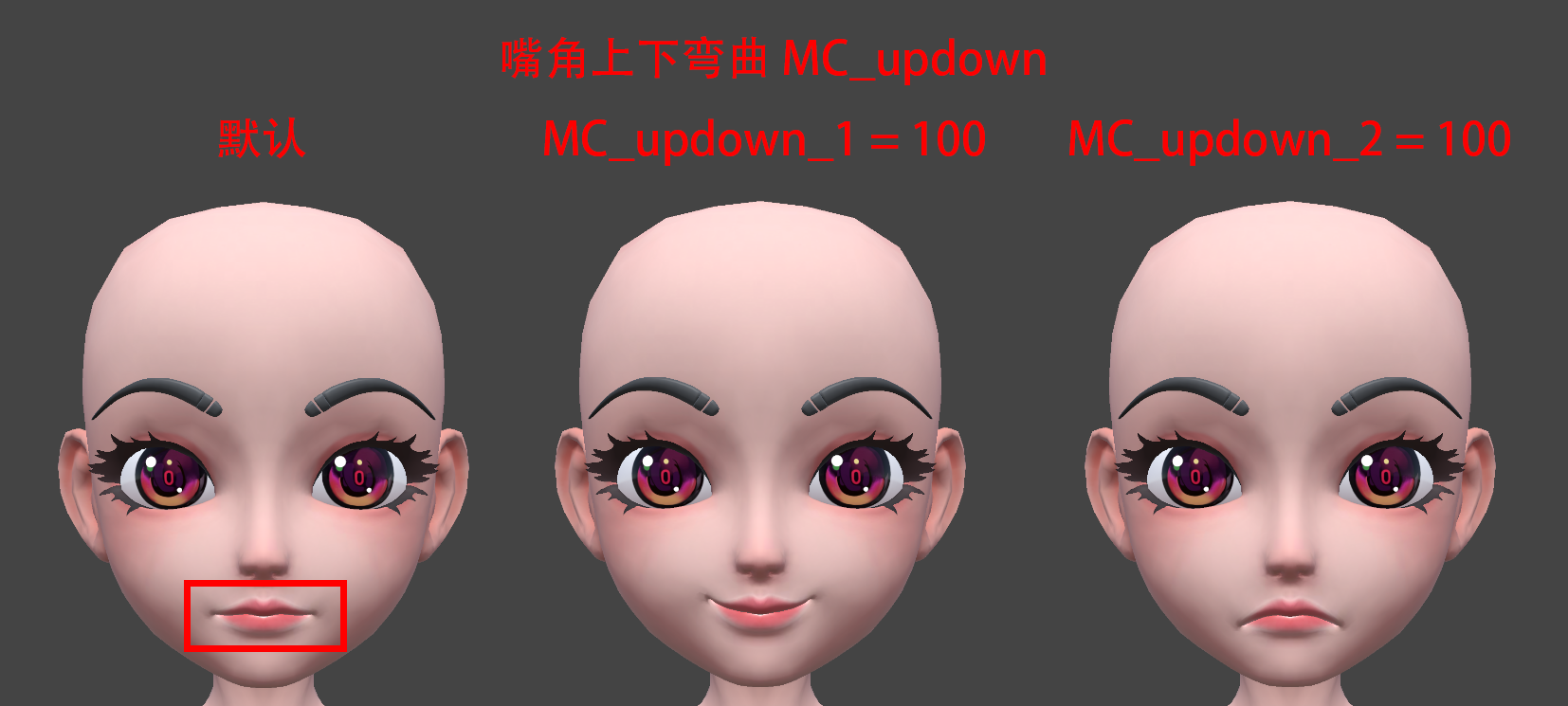
* `key`: String. Resource ID, such as `MC_updown_1` (upward bend of the mouth corner) and `MC_updown_2` (downward bend of the mouth corner). See [Face pinching resources](#face-pinching-resources) for details.
* `value`: Int. Adjustment range, range is \[0, 100], default value is 50. Supports passing in multiple sets of face-pinching resource IDs (`key`) and corresponding adjustment ranges (`value`) to achieve the final face-pinching effect. The example of setting `MC_updown_1` and `MC_updown_2` to 100 respectively is as follows:
##### Avatar dressup [#avatar-dressup]
The MetaKit extension provides a set of dress-up resources for avatars.
Currently only the `girl` avatar supports dressup.
* `key`: `updateDress`
* `value`: Object. Contains the following field:
* `id`: Int\[]. An Int array consisting of resource IDs of multiple clothing items or body parts. Supports dressing operations on multiple items or parts, such as hair, tops, jackets, pants, and so on. Each part provides multiple dressing resources to choose from, that is, each part corresponds to multiple dressing resource IDs. Only one resource can be specified for each part at a time. See [Dress-up resources](#dress-up-resources) for details.
The recommended set combinations are as follows:
1. **Set 1**
```json
// The following resource IDs correspond to the following clothing items/body parts [hair, eyebrows, blush, headdress, top coat, pants, shoes]
"id": [10001, 10101, 10401, 10801, 12101, 14101, 15001]
```
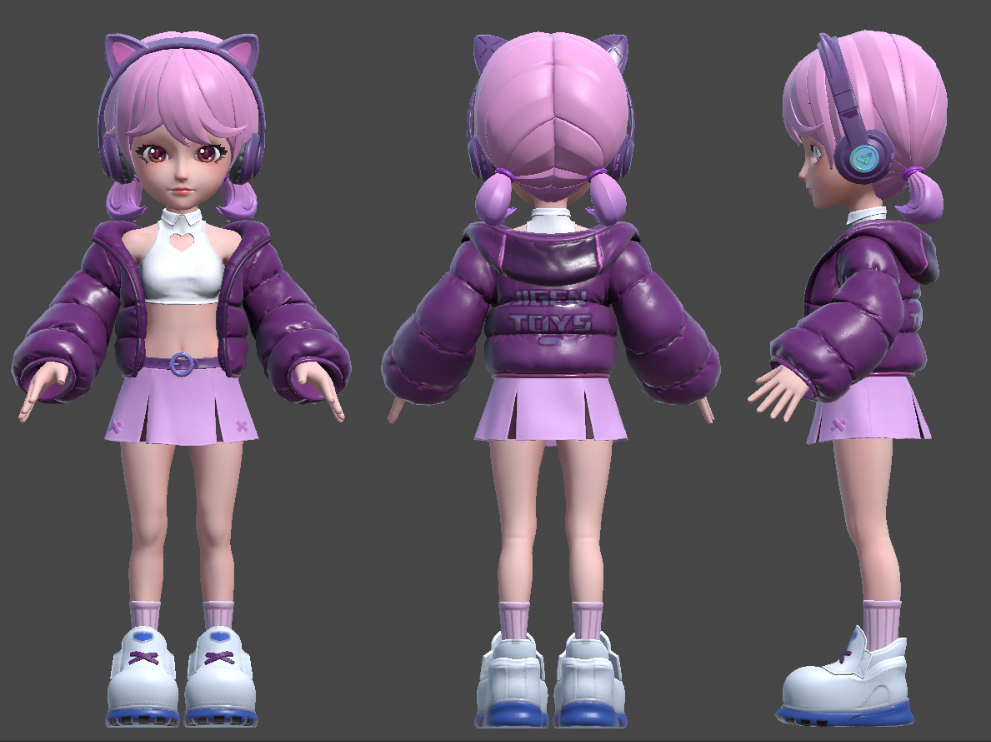
1. **Set 2**
```json
// The following resource IDs correspond to the following clothing items/body parts [hair, eyebrows, blush, coat, gloves, pants, shoes]
"id": [10002, 10102, 10402, 12102, 12501, 14102, 15002]
```
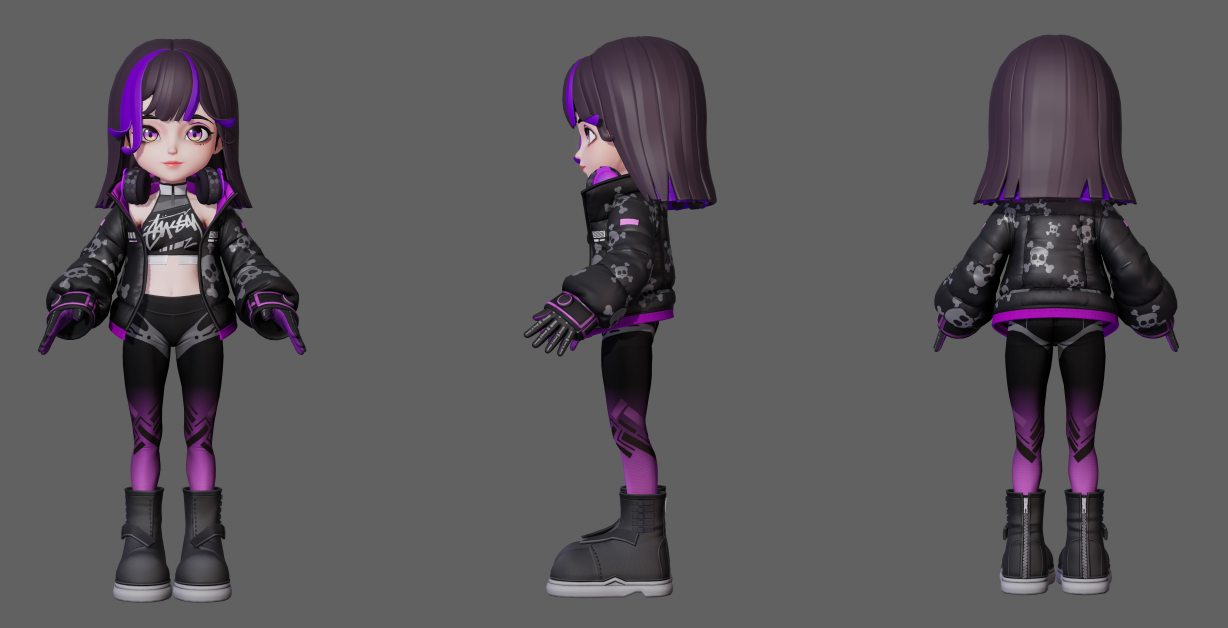
#### Animoji [#animoji]
The MetaKit extension allows you to switch the image of Animoji. To experience Animoji-related functions, set `avatarMode` to `1` when [enabling texture request](#enable-texture-request) or [adding scene view](#add-scene-view).
In addition to the existing `dog`, `girlhead` and `arkit` Animoji, the Agora MetaKit extension provides an open art ecosystem and supports **one-click import** of Animoji images made according to Agora's art standards, providing users with more flexible creation and integration options. [Contact Agora technical support](mailto\:extensions.marketplace@agora.io) to use this feature.
##### Adjust rendering level [#adjust-rendering-level]
The MetaKit extension provides three rendering levels: Low, medium, and high. You can choose the corresponding rendering level according to the device performance to achieve the best match between device performance and rendering effect.
Currently, only the `dog` Animoji image supports adjusting the rendering level.
* `key`: `setRenderQuality`
* `value`: Object. Contains the following field:
* `general`: Int. `0`: Low configuration; `1`: (default) Medium configuration; `2`: High configuration.
#### Lighting effects [#lighting-effects]
The MetaKit extension provides lighting effects such as 3D lighting, screen ripples, aurora effects, and portrait edge flames, and supports fine-tuning the color, intensity, range, and other parameters of the lighting effects. To experience the lighting effects-related functions, set `avatarMode` to `2` when [enabling texture requests](#enable-texture-request) or set `backgroundEffect` to `true` when [adding a scene view](#add-scene-view).
##### Set special effect material [#set-special-effect-material]
* `key`: `setEffectVideo`
* `value`: Object. Contains the following fields:
* `id`: Int. Special effect material ID.
* `enable`: Boolean. Whether to enable the special effect. `true`: Enable; `false`: Disable.
* `param`: (optional) Object. Each special effect material ID corresponds to a set of configuration parameters, which allows you to fine-tune the color, intensity, range, and so on of the lighting effect. If you do not fill in the parameters, the default parameter configuration will be used.
The mapping relationship between special effect material ID and configuration parameters is as follows:
| ID | Effect | Parameters |
| ------ | -------------------- | ---------------------------------------------------------------------------------------------------------------------------------------------------------------------------------------------------------------------------------------------------------------------------------------------------------------------------------------------------------------------------------------------------------------------------------------------------------------------------------------------------------------------------------------------------------------------------------------------------------------------------------------------------------------------------------------------------------------------------------------------------------------------------------------------------------------------------------------------------------------------------------------------------------------------------------------------------- |
| `1001` | 3D Lighting | - `color` (Int64): Lighting color. When passing the parameter, the hexadecimal color needs to be converted to an Int64 value. For example, for red, the hexadecimal color is #FF0000, and the converted Int64 value is 16711680. - `intensity` (Float): Light intensity. The recommended value range is \[1.0, 2.0]. The default value is 1.6. - `scale` (Float): Lighting scale. The recommended range is \[0.3, 0.6]. The default value is 0.4. |
| `1002` | Screen ripples | - `color` (Int64): Ripple color. When passing parameters, the hexadecimal color needs to be converted to an Int64 value. For example, for red, the hexadecimal color is #FF0000, and the converted Int64 value is 16711680. - `speed` (Float): Fluctuation speed. The recommended value range is \[-0.2, 0.2]. The default value is -0.12. - `scale` (Float): Ripple size. The recommended value range is \[3.0, 6.0]. The default value is 4.0. |
| `1003` | Aurora | - `color` (Int64): Aurora color. When passing parameters, the hexadecimal color needs to be converted to an Int64 value. For example, for red, the hexadecimal color is #FF0000, and the converted Int64 value is 16711680. - `intensity` (Float): Aurora intensity. The recommended value range is \[0.8, 1.5]. The default value is 1.0. |
| `2001` | Portrait edge flame | - `color` (Int64): Flame color. When passing parameters, the hexadecimal color needs to be converted to an Int64 value. For example, for red, the hexadecimal color is #FF0000, and the converted Int64 value is 16711680. - `intensity` (Float): Flame intensity. The recommended value range is \[0.2, 1.5]. The default value is 0.2. |
| `3001` | Ambient lighting set | N/A |
| `3002` | Advertising lights | - `startColor` (Int64): The initial color of the advertising light. When passing parameters, the hexadecimal color needs to be converted to an Int64 value. For example, for red, the hexadecimal color is #FF0000, and the converted Int64 value is 16711680. - `endColor` (Int64): The end color of the advertising light. When passing parameters, you need to convert the hexadecimal color into an Int64 value. After configuring the starting color, a gradient effect from the initial color to the ending color will be created. - `size` (Float): The size of the advertisement light texture. The recommended value range is \[8, 15]. The default value is 10. - `intensity` (Float): Advertising light intensity. The recommended value range is \[100, 1000], and the default value is 1000. - `range` (Float): The distance of the advertising light. The recommended range is \[10, 40]. The default value is 15. |
#### 360 Background [#360-background]
The MetaKit extension allows you to enable 360-degree panoramic background mode, customize background replacement resources, and enable the gyroscope function to enhance the interactivity and immersion of the scene background. To experience 360-degree background-related functions, set `avatarMode` to `2` when [enabling texture request](#enable-texture-request) or set `backgroundEffect` to `true` when [adding a scene view](#add-scene-view).
##### Set replacement resource [#set-replacement-resource]
After successful setting, you can observe that the video background is replaced with the specified resource, and you can experience the panoramic effect by rotating the phone.
* `key`: `setBGVideo`
* `value`: Object. Contains the following fields:
* `mode`: String. Set to `tex360`, which means 360-degree panoramic background.
* `param`:
* `path`: String. Specifies the URL or local path of the background resource.
* `rotation`: (optional) Int. Rotation angle, default value is 0.
##### Enable background gyroscope [#enable-background-gyroscope]
The gyroscope function is only supported after successfully [setting up a 360-degree panoramic background](#set-replacement-resource). Enabling the gyroscope function can further enhance the interactivity and immersion of the background.
* `key`: `setCameraGyro`
* `value`: Object. Contains the following field:
* `state`: Boolean. Background gyroscope function status. `on`: Enabled; `off`: (default) Disabled.
### Face-pinching resources [#face-pinching-resources]
This section introduces the virtual human face-pinching resources provided by the MetaKit extension.
#### Girl [#girl]
This section introduces the face-shaping resources for `girl`.
##### Face [#face]
An example of lifting (`CK_raise_1`) and lowering (`CK_raise_2`) the cheeks is shown in the following video:
The `girl` resource supports face-pinching operations on the following parts of the face:
| Resource ID | Location |
| ------------- | -------------------------------- |
| FE\_raise\_1 | Forehead protrusion |
| FE\_raise\_2 | Forehead collapse |
| TP\_raise\_1 | Temple protrusion |
| TP\_raise\_2 | Temple collapse |
| CK\_raise\_1 | Cheek raise |
| CK\_raise\_2 | Cheek collapse |
| MD\_width\_1 | Mandible outward |
| MD\_width\_2 | Mandible inward |
| MD\_updown\_1 | Mandible up and down |
| MD\_updown\_2 | Mandible up |
| C\_width\_1 | Chin stretch (left and right) |
| C\_width\_2 | Chin tightening (left and right) |
| C\_updown\_1 | Chin stretch |
| C\_updown\_2 | Chin stretch |
##### Eyebrow [#eyebrow]
The following are examples of adjusting the eyebrows to be longer (`EB_length_1`) and shorter (`EB_length_2`):
The `girl` resource supports face-pinching operations on the following parts of the eyebrows:
| Resource ID | Location |
| ---------------- | -------------------------------- |
| EB\_width\_1 | Eyebrows moved inwards |
| EB\_width\_2 | Eyebrows moved outwards |
| EB\_updown\_1 | Eyebrows moved down |
| EB\_updown\_2 | Eyebrows moved up |
| EB\_thickness | Adjust the thickness of eyebrows |
| EBIN\_updown\_1 | Inner eyebrow moved up |
| EBIN\_updown\_2 | Inner eyebrow moved down |
| EBMID\_updown\_1 | Middle eyebrow moved up |
| EBMID\_updown\_2 | Middle eyebrow moved down |
| EB\_length\_1 | Adjust eyebrow length |
| EB\_length\_2 | Adjust eyebrow length |
| EBOUT\_updown\_1 | Outer eyebrow high position |
| EBOUT\_updown\_2 | Outer eyebrow low position |
##### Eye [#eye]
The following are examples of adjusting the overall enlargement (`E_size_1`) and shrinking of the eyes (`E_size_2`):
The `girl` resource supports face-pinching operations on the following parts of the eyes:
| Resource ID | Location |
| ---------------- | ---------------------------------- |
| E\_width\_1 | Eyes inward |
| E\_width\_2 | Eyes outward |
| E\_updown\_1 | Eyes up adjustment |
| E\_updown\_2 | Eyes down adjustment |
| IC\_width\_1 | Inner corner of eye facing inward |
| IC\_width\_2 | Inner corner of eye facing outward |
| IC\_updown\_1 | Inner corner of eye upward |
| IC\_updown\_2 | Inner corner of eye downward |
| UEIN\_updown\_1 | Upper eyelid tip up |
| UEIN\_updown\_2 | Upper eyelid tip down |
| UE\_updown\_1 | Upper eyelid upwards |
| UE\_updown\_2 | Upper eyelid downwards |
| UEOUT\_updown\_1 | Upper eyelid ends upward |
| UEOUT\_updown\_2 | Upper eyelid ends downward |
| LE\_updown\_1 | Lower eyelid downwards |
| LE\_updown\_2 | Lower eyelid upwards |
| OC\_width\_1 | Outer corner of eye inward |
| OC\_width\_2 | Outer corner of eye outward |
| OC\_updown\_1 | Outer corner of eye upward |
| OC\_updown\_2 | Outer corner of eye downward |
| E\_rotate\_1 | Eye rotation 1 |
| E\_rotate\_2 | Eye rotation 2 |
| E\_size\_1 | Enlarge the entire eye |
| E\_size\_2 | Reduce the entire eye size |
| EL\_updown\_1 | Eyelids wider |
| EL\_updown\_2 | Eyelids narrower |
##### Nose [#nose]
The following are examples of adjusting the overall enlargement (`NT_size_1`) and shrinking (`NT_size_2`) of the nose tip:
The `girl` resource supports face-pinching operations on the following parts of the nose:
| Resource ID | Location |
| ------------- | --------------------------------- |
| N\_width\_1 | Enlarge the nose (left and right) |
| N\_width\_2 | Shrink the nose (left and right) |
| N\_updown\_1 | Nose up |
| N\_updown\_2 | Nose down |
| NB\_raise\_1 | Nose raised |
| NB\_raise\_2 | Nose bridge concave |
| NT\_size\_1 | Enlarge nose tip |
| NT\_size\_2 | Shrink nose tip |
| NW\_width\_1 | Nose wings outward |
| NW\_width\_2 | Nose wings inward |
| NW\_updown\_1 | Nose wings upward |
| NW\_updown\_2 | Nose wings downward |
##### Mouth [#mouth]
The following are examples of adjusting the mouth to move down (`M_updown_1`) and up (`M_updown_2`):
The `girl` resource supports face-pinching operations on the following parts of the mouth:
| Resource ID | Location |
| ------------- | ---------------------------------- |
| UL\_width\_1 | Wider upper lip |
| UL\_width\_2 | Narrower upper lip |
| LL\_width\_1 | Wider lower lip |
| LL\_width\_2 | Narrower lower lip |
| MC\_updown\_1 | Mouth corners curved upward |
| MC\_updown\_2 | Mouth corners curved downward |
| M\_size\_1 | Enlarge the mouth (left and right) |
| M\_size\_2 | Shrink the mouth (left and right) |
| M\_updown\_1 | Mouth downward |
| M\_updown\_2 | Mouth upward |
#### JSON example [#json-example]
The complete face-shaping JSON is as follows:
```json
{
"faceParameters": [
{
"avatar": "girl",
"blendshape": [
{
"type": "Face",
"shapes": [
{
"key": "FE_raise_1",
"ch": "prominence of forehead"
},
{
"key": "FE_raise_2",
"ch": "forehead collapse"
},
{
"key": "TP_raise_1",
"ch": "prominence of the temple"
},
{
"key": "TP_raise_2",
"ch": "collapse of the temple"
},
{
"key": "CK_raise_1",
"ch": "prominence of cheek"
},
{
"key": "CK_raise_2",
"ch": "sunken cheek"
},
{
"key": "MD_width_1",
"ch": "mandible outward"
},
{
"key": "MD_width_2",
"ch": "mandible inward"
},
{
"key": "MD_updown_1",
"ch": "mandible down"
},
{
"key": "MD_updown_2",
"ch": "mandible up"
},
{
"key": "C_width_1",
"ch": "Stretch your jaw left and right"
},
{
"key": "C_width_2",
"ch": "chin tightening left and right"
},
{
"key": "C_updown_1",
"ch": "chin stretch"
},
{
"key": "C_updown_2",
"ch": "chin stretch"
}
]
},
{
"type": "Eyebrow",
"shapes": [
{
"key": "EB_width_1",
"ch": "Eyebrows move inward"
},
{
"key": "EB_width_2",
"ch": "Eyebrows move outward"
},
{
"key": "EB_updown_1",
"ch": "Eyebrows move downward"
},
{
"key": "EB_updown_2",
"ch": "Eyebrows move upward"
},
{
"key": "EB_thickness",
"ch": "Adjust the thickness of eyebrows"
},
{
"key": "EBIN_updown_1",
"ch": "Inner eyebrow moves upward"
},
{
"key": "EBIN_updown_2",
"ch": "Inner eyebrow moves downward"
},
{
"key": "EBMID_updown_1",
"ch": "Middle eyebrow curved upward"
},
{
"key": "EBMID_updown_2",
"ch": "Middle eyebrow concave"
},
{
"key": "EB_length_1",
"ch": "Adjust the length of eyebrows"
},
{
"key": "EB_length_2",
"ch": "Adjust eyebrows to short"
},
{
"key": "EBOUT_updown_1",
"ch": "high position of outer eyebrows"
},
{
"key": "EBOUT_updown_2",
"ch": "low position of outer eyebrow"
}
]
},
{
"type": "Eye",
"shapes": [
{
"key": "E_width_1",
"ch": "Eyes inward"
},
{
"key": "E_width_2",
"ch": "eyes outward"
},
{
"key": "E_updown_1",
"ch": "Eye adjustment"
},
{
"key": "E_updown_2",
"ch": "Under-eye adjustment"
},
{
"key": "IC_width_1",
"ch": "Inner corner of eye facing inward"
},
{
"key": "IC_width_2",
"ch": "Inner corner of eye facing outward"
},
{
"key": "IC_updown_1",
"ch": "Inner corner of eye upward"
},
{
"key": "IC_updown_2",
"ch": "Inner corner of eye down"
},
{
"key": "UEIN_updown_1",
"ch": "The front of the upper eyelid is pointing upward"
},
{
"key": "UEIN_updown_2",
"ch": "The front of the upper eyelid is facing downward"
},
{
"key": "UE_updown_1",
"ch": "Upper eyelid upward"
},
{
"key": "UE_updown_2",
"ch": "Upper eyelids move downwards as a whole"
},
{
"key": "UEOUT_updown_1",
"ch": "The upper eyelid ends upward"
},
{
"key": "UEOUT_updown_2",
"ch": "Upper eyelid ends downward"
},
{
"key": "LE_updown_1",
"ch": "Lower eyelid downward"
},
{
"key": "LE_updown_2",
"ch": "Lower eyelid upward"
},
{
"key": "OC_width_1",
"ch": "Outer corner of eye moves inward"
},
{
"key": "OC_width_2",
"ch": "Outer corners of the eyes turn outward"
},
{
"key": "OC_updown_1",
"ch": "Outer corner of eye up"
},
{
"key": "OC_updown_2",
"ch": "Outer corner of eye down"
},
{
"key": "E_rotate_1",
"ch": "Eye rotation 1"
},
{
"key": "E_rotate_2",
"ch": "Eye rotation 2"
},
{
"key": "E_size_1",
"ch": "Enlarge the eyes as a whole"
},
{
"key": "E_size_2",
"ch": "The eyes shrink overall"
},
{
"key": "EL_updown_1",
"ch": "Eyelids become wider"
},
{
"key": "EL_updown_2",
"ch": "eyelid distance narrows"
}
]
},
{
"type": "Nose",
"shapes": [
{
"key": "N_width_1",
"ch": "Enlarge the nose left and right"
},
{
"key": "N_width_2",
"ch": "The nose shrinks left and right"
},
{
"key": "N_updown_1",
"ch": "nose up"
},
{
"key": "N_updown_2",
"ch": "nose down"
},
{
"key": "NB_raise_1",
"ch": "convex nose"
},
{
"key": "NB_raise_2",
"ch": "concave nose"
},
{
"key": "NT_size_1",
"ch": "Enlarge the nose tip as a whole"
},
{
"key": "NT_size_2",
"ch": "Nose tip overall reduction"
},
{
"key": "NW_width_1",
"ch": "The nose wings are stretched outward"
},
{
"key": "NW_width_2",
"ch": "The nose wings are stretched inwards"
},
{
"key": "NW_updown_1",
"ch": "Stretch on nose wing"
},
{
"key": "NW_updown_2",
"ch": "Stretch under nose"
}
]
},
{
"type": "Mouth",
"shapes": [
{
"key": "UL_width_1",
"ch": "Upper lip widens"
},
{
"key": "UL_width_2",
"ch": "upper lip narrowing"
},
{
"key": "LL_width_1",
"ch": "Lower lip widens"
},
{
"key": "LL_width_2",
"ch": "lower lip narrowing"
},
{
"key": "MC_updown_1",
"ch": "upward curve of the mouth corner"
},
{
"key": "MC_updown_2",
"ch": "corner of mouth curved downward"
},
{
"key": "M_size_1",
"ch": "Enlarge the mouth left and right"
},
{
"key": "M_size_2",
"ch": "The mouth shrinks left and right"
},
{
"key": "M_updown_1",
"ch": "The mouth moves downward"
},
{
"key": "M_updown_2",
"ch": "The mouth moves upward"
}
]
}
]
},
{
"avatar": "huamulan",
"blendshape": []
}
]
}
```
### Dress-up resources [#dress-up-resources]
This section introduces the virtual human dress-up resources provided by the MetaKit extension.
#### Girl [#girl-1]
The parts of the girl's outfit and their corresponding resource IDs are as follows:
| Clothing item/Body part | Resource ID |
| ----------------------- | ------------------- |
| Hair | 10000, 10001, 10002 |
| Eyebrows | 10100, 10101, 10102 |
| Blush | 10401, 10402 |
| Headdress | 10801 |
| Tops and jackets | 12100, 12101, 12102 |
| Gloves | 12501 |
| Pants | 14100, 14101, 14102 |
| Socks | 14301 |
| Shoes | 15000, 15001, 15002 |
#### JSON example [#json-example-1]
The complete JSON for the replacement is as follows:
```json
{
"dressResources": [
{
"avatar": "girl",
"resources": [
{
"id": 100,
"name": "Hair",
"assets": [
10000,
10001,
10002
]
},
{
"id": 101,
"name": "Eyebrows",
"assets": [
10100,
10101,
10102
]
},
{
"id": 104,
"name": "Blush",
"assets": [
10401,
10402
]
},
{
"id": 108,
"name": "Headdress",
"assets": [
10801
]
},
{
"id": 121,
"name": "Tops and Jackets",
"assets": [
12100,
12101,
12102
]
},
{
"id": 125,
"name": "Gloves",
"assets": [
12501
]
},
{
"id": 141,
"name": "Pants",
"assets": [
14100,
14101,
14102
]
},
{
"id": 143,
"name": "Socks",
"assets": [
14301
]
},
{
"id": 150,
"name": "Shoes",
"assets": [
15000,
15001,
15002
]
}
]
},
{
"avatar": "huamulan",
"resources": []
}
]
}
```
<_PlatformProcessedMarker close="true" />
<_PlatformPanel platform="ios">
<_PlatformProcessedMarker groupMode="structured" canonicalPlatform="android" platform="ios" />
When integrating through CocoaPods, specify pod `AgoraRtcEngine_Special_iOS` and replace `x.y.z` with the specific SDK version number.
The MetaKit extension uses the Face Capture extension ( `AgoraFaceCaptureExtension.xcframework`) and the Virtual Background extension (`AgoraVideoSegmentationExtension.xcframework`). You can delete unnecessary extensions as needed to reduce the size of the app.
* Xcode 13.0 and above
* A physical device running iOS 14.0 or above, with the front camera and microphone functioning normally.
* An Apple developer account.
* Installed CocoaPods. See [Getting Started with CocoaPods](https://guides.cocoapods.org/using/getting-started.html#getting-started).
* A computer that can access the Internet. If your network environment has a firewall deployed, refer to [Firewall requirements](/en/realtime-media/video/reference/firewall) to use the Agora services normally.
## Project setup [#project-setup-1]
To implement MetaKit effects in your app, open the [SDK quickstart for Video Calling](/en/realtime-media/video/get-started-sdk) project and take the steps described below.
Before using the MetaKit extension, follow these steps to configure your project.
### Integrate the extension [#integrate-the-extension-1]
To integrate the MetaKit extension, take the following steps:
1. Download and unzip the [MetaKit](https://download.agora.io/sdk/release/Agora_MetaKit_SDK_for_iOS_v2_2_0.zip?_gl=1*vq9rt*_ga*MjA0NDUxNTUwLjE2ODM3MTkwNzY.*_ga_BFVGG7E02W*MTcyNjIxOTY4OS4yODAuMS4xNzI2MjIwMjg1LjAuMC4w) iOS extension.
2. Open the folder and copy the files from the `/SDK` path to the corresponding project path.
| Library | Integration path |
| :---------------------------------- | :--------------- |
| `AgoraMetaKitExtension.xcframework` | `/SDKExtension` |
| `AgoraMetaKit.xcframework` | `/SDKExtension` |
Agora provides extension support in the XCFramework format for the `arm64` architecture but not for the `armv7` architecture.
3. Open your project in Xcode and [add the required dynamic libraries](https://help.apple.com/xcode/mac/current/#/dev51a648b07), ensuring that the **Embed** attribute of the added dynamic libraries is set to **Embed & Sign**.
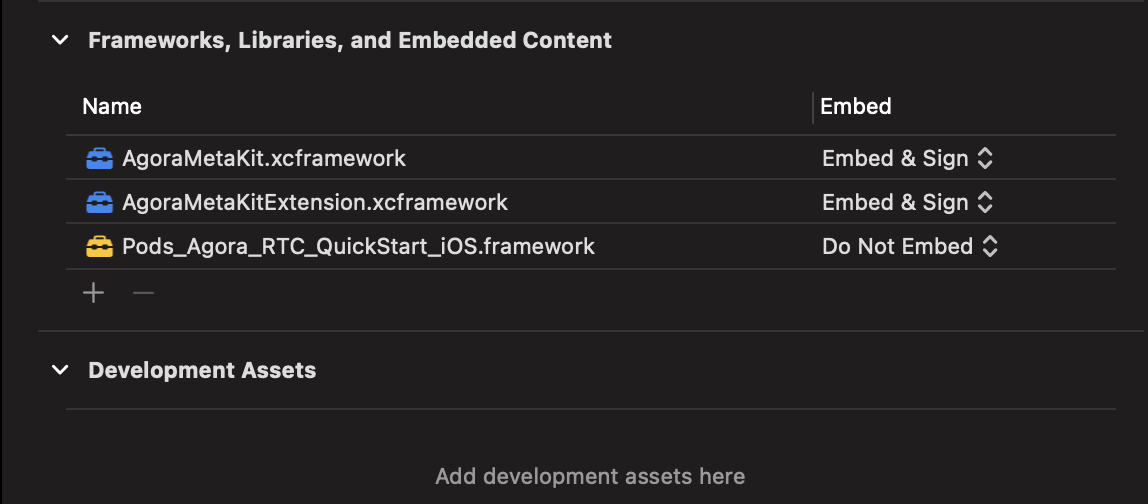
### Configure MetaKit [#configure-metakit-1]
To configure the extension, take the following steps:
1. Open the MetaKit iOS extension folder. The `/assets` path contains Bundle file resources needed for different scenes and functions. The table below lists the resource name, purpose, and size:
| Resource | Required/Optional | Description | Size |
| ----------- | ----------------- | ------------------------------------------------------------------------------------------------------------------------------------------------------------------- | ----------------------------------------------------------------------------- |
| `SceneBase` | Required | Basic scene resources. All functional modules are built on these resources, which include support for hot updates. | 2.5 MB |
| `Avatar` | Function-specific | Virtual human model resources, including the virtual human figures `girl` and `huamulan`. Supports face capture, face pinching, and dress-up capabilities. | * `girl`: 17.4 MB
* `huamulan`: 3.1 MB (no face pinching or dress-up support) |
| `Animoji` | Function-specific | Animoji model resources, including the Animoji figures `dog`, `girlhead`, and `arkit`. Supports face capture. | - `dog`: 1.5 MB
- `girlhead`: 4 MB
- `arkit`: 44 KB |
| `AREffect` | Function-specific | Lighting effects and 360 background resources, including 3D lighting, ambient lights, advertising lights, screen ripples, aurora effects, and portrait edge flames. | 4.9 MB |
2. Combine the basic resources (`SceneBase`) and the subpackage resources of specific functional modules (`Avatar`, `AvatarHeadMask`, and `AREffect`) into a single resource package to experience the corresponding functional modules. The functional modules and their corresponding resource package combinations are shown in the table below:
| Functional module | Resource package combination |
| ----------------- | -------------------------------- |
| Virtual human | `SceneBase` and `Avatar` |
| Animoji | `SceneBase` and `AvatarHeadMask` |
| Lighting effects | `SceneBase` and `AREffect` |
| 360 Background | `SceneBase` and `AREffect` |
For example, to experience the virtual human and 360 background, combine the `SceneBase`, `Avatar`, and `AREffect` into a single resource directory (as shown in the image below). Once the resource directory is prepared, place it in the iOS sandbox. When [loading scene resources](#load-scene-resources), set the absolute path of this resource directory to MetaKit.
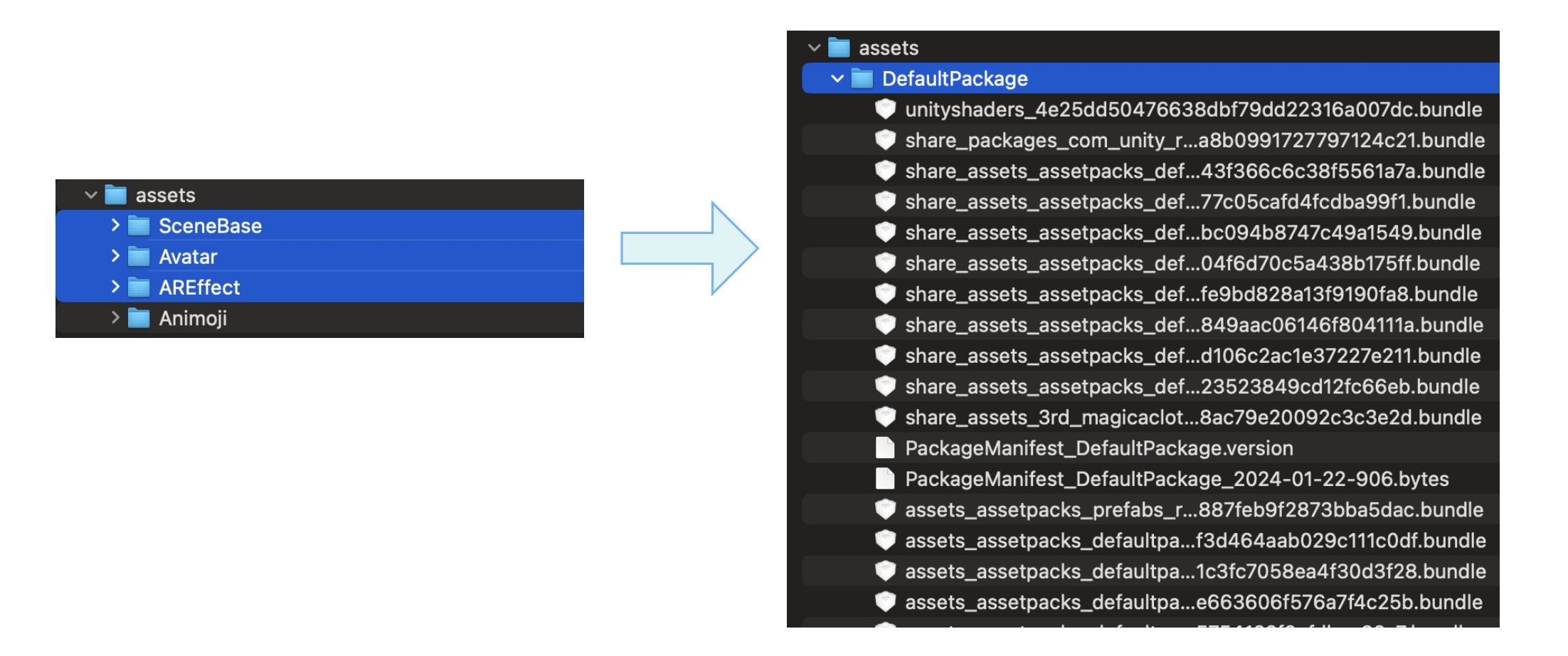
### Add iOS device permissions [#add-ios-device-permissions]
Open the project's `Info.plist` file and edit the property list to add the microphone and camera permissions required for the MetaKit extension.
| Permission | Description |
| ---------------------------------------- | ----------------------------------------------------------------------------------------- |
| `Privacy - Microphone Usage Description` | Required for audio functions. |
| `Privacy - Camera Usage Description` | Required for features like facial animation and background segmentation for AI inference. |
## Implement the logic [#implement-the-logic-1]
After configuring your project, follow these steps to experience the various functional modules of the MetaKit extension.
### Listen to extension events [#listen-to-extension-events-1]
1. Initialize `AgoraRtcEngineKit` by calling `sharedEngineWithConfig`. In `AgoraRtcEngineConfig`, create the `AgoraMediaFilterEventDelegate` callback interface for the extension and register extension event callbacks such as `onEvent`.
```swift
let config = AgoraRtcEngineConfig()
config.appId = appID
config.eventDelegate = self
// Create and initialize AgoraRtcEngineKit
agoraEngine = AgoraRtcEngineKit.sharedEngine(with: config, delegate: self)
// Create the event callback interface class for the extension and register extension event callbacks
extension ViewController: AgoraMediaFilterEventDelegate {
func onEvent(_ provider: String?, extension: String?, key: String?, value: String?) {
}
func onExtensionStarted(_ provider: String?, extension: String?) {
}
func onExtensionStopped(_ provider: String?, extension: String?) {
}
func onExtensionError(_ provider: String?, extension: String?, error: Int32, message: String?) {
}
}
```
2. In the callback, specify `provider` as `agora_video_filters_metakit` and `extension` as `metakit` to filter events from the MetaKit extension. `onEvent` passes through engine states such as `unityLoadFinish` (Unity environment loaded) and `addSceneViewResp` (scene view loaded).
```swift
func onEvent(_ provider: String?, extension: String?, key: String?, value: String?) {
guard let provider = provider, let extension = extension, provider == "agora_video_filters_metakit", extension == "metakit" else {
return
}
guard let status = key else {
return
}
switch status {
case "initializeFinish", "unityLoadFinish", "loadSceneResp", "addSceneViewResp", "removeSceneViewResp", "unloadSceneResp":
// Capture and handle events such as Unity environment loaded and scene view loaded
break
default:
break
}
}
func onExtensionError(_ provider: String?, extension: String?, error: Int32, message: String?) {
if provider == "agora_video_filters_metakit" && extension == "metakit" {
print("[MetaKit] onExtensionError, Code: \(error), Message: \(message ?? "")")
}
}
```
### Enable extensions [#enable-extensions-1]
Before enabling the MetaKit extension, ensure that both the Facial Capture extension and the Virtual Background extension are enabled.
#### Enable the Face Capture extension [#enable-the-face-capture-extension-1]
To enable the Face Capture extension, follow these steps:
1. Call `registerExtensionWithVendor` and `enableExtensionWithVendor` to register and enable the extension, specifying the extension service provider name (`agora_video_filters_face_capture`) and extension name (`face_capture`).
2. Call `setExtensionPropertyWithVendor` to authenticate and authorize the AI module of the extension, where `key` is `authentication_information`, and `value` includes the company name (`company_id`) and face capture license (`license`).
Contact [Agora](mailto\:extensions.marketplace@agora.io) to obtain the company name and face capture license.
```swift
// Register Face Capture extension
agoraEngine?.registerExtension(withVendor: "agora_video_filters_face_capture", extension: "face_capture", sourceType: AgoraMediaSourceType.primaryCamera)
// Enable Face Capture extension
agoraEngine?.enableExtension(withVendor: "agora_video_filters_face_capture", extension: "face_capture", enabled: true)
// Authorize Face Capture extension
agoraEngine?.setExtensionPropertyWithVendor("agora_video_filters_face_capture",
extension: "face_capture",
key: "authentication_information",
value: "{\"company_id\":\"agoraDemo\", \"license\":\"xxxxxxxxxx\"}",
sourceType: AgoraMediaSourceType.primaryCamera)
```
#### Enable the Virtual Background extension [#enable-the-virtual-background-extension-1]
1. Call `setParameters` to set `"rtc.video.seg_before_exts"` to `true`, ensuring that the Virtual Background extension executes before MetaKit.
2. Call `enableVirtualBackground` to enable the extension, specifying the following:
* `backgroundSourceType` as `AgoraVirtualBackgroundNone` to process the background as alpha information, separating the subject from the background.
* `modelType` as `SegModelAgoraAi` for background processing suitable for all use-cases.
```swift
// Ensure Virtual Background executes before MetaKit
agoraKit.setParameters("{\"rtc.video.seg_before_exts\":true}")
let bg_src = AgoraVirtualBackgroundSource()
// Process background as alpha information, separate subject from background
bg_src.backgroundSourceType = .none
let seg_prop = AgoraSegmentationProperty()
seg_prop.greenCapacity = 0
// Choose background processing suitable for all use-cases
seg_prop.modelType = .agoraAi
// Enable Virtual Background
agoraEngine?.enableVirtualBackground(true, backData: bg_src, segData: seg_prop)
```
#### Enable the MetaKit extension [#enable-the-metakit-extension-1]
Call `registerExtensionWithVendor` to register the MetaKit extension with the extension service provider name (`agora_video_filters_metakit`) and extension name (`metakit`).
```swift
// Register MetaKit
agoraEngine?.registerExtension(withVendor: "agora_video_filters_metakit", extension: "metakit", sourceType: AgoraMediaSourceType.primaryCamera)
// Enable MetaKit
agoraEngine?.enableExtension(withVendor: "agora_video_filters_metakit", extension: "metakit", enabled: true)
```
### Initialize MetaKit [#initialize-metakit-1]
Initialize the MetaKit extension by calling `setExtensionPropertyWithVendor`, with `key` set to `initialize` and `value` set to an empty `JSON object ({})`.
```swift
agoraEngine?.setExtensionPropertyWithVendor("agora_video_filters_metakit", extension: "metakit", key: "initialize", value: "{}")
```
### Load scene resources [#load-scene-resources-2]
When the `onEvent` callback captures the `unityLoadFinish` event, it indicates that the Unity environment has finished loading. At this point, use `setExtensionPropertyWithVendor` to load MetaKit scene resources, with `key` set to `loadScene` and `value` containing relevant scene information.
```swift
// Set the scene resource path
// Assume the resource path is /first/second/DefaultPackage/, where scenePath should only be /first/second
let infoDict = ["sceneInfo": ["scenePath": "xxxx"]] as [String: Any]
let infoData = try? JSONSerialization.data(withJSONObject: infoDict, options: [])
let infoStr = String(data: infoData!, encoding: .utf8)
// Load scene resources based on JSON configuration
agoraKit?.setExtensionPropertyWithVendor("agora_video_filters_metakit",
extension: "metakit",
key: "loadScene",
value: infoStr!)
```
### Use the avatar effect [#use-the-avatar-effect-1]
1. Use `setExtensionPropertyWithVendor` to add a scene view for a virtual human, with key set to `addSceneView` and value containing scene view configuration information. To experience the virtual human functionalities, set `avatarMode` to `0` for the scene view, indicating virtual human mode, and specify `avatar` as the desired character such as `girl` or `huamulan`.
```swift
// Get the view's address handle
let address = unsafeBitCast(sceneView!, to: Int64.self)
let extraDict = [
"sceneIndex": 0, // Scene index, currently supports only 0
"avatar": "huamulan", // Set avatar to "huamulan"
"avatarMode": 0 // Set scene mode to 0, i.e., virtual human mode
] as [String: Any]
let extraData = try? JSONSerialization.data(withJSONObject: extraDict, options: [])
let extraStr = String(data: extraData!, encoding: .utf8) ?? ""
let dict = [
"view": String(address),
"config": [
"width": 720,
"height": 1280,
"extraInfo": extraStr
]
] as [String: Any]
let data = try? JSONSerialization.data(withJSONObject: dict, options: [])
let dataStr = String(data: data!, encoding: .utf8)
// Add virtual human scene view based on JSON configuration
agoraKit?.setExtensionPropertyWithVendor("agora_video_filters_metakit",
extension: "metakit",
key: "addSceneView",
value: dataStr!)
```
When the `onEvent` callback captures the `addSceneViewResp` event, the scene view has been successfully added. It will display a Blendshape-driven virtual human character that mimics your facial expressions and follows head movements.
2. Use `setExtensionPropertyWithVendor` to manipulate the virtual human's facial features, with key set to `updateFace` and value supporting multiple sets of resource `IDs` and corresponding adjustment amplitudes. See [Facial pinching resources](#face-pinching-resources) for details.
```swift
let parts = [
["key": "C_updown_2", "value": 20],
["key": "EB_thickness", "value": 40],
["key": "E_width_1", "value": 60],
["key": "N_width_1", "value": 80]
]
let dict = ["value": parts]
let data = try? JSONSerialization.data(withJSONObject: dict, options: [])
let str = String(data: data!, encoding: .utf8)
// Perform facial manipulation based on JSON configuration
agoraKit?.setExtensionPropertyWithVendor("agora_video_filters_metakit",
extension: "metakit",
key: "updateFace",
value: str!)
```
3. Use `setExtensionPropertyWithVendor` to change the virtual human's outfit, with `key` set to `updateDress` and `value` supporting an array of integers representing the resource IDs for different outfit parts. See [Dress-up resources](#dress-up-resources) for details.
```swift
// Set the ID to an array of resource IDs
let dict = ["id": [10002, 10102, 10402, 12102, 12501, 14102, 15002]]
let data = try? JSONSerialization.data(withJSONObject: dict, options: [])
let str = String(data: data!, encoding: .utf8)
// Change outfit based on JSON configuration
agoraKit?.setExtensionPropertyWithVendor("agora_video_filters_metakit",
extension: "metakit",
key: "updateDress",
value: str!)
```
Additionally, MetaKit supports switching the virtual human's appearance and perspective. For more details, refer to the [virtual human key-value description](#virtual-human).
### Use the Animoji effect [#use-the-animoji-effect-1]
Use `setExtensionPropertyWithVendor` to add an Animoji scene view, with `key` set to `addSceneView` and `value` containing the scene view configuration. To experience Animoji features, set `avatarMode` to `1` for the scene view, indicating Animoji mode, and specify `avatar` as the desired Animoji character, such as `dog`, `girlhead`, or `arkit`.
In addition to the already available Animoji images (`dog`, `girl`,` headarkit`), the Agora MetaKit extension provides an open art ecosystem. It supports one-click import of Animoji images created according to Agora's art standards, offering users more flexible creation and integration options. Contact Agora [technical support](mailto\:extensions.marketplace@agora.io) to use this feature.
```swift
// Get the view's address handle
let address = unsafeBitCast(sceneView!, to: Int64.self)
let extraDict = [
"sceneIndex": 0, // Scene index, currently supports only 0
"avatar": "dog", // Set Animoji to "dog"
"avatarMode": 1 // Set scene mode to 1, that is, Animoji mode
] as [String: Any]
let extraData = try? JSONSerialization.data(withJSONObject: extraDict, options: [])
let extraStr = String(data: extraData!, encoding: .utf8) ?? ""
let dict = [
"view": String(address),
"config": [
"width": 720,
"height": 1280,
"extraInfo": extraStr
]
] as [String: Any]
let data = try? JSONSerialization.data(withJSONObject: dict, options: [])
let dataStr = String(data: data!, encoding: .utf8)
// Add Animoji scene view based on JSON configuration
agoraKit?.setExtensionPropertyWithVendor("agora_video_filters_metakit",
extension: "metakit",
key: "addSceneView",
value: dataStr!)
```
When the `onEvent` callback captures the `addSceneViewResp` event, it indicates that the scene view has been successfully added. At this point, the view will display a dog head covering your face, capturing your facial expressions and mimicking them, as well as following your head movements. Additionally, the MetaKit extension allows you to switch Animoji characters and adjust the rendering level of the Animoji characters. For more details, refer to the [Animoji key-value description](#animoji).
### Use the sticker effect [#use-the-sticker-effect-1]
Call `setExtensionPropertyWithVendor` to add a sticker scene view. Set `key` to `loadMaterial` and `value` to the material configuration. Specify the corresponding resource name depending on the sticker that you want to use. For example, `material_sticker_glass` for glasses.
In addition to the already available stickers `veil`, `glass`, `facemask`, and `dragonhat`, the Agora MetaKit extension provides an open art ecosystem and supports one-click import of sticker images created according to Agora's art standards. This offers users more flexible creation and integration options. Contact Agora [technical support](mailto\:extensions.marketplace@agora.io) to use this feature.
```swift
let address = unsafeBitCast(sceneView!, to: Int64.self) // 获取视图的地址句柄
let dict = ["path": path_to_material_sticker_glass, "view": String(address)]
let data = try? JSONSerialization.data(withJSONObject: dict, options: [])
let dictInfo = String(data: data!, encoding: String.Encoding.utf8)
self.agoraKit?.setExtensionPropertyWithVendor("agora_video_filters_metakit", extension: "metakit",
key:"loadMaterial",
value:dictInfo ?? "")
```
When the `onEvent` callback captures the `materialLoaded` event, it means that the scene view has been added. At this time, a glasses sticker covering the eyes will be displayed in the view, following your head movements.
### Apply lighting effects and 360 background [#apply-lighting-effects-and-360-background-1]
1. Use `setExtensionPropertyWithVendor` to add a scene view, with `key` set to `addSceneView` and `value` containing the scene view configuration. To experience lighting effects and 360 background features, set `backgroundEffect` to `true` when adding the scene view.
```swift
// Get the view's address handle
let address = unsafeBitCast(sceneView!, to: Int64.self)
let extraDict = [
"sceneIndex": 0, // Scene index, currently supports only 0
"backgroundEffect": true // Enable lighting effects and 360 background
] as [String: Any]
let extraData = try? JSONSerialization.data(withJSONObject: extraDict, options: [])
let extraStr = String(data: extraData!, encoding: .utf8) ?? ""
let dict = [
"view": String(address),
"config": [
"width": 720,
"height": 1280,
"extraInfo": extraStr
]
] as [String: Any]
let data = try? JSONSerialization.data(withJSONObject: dict, options: [])
let dataStr = String(data: data!, encoding: .utf8)
// Add scene view with lighting effects and 360 background based on JSON configuration
agoraKit?.setExtensionPropertyWithVendor("agora_video_filters_metakit",
extension: "metakit",
key: "addSceneView",
value: dataStr!)
```
2. Experience lighting effects and 360 background.
1. **Lighting effects**:
Use `setExtensionPropertyWithVendor` to set lighting effects, with `key` set to `setEffectVideo` and `value` containing a series of lighting materials and their corresponding parameter configurations. MetaKit offers lighting effects such as 3D lighting, ad lights, screen ripples, aurora effects, portrait edge flames, and ambient light groups, and allows fine-tuning of parameters like color, intensity, and range.
The following example demonstrates how to implement 3D lighting. Once the effect is successfully set, a 3D light will sweep across the screen.
```swift
let lightDict = [
"id": 1001, // Set effect material ID to 1001, i.e., 3D lighting
"param": ["intensity": 2.0, "scale": 0.3] as [String: Any],
"enable": true // Enable the 3D lighting effect
] as [String: Any]
let lightData = try? JSONSerialization.data(withJSONObject: lightDict, options: [])
let lightInfo = String(data: lightData!, encoding: .utf8)
// Add 3D lighting effect based on JSON configuration
agoraKit?.setExtensionPropertyWithVendor("agora_video_filters_metakit",
extension: "metakit",
key: "setEffectVideo",
value: lightInfo!)
```
The following example demonstrates how to implement portrait edge flames. Once the effect is successfully set, purple flames will surround the portrait in the frame.
```swift
let lightDict = [
"id": 2001, // Set effect material ID to 2001, i.e., purple flames
"enable": true // Enable the portrait edge flames effect
] as [String: Any]
let lightData = try? JSONSerialization.data(withJSONObject: lightDict, options: [])
let lightInfo = String(data: lightData!, encoding: .utf8)
// Add portrait edge flames effect based on JSON configuration
agoraKit?.setExtensionPropertyWithVendor("agora_video_filters_metakit",
extension: "metakit",
key: "setEffectVideo",
value: lightInfo!)
```
2. **360 background**
Use `setExtensionPropertyWithVendor` to set the 360 background, with `key` set to `setBGVideo` and `value` specifying the background mode, resource path, and rotation angle.
```swift
let panoPath = "https://img.zcool.cn/community/010cab5aab3eeda80120be1412c007.jpg@3000w_1l_0o_100sh.jpg"
let bgDict = [
"mode": "tex360", // Set background mode to 360 panorama mode
"param": [
"path": panoPath, // Set the file path of the background resource
"rotation": "0"
]
] as [String: Any]
let bgData = try? JSONSerialization.data(withJSONObject: bgDict, options: [.withoutEscapingSlashes])
let bgInfo = String(data: bgData!, encoding: .utf8)
// Add 360 background based on JSON configuration
agoraKit?.setExtensionPropertyWithVendor("agora_video_filters_metakit",
extension: "metakit",
key: "setBGVideo",
value: bgInfo!)
```
You can also use `setExtensionPropertyWithVendor` to enable the gyroscope, by setting `key` to `setCameraGyro` and enabling the gyroscope function in `value`, enhancing the interactivity and immersion of the background.
```swift
let gyroDict = ["state": "on"] as [String : String] // Set state to "on" to enable the gyroscope
let gyroData = try? JSONSerialization.data(withJSONObject: gyroDict, options: [])
let gyroInfo = String(data: gyroData!, encoding: .utf8)
// Enable the gyroscope function based on JSON configuration
agoraEngine?.setExtensionPropertyWithVendor("agora_video_filters_metakit", extension: "metakit",
key:"setCameraGyro",
value:gyroInfo!)
```
Once the effect is successfully set, the video background will be replaced with the specified resource, and rotating the phone will allow you to experience the panoramic effect. For more configurations, see [360 Background key-value description](#360-background).
### Release resources [#release-resources-1]
When you stop using the extension, you can refer to the following sample code to remove the scene view, unload the scene resources, and destroy the engine.
```swift
// 1. Remove the scene view
let address = unsafeBitCast(view, to: Int64.self)
agoraKit?.setExtensionPropertyWithVendor("agora_video_filters_metakit", extension: "metakit",
key: "removeSceneView",
value: "{\"view\":\"\(address)\"}")
// 2. Unload the scene resources
agoraEngine?.setExtensionPropertyWithVendor("agora_video_filters_metakit", extension: "metakit",
key: "unloadScene",
value: "{}")
// 3. Destroy the engine
agoraEngine?.setExtensionPropertyWithVendor("agora_video_filters_metakit", extension: "metakit",
key: "destroy",
value: "{}")
```
## Reference [#reference-1]
This section completes the information on this page, or points you to documentation that explains other aspects about this product.
### Key-value description [#key-value-description-1]
To implement the capabilities of the `MetaKit` extension, use the [setExtensionPropertyWithVendor](https://api-ref.agora.io/en/video-sdk/ios/4.x/documentation/agorartckit/setextensionpropertywithvendor\(_\:extension\:extensioninfo\:key\:value:\)) method provided by Agora Video SDK v4.x. Pass in the specified `key` and `value` as follows:
* `key`: Corresponds to different interfaces of the MetaKit extension.
* `value`: Encapsulates some or all of the interface parameters in the JSON format.
This guide explains how to use different key-value pairs to implement the MetaKit virtual human, Animoji, lighting effects, and 360 background function modules.
#### Basic functions [#basic-functions-1]
This section covers how to implement the basic functions of the MetaKit extension, such as initialization, loading scene resources, and adding scene views. Once you have implemented the basic functions, you can explore the specific functional modules.
##### Initialize the engine [#initialize-the-engine-1]
* `key`: `initialize`
* `value`: `{}`
##### Load scene resources [#load-scene-resources-3]
* `key`: `loadScene`
* `value`: Object. Contains the following fields:
* `sceneInfo`: Object. Contains the following field:
* `scenePath`: String. The path of the scene asset package, for example, `"/sdcard/metaAssets/15"`.
* `extraCustomInfo`: Object. Contains the following field:
* `sceneIndex`: Int. The index of the scene, currently only supports `0`.
##### Add scene view [#add-scene-view-1]
Add a MetaKit scene to a native `view` and render the specified scene content. This includes virtual people, Animoji, lighting effects, and 360 backgrounds.
* Supports adding up to 7 scene views.
* Currently, only lighting and background effects for video capture are supported. To enable `backgroundEffect`, `avatarMode` must be set to `2`.
* `key`: `addSceneView`
* `value`: Object. Contains the following fields:
* `view`: Int64. The address handle of the view.
* `config`: Object. Contains the following fields:
* `width`: (optional) Int. The width of the view (px). Defaults to full screen if not specified.
* `height`: (optional) Int. The height of the view (px). Defaults to full screen if not specified.
* `extraInfo`: Object. Contains the following fields:
* `sceneIndex`: Int. Scene index, currently only supports `0`.
* `avatarMode`: (optional) Int. Scene mode. `0`: (default) Avatar; `1`: Animoji; `2`: Video capture screen.
* `avatar`: (optional) String. Avatar or Animoji image. If `avatarMode` is `0` (avatar), set to `girl` or `huamulan` (default is `girl`). If `avatarMode` is `1` (Animoji), set to `dog`, `girlhead`, or `arkit` (default is `dog`).
* `backgroundEffect`: (optional) Boolean. Enables lighting effects and 360 background functions. `true`: Enable; `false`: (default) Disable.
##### Switch scene view [#switch-scene-view-1]
After adding a scene view, you can switch the scene mode, or the virtual human or Animoji image in the scene.
* `key`: `switchAvatarMode`
* `value`: Object. Contains the following fields:
* `viewAddress`: Int64. The address handle of the view.
* `mode`: (optional) Int. Specifies the scene mode to switch to. `0`: Avatar; `1`: Animoji; `2`: Video capture screen.
* `avatar`: (optional) String. Specifies the avatar or Animoji to switch to. If `avatarMode` is `0` (avatar), set to `girl` or `huamulan`. If `avatarMode` is `1` (Animoji), set to `dog`, `girlhead`, or `arkit`.
##### Enable scene view [#enable-scene-view]
After enabling scene view capture, call [joinChannel](https://api-ref.agora.io/en/video-sdk/ios/4.x/documentation/agorartckit/agorartcenginekit/joinchannel\(bytoken\:channelid\:uid\:mediaoptions\:joinsuccess:\)) to join the channel and publish the scene view's video stream.
* `key`: `enableSceneVideo`
* `value`: Object. Contains the following fields:
* `view`: Int64. The address handle of the view.
* `enable`: (optional) Boolean. Enables scene view capture. `true`: Enable; `false`: (default) Disable.
##### Remove scene view [#remove-scene-view-1]
Remove the MetaKit scene view from `view`.
* `key`: `removeSceneView`
* `value`: Object. Contains the following fields:
* `view`: Int64. The address handle of the view.
##### Unload scene resources [#unload-scene-resources-1]
* `key`: `unloadScene`
* `value`: `{}`
##### Destroy the engine [#destroy-the-engine]
* `key`: `destroy`
* `value`: `{}`
#### Virtual human [#virtual-human-1]
The MetaKit extension allows you to switch the image, viewpoint, face, and outfit of the avatar. To experience the avatar-related functions, set `avatarMode` to `0` when [adding a scene view](#add-scene-view).
In addition to the existing `girl` and `huamulan` avatars, the Agora MetaKit extension provides an open art ecosystem and supports **one-click import** of avatar models made according to Agora's art standards, providing users with more flexible creation and integration options. [Contact Agora technical support](mailto\:extensions.marketplace@agora.io) to use this feature.
##### Switch virtual human perspective [#switch-virtual-human-perspective-1]
* `key`: `setCamera`
* `value`: Object. Contains the following field:
* `viewMode`: Int. The avatar camera view. `0`: Show the avatar's full body; `1`: (default) Focus on the avatar's upper body; `2`: Focus on the avatar's face.
##### Virtual human face-pinching [#virtual-human-face-pinching-1]
The MetaKit extension provides a set of face-pinching resources for virtual images.
Currently only the `girl` avatar supports face pinching.
* `key`: `updateFace`
* `value`: Object. Contains the following fields:
* `key`: String. Resource ID, such as `MC_updown_1` (upward bend of the mouth corner) and `MC_updown_2` (downward bend of the mouth corner). See [Face pinching resources](#face-pinching-resources) for details.
* `value`: Int. Adjustment range, range is \[0, 100], default value is 50. Supports passing in multiple sets of face-pinching resource IDs (`key`) and corresponding adjustment ranges (`value`) to achieve the final face-pinching effect. The example of setting `MC_updown_1` and `MC_updown_2` to 100 respectively is as follows:

##### Avatar dressup [#avatar-dressup-1]
The MetaKit extension provides a set of dressup resources for avatars.
Currently only the `girl` avatar supports dressup.
* `key`: `updateDress`
* `value`: Object. Contains the following field:
* `id`: Int\[]. An Int array consisting of resource IDs of multiple clothing items or body parts. Supports dressing operations on multiple items or parts, such as hair, tops, jackets, pants, and so on. Each part provides multiple dressing resources to choose from, that is, each part corresponds to multiple dressing resource IDs. Only one resource can be specified for each part at a time. See [Dress-up resources](#dress-up-resources) for details.
The recommended set combinations are as follows:
1. **Set 1**
```json
// The following resource IDs correspond to the following clothing items/body parts [hair, eyebrows, blush, headdress, top coat, pants, shoes]
"id": [10001, 10101, 10401, 10801, 12101, 14101, 15001]
```

1. **Set 2**
```json
// The following resource IDs correspond to the following clothing items/body parts [hair, eyebrows, blush, coat, gloves, pants, shoes]
"id": [10002, 10102, 10402, 12102, 12501, 14102, 15002]
```

#### Animoji [#animoji-1]
The MetaKit extension allows you to switch the image of Animoji. To experience Animoji-related functions, set `avatarMode` to `1` when [adding a scene view](#add-scene-view).
In addition to the existing `girl` and `huamulan` avatars, the Agora MetaKit extension provides an open art ecosystem and supports **one-click import** of avatar models made according to Agora's art standards, providing users with more flexible creation and integration options. [Contact Agora technical support](mailto\:extensions.marketplace@agora.io) to use this feature.
##### Adjust the rendering level [#adjust-the-rendering-level]
The MetaKit extension provides three rendering levels: Low, medium, and high. You can choose the corresponding rendering level according to the device performance to achieve the best match between device performance and rendering effect.
Currently, only the `dog` Animoji supports adjusting the rendering level.
* `key`: `setRenderQuality`
* `value`: Object. Contains the following field:
* `general`: Int. `0`: Low configuration; `1`: (default) Medium configuration; `2`: High configuration.
#### Lighting effects [#lighting-effects-1]
The MetaKit extension provides lighting effects such as 3D lighting, screen ripples, aurora effects, and portrait edge flames, and supports fine-tuning the color, intensity, range, and other parameters of the lighting effects. To experience the lighting effect-related functions, set `backgroundEffect` to `true` when [adding a scene view](#add-scene-view).
##### Set special effect material [#set-special-effect-material-1]
* `key`: `setEffectVideo`
* `value`: Object. Contains the following fields:
* `id`: Int. Special effect material ID.
* `enable`: Boolean. Whether to enable the special effect. `true`: Enable; `false`: Disable.
* `param`: (optional) Object. Each special effect material ID corresponds to a set of configuration parameters, which allows you to fine-tune the color, intensity, range, and so on of the lighting effect. If you do not fill in the parameters, the default parameter configuration will be used.
The mapping relationship between special effect material ID and configuration parameters is as follows:
| ID | Effect | Parameters |
| ------ | -------------------- | ---------------------------------------------------------------------------------------------------------------------------------------------------------------------------------------------------------------------------------------------------------------------------------------------------------------------------------------------------------------------------------------------------------------------------------------------------------------------------------------------------------------------------------------------------------------------------------------------------------------------------------------------------------------------------------------------------------------------------------------------------------------------------------------------------------------------------------------------------------------------------------------------------------------------------------------------------- |
| `1001` | 3D Lighting | - `color` (Int64): Lighting color. When passing the parameter, the hexadecimal color needs to be converted to an Int64 value. For example, for red, the hexadecimal color is #FF0000, and the converted Int64 value is 16711680. - `intensity` (Float): Light intensity. The recommended value range is \[1.0, 2.0]. The default value is 1.6. - `scale` (Float): Lighting scale. The recommended range is \[0.3, 0.6]. The default value is 0.4. |
| `1002` | Screen ripples | - `color` (Int64): Ripple color. When passing parameters, the hexadecimal color needs to be converted to an Int64 value. For example, for red, the hexadecimal color is #FF0000, and the converted Int64 value is 16711680. - `speed` (Float): Fluctuation speed. The recommended value range is \[-0.2, 0.2]. The default value is -0.12. - `scale` (Float): Ripple size. The recommended value range is \[3.0, 6.0]. The default value is 4.0. |
| `1003` | Aurora | - `color` (Int64): Aurora color. When passing parameters, the hexadecimal color needs to be converted to an Int64 value. For example, for red, the hexadecimal color is #FF0000, and the converted Int64 value is 16711680. - `intensity` (Float): Aurora intensity. The recommended value range is \[0.8, 1.5]. The default value is 1.0. |
| `2001` | Portrait edge flame | - `color` (Int64): Flame color. When passing parameters, the hexadecimal color needs to be converted to an Int64 value. For example, for red, the hexadecimal color is #FF0000, and the converted Int64 value is 16711680. - `intensity` (Float): Flame intensity. The recommended value range is \[0.2, 1.5]. The default value is 0.2. |
| `3001` | Ambient lighting set | N/A |
| `3002` | Advertising lights | - `startColor` (Int64): The initial color of the advertising light. When passing parameters, the hexadecimal color needs to be converted to an Int64 value. For example, for red, the hexadecimal color is #FF0000, and the converted Int64 value is 16711680. - `endColor` (Int64): The end color of the advertising light. When passing parameters, you need to convert the hexadecimal color into an Int64 value. After configuring the starting color, a gradient effect from the initial color to the ending color will be created. - `size` (Float): The size of the advertisement light texture. The recommended value range is \[8, 15]. The default value is 10. - `intensity` (Float): Advertising light intensity. The recommended value range is \[100, 1000], and the default value is 1000. - `range` (Float): The distance of the advertising light. The recommended range is \[10, 40]. The default value is 15. |
#### 360 Background [#360-background-1]
The MetaKit extension allows you to enable a 360-degree panoramic background mode, customize background replacement resources, and enable the gyroscope function to enhance the interactivity and immersion of the scene background. To experience 360-degree background-related functions, set `backgroundEffect` to `true` when [adding a scene view](#add-scene-view).
##### Set replacement resource [#set-replacement-resource-1]
After successful setting, you'll see that the video background is replaced with the specified resource. You can experience the panoramic effect by rotating the phone.
* `key`: `setBGVideo`
* `value`: Object. Contains the following fields:
* `mode`: String. Set to `tex360`, which means 360-degree panoramic background.
* `param`:
* `path`: String. Specifies the URL or local path of the background resource.
* `rotation`: (optional) Int. Rotation angle, default value is 0.
##### Enable background gyroscope [#enable-background-gyroscope-1]
The gyroscope function is only supported after successfully [setting up a 360-degree panoramic background](#set-replacement-resource). Enabling the gyroscope function can further enhance the interactivity and immersion of the background.
* `key`: `setCameraGyro`
* `value`: Object. Contains the following field:
* `state`: Boolean. Background gyroscope function status. `on`: Enabled; `off`: (default) Disabled.
### Face-pinching resources [#face-pinching-resources-1]
This section introduces the virtual human face-pinching resources provided by the MetaKit extension.
#### Girl [#girl-2]
This section introduces the face-shaping resources for `girl`.
##### Face [#face-1]
An example of lifting (`CK_raise_1`) and lowering (`CK_raise_2`) the cheeks is shown in the following video:
The `girl` resource supports face-pinching operations on the following parts of the face:
| Resource ID | Location |
| ------------- | -------------------------------- |
| FE\_raise\_1 | Forehead protrusion |
| FE\_raise\_2 | Forehead collapse |
| TP\_raise\_1 | Temple protrusion |
| TP\_raise\_2 | Temple collapse |
| CK\_raise\_1 | Cheek raise |
| CK\_raise\_2 | Cheek collapse |
| MD\_width\_1 | Mandible outward |
| MD\_width\_2 | Mandible inward |
| MD\_updown\_1 | Mandible up and down |
| MD\_updown\_2 | Mandible up |
| C\_width\_1 | Chin stretch (left and right) |
| C\_width\_2 | Chin tightening (left and right) |
| C\_updown\_1 | Chin stretch |
| C\_updown\_2 | Chin stretch |
##### Eyebrow [#eyebrow-1]
The following are examples of adjusting the eyebrows to be longer (`EB_length_1`) and shorter (`EB_length_2`):
The `girl` resource supports face-pinching operations on the following parts of the eyebrows:
| Resource ID | Location |
| ---------------- | -------------------------------- |
| EB\_width\_1 | Eyebrows moved inwards |
| EB\_width\_2 | Eyebrows moved outwards |
| EB\_updown\_1 | Eyebrows moved down |
| EB\_updown\_2 | Eyebrows moved up |
| EB\_thickness | Adjust the thickness of eyebrows |
| EBIN\_updown\_1 | Inner eyebrow moved up |
| EBIN\_updown\_2 | Inner eyebrow moved down |
| EBMID\_updown\_1 | Middle eyebrow moved up |
| EBMID\_updown\_2 | Middle eyebrow moved down |
| EB\_length\_1 | Adjust eyebrow length |
| EB\_length\_2 | Adjust eyebrow length |
| EBOUT\_updown\_1 | Outer eyebrow high position |
| EBOUT\_updown\_2 | Outer eyebrow low position |
##### Eye [#eye-1]
The following are examples of adjusting the overall enlargement (`E_size_1`) and shrinking of the eyes (`E_size_2`):
The `girl` resource supports face-pinching operations on the following parts of the eyes:
| Resource ID | Location |
| ---------------- | ---------------------------------- |
| E\_width\_1 | Eyes inward |
| E\_width\_2 | Eyes outward |
| E\_updown\_1 | Eyes up adjustment |
| E\_updown\_2 | Eyes down adjustment |
| IC\_width\_1 | Inner corner of eye facing inward |
| IC\_width\_2 | Inner corner of eye facing outward |
| IC\_updown\_1 | Inner corner of eye upward |
| IC\_updown\_2 | Inner corner of eye downward |
| UEIN\_updown\_1 | Upper eyelid tip up |
| UEIN\_updown\_2 | Upper eyelid tip down |
| UE\_updown\_1 | Upper eyelid upwards |
| UE\_updown\_2 | Upper eyelid downwards |
| UEOUT\_updown\_1 | Upper eyelid ends upward |
| UEOUT\_updown\_2 | Upper eyelid ends downward |
| LE\_updown\_1 | Lower eyelid downwards |
| LE\_updown\_2 | Lower eyelid upwards |
| OC\_width\_1 | Outer corner of eye inward |
| OC\_width\_2 | Outer corner of eye outward |
| OC\_updown\_1 | Outer corner of eye upward |
| OC\_updown\_2 | Outer corner of eye downward |
| E\_rotate\_1 | Eye rotation 1 |
| E\_rotate\_2 | Eye rotation 2 |
| E\_size\_1 | Enlarge the entire eye |
| E\_size\_2 | Reduce the entire eye size |
| EL\_updown\_1 | Eyelids wider |
| EL\_updown\_2 | Eyelids narrower |
##### Nose [#nose-1]
The following are examples of adjusting the overall enlargement (`NT_size_1`) and shrinking (`NT_size_2`) of the nose tip:
The `girl` resource supports face-pinching operations on the following parts of the nose:
| Resource ID | Location |
| ------------- | --------------------------------- |
| N\_width\_1 | Enlarge the nose (left and right) |
| N\_width\_2 | Shrink the nose (left and right) |
| N\_updown\_1 | Nose up |
| N\_updown\_2 | Nose down |
| NB\_raise\_1 | Nose raised |
| NB\_raise\_2 | Nose bridge concave |
| NT\_size\_1 | Enlarge nose tip |
| NT\_size\_2 | Shrink nose tip |
| NW\_width\_1 | Nose wings outward |
| NW\_width\_2 | Nose wings inward |
| NW\_updown\_1 | Nose wings upward |
| NW\_updown\_2 | Nose wings downward |
##### Mouth [#mouth-1]
The following are examples of adjusting the mouth to move down (`M_updown_1`) and up (`M_updown_2`):
The `girl` resource supports face-pinching operations on the following parts of the mouth:
| Resource ID | Location |
| ------------- | ---------------------------------- |
| UL\_width\_1 | Wider upper lip |
| UL\_width\_2 | Narrower upper lip |
| LL\_width\_1 | Wider lower lip |
| LL\_width\_2 | Narrower lower lip |
| MC\_updown\_1 | Mouth corners curved upward |
| MC\_updown\_2 | Mouth corners curved downward |
| M\_size\_1 | Enlarge the mouth (left and right) |
| M\_size\_2 | Shrink the mouth (left and right) |
| M\_updown\_1 | Mouth downward |
| M\_updown\_2 | Mouth upward |
#### JSON example [#json-example-2]
The complete face-shaping JSON is as follows:
```json
{
"faceParameters": [
{
"avatar": "girl",
"blendshape": [
{
"type": "Face",
"shapes": [
{
"key": "FE_raise_1",
"ch": "prominence of forehead"
},
{
"key": "FE_raise_2",
"ch": "forehead collapse"
},
{
"key": "TP_raise_1",
"ch": "prominence of the temple"
},
{
"key": "TP_raise_2",
"ch": "collapse of the temple"
},
{
"key": "CK_raise_1",
"ch": "prominence of cheek"
},
{
"key": "CK_raise_2",
"ch": "sunken cheek"
},
{
"key": "MD_width_1",
"ch": "mandible outward"
},
{
"key": "MD_width_2",
"ch": "mandible inward"
},
{
"key": "MD_updown_1",
"ch": "mandible down"
},
{
"key": "MD_updown_2",
"ch": "mandible up"
},
{
"key": "C_width_1",
"ch": "Stretch your jaw left and right"
},
{
"key": "C_width_2",
"ch": "chin tightening left and right"
},
{
"key": "C_updown_1",
"ch": "chin stretch"
},
{
"key": "C_updown_2",
"ch": "chin stretch"
}
]
},
{
"type": "Eyebrow",
"shapes": [
{
"key": "EB_width_1",
"ch": "Eyebrows move inward"
},
{
"key": "EB_width_2",
"ch": "Eyebrows move outward"
},
{
"key": "EB_updown_1",
"ch": "Eyebrows move downward"
},
{
"key": "EB_updown_2",
"ch": "Eyebrows move upward"
},
{
"key": "EB_thickness",
"ch": "Adjust the thickness of eyebrows"
},
{
"key": "EBIN_updown_1",
"ch": "Inner eyebrow moves upward"
},
{
"key": "EBIN_updown_2",
"ch": "Inner eyebrow moves downward"
},
{
"key": "EBMID_updown_1",
"ch": "Middle eyebrow curved upward"
},
{
"key": "EBMID_updown_2",
"ch": "Middle eyebrow concave"
},
{
"key": "EB_length_1",
"ch": "Adjust the length of eyebrows"
},
{
"key": "EB_length_2",
"ch": "Adjust eyebrows to short"
},
{
"key": "EBOUT_updown_1",
"ch": "high position of outer eyebrows"
},
{
"key": "EBOUT_updown_2",
"ch": "low position of outer eyebrow"
}
]
},
{
"type": "Eye",
"shapes": [
{
"key": "E_width_1",
"ch": "Eyes inward"
},
{
"key": "E_width_2",
"ch": "eyes outward"
},
{
"key": "E_updown_1",
"ch": "Eye adjustment"
},
{
"key": "E_updown_2",
"ch": "Under-eye adjustment"
},
{
"key": "IC_width_1",
"ch": "Inner corner of eye facing inward"
},
{
"key": "IC_width_2",
"ch": "Inner corner of eye facing outward"
},
{
"key": "IC_updown_1",
"ch": "Inner corner of eye upward"
},
{
"key": "IC_updown_2",
"ch": "Inner corner of eye down"
},
{
"key": "UEIN_updown_1",
"ch": "The front of the upper eyelid is pointing upward"
},
{
"key": "UEIN_updown_2",
"ch": "The front of the upper eyelid is facing downward"
},
{
"key": "UE_updown_1",
"ch": "Upper eyelid upward"
},
{
"key": "UE_updown_2",
"ch": "Upper eyelids move downwards as a whole"
},
{
"key": "UEOUT_updown_1",
"ch": "The upper eyelid ends upward"
},
{
"key": "UEOUT_updown_2",
"ch": "Upper eyelid ends downward"
},
{
"key": "LE_updown_1",
"ch": "Lower eyelid downward"
},
{
"key": "LE_updown_2",
"ch": "Lower eyelid upward"
},
{
"key": "OC_width_1",
"ch": "Outer corner of eye moves inward"
},
{
"key": "OC_width_2",
"ch": "Outer corners of the eyes turn outward"
},
{
"key": "OC_updown_1",
"ch": "Outer corner of eye up"
},
{
"key": "OC_updown_2",
"ch": "Outer corner of eye down"
},
{
"key": "E_rotate_1",
"ch": "Eye rotation 1"
},
{
"key": "E_rotate_2",
"ch": "Eye rotation 2"
},
{
"key": "E_size_1",
"ch": "Enlarge the eyes as a whole"
},
{
"key": "E_size_2",
"ch": "The eyes shrink overall"
},
{
"key": "EL_updown_1",
"ch": "Eyelids become wider"
},
{
"key": "EL_updown_2",
"ch": "eyelid distance narrows"
}
]
},
{
"type": "Nose",
"shapes": [
{
"key": "N_width_1",
"ch": "Enlarge the nose left and right"
},
{
"key": "N_width_2",
"ch": "The nose shrinks left and right"
},
{
"key": "N_updown_1",
"ch": "nose up"
},
{
"key": "N_updown_2",
"ch": "nose down"
},
{
"key": "NB_raise_1",
"ch": "convex nose"
},
{
"key": "NB_raise_2",
"ch": "concave nose"
},
{
"key": "NT_size_1",
"ch": "Enlarge the nose tip as a whole"
},
{
"key": "NT_size_2",
"ch": "Nose tip overall reduction"
},
{
"key": "NW_width_1",
"ch": "The nose wings are stretched outward"
},
{
"key": "NW_width_2",
"ch": "The nose wings are stretched inwards"
},
{
"key": "NW_updown_1",
"ch": "Stretch on nose wing"
},
{
"key": "NW_updown_2",
"ch": "Stretch under nose"
}
]
},
{
"type": "Mouth",
"shapes": [
{
"key": "UL_width_1",
"ch": "Upper lip widens"
},
{
"key": "UL_width_2",
"ch": "upper lip narrowing"
},
{
"key": "LL_width_1",
"ch": "Lower lip widens"
},
{
"key": "LL_width_2",
"ch": "lower lip narrowing"
},
{
"key": "MC_updown_1",
"ch": "upward curve of the mouth corner"
},
{
"key": "MC_updown_2",
"ch": "corner of mouth curved downward"
},
{
"key": "M_size_1",
"ch": "Enlarge the mouth left and right"
},
{
"key": "M_size_2",
"ch": "The mouth shrinks left and right"
},
{
"key": "M_updown_1",
"ch": "The mouth moves downward"
},
{
"key": "M_updown_2",
"ch": "The mouth moves upward"
}
]
}
]
},
{
"avatar": "huamulan",
"blendshape": []
}
]
}
```
### Dress-up resources [#dress-up-resources-1]
This section introduces the virtual human dress-up resources provided by the MetaKit extension.
#### Girl [#girl-3]
The parts of the girl's outfit and their corresponding resource IDs are as follows:
| Clothing item/Body part | Resource ID |
| ----------------------- | ------------------- |
| Hair | 10000, 10001, 10002 |
| Eyebrows | 10100, 10101, 10102 |
| Blush | 10401, 10402 |
| Headdress | 10801 |
| Tops and jackets | 12100, 12101, 12102 |
| Gloves | 12501 |
| Pants | 14100, 14101, 14102 |
| Socks | 14301 |
| Shoes | 15000, 15001, 15002 |
#### JSON example [#json-example-3]
The complete JSON for the replacement is as follows:
```json
{
"dressResources": [
{
"avatar": "girl",
"resources": [
{
"id": 100,
"name": "Hair",
"assets": [
10000,
10001,
10002
]
},
{
"id": 101,
"name": "Eyebrows",
"assets": [
10100,
10101,
10102
]
},
{
"id": 104,
"name": "Blush",
"assets": [
10401,
10402
]
},
{
"id": 108,
"name": "Headdress",
"assets": [
10801
]
},
{
"id": 121,
"name": "Tops and Jackets",
"assets": [
12100,
12101,
12102
]
},
{
"id": 125,
"name": "Gloves",
"assets": [
12501
]
},
{
"id": 141,
"name": "Pants",
"assets": [
14100,
14101,
14102
]
},
{
"id": 143,
"name": "Socks",
"assets": [
14301
]
},
{
"id": 150,
"name": "Shoes",
"assets": [
15000,
15001,
15002
]
}
]
},
{
"avatar": "huamulan",
"resources": []
}
]
}
```
<_PlatformProcessedMarker close="true" />
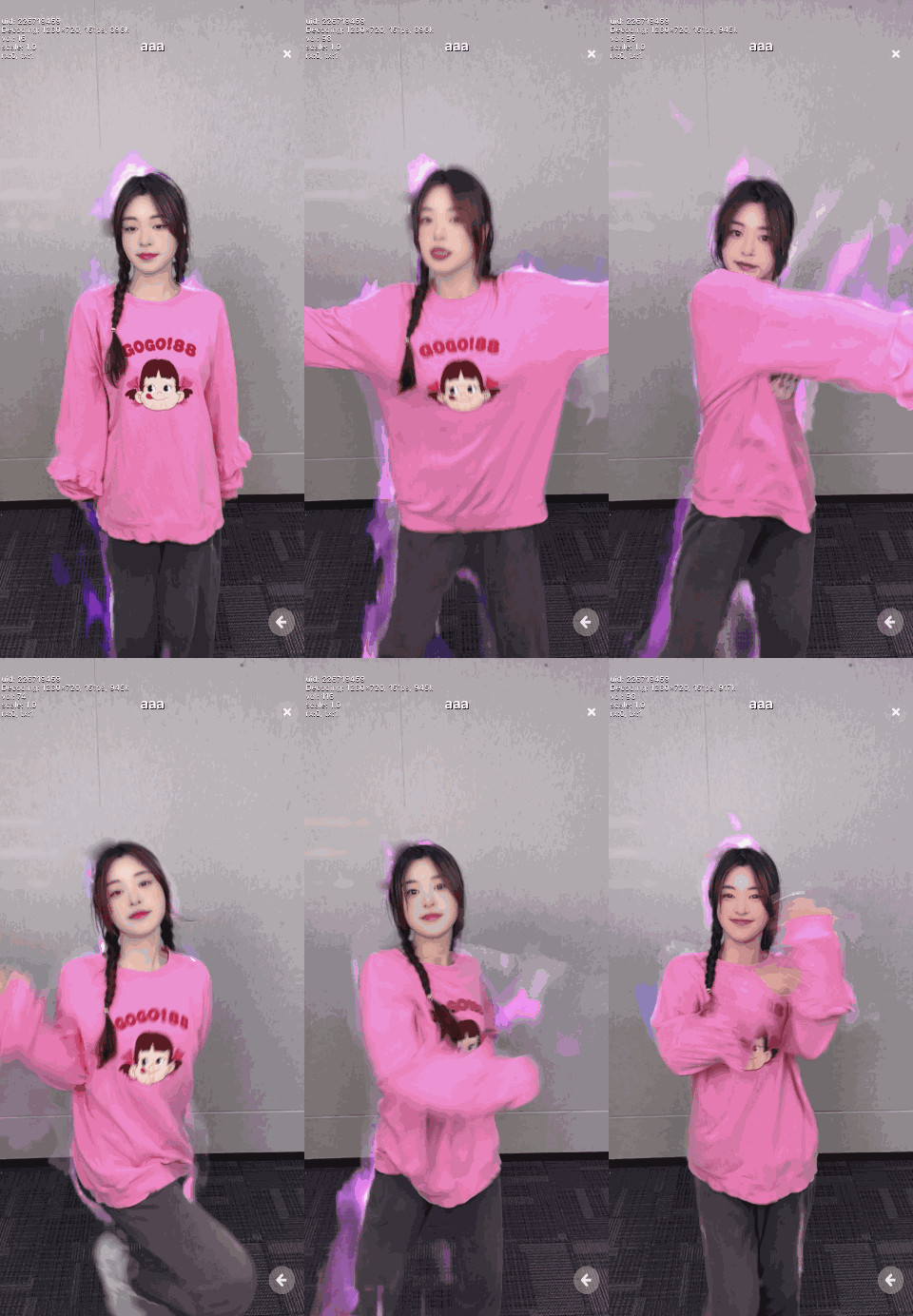 **Lighting (ambient light)**
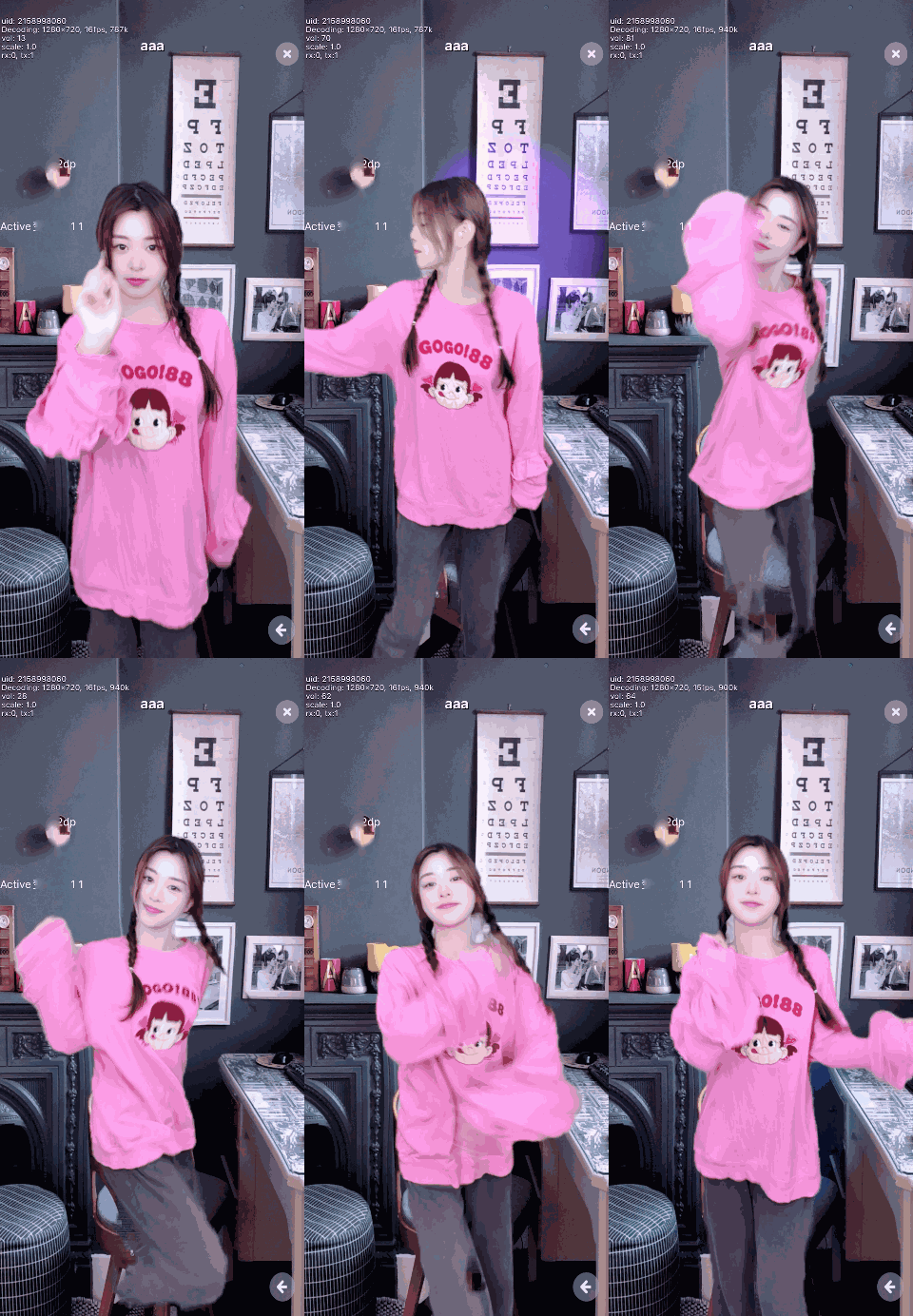 **Lighting (3D light)**
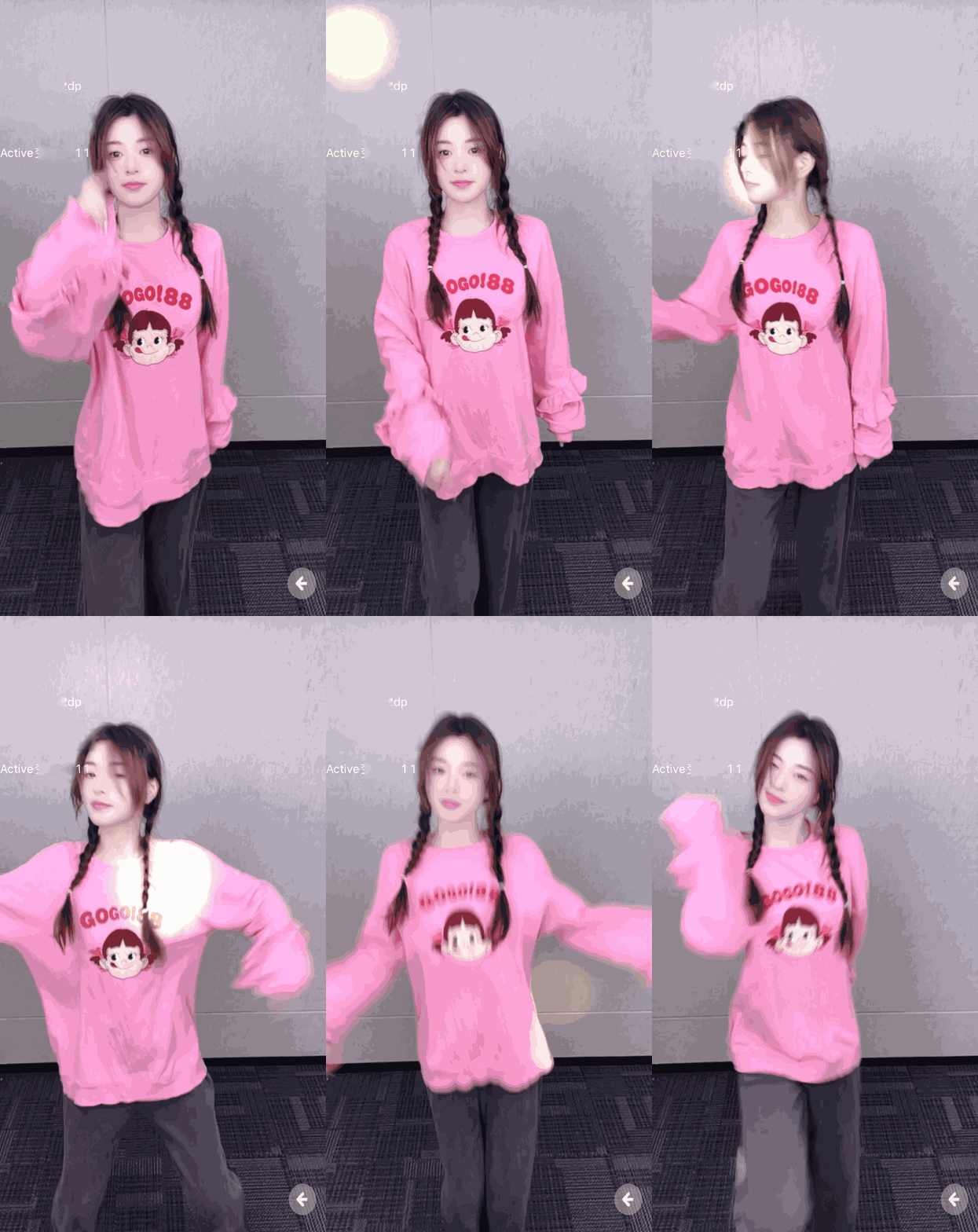 This page explains how to integrate MetaKit extension into your project to utilize the virtual human, Animoji, lighting effects, and 360 background functions.
## Prerequisites [#prerequisites]
To follow this procedure, you must have:
* Integrated the v4.2.x or v4.3.x of the Video SDK and implemented basic real-time audio and video functions in your app. See [SDK quickstart](/en/realtime-media/video/get-started-sdk).
<_PlatformTabsGroup groupMode="structured" canonicalPlatform="android" platforms="["android","ios"]" showTabs="true">
<_PlatformPanel platform="android">
<_PlatformProcessedMarker groupMode="structured" canonicalPlatform="android" platform="android" />
This page explains how to integrate MetaKit extension into your project to utilize the virtual human, Animoji, lighting effects, and 360 background functions.
## Prerequisites [#prerequisites]
To follow this procedure, you must have:
* Integrated the v4.2.x or v4.3.x of the Video SDK and implemented basic real-time audio and video functions in your app. See [SDK quickstart](/en/realtime-media/video/get-started-sdk).
<_PlatformTabsGroup groupMode="structured" canonicalPlatform="android" platforms="["android","ios"]" showTabs="true">
<_PlatformPanel platform="android">
<_PlatformProcessedMarker groupMode="structured" canonicalPlatform="android" platform="android" />