# Quickstart (/en/realtime-media/rtc/get-started-sdk/windows)
> For AI agents: see the complete documentation index at [llms.txt](/llms.txt).
This page provides a step-by-step guide on how to create a basic real-time app using the Agora RTC SDK. The same steps apply whether you're building voice calling, video calling, interactive live streaming, or broadcast streaming — only a few configuration values change based on your use case.
## Understand the tech
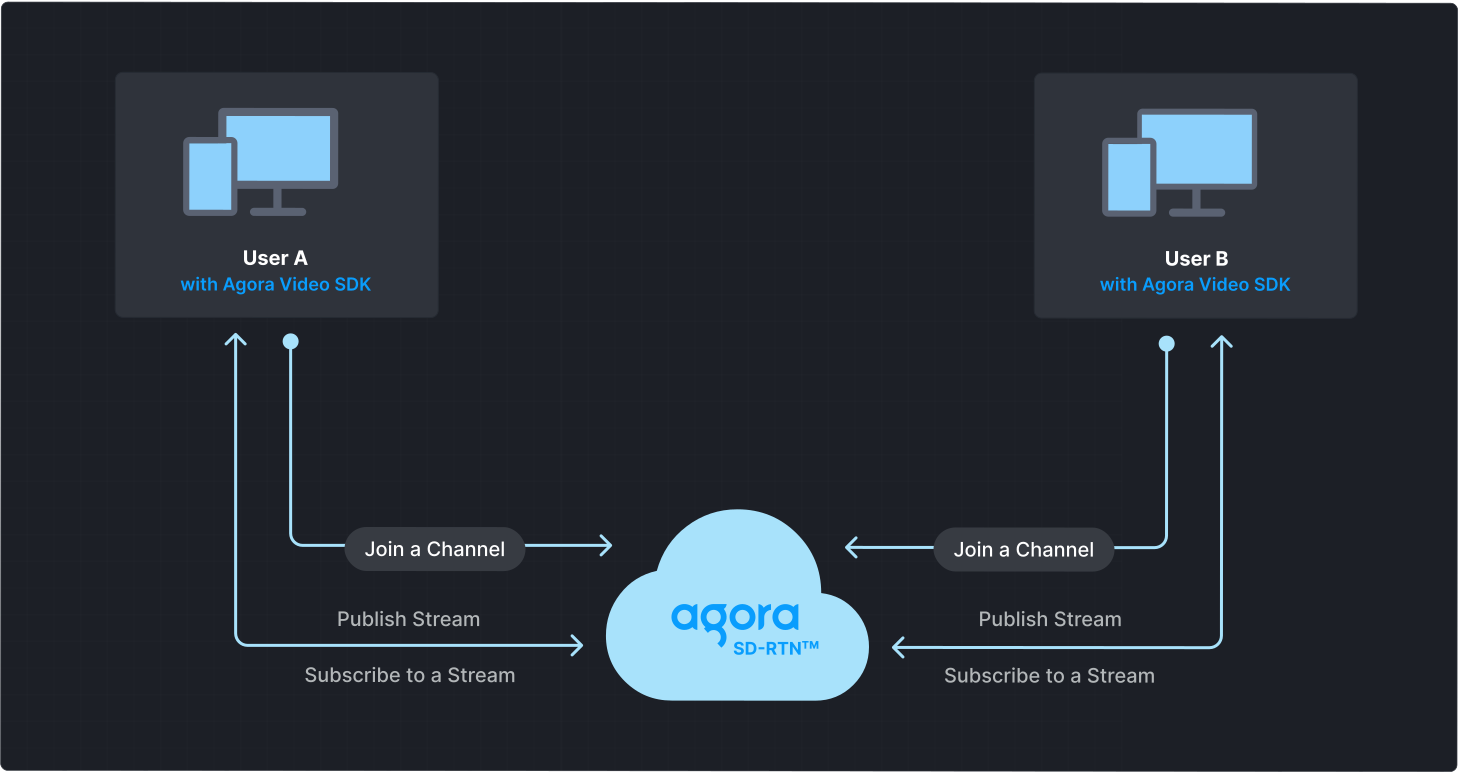
To start a real-time session, implement the following steps in your app:
* **Initialize the engine**: Before calling other APIs, create and initialize an engine instance.
* **Join a channel**: Call methods to create and join a channel.
* **Join as a host**: A live streaming event has one or more hosts. A host publishes audio and video to the channel and can also subscribe to streams from other hosts.
* **Join as audience**: Audience members can only subscribe to streams published by hosts.
Note
For the voice calling and video calling use cases, each user joins as a host.
* **Send and receive audio and video**: Hosts publish streams to the channel. Audience members subscribe to audio and video streams published by hosts.
* For streaming applications, set the latency level based on your use case:
* **Interactive live streaming**: Optimized for real-time interaction with ultra-low latency. Use this when hosts and audience need to interact quickly, such as in live Q\&A sessions, interactive classrooms, or auctions.
* **Broadcast streaming**: Optimized for scalability with slightly higher latency. Use this for large-scale events where one-way broadcasting is sufficient, such as concerts, sports events, or news broadcasts.
## Prerequisites
* A camera and a microphone.
* A valid Agora account and project. See [Agora account management](/en/realtime-media/rtc/manage-agora-account) for details.
* A device running Windows 7 or higher.
* Microsoft Visual Studio 2017 or higher with [C++ desktop development](https://devblogs.microsoft.com/cppblog/windows-desktop-development-with-c-in-visual-studio/) support and C++ 11 or above.
* If you use C# for development, you also need the [.NET Framework](https://learn.microsoft.com/en-us/dotnet/framework/install/guide-for-developers).
## Set up your project
Create a new project
Add to an existing project
The following steps outline the process to set up a new Visual Studio 2022 project on Windows 11 for implementing real-time audio and video interaction functions.
1. In Visual Studio, select **File > New > Project** to create a new project. In the pop-up window, select **MFC application** as the project template, click **Next**, update the project name to `AgoraQuickStart`, set the project storage location, and then click **Create**.
2. In the pop-up MFC application window, set the application type to **Dialog-based** , and set **Use MFC** to **Use MFC in a shared DLL**. Enter the generated class, set the generated class to **Dlg**, set the base class to **CDialog**, and click **Finish**.
To integrate real-time audio and video interaction into your project:
1. Launch Visual Studio 2022 and open your existing project by selecting **File > Open > Project/Solution**.
2. Navigate to your project directory and open the `.sln` file.
3. Create a user-interface for your app based on your application use-case.
A basic UI consists of the following controls:
* A Picture Control for displaying local video
* A Picture Control for displaying remote video
* An Edit Control for entering a channel name
* Buttons to join and leave a channel
Refer to [Create a user interface](#create-a-user-interface) to get a bare bones sample layout.
### Install the SDK
Install the Agora RTC SDK:
1. Download the latest Windows [SDK](/en/api-reference/sdks).
2. Unzip and open the downloaded SDK. Copy all subfolders in `sdk/` to your solution folder. Make sure these subfolders are in the same directory as your `.sln` file.
#### Configure the project
In the Solution Explorer window, right-click the project name and click **Properties** to configure the following:
1. Go to the **C/C++ > General > Additional Include Directory** menu, click **Edit**, and in the pop-up window enter `$(SolutionDir)sdk\high_level_api\include`.
2. Go to the **Linker > General > Additional Library Directory** menu, click **Edit**, and in the pop-up window:
* for 64 bit Windows, enter `$(SolutionDir)sdk\x86_64`.
* for x86 Windows, enter `$(SolutionDir)sdk\x86`.
3. Go to the **Linker > Input > Additional Dependencies** menu, click **Edit**, and in the pop-up window:
* for 64 bit Windows, enter `$(SolutionDir)sdk\x86_64\agora_rtc_sdk.dll.lib`.
* for x86 Windows, enter `$(SolutionDir)sdk\x86\agora_rtc_sdk.dll.lib`.
4. Enter the **Advanced** menu, and in **Advanced Properties**, set **Copy contents to OutDir** and **Copy C++ runtime to output directory** to `Yes`.
5. Go to the **Build Events > Post-Build Events > Command Line** menu and enter `copy $(SolutionDir)sdk\x86_64\*.dll $(SolutionDir)$(Platform)\$(Configuration)`.
6. Click **Apply** to save the configuration.
## Implement Realtime Communication
This section guides you through the implementation of basic real-time audio and video interaction in your app.
The following figure illustrates the essential steps:
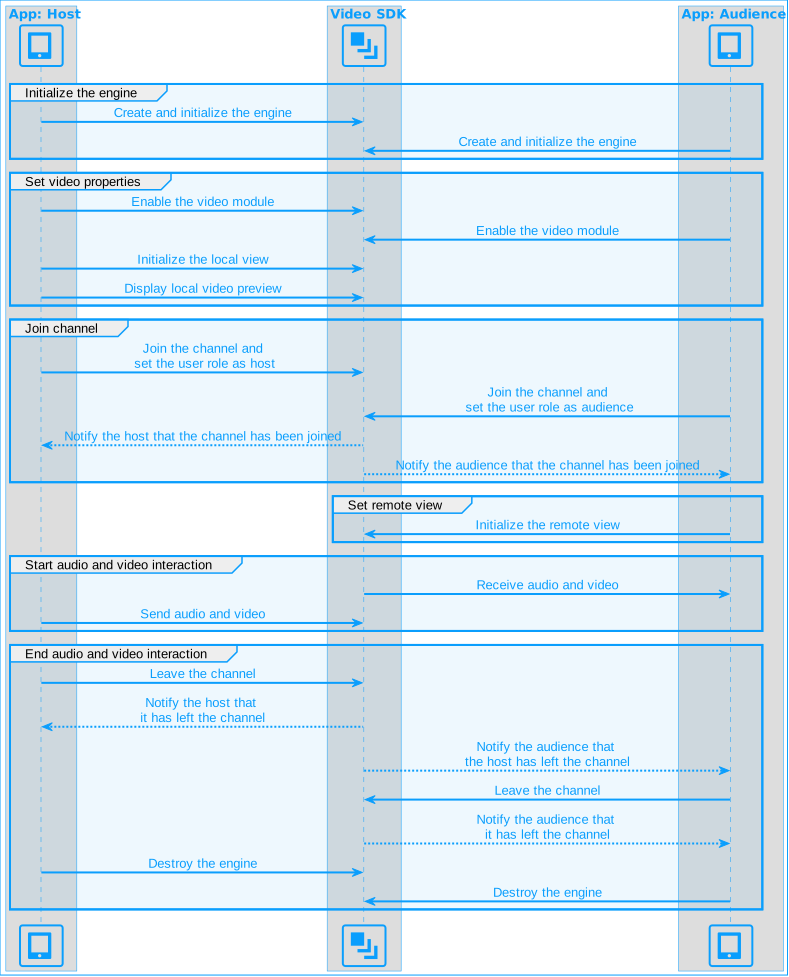
This guide includes [complete sample code](#complete-sample-code) that demonstrates implementing basic real-time interaction. To understand the core API calls in the sample code, review the following implementation steps.
### Initialize the engine
For real-time communication, initialize an `IRtcEngine` instance and set up event handlers to manage user interactions within the channel. Use `RtcEngineContext` to specify the [App ID](/en/realtime-media/rtc/manage-agora-account#get-the-app-id), and custom [event handler](#subscribe-to-video-sdk-events), then call `initialize` to initialize the engine, enabling further channel operations. Add the following code to your header and `.cpp` files:
```cpp
// Declare the required variables
IRtcEngine* m_rtcEngine = nullptr; // RTC engine instance
CAgoraQuickStartRtcEngineEventHandler m_eventHandler; // IRtcEngineEventHandler
```
```cpp
void CAgoraQuickStartDlg::initializeAgoraEngine() {
// Create IRtcEngine object
m_rtcEngine = createAgoraRtcEngine();
// Create IRtcEngine context object
RtcEngineContext context;
// Input your App ID. You can obtain your project's App ID from the Agora Console
context.appId = APP_ID;
// Add event handler for callbacks and events
context.eventHandler = &m_eventHandler;
// Initialize
int ret = m_rtcEngine->initialize(context);
m_initialize = (ret == 0);
if (m_initialize) {
// Enable the video module
m_rtcEngine->enableVideo();
} else {
AfxMessageBox(_T("Failed to initialize Agora RTC engine"));
}
}
```
### Join a channel
To join a channel, call `joinChannel`\[2/2] with the following parameters:
* **Channel name**: The name of the channel to join. Clients that pass the same channel name join the same channel. If a channel with the specified name does not exist, it is created when the first user joins.
* **Authentication token**: A dynamic key that authenticates a user when the client joins a channel. In a production environment, you obtain a token from a [token server](/en/realtime-media/rtc/build/authenticate-users/deploy-token-server) in your security infrastructure. For the purpose of this guide [Generate a temporary token](/en/realtime-media/rtc/manage-agora-account#generate-temporary-tokens).
* **User ID**: A 32-bit signed integer that identifies a user in the channel. You can specify a unique user ID for each user yourself. If you set the user ID to `0` when joining a channel, the SDK generates a random number for the user ID and returns the value in the `onJoinChannelSuccess` callback.
* **Channel media options**: Configure `ChannelMediaOptions` to define publishing and subscription settings, optimize performance for your specific use-case, and set optional parameters.
Set the `channelProfile`, `clientRoleType`, and `audienceLatencyLevel` according to your use case:
| Use case | Channel profile | Client role | Latency level |
| -------------------------- | ----------------------------------- | --------------------------------------------------- | ---------------------------------------------------- |
| Voice calling | `CHANNEL_PROFILE_COMMUNICATION` | `CLIENT_ROLE_BROADCASTER` | N/A |
| Video calling | `CHANNEL_PROFILE_COMMUNICATION` | `CLIENT_ROLE_BROADCASTER` | N/A |
| Interactive live streaming | `CHANNEL_PROFILE_LIVE_BROADCASTING` | `CLIENT_ROLE_BROADCASTER` or `CLIENT_ROLE_AUDIENCE` | `AUDIENCE_LATENCY_LEVEL_ULTRA_LOW_LATENCY` (default) |
| Broadcast streaming | `CHANNEL_PROFILE_LIVE_BROADCASTING` | `CLIENT_ROLE_BROADCASTER` or `CLIENT_ROLE_AUDIENCE` | `AUDIENCE_LATENCY_LEVEL_LOW_LATENCY` |
Note
* Only broadcasters can publish media. Audience members cannot publish until promoted to broadcaster.
* Choose Communication mode for calls where every user publishes, typically fewer than 17 participants. Choose Live Broadcasting mode for larger events with separate hosts and audience.
* The latency level only applies to the audience role, and affects your [pricing](/en/realtime-media/rtc/reference/pricing#subscription-packages) tier.
The following example shows the configuration for interactive live streaming with the broadcaster role:
```cpp
void CAgoraQuickStartDlg::joinChannel(const char* token, const char* channelName) {
ChannelMediaOptions options;
// Set the channel profile according to your use case (see table above)
options.channelProfile = CHANNEL_PROFILE_LIVE_BROADCASTING;
// Set the user role to CLIENT_ROLE_BROADCASTER (host) or CLIENT_ROLE_AUDIENCE according to your use case
options.clientRoleType = CLIENT_ROLE_BROADCASTER;
// Only takes effect when clientRoleType is CLIENT_ROLE_AUDIENCE
options.audienceLatencyLevel = AUDIENCE_LATENCY_LEVEL_LOW_LATENCY;
// Publish the audio stream captured by the microphone
options.publishMicrophoneTrack = true;
// Publish the camera track
options.publishCameraTrack = true;
// Automatically subscribe to all audio streams
options.autoSubscribeAudio = true;
// Automatically subscribe to all video streams
options.autoSubscribeVideo = true;
// Join the channel using the temporary token obtained from the console
m_rtcEngine->joinChannel(token, channelName, 0, options);
}
```
### Subscribe to RTC SDK events
The RTC SDK provides an interface for subscribing to channel events. To use it, create a custom event handler class by inheriting from `IRtcEngineEventHandler` and override its methods to handle real-time interaction events. Add callbacks to receive notification of users joining and leaving the channel.
Note
To ensure that you receive all RTC SDK events, set the engine event handler before joining a channel.
```cpp
// Define the CAgoraQuickStartRtcEngineEventHandler class to handle callback events such as users joining and leaving the channel
class CAgoraQuickStartRtcEngineEventHandler
: public IRtcEngineEventHandler {
public:
CAgoraQuickStartRtcEngineEventHandler()
: m_hMsgHandler(nullptr) {
}
// Set the handle of the message receiving window
void SetMsgReceiver(HWND hWnd) {
m_hMsgHandler = hWnd;
}
// Register onJoinChannelSuccess callback
// This callback is triggered when a local user successfully joins a channel
virtual void onJoinChannelSuccess(const char* channel, uid_t uid, int elapsed) {
if (m_hMsgHandler) {
::PostMessage(m_hMsgHandler, WM_MSGID(EID_JOIN_CHANNEL_SUCCESS), uid, 0);
}
}
// Register onUserJoined callback
// This callback is triggered when the remote host successfully joins the channel
virtual void onUserJoined(uid_t uid, int elapsed) {
if (m_hMsgHandler) {
::PostMessage(m_hMsgHandler, WM_MSGID(EID_USER_JOINED), uid, 0);
}
}
// Register onUserOffline callback
// This callback is triggered when the remote host leaves the channel or is offline
virtual void onUserOffline(uid_t uid, USER_OFFLINE_REASON_TYPE reason) {
if (m_hMsgHandler) {
::PostMessage(m_hMsgHandler, WM_MSGID(EID_USER_OFFLINE), uid, 0);
}
}
private:
HWND m_hMsgHandler;
};
```
Implement the callback functions.
```cpp
LRESULT CAgoraQuickStartDlg::OnEIDJoinChannelSuccess(WPARAM wParam, LPARAM lParam) {
// Join channel success callback
uid_t localUid = wParam;
return 0;
}
LRESULT CAgoraQuickStartDlg::OnEIDUserJoined(WPARAM wParam, LPARAM lParam) {
// Remote user joined callback
uid_t remoteUid = wParam;
if (m_remoteRender) {
return 0;
}
// Render remote view
VideoCanvas canvas;
canvas.renderMode = RENDER_MODE_TYPE::RENDER_MODE_HIDDEN;
canvas.uid = remoteUid;
canvas.view = m_staRemote.GetSafeHwnd();
m_rtcEngine->setupRemoteVideo(canvas);
m_remoteRender = true;
return 0;
}
LRESULT CAgoraQuickStartDlg::OnEIDUserOffline(WPARAM wParam, LPARAM lParam) {
// Remote user left callback
uid_t remoteUid = wParam;
if (!m_remoteRender) {
return 0;
}
// Clear remote view
VideoCanvas canvas;
canvas.uid = remoteUid;
m_rtcEngine->setupRemoteVideo(canvas);
m_remoteRender = false;
return 0;
}
```
### Enable the video module
Call the `enableVideo` method to enable the video module.
```cpp
// Enable the video module
m_rtcEngine->enableVideo();
```
### Display the local video
Follow these steps to set up and start the local video preview:
1. Create a `VideoCanvas` instance and configure its properties:
1. Set the video rendering mode.
2. Specify the user ID (`uid`).
3. Define the display window.
2. Call the `setupLocalVideo` method to apply the `VideoCanvas` configuration.
3. Call the `startPreview` method to start the local video preview.
```cpp
void CAgoraQuickStartDlg::setupLocalVideo() {
// Set local video display properties
VideoCanvas canvas;
// Set video to be scaled proportionally
canvas.renderMode = RENDER_MODE_TYPE::RENDER_MODE_HIDDEN;
// User ID
canvas.uid = 0;
// Video display window
canvas.view = m_staLocal.GetSafeHwnd();
m_rtcEngine->setupLocalVideo(canvas);
// Preview the local video
m_rtcEngine->startPreview();
}
```
### Display remote video
To display the remote user's video:
1. Define the video display properties using `VideoCanvas`.
2. Call `setupRemoteVideo` to render the video.
```cpp
void CAgoraQuickStartDlg::setupRemoteVideo(uid_t remoteUid) {
// Set remote video display properties
VideoCanvas canvas;
// Set video size to be proportionally scaled
canvas.renderMode = RENDER_MODE_TYPE::RENDER_MODE_HIDDEN;
// Remote user ID
canvas.uid = remoteUid;
// You can only choose to set either view or surfaceTexture. If both are set, only the settings in view take effect.
canvas.view = m_staRemote.GetSafeHwnd();
m_rtcEngine->setupRemoteVideo(canvas);
m_remoteRender = true;
return 0;
}
```
### Leave the channel
When a user ends a call, or closes the client call `leaveChannel` to exit the current channel.
To stop the local video preview and clear the view:
1. Call `stopPreview` to stop playing the local video.
2. Call `setupLocalVideo`, passing an empty `VideoCanvas` to reset the view.
```cpp
void CAgoraQuickStartDlg::LeaveChannel() {
if (m_rtcEngine) {
// Stop local video preview
m_rtcEngine->stopPreview();
// Leave the channel
m_rtcEngine->leaveChannel();
// Clear local view
VideoCanvas canvas;
canvas.uid = 0;
m_rtcEngine->setupLocalVideo(canvas);
m_remoteRender = false;
}
}
```
### Release resources
To destroy the engine instance, call `release` :
```cpp
// Release resources when the object is destroyed
m_rtcEngine->release(true);
m_rtcEngine = NULL;
```
Caution
After you call `Dispose`, you can no longer use any SDK methods or callbacks. To use realtime communication again, you must create a new engine. For more information, see [Initialize the Engine](#initialize-the-engine).
### Complete sample code
A complete code sample that implements the basic process of real-time interaction is presented here for your reference. Copy the sample code into your project to quickly implement the basic functions of real-time interaction.
### AgoraQuickStartDlg.h
```cpp
#pragma once
#include
// Import related header files
#include
using namespace now;
using namespace agora::rtc;
using namespace agora::media;
using namespace agora::media::base;
// Define the message ID
#define WM_MSGID(code) (WM_USER+0x200+code)
#define EID_JOIN_CHANNEL_SUCCESS 0x00000002
#define EID_USER_JOINED 0x00000004
#define EID_USER_OFFLINE 0x00000004
// Define the CAgoraQuickStartRtcEngineEventHandler class to handle callback events such as users joining and leaving the channel
class CAgoraQuickStartRtcEngineEventHandler
: public IRtcEngineEventHandler {
public:
CAgoraQuickStartRtcEngineEventHandler()
: m_hMsgHandler(nullptr) {
}
// Set the handle of the message receiving window
void SetMsgReceiver(HWND hWnd) {
m_hMsgHandler = hWnd;
}
// Register onJoinChannelSuccess callback
// This callback is triggered when a local user successfully joins a channel
virtual void onJoinChannelSuccess(const char* channel, uid_t uid, int elapsed) {
if (m_hMsgHandler) {
::PostMessage(m_hMsgHandler, WM_MSGID(EID_JOIN_CHANNEL_SUCCESS), uid, 0);
}
}
// Register onUserJoined callback
// This callback is triggered when the remote host successfully joins the channel
virtual void onUserJoined(uid_t uid, int elapsed) {
if (m_hMsgHandler) {
::PostMessage(m_hMsgHandler, WM_MSGID(EID_USER_JOINED), uid, 0);
}
}
// Register onUserOffline callback
// This callback is triggered when the remote host leaves the channel or is offline
virtual void onUserOffline(uid_t uid, USER_OFFLINE_REASON_TYPE reason) {
if (m_hMsgHandler) {
::PostMessage(m_hMsgHandler, WM_MSGID(EID_USER_OFFLINE), uid, 0);
}
}
private:
HWND m_hMsgHandler;
};
// CAgoraQuickStartDlg dialog box
class CAgoraQuickStartDlg : public CDialog
{
// Construction
public:
CAgoraQuickStartDlg(CWnd* pParent = nullptr); // Standard constructor
virtual ~CAgoraQuickStartDlg();
// Dialog box data
#ifdef AFX_DESIGN_TIME
enum { IDD = IDD_AGORAQUICKSTART_DIALOG };
#endif
// Handle the join/leave button click event
afx_msg void OnBnClickedBtnJoin();
afx_msg void OnBnClickedBtnLeave();
// Handle callback events such as user joining/user leaving
afx_msg LRESULT OnEIDJoinChannelSuccess(WPARAM wParam, LPARAM lParam);
afx_msg LRESULT OnEIDUserJoined(WPARAM wParam, LPARAM lParam);
afx_msg LRESULT OnEIDUserOffline(WPARAM wParam, LPARAM lParam);
protected:
HICON m_hIcon;
CEdit m_edtChannelName;
// DDX/DDV support
virtual void DoDataExchange(CDataExchange* pDX);
virtual BOOL OnInitDialog();
afx_msg void OnSysCommand(UINT nID, LPARAM lParam);
afx_msg void OnPaint();
afx_msg HCURSOR OnQueryDragIcon();
DECLARE_MESSAGE_MAP()
std::string cs2utf8(CString str);
private:
IRtcEngine* m_rtcEngine = nullptr;
CAgoraQuickStartRtcEngineEventHandler m_eventHandler;
bool m_initialize = false;
bool m_remoteRender = false;
};
```
### AgoraQuickStartDlg.cpp
```cpp
#include "pch.h"
#include "framework.h"
#include "AgoraQuickStart.h"
#include "AgoraQuickStartDlg.h"
#include "afxdialogex.h"
#ifdef _DEBUG
#define new DEBUG_NEW
#endif
// CAboutDlg dialog used for App "About" menu item
class CAboutDlg : public CDialogEx {
public:
CAboutDlg();
// Dialog Data
#ifdef AFX_DESIGN_TIME
enum {
IDD = IDD_ABOUTBOX
};
#endif
protected:
virtual void DoDataExchange(CDataExchange* pDX);
// DDX/DDV support
// Implementation
protected:
DECLARE_MESSAGE_MAP()
};
CAboutDlg::CAboutDlg() : CDialogEx(IDD_ABOUTBOX) {
}
void CAboutDlg::DoDataExchange(CDataExchange* pDX) {
CDialogEx::DoDataExchange(pDX);
}
BEGIN_MESSAGE_MAP(CAboutDlg, CDialogEx)
END_MESSAGE_MAP()
// CAgoraQuickStartDlg dialog for handling main user interactions and callback events
CAgoraQuickStartDlg::CAgoraQuickStartDlg(CWnd* pParent
/*=nullptr*/)
: CDialog(IDD_AGORAQUICKSTART_DIALOG, pParent) {
m_hIcon = AfxGetApp()->LoadIcon(IDR_MAINFRAME);
}
CAgoraQuickStartDlg::~CAgoraQuickStartDlg() {
// When deleting the CAgoraQuickStartDlg object, release the engine and related resources
if (m_rtcEngine) {
m_rtcEngine->release(true);
m_rtcEngine = NULL;
}
}
void CAgoraQuickStartDlg::DoDataExchange(CDataExchange* pDX) {
CDialog::DoDataExchange(pDX);
// Associate controls and variables for reading and writing data to controls
DDX_Control(pDX, IDC_EDIT_CHANNEL, m_edtChannelName);
DDX_Control(pDX, IDC_STATIC_REMOTE, m_staRemote);
DDX_Control(pDX, IDC_STATIC_LOCAL, m_staLocal);
}
BEGIN_MESSAGE_MAP(CAgoraQuickStartDlg, CDialog)
// Declare message mappings for handling Windows messages and user events such as joining and leaving channels
ON_WM_SYSCOMMAND()
ON_WM_PAINT()
ON_WM_QUERYDRAGICON()
ON_BN_CLICKED(ID_BTN_JOIN, &CAgoraQuickStartDlg::OnBnClickedBtnJoin)
ON_BN_CLICKED(ID_BTN_LEAVE, &CAgoraQuickStartDlg::OnBnClickedBtnLeave)
ON_MESSAGE(WM_MSGID(EID_JOIN_CHANNEL_SUCCESS), CAgoraQuickStartDlg::OnEIDJoinChannelSuccess)
ON_MESSAGE(WM_MSGID(EID_USER_JOINED), &CAgoraQuickStartDlg::OnEIDUserJoined)
ON_MESSAGE(WM_MSGID(EID_USER_OFFLINE), &CAgoraQuickStartDlg::OnEIDUserOffline)
END_MESSAGE_MAP()
// CAgoraQuickStartDlg message handlers
// Insert your project's App ID obtained from the Agora Console
#define APP_ID ""
// Insert the temporary token obtained from the Agora Console
#define token ""
void CAgoraQuickStartDlg::initializeAgoraEngine() {
m_rtcEngine = createAgoraRtcEngine();
RtcEngineContext context;
context.appId = APP_ID;
context.eventHandler = &m_eventHandler;
int ret = m_rtcEngine->initialize(context);
if (ret == 0) {
// Enable the video module
m_rtcEngine->enableVideo();
} else {
AfxMessageBox(_T("Failed to initialize Agora RTC engine"));
}
}
BOOL CAgoraQuickStartDlg::OnInitDialog() {
CDialog::OnInitDialog();
// Add "About..." menu item to the system menu
CMenu* pSysMenu = GetSystemMenu(FALSE);
if (pSysMenu != nullptr) {
CString strAboutMenu;
strAboutMenu.LoadString(IDS_ABOUTBOX);
if (!strAboutMenu.IsEmpty()) {
pSysMenu->AppendMenu(MF_SEPARATOR);
pSysMenu->AppendMenu(MF_STRING, IDM_ABOUTBOX, strAboutMenu);
}
}
// Set the dialog icons
SetIcon(m_hIcon, TRUE); // Set big icon
SetIcon(m_hIcon, FALSE); // Set small icon
// Set the message receiver
m_eventHandler.SetMsgReceiver(m_hWnd);
// Initialize Agora engine
initializeAgoraEngine();
return TRUE; // Unless focus is set to a control, return TRUE
}
void CAgoraQuickStartDlg::OnSysCommand(UINT nID, LPARAM lParam) {
if ((nID & 0xFFF0) == IDM_ABOUTBOX) {
CAboutDlg dlgAbout;
dlgAbout.DoModal();
} else {
CDialog::OnSysCommand(nID, lParam);
}
}
// If you add a minimize button to the dialog box, you need the following code
// to draw the icon. For MFC applications using the document/view model, this is done automatically by the framework
void CAgoraQuickStartDlg::OnPaint() {
if (IsIconic()) {
CPaintDC dc(this);
// Device context for drawing
SendMessage(WM_ICONERASEBKGND, reinterpret_cast(dc.GetSafeHdc()), 0);
// Center the icon in the client rectangle
int cxIcon = GetSystemMetrics(SM_CXICON);
int cyIcon = GetSystemMetrics(SM_CYICON);
CRect rect;
GetClientRect(&rect);
int x = (rect.Width() - cxIcon + 1) / 2;
int y = (rect.Height() - cyIcon + 1) / 2;
// Draw the icon
dc.DrawIcon(x, y, m_hIcon);
} else {
CDialog::OnPaint();
}
}
// This function is called by the framework to obtain the cursor when the user drags the minimized window
HCURSOR CAgoraQuickStartDlg::OnQueryDragIcon() {
return static_cast(m_hIcon);
}
std::string CAgoraQuickStartDlg::cs2utf8(CString str) {
char szBuf[2 * MAX_PATH] = { 0 };
WideCharToMultiByte(CP_UTF8, 0, str.GetBuffer(0), str.GetLength(), szBuf, 2 * MAX_PATH, NULL, NULL);
return szBuf;
}
void CAgoraQuickStartDlg::joinChannel(const char* token, const char* channelName) {
ChannelMediaOptions options;
// Set the channel profile according to your use case
options.channelProfile = CHANNEL_PROFILE_LIVE_BROADCASTING;
// Set the user role to CLIENT_ROLE_BROADCASTER (host) or CLIENT_ROLE_AUDIENCE according to your use case
options.clientRoleType = CLIENT_ROLE_BROADCASTER;
// Only takes effect when clientRoleType is CLIENT_ROLE_AUDIENCE
options.audienceLatencyLevel = AUDIENCE_LATENCY_LEVEL_LOW_LATENCY;
// Publish the audio stream captured by the microphone
options.publishMicrophoneTrack = true;
// Publish the camera track
options.publishCameraTrack = true;
// Automatically subscribe to all audio streams
options.autoSubscribeAudio = true;
// Automatically subscribe to all video streams
options.autoSubscribeVideo = true;
// Join the channel using the temporary token obtained from the console
m_rtcEngine->joinChannel(token, channelName, 0, options);
}
void CAgoraQuickStartDlg::setupRemoteVideo() {
// Render remote view
VideoCanvas canvas;
canvas.renderMode = RENDER_MODE_TYPE::RENDER_MODE_HIDDEN;
canvas.uid = remoteUid;
canvas.view = m_staRemote.GetSafeHwnd();
m_rtcEngine->setupRemoteVideo(canvas);
m_remoteRender = true;
}
void CAgoraQuickStartDlg::setupLocalVideo() {
// Render local view
VideoCanvas canvas;
canvas.renderMode = RENDER_MODE_TYPE::RENDER_MODE_HIDDEN;
canvas.uid = 0;
canvas.view = m_staLocal.GetSafeHwnd();
m_rtcEngine->setupLocalVideo(canvas);
// Preview the local video
m_rtcEngine->startPreview();
}
void CAgoraQuickStartDlg::OnBnClickedBtnJoin() {
// Join channel
// Get the channel name
CString strChannelName;
m_edtChannelName.GetWindowText(strChannelName);
if (strChannelName.IsEmpty()) {
AfxMessageBox(_T("Fill channel name first"));
return;
}
joinChannel(token, CW2A(strChannelName));
// Render local view
setupLocalVideo();
}
void CAgoraQuickStartDlg::OnBnClickedBtnLeave() {
// Stop local video preview
m_rtcEngine->stopPreview();
// Leave the channel
m_rtcEngine->leaveChannel();
// Clear local view
VideoCanvas canvas;
canvas.uid = 0;
m_rtcEngine->setupLocalVideo(canvas);
m_remoteRender = false;
}
LRESULT CAgoraQuickStartDlg::OnEIDJoinChannelSuccess(WPARAM wParam, LPARAM lParam) {
// Join channel success callback
uid_t localUid = wParam;
return 0;
}
LRESULT CAgoraQuickStartDlg::OnEIDUserJoined(WPARAM wParam, LPARAM lParam) {
// Remote user joined callback
uid_t remoteUid = wParam;
if (m_remoteRender) {
return 0;
}
// Render remote view
setupRemoteVideo(remoteUid);
return 0;
}
LRESULT CAgoraQuickStartDlg::OnEIDUserOffline(WPARAM wParam, LPARAM lParam) {
// Remote user left callback
uid_t remoteUid = wParam;
if (!m_remoteRender) {
return 0;
}
// Clear remote view
VideoCanvas canvas;
canvas.uid = remoteUid;
m_rtcEngine->setupRemoteVideo(canvas);
m_remoteRender = false;
return 0;
}
```
### Create a user interface
To connect the sample code to your existing user interface, ensure that your UI includes the controls used to [Display the local video](#display-the-local-video) and [Display remote video](#display-remote-video).
Alternatively, follow these steps to create a bare-bones UI for your project.
### Steps to create a minimalistic UI
1. Switch the project to resource view in the right menu bar, and then open the `.Dialog` file.
2. From **View > Toolbox**, select Add **Picture Control**, and in **Properties > Miscellaneous**, set the ID of the control to `IDC_STATIC_REMOTE`.
3. From **View > Toolbox** , select Add **Picture Control** , and in **Properties > Miscellaneous** , set the control's ID to `IDC_STATIC_LOCAL`.
4. To set up an input box for entering the channel name, from **View > Toolbox** , select add **Static Text** control, and change the description text to `Channel name` in the properties. Add an **Edit Control** as an input box, and in **Properties > Miscellaneous**, set the control's ID to `IDC_EDIT_CHANNEL`.
5. To add join and leave channel buttons, open **View > Toolbox** and add two **Button** controls. In **Properties > Miscellaneous** , set the IDs to `ID_BTN_JOIN` and `ID_BTN_LEAVE`, and set the description text to **Join** and **Leave** respectively. Your user interface looks similar to the following:
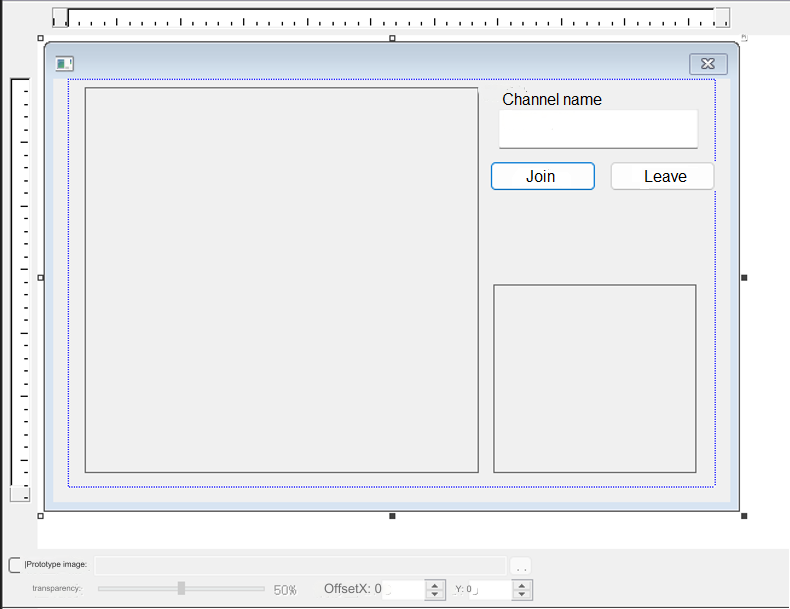
Follow these steps to create a bare-bones UI for your project.
## Test the sample code
To test your app, follow these steps:
1. In Visual Studio, select local Windows debugger to start compiling the application.
2. Enter the name of the channel you want to join in the input box and click the **Join** button to join the channel.
You see yourself in the local view.
3. Use the [Web demo](https://webdemo.agora.io/basicVideoCall/index.html) to join the same channel and test the following use-cases:
* If users on both devices join the channel as hosts, they can see and hear each other.
* If one user joins as host and the other as audience, the host can see themselves in the local video window; the audience can see the host in the remote video window and hear the host.
## Reference
This section contains content that completes the information on this page, or points you to documentation that explains other aspects of this product.
* If a firewall is deployed in your network environment, refer to [Connect with Cloud Proxy](/en/realtime-media/rtc/build/manage-connection-and-quality/cloud-proxy) to use Agora services normally.
### Next steps
After implementing the quickstart sample, read the following documents to learn more:
* To ensure communication security in a test or production environment, best practice is to obtain and use a token from an authentication server. For details, see [Secure authentication with tokens](/en/realtime-media/rtc/build/authenticate-users/authentication-workflow).
### Sample project
Agora provides open source sample projects on [GitHub](https://github.com/AgoraIO/API-Examples/tree/main/windows/APIExample/) for your reference.
* Download or view the [sample project](https://github.com/AgoraIO/API-Examples/tree/main/windows/APIExample/APIExample/Basic/LiveBroadcasting) for a more detailed example.
* For a Windows C# implementation, see [this sample project](https://github.com/AgoraIO-Extensions/Agora-C_Sharp-SDK/tree/master/APIExample/src/Basic/JoinChannelVideo).
### API Reference
* [`createAgoraRtcEngine`](https://api-ref.agora.io/en/video-sdk/cpp/4.x/API/class_irtcengine.html#api_createagorartcengine)
* [`joinChannel`](https://api-ref.agora.io/en/video-sdk/cpp/4.x/API/class_irtcengine.html#api_irtcengine_joinchannel2)
* [`enableVideo`](https://api-ref.agora.io/en/video-sdk/cpp/4.x/API/class_irtcengine.html#api_irtcengine_enablevideo)
* [`startPreview`](https://api-ref.agora.io/en/video-sdk/cpp/4.x/API/class_irtcengine.html#api_irtcengine_startpreview)
* [`leaveChannel`](https://api-ref.agora.io/en/video-sdk/cpp/4.x/API/class_irtcengine.html#api_irtcengine_leavechannel)
* [`release`](https://api-ref.agora.io/en/video-sdk/cpp/4.x/API/class_irtcengine.html#api_irtcengine_release)
### Frequently asked questions
* [How can I fix black screen issues?](/en/api-reference/faq/quality/video_blank#black-screen-on-the-local-side)
* [Why can't I turn on the camera?](/en/api-reference/faq/quality/video_camera)
* [How can I listen for audience joining or leaving a channel?](/en/api-reference/faq/integration/audience_event)
* [How can I solve channel-related issues?](/en/api-reference/faq/integration/channel)
* [How can I set the log file?](/en/api-reference/faq/integration/set_log_file)
### See also
* [SDK error codes](/en/realtime-media/rtc/reference/error-codes)
* [Connection status management](/en/realtime-media/rtc/build/manage-connection-and-quality/connection-status-management)