# Quickstart (/en/realtime-media/rtc/get-started-sdk/unreal)
> For AI agents: see the complete documentation index at [llms.txt](/llms.txt).
This page provides a step-by-step guide on how to create a basic real-time app using the Agora RTC SDK. The same steps apply whether you're building voice calling, video calling, interactive live streaming, or broadcast streaming — only a few configuration values change based on your use case.
## Understand the tech
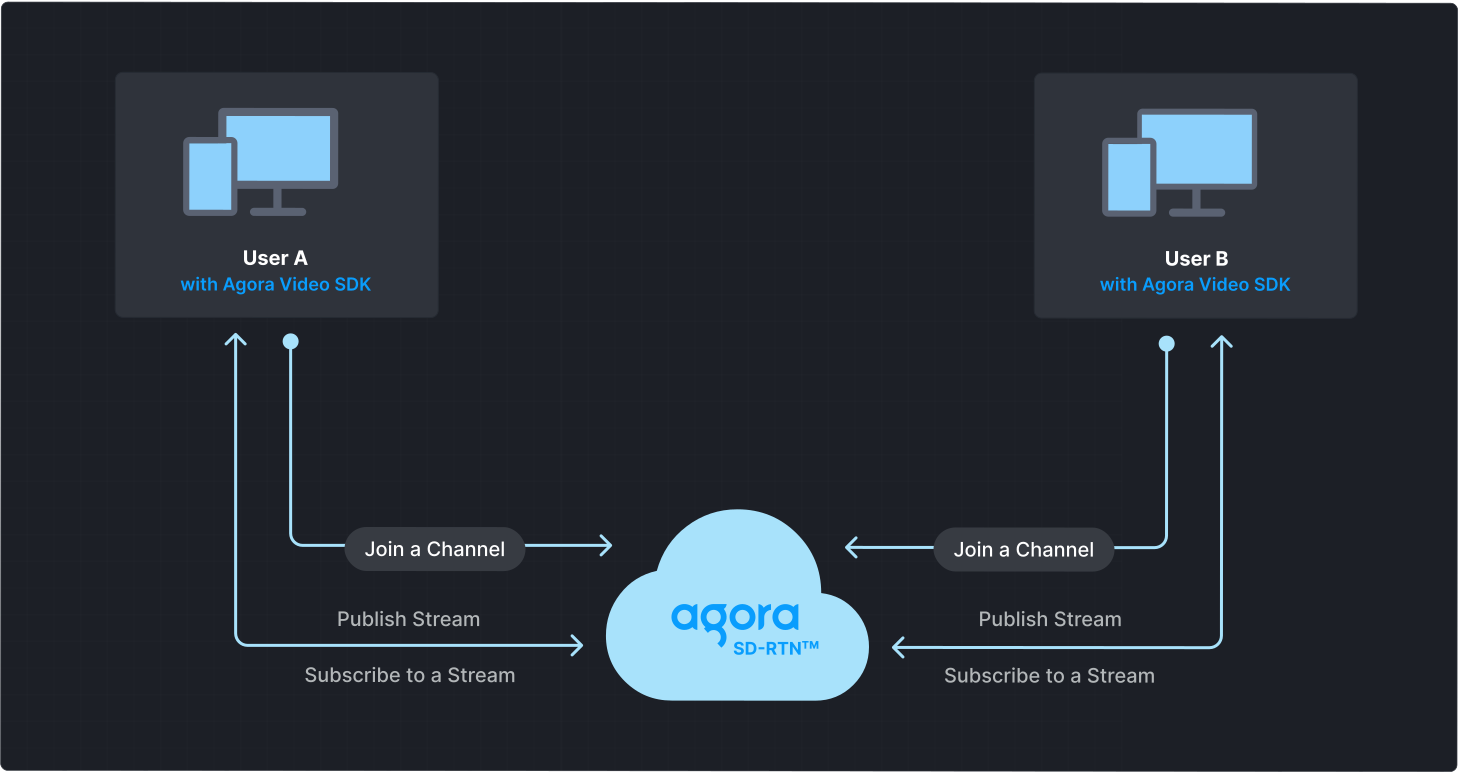
To start a real-time session, implement the following steps in your app:
* **Initialize the engine**: Before calling other APIs, create and initialize an engine instance.
* **Join a channel**: Call methods to create and join a channel.
* **Join as a host**: A live streaming event has one or more hosts. A host publishes audio and video to the channel and can also subscribe to streams from other hosts.
* **Join as audience**: Audience members can only subscribe to streams published by hosts.
Note
For the voice calling and video calling use cases, each user joins as a host.
* **Send and receive audio and video**: Hosts publish streams to the channel. Audience members subscribe to audio and video streams published by hosts.
* For streaming applications, set the latency level based on your use case:
* **Interactive live streaming**: Optimized for real-time interaction with ultra-low latency. Use this when hosts and audience need to interact quickly, such as in live Q\&A sessions, interactive classrooms, or auctions.
* **Broadcast streaming**: Optimized for scalability with slightly higher latency. Use this for large-scale events where one-way broadcasting is sufficient, such as concerts, sports events, or news broadcasts.
## Prerequisites
* A camera and a microphone.
* A valid Agora account and project. See [Agora account management](/en/realtime-media/rtc/manage-agora-account) for details.
* Unreal Engine 4.27 or higher.
* Prepare your development environment according to your target platform and engine version:
| Dev environment requirements | Other requirements |
| :------------------------------------------------------------------------------------------------------------- | :-------------------------------------------------------------------------------------------------------------------------------------------------------------- |
| [Android](https://docs.unrealengine.com/4.27/us-EN/SharingAndReleasing/Mobile/Android/AndroidSDKRequirements/) | - |
| [iOS](https://docs.unrealengine.com/4.27/us-EN/SharingAndReleasing/Mobile/iOS/SDKRequirements/) | A valid Apple developer signature. |
| [macOS](https://docs.unrealengine.com/4.27/us-EN/Basics/InstallingUnrealEngine/RecommendedSpecifications/) | A valid Apple developer signature. |
| [Windows](https://docs.unrealengine.com/4.27/us-EN/Basics/InstallingUnrealEngine/RecommendedSpecifications/) | 32-bit Windows supports Unreal Engine 4 only. To use Unreal Engine with 32-bit Windows, uncomment the code related to `Win32` in `AgoraPluginLibrary.Build.cs`. |
* Two physical devices for testing.
## Set up your project
Create a new project
Add to an existing project
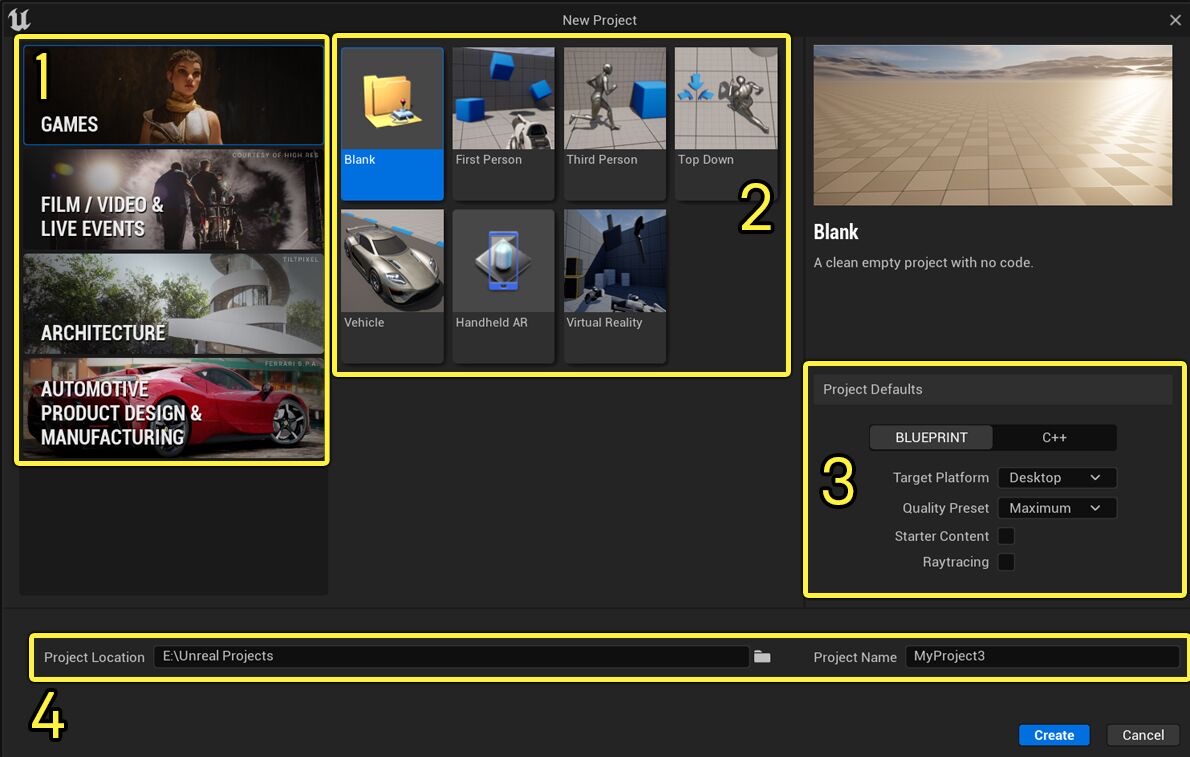
Refer to the following steps or the [Unreal official guide](https://docs.unrealengine.com/4.27/us-EN/Basics/Projects/Browser/) to create a new project. If you already have an Unreal project, skip to the next section.
1. Open Unreal Engine. Select **Games** under **New Project Categories**, and click **Next**.
2. Configure your project as follows:
* **Template**: Select **Blank**.
* **Project Defaults**:
* **Language**: Select **C++**.
* **Target Platform**: Select **Desktop**.
* **Project Location**: Enter the project files storage path.
* **Project Name**: Type a suitable name for your project.
Click **Create**.
1. In the Unreal Project Browser, click on **Browse** and locate the `.uproject` file.
2. Select the project and click **Open**.
3. Add the Agora dependency library
In `Project/Source/Project/Project.Build.cs`, add the `AgoraPlugin` using `PublicDependencyModuleNames.AddRange()`.
```cpp
// Add the AgoraPlugin library
PublicDependencyModuleNames.AddRange(new string[]
{
"Core",
"CoreUObject",
"Engine",
"InputCore",
"AgoraPlugin"
});
```
4. Create a new C++ class and generate header and library files
In the Unreal Editor, select **Tools > New C++ Class**, then select **All Classes**, find **UserWidget** and name it `AgoraWidget`. Click **Create Class**. A new C++ class is added to your project and you see `AgoraWidget.h` and `AgoraWidget.cpp` files.
5. Initialize custom Widget
Add the following code to your widget header file:
```cpp
protected:
// Initialize custom Widget
void NativeConstruct() override;
```
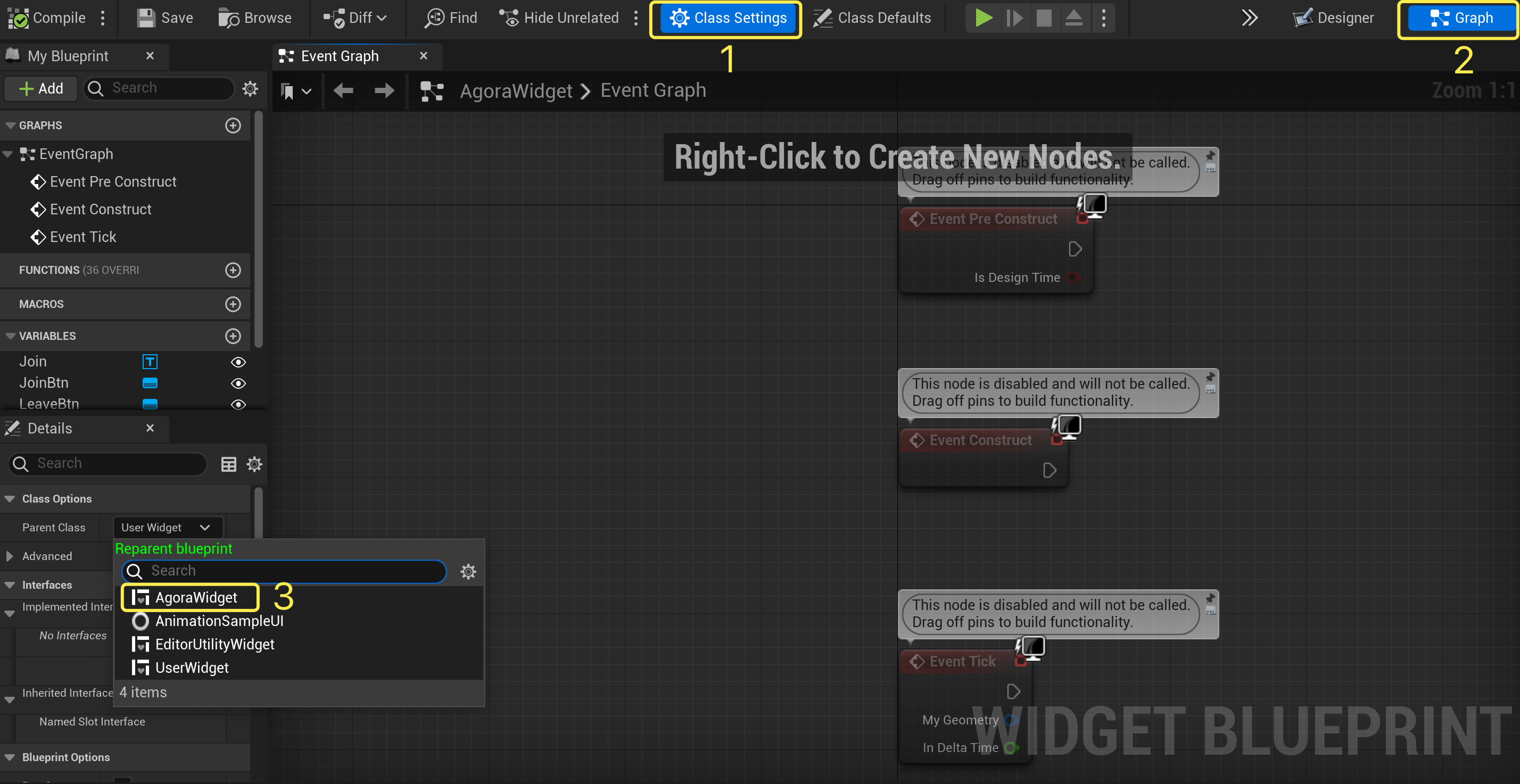
6. Associate C++ classes and Widgets
In Unreal Editor, click **Content Drawer**, select **Class Settings > Graph**, and set the **Parent Class** under **Class Options** to **AgoraWidget**.
7. Create a user interface for your app. Refer to [Create a user interface](#create-a-user-interface) to create a bare bones UI. A basic user interface consists of the following elements:
* Local user video window
* Remote user video window
* Join and leave channel buttons
### Install the SDK
Take the following steps to add the RTC SDK to your project:
1. Download the latest version of Agora Unreal RTC SDK from [Download SDKs](/en/api-reference/sdks) and unzip it.
2. In your project root folder, create a `Plugins` folder.
3. Copy `AgoraPlugin` from the Unreal SDK folder to `Plugins`.
## Implement Realtime Communication
This section guides you through the implementation of basic real-time audio and video interaction in your app.
The following figure illustrates the essential steps:
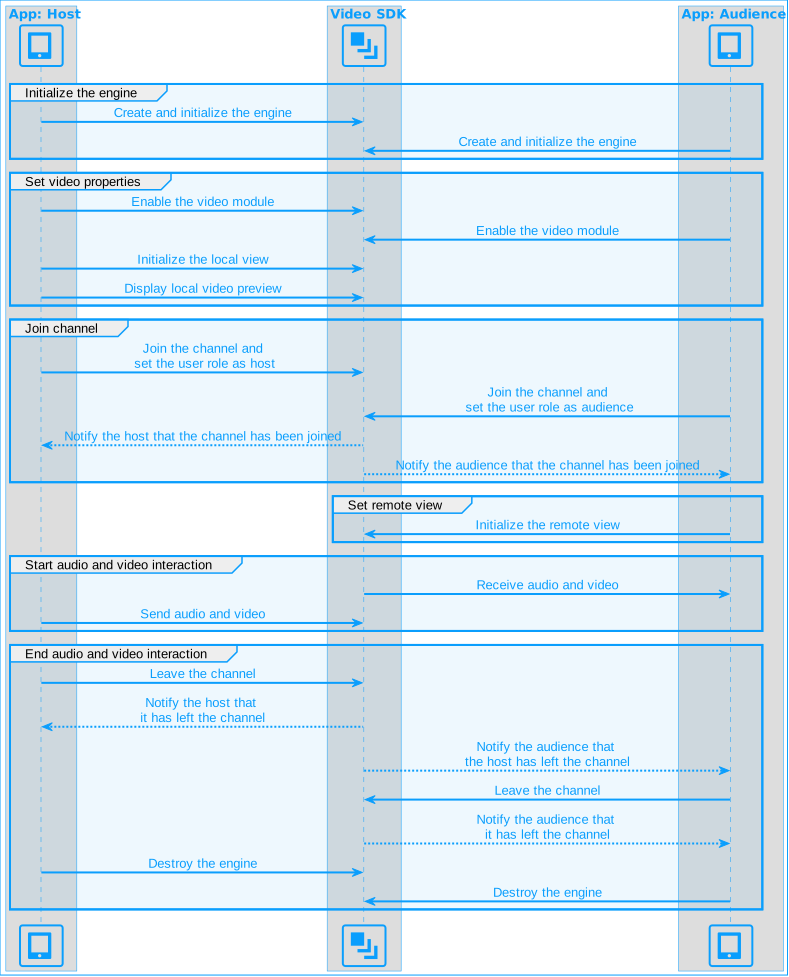
This guide includes [complete sample code](#complete-sample-code) that demonstrates implementing basic real-time interaction. To understand the core API calls in the sample code, review the following implementation steps.
### Import Agora libraries
To import Agora library, add the following to `AgoraWidget.h`:
```cpp
#include "AgoraPluginInterface.h"
```
### Initialize the engine
For real-time communication, initialize an `IRtcEngine` instance and set up an event handler to manage user interactions within the channel. Use `RtcEngineContext` to specify [App ID](/en/realtime-media/rtc/manage-agora-account#get-the-app-id), and custom [event handler](#subscribe-to-video-sdk-events), then call `RtcEngineProxy->initialize(RtcEngineContext)` to initialize the engine, enabling further channel operations.
Add the `SetupSDKEngine` method declaration and implementation to the following files:
* `AgoraWidget.h`
```cpp
// Fill in your app ID
FString _appID = "";
// Define a global variable for IRtcEngine
agora::rtc::IRtcEngine* RtcEngineProxy;
private:
// Create and initialize IRtcEngine
void SetupSDKEngine();
```
* `AgoraWidget.cpp`
```cpp
void UAgoraWidget::SetupSDKEngine()
{
agora::rtc::RtcEngineContext RtcEngineContext;
RtcEngineContext.appId = TCHAR_TO_ANSI(*_appID);
RtcEngineContext.eventHandler = this;
// Create IRtcEngine instance
RtcEngineProxy = agora::rtc::ue::createAgoraRtcEngine();
// Initialize IRtcEngine
RtcEngineProxy->initialize(RtcEngineContext);
}
```
### Join a channel
To join a channel, call `joinChannel` with the following parameters:
* **Channel name**: The name of the channel to join. Clients that pass the same channel name join the same channel. If a channel with the specified name does not exist, it is created when the first user joins.
* **Authentication token**: A dynamic key that authenticates a user when the client joins a channel. In a production environment, you obtain a token from a [token server](/en/realtime-media/rtc/build/authenticate-users/deploy-token-server) in your security infrastructure. For the purpose of this guide [Generate a temporary token](/en/realtime-media/rtc/manage-agora-account#generate-temporary-tokens).
* **User ID**: A 32-bit signed integer that identifies a user in the channel. You can specify a unique user ID for each user yourself. If you set the user ID to `0` when joining a channel, the SDK generates a random number for the user ID and returns the value in the `onJoinChannelSuccess` callback.
* **Channel media options**: Configure `ChannelMediaOptions` to define publishing and subscription settings, optimize performance for your specific use-case, and set optional parameters.
Set the `channelProfile`, `clientRoleType`, and `audienceLatencyLevel` according to your use case:
| Use case | Channel profile | Client role | Latency level |
| -------------------------- | ----------------------------------- | --------------------------------------------------- | ---------------------------------------------------- |
| Voice calling | `CHANNEL_PROFILE_COMMUNICATION` | `CLIENT_ROLE_BROADCASTER` | `AUDIENCE_LATENCY_LEVEL_ULTRA_LOW_LATENCY` (default) |
| Video calling | `CHANNEL_PROFILE_COMMUNICATION` | `CLIENT_ROLE_BROADCASTER` | `AUDIENCE_LATENCY_LEVEL_ULTRA_LOW_LATENCY` (default) |
| Interactive live streaming | `CHANNEL_PROFILE_LIVE_BROADCASTING` | `CLIENT_ROLE_BROADCASTER` or `CLIENT_ROLE_AUDIENCE` | `AUDIENCE_LATENCY_LEVEL_ULTRA_LOW_LATENCY` (default) |
| Broadcast streaming | `CHANNEL_PROFILE_LIVE_BROADCASTING` | `CLIENT_ROLE_BROADCASTER` or `CLIENT_ROLE_AUDIENCE` | `AUDIENCE_LATENCY_LEVEL_LOW_LATENCY` |
Note
* Only broadcasters can publish media. Audience members cannot publish until promoted to broadcaster.
* Choose Communication mode for calls where every user publishes, typically fewer than 17 participants. Choose Live Broadcasting mode for larger events with separate hosts and audience.
* The latency level only applies to the audience role, and affects your [pricing](/en/realtime-media/rtc/reference/pricing#subscription-packages) tier.
Add the `Join` method declaration and implementation to the following files:
* `AgoraWidget.h`
```cpp
// Fill in your channel name
FString _channelName = "";
// Fill in a valid token
FString _token = "";
UFUNCTION(BlueprintCallable)
void Join();
UFUNCTION(BlueprintCallable)
void Leave();
```
* `AgoraWidget.cpp`
The following example shows the configuration for interactive live streaming with the broadcaster role:
```cpp
void UAgoraWidget::Join()
{
// Enable the video module
RtcEngineProxy->enableVideo();
// Set channel media options
agora::rtc::ChannelMediaOptions options;
// Automatically subscribe to all audio streams
options.autoSubscribeAudio = true;
// Automatically subscribe to all video streams
options.autoSubscribeVideo = true;
// Publish video captured by the camera
options.publishCameraTrack = true;
// Publish audio captured by the microphone
options.publishMicrophoneTrack = true;
// Set the channel profile to live broadcasting
options.channelProfile = agora::CHANNEL_PROFILE_TYPE::CHANNEL_PROFILE_LIVE_BROADCASTING;
// Set the user role as host or audience
options.clientRoleType = agora::rtc::CLIENT_ROLE_TYPE::CLIENT_ROLE_BROADCASTER;
// If setting the client role to audience, uncomment the following line to configure the latency level
// options.audienceLatencyLevel = agora::rtc::AUDIENCE_LATENCY_LEVEL_TYPE::AUDIENCE_LATENCY_LEVEL_ULTRA_LOW_LATENCY;
// Join a channel
RtcEngineProxy->joinChannel(TCHAR_TO_ANSI(*_token), TCHAR_TO_ANSI(*_channelName), 0, options);
}
```
### Subscribe to RTC SDK events
The RTC SDK provides an interface for subscribing to channel events. To use it, inherit from the `IRtcEngineEventHandler` class and override the event handler methods for the events you want to process.
* `AgoraWidget.h`
```cpp
// Triggered when the local user leaves a channel
void onLeaveChannel(const agora::rtc::RtcStats& stats) override;
// Triggered when a remote user joins a channel
void onUserJoined(agora::rtc::uid_t uid, int elapsed) override;
// Triggered when a remote user leaves a channel
void onUserOffline(agora::rtc::uid_t uid, agora::rtc::USER_OFFLINE_REASON_TYPE reason) override;
// Triggered when the local user joins a channel
void onJoinChannelSuccess(const char* channel, agora::rtc::uid_t uid, int elapsed) override;
```
* `AgoraWidget.cpp`
```cpp
// Implement the callback triggered after a remote user joins the channel
void UAgoraWidget::onUserJoined(agora::rtc::uid_t uid, int elapsed)
{
// Set up remote video
agora::rtc::VideoCanvas videoCanvas;
videoCanvas.view = RemoteVideo;
videoCanvas.uid = uid;
videoCanvas.sourceType = agora::rtc::VIDEO_SOURCE_TYPE::VIDEO_SOURCE_REMOTE;
agora::rtc::RtcConnection connection;
connection.channelId = TCHAR_TO_ANSI(*_channelName);
((agora::rtc::IRtcEngineEx*)RtcEngineProxy)->setupRemoteVideoEx(videoCanvas, connection);
}
// Implement the callback triggered when a remote user leaves the channel
void UAgoraWidget::onUserOffline(agora::rtc::uid_t uid, agora::rtc::USER_OFFLINE_REASON_TYPE reason)
{
// Stop remote video
agora::rtc::VideoCanvas videoCanvas;
videoCanvas.view = nullptr;
videoCanvas.uid = uid;
videoCanvas.sourceType = agora::rtc::VIDEO_SOURCE_TYPE::VIDEO_SOURCE_REMOTE;
agora::rtc::RtcConnection connection;
connection.channelId = TCHAR_TO_ANSI(*_channelName);
((agora::rtc::IRtcEngineEx*)RtcEngineProxy)->setupRemoteVideoEx(videoCanvas, connection);
}
// Implement the callback triggered when the local user joins the channel
void UAgoraWidget::onJoinChannelSuccess(const char* channel, agora::rtc::uid_t uid, int elapsed)
{
AsyncTask(ENamedThreads::GameThread, [=]()
{
UE_LOG(LogTemp, Warning, TEXT("JoinChannelSuccess uid: %u"), uid);
// Set up local video
agora::rtc::VideoCanvas videoCanvas;
videoCanvas.view = LocalVideo;
videoCanvas.uid = 0;
videoCanvas.sourceType = agora::rtc::VIDEO_SOURCE_TYPE::VIDEO_SOURCE_CAMERA;
RtcEngineProxy->setupLocalVideo(videoCanvas);
});
}
// Implement the callback triggered when the local user leaves the channel
void UAgoraWidget::onLeaveChannel(const agora::rtc::RtcStats& stats)
{
AsyncTask(ENamedThreads::GameThread, [=]()
{
agora::rtc::VideoCanvas videoCanvas;
videoCanvas.view = nullptr;
videoCanvas.uid = 0;
videoCanvas.sourceType = agora::rtc::VIDEO_SOURCE_TYPE::VIDEO_SOURCE_CAMERA;
RtcEngineProxy->setupLocalVideo(videoCanvas);
});
}
```
### Handle permissions
To access the media devices, follow the steps for your target platform:
Android
Apple
Add the `AndroidPermission` library to obtain device and network permissions:
1. Add the following code to your header file:
```cpp
#if PLATFORM_ANDROID
#include "AndroidPermission/Classes/AndroidPermissionFunctionLibrary.h"
#endif
```
2. Add the `AndroidPermission` library to the `Project/Source/Project/Project.Build.cs` file:
```cpp
if (Target.Platform == UnrealTargetPlatform.Android)
{
PrivateDependencyModuleNames.AddRange(new string[] { "AndroidPermission" });
}
```
3. To check whether Android permissions have been granted, add the `CheckAndroidPermission` method and its implementation to the `AgoraWidget.h` and `AgoraWidget.cpp` files.
* `AgoraWidget.h`
```cpp
private:
// Get Android permissions
void CheckAndroidPermission();
```
* `AgoraWidget.cpp`
```cpp
void UAgoraWidget::CheckAndroidPermission()
{
#if PLATFORM_ANDROID
FString pathfromName = UGameplayStatics::GetPlatformName();
if (pathfromName == "Android")
{
TArray AndroidPermission;
AndroidPermission.Add(FString("android.permission.CAMERA"));
AndroidPermission.Add(FString("android.permission.RECORD_AUDIO"));
AndroidPermission.Add(FString("android.permission.READ_PHONE_STATE"));
AndroidPermission.Add(FString("android.permission.WRITE_EXTERNAL_STORAGE"));
AndroidPermission.Add(FString("android.permission.ACCESS_WIFI_STATE"));
AndroidPermission.Add(FString("android.permission.ACCESS_NETWORK_STATE"));
UAndroidPermissionFunctionLibrary::AcquirePermissions(AndroidPermission);
}
#endif
}
void UAgoraWidget::NativeConstruct()
{
Super::NativeConstruct();
#if PLATFORM_ANDROID
CheckAndroidPermission()
#endif
}
```
1. Refer to [How to add the permissions required for real-time interaction to an Unreal Engine project?](/en/realtime-media/rtc/)
2. In `Project/Source/Project.Target.cs`, add the following code:
```cpp
public class unrealstartTarget : TargetRules
{
public unrealstartTarget( TargetInfo Target) : base(Target)
{
Type = TargetType.Game;
DefaultBuildSettings = BuildSettingsVersion.V2;
if (Target.Platform == UnrealTargetPlatform.IOS)
{
bOverrideBuildEnvironment = true;
GlobalDefinitions.Add("FORCE_ANSI_ALLOCATOR=1")
}
ExtraModuleNames.AddRange( new string[] { "unrealstart" } );
}
}
```
### Display the local video
Display the local video.
```cpp
AsyncTask(ENamedThreads::GameThread, =
{
UE_LOG(LogTemp, Warning, TEXT("JoinChannelSuccess uid: %u"), uid);
agora::rtc::VideoCanvas videoCanvas;
videoCanvas.view = LocalVideo;
videoCanvas.uid = 0;
videoCanvas.sourceType = agora::rtc::VIDEO_SOURCE_TYPE::VIDEO_SOURCE_CAMERA;
RtcEngineProxy->setupLocalVideo(videoCanvas);
});
```
### Display remote video
When a remote user joins the channel, display their video.
```cpp
// Set up remote video
agora::rtc::VideoCanvas videoCanvas;
videoCanvas.view = RemoteVideo;
videoCanvas.uid = uid;
videoCanvas.sourceType = agora::rtc::VIDEO_SOURCE_TYPE::VIDEO_SOURCE_REMOTE;
agora::rtc::RtcConnection connection;
connection.channelId = TCHAR_TO_ANSI(*_channelName);
((agora::rtc::IRtcEngineEx*)RtcEngineProxy)->setupRemoteVideoEx(videoCanvas, connection);
```
### Leave a channel
To leave a channel call `leaveChannel`. Implement the following method:
* `AgoraWidget.h`
```cpp
UFUNCTION(BlueprintCallable)
void Leave();
```
* `AgoraWidget.cpp`
```cpp
void UAgoraWidget::Leave()
{
// Leave the channel
RtcEngineProxy->leaveChannel();
}
```
### Release resources
When the local user leaves the channel, or exits the client, release memory by calling the `release` method of `IRtcEngine`. Override the `NativeDestruct()` method and add its implementation as follows:
* `AgoraWidget.h`
```cpp
void NativeDestruct() override;
```
* `AgoraWidget.cpp`
```cpp
void UAgoraWidget::NativeDestruct()
{
Super::NativeDestruct();
if (RtcEngineProxy != nullptr)
{
RtcEngineProxy->unregisterEventHandler(this);
RtcEngineProxy->release();
delete RtcEngineProxy;
RtcEngineProxy = nullptr;
}
}
```
### Complete sample code
A complete code sample demonstrating the basic process of real-time interaction is provided for your reference. To use the sample code, copy each of the following code blocks and paste it in the corresponding file.
`Project/Source/Project/AgoraWidget.h`
```cpp
#pragma once
#include "CoreMinimal.h"
#include "Blueprint/UserWidget.h"
#if PLATFORM_ANDROID
#include "AndroidPermission/Classes/AndroidPermissionFunctionLibrary.h"
#endif
#include "AgoraPluginInterface.h"
#include "Components/Image.h"
#include "Components/Button.h"
#include "AgoraWidget.generated.h"
UCLASS()
class UNREALLEARNING_API UAgoraWidget : public UUserWidget, public agora::rtc::IRtcEngineEventHandler
{
GENERATED_BODY()
public:
// Fill in your app ID
FString _appID = "";
// Fill in your channel name
FString _channelName = "";
// Fill in a valid authentication token
FString _token = "";
UPROPERTY(BlueprintReadWrite, meta = (BindWidget))
UImage* RemoteVideo = nullptr;
UPROPERTY(BlueprintReadWrite, meta = (BindWidget))
UImage* LocalVideo = nullptr;
UPROPERTY(VisibleAnywhere, BlueprintReadWrite, meta = (BindWidget))
UButton* JoinBtn = nullptr;
UPROPERTY(VisibleAnywhere, BlueprintReadOnly, meta = (BindWidget))
UButton* LeaveBtn = nullptr;
UFUNCTION(BlueprintCallable)
void Join();
UFUNCTION(BlueprintCallable)
void Leave();
agora::rtc::IRtcEngine* RtcEngineProxy;
// Callback triggered when the local user leaves the channel
void onLeaveChannel(const agora::rtc::RtcStats& stats) override;
// Callback triggered when a remote broadcaster successfully joins the channel
void onUserJoined(agora::rtc::uid_t uid, int elapsed) override;
// Callback triggered when a remote broadcaster leaves the channel
void onUserOffline(agora::rtc::uid_t uid, agora::rtc::USER_OFFLINE_REASON_TYPE reason) override;
// Callback triggered when the local user successfully joins the channel
void onJoinChannelSuccess(const char* channel, agora::rtc::uid_t uid, int elapsed) override;
private:
void CheckAndroidPermission(); // Get Android permissions
void SetupSDKEngine(); // Create and initialize IRtcEngine
void SetupUI(); // Set up UI elements
protected:
void NativeConstruct() override; // Initialize the custom Widget
void NativeDestruct() override; // Clean up all session-related resources
};
```
`Project/Source/Project/AgoraWidget.cpp`
```cpp
#include "AgoraWidget.h"
void UAgoraWidget::CheckAndroidPermission()
{
#if PLATFORM_ANDROID
FString pathfromName = UGameplayStatics::GetPlatformName();
if (pathfromName == "Android")
{
TArray AndroidPermission;
AndroidPermission.Add(FString("android.permission.CAMERA"));
AndroidPermission.Add(FString("android.permission.RECORD_AUDIO"));
AndroidPermission.Add(FString("android.permission.READ_PHONE_STATE"));
AndroidPermission.Add(FString("android.permission.WRITE_EXTERNAL_STORAGE"));
UAndroidPermissionFunctionLibrary::AcquirePermissions(AndroidPermission);
}
#endif
}
void UAgoraWidget::SetupSDKEngine()
{
agora::rtc::RtcEngineContext RtcEngineContext;
RtcEngineContext.appId = TCHAR_TO_ANSI(*_appID);
RtcEngineContext.eventHandler = this;
RtcEngineProxy = agora::rtc::ue::createAgoraRtcEngine();
RtcEngineProxy->initialize(RtcEngineContext);
}
void UAgoraWidget::SetupUI()
{
JoinBtn->OnClicked.AddDynamic(this, &UAgoraWidget::Join);
LeaveBtn->OnClicked.AddDynamic(this, &UAgoraWidget::Leave);
}
void UAgoraWidget::Join()
{
RtcEngineProxy->enableVideo();
agora::rtc::ChannelMediaOptions options;
options.autoSubscribeAudio = true;
options.autoSubscribeVideo = true;
options.publishCameraTrack = true;
options.publishMicrophoneTrack = true;
options.channelProfile = agora::CHANNEL_PROFILE_TYPE::CHANNEL_PROFILE_LIVE_BROADCASTING;
options.clientRoleType = agora::rtc::CLIENT_ROLE_TYPE::CLIENT_ROLE_BROADCASTER;
RtcEngineProxy->joinChannel(TCHAR_TO_ANSI(_token), TCHAR_TO_ANSI(_channelName), 0, options);
}
void UAgoraWidget::Leave()
{
RtcEngineProxy->leaveChannel();
}
void UAgoraWidget::NativeConstruct()
{
Super::NativeConstruct();
#if PLATFORM_ANDROID
CheckAndroidPermission()
#endif
SetupUI();
SetupSDKEngine();
}
void UAgoraWidget::NativeDestruct()
{
Super::NativeDestruct();
if (RtcEngineProxy != nullptr)
{
RtcEngineProxy->unregisterEventHandler(this);
RtcEngineProxy->release();
delete RtcEngineProxy;
RtcEngineProxy = nullptr;
}
}
void UAgoraWidget::onUserJoined(agora::rtc::uid_t uid, int elapsed)
{
agora::rtc::VideoCanvas videoCanvas;
videoCanvas.view = RemoteVideo;
videoCanvas.uid = uid;
videoCanvas.sourceType = agora::rtc::VIDEO_SOURCE_TYPE::VIDEO_SOURCE_REMOTE;
agora::rtc::RtcConnection connection;
connection.channelId = TCHAR_TO_ANSI(*_channelName);
((agora::rtc::IRtcEngineEx*)RtcEngineProxy)->setupRemoteVideoEx(videoCanvas, connection);
}
void UAgoraWidget::onUserOffline(agora::rtc::uid_t uid, agora::rtc::USER_OFFLINE_REASON_TYPE reason)
{
agora::rtc::VideoCanvas videoCanvas;
videoCanvas.view = nullptr;
videoCanvas.uid = uid;
videoCanvas.sourceType = agora::rtc::VIDEO_SOURCE_TYPE::VIDEO_SOURCE_REMOTE;
agora::rtc::RtcConnection connection;
connection.channelId = TCHAR_TO_ANSI(*_channelName);
((agora::rtc::IRtcEngineEx*)RtcEngineProxy)->setupRemoteVideoEx(videoCanvas, connection);
}
void UAgoraWidget::onJoinChannelSuccess(const char* channel, agora::rtc::uid_t uid, int elapsed)
{
AsyncTask(ENamedThreads::GameThread, =
{
UE_LOG(LogTemp, Warning, TEXT("JoinChannelSuccess uid: %u"), uid);
agora::rtc::VideoCanvas videoCanvas;
videoCanvas.view = LocalVideo;
videoCanvas.uid = 0;
videoCanvas.sourceType = agora::rtc::VIDEO_SOURCE_TYPE::VIDEO_SOURCE_CAMERA;
RtcEngineProxy->setupLocalVideo(videoCanvas);
});
}
void UAgoraWidget::onLeaveChannel(const agora::rtc::RtcStats& stats)
{
AsyncTask(ENamedThreads::GameThread, =
{
agora::rtc::VideoCanvas videoCanvas;
videoCanvas.view = nullptr;
videoCanvas.uid = 0;
videoCanvas.sourceType = agora::rtc::VIDEO_SOURCE_TYPE::VIDEO_SOURCE_CAMERA;
RtcEngineProxy->setupLocalVideo(videoCanvas);
});
}
```
`Project/Source/Project/Project.Build.cs`
```csharp
using UnrealBuildTool;
public class UnrealLearning : ModuleRules
{
public UnrealLearning(ReadOnlyTargetRules Target) : base(Target)
{
PCHUsage = PCHUsageMode.UseExplicitOrSharedPCHs;
PublicDependencyModuleNames.AddRange(new string[]
{
"Core",
"CoreUObject",
"Engine",
"InputCore",
"AgoraPlugin"
});
if (Target.Platform == UnrealTargetPlatform.Android)
{
PrivateDependencyModuleNames.AddRange(new string[] { "AndroidPermission" });
}
PrivateDependencyModuleNames.AddRange(new string[] { });
// Uncomment if you are using Slate UI
// PrivateDependencyModuleNames.AddRange(new string[] { "Slate", "SlateCore" });
// Uncomment if you are using online features
// PrivateDependencyModuleNames.Add("OnlineSubsystem");
// To include OnlineSubsystemSteam, add it to the plugins section in your uproject file with the Enabled attribute set to true
}
}
```
### Create a user interface
Follow these steps to set up a basic UI for your project or to integrate essential UI elements into your existing interface.
### Create a basic UI
1. Create a **Widget Blueprint**.
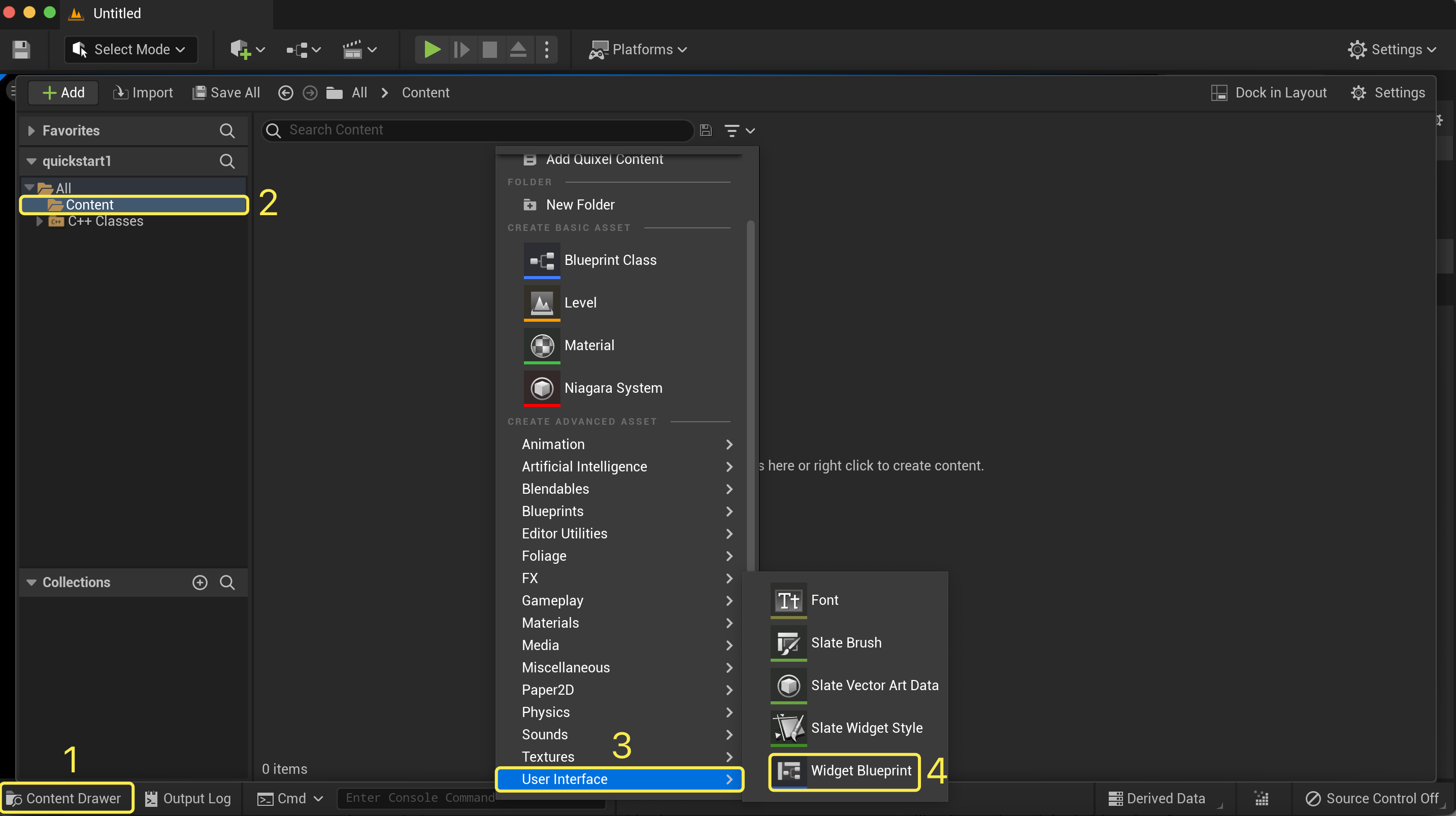
In Unreal Editor, click **Content Drawer > Content**, right-click and select **User Interface > Widget Blueprint**. Name the new Widget Blueprint **AgoraWidget** and double-click it to open.
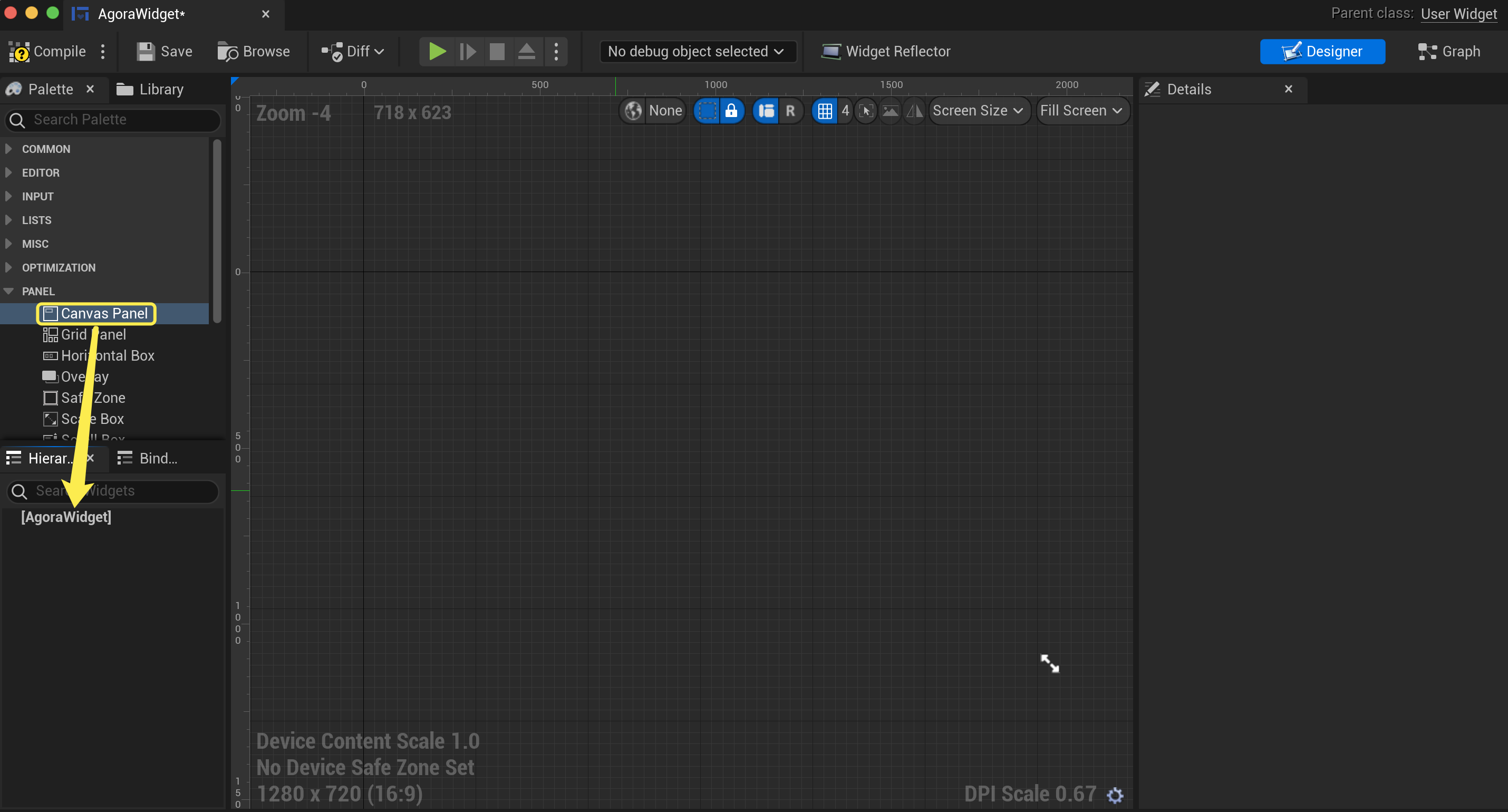
2. Create a view canvas.
Select **Palette > PANEL > Canvas Panel** and drag it to **AgoraWidget**.
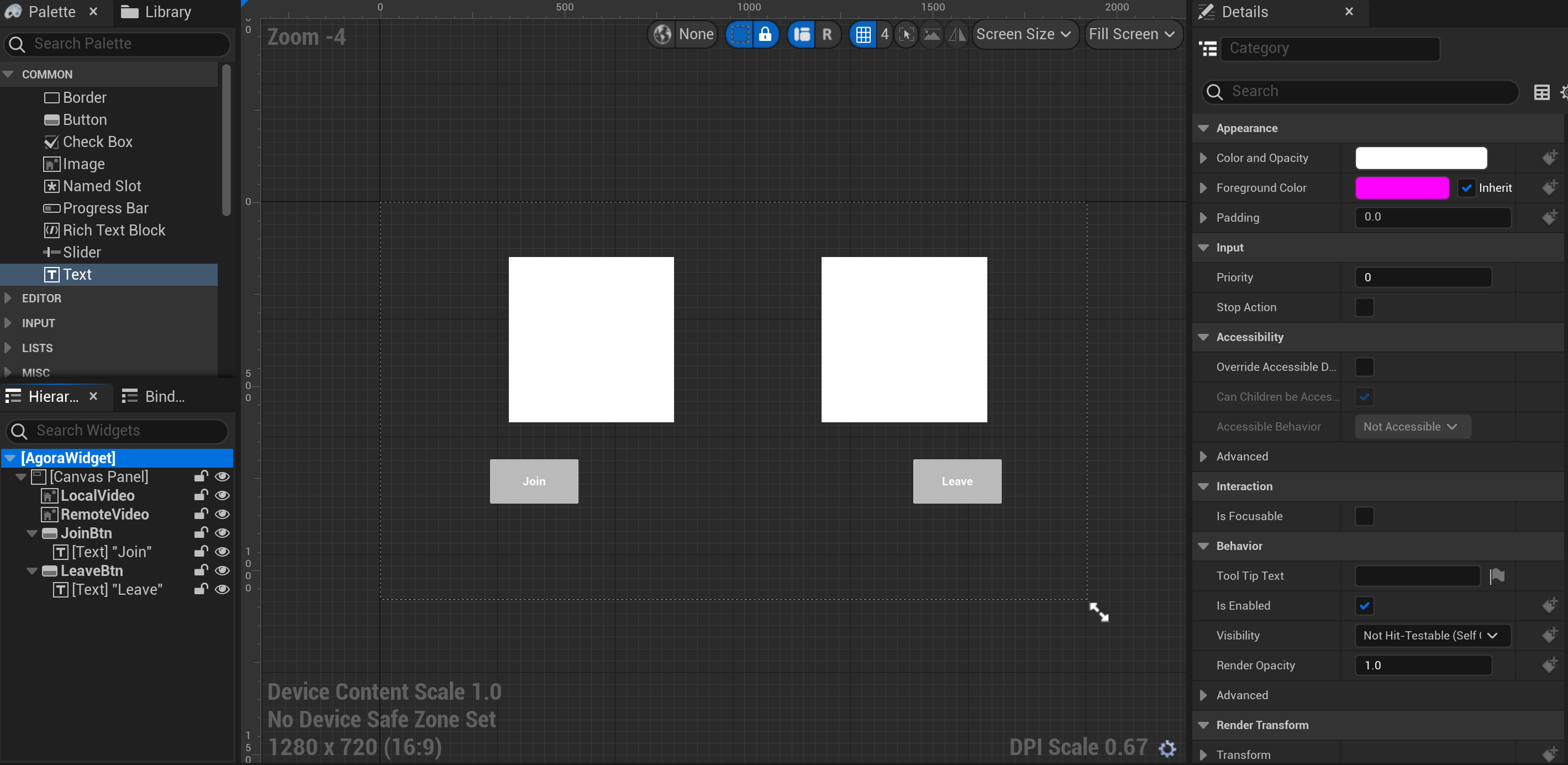
3. Create join and leave channel buttons in Widget Blueprint.
1. In **AgoraWidget**, select **COMMON > Button**, drag it to the **Canvas Panel**, and rename it to **JoinBtn**. Adjust the button's size and position on the canvas or use the following sample settings:
* **Position X**: `300`
* **Position Y**: `700`
* **Size X**: `240`
* **Size Y**: `120`
2. Select **COMMON > Text** and drag it to **JoinBtn**. Select the **Text** control of **JoinBtn**, and change the text content of **Text** to **Join** in the **Details** panel.
3. Repeat the above steps to create a **LeaveBtn**. Adjust the button size and position according to your layout design.
4. Create local and remote views in the Widget Blueprint.
1. Select **COMMON > Image**, drag it to the **Canvas Panel**, and rename it **LocalVideo**. Adjust its position and size on the canvas. Use the following values, or specify as per your own layout design:
* **Position X**: `350`
* **Position Y**: `150`
* **Size X**: `450`
* **Size Y**: `450`
2. Repeat the above steps to create a remote view and name it **RemoteVideo**. Adjust its position and size on the canvas. Use the following values, or specify as per your own layout design:
* **Position X**: `1200`
* **Position Y**: `150`
* **Size X**: `450`
* **Size Y**: `450`
5. Save the changes. Your user interface in **Widget Blueprint** looks similar to the following:
6. Create a **Level Blueprint** and associate it with the created **Widget Blueprint**.
1. In **Unreal Editor**, click **Content Drawer**, right-click to select **Level**, and name it **agoraLevel**.
2. Double-click to open **agoraLevel** and click **Open Level Blueprint**.
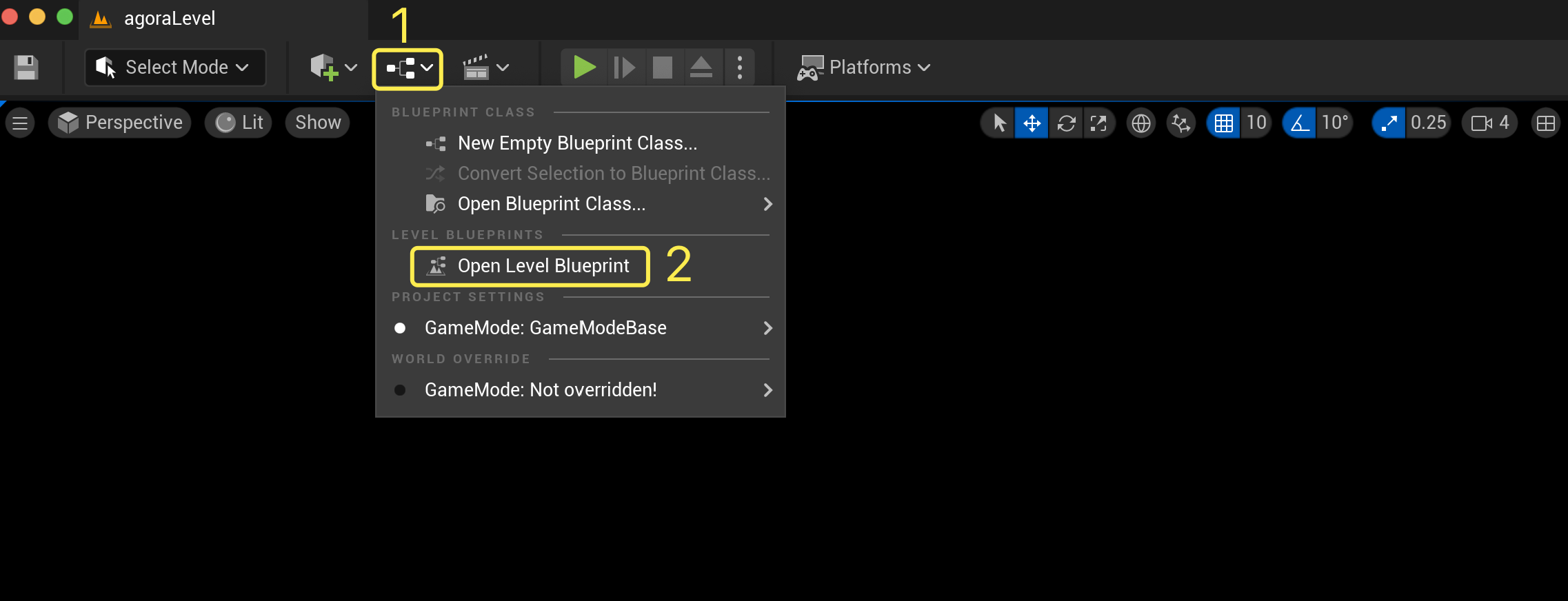
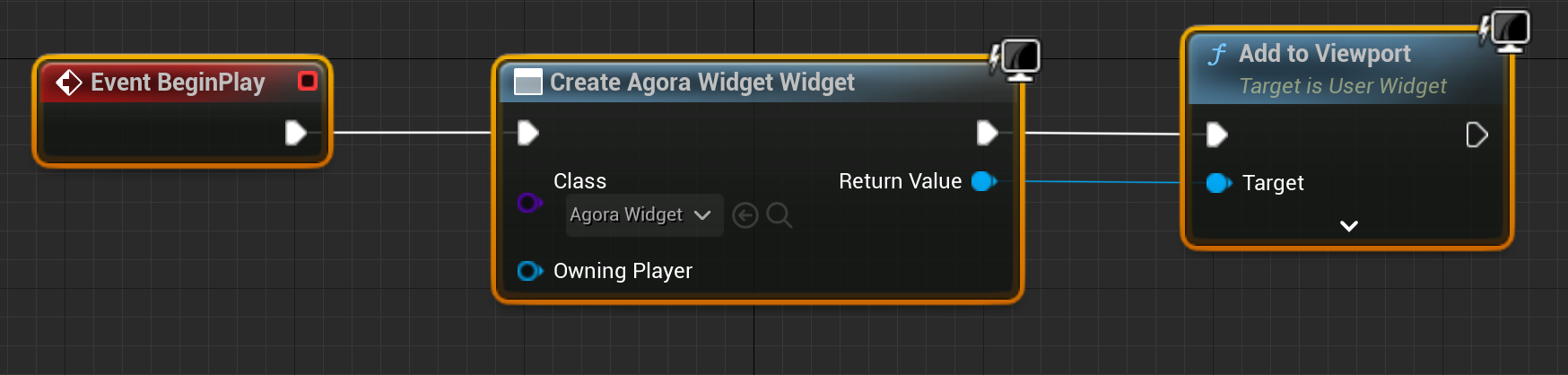
3. Right-click and enter **Create Widget** in the search box. Select the created **AgoraWidget**, then create **Event BeginPlay** and **Add to Viewport** in the same way. Connect them as follows:
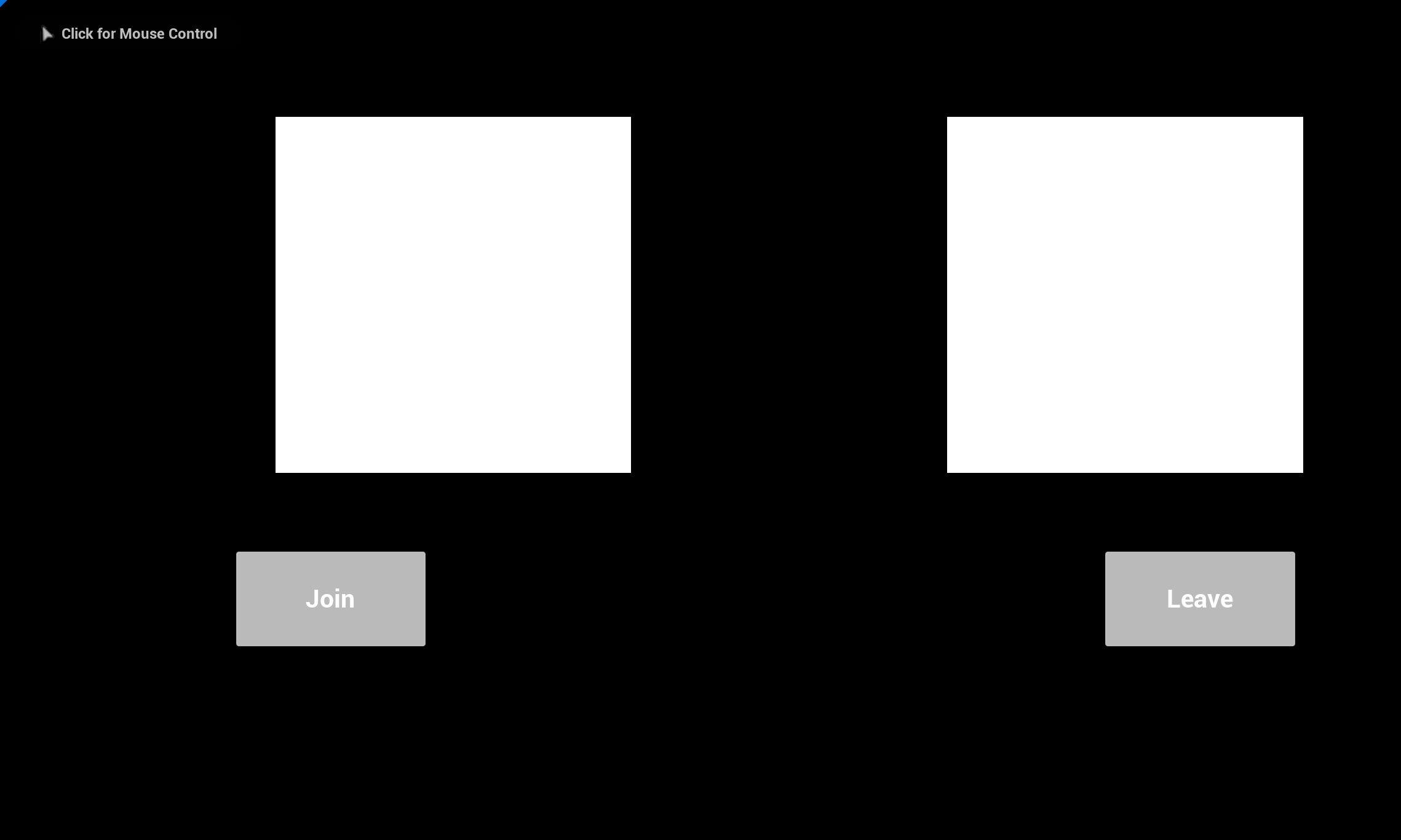
4. Save your changes and run the project. The UI you have created looks similar to the following:
## Test the sample code
Take the following steps to test the sample code:
1. Obtain a temporary token from Agora Console.
2. In `AgoraWidget.h`, update `_appID`, `_channelName`, and `_token` with the app ID, channel name, and temporary token for your project.
3. In the Unreal Editor, click the play button to run your project, then click **Join** to join a channel.
4. Invite a friend to run the demo client on a second device. Alternatively, use the [Web demo](https://webdemo.agora.io/basicVideoCall/index.html) to join the same channel.
After your friend joins successfully, you can hear and see each other.
## Reference
This section contains content that completes the information on this page, or points you to documentation that explains other aspects of this product.
* If a firewall is deployed in your network environment, refer to [Connect with Cloud Proxy](/en/realtime-media/rtc/build/manage-connection-and-quality/cloud-proxy) to use Agora services normally.
### Next steps
After implementing the quickstart sample, read the following documents to learn more:
* To ensure communication security in a test or production environment, best practice is to obtain and use a token from an authentication server. For details, see [Secure authentication with tokens](/en/realtime-media/rtc/build/authenticate-users/authentication-workflow).
### Sample project
Agora provides open source sample projects on [GitHub](https://github.com/AgoraIO-Extensions/Agora-Unreal-RTC-SDK/tree/main/Agora-Unreal-SDK-CPP-Example) for your reference. Download or view the [JoinChannelVideo](https://github.com/AgoraIO-Extensions/Agora-Unreal-RTC-SDK/tree/main/Agora-Unreal-SDK-CPP-Example/Source/AgoraExample/Examples/Basic/JoinChannelVideo) project for a more detailed example.
To learn about Agora Unreal Blueprint development, refer to the [Unreal (Blueprint) Quickstart](/en/realtime-media/rtc/get-started-sdk?platform=blueprint).
### API reference
* [`JoinChannel`](https://api-ref.agora.io/en/video-sdk/unreal/4.x/API/class_irtcengine.html#api_irtcengine_joinchannel)
* [`EnableVideo`](https://api-ref.agora.io/en/video-sdk/unreal/4.x/API/class_irtcengine.html#api_irtcengine_enablevideo)
* [`CreateAgoraRtcEngine`](https://api-ref.agora.io/en/video-sdk/unreal/4.x/API/class_irtcengine.html#api_createagorartcengine)
* [`SetClientRole`](https://api-ref.agora.io/en/video-sdk/unreal/4.x/API/class_irtcengine.html#api_irtcengine_setclientrole)
* [`LeaveChannel`](https://api-ref.agora.io/en/video-sdk/unreal/4.x/API/class_irtcengine.html#api_irtcengine_leavechannel)
* [`DisableVideo`](https://api-ref.agora.io/en/video-sdk/unreal/4.x/API/class_irtcengine.html#api_irtcengine_disablevideo)
### Frequently asked questions
* [How can I fix black screen issues?](/en/api-reference/faq/quality/video_blank#black-screen-on-the-local-side)
* [Why can't I turn on the camera?](/en/api-reference/faq/quality/video_camera)
* [How can I listen for audience joining or leaving a channel?](/en/api-reference/faq/integration/audience_event)
* [How can I solve channel-related issues?](/en/api-reference/faq/integration/channel)
* [How can I set the log file?](/en/api-reference/faq/integration/set_log_file)
### See also
* [SDK error codes](/en/realtime-media/rtc/reference/error-codes)
* [Connection status management](/en/realtime-media/rtc/build/manage-connection-and-quality/connection-status-management)