# Manage media and devices (/en/realtime-media/rtc/build/control-audio-and-devices/volume-control-and-mute/unity)
> For AI agents: see the complete documentation index at [llms.txt](/llms.txt).
This page shows you how to configure volume settings for audio recording, audio playback, and for the playback of music files.
## Understand the tech
Agora RTC SDK supports adjusting the audio volume for both recording and playback to meet practical application use-cases. For example, during a two-person call, you can mute a remote user by adjusting the playback volume setting to 0.
The figure below shows the workflow of adjusting the volume.
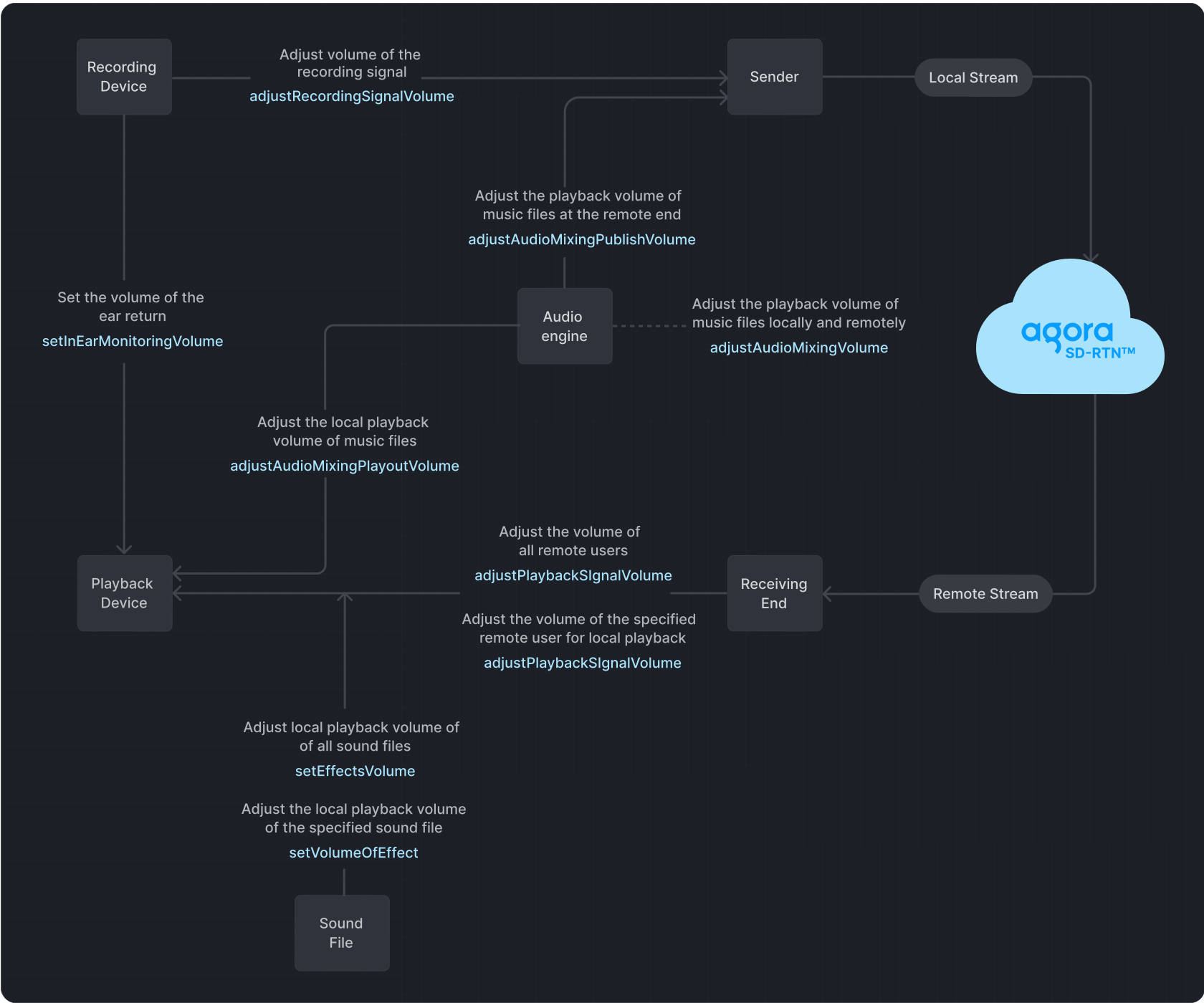
**Playback** refers to transmitting an audio signal from a sender to a recipient, where it is played back through a playback device.
**Recording** refers to the process in which audio signals are captured by a recording device and then sent to the transmitter.
Caution
If you set the volume too high using the signal volume adjustment methods, it may lead to audio distortion on some devices.
## Prerequisites
Ensure that you have implemented the [SDK quickstart](/en/realtime-media/rtc/get-started-sdk) in your project.
## Implement volume control
Use one or more of the following volume control methods to adjust volume settings.
### Mute and unmute users
To mute or unmute the local audio stream, call `MuteLocalAudioStream`:
```csharp
// Stop publishing the local audio stream
RtcEngine.MuteLocalAudioStream(true);
// Resume publishing the local audio stream
RtcEngine.MuteLocalAudioStream(false);
```
To mute or unmute a remote user, call `MuteRemoteAudioStream` with the `uid` of the remote user:
```csharp
// Stop subscribing to the audio stream of the remote user
RtcEngine.MuteRemoteAudioStream(remoteUid, true);
// Resume subscribing to the audio stream of the remote user
RtcEngine.MuteRemoteAudioStream(remoteUid, false);
```
To mute remote users without unsubscribing, set their [playback volume](#adjust-the-playback-volume) to `0`.
### Adjust the playback volume
Call `AdjustPlaybackSignalVolume` or `AdjustUserPlaybackSignalVolume` to adjust the volume of the audio playback signal.
```csharp
// Set the volume for all remote users' playback locally to 50
RtcEngine.AdjustPlaybackSignalVolume(50);
// Set the playback volume for the remote user with the uid of 12 locally to 50
RtcEngine.AdjustUserPlaybackSignalVolume(12, 50);
```
### Adjust the recording volume
Call `AdjustRecordingSignalVolume` to adjust the volume of the audio recording signal.
```csharp
// Adjust the recording signal volume to 50
RtcEngine.AdjustRecordingSignalVolume(50);
```
When configuring audio settings, it's essential to understand the default behavior and the options available. Here are the key points to keep in mind:
* The SDK defaults to a device volume of `85` when using the recording device to capture audio signals.
* A volume of `0` means mute, and a volume of `255` represents the maximum volume of the device.
* If the SDK detects that the recording volume is too low in the current environment, it automatically increases the volume of the recording device.
* The volume of the recording device directly influences the global volume of the device.
* If the default recording device volume does not meet your requirements, adjust it by regulating the signal amplitude captured by the microphone or sound card.
### Get volume information of users
RTC SDK enables you to obtain the user IDs and corresponding volumes of the three users with the highest instantaneous volumes in a channel during the process of audio recording, mixing, and playback. You use the `OnAudioVolumeIndication` callback to obtain this information. A returned `uid` of `0` in the callback indicates the local user.
Note
Call `EnableAudioVolumeIndication` to enable reporting of the users' volume in the callback.
```csharp
RtcEngine = Agora.Rtc.RtcEngine.CreateAgoraRtcEngine();
UserEventHandler handler = new UserEventHandler(this);
RtcEngineContext context = new RtcEngineContext(
_appID,
0,
CHANNEL_PROFILE_TYPE.CHANNEL_PROFILE_LIVE_BROADCASTING,
AUDIO_SCENARIO_TYPE.AUDIO_SCENARIO_DEFAULT
);
RtcEngine.Initialize(context);
// Set up listener callback
RtcEngine.InitEventHandler(handler);
// Enable volume indication
RtcEngine.EnableAudioVolumeIndication(1, 1, true);
class UserEventHandler : IRtcEngineEventHandler
{
// This callback is triggered at the interval set in EnableAudioVolumeIndication and reports the three users with the highest instant volume in the channel
public override void OnAudioVolumeIndication(
RtcConnection connection,
AudioVolumeInfo[] speakers,
uint speakerNumber,
int totalVolume
) { }
}
```
## Reference
This section contains content that completes the information on this page, or points you to documentation that explains other aspects to this product.
### API reference
* [`AdjustRecordingSignalVolume`](https://api-ref.agora.io/en/video-sdk/unity/4.x/API/class_irtcengine.html#api_irtcengine_adjustrecordingsignalvolume)
* [`AdjustPlaybackSignalVolume`](https://api-ref.agora.io/en/video-sdk/unity/4.x/API/class_irtcengine.html#api_irtcengine_adjustplaybacksignalvolume)
* [`AdjustUserPlaybackSignalVolume`](https://api-ref.agora.io/en/video-sdk/unity/4.x/API/class_irtcengine.html#api_irtcengine_adjustuserplaybacksignalvolume)
* [`AdjustAudioMixingPlayoutVolume`](https://api-ref.agora.io/en/video-sdk/unity/4.x/API/class_irtcengine.html#api_irtcengine_adjustaudiomixingplayoutvolume)
* [`OnAudioVolumeIndication`](https://api-ref.agora.io/en/video-sdk/unity/4.x/API/class_irtcengineeventhandler.html#callback_irtcengineeventhandler_onaudiovolumeindication)
* [`MuteLocalAudioStream`](https://api-ref.agora.io/en/video-sdk/unity/4.x/API/class_irtcengine.html#api_irtcengine_mutelocalaudiostream)
* [`MuteRemoteAudioStream`](https://api-ref.agora.io/en/video-sdk/unity/4.x/API/class_irtcengine.html#api_irtcengine_muteremoteaudiostream)
### Sample projects
Agora offers the following open-source sample project for adjusting recording, playback, and in-ear monitoring volumes for your reference:
* GitHub: [AudioMixing](https://github.com/AgoraIO-Extensions/Agora-Unity-Quickstart/tree/main/API-Example-Unity/Assets/API-Example/Examples/Advanced/AudioMixing)
### Frequently asked questions
* [How can I solve the problem of low volume?](/en/api-reference/faq/quality/audio_low)
### See also
* [Custom audio source](/en/realtime-media/rtc/build/customize-audio-processing/custom-audio)
* [Custom video source](/en/realtime-media/rtc/build/capture-and-render-video/custom-video)