# Quickstart (/en/realtime-media/on-premise-recording/quickstart/linux-java)
> For AI agents: see the complete documentation index at [llms.txt](/llms.txt).
This article describes how to use the On-Premise Recording SDK to record real-time audio and video.
## Understand the tech [#understand-the-tech-1]
Recording audio and video in a channel using the On-Premise Recording SDK works by adding a special user to the Video SDK channel. This special user captures the audio and video from the channel, transcodes it, and stores it on your Linux server.
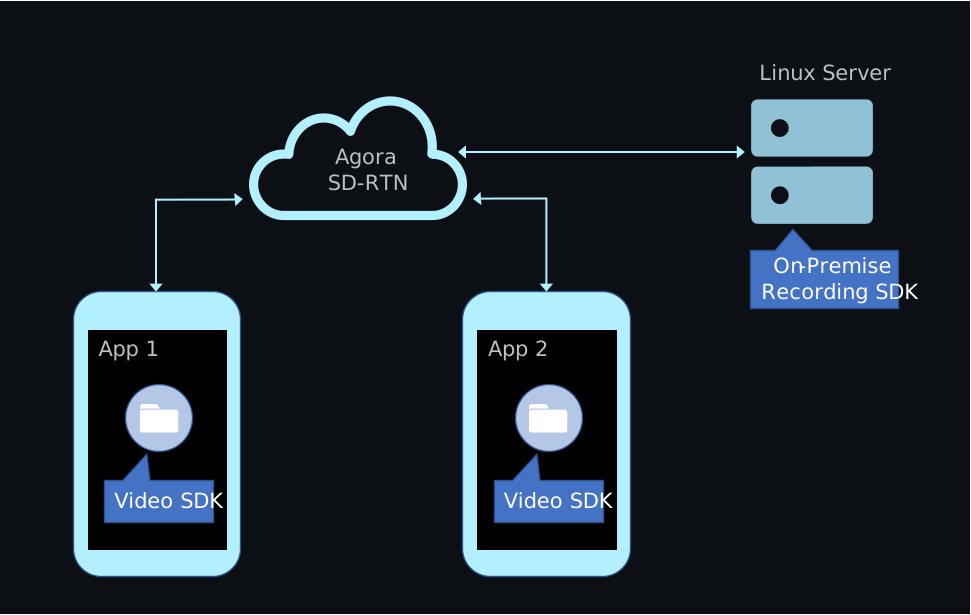
Integrate the On-Premise Recording SDK into your Linux server, not your client app. To record audio and video without deploying a Linux server, use Agora [Cloud Recording](/en/realtime-media/cloud-recording).
## Prerequisites [#prerequisites-1]
Before you begin, complete the following steps and ensure your environment meets the required specifications:
* [Create an Agora project](/en/realtime-media/on-premise-recording/manage-agora-account#generate-temporary-token) in the Agora Console and obtain an App ID and a temporary token.
* Implement a Video SDK project that includes basic audio and video interaction.
**Server hardware requirements:**
* **CPU**: 8 cores, 1.8 GHz
* **Memory**: At least 4 GB (recommended)
**Server software requirements:**
* **Operating system**: Ubuntu 18.04 or later, or CentOS 7.0 or later
* **CPU architecture**: arm64 or x86-64
* **glibc**: version 2.18 or later
* **gcc**: version 4.8 or later
**Network requirements:**
* The server is connected to the public internet and has a public IP address.
* The server allows access to the following domains:
* `*.agora.io`
* `*.agoralab.co`
## Project setup [#project-setup-1]
This section shows how to integrate the On-Premise Recording SDK into your app.
Add using Maven
Add manually
Add the following dependencies to your project’s` pom.xml` file based on your platform:
* **For x86\_64**:
```xml
io.agora.rtc
linux-recording-java-sdk
4.4.150.5
```
* **For arm64**:
```xml
io.agora.rtc
linux-recording-java-sdk
4.4.150.5-aarch64
```
### Download and unzip [#download-and-unzip]
1. Download the latest On-Premise Recording SDK package from the [SDKs](/en/api-reference/sdks?product=on-premise-recording\&platform=linux) page.
2. Unzip the SDK and you see the following contents:
```txt
doc/ JavaDoc documentation
examples/ Sample projects and code
sdk/ Core SDK files
sdk/agora-recording-sdk.jar Java class library
sdk/agora-recording-sdk-javadoc.jar JavaDoc (optional, for IDE support)
```
### Integrate the SDK [#integrate-the-sdk-1]
Choose one of the following methods to add the SDK to your project.
#### Use a local maven repository [#use-a-local-maven-repository]
1. Install the SDK JAR using Maven:
To install only the SDK JAR:
```bash
mvn install:install-file \\
-Dfile=sdk/agora-recording-sdk.jar \\
-DgroupId=io.agora.rtc \\
-DartifactId=linux-recording-java-sdk \\
-Dversion=4.4.150.5 \\
-Dpackaging=jar \\
-DgeneratePom=true
```
To install both the SDK JAR and JavaDoc:
```bash
mvn install:install-file \\
-Dfile=sdk/agora-recording-sdk.jar \\
-DgroupId=io.agora.rtc \\
-DartifactId=linux-recording-java-sdk \\
-Dversion=4.4.150.5 \\
-Dpackaging=jar \\
-DgeneratePom=true \\
-Djavadoc=sdk/agora-recording-sdk-javadoc.jar
```
1. Add the dependency to your `pom.xml`:
```xml
io.agora.rtc
linux-recording-java-sdk
4.4.150.5
```
#### Reference the JAR directly [#reference-the-jar-directly]
1. Create a `libs` directory and copy the JAR files:
```bash
mkdir -p libs
cp sdk/agora-recording-sdk.jar libs/
cp sdk/agora-recording-sdk-javadoc.jar libs/ # Optional, for IDE JavaDoc support
```
2. Add the JAR file to your classpath when compiling or running:
```xml
java -cp .:libs/agora-recording-sdk.jar YourMainClass
```
info
To enable JavaDoc support in your IDE (such as IntelliJ IDEA or Eclipse), attach `agora-recording-sdk-javadoc.jar` to the library reference.
### Load native libraries [#load-native-libraries]
The SDK depends on native `.so` libraries written in C++. Whether you integrate the SDK using Maven or manually, you must ensure the Java Virtual Machine (JVM) can locate and load these libraries at runtime.
#### Extract native `.so` files [#extract-native-so-files]
The native `.so` files are bundled inside the `agora-recording-sdk.jar` or `linux-recording-java-sdk-.jar` file. You need to extract them manually:
1. Create a directory to store the native library files:
```bash
mkdir -p libs
cd libs
```
2. Use the `jar` command to extract contents:
If you're using the local SDK:
```bash
jar xvf agora-recording-sdk.jar
```
If you're using the Maven-installed SDK:
```bash
jar xvf ~/.m2/repository/io/agora/rtc/linux-recording-java-sdk/4.4.150.5/linux-recording-java-sdk-4.4.150.5.jar
```
After extraction, you'll find a directory structure like this:
```txt
libs/
├── agora-recording-sdk.jar
├── native/
│ └── linux/
│ ├── x86_64/
│ │ ├── libagora_rtc_sdk.so
│ │ ├── libagora-fdkaac.so
│ │ ├── libaosl.so
│ │ └── librecording.so
│ └── aarch64/ (if available for arm64)
│ ├── libagora_rtc_sdk.so
│ ├── libagora-fdkaac.so
│ ├── libaosl.so
│ └── librecording.so
```
#### Configure the library load path [#configure-the-library-load-path]
The JVM must be configured to locate the extracted `.so` files. You can do this in one of two ways:
* **Option 1: Use `LD_LIBRARY_PATH` (Recommended)**
1. Set the environment variable before launching your app:
```bash
# Assuming the .so files are in ./libs/native/linux/x86_64
LIB_DIR=$(pwd)/libs/native/linux/x86_64
export LD_LIBRARY_PATH=$LIB_DIR:$LD_LIBRARY_PATH
```
2. Run your application:
```xml
java -jar your-app.jar
# Or with classpath:
java -cp "your-classpath" YourMainClass
```
* **Option 2: Use JVM option `-Djava.library.path`**
This method directly tells the JVM where to find the native libraries:
```xml
java -Djava.library.path=./libs/native/linux/x86_64 -jar your-app.jar
# Or with classpath:
java -Djava.library.path=./libs/native/linux/x86_64 -cp "your-classpath" YourMainClass
```
info
Using `LD_LIBRARY_PATH` is more reliable, especially when native libraries depend on each other.
#### Automate with a startup script (Optional) [#automate-with-a-startup-script-optional]
You can create a shell script to automate the setup:
```bash
#!/bin/bash
# Get the directory of this script
SCRIPT_DIR="$(cd "$(dirname "${BASH_SOURCE[0]}")" && pwd)"
# Define paths
LIB_PATH="$SCRIPT_DIR/libs/native/linux/x86_64"
SDK_JAR="$SCRIPT_DIR/libs/agora-recording-sdk.jar"
MAIN_CLASS="your.main.Class"
APP_CP="your-other-classpaths"
# Set environment variable
export LD_LIBRARY_PATH=$LIB_PATH:$LD_LIBRARY_PATH
# Build full classpath
CLASSPATH=".:$SDK_JAR:$APP_CP"
# Run Java program
java -Djava.library.path=$LIB_PATH -cp "$CLASSPATH" $MAIN_CLASS
```
Make the script executable:
```bash
chmod +x run.sh
./run.sh
```
## Implement On-Premise Recording [#implement-on-premise-recording-1]
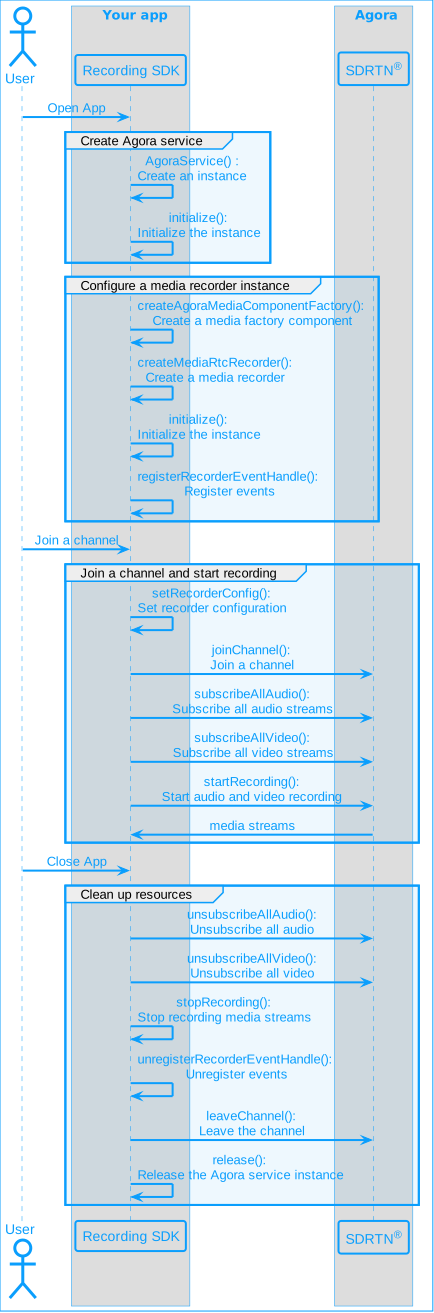
This section shows how to implement On-Premise recording in your app, step by step.
The following figure illustrates the essential steps:
Quickstart sequence diagram
### Initialize the service [#initialize-the-service-1]
Create an `AgoraService` instance and initialize it with your App ID and feature flags.
```java
// Create and configure the service
AgoraService agoraService = new AgoraService();
AgoraServiceConfiguration config = new AgoraServiceConfiguration();
config.setEnableAudioDevice(false);
config.setEnableAudioProcessor(true);
config.setEnableVideo(true);
config.setAppId(recorderConfig.getAppId());
config.setUseStringUid(recorderConfig.isUseStringUid());
// Set up log configuration
LogConfig logConfig = new LogConfig();
logConfig.setFileSizeInKB(1024 * 20);
logConfig.setFilePath("logs/agora_logs/agorasdk.log");
config.setLogConfig(logConfig);
// Initialize the Agora service
int ret = agoraService.initialize(config);
```
### Create a recorder instance [#create-a-recorder-instance]
Call `createMediaRtcRecorder` to create a recorder instance,and then use `AgoraMediaRtcRecorder.initialize` to initialize it.
```java
// Create recorder
AgoraMediaRtcRecorder agoraMediaRtcRecorder = agoraService.createMediaRtcRecorder();
// Initialize recorder
// enableMix sets the recording mode
// - false: Record each user’s audio and video stream separately (individual stream recording)
// - true: Record all users’ audio and video as a mixed stream (mixed recording)
boolean enableMix = false;
// service is the AgoraService object initialized in the previous step
agoraMediaRtcRecorder.initialize(agoraService, enableMix);
```
### Register event handlers [#register-event-handlers]
Register an event handler to receive recording callbacks.
```java
// Define the event handler
private IAgoraMediaRtcRecorderEventHandler eventHandler = new IAgoraMediaRtcRecorderEventHandler() {
@Override
public void onConnected(String channelId, String userId) {
// Handle connection event
}
@Override
public void onDisconnected(String channelId, String userId, Constants.ConnectionChangedReasonType reason) {
// Handle disconnection event
}
// Add more overrides as needed
};
// Register the event handler
agoraMediaRtcRecorder.registerRecorderEventHandler(eventHandler);
```
### Subscribe to audio and video streams [#subscribe-to-audio-and-video-streams-1]
Subscribe to all audio streams and high-quality video streams in the channel.
```java
// Subscribe to audio
agoraMediaRtcRecorder.subscribeAllAudio();
// Subscribe to video
VideoSubscriptionOptions options = new VideoSubscriptionOptions();
options.setEncodedFrameOnly(false);
options.setType(Constants.VideoStreamType.VIDEO_STREAM_HIGH);
agoraMediaRtcRecorder.subscribeAllVideo(options);
```
### Configure the recorder [#configure-the-recorder]
Set the resolution, frame rate, duration, and file path for the recording.
```java
// Configure the recorder
MediaRecorderConfiguration recorderConfig = new MediaRecorderConfiguration();
recorderConfig.setWidth(width != 0 ? width : recorderConfig.getVideo().getWidth());
recorderConfig.setHeight(height != 0 ? height : recorderConfig.getVideo().getHeight());
recorderConfig.setFps(recorderConfig.getVideo().getFps());
recorderConfig.setMaxDurationMs(recorderConfig.getMaxDuration() * 1000);
recorderConfig.setStoragePath(recorderConfig.getRecorderPath());
recorderConfig.setSampleRate(recorderConfig.getAudio().getSampleRate());
recorderConfig.setChannelNum(recorderConfig.getAudio().getNumOfChannels());
recorderConfig.setStreamType(Constants.MediaRecorderStreamType.STREAM_TYPE_BOTH);
recorderConfig.setVideoSourceType(Constants.VideoSourceType.VIDEO_SOURCE_CAMERA_SECONDARY);
agoraMediaRtcRecorder.setRecorderConfig(recorderConfig);
```
Ensure that the `storagePath` exists before you start recording. If the directory does not exist, the recording fails.
### Join the channel and start recording [#join-the-channel-and-start-recording-1]
Use the following code to join a channel and begin recording:
```java
agoraMediaRtcRecorder.joinChannel(
recorderConfig.getToken(),
recorderConfig.getChannelName(),
recorderConfig.getUserId()
);
agoraMediaRtcRecorder.startRecording();
```
### Stop and release resources [#stop-and-release-resources]
Unsubscribe from streams, stop the recording, and release resources.
```java
agoraMediaRtcRecorder.unsubscribeAllAudio();
agoraMediaRtcRecorder.unsubscribeAllVideo();
agoraMediaRtcRecorder.stopRecording();
agoraMediaRtcRecorder.unregisterRecorderEventHandler(eventHandler);
agoraMediaRtcRecorder.leaveChannel();
agoraMediaRtcRecorder.release();
agoraService.release();
```
The recorded MP4 file is saved to the storage path you specified in the recording configuration.
### Complete sample code [#complete-sample-code-1]
Complete sample code for On-Premise Recording
```java
// Initialize Service resources and set log
AgoraService agoraService = new AgoraService();
AgoraServiceConfiguration config = new AgoraServiceConfiguration();
config.setEnableAudioDevice(false);
config.setEnableAudioProcessor(true);
config.setEnableVideo(true);
config.setAppId(recorderConfig.getAppId());
config.setUseStringUid(recorderConfig.isUseStringUid());
LogConfig logConfig = new LogConfig();
logConfig.setFileSizeInKB(1024 * 20);
logConfig.setFilePath("logs/agora_logs/agorasdk.log");
config.setLogConfig(logConfig);
int ret = agoraService.initialize(config);
// Create recorder
AgoraMediaRtcRecorder agoraMediaRtcRecorder = agoraService.createMediaRtcRecorder();
// Initialize recorder
boolean enableMix = false;
agoraMediaRtcRecorder.initialize(agoraService, enableMix);
// Register callbacks
IAgoraMediaRtcRecorderEventHandler eventHandler = new IAgoraMediaRtcRecorderEventHandler() {
@Override
public void onConnected(String channelId, String userId) {
}
@Override
public void onDisconnected(String channelId, String userId, Constants.ConnectionChangedReasonType reason) {
}
// Other event callbacks
};
agoraMediaRtcRecorder.registerRecorderEventHandler(eventHandler);
// Subscribe to streams
agoraMediaRtcRecorder.subscribeAllAudio();
VideoSubscriptionOptions options = new VideoSubscriptionOptions();
options.setEncodedFrameOnly(false);
options.setType(Constants.VideoStreamType.VIDEO_STREAM_HIGH);
agoraMediaRtcRecorder.subscribeAllVideo(options);
// Set recording-related configurations
MediaRecorderConfiguration mediaRecorderConfiguration = new MediaRecorderConfiguration();
mediaRecorderConfiguration.setWidth(width != 0 ? width : recorderConfig.getVideo().getWidth());
mediaRecorderConfiguration.setHeight(height != 0 ? height : recorderConfig.getVideo().getHeight());
mediaRecorderConfiguration.setFps(recorderConfig.getVideo().getFps());
mediaRecorderConfiguration.setStoragePath(recorderConfig.getRecorderPath());
mediaRecorderConfiguration.setSampleRate(recorderConfig.getAudio().getSampleRate());
mediaRecorderConfiguration.setChannelNum(recorderConfig.getAudio().getNumOfChannels());
mediaRecorderConfiguration.setStreamType(Constants.MediaRecorderStreamType.STREAM_TYPE_BOTH);
mediaRecorderConfiguration.setMaxDurationMs(recorderConfig.getMaxDuration() * 1000);
agoraMediaRtcRecorder.setRecorderConfig(mediaRecorderConfiguration);
// Join channel and start recording
agoraMediaRtcRecorder.joinChannel(recorderConfig.getToken(),
recorderConfig.getChannelName(),
recorderConfig.getUserId());
agoraMediaRtcRecorder.startRecording();
// Stop recording, clean up resources, and leave channel
agoraMediaRtcRecorder.unsubscribeAllAudio();
agoraMediaRtcRecorder.unsubscribeAllVideo();
agoraMediaRtcRecorder.stopRecording();
agoraMediaRtcRecorder.unregisterRecorderEventHandler(eventHandler);
agoraMediaRtcRecorder.leaveChannel();
agoraMediaRtcRecorder.release();
agoraService.release();
```
## Test the project [#test-the-project-1]
Agora provides an open source sample project on GitHub for your reference. Download or view the [Agora Recording Java SDK](https://github.com/AgoraIO-Extensions/Agora-Recording-Java-SDK) project for a more detailed example.
Follow these steps to compile, configure, and run the Agora recording sample using the Spring Boot project.
1. **Compile the project**
Open a terminal and navigate to the `Examples-Mvn` directory. Run the following command to build the project:
```bash
mvn clean package
```
After the build completes successfully, the output JAR file appears in the `target/generated` directory as `agora-example.jar`.
2. **Configure your App ID and token**
In the `Examples-Mvn` directory, create a `.keys` file and add your Agora credentials:
```text
appId=YOUR_APP_ID
token=YOUR_TOKEN
```
Replace `YOUR_APP_ID` and `YOUR_TOKEN` with your actual values.
3. **Prepare native libraries**
Ensure that the `libs/native/linux/x86_64/` directory contains the following `.so` files:
* `libagora_rtc_sdk.so`
* `librecording.so`
* `libagora-fdkaac.so`
* `libaosl.so`
These libraries must be available at runtime. If any are missing, the application will fail to load the native dependencies.
4. **Run the sample application**
From the `Examples-Mvn` directory, run the following command:
```bash
LD_LIBRARY_PATH="$LD_LIBRARY_PATH:libs/native/linux/x86_64" \
java -Dserver.port=18080 -jar target/agora-example.jar
```
The Spring Boot server starts and listens on port `18080`. To use a different port, update the `-Dserver.port` parameter.
5. **Start and stop a recording session**
* **Start recording**
Send an HTTP request to the following endpoint:
```text
http://:18080/api/recording/start?configFileName=mix_stream_recorder_audio_video_water_marks.json
```
* **Stop recording**
Replace `` with the value returned from the start response:
```text
http://:18080/api/recording/stop?taskId=
```
Place all configuration files (such as `mix_stream_recorder_audio_video_water_marks.json`) in the `Examples-Mvn/src/main/resources/` directory.
## Reference [#reference-1]
This section contains content that completes the information on this page, or points you to documentation that explains other aspects to this product.
### API reference [#api-reference-1]
* [`AgoraService`](/en/api-reference/api-ref/on-premise-recording#agoraservice)
* [`AgoraServiceConfiguration`](/en/api-reference/api-ref/on-premise-recording#agoraserviceconfiguration)
* [`LogConfig`](/en/api-reference/api-ref/on-premise-recording#logconfig)
* [`initialize`](/en/api-reference/api-ref/on-premise-recording#initialize)
* [`AgoraMediaRtcRecorder`](/en/api-reference/api-ref/on-premise-recording#agoramediartcrecorder)
* [`registerRecorderEventHandler`](/en/api-reference/api-ref/on-premise-recording#registerrecordereventhandler)
* [`subscribeAllAudio`](/en/api-reference/api-ref/on-premise-recording#subscribeallaudio)
* [`subscribeAllVideo`](/en/api-reference/api-ref/on-premise-recording#subscribeallvideo)
* [`setRecorderConfig`](/en/api-reference/api-ref/on-premise-recording#setrecorderconfig)
* [`joinChannel`](/en/api-reference/api-ref/on-premise-recording#joinchannel)
* [`startRecording`](/en/api-reference/api-ref/on-premise-recording#startrecording)
* [`unsubscribeAllAudio`](/en/api-reference/api-ref/on-premise-recording#unsubscribeallaudio)
* [`unsubscribeAllVideo`](/en/api-reference/api-ref/on-premise-recording#unsubscribeallvideo)
* [`stopRecording`](/en/api-reference/api-ref/on-premise-recording#stoprecording)
* [`unregisterRecorderEventHandler`](/en/api-reference/api-ref/on-premise-recording#unregisterrecordereventhandler)
* [`leaveChannel`](/en/api-reference/api-ref/on-premise-recording#leavechannel)
* [`release`](/en/api-reference/api-ref/on-premise-recording#release)