# Set video layout (/en/realtime-media/on-premise-recording/build/customize-the-recording/layout)
> For AI agents: see the complete documentation index at [llms.txt](/llms.txt).
<_PlatformTabsGroup groupMode="structured" canonicalPlatform="linux-cpp" platforms="["linux-cpp","linux-java"]" showTabs="true">
<_PlatformPanel platform="linux-cpp">
<_PlatformProcessedMarker groupMode="structured" canonicalPlatform="linux-cpp" platform="linux-cpp" />
This guide shows you how to configure the video layout during composite recording using the On-Premise Recording SDK.
## Understand the tech [#understand-the-tech]
In composite recording mode, the SDK renders the final video on a canvas that includes multiple user video streams. Each stream is placed in a defined region of the canvas. The canvas acts as the background, and you specify the dimensions and position of each user’s video.
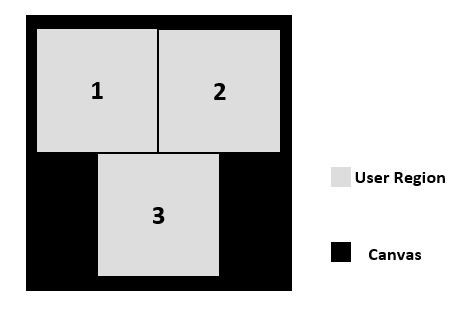
The aspect ratio of a user's video must match that of the assigned region. If the aspect ratios differ, the SDK crops the video, which can result in image loss.
## Prerequisites [#prerequisites]
Before using layouts, complete the steps in the [Quickstart](/en/realtime-media/on-premise-recording/quickstart) guide to integrate the SDK and set up basic recording.
## Implementation [#implementation]
To configure the layout, call the `setVideoMixingLayout` method and pass a `VideoMixingLayout` object that defines:
* Canvas dimensions and frame rate
* Background color or image
* Layouts for each user's video
```cpp
struct VideoMixingLayout recorderLayout;
recorderLayout.canvasWidth = 1280;
recorderLayout.canvasHeight = 720;
recorderLayout.canvasFps = 25;
UserMixerLayout layout[2];
layout[0].userId = "1234";
layout[0].config.x = 0;
layout[0].config.y = 0;
layout[0].config.width = 640;
layout[0].config.height = 360;
layout[1].userId = "5678";
layout[1].config.x = 720;
layout[1].config.y = 270;
layout[1].config.width = 540;
layout[1].config.height = 320;
recorderLayout.userLayoutConfigNum = 2;
recorderLayout.userLayoutConfigs = layout;
recorder->setVideoMixingLayout(recorderLayout);
```
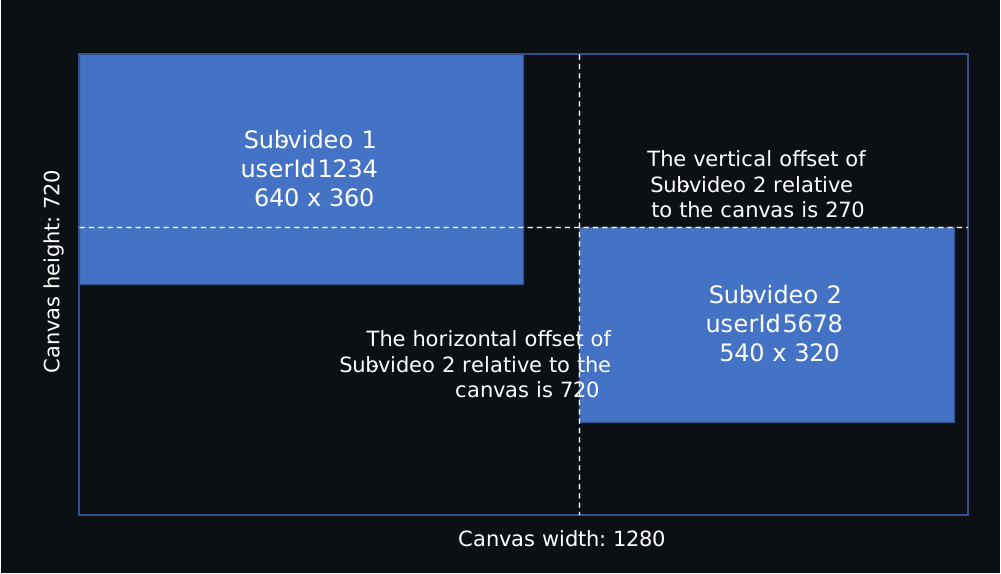
The sample code creates the following composite layout:
## API reference [#api-reference]
* [`setVideoMixingLayout`](/en/api-reference/api-ref/on-premise-recording#setvideomixinglayout)
* [`VideoMixingLayout`](/en/api-reference/api-ref/on-premise-recording#videomixinglayout)
<_PlatformProcessedMarker close="true" />
<_PlatformPanel platform="linux-java">
<_PlatformProcessedMarker groupMode="structured" canonicalPlatform="linux-cpp" platform="linux-java" />
This guide shows you how to configure the video layout during composite recording using the On-Premise Recording SDK.
## Understand the tech [#understand-the-tech-1]
In composite recording mode, the SDK renders the final video on a canvas that includes multiple user video streams. Each stream is placed in a defined region of the canvas. The canvas acts as the background, and you specify the dimensions and position of each user’s video.

The aspect ratio of a user's video must match that of the assigned region. If the aspect ratios differ, the SDK crops the video, which can result in image loss.
## Prerequisites [#prerequisites-1]
Before using layouts, complete the steps in the [Quickstart](/en/realtime-media/on-premise-recording/quickstart) guide to integrate the SDK and set up basic recording.
## Implementation [#implementation-1]
To configure the layout, call the `setVideoMixingLayout` method and pass a `VideoMixingLayout` object that defines:
* Canvas dimensions and frame rate
* Background color or image
* Layouts for each user's video
```java
VideoMixingLayout recorderLayout = new VideoMixingLayout();
recorderLayout.setCanvasWidth(1280);
recorderLayout.setCanvasHeight(720);
recorderLayout.setCanvasFps(25);
// Set layout for two users
UserMixerLayout[] layout = new UserMixerLayout[2];
// User 1 layout
layout[0] = new UserMixerLayout();
layout[0].setUserId("1234");
MixerLayoutConfig mixerLayoutConfig1 = new MixerLayoutConfig();
mixerLayoutConfig1.setX(0);
mixerLayoutConfig1.setY(0);
mixerLayoutConfig1.setWidth(640);
mixerLayoutConfig1.setHeight(360);
layout[0].setConfig(mixerLayoutConfig1);
// User 2 layout
layout[1] = new UserMixerLayout();
layout[1].setUserId("5678");
MixerLayoutConfig mixerLayoutConfig2 = new MixerLayoutConfig();
mixerLayoutConfig2.setX(720);
mixerLayoutConfig2.setY(270);
mixerLayoutConfig2.setWidth(540);
mixerLayoutConfig2.setHeight(320);
layout[1].setConfig(mixerLayoutConfig2);
// Apply the layout
recorderLayout.setUserLayoutConfigs(layout);
agoraMediaRtcRecorder.setVideoMixingLayout(recorderLayout);
```
The sample code creates the following composite layout:

## API reference [#api-reference-1]
* [`setVideoMixingLayout`](/en/api-reference/api-ref/on-premise-recording#setvideomixinglayout)
* [`VideoMixingLayout`](/en/api-reference/api-ref/on-premise-recording#videomixinglayout)
<_PlatformProcessedMarker close="true" />