# Cloud proxy (/en/realtime-media/on-premise-recording/build/connect-through-a-firewall/cloud-proxy)
> For AI agents: see the complete documentation index at [llms.txt](/llms.txt).
<_PlatformTabsGroup groupMode="structured" canonicalPlatform="linux-cpp" platforms="["linux-cpp","linux-java"]" showTabs="true">
<_PlatformPanel platform="linux-cpp">
<_PlatformProcessedMarker groupMode="structured" canonicalPlatform="linux-cpp" platform="linux-cpp" />
Large organizations commonly deploy firewalls to meet their stringent security requirements. To ensure uninterrupted access to Agora services for users behind firewalls, Agora offers a firewall allowlist and Cloud Proxy services.
To enable SDK use in network-restricted environments, administrators can add specific IP addresses and ports to the firewall allowlist. Developers then configure the Cloud Proxy service by calling the appropriate APIs.
## Understand the tech [#understand-the-tech]
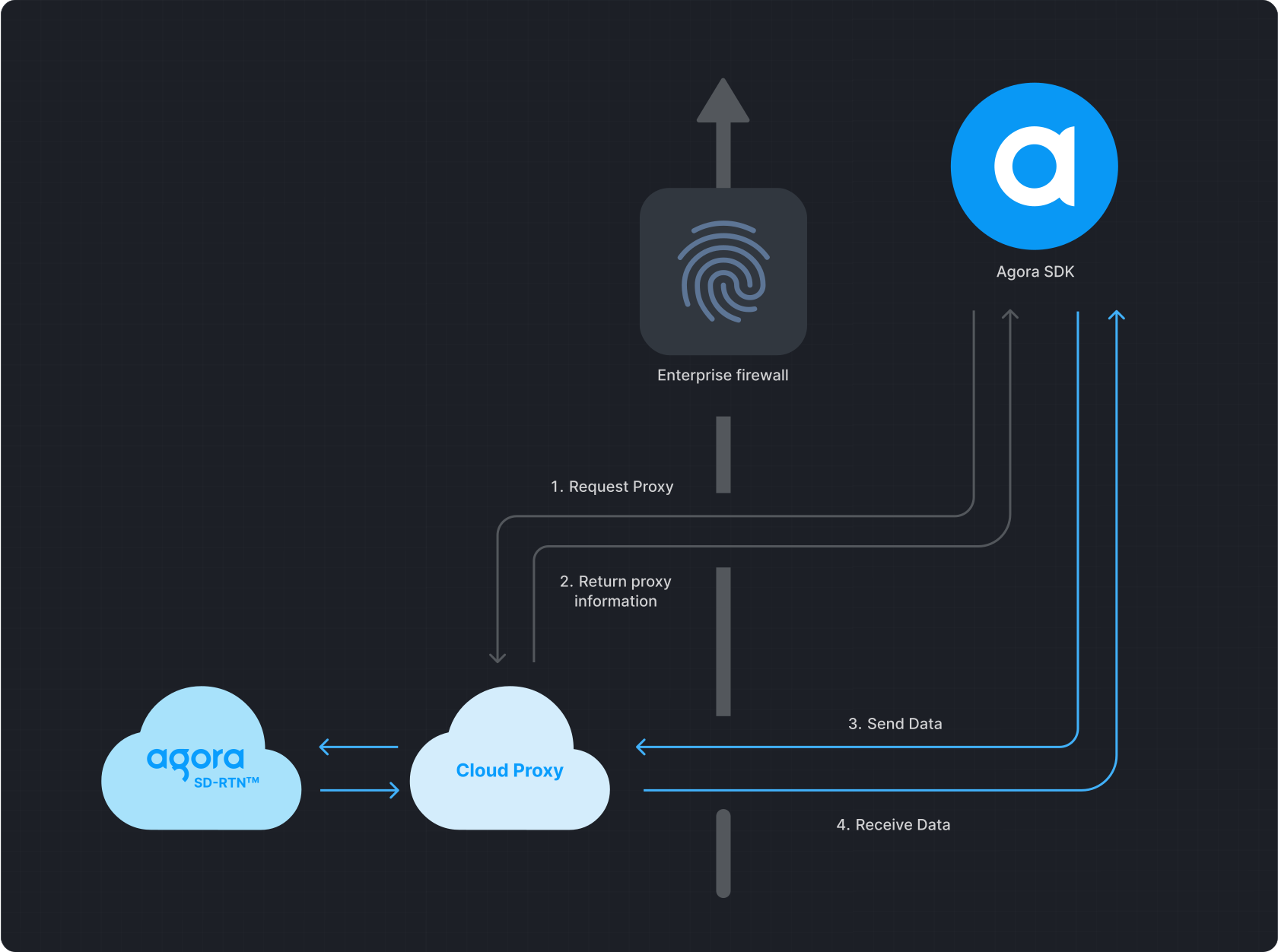
Cloud Proxy works as follows:
1. On-Premise Recording SDK initiates a request to Cloud Proxy.
2. Cloud Proxy returns the corresponding proxy information.
3. The Agora SDK sends data to Cloud Proxy, which forwards it to the Agora SDRTN®.
4. The Agora SDRTN® sends the response back to Cloud Proxy, which then returns it to the SDK.
Cloud proxy workflow
## Prerequisites [#prerequisites]
Before you begin, complete the [Quickstart](/en/realtime-media/on-premise-recording/quickstart) to integrate the On-Premise Recording SDK and set up basic recording functionality.
## Implement Cloud Proxy [#implement-cloud-proxy]
To implement Cloud Proxy in your app, follow these steps:
1. **Request access to Cloud Proxy**
Contact [Agora support](mailto\:support@agora.io) and provide the following information:
* App ID
* Region where you want to use Cloud Proxy
* Expected concurrency scale
* Network operator and other relevant details
2. **Allow traffic through the firewall**
After your request is approved, Agora provides a list of IP addresses and ports. Add these to your firewall allowlist to enable communication through Cloud Proxy.
3. **Enable the cloud proxy in your code**
Set the private parameter `rtc.enable_proxy` to `true`.
```cpp
auto agoraParameter = service->getAgoraParameter();
agoraParameter->setBool("rtc.enable_proxy", true);
```
4. **Test your setup**
Record audio and video to confirm the proxy configuration is working as expected.
5. **Disable cloud proxy**
To stop using Cloud Proxy, set `rtc.enable_proxy` to `false`.
## Reference [#reference]
This section contains content that completes the information on this page, or points you to documentation that explains other aspects to this product.
### API references [#api-references]
* [`getAgoraParameter`](/en/api-reference/api-ref/on-premise-recording#getagoraparameter)
<_PlatformProcessedMarker close="true" />
<_PlatformPanel platform="linux-java">
<_PlatformProcessedMarker groupMode="structured" canonicalPlatform="linux-cpp" platform="linux-java" />
Large organizations commonly deploy firewalls to meet their stringent security requirements. To ensure uninterrupted access to Agora services for users behind firewalls, Agora offers a firewall allowlist and Cloud Proxy services.
To enable SDK use in network-restricted environments, administrators can add specific IP addresses and ports to the firewall allowlist. Developers then configure the Cloud Proxy service by calling the appropriate APIs.
## Understand the tech [#understand-the-tech-1]
Cloud Proxy works as follows:
1. On-Premise Recording SDK initiates a request to Cloud Proxy.
2. Cloud Proxy returns the corresponding proxy information.
3. The Agora SDK sends data to Cloud Proxy, which forwards it to the Agora SDRTN®.
4. The Agora SDRTN® sends the response back to Cloud Proxy, which then returns it to the SDK.
Cloud proxy workflow

## Prerequisites [#prerequisites-1]
Before you begin, complete the [Quickstart](/en/realtime-media/on-premise-recording/quickstart) to integrate the On-Premise Recording SDK and set up basic recording functionality.
## Implement Cloud Proxy [#implement-cloud-proxy-1]
To implement Cloud Proxy in your app, follow these steps:
1. **Request access to Cloud Proxy**
Contact [Agora support](mailto\:support@agora.io) and provide the following information:
* App ID
* Region where you want to use Cloud Proxy
* Expected concurrency scale
* Network operator and other relevant details
2. **Allow traffic through the firewall**
After your request is approved, Agora provides a list of IP addresses and ports. Add these to your firewall allowlist to enable communication through Cloud Proxy.
3. **Enable the cloud proxy in your code**
Set the private parameter `rtc.enable_proxy` to `true`.
```java
AgoraParameter parameter = agoraService.getAgoraParameter();
parameter.setBool("rtc.enable_proxy", true);
```
4. **Test your setup**
Record audio and video to confirm the proxy configuration is working as expected.
5. **Disable cloud proxy**
To stop using Cloud Proxy, set `rtc.enable_proxy` to `false`.
## Reference [#reference-1]
This section contains content that completes the information on this page, or points you to documentation that explains other aspects to this product.
### API references [#api-references-1]
* [`getAgoraParameter`](/en/api-reference/api-ref/on-premise-recording#getagoraparameter)
<_PlatformProcessedMarker close="true" />