# Receive event notifications (/en/realtime-media/media-push/build/receive-notifications)
> For AI agents: see the complete documentation index at [llms.txt](/llms.txt).
A webhook is a user-defined callback over HTTPS that allows your app or back-end system to receive notifications when certain events occur. Agora calls your webhook endpoint from its servers to send notifications about Media Push events. With Notifications, you can subscribe to Media Push events and receive notifications in real time.
## Understand the tech [#understand-the-tech]
Using Agora Console you subscribe to specific events for your project and configure the URL of the webhooks to receive these events. Agora sends notifications of your events to your webhook every time they occur. Your server authenticates the notification and returns `200 Ok` to confirm reception. You use the information in the JSON payload of each notification to give the best user experience to your users.
The following figure illustrates the workflow when Notifications is enabled for the specific Media Push events you subscribe to:
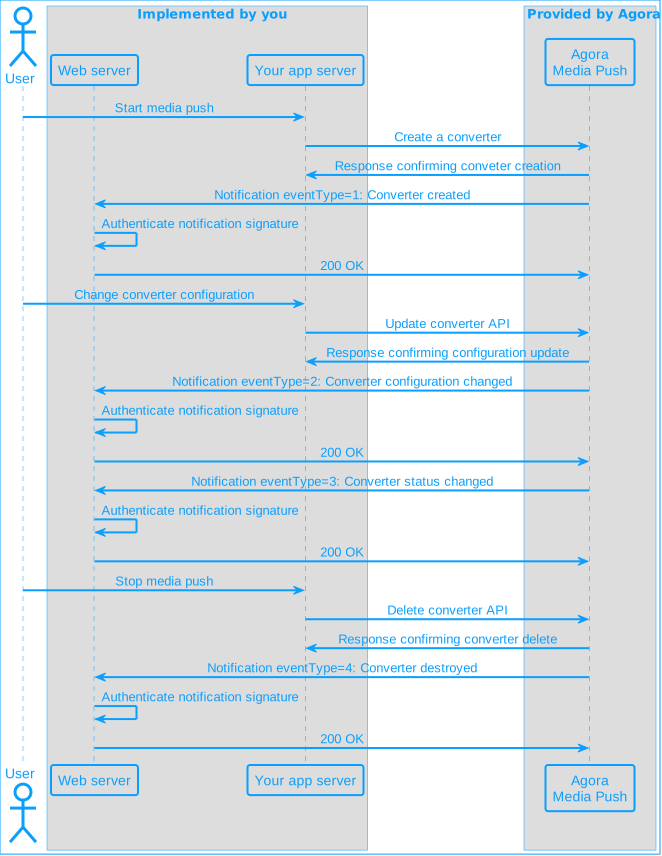
1. A user commits an action that creates an event.
2. Notifications sends an HTTPS POST request to your webhook.
3. Your server validates the request signature, then sends a response to Notifications within 10 seconds. The response body must be in JSON.
If Notifications receives `200 OK` within 10 seconds of sending the initial notification, the callback is considered successful. If these conditions are not met, Notifications immediately resends the notification. The interval between notification attempts gradually increases. Notifications stops sending notifications after three retries.
## Prerequisites [#prerequisites]
To set up and use Notifications, you must have:
* A [valid Agora account](./manage-agora-account#create-an-agora-account).
* An [active Agora project](./manage-agora-account#create-an-agora-project).
* A computer with Internet access.
If your network access is restricted by a firewall, call the [IP address query API](#ip-address-query-api) to retrieve the Notifications IP addresses , then configure the firewall to allow these IP addresses.
## Handle notifications for specific events [#handle-notifications-for-specific-events]
In order to handle notifications for the events you subscribe to, you need to:
* [Create your webhook](#create-your-webhook)
* [Enable Notifications](#enable-notifications)
* [Verify Notifications signatures](#add-signature-verification)
### Create your webhook [#create-your-webhook]
Once Notifications is enabled, Agora SDRTN® sends notification callbacks as `HTTPS POST` requests to your webhook when events that you are subscribed to occur. The data format of the requests is JSON, the character encoding is `UTF-8`, and the signature algorithm is `HMAC/SHA1` or `HMAC/SHA256`.
For Notifications, a webhook is an endpoint on an `HTTPS` server that handles these requests. In a production environment you write this in your web infrastructure, for development purposes best practice is to create a simple local server and use a service such as [ngrok](https://ngrok.com/download) to supply a public URL that you register with Agora SDRTN® when you enable Notifications.
To do this, take the following steps:
1. **Set up Go**
Ensure you have Go installed on your system. If not, download and install it from the [official Go website](https://go.dev/dl/).
2. **Create a Go project for your server**
Create a new directory for your project and navigate into it:
```sh
mkdir agora-webhook-server
cd agora-webhook-server
```
In the project directory, create a new file `main.go`. Open the file in your preferred text editor and add the following code:
```go
package main
import (
"encoding/json"
"fmt"
"io"
"log"
"net/http"
)
type WebhookRequest struct {
NoticeID string `json:"noticeId"`
ProductID int64 `json:"productId"`
EventType int `json:"eventType"`
Payload Payload `json:"payload"`
}
type Payload struct {
ClientSeq int64 `json:"clientSeq"`
UID int `json:"uid"`
ChannelName string `json:"channelName"`
}
func rootHandler(w http.ResponseWriter, r *http.Request) {
response := `Agora Notifications demo
`
w.WriteHeader(http.StatusOK)
w.Write([]byte(response))
}
func ncsHandler(w http.ResponseWriter, r *http.Request) {
agoraSignature := r.Header.Get("Agora-Signature")
fmt.Println("Agora-Signature:", agoraSignature)
body, err := io.ReadAll(r.Body)
if err != nil {
http.Error(w, "Unable to read request body", http.StatusBadRequest)
return
}
var req WebhookRequest
if err := json.Unmarshal(body, &req); err != nil {
http.Error(w, "Invalid JSON", http.StatusBadRequest)
return
}
fmt.Printf("Event code: %d Uid: %d Channel: %s ClientSeq: %d\n",
req.EventType, req.Payload.UID, req.Payload.ChannelName, req.Payload.ClientSeq)
w.WriteHeader(http.StatusOK)
w.Write([]byte("Ok"))
}
func main() {
http.HandleFunc("/", rootHandler)
http.HandleFunc("/ncsNotify", ncsHandler)
port := ":8080"
fmt.Printf("Notifications webhook server started on port %s\n", port)
if err := http.ListenAndServe(port, nil); err != nil {
log.Fatalf("Failed to start server: %v", err)
}
}
```
3. **Run your Go server**
Run the server using the following command:
```sh
go run main.go
```
4. **Create a public URL for your server**
In this example you use `ngrok` to create a public URL for your server.
1. Download and install [ngrok](https://ngrok.com/download). If you have `Chocolatey`, use the following command:
```bash
choco install ngrok
```
2. Add an `authtoken` to ngrok:
```bash
ngrok config add-authtoken
```
To obtain an `authToken`, [sign up](https://dashboard.ngrok.com/signup) with ngrok.
3. Start a tunnel to your local server using the following command:
```bash
ngrok http 127.0.0.1:8080
```
You see a **Forwarding** URL and a **Web Interface** URL in the console. Open the web interface URL in your browser.
5. **Test the server**
Open a web browser and navigate to the public URL provided by `ngrok` to see the root handler response.
Use curl, [Postman](https://www.postman.com/), or another tool to send a `POST` request to `https:///ncsNotify` with the required `JSON` payload.
Example using `curl`:
```sh
curl -X POST /ncsNotify \
-H "Content-Type: application/json" \
-H "Agora-Signature: your_signature" \
-d '{
"noticeId": "some_notice_id",
"productId": 12345,
"eventType": 1,
"payload": {
"clientSeq": 67890,
"uid": 123,
"channelName": "test_channel"
}
}'
```
Make sure you replace `ngrok_url` with the forwarding url.
Once the HTTP request is successful, you see the following `JSON` payload in your browser:
```json
{
"noticeId": "some_notice_id",
"productId": 12345,
"eventType": 1,
"payload": {
"clientSeq": 67890,
"uid": 123,
"channelName": "test_channel"
}
}
```
### Enable Notifications [#enable-notifications]
To enable Notifications:
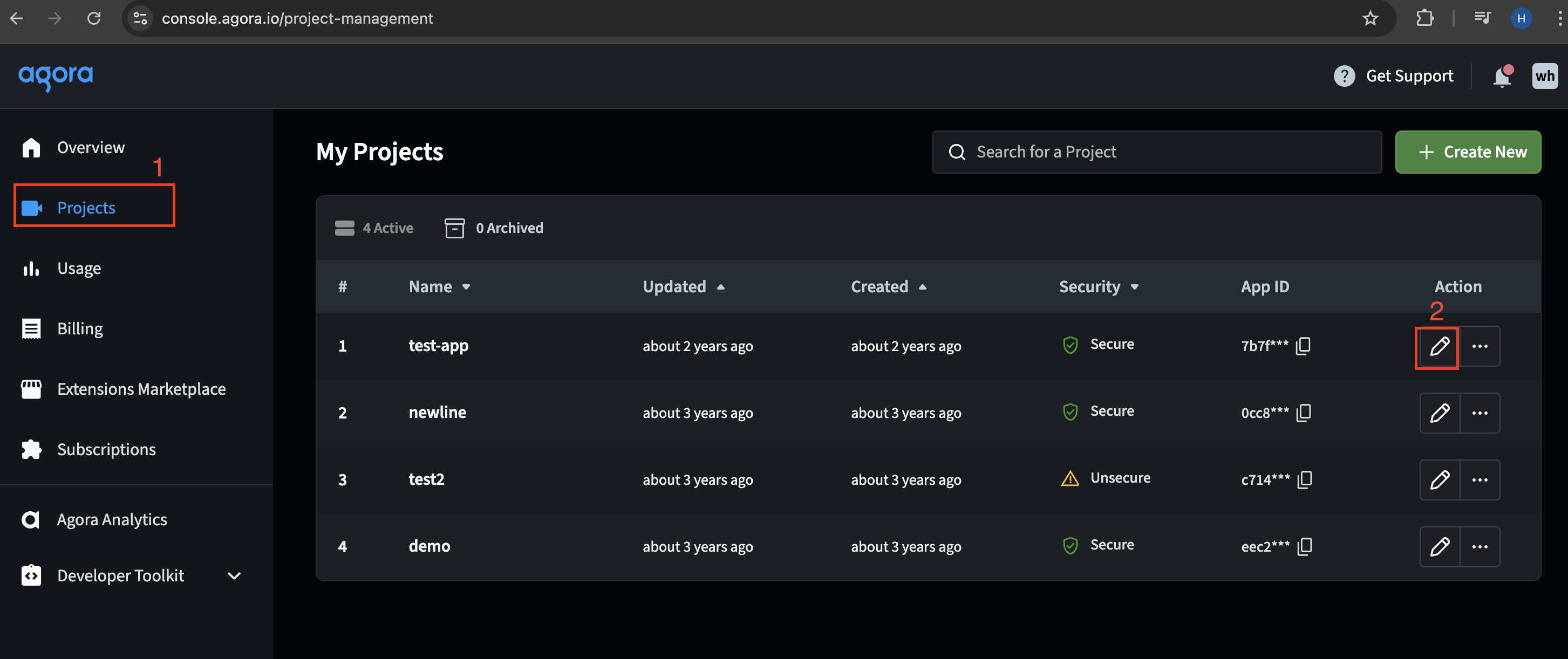
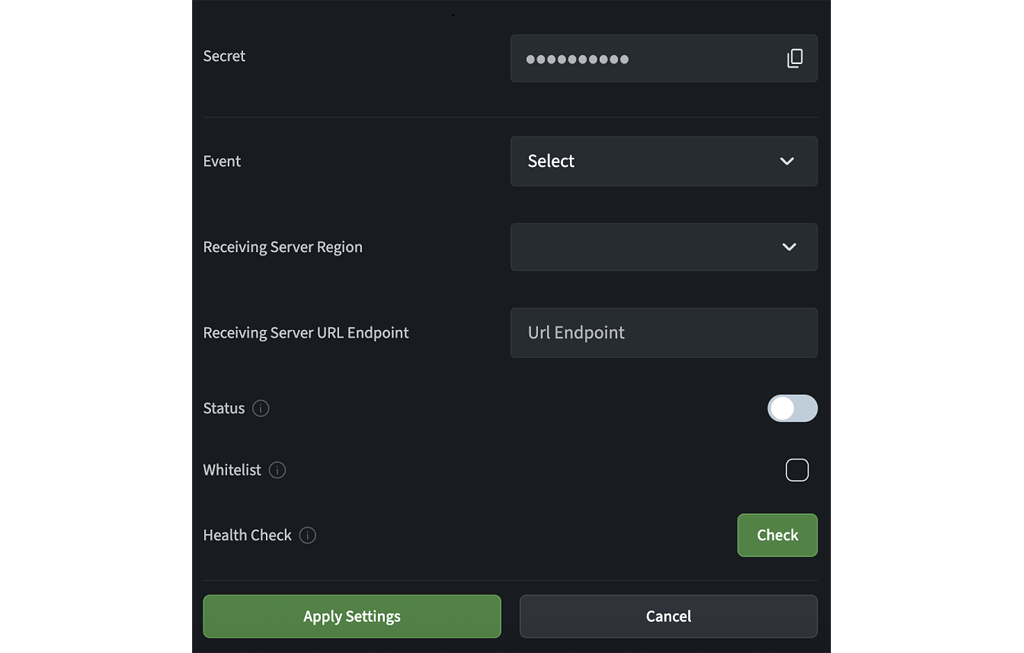
1. Log in to [Agora Console](https://console.agora.io/v2). On the **Projects** tab, locate the project for which you want to enable Notifications and click **Edit**.
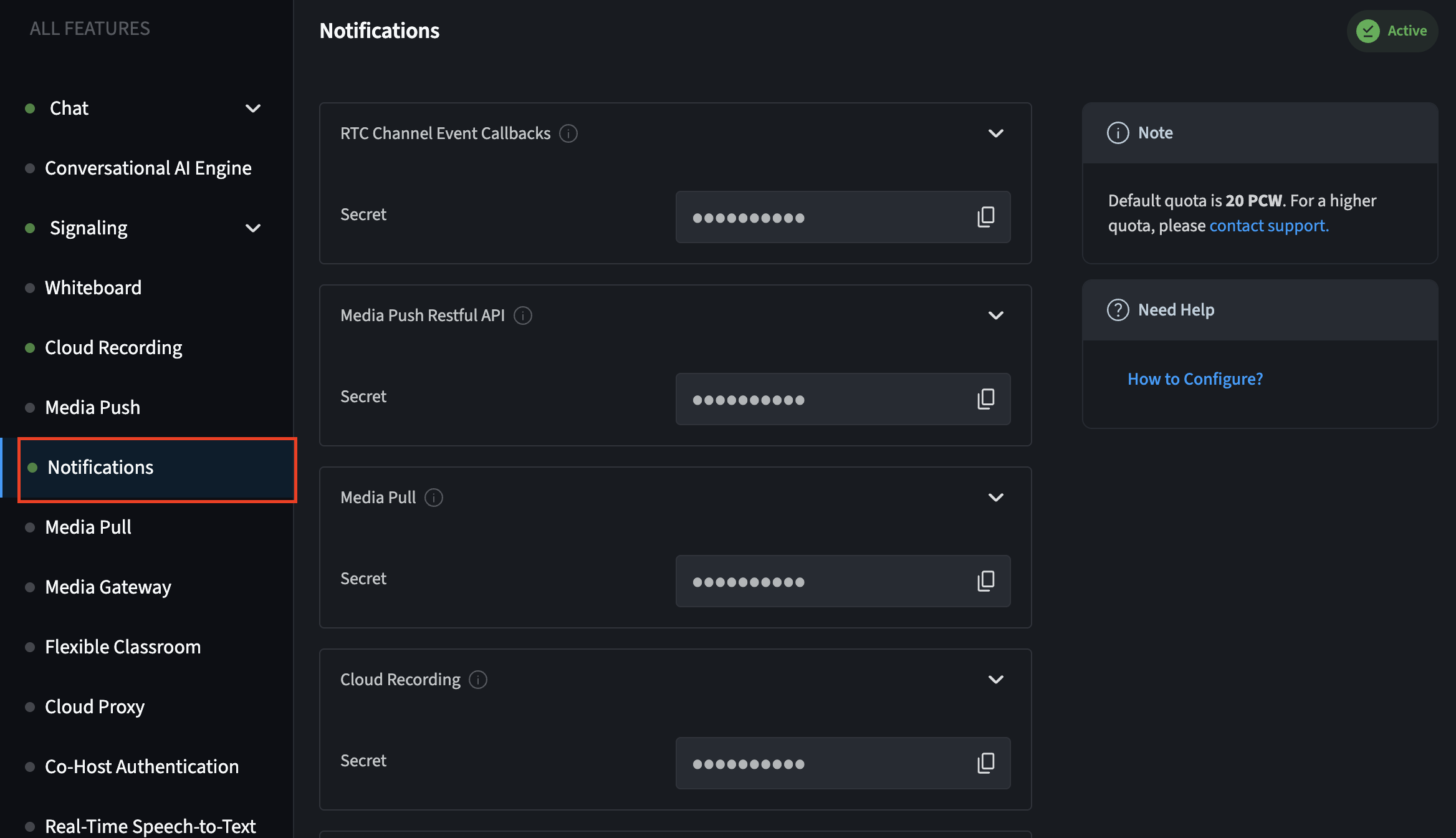
2. In the **All Features** section, open the **Notifications** tab and click on the service for which you want to enable notifications. The section expands to show configuration options.
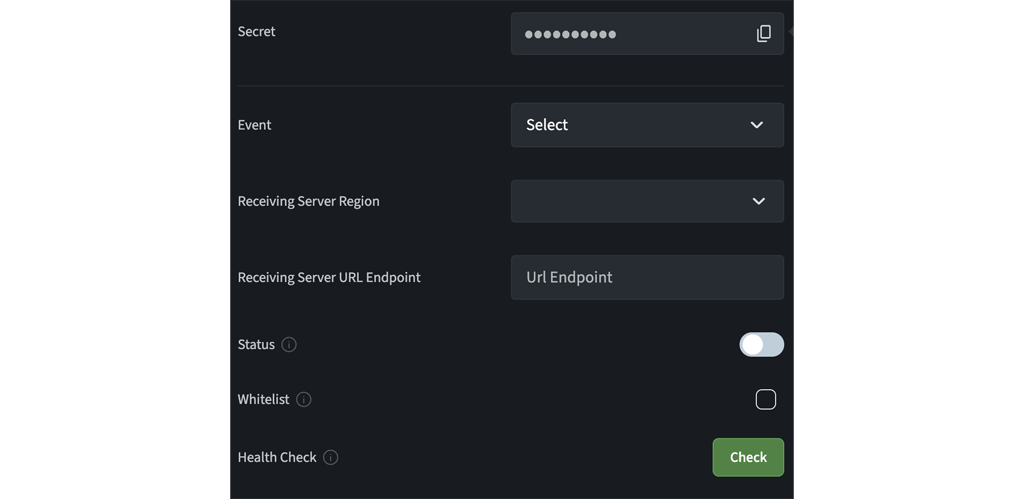
3. Fill in the following information:
* **Event**: Select all the events that you want to subscribe to.
If the selected events generate a high number of queries per second (QPS), ensure that your server has sufficient processing capacity.
* **Receiving Server Region**: Select the region where your server that receives the notifications is located. Agora connects to the nearest Agora node server based on your selection.
* **Receiving Server URL Endpoint**: The `HTTPS` public address of your server that receives the notifications. For example, `https://1111-123-456-789-99.ap.ngrok.io/ncsNotify`.
For enhanced security, Notifications no longer supports `HTTP` addresses.
```
* To reduce the delay in notification delivery, best practice is to activate `HTTP` persistent connection (also called `HTTP` keep-alive) on your server with the following settings:
* `MaxKeepAliveRequests`: 100 or more
* `KeepAliveTimeout`: 10 seconds or more
* **Whitelist**: If your server is behind a firewall, check the box here, and ensure that you call the [IP address query API](#ip-address-query-api) to get the IP addresses of the Agora Notifications server and add them to the firewall's allowed IP list.
```
4\. Copy the **Secret** displayed against the product name by clicking the copy icon. You use this secret to [Add signature verification](#add-signature-verification).
5. Press **Check**. Agora performs a health test for your configuration as follows:
1. The Notifications health test generates test events that correspond to your subscribed events, and then sends test event callbacks to your server.
2. After receiving each test event callback, your server must respond within 10 seconds with a status code of `200`. The response body must be in JSON format.
3. When the Notifications health test succeeds, read the prompt and press **Apply Settings**. After your configuration is saved, the **Status** of Notifications shows **Enabled**.
If the Notifications health test fails, follow the prompt on the Agora Console to troubleshoot the error. Common errors include the following:
* Request timeout (590): Your server does not return the status code `200` within 10 seconds. Check whether your server responds to the request properly. If your server responds to the request properly, contact Agora Technical Support to check if the network connection between the Agora Notifications server and your server is working.
* Domain name unreachable (591): The domain name is invalid and cannot be resolved to the target IP address. Check whether your server is properly deployed.
* Certificate error (592): The Agora Notifications server fails to verify the SSL certificates returned by your server. Check if the SSL certificates of your server are valid. If your server is behind a firewall, check whether you have added all IP addresses of the Agora Notifications server to the firewall's allowed IP list.
* Other response errors: Your server returns a response with a status code other than `200`. See the prompt on the Agora Console for the specific status code and error messages.
Video walkthrough
### Add signature verification [#add-signature-verification]
To communicate securely between Notifications and your webhook, Agora SDRTN® uses signatures for identity verification as follows:
1. When you configure Notifications in Agora Console, Agora SDRTN® generates a secret you use for verification.
2. When sending a notification, Notifications generates two signature values from the secret using `HMAC/SHA1` and `HMAC/SHA256` algorithms. These signatures are added as `Agora-Signature` and `Agora-Signature-V2` to the `HTTPS` request header.
3. When your server receives a callback, you can verify `Agora-Signature` or `Agora-Signature-V2`:
* To verify `Agora-Signature`, use the secret, the raw request body, and the `crypto/sha1` algorithm.
* To verify `Agora-Signature-V2`, use the secret, the raw request body, and the `crypto/sha256` algorithm.
The following sample code uses `crypto/sha1`.
To add signature verification to your server, take the following steps:
1. In the `main.go` file, replace your imports with the following:
```go
import (
"crypto/hmac"
"crypto/sha1"
"encoding/hex"
"encoding/json"
"fmt"
"io"
"log"
"net/http"
)
```
2. Add the following code after the list of imports:
```go
// Replace with your NCS secret
const secret = ""
// calcSignatureV1 computes the HMAC/SHA256 signature for a given payload and secret
func calcSignatureV1(secret, payload string) string {
mac := hmac.New(sha1.New, []byte(secret))
mac.Write([]byte(payload))
return hex.EncodeToString(mac.Sum(nil))
}
// verify checks if the provided signature matches the HMAC/SHA256 signature of the request body
func verify(requestBody, signature string) bool {
calculatedSignature := calcSignatureV1(secret, requestBody)
fmt.Println("Calculated Signature:", calculatedSignature)
fmt.Println("Received Signature:", signature)
return calculatedSignature == signature
}
```
3. In `main.go`, add the following code after you read the request body:
```go
// Verify the signature
if !verify(string(body), agoraSignature) {
http.Error(w, "Invalid signature", http.StatusUnauthorized)
return
}
```
4. To test the server, follow the steps given in the [Enable notifications](#enable-notifications) section.
5. When you receive an event from the console, and if the signature matches, the event details are displayed in your browser.
## Reference [#reference]
This section contains in depth information about Notifications.
### Request Header [#request-header]
The header of notification callbacks contains the following fields:
| Field name | Value |
| :------------------- | :--------------------------------------------------------------------------------------------------------------------------------------------------------------------------------------------------------------------------------------------------- |
| `Content-Type` | `application/json` |
| `Agora-Signature` | The signature generated by Agora using the **Secret** and the HMAC/SHA1 algorithm. You need to use the Secret and HMAC/SHA1 algorithm to verify the signature value. For details, see [Signature verification](#add-signature-verification). |
| `Agora-Signature-V2` | The signature generated by Agora using the **Secret** and the HMAC/SHA256 algorithm. You need to use the Secret and the HMAC/SHA256 algorithm to verify the signature value. For details, see [Signature verification](#add-signature-verification). |
### Request Body [#request-body]
The request body of notification callbacks contains the following fields:
| Field name | Type | Description |
| :---------- | :---------- | :------------------------------------------------------------------------------------------------------------------------------------------------------ |
| `noticeId` | String | The notification ID, identifying the notification callback when the event occurs. |
| `productId` | Number | The product ID:- `1`: Realtime Communication (RTC) service
- `3`: Cloud Recording
- `4`: Media Pull
- `5`: Media Push |
| `eventType` | Number | The type of event being notified. For details, see [event types](#event-types). |
| `notifyMs` | Number | The Unix timestamp (ms) when Notifications sends a callback to your server. This value is updated when Notifications resends the notification callback. |
| `payload` | JSON Object | The content of the event being notified. The payload varies with event type. |
#### Example [#example]
```json
{
"noticeId":"2000001428:4330:107",
"productId":1,
"eventType":101,
"notifyMs":1611566412672,
"payload":{
...
}
}
```
### Event types [#event-types]
Notifications can notify your server of the following events when pushing media streams to the CDN:
| eventType | Event name | Description |
| :-------- | :------------------------------------------------------------------ | :--------------------------------------------------------------------------- |
| `1` | [Converter created](#converter-created) | A Converter is created by calling the `Create` method |
| `2` | [Converter configuration changed](#converter-configuration-changed) | The configuration of the Converter changed. |
| `3` | [Converter status changed](#converter-status-changed) | Running state of the Converter changed. |
| `4` | [Converter destroyed](#converter-destroyed) | Converter is destroyed, and the streams being pushed to the CDN are stopped. |
#### Converter created [#converter-created]
Notifications notifies your server of this event when you create a converter by calling the `Create` method.
The `eventType` is`1 (Converter Created)`. The following is an example the `payload`:
```json
{
"converter": {
"id": "4c014467d647bb87b60b719f6fa57686",
"name": "show68_vertical",
"transcodeOptions": {
"rtcChannel": "show68",
"audioOptions": {
"codecProfile": "HE-AAC",
"sampleRate": 48000,
"bitrate": 128,
"audioChannels": 1,
"rtcStreamUids": [
201,
202
]
},
"videoOptions": {
"canvas": {
"width": 360,
"height": 640,
"color": 0
},
"layout": [
{
"rtcStreamUid": 201,
"region": {
"xPos": 0,
"yPos": 0,
"zIndex": 1,
"width": 360,
"height": 320
},
"placeholderImageUrl": "http://example.agora.io/host_placeholder.jpg"
},
{
"rtcStreamUid": 202,
"region": {
"xPos": 0,
"yPos": 320,
"zIndex": 1,
"width": 360,
"height": 320
}
},
{
"imageUrl": "http://example.agora.io/watchmark.jpg",
"region": {
"xPos": 0,
"yPos": 0,
"zIndex": 2,
"width": 36,
"height": 64
}
}
],
"codecProfile": "High",
"frameRate": 15,
"bitrate": 400,
"seiOptions": ""
}
},
"rtmpUrl": "rtmp://example.agora.io/live/show68",
"idleTimeout": 300,
"createTs": 1591786766,
"updateTs": 1591786835,
"state": "connecting"
},
"lts": 1603456600,
"xRequestId": "7bbcc8a4acce48c78b53c5a261a8a564"
}
```
* The `Converter` contains the following fields:
* `id`: String type field. The ID of the Converter. This is a UUID (Universal Unique Identifier) generated by the Agora server to identify a created Converter.
* `name`: String type field. The name of the Converter.
* `transcodeOptions`: JSON Object type field. The Converter's transcoding configuration.
* `rtcChannel`: String type field. The Agora channel name.
* `audioOptions`: JSON Object type field. The audio transcoding configuration of the Converter.
* `codecProfile`: String type field. The audio codec output by the Converter.
* `sampleRate`: Number type field. The audio encoding sampling rate (Hz) output by the Converter.
* `bitrate`: Number type field. The audio encoding rate (Kbps) output by the Converter.
* `audioChannels`: Number type field. The number of audio channels output by the Converter.
* `rtcStreamUids`: JSON Array type field. The user ID or Account of the user participating in the mixing.
* `videoOptions`: JSON Object type field. The video transcoding configuration of the Converter.
* `canvas`: JSON Object type field. The video canvas.
* `width`: Number type field. The width of the canvas (px).
* `height`: Number type field. The height of the canvas (px).
* `color`: Number type field. The background color of the canvas. This is an RGB color value, expressed as a decimal number. For example, 255 represents blue.
* `layout`: JSON Array type field. The content description of the video screen on the canvas. Two elements are supported:
* RtcStreamView **element**. The video screen of each user on the canvas. It contains the following **fields**:
* `rtcStreamUid`: Number type field. The user ID of the user to which the video stream belongs.
* `region`: JSON Object type field. The display area of the user's video screen on the canvas.
* `xPos`: Number type field. The x coordinate (px) of the screen on the canvas. This is the lateral displacement relative to the origin, taking the upper left corner of the canvas as the origin and the x coordinate as the upper left corner of the screen.
* `yPos`: Number type field. The y coordinate (px) of the screen on the canvas. This is the longitudinal displacement relative to the origin, taking the upper left corner of the canvas as the origin and the y coordinate as the upper left corner of the screen.
* `zIndex`: Number type field. The layer number of the screen. The value range is \[0,100]. `0` represents the lowest layer. `100` represents the top layer.
* `width`: Number type field. The width of the screen (px).
* `height`: Number type field. The height of the screen (px).
* `placeholderImageUrl`: String type field. The HTTP(S) URL of the substitute image.
* ImageView **element**. The video picture on the canvas, which can be used as a watermark. It contains the following **fields**:
* `imageUrl`: String type field. The HTTP(S) URL of the image.
* `region`: JSON Object type field. The display area of the picture on the canvas.
* `xPos`: Number type field. The x coordinate (px) of the image on the canvas. This is the lateral displacement relative to the origin, taking the upper left corner of the canvas as the origin and the x coordinate as the upper left corner of the screen.
* `yPos`: Number type field. The y coordinate (px) of the picture on the canvas. This is the longitudinal displacement relative to the origin, taking the upper left corner of the canvas as the origin, and the y coordinate as the upper left corner of the screen.
* `zIndex`: Number type field. The layer number of the image. The value range is \[0,100]. `0` represents the lowest layer. `100` represents the top layer.
* `width`: Number type field. The width of the image (px).
* `height`: Number type field. The height of the image (px).
* `codecProfile`: String type field. The encoding specification of the video.
* `frameRate`: Number type field. The encoding frame rate (fps) of the video.
* `bitrate`: Number type field. The audio encoding rate (Kbps) output by the Converter.
* `seiExtraInfo`: String type field. The user SEI information in the video. This is used to send user-defined SEI information to the CDN.
* `rtmpUrl`: (Required) String type field. The CDN streaming address.
* `idleTimeOut`: Number type field. The maximum time (s) that the Converter is idle. Idle means that all users of the corresponding media streams processed by the Converter have left the channel. After the idle state exceeds the set idleTimeOut, the Converter is destroyed automatically.
* `createTs`: Number type field. The Unix timestamp (s) when the Converter was created.
* `updateTs`: Number type field. The Unix timestamp (s) when the Converter configurationwas last updated.
* `state`: String type field. The status of the Converter. If the state is reported `"connecting"`, the Converter is connecting to the Agora server.
* `lts`: Number type field. The Unix timestamp (ms) when the event occurred on the Agora server.
* `xRequestId`: String type field, which identifies the UUID (Universal Unique Identifier) of this request. This is the same as the `X-Request-ID` field in the request header.
#### Converter configuration changed [#converter-configuration-changed]
Notifications notifies your server of this event when you update the configurations of a Converter by calling the `Update` method.
The `eventType` is `2 (ConverterUpdatedEvent)`.
* Update the `converter.transcodeOptions.videoOptions.layout ` configuration. The following is an example `payload`:
```json
{
"converter": {
"id": "4c014467d647bb87b60b719f6fa57686",
"createTs": 1591786766,
"updateTs": 1591786835,
"state": "running",
"transcodeOptions": {
"rtcChannel": "show68",
"videoOptions": {
"layout": [
{
"rtcStreamUid": 201,
"region": {
"xPos": 0,
"yPos": 0,
"zIndex": 1,
"width": 360,
"height": 320
},
"placeholderImageUrl": "http://example.agora.io/host_placeholder.jpg"
},
{
"rtcStreamUid": 202,
"region": {
"xPos": 0,
"yPos": 320,
"zIndex": 1,
"width": 360,
"height": 320
}
},
{
"imageUrl": "http://example.agora.io/watchmark.jpg",
"region": {
"xPos": 0,
"yPos": 0,
"zIndex": 2,
"width": 36,
"height": 64
}
}
],
"codecProfile": "High",
"frameRate": 15,
"bitrate": 400,
"seiOptions": ""
}
}
},
"lts": 1603456600,
"xRequestId": "7bbcc8a4acce48c78b53c5a261a8a564",
"fields": "id,createTs,updateTs,state,transcodeOptions.videoOptions.layout"
}
```
* The `Converter` contains the following fields:
* `id`: String type field. The ID of the Converter. This is a UUID (Universal Unique Identifier) generated by the Agora server to identify a created Converter.
* `createTs`: Number type field. The Unix timestamp (s) when the Converter was created.
* `updateTs`: Number type field. The Unix timestamp (s) when the Converter configurationwas last updated.
* `state`: String type field. The running status of the Converter. If `the state is `"running"`, the Converter is running properly, and streams are being pushed to the CDN.`
* `transcodeOptions`: JSON Object type field. The Converter's transcoding configuration.
* `rtcChannel`: String type field. The Agora channel name.
* `videoOptions`: (Optional) JSON Object type field. The video transcoding configuration of the Converter.
* `layout`: JSON Array type field. The content description of the video screen on the canvas. Two elements are supported:
* `RtcStreamView` element. The video screen of each user on the canvas. It contains the following fields:
* `rtcStreamUid`: Number type field. The user ID of the user to which the video stream belongs.
* `region`: JSON Object type field. The display area of the user's video screen on the canvas.
* `xPos`: Number type field. The x coordinate (px) of the screen on the canvas. This is the lateral displacement relative to the origin, taking the upper left corner of the canvas as the origin and the x coordinate as the upper left corner of the screen.
* `yPos`: Number type field. The y coordinate (px) of the screen on the canvas. This is the longitudinal displacement relative to the origin, taking the upper left corner of the canvas as the origin and the y coordinate as the upper left corner of the screen.
* `zIndex`: Number type field. The layer number of the screen. The value range is \[0,100]. `0` represents the lowest layer. `100` represents the top layer.
* `width`: Number type field. The width of the screen (px).
* `height`: Number type field. The height of the screen (px).
* `placeholderImageUrl`: String type field. The HTTP(S) URL of the substitute image.
* `ImageView` element. The video picture on the canvas, which can be used as a watermark. It contains the following fields:
* `imageUrl`: String type field. The HTTP(S) URL of the image.
* `region`: JSON Object type field. The display area of the picture on the canvas.
* `xPos`: Number type field. The x coordinate (px) of the image on the canvas. This is the lateral displacement relative to the origin, taking the upper left corner of the canvas as the origin and the x coordinate as the upper left corner of the screen.
* `yPos`: Number type field. The y coordinate (px) of the picture on the canvas. This is the longitudinal displacement relative to the origin, taking the upper left corner of the canvas as the origin, and the y coordinate as the upper left corner of the screen.
* `zIndex`: Number type field. The layer number of the image. The value range is \[0,100]. `0` represents the lowest layer. `100` represents the top layer.
* `width`: Number type field. The width of the image (px).
* `height`: Number type field. The height of the image (px).
* `codecProfile`: String type field. The encoding specification of the video.
* `frameRate`: Number type field. The encoding frame rate (fps) of the video.
* `bitrate`: Number type field. The encoding bitrate (Kbps) of the video.
* `seiExtraInfo`: String type field. The user SEI information in the video. This is used to send user-defined SEI information to the CDN.
* `lts`: Number type field. The Unix timestamp (ms) when the event occurred on the Agora server.
* `xRequestId`: String type field, which identifies the UUID (Universal Unique Identifier) of this request. This is the same as the `X-Request-ID` field in the request header.
* `fields`: String type field. For the field mask of JSON encoding, please refer to the[ Google protobuf FieldMask document](https://developers.google.com/protocol-buffers/docs/reference/google.protobuf#fieldmask) for details. This is used to specify a subset of the`converter` field to be returned. In this example, `fields` specifies a subset of the `id`, `createTs`, `updateTs`, and `state` fields in the converter field returned by the Agora server.
* Update the configuration of the list of user IDs or Accounts participating in the mixing in the `converter.transcodeOptions.audioOptions`. The following is an example `payload`:
```json
{
"converter": {
"id": "4c014467d647bb87b60b719f6fa57686",
"createTs": 1591786766,
"updateTs": 1591786835,
"state": "running",
"transcodeOptions": {
"rtcChannel": "show68",
"audioOptions": {
"rtcStreamUids": [
201,
202
]
}
}
},
"lts": 1603456600,
"xRequestId": "7bbcc8a4acce48c78b53c5a261a8a564",
"fields": "id,createTs,updateTs,state,transcodeOptions.audioOptions.rtcStreamUids"
}
```
* The `Converter` contains the following fields:
* `id`: String type field. The ID of the Converter. This is a UUID (Universal Unique Identifier) generated by the Agora server to identify a created Converter.
* `createTs`: Number type field. The Unix timestamp (s) when the Converter was created.
* `updateTs`: Number type field. The Unix timestamp (s) when the Converter configurationwas last updated.
* `state`: String type field. The running status of the Converter. If `the state is `"running"`, the Converter is running properly, and streams are being pushed to the CDN.`
* `transcodeOptions`: JSON Object type field. The Converter's transcoding configuration.
* rtcChannel: String type field. The Agora channel name.
* `audioOptions`: JSON Object type field. The audio transcoding configuration of the Converter.
* `rtcStreamUids`: JSON Array type field. The user ID or Account of the user participating in the mixing.
* `lts`: Number type field. The Unix timestamp (ms) when the event occurred on the Agora server.
* `xRequestId`: String type field, which identifies the UUID (Universal Unique Identifier) of this request. This is the same as the `X-Request-ID` field in the request header.
* `fields`: String type field. For the field mask of JSON encoding, please refer to the[ Google protobuf FieldMask document](https://developers.google.com/protocol-buffers/docs/reference/google.protobuf#fieldmask) for details. This is used to specify a subset of the`converter` field to be returned. In this example, `fields` specifies a subset of the `id`, `createTs`, `updateTs`, and `state`fields in the converter field returned by the Agora server.
* Update other configurations of the converter, such as `converter.rtmpUrl`:
```json
{
"converter": {
"id": "4c014467d647bb87b60b719f6fa57686",
"createTs": 1591786766,
"updateTs": 1591786835,
"state": "running",
"rtmpUrl": "rtmp://example.agora.io/live/show68"
},
"lts": 1603456600,
"xRequestId": "7bbcc8a4acce48c78b53c5a261a8a564",
"fields": "id,createTs,updateTs,state,rtmpUrl"
}
```
* The `Converter` contains the following fields:
* `id`: String type field. The ID of the Converter. This is a UUID (Universal Unique Identifier) generated by the Agora server to identify a created Converter.
* `createTs`: Number type field. The Unix timestamp (s) when the Converter was created.
* `updateTs`: Number type field. The Unix timestamp (s) when the Converter configurationwas last updated.
* `state`: String type field. The running status of the Converter. If `the state is `"running"`, the Converter is running properly, and streams are being pushed to the CDN.`
* `rtmpUrl`: (Required) String type field. The CDN streaming address.
* `lts`: Number type field. The Unix timestamp (ms) when the event occurred on the Agora server.
* `xRequestId`: String type field, which identifies the UUID (Universal Unique Identifier) of this request. This is the same as the `X-Request-ID` field in the request header.
* `fields`: String type field. For the field mask of JSON encoding, please refer to the[ Google protobuf FieldMask document](https://developers.google.com/protocol-buffers/docs/reference/google.protobuf#fieldmask) for details. This is used to specify a subset of the`converter` field to be returned. In this example, `fields` specifies a subset of the `id`, `createTs`, `updateTs`, and `state` fields in the converter field returned by the Agora server.
#### Converter status changed [#converter-status-changed]
Notifications notifies your server of this event when you have created a Converter and the running state of the Converter changes.
The `eventType` is `3(ConverterStateChangedEvent)`. The following is an example `payload`:
```json
{
"converter": {
"id": "4c014467d647bb87b60b719f6fa57686",
"createTs": 1603456600,
"updateTs": 1603456600,
"state": "running"
},
"lts": 1603456600,
"fields": "id,createTs,updateTs,state"
}
```
* The `Converter` contains the following fields:
* `id`: String type field. The ID of the Converter. This is a UUID (Universal Unique Identifier) generated by the Agora server to identify a created Converter.
* `createTs`: Number type field. The Unix timestamp (s) when the Converter was created.
* `updateTs`: Number type field. The Unix timestamp (s) when the Converter configurationwas last updated.
* `state`: String type field. The running status of the Converter.
* `connecting`: The Converter is connecting to the Agora server.
* `running`: The Converter is running properly, and streams are being pushed to the CDN.
* `failed`: There is a failure in pushing streams to the CDN.
* `lts`: Number type field. The Unix timestamp (ms) when the event occurred on the Agora server.
* `fields`: String type field. For the field mask of JSON encoding, please refer to the[ Google protobuf FieldMask document](https://developers.google.com/protocol-buffers/docs/reference/google.protobuf#fieldmask) for details. This is used to specify a subset of the`converter` field to be returned. In this example, `fields` specifies a subset of the `id`, `createTs`, `updateTs`, and `state` fields in the converter field returned by the Agora server.
#### Converter destroyed [#converter-destroyed]
Notifications notifies your server of this event when a Converter is destroyed, and the streams being pushed to the CDN are stopped.
> For the destruction reason, see the` destroyReason` field.
The `eventType` is `4(ConverterDestroyedEvent)`. The following is an example `payload`:
```json
{
"converter": {
"id": "4c014467d647bb87b60b719f6fa57686",
"name": "show68_vertical",
"createTs": 1603456600,
"updateTs": 1603456600
},
"lts": 1603456600,
"destroyReason": "Delete Request",
"fields": "id,name,createTs,updateTs"
}
```
* The `Converter` contains the following fields:
* `id`: String type field. The ID of the Converter. This is a UUID (Universal Unique Identifier) generated by the Agora server to identify a created Converter.
* `name`: String type field. The name of the Converter.
* `createTs`: Number type field. The Unix timestamp (s) when the Converter was created.
* `updateTs`: Number type field. The Unix timestamp (s) when the Converter configurationwas last updated.
* `lts`: Number type field. The Unix timestamp (ms) when the event occurred on the Agora server.
* `destroyReason`: String type field, which shows the reason for the destruction of the Converter.
* `Delete Request`: The Agora server receives your Delete request.
* `Idle Timeout`: After the idle state exceeds the set idleTimeOut, all users of the corresponding media streams processed by the Converter leave the channel.
* `Internal Error`: Errors related to the Agora server. For example, hardware failure.
* `fields`: String type field. For the field mask of JSON encoding, please refer to the[ Google protobuf FieldMask document](https://developers.google.com/protocol-buffers/docs/reference/google.protobuf#fieldmask) for details. This is used to specify a subset of the`converter` field to be returned. In this example, `fields` specifies a subset of the `id`, `createTs`, `updateTs`, and `state` fields in the converter field returned by the Agora server.
### IP address query API [#ip-address-query-api]
If your server that receives notification callbacks is behind a firewall, call the IP address query API to retrieve the IP addresses of Notifications and configure your firewall to trust all these IP addresses.
Agora occasionally adjusts the Notifications IP addresses. Best practice is to call this endpoint at least every 24 hours and automatically update the firewall configuration.
#### Prototype [#prototype]
* Method: `GET`
* Endpoint: `https://api.agora.io/v2/ncs/ip`
#### Request header [#request-header-1]
Authorization: You must generate a Base64-encoded credential with the Customer ID and Customer Secret provided by Agora, and then pass the credential to the Authorization field in the HTTP request header.
#### Request body [#request-body-1]
This API has no body parameters.
#### Response body [#response-body]
When the request succeeds, the response body looks like the following:
```json
{
"data": {
"service": {
"hosts": [
{
"primaryIP": "xxx.xxx.xxx.xxx"
},
{
"primaryIP": "xxx.xxx.xxx.xxx"
}
]
}
}
}
```
Each primary IP field shows an IP address of Notifications server. When you receive a response, you need to note the primary IP fields and add all these IP addresses to your firewall's allowed IP list.
### Considerations [#considerations]
* Notifications does not guarantee that notification callbacks arrive at your server in the same order as events occur. Implement a strategy to handle messages arriving out of order.
* For improved reliability of Notifications, your server may receive more than one notification callback for a single event. Your server must be able to handle repeated messages.
Tip
To implement a strategy to ensure that you log only one callback event and ignore duplicate events, use a combination of the `noticeId` and `notifyMs` fields in the response body.