# Multi-streaming (/en/realtime-media/iot/build/stream-and-optimize-media/multi-channel-streaming/android)
> For AI agents: see the complete documentation index at [llms.txt](/llms.txt).
Some special use-cases require live streaming over two or more separate channels. For example, consider the case of a real-time monitoring system, where camera feed is shared over two channels for two types of users. There are also certain applications where you want to send multiple streams over the same channel. Consider the case of a monitoring system where feeds from multiple cameras are shared on the same channel.
Agora IoT SDK multi-streaming allows you to join multiple channels at the same time or send multiple streams over a single channel. This page shows you how to implement two different multi-streaming methods into your app using IoT SDK. Choose the method that best fits your particular use-case.
## Understand the tech [#understand-the-tech]
Agora IoT SDK provides the following approaches to implementing multi-streaming:
* **Push multiple streams to a single channel**
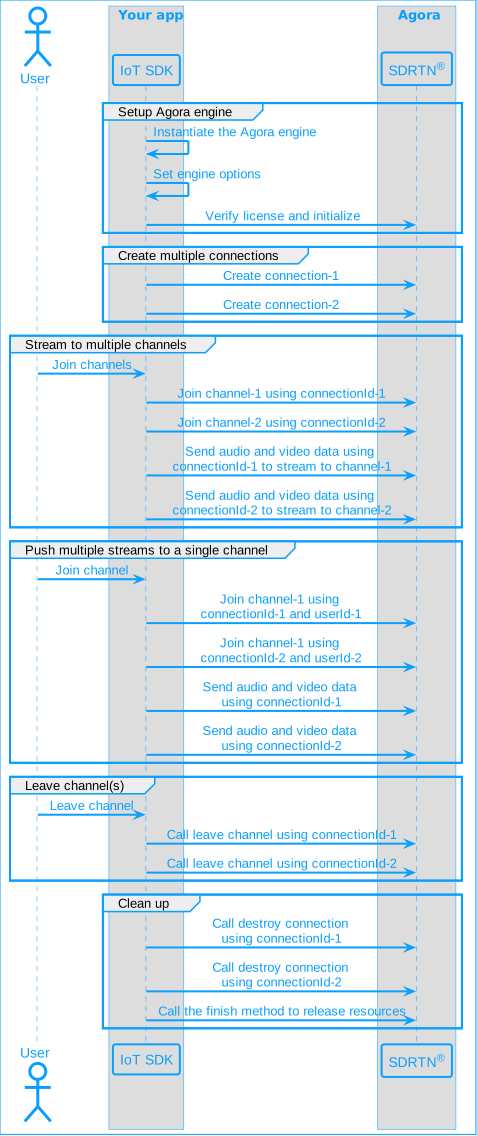
To push multiple streams to a single channel, you create multiple connections using Agora engine. You call the join channel method multiple times with the same channel name but different connection Ids and distinct user Ids to set up multiple streams. To send audio or video data, you use the connection Id of the intended stream.
* **Stream to multiple channels**
To stream over multiple channels, you create multiple connections using Agora engine. To join each channel, you use a distinct channel name and a dedicated connection Id. You use the connection Id to specify the intended channel when sending audio or video data, when leaving a particular channel, or when closing a connection.
The following figure shows the workflow you need to implement to add multi-streaming to your app:
## Prerequisites [#prerequisites]
To follow this procedure you must have implemented the [SDK quickstart](../../quickstart.mdx) for IoT SDK.
## Project setup [#project-setup]
In order to create the environment necessary to implement Agora multi-streaming feature into your app, open the IoT SDK [quickstart](../../quickstart.mdx) project you created previously.
## Implement multi-streaming [#implement-multi-streaming]
This section shows you how to implement the following multi-streaming methods:
* [Push multiple streams to a single channel](#push-multiple-streams-to-a-single-channel)
* [Stream to multiple channels](#stream-to-multiple-channels)
To implement either of the two multi-streaming methods, [update the UI](#implement-the-user-interface) and then follow the step-by-step procedure in the relevant section.
### Implement the user interface [#implement-the-user-interface]
You add two buttons to the UI to enable users to start and stop sending two streams.
1. In `/app/res/layout/activity_main.xml`, add the following code before ``:
```xml
```
You see errors in your IDE. This is because this layout refers to methods that you create later.
2. To access and modify the buttons from your code, add the following to the list of `import` statements in `MainActivity.java`:
```java
import android.widget.Button;
```
### Push multiple streams to a single channel [#push-multiple-streams-to-a-single-channel]
To send multiple audio and video streams to a single channel, take the following steps:
1. **Declare the variables you need**
To manage a second connection and a second stream, in `/app/java/com.example./MainActivity`, add the following variable declarations to the `MainActivity` class:
```java
private int connectionId2; // Id of the second connection
private boolean isJoined2 = false; // Status of the second connection
private int uid2 = 2; // User id for the second connection
private VideoSendThread videoThread2 = null; // A second video thread
```
2. **Create multiple connections**
When the app starts, you create multiple connections. You can use each connection to send an audio and a video stream. To create two connections, in `setupAgoraRtcService` **replace** the code after `// Create a connection` with the following:
```java
connectionId = agoraEngine.createConnection();
if (connectionId == AgoraRtcService.ConnectionIdSpecial.CONNECTION_ID_INVALID) {
showMessage("Failed to create connection 1");
} else {
showMessage("Connection1 created");
}
// Create a second connection
connectionId2 = agoraEngine.createConnection();
if (connectionId2 == AgoraRtcService.ConnectionIdSpecial.CONNECTION_ID_INVALID) {
showMessage("Failed to create connection 2");
} else {
showMessage("Connection2 created");
}
```
3. **Join the same channel multiple times**
When a user presses the **Join** button, you join the same channel twice with different user Ids and different connection Ids. To join the channel a second time, add the following code at the end of `joinChannel(View view)`:
```java
// Join the same channel using the second connection
ret = agoraEngine.joinChannel(connectionId2, channelName,
uid2, token, channelOptions);
if (ret != AgoraRtcService.ErrorCode.ERR_OKAY) {
showMessage("joinChannel on connection2 failed!");
isJoined2 = false;
} else {
isJoined2 = true;
}
```
4. **Set joined status**
When your call to `agoraEngine.joinChannel` succeeds, you receive a notification through the `onJoinChannelSuccess` callback. You use connection Id to identify the connection and set the corresponding `isJoined` variable to true. To do this, **replace** the `onJoinChannelSuccess` method under `agoraRtcEvents` with the following:
```java
@Override
public void onJoinChannelSuccess(int connId, int uid, int elapsed_ms) {
if (connId == connectionId) {
// Successfully joined channel 1
isJoined = true;
showMessage("Successfully joined channel on connection1");
} else if (connId == connectionId2) {
// Successfully joined channel 2
isJoined2 = true;
showMessage("Successfully joined channel on connection2");
}
}
```
5. **Stream video over the first connection**
In this example, you start a video stream over the first connection and a second video stream over the second connection to the same channel. To start or stop the first stream when a user taps the **Start stream 1** button, add the following method to the `MainActivity` class:
```java
public void stream1(View view) {
Button button = (Button) view;
if (!isJoined) {
showMessage("Join a channel first");
return;
} else if (videoThread != null && videoThread.isAlive()) {
videoThread.sendStop();
videoThread = null;
button.setText("Start stream 1");
return;
}
// Create a thread to send video frames
videoThread = new VideoSendThread(getApplicationContext(), agoraEngine,
channelName, connectionId);
// Start the video thread
videoThread.sendStart();
showMessage("Video thread started on connection1");
button.setText("Stop video stream on connection1");
}
```
6. **Stream video over the second connection**
To push another video stream to the same channel when a user taps the **Start stream 2** button, add the following method to the `MainActivity` class:
```java
public void stream2(View view) {
Button button = (Button) view;
if (!isJoined2) {
showMessage("Join a channel first");
return;
} else if (videoThread2 != null && videoThread2.isAlive()) {
videoThread2.sendStop();
videoThread2 = null;
button.setText("Start stream 2");
return;
}
// Create a second thread to send video frames
videoThread2 = new VideoSendThread(getApplicationContext(), agoraEngine,
channelName, connectionId2);
// Start the second video thread
videoThread2.sendStart();
showMessage("Video thread started on connection2");
button.setText("Stop video stream on connection2");
}
```
7. **Leave all connections to a channel**
To leave the channel on the second connection when a user taps **Leave**, add the following lines to `leaveChannel(View view)` after `int ret = agoraEngine.leaveChannel(connectionId);`:
```java
agoraEngine.leaveChannel(connectionId2);
isJoined2 = false;
```
8. **Destroy all connections**
To close all connections when a user exits the app, add the following lines to `onDestroy` after `agoraEngine.destroyConnection(connectionId);`
```java
agoraEngine.destroyConnection(connectionId2);
connectionId2 = AgoraRtcService.ConnectionIdSpecial.CONNECTION_ID_INVALID;
```
### Stream to multiple channels [#stream-to-multiple-channels]
To send audio and video streams to multiple channels, take the following steps:
1. **Declare the variables you need**
To manage a second connection and join an additional channel, in `/app/java/com.example./MainActivity`, add the following variable declarations to the `MainActivity` class:
```java
private int connectionId2; // Id of the second connection
private final String channelName2 = "demo2"; // Name of the second channel
private String token2 = "";
private boolean isJoined2 = false;
```
2. **Create multiple connections**
When the app starts, you create multiple connections. You can use each connection to send an audio and a video stream. To create two connections, in `setupAgoraEngine` **replace** the code after `// Create a connection` with the following:
```java
connectionId = agoraEngine.createConnection();
if (connectionId == AgoraRtcService.ConnectionIdSpecial.CONNECTION_ID_INVALID) {
showMessage("Failed to create connection 1");
} else {
showMessage("Connection1 created");
}
// Create a second connection
connectionId2 = agoraEngine.createConnection();
if (connectionId2 == AgoraRtcService.ConnectionIdSpecial.CONNECTION_ID_INVALID) {
showMessage("Failed to create connection 2");
} else {
showMessage("Connection2 created");
}
```
3. **Join multiple channels**
When a user presses the **Join** button, you join two channels. To join a second channel, add the following code at the end of `joinChannel(View view)`:
```java
// Join a second channel
ret = agoraEngine.joinChannel(connectionId2, channelName2,
uid, token2, channelOptions);
if (ret != AgoraRtcService.ErrorCode.ERR_OKAY) {
showMessage("Join channel2 failure!");
isJoined2 = false;
} else {
isJoined2 = true;
}
```
4. **Set joined status**
When your call to `agoraEngine.joinChannel` succeeds, you receive a notification through the `onJoinChannelSuccess` callback. You use connection Id to identify the channel and set the corresponding `isJoined` variable to true. To do this, **replace** the `onJoinChannelSuccess` method under `agoraRtcEvents` with the following:
```java
@Override
public void onJoinChannelSuccess(int connId, int uid, int elapsed_ms) {
if (connId == connectionId) {
// Successfully joined channel 1
isJoined = true;
showMessage("Successfully joined channel " + channelName);
} else if (connId == connectionId2) {
// Successfully joined channel 2
isJoined2 = true;
showMessage("Successfully joined channel " + channelName2);
}
}
```
5. **Stream audio to the first channel**
In this example, you stream audio to the first channel and video to the second channel. To start or stop the audio stream when a user taps the **Start stream 1** button, add the following method to the `MainActivity` class:
```java
public void stream1(View view) {
Button button = (Button) view;
if (!isJoined) {
showMessage("Join a channel first");
return;
} else if (audioThread != null && audioThread.isAlive()) {
// Audio thread is already running
audioThread.sendStop();
audioThread = null;
button.setText("Start stream 1");
return;
}
// Create a thread to send audio frames
audioThread = new AudioSendThread(getApplicationContext(), agoraEngine,
channelName, connectionId, 16000, 1, 2);
audioThread.sendStart();
showMessage("Audio thread started on channel " + channelName);
button.setText("Stop audio stream on channel " + channelName);
}
```
6. **Stream video to the second channel**
To stream video to the second channel when a user taps the **Start stream 2** button, add the following method to the `MainActivity` class:
```java
public void stream2(View view) {
Button button = (Button) view;
if (!isJoined2) {
showMessage("Join a channel first");
return;
} else if (videoThread != null && videoThread.isAlive()) {
// Video thread is already running
videoThread.sendStop();
videoThread = null;
button.setText("Start stream 2");
return;
}
// Create a thread to send video frames
videoThread = new VideoSendThread(getApplicationContext(), agoraEngine,
channelName2, connectionId2);
// Start the audio and video threads
videoThread.sendStart();
showMessage("Video thread started on channel " + channelName2);
button.setText("Stop video stream on channel " + channelName2);
}
```
7. **Leave all channels**
To leave both channels when a user taps **Leave**, add the following lines to `leaveChannel(View view)` after `int ret = agoraEngine.leaveChannel(connectionId);`:
```java
agoraEngine.leaveChannel(connectionId2);
isJoined2 = false;
```
8. **Destroy all connections**
To close all connections when a user exits the app, add the following lines to `onDestroy` after `agoraEngine.destroyConnection(connectionId);`
```java
agoraEngine.destroyConnection(connectionId2);
connectionId2 = AgoraRtcService.ConnectionIdSpecial.CONNECTION_ID_INVALID;
```
## Test your implementation [#test-your-implementation]
To ensure that you have implemented multi-streaming into your app, follow the relevant testing procedure:
### Test pushing multiple streams to a single channel [#test-pushing-multiple-streams-to-a-single-channel]
1. [Generate a temporary token](../manage-agora-account.md) in Agora Console.
2. In your browser, navigate to the [Agora web demo](https://webdemo.agora.io/basicVideoCall/index.html) and update *App ID*, *Channel*, and *Token* with the values for your temporary token, then click **Join**.
3. In Android Studio, in `app/java/com.example./MainActivity`, update `appId`, `channelName` and `token` with the values for your temporary token.
4. Update `uid` and `uid2` with distinct positive-integer values.
5. Connect a physical Android device to your development device.
6. In Android Studio, click **Run app**. A moment later you see the project installed on your device. If this is the first time you run the project, you need to grant microphone and camera access to your app.
You see notifications confirming creation of two connections.
7. Click **Join** to join a channel over each connection.
You see notifications confirming joining success over each connection.
8. Click **Start steam 1**.
You see a video stream playing in the browser.
9. Click **Start steam 2**.
You see a second video stream playing in the same channel.
10. Try starting and stopping the two streams.
You see that the streams are independent of each other.
11. Click **Leave** to stop the two streams and exit the channel.
### Test streaming to multiple channels [#test-streaming-to-multiple-channels]
1. Generate two [temporary tokens](../manage-agora-account.md) in Agora Console.
1. Generate `token` using the `appId` and `channelName`.
2. Generate `token2` using the `appId` and `channelName2`.
2. In your browser, navigate to the [Agora web demo](https://webdemo.agora.io/basicVideoCall/index.html) and join a channel using
`appId`, `channelName` and `token`.
3. In another browser tab, join the [Agora web demo](https://webdemo.agora.io/basicVideoCall/index.html) using `appId`, `channelName2` and `token2`.
4. In Android Studio, open `app/java/com.example./MainActivity`, and update `appId`, `channelName`, `channelName2`, `token` and `token2` with the values for your temporary tokens.
5. Connect a physical Android device to your development device.
6. In Android Studio, click **Run app**. A moment later you see the project installed on your device. If this is the first time you run the project, you need to grant microphone and camera access to your app.
You see notifications confirming creation of two connections.
7. Click **Join** to join two channels.
You see notifications confirming success in joining each channel.
8. Click **Start steam 1**.
You hear an audio stream playing in the web demo connected to `channelName`.
9. Click **Start steam 2**.
You see a video stream playing in the web demo connected to `channelName2`.
10. Click the buttons to stop stream 1 and stream 2.
11. Click **Leave** to stop the two streams and exit the channel.
## Reference [#reference]
This section contains content that completes the information on this page, or points you to documentation that explains other aspects to this product.
### API reference [#api-reference]
* [createConnection](https://api-ref.agora.io/en/iot-sdk/android/1.x/classio_1_1agora_1_1rtc_1_1_agora_rtc_service.html#a558085193ea80b9bbf8ffd257262ed74)
* [destroyConnection](https://api-ref.agora.io/en/iot-sdk/android/1.x/classio_1_1agora_1_1rtc_1_1_agora_rtc_service.html#a427f76570108b23da9d456fdd55b9251)
* [joinChannel](https://api-ref.agora.io/en/iot-sdk/android/1.x/classio_1_1agora_1_1rtc_1_1_agora_rtc_service.html#a3dd72e07c6799725a7dcce4b137028e2)
* [leaveChannel](https://api-ref.agora.io/en/iot-sdk/android/1.x/classio_1_1agora_1_1rtc_1_1_agora_rtc_service.html#a588efd08277fc89440d9f4b6eb524f56)