# Channel quality (/en/realtime-media/iot/build/stream-and-optimize-media/ensure-channel-quality/android)
> For AI agents: see the complete documentation index at [llms.txt](/llms.txt).
Customer satisfaction for your IoT SDK integrated app depends on the quality of video and audio it provides. Quality of audiovisual communication through your app is affected by the following factors:
* **Bandwidth of network connection**: Bandwidth is the volume of information that an Internet connection can handle per unit of time. When the available bandwidth is not sufficient to transmit the amount of data necessary to provide the desired video quality, your users see jerky or frozen video along with audio that cuts in and out.
* **Stability of network connection**: Network connections are often unstable with the network quality going up and down. Users get temporarily disconnected and come back online after an interruption. These issues lead to a poor audiovisual experience for your users unless your app is configured to respond to these situations and take remedial actions.
* **Hardware quality**: The camera and microphone used to capture video and audio must be of sufficiently good quality. If the user's hardware does not capture the audiovisual information in suitably high definition, it limits the quality of audio and video that is available to the remote user.
* **Video and audio settings**: The sharpness, smoothness, and overall quality of the video is directly linked to the frame rate, bitrate and other video settings. Similarly, the audio quality depends on the sample rate, bitrate, number of channels and other audio parameters. If you do not choose proper settings, the audio and video transmitted are of poor quality. On the other hand, if the settings are too demanding, the available bandwidth quickly gets choked, leading to suboptimal experience for your users.
* **Echo**: Echo is produced when your audio signal is played by a remote user through a speakerphone or an external device. This audio is captured by the remote user's microphone and sent back to you. Echo negatively affects audio quality, making speech difficult to understand.
* **Multiple users in a channel**: When multiple users engage in real-time audio and video communication in a channel, the available bandwidth is quickly used up due to several incoming audio and video streams. The device performance also deteriorates due to the excessive workload required to decode and render multiple video streams.
This page shows you how to use IoT SDK features to account for these factors and ensure optimal audio and video quality in your IoT SDK app.
## Understand the tech [#understand-the-tech]
To provide the best audio and video quality in your app:
* **Choose an audio codec to optimize bit rate and quality**
In audio and video streaming, the choice of an encoding algorithm affects both quality and bit rate. Your goal is to lower the required bit rate while maintaining quality at the desired level. IoT SDK offers the following built-in audio codecs:
* Opus
* G722
* G711A (PCMU)
* G711U (PCMU)
You specify an audio codec when you join a channel. Depending on your audio quality requirements you also set the sampling rate and the number of channels. If your app needs a custom encoding algorithm, you disable use of a built-in codec and implement your own encoder.
* **Adjust sending bit rate in real time**
In order to optimize data transmission and avoid network congestion, best practice is to adjust the sending bit rate in real-time according to changes in network conditions.
You configure BandWidth Estimation (BWE) before joining a channel to set the minimum, maximum, and starting bit rate values according to the actual bandwidth and bit rate needs. When the network bandwidth changes, IoT SDK triggers an event to prompt your app to adjust the sending bit rate in real time. The bit rate returned by the callback is the maximum recommended encoding bit rate of the video encoder.
* **Change audio and video streaming status**
Network traffic can be reduced by suspending data transmission when audio or video feed is not required by the receiver. After a user successfully connects to a channel and starts audio and video streaming, they can suspend sending streams to a specific connection or to all connections to flexibly manage the transmission status of audio and video streams. Similarly, the user may suspend receiving a specific or all streams as required.
When a user changes the transmission status of the local audio or video stream, the IoT SDK triggers a corresponding callback to prompt the remote user to suspend or resume sending their audio or video stream.
* **Request key frames**
In video transmission, a frame containing complete image information is known as a key frame. Subsequent frames, known as delta frames, only include modifications to the previous frame. When a video streaming client experiences network congestion, the data loss in delta frames leads to visual inconsistencies in subsequent frames. IoT SDK enables you to request a key frame from the sender to resolve such issues. A fresh key frame resets the video stream to a known state. This feature allows the client to resynchronize with the video stream and resume playback without visual artifacts or distortion.
* **Log files**
IoT SDK provides configuration options that you use to customize the location, content and size of log files containing key data of IoT SDK operation. When you set up logging, IoT SDK writes information messages, warnings, and errors regarding activities such as initialization, configuration, connection and disconnection to log files. Log files are useful in detecting and resolving channel quality issues.
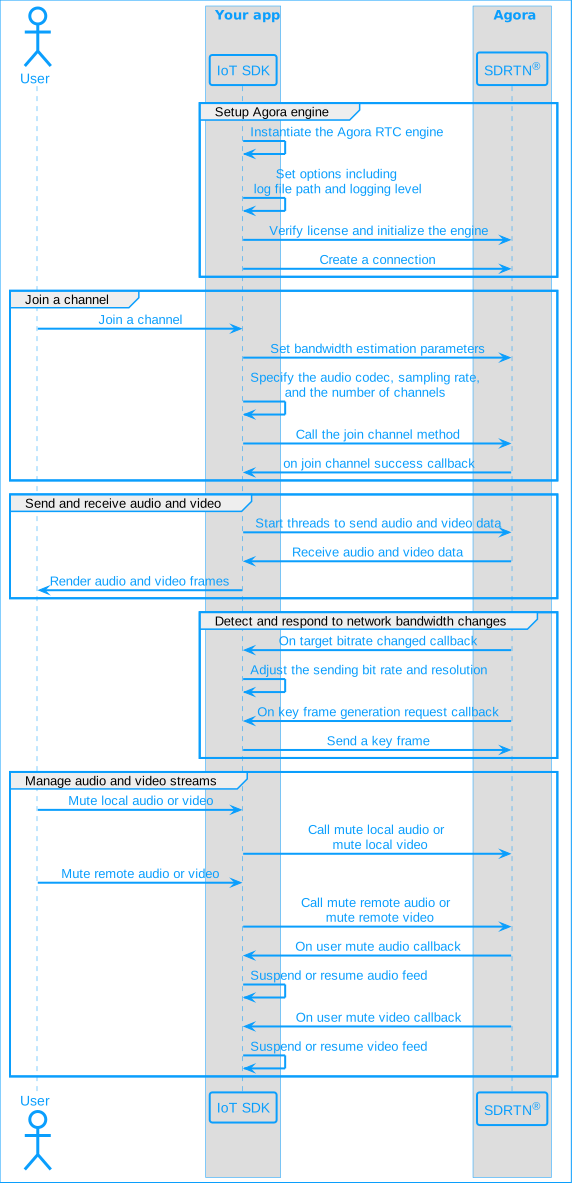
The following figure shows the workflow you need to implement to ensure channel quality in your app:
## Prerequisites [#prerequisites]
In order to follow this procedure you must have:
* Implemented the [SDK quickstart](../../index.md) project for IoT SDK.
To test the code used in this page you need to have:
* An Agora [account](../manage-agora-account.md) and [project](../manage-agora-account.md).
* A computer with Internet access.
Ensure that no firewall is blocking your network communication.
* Implemented the [SDK quickstart](../../index.md).
## Project setup [#project-setup]
To create the environment necessary to implement channel quality best practices into your app, open the [SDK quickstart](../../index.md) for IoT SDK project you created previously.
## Implement best practice to optimize channel quality [#implement-best-practice-to-optimize-channel-quality]
This section shows you how to integrate channel quality optimization features of IoT SDK into your app, step-by-step.
### Implement the user interface [#implement-the-user-interface]
To enable app users to mute and unmute audio and video, add checkboxes to the user interface. To do this, open `/app/res/layout/activity_main.xml` and add the following lines before ``:
```xml
```
### Handle the system logic [#handle-the-system-logic]
Import the necessary Android classes and access the UI elements.
1. **Import supporting libraries**
In `MainActivity.java`, add the following to the list of `import` statements:
```java
import java.lang.Math;
import android.widget.CheckBox;
import android.widget.CompoundButton;
```
2. **Define variables to access the checkboxes**
In `/app/java/com.example./MainActivity`, add the following declarations to the `MainActivity` class:
```java
private CheckBox checkMuteLocalAudio;
private CheckBox checkMuteLocalVideo;
```
### Implement channel quality features [#implement-channel-quality-features]
To implement channel quality features, take the following steps:
1. **Configure the IoT SDK log file**
To customize the location, and content of the log file, add the following code to `setupAgoraEngine()` before `agoraEngine.init(appId, agoraRtcEvents, options);`
```java
// Configure log file location and logging level
options.logCfg.logPath = getExternalFilesDir(null).getPath() + "/iotlog";
options.logCfg.logLevel = AgoraRtcService.LogLevel.RTC_LOG_WARNING;
```
2. **Specify the audio codec, sampling rate and the number of channels**
You set the audio codec, sampling rate, and the number of channels in `ChannelOptions` that you pass to the `agoraEngine.joinChannel` method. To set these parameters, modify the following lines in the `joinChannel(View view)` method according to your requirements:
```java
channelOptions.audioCodecOpt.audioCodecType
= AgoraRtcService.AudioCodecType.AUDIO_CODEC_TYPE_OPUS;
channelOptions.audioCodecOpt.pcmSampleRate = 16000;
channelOptions.audioCodecOpt.pcmChannelNum = 1;
```
Choose from `OPUS`, `G722`, `G711A`, and `G711U` built-in audio codecs in the IoT SDK.
To use your own audio codec, set `channelOptions.audioCodecOpt.audioCodecType` to `AUDIO_CODEC_DISABLED`. When you call `agoraEngine.sendAudioData`, set the `dataType` parameter of `AudioFrameInfo` to your encoding format. This setting transmits the audio encoding format as is to the receiving end. When you disable use of a built-in audio codec, IoT SDK does not process the audio. The receiving end obtains the encoded audio data and the encoding format through the `onAudioData` callback and decodes it using a custom decoder.
3. **Configure bandwidth estimation parameters**
You configure bandWidth estimation parameters before joining a channel. For example, based on the [definition levels of a webcam](#definition-levels-of-a-webcam), the minimum value can be set to 400 kbps, and the maximum value can be set to 4200 kbps. The starting value is between the minimum and the maximum value. If the initial encoding is SD, the initial bit rate can be set to 500 kbps, based on the table.
To specify these parameters, add the following code to the `joinChannel(View view)` method before `agoraEngine.joinChannel`.
```java
// Configure Bandwidth Estimation. Min, max and starting bit rates in bps
agoraEngine.setBweParam(connectionId, 400000, 4200000, 500000);
```
4. **Respond to target bit rate changes**
When network bandwidth changes, IoT SDK triggers the `onTargetBitrateChanged` callback to prompt the app to adjust the sending bit rate. The `targetBps` value returned by the callback is the maximum recommended encoding bit rate of the video encoder.
In this example, you use [definition levels of a webcam](#definition-levels-of-a-webcam) to switch resolution depending on the reported target bit rate. To do this, replace the `onTargetBitrateChanged` method under `agoraRtcEvents` with the following:
```java
int curTargetBitrate, diffTargetBitrate, lastTargetBitrate = 500;
int lowBitrateL1 = 400, highBitrateL1 = 800;
int lowBitrateL2 = 1130 , highBitrateL2 = 2260, highBitrateL3 = 4160;
int curResolutionLevel = 1 , lastResolutionLevel = 1;
@Override
public void onTargetBitrateChanged(int connId, int targetBps) {
// Adjust the sending code rate in real time
// The current code rate is graded according to 100 K, rounded down
curTargetBitrate = targetBps/100000 * 100;
diffTargetBitrate = Math.abs(curTargetBitrate - lastTargetBitrate);
// If the difference between the detected bandwidth and the
// current encoding rate is more than 100K, adjust the encoding parameters
if ((diffTargetBitrate >= 100) && ((lowBitrateL1 < curTargetBitrate)
&& (curTargetBitrate < highBitrateL3))) {
if ((lowBitrateL1 < curTargetBitrate) && (curTargetBitrate < highBitrateL1)) {
curResolutionLevel = 1; // Set resolution to L1
} else if ((lowBitrateL2 < curTargetBitrate) && (curTargetBitrate < highBitrateL2)) {
curResolutionLevel = 2; // Set resolution to L2
} else {
curResolutionLevel = 3; // Set resolution to L3
}
// Adjust encoding resolution
if (curResolutionLevel != lastResolutionLevel) {
//setEncoderResolution(curResolutionLevel);
}
// Set the encoding bit rate
// setEncoderBitrate(curTargetBitrate);
lastResolutionLevel = curResolutionLevel;
lastTargetBitrate = curTargetBitrate;
}
}
```
5. **Manage audio and video streaming status**
When a user taps a `Checkbox`, you pause or resume sending local audio and video streams. To do this, add the following code to the `onCreate` method in the `MainActivity` class:
```java
checkMuteLocalAudio = findViewById(R.id.MuteLocalAudio);
checkMuteLocalVideo = findViewById(R.id.MuteLocalVideo);
checkMuteLocalAudio.setOnCheckedChangeListener(new CompoundButton.OnCheckedChangeListener() {
@Override
public void onCheckedChanged(CompoundButton buttonView, boolean isChecked) {
if (isJoined) {
agoraEngine.muteLocalAudio(connectionId, checkMuteLocalAudio.isChecked());
}
}
});
checkMuteLocalVideo.setOnCheckedChangeListener(new CompoundButton.OnCheckedChangeListener() {
@Override
public void onCheckedChanged(CompoundButton buttonView, boolean isChecked) {
if (isJoined) {
agoraEngine.muteLocalVideo(connectionId, checkMuteLocalVideo.isChecked());
}
}
});
```
To pause and resume playing remote audio or video streams call `agoraEngine.muteRemoteAudio(connectionId, remoteUid, isMuted)` or `agoraEngine.muteRemoteVideo(connectionId, remoteUid, isMuted)`.
6. **Handle muting and unmuting notifications of remote streams**
When a remote user mutes or unmutes their audio or video stream, you receive notification of these changes. In this example, you inform the user of these events by displaying a message. To do this, replace the `onUserMuteAudio` and `onUserMuteVideo` methods under `agoraRtcEvents` with the following:
```java
@Override
public void onUserMuteAudio(int connId, int uid, boolean muted) {
// A remote user paused or resumed sending the audio stream
showMessage("Remote user " + uid + (muted ? " muted" : " unmuted") + " audio");
}
@Override
public void onUserMuteVideo(int connId, int uid, boolean muted) {
// A remote user paused or resumed sending the video stream
showMessage("Remote user " + uid + (muted ? " muted" : " unmuted") + " video");
}
```
7. **Request and send key frames**
When you call `agoraEngine.sendVideoData` to send a video frame, you specify if this frame is a key frame by setting the `frameType` parameter of `VideoFrameInfo`.
When the sender does not send a key frame for a long time or the key frame is lost or damaged during transmission, IoT SDK triggers the `onKeyFrameGenReq` callback to advise the sender to generate a key frame. In this example, you show a message when you receive the `onKeyFrameGenReq` callback. Add the following code to the `MainActivity` class:
```java
@Override
public void onKeyFrameGenReq(String channel, int remote_uid, byte stream_id) {
// Set a flag for the encoder to generate a key frame",
showMessage("Frame loss detected.");
}
```
If the receiver encounters an error when decoding frames, it calls the `agoraEngine.requestVideoKeyFrame` method to request a remote user to generate a fresh key frame.
## Test your implementation [#test-your-implementation]
To ensure that you have implemented channel quality features into your app:
1. [Generate a temporary token](../manage-agora-account.md) in Agora Console .
2. In your browser, navigate to the [Agora Muting web demo](https://webdemo.agora.io/basicMute/index.html) and update *App ID*, *Channel*, and *Token* with the values for your temporary token, then click **Join**.
3. In Android Studio, open `app/java/com.example./MainActivity`, and update `appId`, `channelName` and `token` with the values for your temporary token.
4. Connect a physical Android device to your development device.
5. In Android Studio, click **Run app**. A moment later you see the project installed on your device. If this is the first time you run the project, grant microphone and camera access to your app.
When the app starts, it sets the log file location and logging level according to your preference.
6. Press **Join**. Your app does the following:
* Sets the audio codec, sampling rate and the number of channels
* Sets bandwidth estimation parameters
* Starts streaming audio and video
* Listens for notification of changes in network bandwidth to adjust video resolution and bit rate accordingly
* Listens for key frame request to notify the encoder to send a key frame
7. Check and uncheck **Mute local audio** and **Mute local video** boxes.
Audio and video are muted/unmuted in the web demo app.
8. Press **Mute Audio** and **Mute Video** buttons in the web demo app. You see messages in your Android app informing you of these events.
## Reference [#reference]
This section contains additional information that completes the content on this page, or points you to documentation that explains other aspects to this product.
### Recommended sampling rates and data sizes for audio [#recommended-sampling-rates-and-data-sizes-for-audio]
The table below shows the recommended sampling rates and corresponding data sizes for Opus, G722, and G711 audio data.
| Audio format | Sampling rate (Hz) | Audio data size (Byte) |
| ------------ | ------------------ | ---------------------- |
| G711 | 8000 | 320 |
| G722 | 16000 | 640 |
| OPUS | 16000 | 640 |
| OPUS | 48000 | 1920 |
### Definition levels of a webcam [#definition-levels-of-a-webcam]
| Gear | Resolution | Frame rate | Bit rate range (kbps) |
| :------: | :------------- | :--------: | :-------------------: |
| SD | L1: 640\*360 | 15 | 400 - 800 |
| HD | L2: 1280\*720 | 15 | 1130 - 2260 |
| Ultra HD | L3: 1920\*1080 | 15 | 1130 - 4160 |
### API reference [#api-reference]
* [LogLevel](https://api-ref.agora.io/en/iot-sdk/android/1.x/classio_1_1agora_1_1rtc_1_1_agora_rtc_service_1_1_log_level.html)
* [AudioCodecType](https://api-ref.agora.io/en/iot-sdk/android/1.x/classio_1_1agora_1_1rtc_1_1_agora_rtc_service_1_1_audio_codec_type.html)
* [setBweParam](https://api-ref.agora.io/en/iot-sdk/android/1.x/classio_1_1agora_1_1rtc_1_1_agora_rtc_service.html#aaef5ac6c2de342b7999686b9c61ded44)
* [onTargetBitrateChanged](https://api-ref.agora.io/en/iot-sdk/android/1.x/interfaceio_1_1agora_1_1rtc_1_1_agora_rtc_events.html#a1e4b25b017cdb624f1083d9a1d7a9f47)
* [onUserMuteAudio](https://api-ref.agora.io/en/iot-sdk/android/1.x/interfaceio_1_1agora_1_1rtc_1_1_agora_rtc_events.html#acb31baf6018383eeedb6bb8c9aecc315)
* [onUserMuteVideo](https://api-ref.agora.io/en/iot-sdk/android/1.x/interfaceio_1_1agora_1_1rtc_1_1_agora_rtc_events.html#a78a9ff37d58c5cc59c7becd01bacc71d)
* [muteLocalAudio](https://api-ref.agora.io/en/iot-sdk/android/1.x/classio_1_1agora_1_1rtc_1_1_agora_rtc_service.html#af006e362e612bdb98adc95bdc08eefd9)
* [muteLocalVideo](https://api-ref.agora.io/en/iot-sdk/android/1.x/classio_1_1agora_1_1rtc_1_1_agora_rtc_service.html#aabcc6ac3658ef50df7e947607c51e2f2)
* [muteRemoteAudio](https://api-ref.agora.io/en/iot-sdk/android/1.x/classio_1_1agora_1_1rtc_1_1_agora_rtc_service.html#a47a7f426c467d93e03f3f51291fe85b4)
* [muteRemoteVideo](https://api-ref.agora.io/en/iot-sdk/android/1.x/classio_1_1agora_1_1rtc_1_1_agora_rtc_service.html#a2a7361457f57b9673d217afa1f2d3fcc)
* [requestVideoKeyFrame](https://api-ref.agora.io/en/iot-sdk/android/1.x/classio_1_1agora_1_1rtc_1_1_agora_rtc_service.html#a55dd74d7f6a86ee7c03f9d7a1c97ddad)
* [onKeyFrameGenReq](https://api-ref.agora.io/en/iot-sdk/android/1.x/interfaceio_1_1agora_1_1rtc_1_1_agora_rtc_events.html#a059827878d261063fb6f93e2a04006d7)