# SDK quickstart (/en/realtime-media/im/get-started-sdk/react-native)
> For AI agents: see the complete documentation index at [llms.txt](/llms.txt).
Instant messaging enhances user engagement by enabling users to connect and form a community within the app. Increased engagement can lead to increased user satisfaction and loyalty to your app. An instant messaging feature can also provide real-time support to users, allowing them to get help and answers to their questions quickly. The Chat SDK enables you to embed real-time messaging in any app, on any device, anywhere.
This page guides you through implementing peer-to-peer messaging into your app using the Chat SDK.
## Understand the tech [#understand-the-tech]
The following figure shows the workflow of sending and receiving peer-to-peer messages using Chat SDK.
Chat SDK workflow
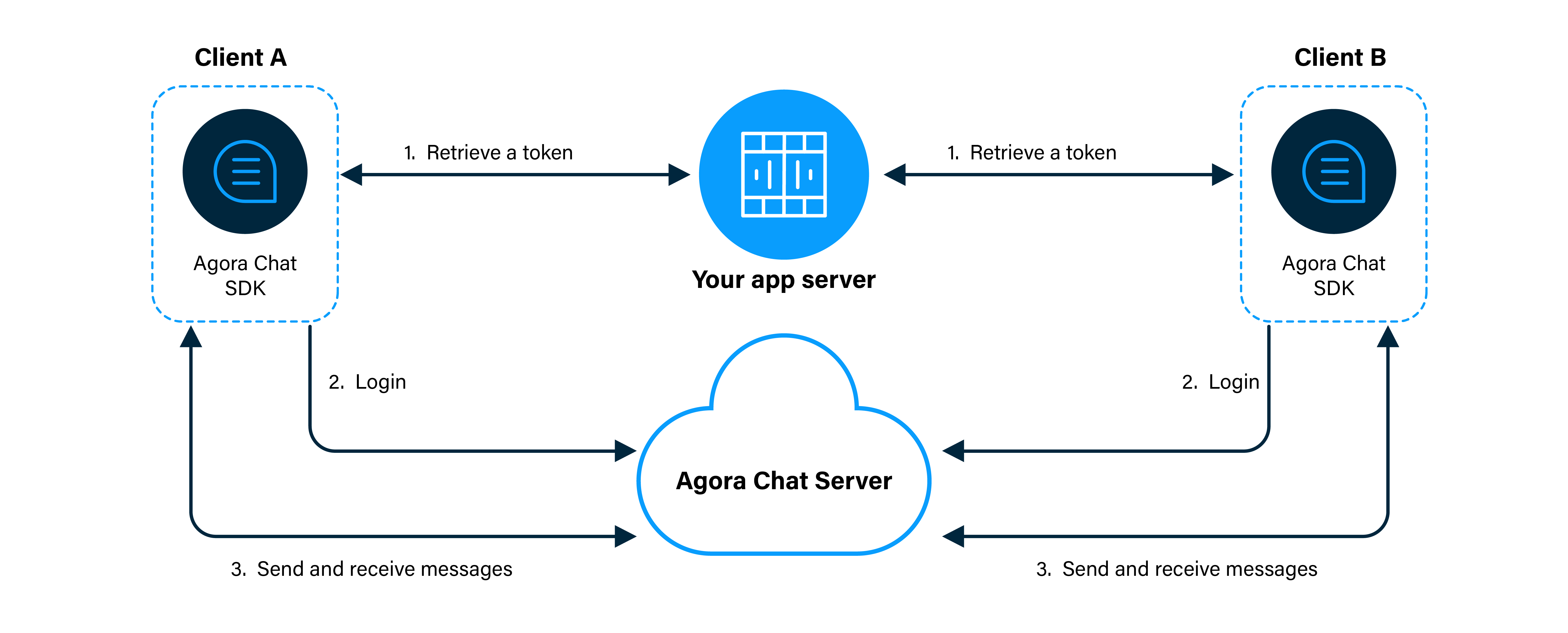
1. Clients retrieve an authentication token from your app server.
2. Users log in to Chat using the App ID, their user ID, and token.
3. Clients send and receive messages through Chat as follows:
1. Client A sends a message to Client B. The message is sent to the Agora Chat server.
2. The server delivers the message to Client B. When Client B receives a message, the SDK triggers an event.
3. Client B listens for the event to read and display the message.
## Prerequisites [#prerequisites]
In order to follow the procedure on this page, you must have:
* A valid [Agora account](/en/realtime-media/im/get-started/manage-agora-account#create-an-agora-account).
* An [Agora project](/en/realtime-media/im/get-started/manage-agora-account#create-an-agora-project) for which you have [enabled Chat](./enable#enable-).
* The [App ID](./enable#get-chat-project-information) for the project.
* Internet access.
Ensure that no firewall is blocking your network communication.
If your target platform is iOS:
* macOS 10.15.7 or later
* Xcode 12.4 or later, including command line tools
* React Native 0.66.5 or later
* NodeJs 16 or later, including npm package management tool
* CocoaPods package management tool
* Yarn compile and run tool
* Watchman debugging tool
* A physical or virtual mobile device running iOS 10.0 or later
If your target platform is Android:
* macOS 10.15.7 or later, or Windows 10 or later
* Android Studio 4.0 or later, including JDK 1.8 or later
* React Native 0.66.5 or later
* CocoaPods package management tool if your operating system is macOS.
* Powershell 5.1 or later if your operating system is Windows.
* NodeJs 16 or later, including npm package management tool
* Yarn compile and run tool
* Watchman debugging tool
* A physical or virtual mobile device running Android 6.0 or later
For more information, see [Setting up the environment](https://reactnative.dev/docs/environment-setup).
## Project setup [#project-setup]
Follow these steps to create a React Native project and add Agora Chat into your app.
1. Prepare the development environment according to your development system and target platform.
2. In your terminal, navigate to the directory where you want to create the project, and run the following command to create a React Native project:
```sh
npx @react-native-community/cli@latest init --version 0.76 simple_demo
```
The created project name is `simple_demo`.
Initialize the project:
```sh
cd simple_demo
yarn set version 1.22.19
yarn
```
You can use npm or other tools.
3. In the terminal, run the following command to add dependencies:
```sh
yarn add react-native-agora-chat
```
4. Initialize the native part.
For iOS platform, use `cocoapods` to initialize:
```sh
cd ios && pod install && cd ..
```
## Implement peer-to-peer messaging [#implement-peer-to-peer-messaging]
This section shows how to use the Chat SDK to implement peer-to-peer messaging in your app, step by step.
## Implementation [#implementation]
This section introduces the codes you need to add to your project to start one-to-one messaging.
### Implement one-to-one messaging [#implement-one-to-one-messaging]
To send a one-to-one message, users must register a Chat account, log in to Agora Chat, and send a text message.
Open `simple_demo/App.js`, and replace the code with the following:
```javascript
// Imports dependencies.
import React, {useEffect} from 'react';
import {
SafeAreaView,
ScrollView,
StyleSheet,
Text,
TextInput,
View,
} from 'react-native';
import {
ChatClient,
ChatOptions,
ChatMessageChatType,
ChatMessage,
} from 'react-native-agora-chat';
// Defines the App object.
const App = () => {
// Defines the variable.
const title = 'AgoraChatQuickstart';
// Replaces with your App ID.
const appId = '';
// Replaces with your user ID.
const [username, setUsername] = React.useState('');
// Replaces with your Agora token.
const [chatToken, setChatToken] = React.useState('');
const [targetId, setTargetId] = React.useState('');
const [content, setContent] = React.useState('');
const [logText, setWarnText] = React.useState('Show log area');
const chatClient = ChatClient.getInstance();
const chatManager = chatClient.chatManager;
// Outputs console logs.
useEffect(() => {
logText.split('\n').forEach((value, index, array) => {
if (index === 0) {
console.log(value);
}
});
}, [logText]);
// Outputs UI logs.
const rollLog = text => {
setWarnText(preLogText => {
let newLogText = text;
preLogText
.split('\n')
.filter((value, index, array) => {
if (index > 8) {
return false;
}
return true;
})
.forEach((value, index, array) => {
newLogText += '\n' + value;
});
return newLogText;
});
};
useEffect(() => {
// Registers listeners for messaging.
const setMessageListener = () => {
let msgListener = {
onMessagesReceived(messages) {
for (let index = 0; index < messages.length; index++) {
rollLog('received msgId: ' + messages[index].msgId);
}
},
onCmdMessagesReceived: messages => {},
onMessagesRead: messages => {},
onGroupMessageRead: groupMessageAcks => {},
onMessagesDelivered: messages => {},
onMessagesRecalled: messages => {},
onConversationsUpdate: () => {},
onConversationRead: (from, to) => {},
};
chatManager.removeAllMessageListener();
chatManager.addMessageListener(msgListener);
};
// Initializes the SDK.
// Initializes any interface before calling it.
const init = () => {
let o = ChatOptions.withAppId({
autoLogin: false,
appId: appId,
});
chatClient.removeAllConnectionListener();
chatClient
.init(o)
.then(() => {
rollLog('init success');
let listener = {
onTokenWillExpire() {
rollLog('token expire.');
},
onTokenDidExpire() {
rollLog('token did expire');
},
onConnected() {
rollLog('onConnected');
setMessageListener();
},
onDisconnected(errorCode) {
rollLog('onDisconnected:' + errorCode);
},
};
chatClient.addConnectionListener(listener);
})
.catch(error => {
rollLog(
'init fail: ' +
(error instanceof Object ? JSON.stringify(error) : error),
);
});
};
init();
}, [chatClient, chatManager, appId]);
// Logs in with an account ID and a token.
const login = () => {
rollLog('start login ...');
chatClient
.loginWithToken(username, chatToken)
.then(() => {
rollLog('login operation success.');
})
.catch(reason => {
rollLog('login fail: ' + JSON.stringify(reason));
});
};
// Logs out from server.
const logout = () => {
rollLog('start logout ...');
chatClient
.logout()
.then(() => {
rollLog('logout success.');
})
.catch(reason => {
rollLog('logout fail:' + JSON.stringify(reason));
});
};
// Sends a text message to somebody.
const sendmsg = () => {
let msg = ChatMessage.createTextMessage(
targetId,
content,
ChatMessageChatType.PeerChat,
);
const callback = new (class {
onProgress(locaMsgId, progress) {
rollLog(`send message process: ${locaMsgId}, ${progress}`);
}
onError(locaMsgId, error) {
rollLog(`send message fail: ${locaMsgId}, ${JSON.stringify(error)}`);
}
onSuccess(message) {
rollLog('send message success: ' + message.localMsgId);
}
})();
rollLog('start send message ...');
chatClient.chatManager
.sendMessage(msg, callback)
.then(() => {
rollLog('send message: ' + msg.localMsgId);
})
.catch(reason => {
rollLog('send fail: ' + JSON.stringify(reason));
});
};
// Renders the UI.
return (
{title}
setUsername(text)}
value={username}
autoCapitalize={'none'}
/>
setChatToken(text)}
value={chatToken}
autoCapitalize={'none'}
/>
SIGN IN
SIGN OUT
setTargetId(text)}
value={targetId}
autoCapitalize={'none'}
/>
setContent(text)}
value={content}
autoCapitalize={'none'}
/>
SEND TEXT
{logText}
{}
{}
);
};
// Sets UI styles.
const styles = StyleSheet.create({
titleContainer: {
height: 60,
backgroundColor: '#6200ED',
},
title: {
lineHeight: 60,
paddingLeft: 15,
color: '#fff',
fontSize: 20,
fontWeight: '700',
},
inputCon: {
marginLeft: '5%',
width: '90%',
height: 60,
paddingBottom: 6,
borderBottomWidth: 1,
borderBottomColor: '#ccc',
},
inputBox: {
marginTop: 15,
width: '100%',
fontSize: 14,
fontWeight: 'bold',
},
buttonCon: {
marginLeft: '2%',
width: '96%',
flexDirection: 'row',
marginTop: 20,
height: 26,
justifyContent: 'space-around',
alignItems: 'center',
},
eachBtn: {
height: 40,
width: '28%',
lineHeight: 40,
textAlign: 'center',
color: '#fff',
fontSize: 16,
backgroundColor: '#6200ED',
borderRadius: 5,
},
btn2: {
height: 40,
width: '45%',
lineHeight: 40,
textAlign: 'center',
color: '#fff',
fontSize: 16,
backgroundColor: '#6200ED',
borderRadius: 5,
},
logText: {
padding: 10,
marginTop: 10,
color: '#ccc',
fontSize: 14,
lineHeight: 20,
},
});
export default App;
```
### Build and run your project [#build-and-run-your-project]
To build and run the app on iOS platform:
```sh
yarn run ios
```
To build and run the app on Android platform:
```sh
yarn run android
```
To start the debug service:
```sh
yarn run start
```
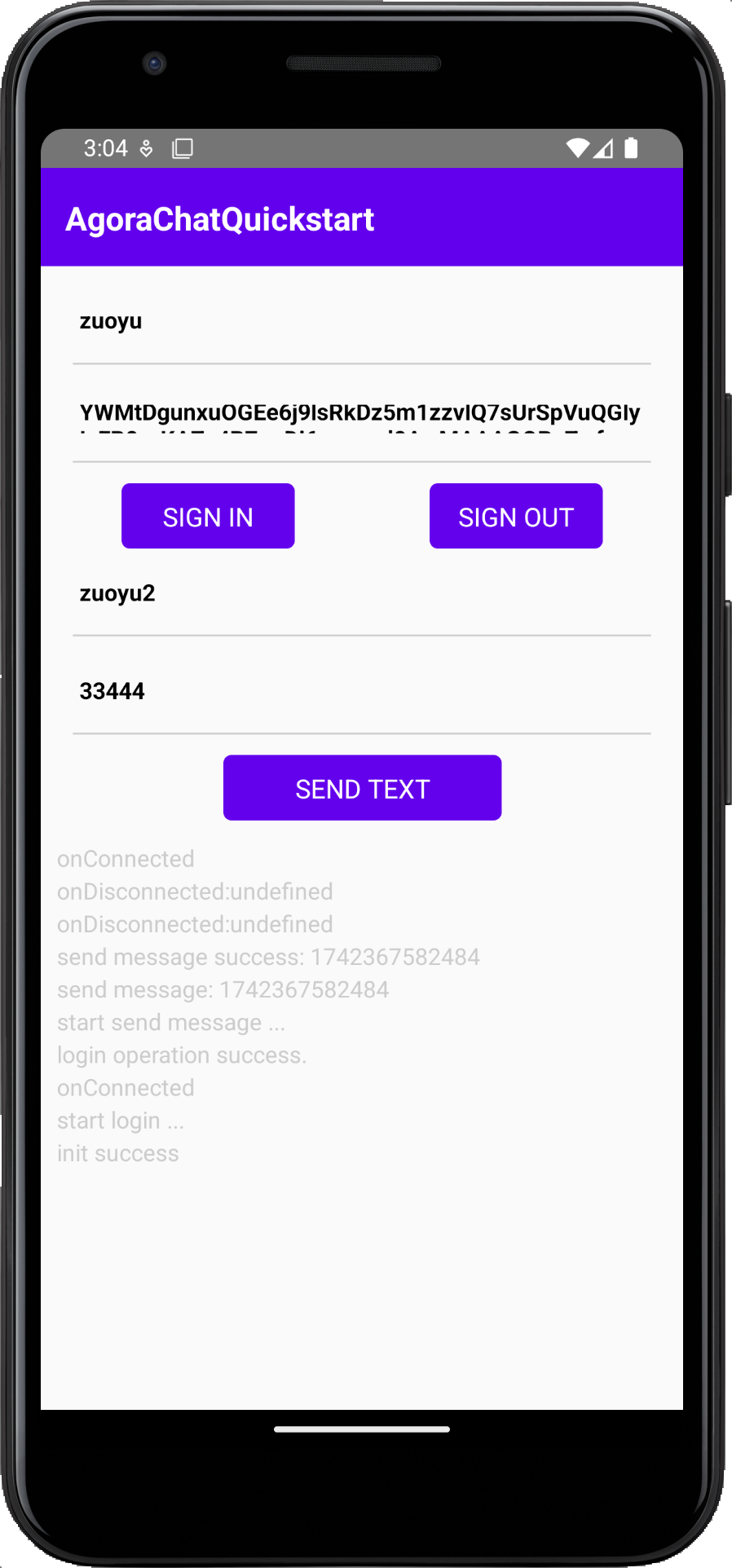
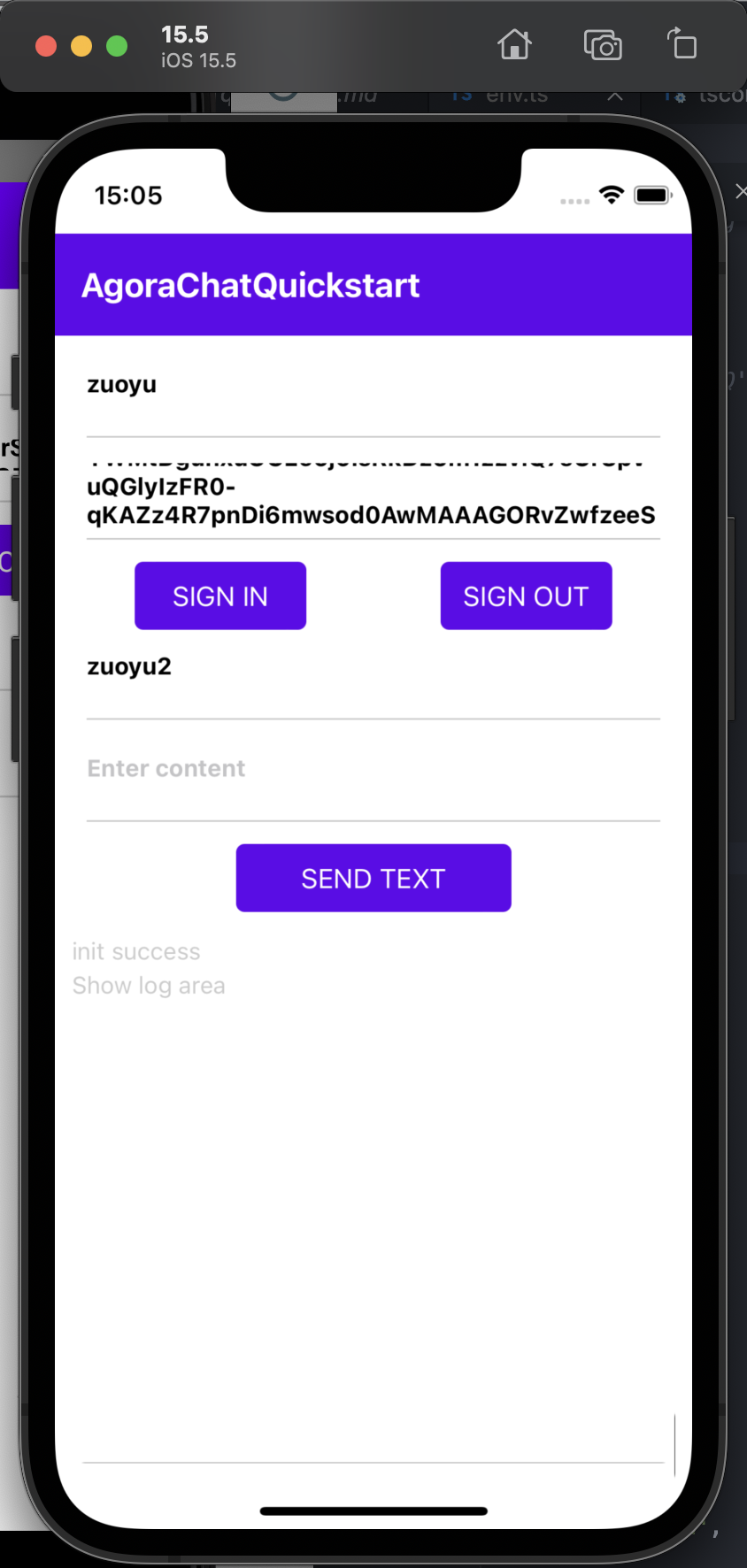
If the project runs properly, the following user interface appears:
* Android platform
* iOS platform
## Test your implementation [#test-your-implementation]
To ensure that you have implemented Peer-to-Peer Messaging in your app:
You can log in to the app by either modifying the fields in the App.js file as stated below, or entering the required fields in the user interface.
To validate the peer-to-peer messaging you have just integrated into your app using Agora Chat, perform the following operations:
1. Log in
a. In the [`App.js`](#sign-in) file, replace the placeholders of `appId`, `username`, and `chatToken` with the App ID, user ID, and Agora token of the sender.
b. Run and [build](#build) your app.
c. On your simulator or physical device, click **SIGN IN** to log in with the sender account.
2. Send a message
Fill in the user ID of the receiver in the **Enter the username you want to send** box, type in te message to send in the **Enter content** box, and click **SEND TEXT** to send the message.
3. Log out
Click **SIGN OUT** to log out of the sender account.
4. Receive the message
a. After signing out, change the values of `appId`, `username`, and `chatToken` to the user ID, Agora token, and App ID of the receiver in the [`App.js`](#sign-in) file.
b. Run the app on another device or simulator with the receiver account and receive the message sent in step 2.
You can also read from the logs on the UI to see whether you have successfully signed in, signed out, and sent and received a text message.
## Reference [#reference]
This section contains content that completes the information in this page, or points you to documentation that explains other aspects to this product.
* For more code samples, see [Samples and demos](./downloads).
For details, see the [sample code](https://github.com/AgoraIO/Agora-Chat-API-Examples/tree/main/Chat-RN/quick_start_demo) for getting started with Chat.
### Next steps [#next-steps]
In a production environment, best practice is to deploy your own token server. Users retrieve a token from the token server to log in to Chat. To see how to implement a server that generates and serves tokens on request, see [Secure authentication with tokens](../develop/authentication).