# SDK quickstart (/en/realtime-media/im/get-started-sdk/flutter)
> For AI agents: see the complete documentation index at [llms.txt](/llms.txt).
Instant messaging enhances user engagement by enabling users to connect and form a community within the app. Increased engagement can lead to increased user satisfaction and loyalty to your app. An instant messaging feature can also provide real-time support to users, allowing them to get help and answers to their questions quickly. The Chat SDK enables you to embed real-time messaging in any app, on any device, anywhere.
This page guides you through implementing peer-to-peer messaging into your app using the Chat SDK.
## Understand the tech [#understand-the-tech]
The following figure shows the workflow of sending and receiving peer-to-peer messages using Chat SDK.
Chat SDK workflow
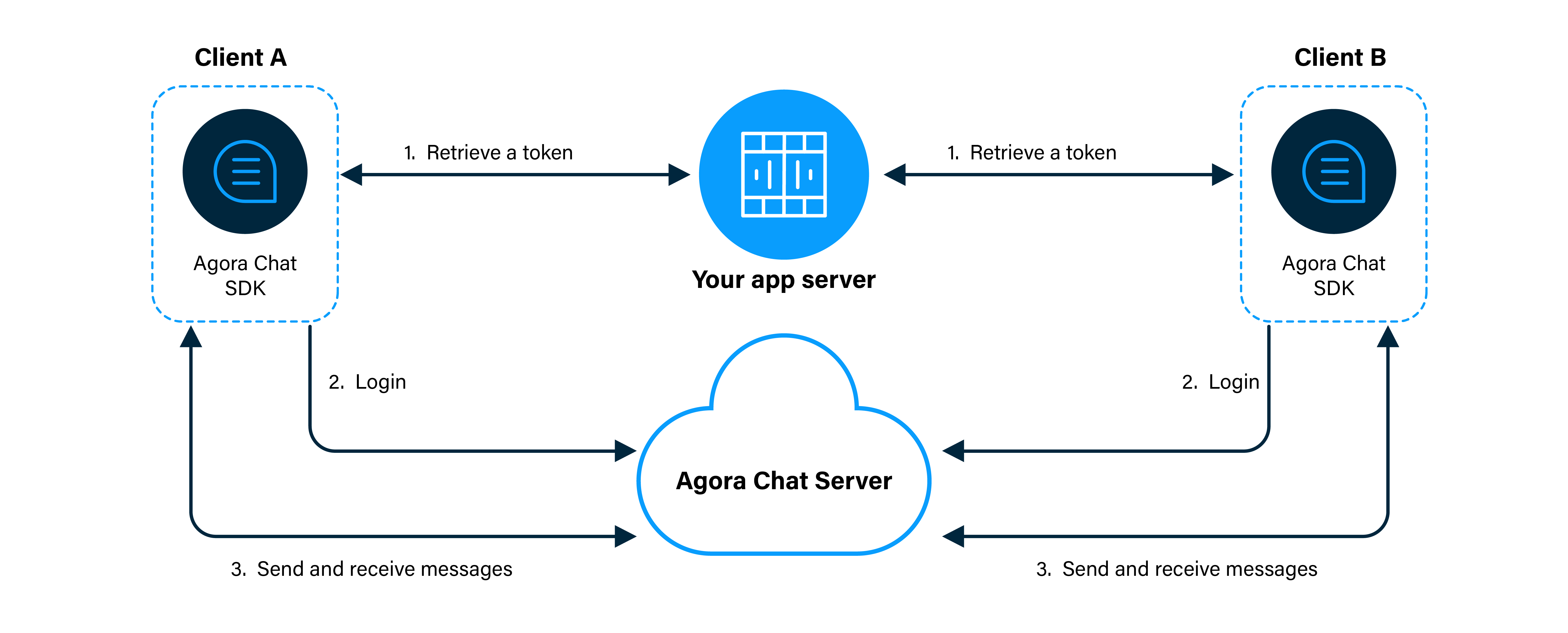
1. Clients retrieve an authentication token from your app server.
2. Users log in to Chat using the App ID, their user ID, and token.
3. Clients send and receive messages through Chat as follows:
1. Client A sends a message to Client B. The message is sent to the Agora Chat server.
2. The server delivers the message to Client B. When Client B receives a message, the SDK triggers an event.
3. Client B listens for the event to read and display the message.
## Prerequisites [#prerequisites]
In order to follow the procedure on this page, you must have:
* A valid [Agora account](/en/realtime-media/im/get-started/manage-agora-account#create-an-agora-account).
* An [Agora project](/en/realtime-media/im/get-started/manage-agora-account#create-an-agora-project) for which you have [enabled Chat](./enable#enable-).
* The [App ID](./enable#get-chat-project-information) for the project.
* Internet access.
Ensure that no firewall is blocking your network communication.
* Flutter 2.10 or higher.
* Dart 2.16 or higher.
* If your target platform is iOS:
* macOS
* Xcode 12.4 or higher with Xcode Command Line Tools
* CocoaPods
* An iOS emulator or a physical iOS device running iOS 10.0 or higher
* If your target platform is Android:
* macOS or Windows
* Android Studio 4.0 or higher with JDK 1.8 or higher
* An Android emulator or a physical Android device running Android SDK API 21 or higher
## Project setup [#project-setup]
To integrate Chat into your app, do the following:
1. **Set up a Flutter environment for a Chat project**
In the terminal, run the following command:
```bash
flutter doctor
```
Flutter checks your development device and helps you [set up](https://docs.flutter.dev/get-started/editor) your local development environment. Make sure that your system passes all the checks.
2. **Create a new Flutter app**
In the IDE of your choice, create a new [Flutter Application project](https://docs.flutter.dev/development/tools/android-studio#creating-a-new-project).
You can also create a new project from the terminal using the following command:
```bash
flutter create <--insert project name-->
```
3. **Add Chat SDK to your project**
Add the following line to the `/pubspec.yaml` file under `dependencies`:
```yaml
dependencies:
...
# For x.y.z, fill in a specific SDK version number. For example, 1.0.9
agora_chat_sdk: ^x.y.z
...
```
To get the latest device Chat SDK version number, visit [pub.dev](https://pub.dev/packages?q=agora_chat_sdk).
You can also add the Chat SDK dependency to your project by running the following command in the project folder:
```bash
flutter pub add agora_chat_sdk
```
4. **Use the Flutter framework to download dependencies to your app**
Open a terminal window and execute the following command in the project folder:
```bash
flutter pub get
```
5. **Add platform specific requirements**
Update the minimum version requirements for your target platforms as follows:
* **Android**
* In the `/android/app/build.gradle` file, set the Android `minSdkVersion` to `21` under `defaultConfig {`.
```json
android {
defaultConfig {
minSdkVersion 21
}
}
```
* In the `/android/app/proguard-rules.pro` file, add the following lines to prevent code obfuscation:
```bash
-keep class com.hyphenate.** {*;}
-dontwarn com.hyphenate.**
```
* **iOS**
Open the `/ios/Runner.xcodeproj` file in **Xcode**, and select **TARGETS** > **Runner** in the left sidebar. In the **General** > **Deployment Info** section, set the minimum iOS version to `iOS 10.0`.
## Implement peer-to-peer messaging [#implement-peer-to-peer-messaging]
This section shows how to use the Chat SDK to implement peer-to-peer messaging in your app, step by step.
### Handle the system logic [#handle-the-system-logic-2]
Import the Chat SDK package and set up the app framework.
1. **Add the Chat SDK package**
Open the file `/lib/main.dart` and add the following `import` statement at the top of the file:
```dart
import 'package:agora_chat_sdk/agora_chat_sdk.dart';
```
2. **Declare global variables**
In `/lib/main.dart` add the following declaration after the `import` statements:
```dart
// Global key to access the scaffold messenger
final GlobalKey scaffoldMessengerKey =
GlobalKey();
```
3. **Enable SnackBar messages**
Update the root widget to add the `scaffoldMessengerKey` for showing SnackBar messages, and set the background color. In `/lib/main.dart`, replace the `MyApp` class with the following:
```dart
class MyApp extends StatelessWidget {
const MyApp({Key? key}) : super(key: key);
// This widget is the root of your application.
@override
Widget build(BuildContext context) {
return MaterialApp(
title: 'Flutter Demo',
scaffoldMessengerKey: scaffoldMessengerKey,
theme: ThemeData(
scaffoldBackgroundColor: const Color(0xFFECE5DD),
),
home: const MyHomePage(title: 'Agora Chat Quickstart'),
);
}
}
```
4. **Set up the app framework**
To set up a Flutter app framework for Chat, you do the following:
1. Create a stateful widget
2. Declare variables to manage the connection and access UI elements
3. Add a method to display information to the user
To do this, replace the `_MyHomePageState` class with the following:
```dart
class _MyHomePageState extends State {
static const String appId = "";
static const String userId = "";
String token = "";
late ChatClient agoraChatClient;
bool isJoined = false;
ScrollController scrollController = ScrollController();
TextEditingController messageBoxController = TextEditingController();
String messageContent = "", recipientId = "";
final List messageList = [];
showLog(String message) {
scaffoldMessengerKey.currentState?.showSnackBar(SnackBar(
content: Text(message),
));
}
}
```
### Build the UI [#build-the-ui]
In the quickstart app, you create a simple UI that consists of the following elements:
* An `ElevatedButton` to log in or out of Agora Chat
* A `TextField` to specify the recipient user ID
* A `TextField` to enter a text message
* An `ElevatedButton` to send the text message
* A `ListView.builder` to display sent and received messages
To create this UI, add the following `build` method to the `_MyHomePageState` class:
```dart
@override
Widget build(BuildContext context) {
return Scaffold(
appBar: AppBar(
title: Text(widget.title),
),
body: Container(
padding: const EdgeInsets.all(10),
child: Column(
mainAxisSize: MainAxisSize.max,
children: [
Row(
children: [
Expanded(
child: SizedBox(
height: 40,
child: TextField(
decoration: const InputDecoration(
filled: true,
fillColor: Colors.white,
hintText: "Enter recipient's userId",
),
onChanged: (chatUserId) => recipientId = chatUserId,
),
),
),
const SizedBox(width: 10),
SizedBox(
width: 80,
height: 40,
child: ElevatedButton(
onPressed: joinLeave,
child: Text(isJoined ? "Leave" : "Join"),
),
),
],
),
const SizedBox(height: 10),
Expanded(
child: ListView.builder(
controller: scrollController,
itemBuilder: (_, index) {
return messageList[index];
},
itemCount: messageList.length,
),
),
Row(children: [
Expanded(
child: SizedBox(
height: 40,
child: TextField(
controller: messageBoxController,
decoration: const InputDecoration(
filled: true,
fillColor: Colors.white,
hintText: "Message",
),
onChanged: (msg) => messageContent = msg,
),
),
),
const SizedBox(width: 10),
SizedBox(
width: 50,
height: 40,
child: ElevatedButton(
onPressed: sendMessage,
child: const Text(">>"),
),
),
]),
],
),
),
);
}
```
### Send and receive messages [#send-and-receive-messages-2]
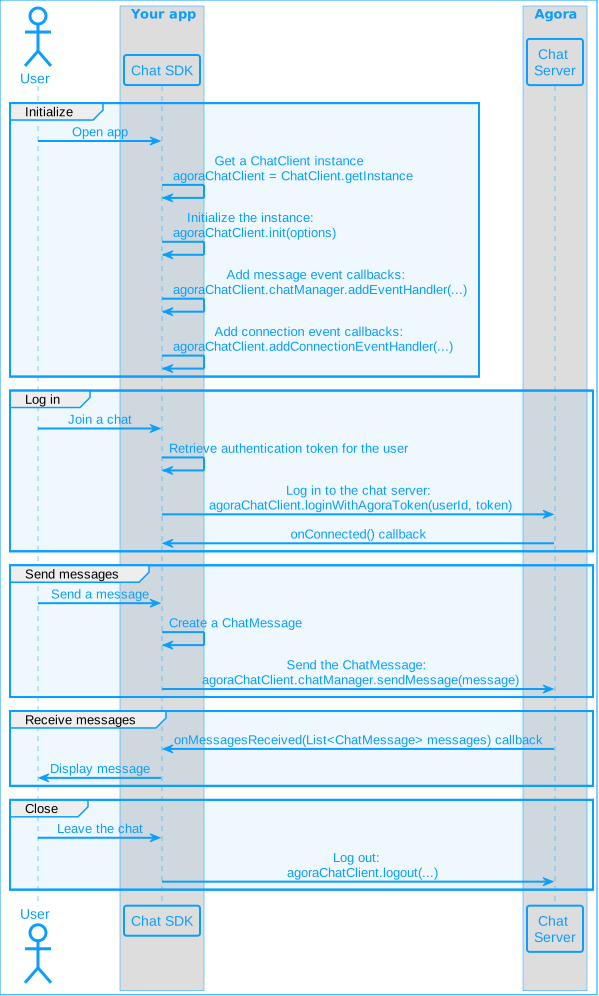
When a user opens the app, you instantiate and initialize a `ChatClient`. When the user taps the **Join** button, the app logs in to Agora Chat. When a user types a message in the text box and then presses **Send**, the typed message is sent to Agora Chat. When the app receives a message from the server, the message is displayed in the message list. This simple workflow enables you to rapidly build a Chat client with basic functionality.
The following figure shows the API call sequence for implementing this workflow.
API call sequence
To implement this workflow in your app, take the following steps:
1. **Set up Chat when the app starts**
When the app starts, you create an instance of the `ChatClient` and set up callbacks to handle Chat events.
To do this, add the following `initState` method to the `_MyHomePageState` class:
```dart
@override
void initState() {
super.initState();
setupChatClient();
setupListeners();
}
```
2. **Instantiate the `ChatClient`**
To implement peer-to-peer messaging, you use Chat SDK to initialize a `ChatClient` instance. In the `_MyHomePageState` class, add the following method after `initState`.
```dart
void setupChatClient() async {
ChatOptions options = ChatOptions.withAppId(
appId,
autoLogin: false,
);
agoraChatClient = ChatClient.getInstance;
await agoraChatClient.init(options);
// Notify the SDK that the Ul is ready. After the following method is executed, callbacks within ChatRoomEventHandler and ChatGroupEventHandler can be triggered.
await ChatClient.getlnstance.startCallback();
}
```
3. **Handle and respond to Chat events**
To receive notification of Chat events such as connection, disconnection, and token expiration, you add a `ConnectionEventHandler`. To handle message delivery and new message notifications, you add a `ChatEventHandler`. When you receive the `onMessageReceived` notification, you display the message to the user.
In the `_MyHomePageState` class, add the following methods after `setupChatClient`:
```dart
void setupListeners() {
agoraChatClient.addConnectionEventHandler(
"CONNECTION_HANDLER",
ConnectionEventHandler(
onConnected: onConnected,
onDisconnected: onDisconnected,
onTokenWillExpire: onTokenWillExpire,
onTokenDidExpire: onTokenDidExpire
),
);
agoraChatClient.chatManager.addEventHandler(
"MESSAGE_HANDLER",
ChatEventHandler(onMessagesReceived: onMessagesReceived),
);
}
void onMessagesReceived(List messages) {
for (var msg in messages) {
if (msg.body.type == MessageType.TXT) {
ChatTextMessageBody body = msg.body as ChatTextMessageBody;
displayMessage(body.content, false);
showLog("Message from ${msg.from}");
} else {
String msgType = msg.body.type.name;
showLog("Received $msgType message, from ${msg.from}");
}
}
}
void onTokenWillExpire() {
// The token is about to expire. Get a new token
// from the token server and renew the token.
}
void onTokenDidExpire() {
// The token has expired
}
void onDisconnected () {
// Disconnected from the Chat server
}
void onConnected() {
showLog("Connected");
}
```
4. **Log in to Agora Chat**
When a user presses **Join**, your app logs in to Agora Chat. When a user presses **Leave**, the app logs out of Agora Chat.
To implement this logic, in the `_MyHomePageState` class, add the following method before `showLog`:
```dart
void joinLeave() async {
if (!isJoined) { // Log in
try {
await agoraChatClient.loginWithToken(userId, token);
showLog("Logged in successfully as $userId");
setState(() {
isJoined = true;
});
} on ChatError catch (e) {
if (e.code == 200) { // Already logged in
setState(() {
isJoined = true;
});
} else {
showLog("Login failed, code: ${e.code}, desc: ${e.description}");
}
}
} else { // Log out
try {
await agoraChatClient.logout(true);
showLog("Logged out successfully");
setState(() {
isJoined = false;
});
} on ChatError catch (e) {
showLog("Logout failed, code: ${e.code}, desc: ${e.description}");
}
}
}
```
5. **Send a message**
To send a message to Agora Chat when a user presses the **Send** button, add the following method to the `_MyHomePageState` class, after `joinLeave`:
```dart
void sendMessage() async {
if (recipientId.isEmpty || messageContent.isEmpty) {
showLog("Enter recipient user ID and type a message");
return;
}
var msg = ChatMessage.createTxtSendMessage(
targetId: recipientId,
content: messageContent,
);
ChatClient.getInstance.chatManager.addMessageEvent(
"UNIQUE_HANDLER_ID",
ChatMessageEvent(
onSuccess: (msgId, msg) {
_addLogToConsole("on message succeed");
},
onProgress: (msgId, progress) {
_addLogToConsole("on message progress");
},
onError: (msgId, msg, error) {
_addLogToConsole(
"on message failed, code: ${error.code}, desc: ${error.description}",
);
},
),
);
ChatClient.getInstance.chatManager.removeMessageEvent("UNIQUE_HANDLER_ID");
agoraChatClient.chatManager.sendMessage(msg);
}
```
6. **Display chat messages**
To display the messages the current user has sent and received in your app, add the following method to the `_MyHomePageState` class:
```dart
void displayMessage(String text, bool isSentMessage) {
messageList.add(Row(children: [
Expanded(
child: Align(
alignment:
isSentMessage ? Alignment.centerRight : Alignment.centerLeft,
child: Container(
padding: const EdgeInsets.all(10),
margin: EdgeInsets.fromLTRB(
(isSentMessage ? 50 : 0), 5, (isSentMessage ? 0 : 50), 5),
decoration: BoxDecoration(
color: isSentMessage
? const Color(0xFFDCF8C6)
: const Color(0xFFFFFFFF),
),
child: Text(text),
),
),
),
]));
setState(() {
scrollController.jumpTo(scrollController.position.maxScrollExtent + 50);
});
}
```
7. **Remove event handlers on exit**
When a user closes the app, you remove the message and connection event handlers. To do this, add the following `dispose` method to the `_MyHomePageState` class:
```dart
@override
void dispose() {
agoraChatClient.chatManager.removeEventHandler("MESSAGE_HANDLER");
agoraChatClient.removeConnectionEventHandler("CONNECTION_HANDLER");
super.dispose();
}
```
## Test your implementation [#test-your-implementation]
To ensure that you have implemented Peer-to-Peer Messaging in your app:
1. Create an app instance for the first user:
1. [Register a user](./enable#register-a-user) in [Agora Console](https://console.agora.io/v2) and [Generate a user token](./enable#generate-a-user-token).
2. In the `_MyHomePageState` class, update `appId`, `token`, and `userId` with values from Agora Console. To get your App ID, see [Get Chat project information](./enable#get-chat-project-information).
3. Connect a physical test device to your development device.
4. In your IDE, click **Run app** or launch your app from the terminal using `flutter run lib/main.dart`. A moment later you see the project installed on your device.
2. Create an app instance for the second user:
1. Register a second user in Agora Console and generate a user token.
2. In the `_MyHomePageState` class, update `userId` and `token` with values for the second user. Make sure you use the same `appId` as for the first user.
3. Run the modified app on a device emulator or a second physical test device.
3. On each device, click **Join** to log in to Agora Chat.
4. Edit the recipient name on each device to show the user ID of the user logged in to the other device.
5. Type a message in the **Message** box of either device and press **`>>`**.
The message is sent and appears on the other device.
6. Press **Leave** to log out of Agora Chat.
## Reference [#reference]
This section contains content that completes the information in this page, or points you to documentation that explains other aspects to this product.
* For more code samples, see [Samples and demos](./downloads).
### API reference [#api-reference-2]
* [`ChatClient.init`](https://api-ref.agora.io/en/chat-sdk/flutter/1.x/file-___Users_dujiepeng_work_flutter_agora_chat_sdk_lib_src_chat_client/ChatClient/init.html)
* [`ChatClient.loginWithToken`](https://api-ref.agora.io/en/chat-sdk/flutter/1.x/file-___Users_dujiepeng_work_flutter_agora_chat_sdk_lib_src_chat_client/ChatClient/loginWithToken.html)
* [`ChatClient.logout`](https://api-ref.agora.io/en/chat-sdk/flutter/1.x/file-___Users_dujiepeng_work_flutter_agora_chat_sdk_lib_src_chat_client/ChatClient/logout.html)
* [`ChatManager.sendMessage`](https://api-ref.agora.io/en/chat-sdk/flutter/1.x/file-___Users_dujiepeng_work_flutter_agora_chat_sdk_lib_src_chat_manager/ChatManager/sendMessage.html)
* [`ChatManager`](https://api-ref.agora.io/en/chat-sdk/flutter/1.x/file-___Users_dujiepeng_work_flutter_agora_chat_sdk_lib_src_chat_manager/ChatManager-class.html)
* [`ChatMessage`](https://api-ref.agora.io/en/chat-sdk/flutter/1.x/file-___Users_dujiepeng_work_flutter_agora_chat_sdk_lib_src_models_chat_message/ChatMessage-class.html)
* [`ConnectionEventHandler`](https://api-ref.agora.io/en/chat-sdk/flutter/1.x/file-___Users_dujiepeng_work_flutter_agora_chat_sdk_lib_src_event_handler_manager_event_handler/ConnectionEventHandler-class.html)
* [`ChatEventHandler`](https://api-ref.agora.io/en/chat-sdk/flutter/1.x/file-___Users_dujiepeng_work_flutter_agora_chat_sdk_lib_src_event_handler_manager_event_handler/ChatEventHandler-class.html)
### Next steps [#next-steps]
In a production environment, best practice is to deploy your own token server. Users retrieve a token from the token server to log in to Chat. To see how to implement a server that generates and serves tokens on request, see [Secure authentication with tokens](../develop/authentication).