# Configure Flexible Classroom (/en/realtime-media/flexible-classroom/build/set-up-your-account-and-authentication/enable-flexible-classroom)
> For AI agents: see the complete documentation index at [llms.txt](/llms.txt).
This page introduces how to enable and configure Flexible Classroom in Agora Console.
## Prerequisites [#prerequisites]
In order to follow this procedure you must have:
* An Agora [account](../manage-agora-account.mdx) and [project](../manage-agora-account.mdx).
* The whiteboard feature in Flexible Classroom requires third-party cloud storage. Currently, Flexible Classroom supports [Amazon S3](https://aws.amazon.com/s3/?nc1=h_ls).
## Enable Flexible Classroom [#enable-flexible-classroom]
Follow these steps to enable the Flexible Classroom service in Agora Console:
1. Log into Agora Console and navigate to the [Project Management](https://console.agora.io/v2/project-management) page.
2. On the **Project Management** page, find the project for which you want to enable the Flexible Classroom service, and click **Edit**.

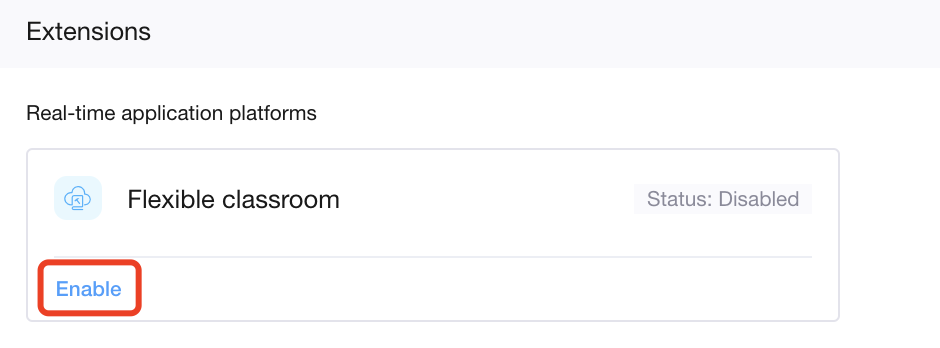
3. Under **Extensions**, find **Flexible Classroom** and click **Enable**.
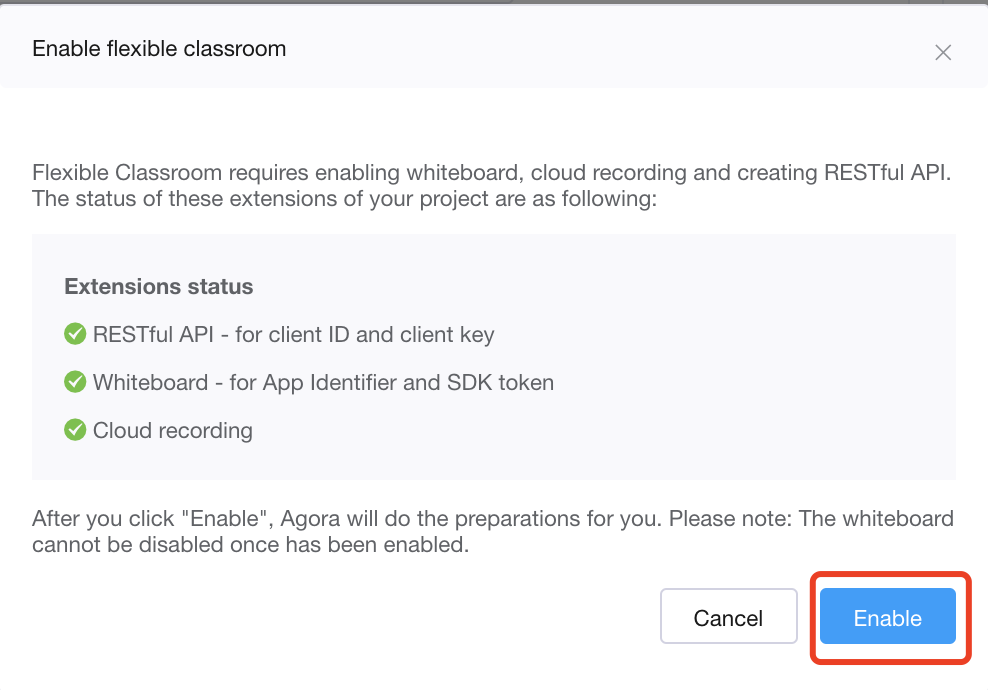
4. Read the pop-up prompt carefully, and click **Enable**.
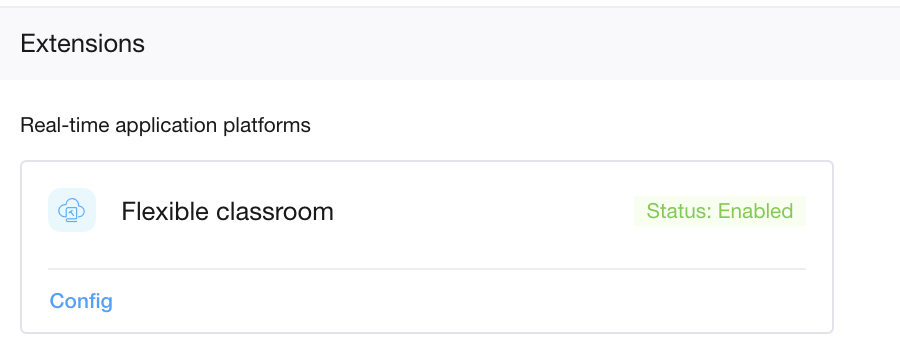
5. After you successfully enable the Flexible Classroom service, the status changes to **Enabled**:
## Configure the whiteboard feature [#configure-the-whiteboard-feature]
If you want to upload PPT, Word, or PDF files to a Flexible Classroom and display these files on the whiteboard, you need to configure the whiteboard feature in Agora Console. Before configuring the whiteboard feature, ensure that you have enabled a third-party cloud storage service. Currently, Agora only supports [Amazon S3](https://aws.amazon.com/s3/?nc1=h_ls).
To configure the whiteboard feature, take the following steps:
1. On the Flexible Classroom configuration page in Agora Console, find the whiteboard module:
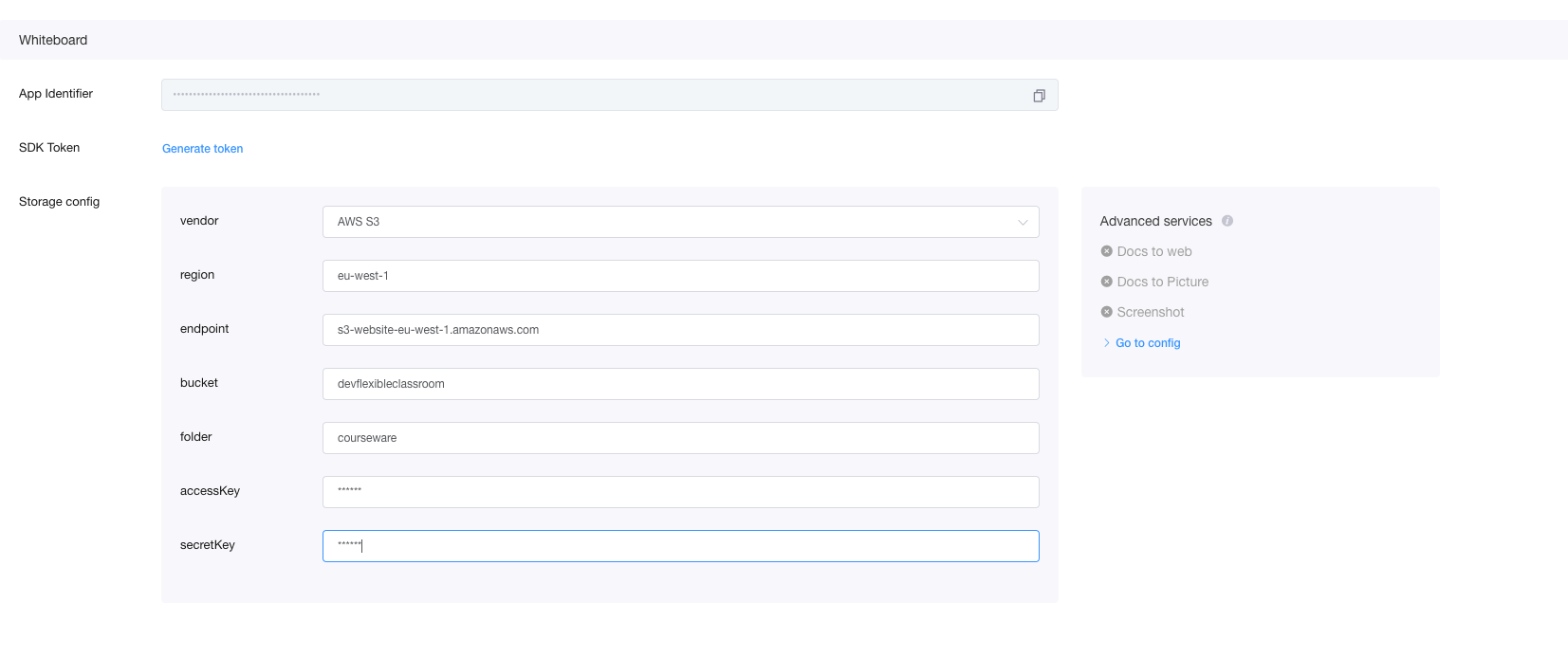
2. To use PPT, Word, PDF and other courseware, you need to enable advanced services. Go to Configuration under Advanced Services to enable and configure the document-to-webpage, document-to-picture, and screenshot services for Smart Classroom. For details, see [Enable whiteboard server-side features](/en/realtime-media/whiteboard/build/set-up-and-build-your-first-app/enable-whiteboard).
3. Configure a third-party cloud storage service for storing files uploaded in a classroom. Fill in the following information:
* `region`: The location of the data center you specified when creating a bucket in Amazon S3.
* `endpoint`: The domain name used to access the Amazon S3 service, such as s3.us-east-2.amazonaws.com.
* `Bucket`: The bucket name in Amazon S3.
* `folder`: The domain name used to access the Amazon S3 service, such as whiteboard.
* `accessKey`: The Access Key provided by Amazon S3, which is used to identify visitors.
* `secretKey`: The Secret Key provided by Amazon S3, which is used to authenticate signatures.
For further information on how to obtain these parameters, see the [Amazon S3 document](https://docs.aws.amazon.com/general/latest/gr/s3.html).
## Configure classroom storage and recording [#configure-classroom-storage-and-recording]
To setup and configure storage and recording in for your classrooms:
1. **Setup third-party cloud storage**
1. On the **Flexible Classroom configuration** page, find the whiteboard module, as shown in the following figure:
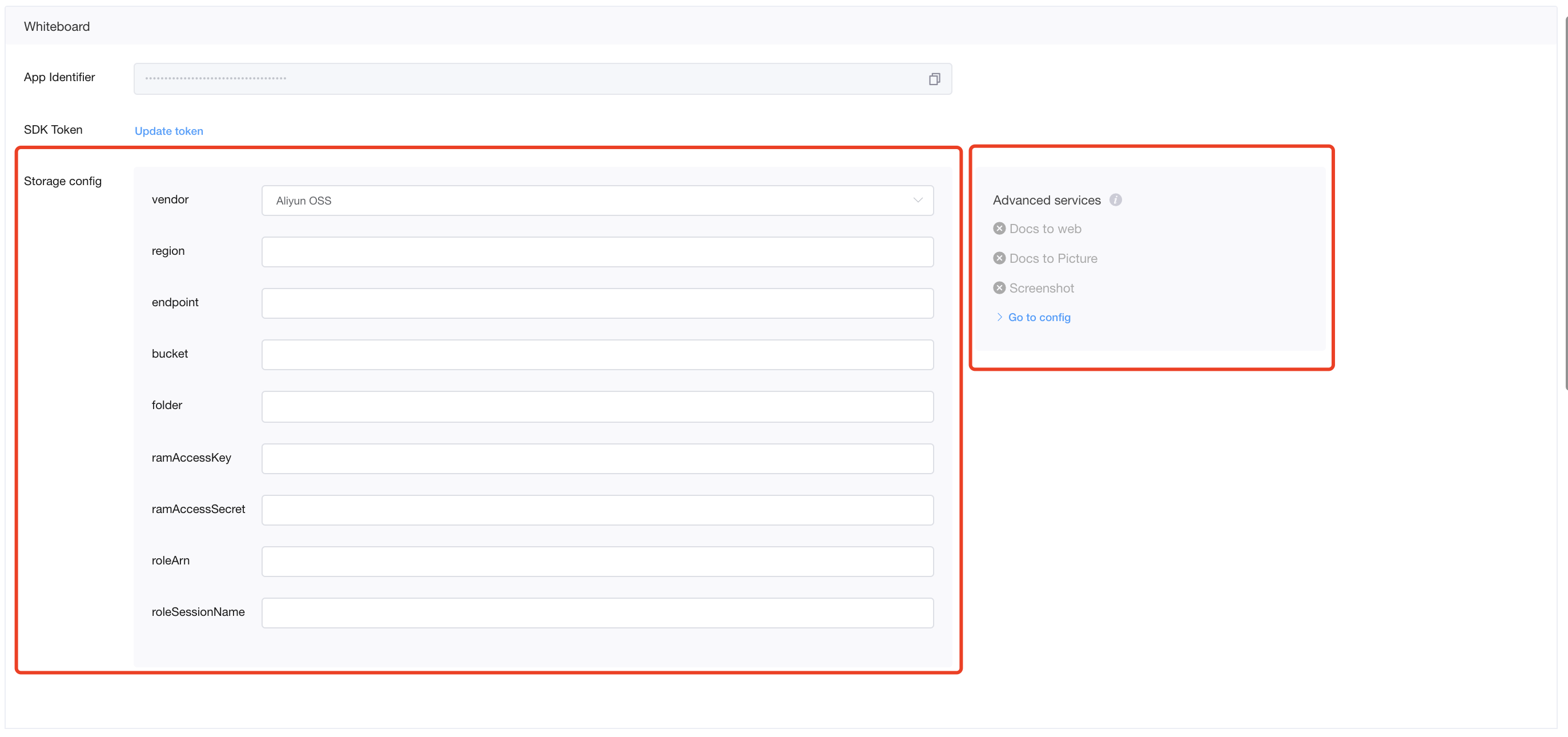
2. Enable the advanced services. See [Enable whiteboard server-side features](/en/realtime-media/whiteboard/build/set-up-and-build-your-first-app/enable-whiteboard).
3. Configure a third-party cloud storage service for storing files uploaded in a classroom. Fill in the following information:
* `region`: The location of the data center you specified when creating a bucket in Amazon S3.
* `endpoint`: The domain name used to access the Amazon S3 service, such as `s3.us-east-2.amazonaws.com`.
* `Bucket`: The bucket name in Amazon S3.
* `folder`: The domain name used to access the Amazon S3 service, such as `whiteboard`.
* `accessKey`: The Access Key provided by Amazon S3, which is used to identify visitors.
* `secretKey`: The Secret Key provided by Amazon S3, which is used to authenticate signatures.
For how to get these parameters, see the [Amazon S3 document](https://docs.aws.amazon.com/general/latest/gr/s3.html).
2. **Configure your classroom**
1. Find the cloud recording module on the **Flexible Classroom configuration** page in Agora Console:
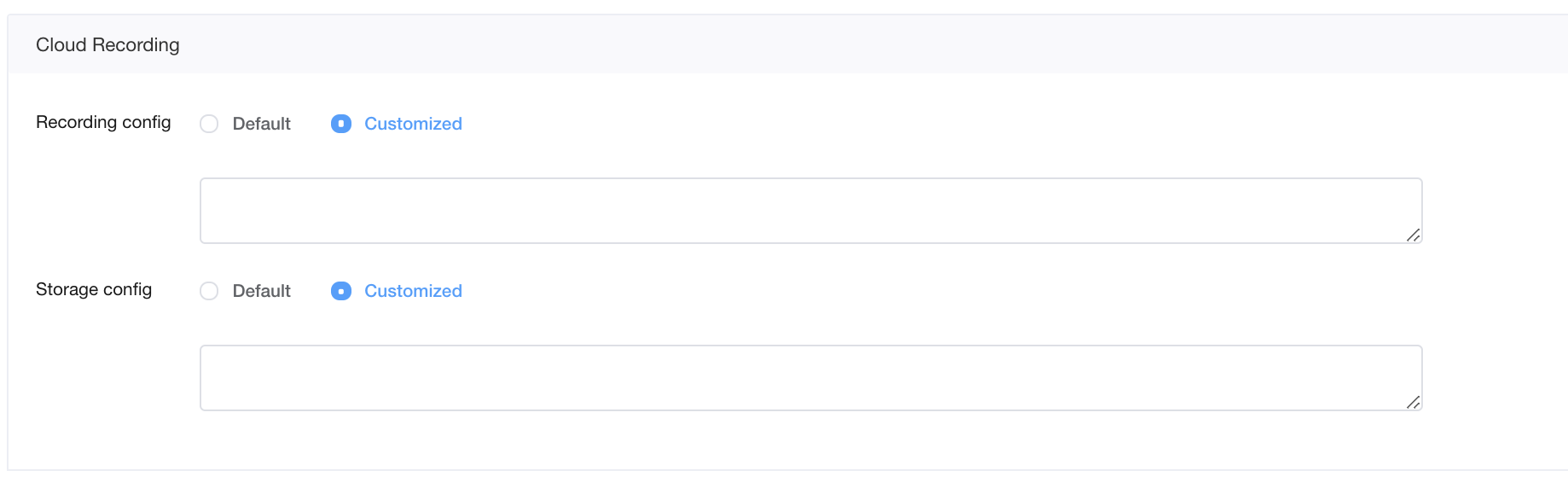
The recording config can be set to default. Set the storage config to customized; otherwise, the recording cannot be stored in your OSS account.
2. Configure storage
Pass in the `storageConfig` JSON object for storing recorded files. Use the following fields to specify the url and storage location of the recording file.
* `endpoint`: (required) String. The full path composed of the Bucket name and the access domain name. For example, if your Bucket name is "agora-recording", and the OSS access domain name is "oss-cn-shanghai.aliyuncs.com", then the `endpoint` field is set to `https:// agora-recording.oss-cn-shanghai.aliyuncs.com`
* `fileNamePrefix`: (Optional) JSONArray. An array of strings that specifies the storage location of the recording file in the third-party cloud storage. The prefix length, including slashes, cannot exceed 128 characters. The string supports 26 uppercase and lowercase English letters az, AZ, and 10 numbers 0-9. Slashes, underscores, brackets, and other symbol characters are not allowed. You can use variables to specify a dynamic path. When you initiate recording, Flexible Classroom will replace variables with real values.
Sample `storageConfig`:
```json
{
"vendor": 2,
"region": 3,
"bucket": "xxxxx",
"accessKey": "xxxxxxf",
"secretKey": "xxxxx",
"endpoint": "https://agora-recording.oss-cn-shanghai.aliyuncs.com",
"fileNamePrefix": [
"scenario",
"recording"
]
}
```
To set the path dynamically, you can use these two types of variables:
| Type | Variable | Description |
| :-------------- | :--------------------------------------------------- | :---------------------------------------------------- |
| Fixed variables | `${appId}` | App ID |
| Fixed variables | `${roomUuid}` | The UUID of the class to be recorded |
| Date variables | `${yyyy}` | Year |
| Date variables | `${MM}` | Month |
| Date variables | `${dd}` | Day |
| Date variables | `${yyyyMMdd}`, `${yyyyMM}`, `${yyyy-dd}`, `${MM_dd}` | Date variables can be combined into different formats |
For example, you set `fileNamePrefix` field as follows:
```json
"fileNamePrefix": [
"scenario",
"recording",
"${appId}",
"${yyyyMM}",
"${roomUuid}"
]
```
The recording storage path will be similar to `/scenario/recording/[appID]/202303/[roomUUID]/filename.mp4`.
For complete parameter descriptions, see [storageConfig](/en/api-reference/api-ref/cloud-recording).
3. Configure recording.
By default, you record teacher audio and video in [composite recording mode](/en/realtime-media/cloud-recording/build/start-a-recording/composite-mode). Your recorded files are stored in Agora's Amazon S3 account. To change the default behavior, Pass in the `recordingConfig` JSON object:
```json
{
"maxIdleTime": 30,
"streamTypes": 2,
"channelType": 0
}
```
For parameter descriptions, see [recordingConfig](/en/api-reference/api-ref/cloud-recording).
## Configure Chat [#configure-chat]
To enable and configure Chat:
1. In Agora Console, navigate to [Project Management](https://console.agora.io/v2/project-management).
2. Click **Config** next to the project for which you want to enable Chat.
3. In the **Features** section of the **Edit Project** page, click **Enable/Configure** next to **Chat**.
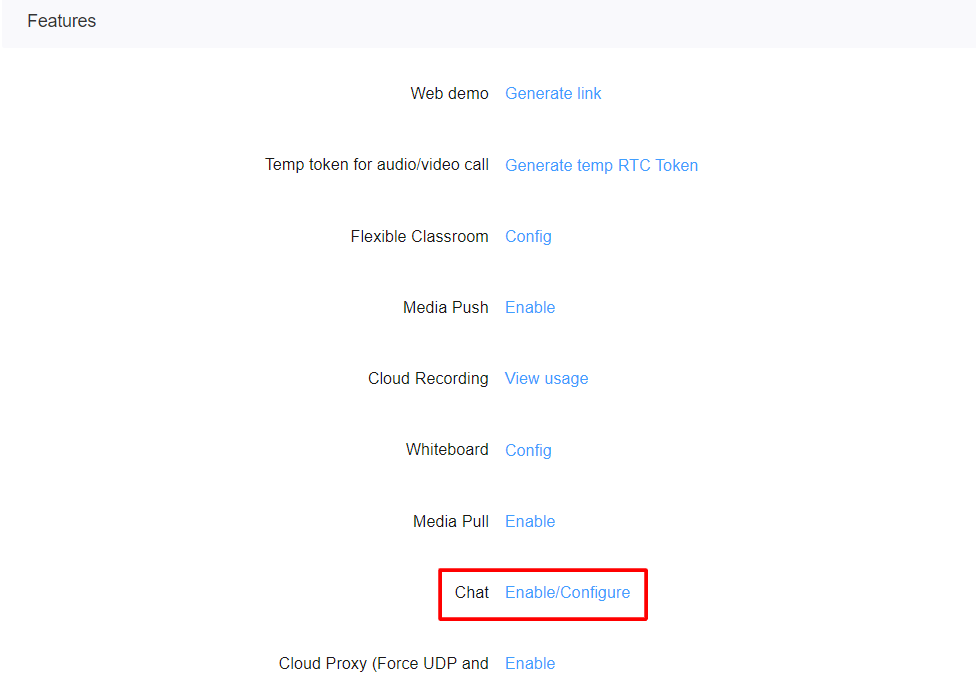
4. Select the data center location.
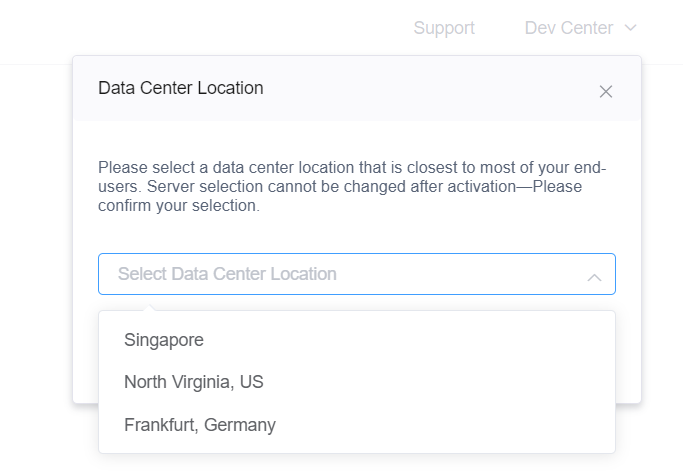
Agora generates the Chat-related `AppKey`, `OrgName`, `AppName`, and API access information.
5. In the **Features** section of the **Edit Project** page, click **Config** next to **Flexible Classroom**.
6. In the **Chat** section, complete the required fields:
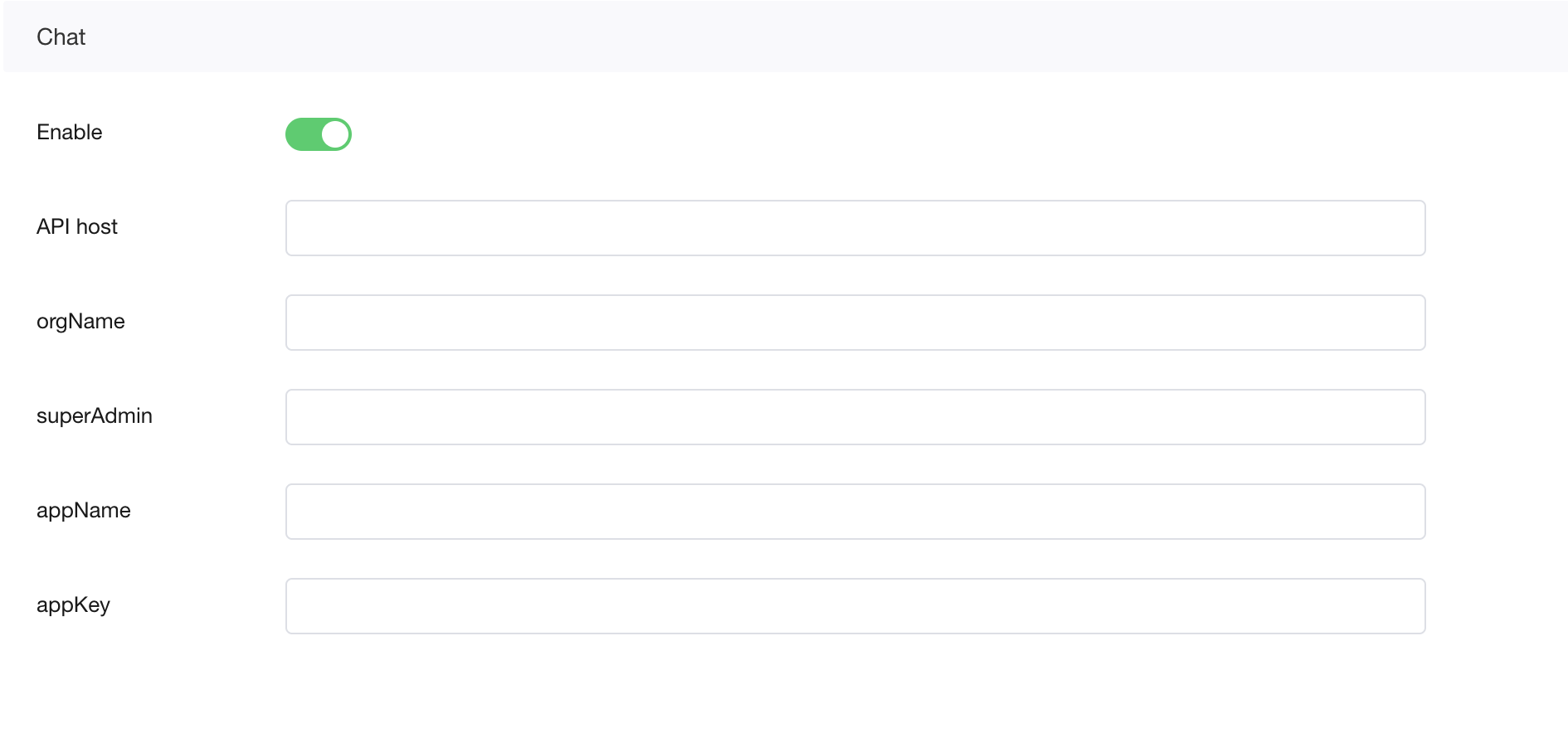
* **API host**: The REST API access address generated when enabling Chat.
* **orgName**: The unique identifier of the enterprise generated when enabling Chat.
* **superAdmin**: The super administrator username prefix. Only numbers and letters are supported. Agora uses `${superAdmin}-${timestamp}` as the super administrator to create a chat room.
* **appName**: The unique name of the app generated when enabling Chat.
* **appKey**: The unique identifier of the app generated when enabling Chat.
## Considerations [#considerations]
#### AWS S3 account configuration [#aws-s3-account-configuration]
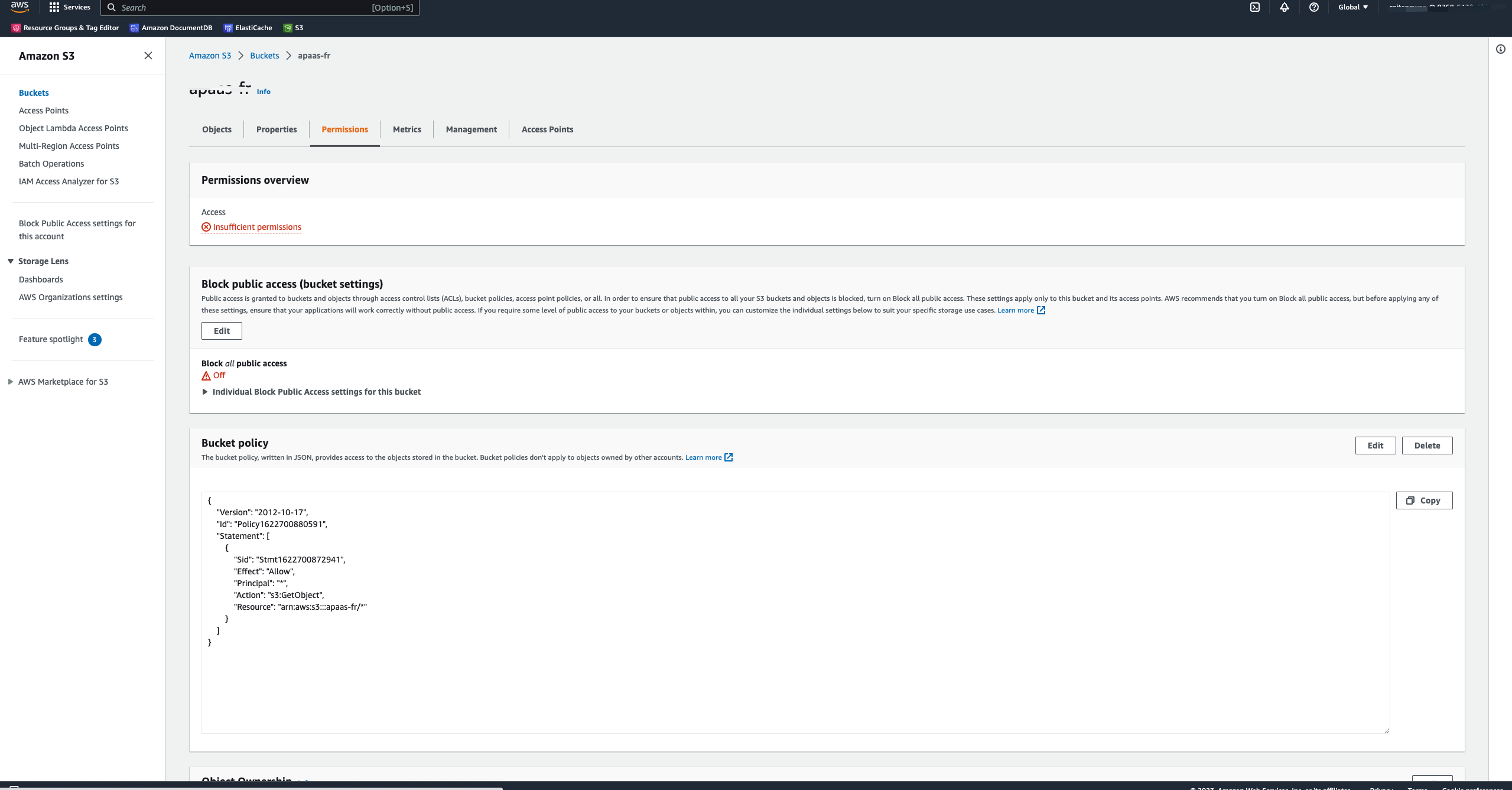
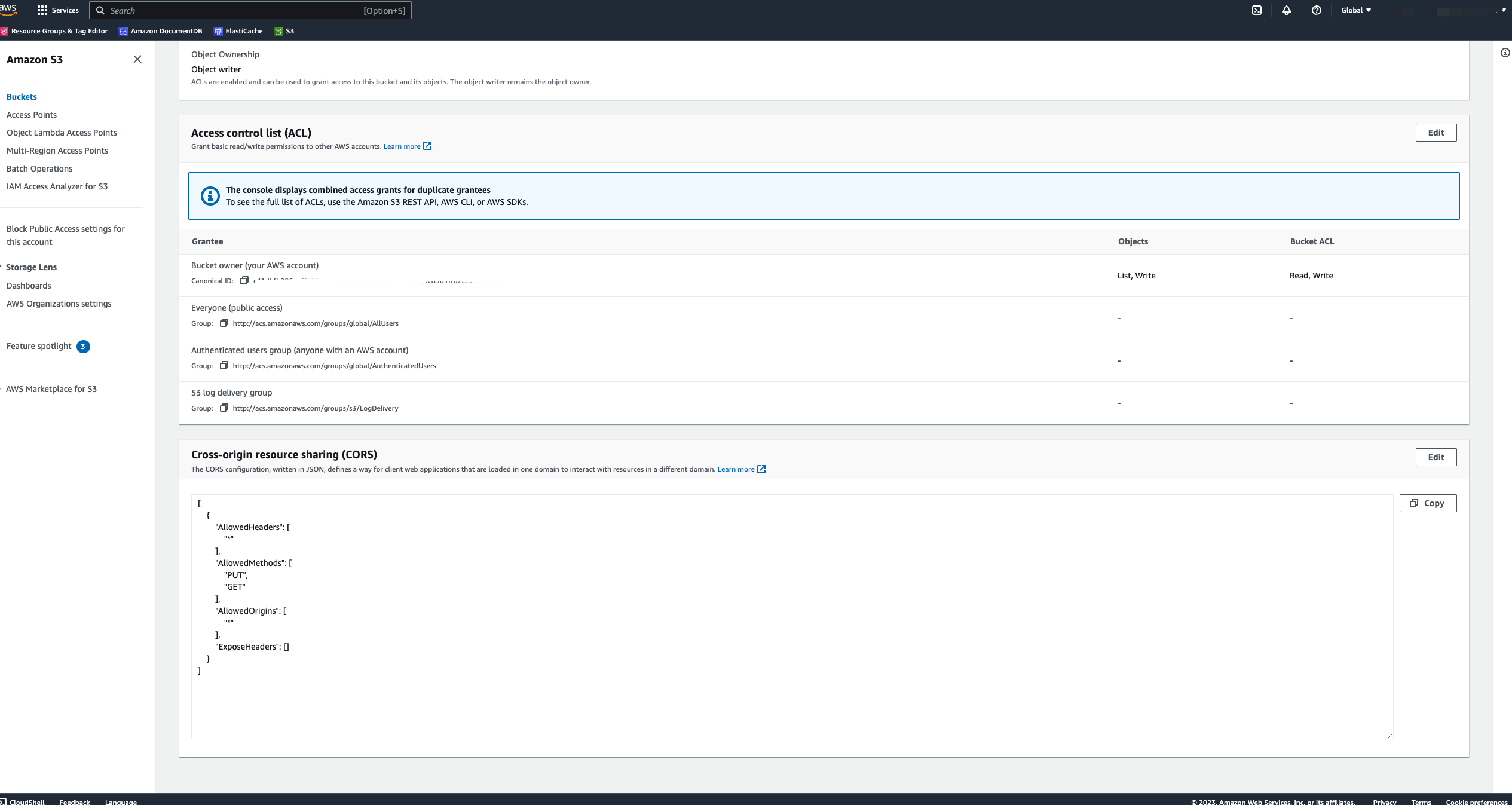
To ensure that Agora can access files in your third-party cloud storage space, you should enable public access or higher permissions for third-party storage spaces.
Configure your AWS S3 account as follows:
* Bucket policy
```json
{
"Version":"2012-10-17",
"Id":"Policy1622700880591",
"Statement":[
{
"Sid":"Stmt1622700872941",
"Effect":"Allow",
"Principal":"*",
"Action":["s3:GetObject","s3:PutObject"],
"Resource":"arn:aws-cn:s3:::agora-adc-artifacts/"
}
]
}
```
* Cross-origin resource sharing
```json
[
{
"AllowedHeaders":[
"*"
],
"AllowedMethods":[
"PUT",
"GET"
],
"AllowedOrigins":[
"*"
],
"ExposeHeaders":[
]
}
]
```
#### Service limit [#service-limit]
Flexible Classroom supports a maximum of 10,000 people online at the same time. If you need to extend your limit, contact technical support.