# FcrUIScene SDK (/en/realtime-media/flexible-classroom/build/integrate-the-sdks/integrate-flexible-classroom-fcr)
> For AI agents: see the complete documentation index at [llms.txt](/llms.txt).
<_PlatformTabsGroup groupMode="structured" canonicalPlatform="web" platforms="["android","ios","web","electron"]" showTabs="true">
<_PlatformPanel platform="android">
<_PlatformProcessedMarker groupMode="structured" canonicalPlatform="web" platform="android" />
Currently not supported for this platform.
<_PlatformProcessedMarker close="true" />
<_PlatformPanel platform="ios">
<_PlatformProcessedMarker groupMode="structured" canonicalPlatform="web" platform="ios" />
Currently not supported for this platform.
<_PlatformProcessedMarker close="true" />
<_PlatformPanel platform="web">
<_PlatformProcessedMarker groupMode="structured" canonicalPlatform="web" platform="web" />
This page introduces how to add Flexible Classroom into your app.
## Understand the tech [#understand-the-tech]
The following figure shows the overall technical architecture of Flexible Classroom:
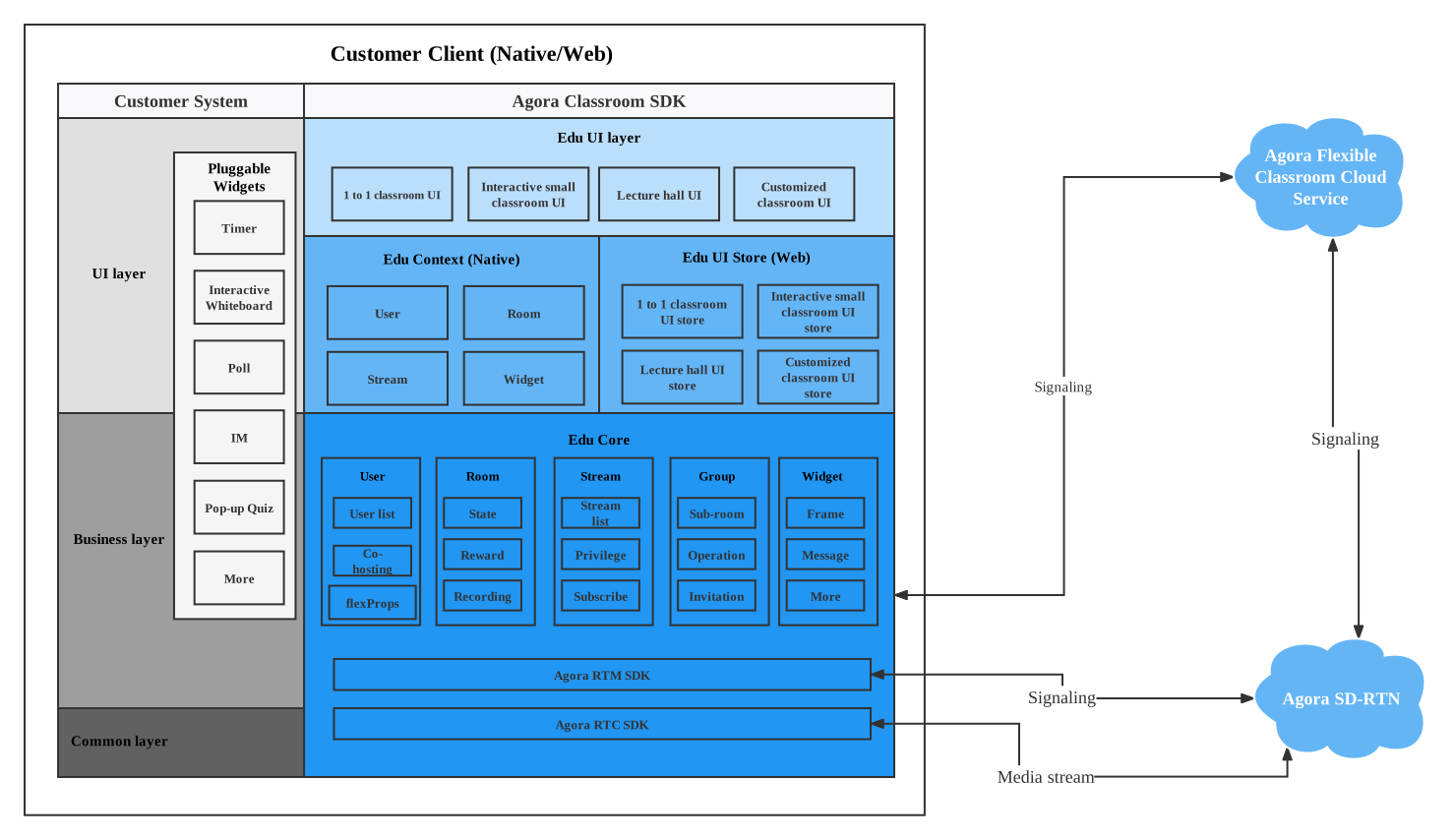
The source code of Flexible Classroom contains the following packages:
* `agora-demo-app`: The Agora Classroom SDK demo app, supports Web, H5, Electron and other platforms, supports online classroom, online invigilation function, and provides code samples for online classroom before, during, and after class.
* `agora-plugin-gallery`: An independent plug-in library for Agora Classroom SDK, which inherits the `AgoraWidgetBase` class and implements the `AgoraWidgetLifecycle` interface. It includes plug-ins such as interactive whiteboard, IM chat, answering machine, voting machine, and timer.
* `fcr-ui-scene/`: General education scene SDK
* `/src/uistores`: UI Store directory. UI Store is responsible for providing business logic encapsulation for UI components.
* `/src/containers`: UI functional components combined with UI Store to become UI business components.
* `/src/scenarios`: UI scene. Scenarios are composed of multiple business components.
* `/src/extension`: API package for communicating with Widget
* `/src/resources`: Static resource files such as pictures and sounds
* `/src/utils`: Common UI components
* `fcr-ui-kit/`: Common scene UI component library
* `/src/components`: Common UI components
* `/src/utils`: General hooks tool class
* `agora-common-libs`: General tool class library, including ThemeProvider, I18nProvider, and other global general tools
* `agora-edu-core`: Provides upstream API calls and downstream data structure encapsulation for education and proctoring scenarios in smart classrooms.
* `agora-rte-sdk`: Provides cross-end RTC adaptation capabilities as well as classroom event callbacks and data structure encapsulation.
## Integration methods [#integration-methods]
You can use multiple methods to integrate Cloud Classroom into your web project. Depending on whether you need to customize the classroom UI, you can choose different integration methods:
* If you are satisfied with the default UI and do not want to change any of it, integrate the whole Cloud Classroom through [npm](https://www.npmjs.com/package/agora-classroom-sdk) or CDN.
* If you want to customize the classroom UI based on the default UI of Cloud Classroom, you need to integrate by downloading the [source code](https://github.com/AgoraIO-Community/flexible-classroom-desktop) on GitHub.
### Use the default UI [#use-the-default-ui]
If you are satisfied with the default UI of Cloud Classroom and do not want to change any of it, integrate through npm or CDN.
#### Through npm [#through-npm]
1. To install the SDK, run the following command:
```bash
npm install fcr-ui-scene agora-plugin-gallery
```
2. Import modules and plug-ins into the project's JavaScript code:
```javascript
import { FcrUIScene } from 'fcr-ui-scene'
import {
FcrChatroom,
FcrBoardWidget,
FcrPollingWidget,
FcrStreamMediaPlayerWidget,
FcrWebviewWidget,
FcrCountdownWidget,
FcrPopupQuizWidget
} from 'agora-plugin-gallery/scene'
```
3. To launch a classroom, call [FcrUIScene.launch](/en/api-reference/api-ref/flexible-classroom/ui-scene).
```javascript
import { FcrUIScene } from 'fcr-ui-scene'
import {
FcrChatroom,
FcrBoardWidget,
FcrPollingWidget,
FcrStreamMediaPlayerWidget,
FcrWebviewWidget,
FcrCountdownWidget,
FcrPopupQuizWidget
} from 'agora-plugin-gallery/scene'
const unmount = FcrUIScene.launch(document.querySelector("#root"), {
appId: "Your App ID",
region: "NA",
userUuid: "user id",
userName: "user name",
roomUuid: "room id",
roomType: 10, // Room type: 10 for Cloud Class.
roomName: "room name",
pretest: true, // Whether to enable pre-class equipment detection
token: "rtm token", // In a test environment, you can use temporary RTM Token; in a production or security environment, it is strongly recommended that you use a server-generated RTM Token.
language: "zh",
duration: 60 * 30, // Course time in seconds.
recordUrl: "your record url",
roleType: 1, // User roles: 1 is teacher, 2 is student
widgets: {
easemobIM: FcrChatroom, // IM widget
netlessBoard: FcrBoardWidget, // Interactive whiteboard widget
poll: FcrPollingWidget, // Voter widget
mediaPlayer: FcrStreamMediaPlayerWidget, // Video sync player widget
webView: FcrWebviewWidget, // Embedded browser widget
countdownTimer: FcrCountdownWidget, // Countdown widget
popupQuiz: FcrPopupQuizWidget, // Clicker widget
},
});
```
#### Through CDN [#through-cdn]
1. Add the following code to the HTML file in your project:
```html
```
2. To launch a classroom, call [FcrUIScene.launch](/en/api-reference/api-ref/flexible-classroom/ui-scene).
#### Sample code [#sample-code]
```html
```
The sample code requires passing in `rtmToken`. You can refer to [Secure authentication with tokens](/en/realtime-media/flexible-classroom/build/set-up-your-account-and-authentication/authentication-workflow) to learn what a Signaling token is, how to get a temporary Signaling token for testing purposes, and how to generate a Signaling token from the server. The generated token passed in `userId` must be consistent with the `userUuid` parameters passed in the `launch` method; otherwise, the generated token will be invalid.
Calling `launch` returns `unmount`. When your App routing changes cause the unloading of a page, call `unmount` to disconnect the room and recycle resources.
### Customize the classroom UI [#customize-the-classroom-ui]
If you want to customize the classroom UI based on the default UI of Cloud Classroom, you need to integrate by downloading the source code on GitHub. Refer to the following steps:
Make sure you have [set up a development environment](/en/realtime-media/flexible-classroom/build/set-up-your-account-and-authentication/enable-flexible-classroom).
1. Clone the Flexible-Classroom-Desktop repository:
```bash
git clone https://github.com/AgoraIO-Community/flexible-classroom-desktop.git
```
2. [Checkout the latest release branch](https://github.com/AgoraIO-Community/flexible-classroom-desktop/tree/release/2.9.0).
1. Change directory to `flexible-classroom-desktop`
2. Switch the branch, run the following commands:
```bash
cd flexible-classroom-desktop
git checkout release/2.9.0
```
3. Modify the code according to your needs. See [FcrUIScene SDK customization guide](/en/realtime-media/flexible-classroom/build/customize-the-ui-and-plugins/customize-ui-scene-sdk) for details.
4. Debug your code.
After finishing the development, follow these steps to debug:
1. To install dependencies, run the following command:
```bash
yarn install:packages
```
2. To run the project in development mode, use the following command:
```bash
yarn dev:scene
```
5. After finishing the development, package the SDK JS file with the following command:
1. To package the SDK code:
```bash
yarn pack:scene:sdk
```
2. To package the SDK plugins:
```bash
yarn pack:scene:plugin
```
Find the output in the `packages/fcr-ui-scene/lib/fcr-ui-scene_sdk.bundle.js` and `packages/agora-plugin-gallery/lib/scene_widget.bundle.js` respectively.
<_PlatformProcessedMarker close="true" />
<_PlatformPanel platform="electron">
<_PlatformProcessedMarker groupMode="structured" canonicalPlatform="web" platform="electron" />
Currently not supported for this platform.
<_PlatformProcessedMarker close="true" />