# Play recorded files online (/en/realtime-media/cloud-recording/build/process-recorded-files/online-play)
> For AI agents: see the complete documentation index at [llms.txt](/llms.txt).
The Agora server automatically uploads the recorded files in TS format to the cloud storage that you set up, and generates an M3U8 file as a playlist pointing to all the recorded TS files. You can get the URL of the M3U8 file and play it online.
If Agora Cloud Recording generates WebM files instead of TS files, you cannot play the M3U8 file online.
## Implementation [#implementation]
Before you start, ensure that all the recorded files are uploaded. The `uploadingStatus` in the response to [`stop`](/en/api-reference/api-ref/cloud-recording#stop) should be `uploaded`.
We use [Amazon S3](https://aws.amazon.com/s3/) as an example to show you how to play the recorded files online.
1. Log in to the Amazon S3 console.
2. Go to the **Overview** page of the bucket that you use for cloud recording.
3. Set the metadata of the files as follows:
1. Select the M3U8 file.
2. Click **Actions**.
3. Select **Change metadata**.
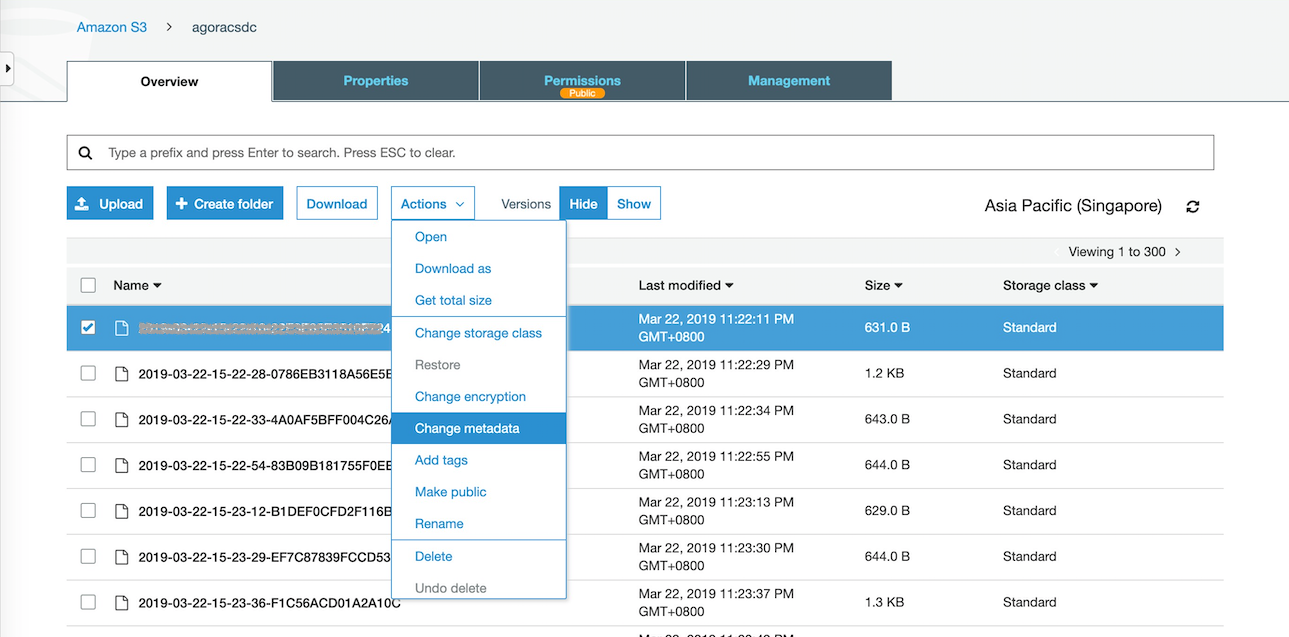
4. Set the value of the **Content-Type** key to **application/x-mpegURL**. You need to manually enter this value.
For more details, see [Editing object metadata in the Amazon S3 console](https://docs.aws.amazon.com/AmazonS3/latest/userguide/add-object-metadata.html).
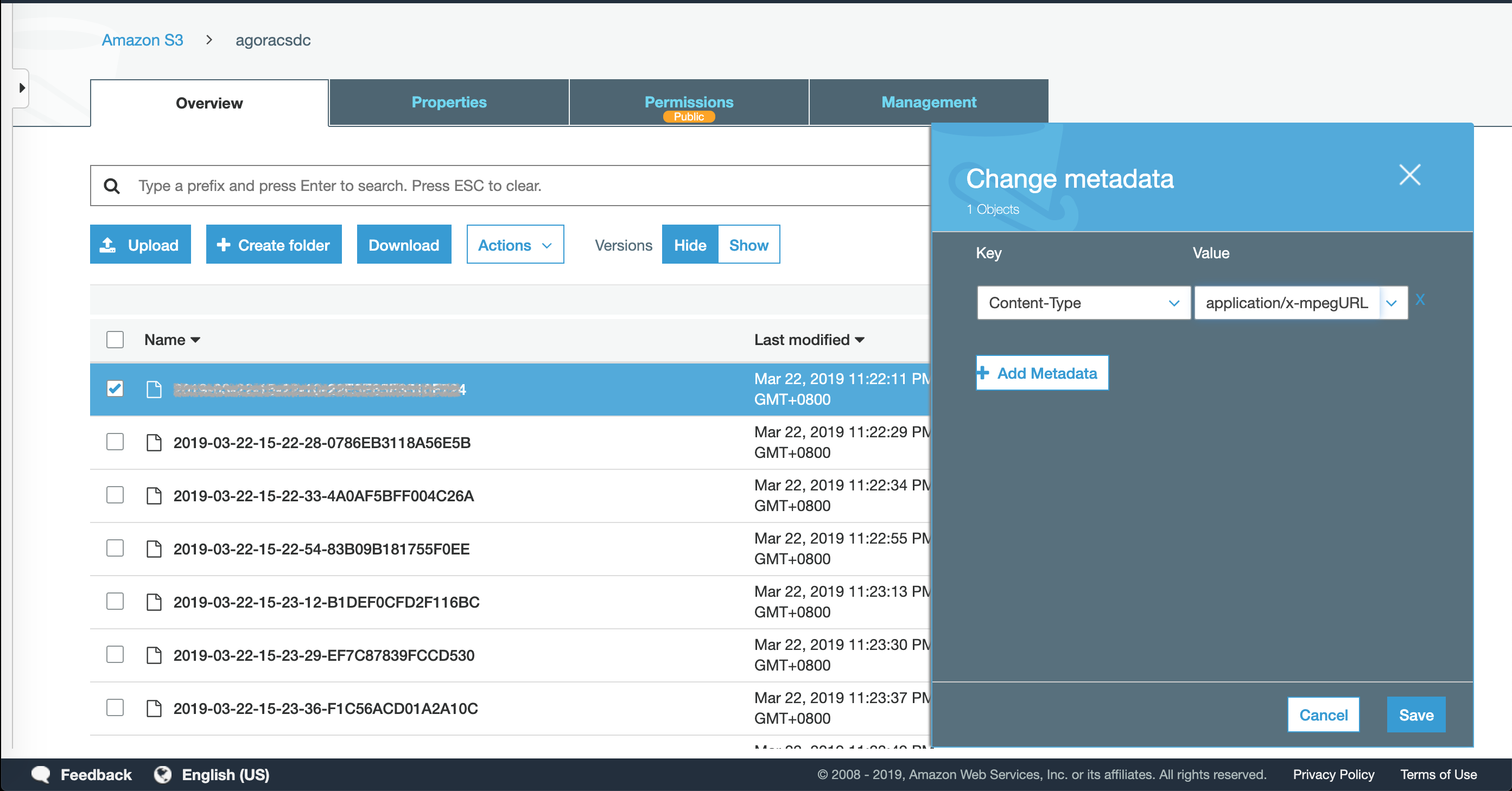
5. Select all the TS files and set **Content-Type** to **video/MP2T**.
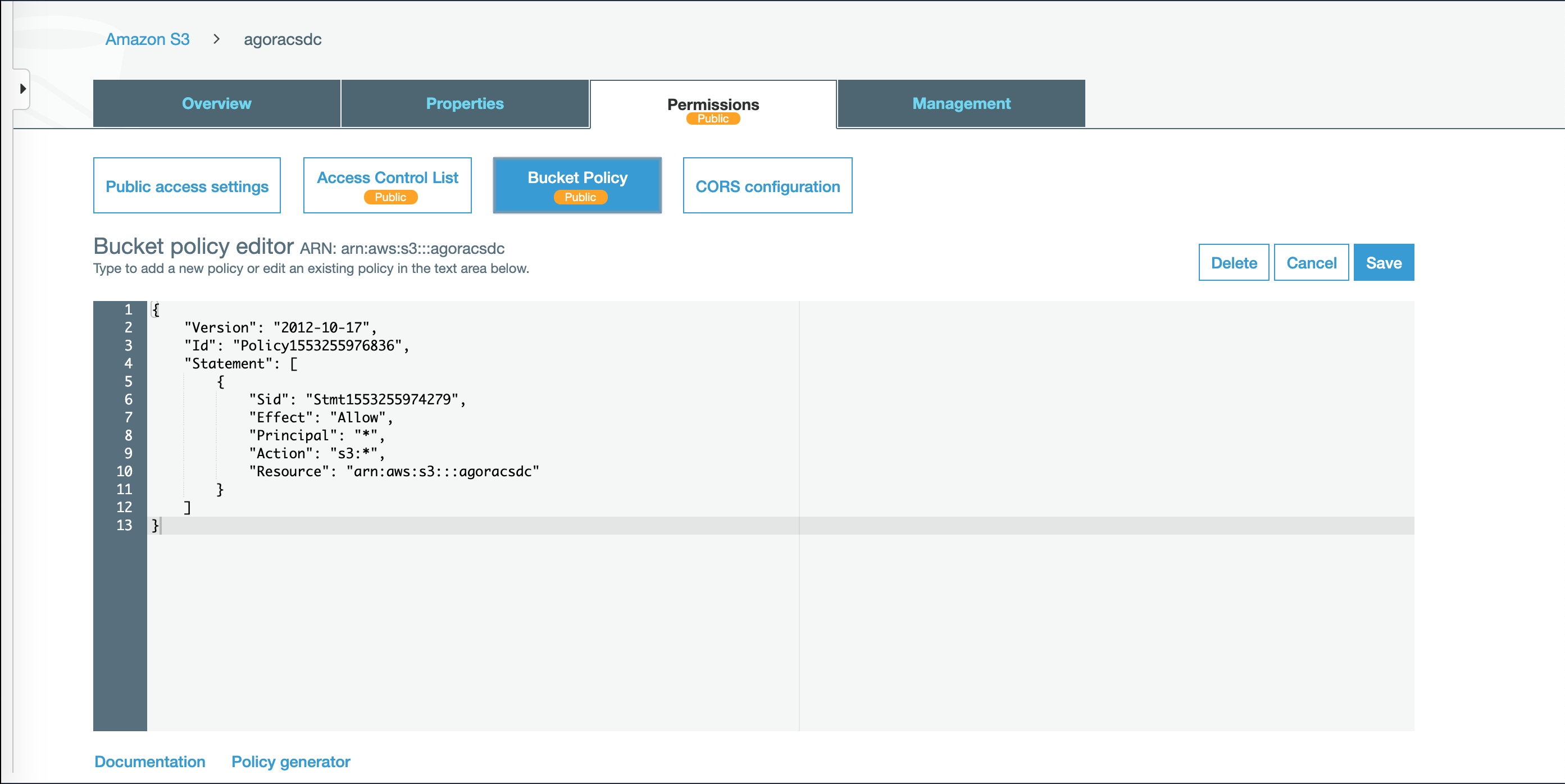
4. Configure the bucket policy to allow public access:
1. On the **Permissions** tab, click **Bucket Policy**.
2. Paste the following code and replace `` with the name of your bucket:
```json
{
"Version": "2012-10-17",
"Id": "Policy1553255976836",
"Statement": [
{
"Sid": "Stmt1553255974279",
"Effect": "Allow",
"Principal": "*",
"Action": "s3:*",
"Resource": [
"arn:aws:s3:::",
"arn:aws:s3:::/*"
]
}
]
}
```
3. Click **Save**.
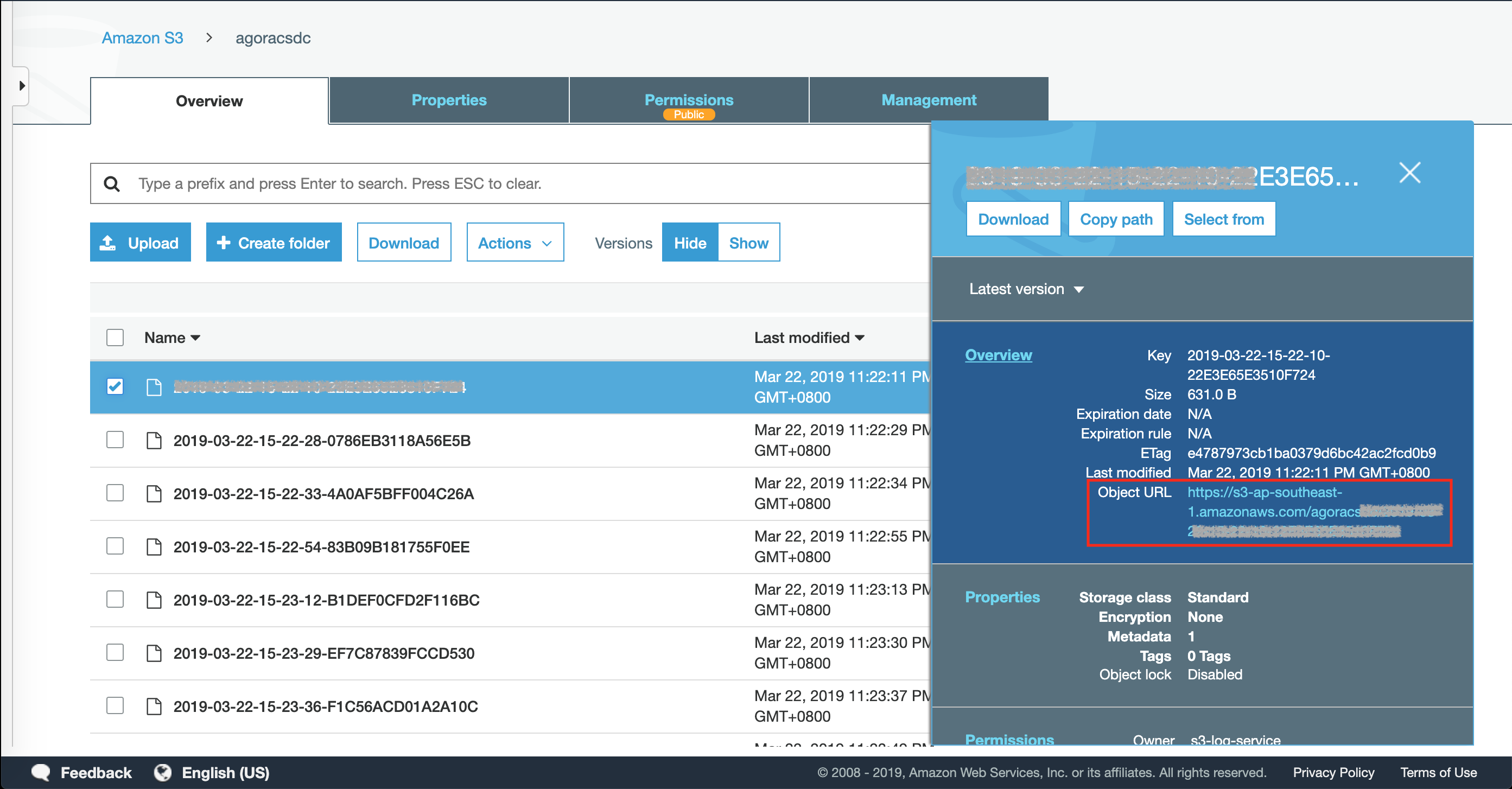
5. Select the M3U8 file to view the URL.
6. Open the URL in a web browser to start playing the recorded files.
See [How to Serve HLS Video from an S3 Bucket](https://hlsbook.net/how-to-serve-hls-video-from-an-s3-bucket/) for more information.
## Considerations [#considerations]
* The M3U8 file can be played directly on Safari. For other web browsers, you might need to install an HLS playback extension.
* You can also play the M3U8 file on players supporting HLS, such as the VLC media player.
* If the `uploadingStatus` in the response of [`stop`](/en/api-reference/api-ref/cloud-recording#stop) is `"backuped"`, it indicates that some of the recorded files are uploaded to Agora's backup cloud storage. You should wait until these files are uploaded automatically to your cloud storage before playing the M3U8 file.
* If you do not need to play the recorded files online, we suggest that you make your bucket private to improve security.