# Best practices in integrating web page recording (/en/realtime-media/cloud-recording/build/best-practices/webpage-best-practices)
> For AI agents: see the complete documentation index at [llms.txt](/llms.txt).
## Overview [#overview]
External factors can cause problems with web page recording, including the following:
* The page to be recorded cannot be accessed normally because the page fails to load or takes too long. In response to this problem, Agora provides a [web page load timeout detection function](/en/realtime-media/cloud-recording/build/customize-the-recording/webpage-load-timeout).
* The page to be recorded can be accessed normally, but the HTML elements in the page cannot be loaded correctly.
* The page fails to load during the recording process because changed HTML elements do not load normally.
* The audio or video in the page to be recorded cannot be played normally.
* Web page recording stops abnormally.
## Recommended best practices [#recommended-best-practices]
To ensure reliability and consistency in the face of network issues, Agora recommends the following best practices.
### Check the limits [#check-the-limits]
Check that your Peak Concurrent Worker (PCW), Queries Per Second (QPS), and the number of streams do not exceed the following limits set by Agora.
#### PCW [#pcw]
The PCW limit is set to 200 for all regions and resolutions. If you need to extend the PCW limit, please contact [support@agora.io](mailto\:support@agora.io).
#### QPS [#qps]
The initial QPS limit is 10 per App ID when you register. You can estimate the QPS that your project needs based on your PCW value and query frequency. If you need to extend the limit for QPS, contact [support@agora.io](mailto\:support@agora.io).
#### Number of streams [#number-of-streams]
The upper limit of video attributes supported by Agora is as follows:
* Resolution 1920 × 1080
* Frame rate 30 FPS
The maximum number of supported streams is as follows:
| Service type | Mainland China | Europe | America | Asia (excluding mainland China) |
| :----------------- | :------------------------ | :----------------------- | :------------------------ | :------------------------------ |
| Web page recording | * SD 100
* HD 50
* FHD 30 | - SD 50
- HD 30
- FHD 10 | * SD 100
* HD 50
* FHD 30 | - SD 100
- HD 100
- FHD 30 |
Note
If you need to record multiple streams of different resolutions at the same time, make sure you meet the following requirements:
* The number of streams per resolution cannot exceed the corresponding limit for that resolution.
* The total number of streams cannot exceed the limit set for the higher resolution. For example, if you need to record in America in both SD and HD, the total number of streams cannot exceed 100. If you record in both HD and FHD, the total number cannot exceed 50.
### Ensure the recording service starts successfully [#ensure-the-recording-service-starts-successfully]
Take the following steps to ensure that the recording service starts successfully:
1. Ensure that the `start` request is successful, that is, you receive a `sid` (recording ID) from the response. If the request fails, take measures according to the HTTP status code:
* If the returned HTTP status code is always `40x`, check the parameter values in your request.
* If the returned HTTP status code is `50x`, you can retry several times with the same parameters until you receive a `sid`. Agora recommends that you use a backoff strategy, for example, retry after 3, 6, and 9 seconds successively, to avoid exceeding the QPS limits. If you retry three times and still do not get a `sid`, retry with a new user ID.
* If you receive error code `65`, retry with the same parameters. Agora recommends that you use a backoff strategy, for example, retry after 3 and 6 seconds successively.
2. Five seconds after you receive a `sid`, use a backoff strategy to call query, for example, retry after 5, 10 and 15 seconds successively. If the query call succeeds, and status in serverResponse is `4` or `5`, it means the recording service starts successfully. Otherwise, you can deem the recording service as not having started, or quit halfway after starting.
### Ensure the page to be recorded loads successfully [#ensure-the-page-to-be-recorded-loads-successfully]
#### 1. Regularly reports whether the page to be recorded loads successfully [#1-regularly-reports-whether-the-page-to-be-recorded-loads-successfully]
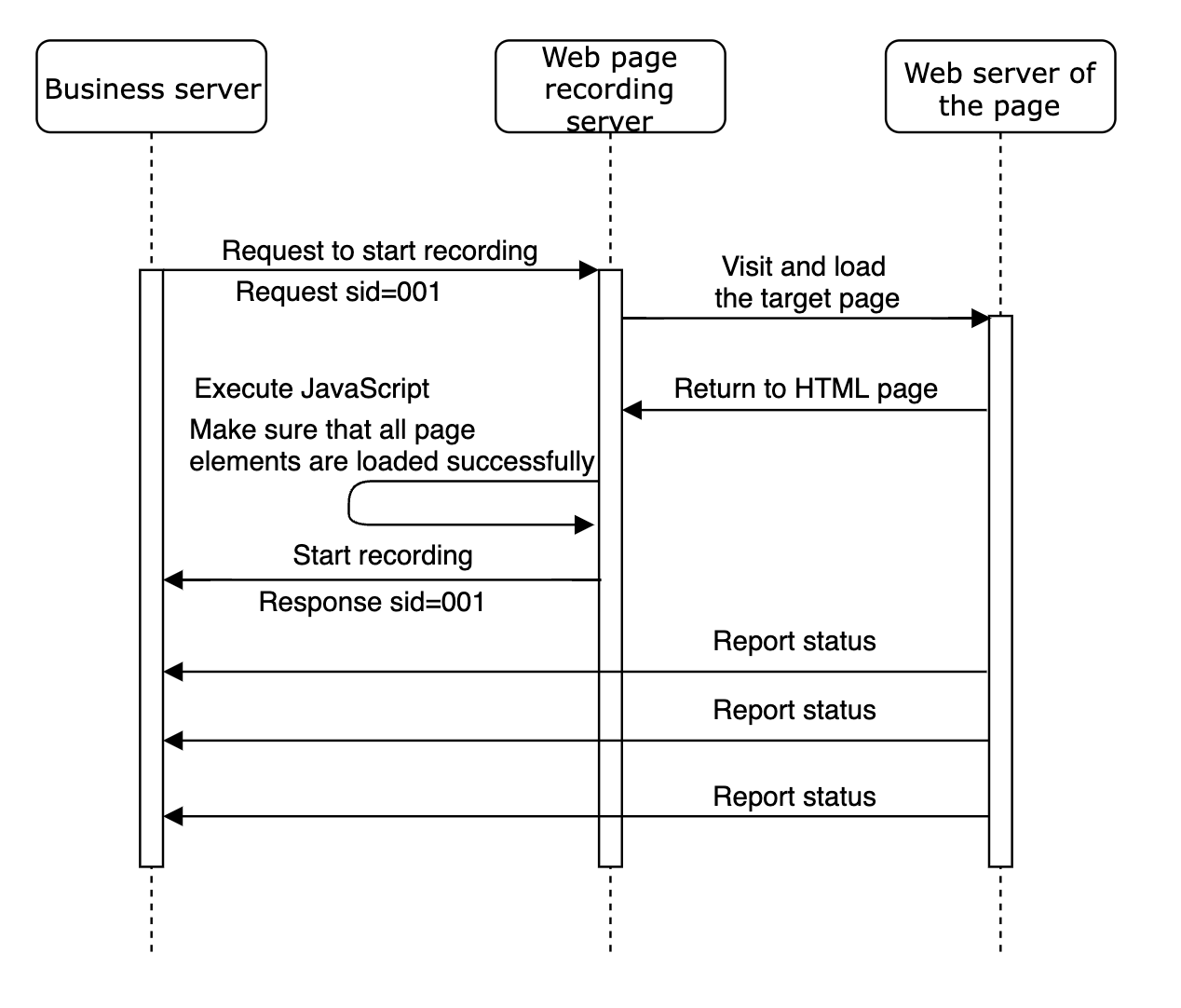
Before starting web page recording, you need to complete the page detection logic of the JavaScript of the web page to be recorded to implement the following solutions:
1. When calling [`start`](/en/api-reference/api-ref/cloud-recording#start) to start web page recording, the web page recording browser accesses and loads the web page to be recorded.
2. The web page recording service executes the page detection logic of the JavaScript of the web page to be recorded. When a web page element is loaded in line with your expectations, the recording ID (`sid`) associated with the web page recording service callback informs the business server that the recording service has started successfully.
3. The web page server reports its status at regular intervals to notify the business server of any content changes.
 #### 2. Reinitiate recording requests when the web page fails to load [#2-reinitiate-recording-requests-when-the-web-page-fails-to-load]
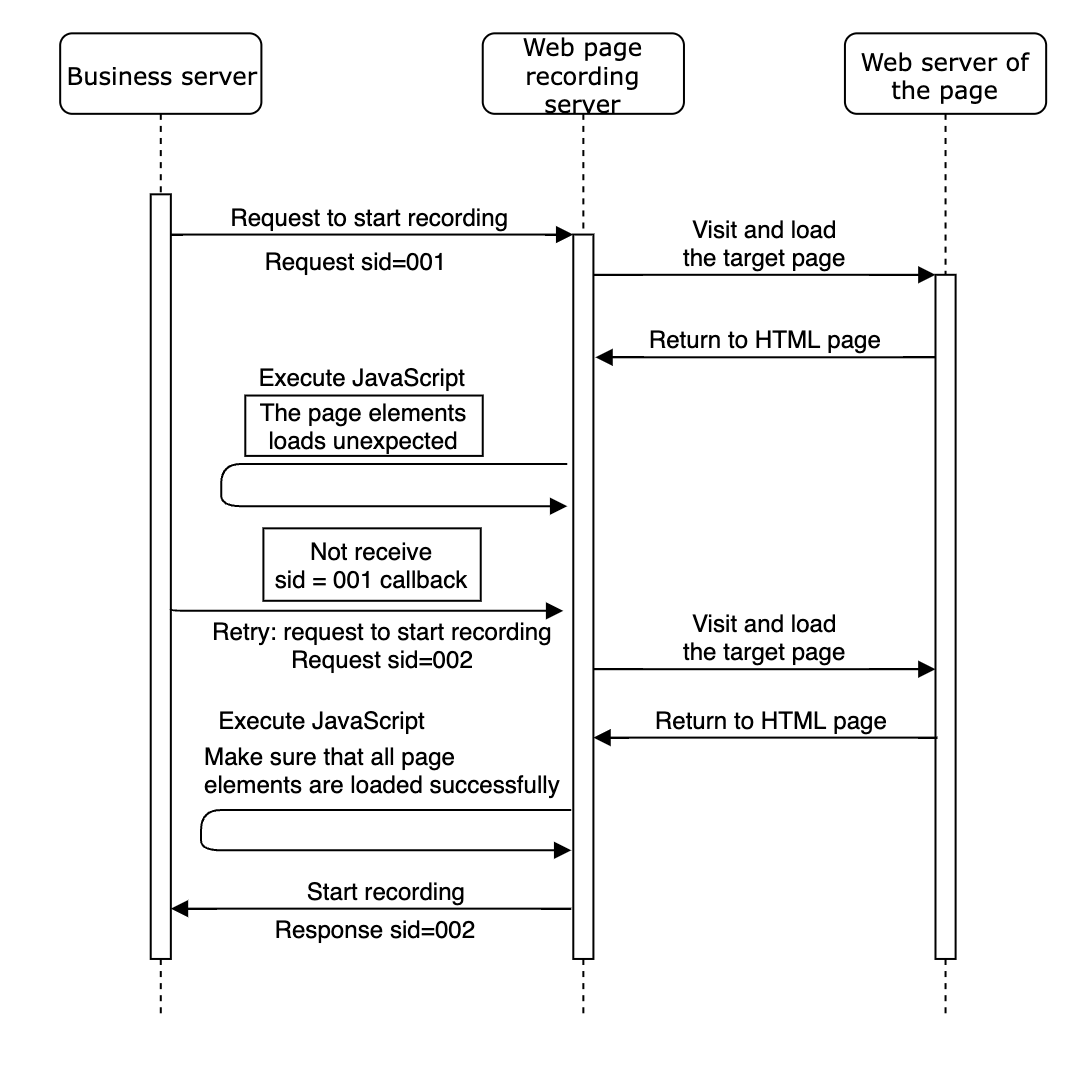
Agora recommends that you use the detection logic of the page to be recorded to determine if the recording fails to start, that is, if the business server fails to receive a callback that indicates that the loading of the web page is as expected. In such a case, you should reinitiate the recording request.
#### 2. Reinitiate recording requests when the web page fails to load [#2-reinitiate-recording-requests-when-the-web-page-fails-to-load]
Agora recommends that you use the detection logic of the page to be recorded to determine if the recording fails to start, that is, if the business server fails to receive a callback that indicates that the loading of the web page is as expected. In such a case, you should reinitiate the recording request.
 ### Use the web\_recorder\_stopped callback to detect abnormal recording stoppages [#use-the-web_recorder_stopped-callback-to-detect-abnormal-recording-stoppages]
Open the message notification service, and subscribe to the [`71 web_recorder_stopped`](../../reference/rest-api-overview#71-web_recorder_stopped-web_recorder_stopped) callback event. When the business server receives the `web_recorder_stopped` callback and the code is not `0`, it means that the web page recording has stopped abnormally. Agora recommends that you restart the recording process and create a new recording.
### Use the web\_recorder\_stopped callback to detect abnormal recording stoppages [#use-the-web_recorder_stopped-callback-to-detect-abnormal-recording-stoppages]
Open the message notification service, and subscribe to the [`71 web_recorder_stopped`](../../reference/rest-api-overview#71-web_recorder_stopped-web_recorder_stopped) callback event. When the business server receives the `web_recorder_stopped` callback and the code is not `0`, it means that the web page recording has stopped abnormally. Agora recommends that you restart the recording process and create a new recording.