# Manage media and devices (/en/realtime-media/broadcast-streaming/build/control-audio-and-devices/volume-control-and-mute)
> For AI agents: see the complete documentation index at [llms.txt](/llms.txt).
This page shows you how to configure volume settings for audio recording, audio playback, and for the playback of music files.
## Understand the tech [#understand-the-tech]
Agora Video SDK supports adjusting the audio volume for both recording and playback to meet practical application use-cases. For example, during a two-person call, you can mute a remote user by adjusting the playback volume setting to 0.
<_PlatformTabsGroup groupMode="structured" canonicalPlatform="web" platforms="["android","ios","macos","web","windows","electron","flutter","react-native","javascript","unity","unreal","blueprint","python"]" showTabs="true">
<_PlatformPanel platform="android">
<_PlatformProcessedMarker groupMode="structured" canonicalPlatform="web" platform="android" />
The figure below shows the workflow of adjusting the volume.
**Volume adjust workflow**
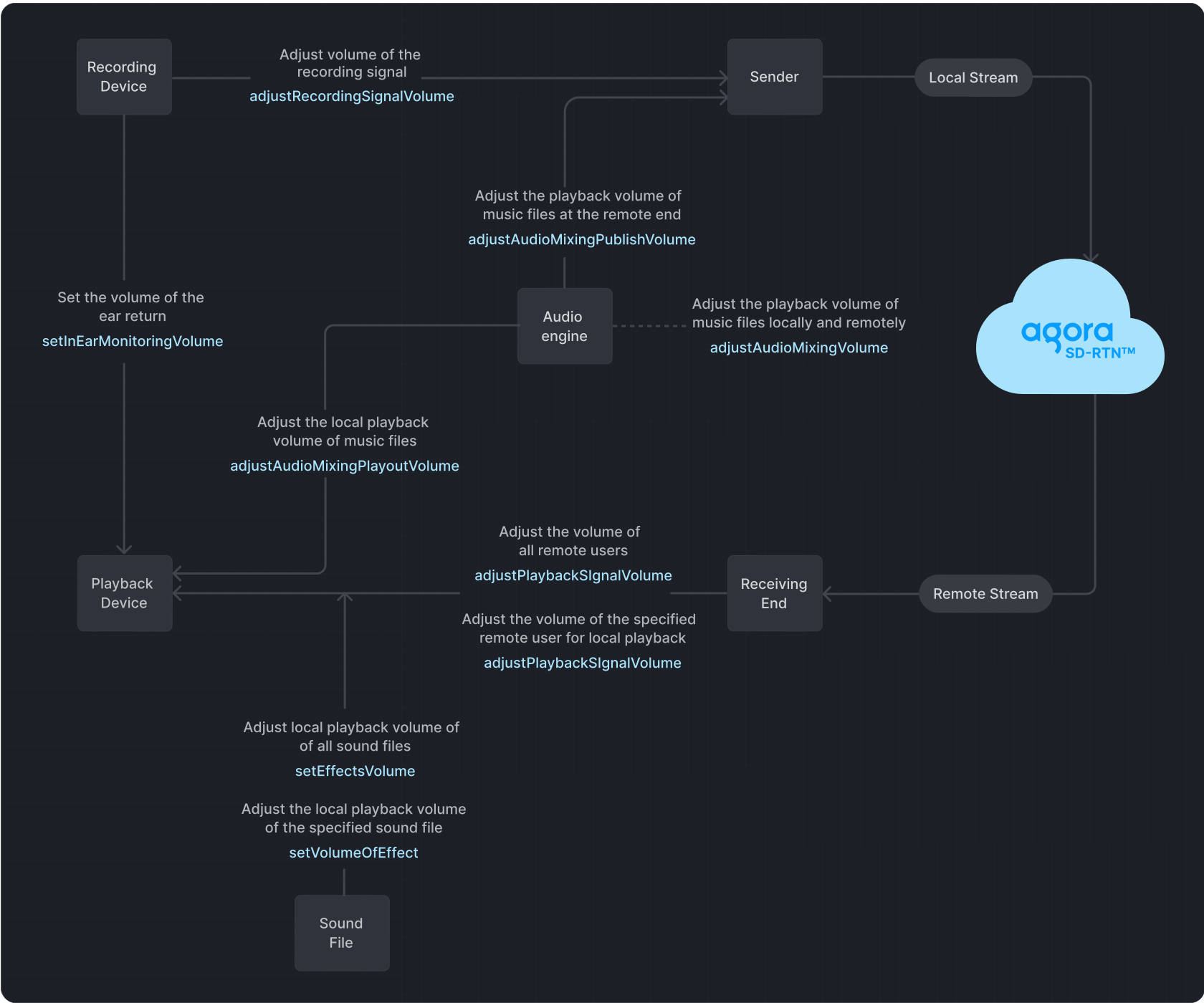
**Playback** refers to transmitting an audio signal from a sender to a recipient, where it is played back through a playback device.
**In-ear monitoring** refers to the process of playing audio captured by a device.
**Recording** refers to the process in which audio signals are captured by a recording device and then sent to the transmitter.
If you set the volume too high using the signal volume adjustment methods, it may lead to audio distortion on some devices.
## Prerequisites [#prerequisites]
Ensure that you have implemented the [SDK quickstart](../../index) in your project.
## Implement volume control [#implement-volume-control]
Use one or more of the following volume control methods to adjust volume settings.
### Mute and unmute users [#mute-and-unmute-users]
To mute or unmute the local audio stream, call `muteLocalAudioStream`:
Java
Kotlin
```java
// Stop publishing the local audio stream
mRtcEngine.muteLocalAudioStream(true);
// Resume publishing the local audio stream
mRtcEngine.muteLocalAudioStream(false);
```
```kotlin
// Stop publishing the local audio stream
mRtcEngine.muteLocalAudioStream(true)
// Resume publishing the local audio stream
mRtcEngine.muteLocalAudioStream(false)
```
To mute or unmute a remote user, call `muteRemoteAudioStream` with the `uid` of the remote user:
Java
Kotlin
```java
// Stop subscribing to the audio stream of the remote user
mRtcEngine.muteRemoteAudioStream(remoteUid, true);
// Resume subscribing to the audio stream of the remote user
mRtcEngine.muteRemoteAudioStream(remoteUid, false);
```
```kotlin
// Stop subscribing to the audio stream of the remote user
mRtcEngine.muteRemoteAudioStream(remoteUid, true)
// Resume subscribing to the audio stream of the remote user
mRtcEngine.muteRemoteAudioStream(remoteUid, false)
```
To mute remote users without unsubscribing, set their [playback volume](#adjust-the-playback-volume) to `0`.
### Adjust the playback volume [#adjust-the-playback-volume]
Call `adjustPlaybackSignalVolume` or `adjustUserPlaybackSignalVolume` to adjust the volume of the audio playback signal.
Java
Kotlin
```java
int volume = 50;
int uid = 123456;
// Set the local playback volume for all remote users
mRtcEngine.adjustPlaybackSignalVolume(volume);
// Set the local playback volume for a specific remote user. For example, a user with uid=123
mRtcEngine.adjustUserPlaybackSignalVolume(uid, volume);
```
```kotlin
val volume = 50
val uid = 123456
// Set the local playback volume for all remote users
mRtcEngine.adjustPlaybackSignalVolume(volume)
// Set the local playback volume for a specific remote user (e.g., user with uid=123)
mRtcEngine.adjustUserPlaybackSignalVolume(uid, volume)
```
### Adjust the in-ear monitoring volume [#adjust-the-in-ear-monitoring-volume]
During the process of audio capture, mixing, and playback, Agora enables you to adjust the in-ear monitoring volume. Enable and set the volume using `enableInEarMonitoring` and `setInEarMonitoringVolume`.
Java
Kotlin
```java
// Enable in-ear monitoring
mRtcEngine.enableInEarMonitoring(true);
int volume = 50;
// Adjust in-ear monitoring volume
mRtcEngine.setInEarMonitoringVolume(volume);
```
```kotlin
// Enable in-ear monitoring
mRtcEngine.enableInEarMonitoring(true)
val volume = 50
// Adjust in-ear monitoring volume
mRtcEngine.setInEarMonitoringVolume(volume)
```
### Adjust the recording volume [#adjust-the-recording-volume]
Call `adjustRecordingSignalVolume` to adjust the volume of the audio recording signal.
Java
Kotlin
```java
ChannelMediaOptions options = new ChannelMediaOptions();
options.clientRoleType = Constants.CLIENT_ROLE_BROADCASTER;
mRtcEngine.joinChannel(token, channelName, 1234, options);
// Adjust the recording signal volume to 50
int vol = 50;
mRtcEngine.adjustRecordingSignalVolume(vol);
```
```kotlin
// Create ChannelMediaOptions and set client role
val options = ChannelMediaOptions().apply {
clientRoleType = Constants.CLIENT_ROLE_BROADCASTER
}
// Join channel
mRtcEngine.joinChannel(token, channelName, 1234, options)
// Adjust the recording signal volume to 50
val vol = 50
mRtcEngine.adjustRecordingSignalVolume(vol)
```
When configuring audio settings, it's essential to understand the default behavior and the options available. Here are the key points to keep in mind:
* The SDK defaults to a device volume of `85` when using the recording device to capture audio signals.
* A volume of `0` means mute, and a volume of `255` represents the maximum volume of the device.
* If the SDK detects that the recording volume is too low in the current environment, it automatically increases the volume of the recording device.
* The volume of the recording device directly influences the global volume of the device.
* If the default recording device volume does not meet your requirements, adjust it by regulating the signal amplitude captured by the microphone or sound card.
### Get volume information of users [#get-volume-information-of-users]
Video SDK enables you to obtain the user IDs and corresponding volumes of the three users with the highest instantaneous volumes in a channel during the process of audio recording, mixing, and playback. You use the `onAudioVolumeIndication` callback to obtain this information. A returned `uid` of `0` in the callback indicates the local user.
Java
Kotlin
```java
private final IRtcEngineEventHandler mRtcEventHandler = new IRtcEngineEventHandler()
{
// ...
// Retrieve the user IDs of the three users with the highest instantaneous speaking volume,
// their respective volumes, and determine whether the local user is speaking.
@Override
public void onAudioVolumeIndication(AudioVolumeInfo[] speakers, int totalVolume) {
}
};
```
```kotlin
private val mRtcEventHandler = object : IRtcEngineEventHandler() {
// Retrieve the user IDs of the three users with the highest instantaneous speaking volume,
// their respective volumes, and determine whether the local user is speaking.
override fun onAudioVolumeIndication(speakers: Array?, totalVolume: Int) {
// Your implementation here
}
}
```
Call `enableAudioVolumeIndication` to enable reporting of the users' volume in the callback.
Java
Kotlin
```java
// Enable the onAudioVolumeIndication callback
mRtcEngine.enableAudioVolumeIndication(1000, 3, true);
```
```kotlin
// Enable the onAudioVolumeIndication callback
mRtcEngine.enableAudioVolumeIndication(1000, 3, true)
```
## Reference [#reference]
This section contains content that completes the information on this page, or points you to documentation that explains other aspects to this product.
### API reference [#api-reference]
* [`adjustRecordingSignalVolume`](https://api-ref.agora.io/en/video-sdk/android/4.x/API/class_irtcengine.html#api_irtcengine_adjustrecordingsignalvolume)
* [`adjustPlaybackSignalVolume`](https://api-ref.agora.io/en/video-sdk/android/4.x/API/class_irtcengine.html#api_irtcengine_adjustplaybacksignalvolume)
* [`adjustUserPlaybackSignalVolume`](https://api-ref.agora.io/en/video-sdk/android/4.x/API/class_irtcengine.html#api_irtcengine_adjustuserplaybacksignalvolume)
* [`adjustAudioMixingPlayoutVolume`](https://api-ref.agora.io/en/video-sdk/android/4.x/API/class_irtcengine.html#api_irtcengine_adjustaudiomixingplayoutvolume)
* [`enableInEarMonitoring` \[2/2\]](https://api-ref.agora.io/en/video-sdk/android/4.x/API/class_irtcengine.html#api_irtcengine_enableinearmonitoring2)
* [`setInEarMonitoringVolume`](https://api-ref.agora.io/en/video-sdk/android/4.x/API/class_irtcengine.html#api_irtcengine_setinearmonitoringvolume)
* [`onAudioVolumeIndication`](https://api-ref.agora.io/en/video-sdk/android/4.x/API/class_irtcengineeventhandler.html#callback_irtcengineeventhandler_onaudiovolumeindication)
* [`muteLocalAudioStream`](https://api-ref.agora.io/en/video-sdk/android/4.x/API/class_irtcengine.html#api_irtcengine_mutelocalaudiostream)
* [`muteRemoteAudioStream`](https://api-ref.agora.io/en/video-sdk/android/4.x/API/class_irtcengine.html#api_irtcengine_muteremoteaudiostream)
### Sample projects [#sample-projects]
Agora offers the following open-source sample project for adjusting recording, playback, and in-ear monitoring volumes for your reference.
* GitHub: [JoinChannelAudio](https://github.com/AgoraIO/API-Examples/blob/main/Android/APIExample/app/src/main/java/io/agora/api/example/examples/basic/JoinChannelAudio.java)
### Frequently asked questions [#frequently-asked-questions]
* [How can I solve the problem of low volume?](/en/api-reference/faq/quality/audio_low)
### See also [#see-also]
* [Custom audio source](custom-audio)
* [Custom video source](custom-video)
<_PlatformProcessedMarker close="true" />
<_PlatformPanel platform="ios">
<_PlatformProcessedMarker groupMode="structured" canonicalPlatform="web" platform="ios" />
The figure below shows the workflow of adjusting the volume.
**Volume adjust workflow**

**Playback** refers to transmitting an audio signal from a sender to a recipient, where it is played back through a playback device.
**In-ear monitoring** refers to the process of playing audio captured by a device.
**Recording** refers to the process in which audio signals are captured by a recording device and then sent to the transmitter.
If you set the volume too high using the signal volume adjustment methods, it may lead to audio distortion on some devices.
## Prerequisites [#prerequisites-1]
Ensure that you have implemented the [SDK quickstart](../../index) in your project.
## Implement volume control [#implement-volume-control-1]
Use one or more of the following volume control methods to adjust volume settings.
### Mute and unmute users [#mute-and-unmute-users-1]
* To mute or unmute the local audio stream, call `muteLocalAudioStream`:
objc
swift
```objc
[agoraKit muteLocalAudioStream:YES];
```
```swift
// Stop publishing the local audio stream
agoraKit.muteLocalAudioStream(true)
// Resume publishing the local audio stream
agoraKit.muteLocalAudioStream(false)
```
* To mute or unmute a remote user, call `muteRemoteAudioStream` with the `uid` of the remote user:
objc
swift
```objc
[agoraKit muteRemoteAudioStream:remoteUid mute:YES];
```
```swift
// Stop subscribing to the audio stream of the remote user
agoraKit.muteRemoteAudioStream(remoteUid, mute: true)
// Resume subscribing to the audio stream of the remote user
agoraKit.muteRemoteAudioStream(remoteUid, mute: false)
```
To mute remote users without unsubscribing, set their [playback volume](#adjust-the-playback-volume) to `0`.
### Adjust the playback volume [#adjust-the-playback-volume-1]
Call `adjustPlaybackSignalVolume` or `adjustUserPlaybackSignalVolume` to adjust the volume of the audio playback signal.
objc
swift
```objc
// Set the volume of all remote users played locally
[agoraKit adjustPlaybackSignalVolume: 50];
// Set the local playback volume for a specific remote user.
[agoraKit adjustUserPlaybackSignalVolume: uid, volume: 50];
```
```swift
// Set the volume of all remote users played locally
agoraKit.adjustPlaybackSignalVolume(50)
// Set the local playback volume for a specific remote user
agoraKit.adjustUserPlaybackSignalVolume(uid, volume: 50)
```
### Adjust the in-ear monitoring volume [#adjust-the-in-ear-monitoring-volume-1]
During the process of audio capture, mixing, and playback, Agora enables you to adjust the volume of in-ear monitoring. Enable and set the in-ear monitoring through `enableInEarMonitoring` and `setInEarMonitoringVolume`.
objc
swift
```objc
// Enable in-ear monitoring
[agoraKit enableInEarMonitoring:true];
// Adjust in-ear monitoring volume
[agoraKit setInEarMonitoringVolume:50];
```
```swift
// Enable in-ear monitoring
agoraKit.enableInEarMonitoring(true)
// Adjust in-ear monitoring volume
agoraKit.setInEarMonitoringVolume(50)
```
### Adjust the recording volume [#adjust-the-recording-volume-1]
Call `adjustRecordingSignalVolume` to adjust the volume of the audio recording signal.
objc
swift
```objc
// Adjust the recording signal volume
[agoraKit adjustRecordingSignalVolume: 50];
```
```swift
// Adjust the recording signal volume
agoraKit.adjustRecordingSignalVolume(50)
```
When configuring audio settings, it's essential to understand the default behavior and the options available. Here are the key points to keep in mind:
* The SDK defaults to a device volume of `85` when using the recording device to capture audio signals.
* A volume of `0` means mute, and a volume of `255` represents the maximum volume of the device.
* If the SDK detects that the recording volume is too low in the current environment, it automatically increases the volume of the recording device.
* The volume of the recording device directly influences the global volume of the device.
* If the default recording device volume does not meet your requirements, adjust it by regulating the signal amplitude captured by the microphone or sound card.
### Get volume information of users [#get-volume-information-of-users-1]
Video SDK enables you to obtain the user IDs and corresponding volumes of the three users with the highest instantaneous volumes in a channel during the process of audio recording, mixing, and playback. You use `reportAudioVolumeIndicationOfSpeakers` callback to obtain this information. A returned `uid` of `0` in the callback indicates the local user.
Call `enableAudioVolumeIndication` to enable reporting of the users' volume in the callback.
objc
swift
```objc
// Retrieve the user IDs of the three users with the highest instantaneous speaking volume,
// their respective volumes, and determine whether the local user is speaking.
- (void)rtcEngine:(AgoraRtcEngineKit *_Nonnull)engine
reportAudioVolumeIndicationOfSpeakers:(NSArray *_Nonnull)speakers
totalVolume:(NSInteger)totalVolume {
}
```
```swift
// Retrieve the user IDs of the three users with the highest instantaneous speaking volume,
// their respective volumes, and determine whether the local user is speaking.
func rtcEngine(
_ engine: AgoraRtcEngineKit,
reportAudioVolumeIndicationOfSpeakers speakers: [AgoraRtcAudioVolumeInfo],
totalVolume: Int
) {
}
// Enable the reportAudioVolumeIndicationOfSpeakers callback
agoraKit.enableAudioVolumeIndication(200, smooth: 3, reportVad: true)
```
## Reference [#reference-1]
This section contains content that completes the information on this page, or points you to documentation that explains other aspects to this product.
### API reference [#api-reference-1]
* [`adjustRecordingSignalVolume`](https://api-ref.agora.io/en/video-sdk/ios/4.x/documentation/agorartckit/agorartcenginekit/adjustrecordingsignalvolume\(_:\))
* [`adjustPlaybackSignalVolume`](https://api-ref.agora.io/en/video-sdk/ios/4.x/documentation/agorartckit/agorartcenginekit/adjustplaybacksignalvolume\(_:\))
* [`adjustUserPlaybackSignalVolume`](https://api-ref.agora.io/en/video-sdk/ios/4.x/documentation/agorartckit/agorartcenginekit/adjustuserplaybacksignalvolumeex\(_\:volume\:connection:\))
* [`adjustAudioMixingPlayoutVolume`](https://api-ref.agora.io/en/video-sdk/ios/4.x/documentation/agorartckit/agorartcenginekit/adjustaudiomixingplayoutvolume\(_:\))
* [`enableInEarMonitoring`](https://api-ref.agora.io/en/video-sdk/ios/4.x/documentation/agorartckit/agorartcenginekit/enable\(inearmonitoring\:includeaudiofilters:\))
* [`setInEarMonitoringVolume`](https://api-ref.agora.io/en/video-sdk/ios/4.x/documentation/agorartckit/agorartcenginekit/setinearmonitoringvolume\(_:\))
* [`enableaudiovolumeindication`](https://api-ref.agora.io/en/video-sdk/ios/4.x/documentation/agorartckit/agorartcenginekit/enableaudiovolumeindication\(_\:smooth\:reportvad:\))
* [`muteLocalAudioStream`](https://api-ref.agora.io/en/video-sdk/ios/4.x/documentation/agorartckit/agoraspatialaudiokitbase/mutelocalaudiostream\(_:\))
* [`muteRemoteAudioStream`](https://api-ref.agora.io/en/video-sdk/ios/4.x/documentation/agorartckit/agorartcenginekit/muteremoteaudiostream\(_\:mute:\))
### Sample projects [#sample-projects-1]
Agora offers the following open-source sample project for adjusting recording, playback, and in-ear monitoring volumes for your reference:
* GitHub: [JoinChannelAudio](https://github.com/AgoraIO/API-Examples/tree/main/iOS/APIExample/APIExample/Examples/Basic/JoinChannelAudio)
For adjusting the playback volume of mixing or audio effect files, refer to the following sample project:
* GitHub: [AudioMixing](https://github.com/AgoraIO/API-Examples/tree/main/iOS/APIExample/APIExample/Examples/Advanced/AudioMixing)
### Frequently asked questions [#frequently-asked-questions-1]
* [How can I solve the problem of low volume?](/en/api-reference/faq/quality/audio_low)
### See also [#see-also-1]
* [Custom audio source](custom-audio)
* [Custom video source](custom-video)
<_PlatformProcessedMarker close="true" />
<_PlatformPanel platform="macos">
<_PlatformProcessedMarker groupMode="structured" canonicalPlatform="web" platform="macos" />
The figure below shows the workflow of adjusting the volume.
**Volume adjust workflow**

**Playback** refers to transmitting an audio signal from a sender to a recipient, where it is played back through a playback device.
**Recording** refers to the process in which audio signals are captured by a recording device and then sent to the transmitter.
If you set the volume too high using the signal volume adjustment methods, it may lead to audio distortion on some devices.
## Prerequisites [#prerequisites-2]
Ensure that you have implemented the [SDK quickstart](../../index) in your project.
## Implement volume control [#implement-volume-control-2]
Use one or more of the following volume control methods to adjust volume settings.
### Mute and unmute users [#mute-and-unmute-users-2]
* To mute or unmute the local audio stream, call `muteLocalAudioStream`:
objc
swift
```objc
[agoraKit muteLocalAudioStream:YES];
```
```swift
// Stop publishing the local audio stream
agoraKit.muteLocalAudioStream(true)
// Resume publishing the local audio stream
agoraKit.muteLocalAudioStream(false)
```
* To mute or unmute a remote user, call `muteRemoteAudioStream` with the `uid` of the remote user:
objc
swift
```objc
[agoraKit muteRemoteAudioStream:remoteUid mute:YES];
```
```swift
// Stop subscribing to the audio stream of the remote user
agoraKit.muteRemoteAudioStream(remoteUid, mute: true)
// Resume subscribing to the audio stream of the remote user
agoraKit.muteRemoteAudioStream(remoteUid, mute: false)
```
To mute remote users without unsubscribing, set their [playback volume](#adjust-the-playback-volume) to `0`.
### Adjust the playback volume [#adjust-the-playback-volume-2]
Call `adjustPlaybackSignalVolume` or `adjustUserPlaybackSignalVolume` to adjust the volume of the audio playback signal.
objc
swift
```objc
// Set the volume of all remote users played locally
[agoraKit adjustPlaybackSignalVolume: 50];
// Set the local playback volume for a specific remote user.
[agoraKit adjustUserPlaybackSignalVolume: uid, volume: 50];
```
```swift
// Set the volume of all remote users played locally
agoraKit.adjustPlaybackSignalVolume(50)
// Set the local playback volume for a specific remote user
agoraKit.adjustUserPlaybackSignalVolume(uid, volume: 50)
```
### Adjust the in-ear monitoring volume [#adjust-the-in-ear-monitoring-volume-2]
During the process of audio capture, mixing, and playback, Agora enables you to adjust the volume of in-ear monitoring. Enable and set the in-ear monitoring through `enableInEarMonitoring` and `setInEarMonitoringVolume`.
objc
swift
```objc
// Enable in-ear monitoring
[agoraKit enableInEarMonitoring:true];
// Adjust in-ear monitoring volume
[agoraKit setInEarMonitoringVolume:50];
```
```swift
// Enable in-ear monitoring
agoraKit.enableInEarMonitoring(true)
// Adjust in-ear monitoring volume
agoraKit.setInEarMonitoringVolume(50)
```
### Adjust the recording volume [#adjust-the-recording-volume-2]
Call `adjustRecordingSignalVolume` to adjust the volume of the audio recording signal.
objc
swift
```objc
// Adjust the recording signal volume
[agoraKit adjustRecordingSignalVolume: 50];
```
```swift
// Adjust the recording signal volume
agoraKit.adjustRecordingSignalVolume(50)
```
When configuring audio settings, it's essential to understand the default behavior and the options available. Here are the key points to keep in mind:
* The SDK defaults to a device volume of `85` when using the recording device to capture audio signals.
* A volume of `0` means mute, and a volume of `255` represents the maximum volume of the device.
* If the SDK detects that the recording volume is too low in the current environment, it automatically increases the volume of the recording device.
* The volume of the recording device directly influences the global volume of the device.
* If the default recording device volume does not meet your requirements, adjust it by regulating the signal amplitude captured by the microphone or sound card.
### Get volume information of users [#get-volume-information-of-users-2]
Video SDK enables you to obtain the user IDs and corresponding volumes of the three users with the highest instantaneous volumes in a channel during the process of audio recording, mixing, and playback. You use `reportAudioVolumeIndicationOfSpeakers` callback to obtain this information. A returned `uid` of `0` in the callback indicates the local user.
Call `enableAudioVolumeIndication` to enable reporting of the users' volume in the callback.
objc
swift
```objc
// Retrieve the user IDs of the three users with the highest instantaneous speaking volume,
// their respective volumes, and determine whether the local user is speaking.
- (void)rtcEngine:(AgoraRtcEngineKit *_Nonnull)engine
reportAudioVolumeIndicationOfSpeakers:(NSArray *_Nonnull)speakers
totalVolume:(NSInteger)totalVolume {
}
```
```swift
// Retrieve the user IDs of the three users with the highest instantaneous speaking volume,
// their respective volumes, and determine whether the local user is speaking.
func rtcEngine(
_ engine: AgoraRtcEngineKit,
reportAudioVolumeIndicationOfSpeakers speakers: [AgoraRtcAudioVolumeInfo],
totalVolume: Int
) {
}
// Enable the reportAudioVolumeIndicationOfSpeakers callback
agoraKit.enableAudioVolumeIndication(200, smooth: 3, reportVad: true)
```
## Reference [#reference-2]
This section contains content that completes the information on this page, or points you to documentation that explains other aspects to this product.
### API reference [#api-reference-2]
* [`setdevicevolume`](https://api-ref.agora.io/en/video-sdk/macos/4.x/documentation/agorartckit/agorartcenginekit/setdevicevolume\(_\:volume:\))
* [`adjustRecordingSignalVolume`](https://api-ref.agora.io/en/video-sdk/macos/4.x/documentation/agorartckit/agorartcenginekit/adjustrecordingsignalvolume\(_:\))
* [`adjustPlaybackSignalVolume`](https://api-ref.agora.io/en/video-sdk/macos/4.x/documentation/agorartckit/agorartcenginekit/adjustplaybacksignalvolume\(_:\))
* [`adjustUserPlaybackSignalVolume`](https://api-ref.agora.io/en/video-sdk/macos/4.x/documentation/agorartckit/agorartcenginekit/adjustuserplaybacksignalvolumeex\(_\:volume\:connection:\))
* [`adjustAudioMixingPlayoutVolume`](https://api-ref.agora.io/en/video-sdk/macos/4.x/documentation/agorartckit/agorartcenginekit/adjustaudiomixingplayoutvolume\(_:\))
* [`enableaudiovolumeindication`](https://api-ref.agora.io/en/video-sdk/macos/4.x/documentation/agorartckit/agorartcenginekit/enableaudiovolumeindication\(_\:smooth\:reportvad:\))
* [`muteLocalAudioStream`](https://api-ref.agora.io/en/video-sdk/macos/4.x/documentation/agorartckit/agoraspatialaudiokitbase/mutelocalaudiostream\(_:\))
* [`muteRemoteAudioStream`](https://api-ref.agora.io/en/video-sdk/macos/4.x/documentation/agorartckit/agorartcenginekit/muteremoteaudiostream\(_\:mute:\))
### Sample projects [#sample-projects-2]
Agora offers the following open-source sample project for adjusting recording, playback, and in-ear monitoring volumes for your reference:
* GitHub: [JoinChannelAudio](https://github.com/AgoraIO/API-Examples/blob/main/macOS/APIExample/Examples/Basic/JoinChannelAudio/JoinChannelAudio.swift)
For adjusting the playback volume of mixing or audio effect files, refer to the following sample project:
* GitHub: [AudioMixing](https://github.com/AgoraIO/API-Examples/tree/main/macOS/APIExample/Examples/Advanced/AudioMixing)
### Frequently asked questions [#frequently-asked-questions-2]
* [How can I solve the problem of low volume?](/en/api-reference/faq/quality/audio_low)
### See also [#see-also-2]
* [Custom audio source](custom-audio)
* [Custom video source](custom-video)
<_PlatformProcessedMarker close="true" />
<_PlatformPanel platform="web">
<_PlatformProcessedMarker groupMode="structured" canonicalPlatform="web" platform="web" />
## Prerequisites [#prerequisites-3]
Ensure that you have implemented the [SDK quickstart](../../index) in your project.
## Implement volume control [#implement-volume-control-3]
Use one or more of the following volume control methods to adjust volume settings.
The Agora SDK provides a `setVolume` method for both local and remote audio track objects to adjust the volume of local audio capture and remote audio playback.
### Mute the local audio stream [#mute-the-local-audio-stream]
To mute or unmute the local audio track, call `setMuted` or `setEnabled`:
```js
// Mute the local audio stream
localAudioTrack.setMuted(true);
// Unmute the local audio stream
localAudioTrack.setMuted(false);
```
### Adjust the playback volume of remote audio [#adjust-the-playback-volume-of-remote-audio]
In this example, `remoteUser` refers to a subscribed remote user object.
```javascript
// Reduce the volume by half
remoteUser.audioTrack.setVolume(50);
// Use the original volume
remoteUser.audioTrack.setVolume(100);
// To mute remote users without unsubscribing, set the remote volume to 0
remoteUser.audioTrack.setVolume(0);
```
### Adjust the capture volume of local audio [#adjust-the-capture-volume-of-local-audio]
In this example, `localAudioTrack` is the local audio track object you created.
```javascript
AgoraRTC.createMicrophoneAudioTrack().then(localAudioTrack => {
// Reduce microphone volume by half
localAudioTrack.setVolume(50);
// Double the microphone volume
localAudioTrack.setVolume(200);
// Set the microphone volume to 0
localAudioTrack.setVolume(0);
});
```
If you set the volume too high using the signal volume adjustment methods, it may lead to audio distortion on some devices.
## Reference [#reference-3]
This section contains content that completes the information on this page, or points you to documentation that explains other aspects to this product.
### API reference [#api-reference-3]
* [`ILocalAudioTrack.setVolume`](https://api-ref.agora.io/en/video-sdk/web/4.x/interfaces/ilocalaudiotrack.html#setvolume)
* [`IRemoteAudioTrack.setVolume`](https://api-ref.agora.io/en/video-sdk/web/4.x/interfaces/iremoteaudiotrack.html#setvolume)
* [`ILocalAudioTrack.setMuted`](https://api-ref.agora.io/en/video-sdk/web/4.x/interfaces/ilocalaudiotrack.html#setmuted)
* [`ILocalAudioTrack.setEnabled`](https://api-ref.agora.io/en/video-sdk/web/4.x/interfaces/ilocalaudiotrack.html#setenabled)
### See also [#see-also-3]
* [Custom audio source](custom-audio)
* [Custom video source](custom-video)
<_PlatformProcessedMarker close="true" />
<_PlatformPanel platform="windows">
<_PlatformProcessedMarker groupMode="structured" canonicalPlatform="web" platform="windows" />
The figure below shows the workflow of adjusting the volume.
**Volume adjust workflow**

**Playback** refers to transmitting an audio signal from a sender to a recipient, where it is played back through a playback device.
**Recording** refers to the process in which audio signals are captured by a recording device and then sent to the transmitter.
If you set the volume too high using the signal volume adjustment methods, it may lead to audio distortion on some devices.
## Prerequisites [#prerequisites-4]
Ensure that you have implemented the [SDK quickstart](../../index) in your project.
## Implement volume control [#implement-volume-control-4]
Use one or more of the following volume control methods to adjust volume settings.
### Mute and unmute users [#mute-and-unmute-users-3]
To mute or unmute the local audio stream, call `muteLocalAudioStream`:
```cpp
// Stop publishing the local audio stream
m_rtcEngine->muteLocalAudioStream(true);
// Resume publishing the local audio stream
m_rtcEngine->muteLocalAudioStream(false);
```
To mute or unmute a remote user, call `muteRemoteAudioStream` with the `uid` of the remote user:
```cpp
// Stop subscribing to the audio stream of the remote user
m_rtcEngine->muteRemoteAudioStream(remoteUid, true);
// Resume subscribing to the audio stream of the remote user
m_rtcEngine->muteRemoteAudioStream(remoteUid, false);
```
To mute remote users without unsubscribing, set their [playback volume](#adjust-the-playback-volume) to `0`.
### Adjust the playback volume [#adjust-the-playback-volume-3]
Call `adjustPlaybackSignalVolume` or `adjustUserPlaybackSignalVolume` to adjust the volume of the audio playback signal.
```cpp
int volume = 50;
int uid = 123456;
// Set the local playback volume for all remote users
m_rtcEngine->adjustPlaybackSignalVolume(volume);
// Set the local playback volume for a specific remote user. For example, user 123456
m_rtcEngine->adjustUserPlaybackSignalVolume(uid, volume)
```
### Adjust the recording volume [#adjust-the-recording-volume-3]
Call `adjustRecordingSignalVolume` to adjust the volume of the audio recording signal.
```cpp
// Adjust the recording signal volume to 50
int vol = 50;
m_rtcEngine->adjustRecordingSignalVolume(vol);
```
When configuring audio settings, it's essential to understand the default behavior and the options available. Here are the key points to keep in mind:
* The SDK defaults to a device volume of `85` when using the recording device to capture audio signals.
* A volume of `0` means mute, and a volume of `255` represents the maximum volume of the device.
* If the SDK detects that the recording volume is too low in the current environment, it automatically increases the volume of the recording device.
* The volume of the recording device directly influences the global volume of the device.
* If the default recording device volume does not meet your requirements, adjust it by regulating the signal amplitude captured by the microphone or sound card.
### Get volume information of users [#get-volume-information-of-users-3]
Video SDK enables you to obtain the user IDs and corresponding volumes of the three users with the highest instantaneous volumes in a channel during the process of audio recording, mixing, and playback. You use the `onAudioVolumeIndication` callback to obtain this information. A returned `uid` of `0` in the callback indicates the local user.
```cpp
// Retrieve the user IDs of the three users with the highest instantaneous speaking volume,
// their respective volumes, and determine whether the local user is speaking.
void CAudioVolumeEventHandler::onAudioVolumeIndication(const AudioVolumeInfo* speakers, unsigned int speakerNumber, int totalVolume){
}
// Enable the onAudioVolumeIndication callback
m_rtcEngine->enableAudioVolumeIndication(1000, 0, true);
```
Call `enableAudioVolumeIndication` to enable reporting of the users' volume in the callback.
## Reference [#reference-4]
This section contains content that completes the information on this page, or points you to documentation that explains other aspects to this product.
### API reference [#api-reference-4]
* [`adjustRecordingSignalVolume`](https://api-ref.agora.io/en/video-sdk/cpp/4.x/API/class_irtcengine.html#api_irtcengine_adjustrecordingsignalvolume)
* [`adjustPlaybackSignalVolume`](https://api-ref.agora.io/en/video-sdk/cpp/4.x/API/class_irtcengine.html#api_irtcengine_adjustplaybacksignalvolume)
* [`adjustUserPlaybackSignalVolume`](https://api-ref.agora.io/en/video-sdk/cpp/4.x/API/class_irtcengine.html#api_irtcengine_adjustuserplaybacksignalvolume)
* [`adjustAudioMixingPlayoutVolume`](https://api-ref.agora.io/en/video-sdk/cpp/4.x/API/class_irtcengine.html#api_irtcengine_adjustaudiomixingplayoutvolume)
* [`onAudioVolumeIndication`](https://api-ref.agora.io/en/video-sdk/cpp/4.x/API/class_irtcengineeventhandler.html#callback_irtcengineeventhandler_onaudiovolumeindication)
* [`muteLocalAudioStream`](https://api-ref.agora.io/en/video-sdk/cpp/4.x/API/class_irtcengine.html#api_irtcengine_mutelocalaudiostream)
* [`muteRemoteAudioStream`](https://api-ref.agora.io/en/video-sdk/cpp/4.x/API/class_irtcengine.html#api_irtcengine_muteremoteaudiostream)
### Sample projects [#sample-projects-3]
Agora offers the following open-source sample project for adjusting recording, playback, and in-ear monitoring volumes for your reference:
* GitHub: [AudioVolume](https://github.com/AgoraIO/API-Examples/tree/main/windows/APIExample/APIExample/Advanced/AudioVolume)
For adjusting the playback volume of mixing or audio effect files, refer to the following sample project:
* GitHub: [AudioMixing](https://github.com/AgoraIO/API-Examples/tree/main/windows/APIExample/APIExample/Advanced/AudioMixing) or [AudioEffect](https://github.com/AgoraIO/API-Examples/tree/main/windows/APIExample/APIExample/Advanced/AudioEffect)
### Frequently asked questions [#frequently-asked-questions-3]
* [How can I solve the problem of low volume?](/en/api-reference/faq/quality/audio_low)
### See also [#see-also-4]
* [Custom audio source](custom-audio)
* [Custom video source](custom-video)
<_PlatformProcessedMarker close="true" />
<_PlatformPanel platform="electron">
<_PlatformProcessedMarker groupMode="structured" canonicalPlatform="web" platform="electron" />
The figure below shows the workflow of adjusting the volume.
**Volume adjust workflow**

**Playback** refers to transmitting an audio signal from a sender to a recipient, where it is played back through a playback device.
**Recording** refers to the process in which audio signals are captured by a recording device and then sent to the transmitter.
If you set the volume too high using the signal volume adjustment methods, it may lead to audio distortion on some devices.
## Prerequisites [#prerequisites-5]
Ensure that you have implemented the [SDK quickstart](../../index) in your project.
## Implement volume control [#implement-volume-control-5]
Use one or more of the following volume control methods to adjust volume settings.
### Mute and unmute users [#mute-and-unmute-users-4]
To mute or unmute the local audio stream, call `muteLocalAudioStream`:
```typescript
// Stop publishing the local audio stream
engine.muteLocalAudioStream(true);
// Resume publishing the local audio stream
engine.muteLocalAudioStream(true);
```
To mute or unmute a remote user, call `muteRemoteAudioStream` with the `uid` of the remote user:
```typescript
// Stop subscribing to the audio stream of the remote user
engine.muteRemoteAudioStream(remoteUid, true);
// Resume subscribing to the audio stream of the remote user
engine.muteRemoteAudioStream(remoteUid, false);
```
To mute remote users without unsubscribing, set their [playback volume](#adjust-the-playback-volume) to `0`.
### Adjust the playback volume [#adjust-the-playback-volume-4]
Call `adjustPlaybackSignalVolume` or `adjustUserPlaybackSignalVolume` to adjust the volume of the audio playback signal.
```typescript
// Set the local playback volume to 50 for all remote users
engine.adjustPlaybackSignalVolume(50);
// Set the local playback volume for a specific remote user. For example, user with uid 12
engine.adjustUserPlaybackSignalVolume(12, 50);
```
### Adjust the recording volume [#adjust-the-recording-volume-4]
Call `adjustRecordingSignalVolume` to adjust the volume of the audio recording signal.
```typescript
// Adjust the recording signal volume to 50
engine.adjustRecordingSignalVolume(50);
```
When configuring audio settings, it's essential to understand the default behavior and the options available. Here are the key points to keep in mind:
* The SDK defaults to a device volume of `85` when using the recording device to capture audio signals.
* A volume of `0` means mute, and a volume of `255` represents the maximum volume of the device.
* If the SDK detects that the recording volume is too low in the current environment, it automatically increases the volume of the recording device.
* The volume of the recording device directly influences the global volume of the device.
* If the default recording device volume does not meet your requirements, adjust it by regulating the signal amplitude captured by the microphone or sound card.
### Get volume information of users [#get-volume-information-of-users-4]
Video SDK enables you to obtain the user IDs and corresponding volumes of the three users with the highest instantaneous volumes in a channel during the process of audio recording, mixing, and playback. You use the `onAudioVolumeIndication` callback to obtain this information. A returned `uid` of `0` in the callback indicates the local user.
Call `enableAudioVolumeIndication` to enable reporting of the users' volume in the callback.
```typescript
// Retrieve the user IDs of the three users with the highest instantaneous speaking volume,
// their respective volumes, and determine whether the local user is speaking.
onAudioVolumeIndication?(
connection: RtcConnection,
speakers: AudioVolumeInfo[],
speakerNumber: number,
totalVolume: number
): void;
```
## Reference [#reference-5]
This section contains content that completes the information on this page, or points you to documentation that explains other aspects to this product.
### API reference [#api-reference-5]
* [`adjustRecordingSignalVolume`](https://api-ref.agora.io/en/video-sdk/electron/4.x/API/class_irtcengine.html#api_irtcengine_adjustrecordingsignalvolume)
* [`adjustPlaybackSignalVolume`](https://api-ref.agora.io/en/video-sdk/electron/4.x/API/class_irtcengine.html#api_irtcengine_adjustplaybacksignalvolume)
* [`adjustUserPlaybackSignalVolume`](https://api-ref.agora.io/en/video-sdk/electron/4.x/API/class_irtcengine.html#api_irtcengine_adjustuserplaybacksignalvolume)
* [`adjustAudioMixingPlayoutVolume`](https://api-ref.agora.io/en/video-sdk/electron/4.x/API/class_irtcengine.html#api_irtcengine_adjustaudiomixingplayoutvolume)
* [`onAudioVolumeIndication`](https://api-ref.agora.io/en/video-sdk/electron/4.x/API/class_irtcengineeventhandler.html#callback_irtcengineeventhandler_onaudiovolumeindication)
* [`muteLocalAudioStream`](https://api-ref.agora.io/en/video-sdk/electron/4.x/API/class_irtcengine.html#api_irtcengine_mutelocalaudiostream)
* [`muteRemoteAudioStream`](https://api-ref.agora.io/en/video-sdk/electron/4.x/API/class_irtcengine.html#api_irtcengine_muteremoteaudiostream)
### Sample projects [#sample-projects-4]
Agora offers the following open-source sample project for adjusting recording, playback, and in-ear monitoring volumes for your reference:
* GitHub: [JoinChannelAudio](https://github.com/AgoraIO-Extensions/Electron-SDK/blob/main/example/src/renderer/examples/basic/JoinChannelAudio/JoinChannelAudio.tsx)
For adjusting the playback volume of mixing or audio effect files, refer to the following sample project:
* GitHub: [AudioMixing](https://github.com/AgoraIO-Extensions/Electron-SDK/blob/main/example/src/renderer/examples/advanced/AudioMixing/AudioMixing.tsx)
### Frequently asked questions [#frequently-asked-questions-4]
* [How can I solve the problem of low volume?](/en/api-reference/faq/quality/audio_low)
### See also [#see-also-5]
* [Custom audio source](custom-audio)
* [Custom video source](custom-video)
<_PlatformProcessedMarker close="true" />
<_PlatformPanel platform="flutter">
<_PlatformProcessedMarker groupMode="structured" canonicalPlatform="web" platform="flutter" />
The figure below shows the workflow of adjusting the volume.
**Volume adjust workflow**

**Playback** refers to transmitting an audio signal from a sender to a recipient, where it is played back through a playback device.
**Recording** refers to the process in which audio signals are captured by a recording device and then sent to the transmitter.
If you set the volume too high using the signal volume adjustment methods, it may lead to audio distortion on some devices.
## Prerequisites [#prerequisites-6]
Ensure that you have implemented the [SDK quickstart](../../index) in your project.
## Implement volume control [#implement-volume-control-6]
Use one or more of the following volume control methods to adjust volume settings.
### Mute and unmute users [#mute-and-unmute-users-5]
To mute or unmute the local audio stream, call `muteLocalAudioStream`:
```dart
// Stop publishing the local audio stream
_rtcEngine.muteLocalAudioStream(true);
// Resume publishing the local audio stream
_rtcEngine.muteLocalAudioStream(false);
```
To mute or unmute a remote user, call `muteRemoteAudioStream` with the `uid` of the remote user:
```dart
// Stop subscribing to the audio stream of the remote user
_rtcEngine.muteRemoteAudioStream(remoteUid, true);
// Resume subscribing to the audio stream of the remote user
_rtcEngine.muteRemoteAudioStream(remoteUid, false);
```
To mute remote users without unsubscribing, set their [playback volume](#adjust-the-playback-volume) to `0`.
### Adjust the playback volume [#adjust-the-playback-volume-5]
Call `adjustPlaybackSignalVolume` or `adjustUserPlaybackSignalVolume` to adjust the volume of the audio playback signal.
```dart
const int volume = 50;
// Set the local playback volume to 50 for all remote users
await _rtcEngine.adjustPlaybackSignalVolume(volume);
// Set the local playback volume for a specific remote user. For example, user with uid 1000
await _rtcEngine.adjustUserPlaybackSignalVolume(uid: 1000, volume: volume);
```
### Adjust the recording volume [#adjust-the-recording-volume-5]
Call `adjustRecordingSignalVolume` to adjust the volume of the audio recording signal.
```dart
// Adjust the recording signal volume to 50
int vol = 50;
await _rtcEngine.adjustRecordingSignalVolume(vol);
```
When configuring audio settings, it's essential to understand the default behavior and the options available. Here are the key points to keep in mind:
* The SDK defaults to a device volume of `85` when using the recording device to capture audio signals.
* A volume of `0` means mute, and a volume of `255` represents the maximum volume of the device.
* If the SDK detects that the recording volume is too low in the current environment, it automatically increases the volume of the recording device.
* The volume of the recording device directly influences the global volume of the device.
* If the default recording device volume does not meet your requirements, adjust it by regulating the signal amplitude captured by the microphone or sound card.
### Get volume information of users [#get-volume-information-of-users-5]
Video SDK enables you to obtain the user IDs and corresponding volumes of the three users with the highest instantaneous volumes in a channel during the process of audio recording, mixing, and playback. You use the `onAudioVolumeIndication` callback to obtain this information. A returned `uid` of `0` in the callback indicates the local user.
Call `enableAudioVolumeIndication` to enable reporting of the users' volume in the callback.
```dart
// Retrieve the user IDs of the three users with the highest instantaneous speaking volume,
// their respective volumes, and determine whether the local user is speaking.
_rtcEngine.registerEventHandler(RtcEngineEventHandler(
onAudioVolumeIndication: (RtcConnection connection,
List speakers, int speakerNumber, int totalVolume) {
logSink.log(
'[onAudioVolumeIndication] speakers: ${speakers.toString()}, speakerNumber: $speakerNumber, totalVolume: $totalVolume');
}
));
```
## Reference [#reference-6]
This section contains content that completes the information on this page, or points you to documentation that explains other aspects to this product.
### API reference [#api-reference-6]
* [`adjustRecordingSignalVolume`](https://api-ref.agora.io/en/video-sdk/flutter/6.x/API/class_irtcengine.html#api_irtcengine_adjustrecordingsignalvolume)
* [`adjustPlaybackSignalVolume`](https://api-ref.agora.io/en/video-sdk/flutter/6.x/API/class_irtcengine.html#api_irtcengine_adjustplaybacksignalvolume)
* [`adjustUserPlaybackSignalVolume`](https://api-ref.agora.io/en/video-sdk/flutter/6.x/API/class_irtcengine.html#api_irtcengine_adjustuserplaybacksignalvolume)
* [`adjustAudioMixingPlayoutVolume`](https://api-ref.agora.io/en/video-sdk/flutter/6.x/API/class_irtcengine.html#api_irtcengine_adjustaudiomixingplayoutvolume)
* [`onAudioVolumeIndication`](https://api-ref.agora.io/en/video-sdk/flutter/6.x/API/class_irtcengineeventhandler.html#callback_irtcengineeventhandler_onaudiovolumeindication)
* [`muteLocalAudioStream`](https://api-ref.agora.io/en/video-sdk/flutter/6.x/API/class_irtcengine.html#api_irtcengine_mutelocalaudiostream)
* [`muteRemoteAudioStream`](https://api-ref.agora.io/en/video-sdk/flutter/6.x/API/class_irtcengine.html#api_irtcengine_muteremoteaudiostream)
### Sample projects [#sample-projects-5]
Agora offers the following open-source sample project for adjusting recording, playback, and in-ear monitoring volumes for your reference:
* GitHub: [join\_channel\_audio.dart](https://github.com/AgoraIO-Extensions/Agora-Flutter-SDK/blob/main/example/lib/examples/basic/join_channel_audio/join_channel_audio.dart)
For adjusting the playback volume of mixing or audio effect files, refer to the following sample project:
* GitHub: [audio\_mixing.dart](https://github.com/AgoraIO-Extensions/Agora-Flutter-SDK/blob/main/example/lib/examples/advanced/audio_mixing/audio_mixing.dart)
### Frequently asked questions [#frequently-asked-questions-5]
* [How can I solve the problem of low volume?](/en/api-reference/faq/quality/audio_low)
### See also [#see-also-6]
* [Custom audio source](custom-audio)
* [Custom video source](custom-video)
<_PlatformProcessedMarker close="true" />
<_PlatformPanel platform="react-native">
<_PlatformProcessedMarker groupMode="structured" canonicalPlatform="web" platform="react-native" />
The figure below shows the workflow of adjusting the volume.
**Volume adjust workflow**

**Playback** refers to transmitting an audio signal from a sender to a recipient, where it is played back through a playback device.
**Recording** refers to the process in which audio signals are captured by a recording device and then sent to the transmitter.
If you set the volume too high using the signal volume adjustment methods, it may lead to audio distortion on some devices.
## Prerequisites [#prerequisites-7]
Ensure that you have implemented the [SDK quickstart](../../index) in your project.
## Implement volume control [#implement-volume-control-7]
Use one or more of the following volume control methods to adjust volume settings.
### Mute and unmute users [#mute-and-unmute-users-6]
To mute or unmute the local audio stream, call `muteLocalAudioStream`:
```typescript
// Stop publishing the local audio stream
engine.muteLocalAudioStream(true);
// Resume publishing the local audio stream
engine.muteLocalAudioStream(false);
```
To mute or unmute a remote user, call `muteRemoteAudioStream` with the `uid` of the remote user:
```typescript
// Stop subscribing to the audio stream of the remote user
engine.muteRemoteAudioStream(remoteUid, true);
// Resume subscribing to the audio stream of the remote user
engine.muteRemoteAudioStream(remoteUid, false);
```
To mute remote users without unsubscribing, set their [playback volume](#adjust-the-playback-volume) to `0`.
### Adjust the playback volume [#adjust-the-playback-volume-6]
Call `adjustPlaybackSignalVolume` or `adjustUserPlaybackSignalVolume` to adjust the volume of the audio playback signal.
```typescript
// Set the local playback volume to 50 for all remote users
engine.adjustPlaybackSignalVolume(50);
// Set the local playback volume for a specific remote user. For example, user with uid 12
engine.adjustUserPlaybackSignalVolume(12, 50);
```
### Adjust the recording volume [#adjust-the-recording-volume-6]
Call `adjustRecordingSignalVolume` to adjust the volume of the audio recording signal.
```typescript
// Adjust the recording signal volume to 50
engine.adjustRecordingSignalVolume(50);
```
When configuring audio settings, it's essential to understand the default behavior and options available. Here are the key points to keep in mind:
* The SDK defaults to a device volume of `85` when using the recording device to capture audio signals.
* A volume of `0` means mute, and a volume of `255` represents the maximum volume of the device.
* If the SDK detects that the recording volume is too low in the current environment, it automatically increases the volume of the recording device.
* The volume of the recording device directly influences the global volume of the device.
* If the default recording device volume does not meet your requirements, adjust it by regulating the signal amplitude captured by the microphone or sound card.
### Get volume information of users [#get-volume-information-of-users-6]
Video SDK enables you to obtain the user IDs and corresponding volumes of the three users with the highest instantaneous volumes in a channel during the process of audio recording, mixing, and playback. You use the `onAudioVolumeIndication` callback to obtain this information. A returned `uid` of `0` in the callback indicates the local user.
Call `enableAudioVolumeIndication` to enable reporting of the users' volume in the callback.
```typescript
// Retrieve the user IDs of the three users with the highest instantaneous speaking volume,
// their respective volumes, and determine whether the local user is speaking.
onAudioVolumeIndication?(
connection: RtcConnection,
speakers: AudioVolumeInfo[],
speakerNumber: number,
totalVolume: number
): void;
```
## Reference [#reference-7]
This section contains content that completes the information on this page, or points you to documentation that explains other aspects to this product.
### API reference [#api-reference-7]
* [`adjustRecordingSignalVolume`](https://api-ref.agora.io/en/video-sdk/react-native/4.x/API/class_irtcengine.html#api_irtcengine_adjustrecordingsignalvolume)
* [`adjustPlaybackSignalVolume`](https://api-ref.agora.io/en/video-sdk/react-native/4.x/API/class_irtcengine.html#api_irtcengine_adjustplaybacksignalvolume)
* [`adjustUserPlaybackSignalVolume`](https://api-ref.agora.io/en/video-sdk/react-native/4.x/API/class_irtcengine.html#api_irtcengine_adjustuserplaybacksignalvolume)
* [`adjustAudioMixingPlayoutVolume`](https://api-ref.agora.io/en/video-sdk/react-native/4.x/API/class_irtcengine.html#api_irtcengine_adjustaudiomixingplayoutvolume)
* [`onAudioVolumeIndication`](https://api-ref.agora.io/en/video-sdk/react-native/4.x/API/class_irtcengineeventhandler.html#callback_irtcengineeventhandler_onaudiovolumeindication)
* [`muteLocalAudioStream`](https://api-ref.agora.io/en/video-sdk/react-native/4.x/API/class_irtcengine.html#api_irtcengine_mutelocalaudiostream)
* [`muteRemoteAudioStream`](https://api-ref.agora.io/en/video-sdk/react-native/4.x/API/class_irtcengine.html#api_irtcengine_muteremoteaudiostream)
### Sample projects [#sample-projects-6]
Agora offers the following open-source sample project for adjusting recording, playback, and in-ear monitoring volumes for your reference:
* GitHub: [JoinChannelAudio](https://github.com/AgoraIO-Extensions/react-native-agora/blob/main/example/src/examples/basic/JoinChannelAudio/JoinChannelAudio.tsx)
For adjusting the playback volume of mixing or audio effect files, refer to the following sample project:
* GitHub: [AudioMixing](https://github.com/AgoraIO-Extensions/react-native-agora/blob/main/example/src/examples/advanced/AudioMixing/AudioMixing.tsx)
### Frequently asked questions [#frequently-asked-questions-6]
* [How can I solve the problem of low volume?](/en/api-reference/faq/quality/audio_low)
### See also [#see-also-7]
* [Custom audio source](custom-audio)
* [Custom video source](custom-video)
<_PlatformProcessedMarker close="true" />
<_PlatformPanel platform="javascript">
<_PlatformProcessedMarker groupMode="structured" canonicalPlatform="web" platform="javascript" />
## Prerequisites [#prerequisites-8]
Ensure that you have implemented the [SDK quickstart](../../index) in your project.
## Implement volume control [#implement-volume-control-8]
Use one or more of the following volume control methods to adjust volume settings.
### Adjust the capture volume of remote audio [#adjust-the-capture-volume-of-remote-audio]
To set the volume, mute, or unmute a remote user, call `setVolume` on the remote audio track:
```typescript
// Mute remote audio
const muteRemoteAudio = (audioTrack: IRemoteAudioTrack | null) => {
if (!audioTrack) return;
audioTrack.setVolume(0);
};
// Unmute remote audio
const unmuteRemoteAudio = (audioTrack: IRemoteAudioTrack | null) => {
if (!audioTrack) return;
audioTrack.setVolume(100); // Set to a reasonable volume level
};
```
### Adjust the capture volume of local audio [#adjust-the-capture-volume-of-local-audio-1]
To set the capture volume, mute, or unmute the local user, call `setVolume` on the local audio track:
```typescript
// Mute local audio
const muteLocalAudio = (audioTrack: IMicrophoneAudioTrack | null) => {
if (!audioTrack) return;
audioTrack.setVolume(0);
};
// Unmute local audio
const unmuteLocalAudio = (audioTrack: IMicrophoneAudioTrack | null) => {
if (!audioTrack) return;
audioTrack.setVolume(100); // Set the volume to a reasonable volume level
};
```
The following example demonstrates how to mute and unmute local and remote users using `useLocalMicrophoneTrack` and `useRemoteUsers`.
```typescript
const { localMicrophoneTrack } = useLocalMicrophoneTrack(micOn);
const remoteUsers = useRemoteUsers();
return (
<>
);
```
### Get volume information of users [#get-volume-information-of-users-7]
The Video SDK provides the ability to monitor the volume level of users using the `useVolumeLevel` hook. To get the audio volume level, pass the respective audio track (local or remote) to the hook:
```typescript
// Component to track and display the local user's audio volume level
const AudioVolumeTracker = ({ audioTrack }: { audioTrack?: IMicrophoneAudioTrack }) => {
const volumeLevel = useVolumeLevel(audioTrack);
return (
);
};
```
How to use:
```typescript
const { localMicrophoneTrack } = useLocalMicrophoneTrack();
// Display the volume level of the local user
;
const remoteUsers = useRemoteUsers();
// Display the volume level of the first remote user
;
```
## Reference [#reference-8]
This section contains content that completes the information on this page, or points you to documentation that explains other aspects to this product.
### API reference [#api-reference-8]
* [`IMicrophoneAudioTrack`](https://api-ref.agora.io/en/video-sdk/reactjs/2.x/interfaces/IMicrophoneAudioTrack.html)
* [`IRemoteAudioTrack`](https://api-ref.agora.io/en/video-sdk/reactjs/2.x/interfaces/IRemoteAudioTrack.html)
* [`setVolume`](https://api-ref.agora.io/en/video-sdk/reactjs/2.x/interfaces/IMicrophoneAudioTrack.html#setVolume.setVolume-1)
* [`useVolumeLevel`](https://api-ref.agora.io/en/video-sdk/reactjs/2.x/functions/useVolumeLevel.html)
### Sample projects [#sample-projects-7]
Agora offers the following open-source sample project for monitoring audio volume for your reference.
* GitHub: [useVolumeLevel](https://github.com/AgoraIO-Extensions/agora-rtc-react/blob/main/packages/agora-rtc-react/test/hook/useVolumeLevel.test.ts)
### See also [#see-also-8]
* [Custom audio source](custom-audio)
* [Custom video source](custom-video)
<_PlatformProcessedMarker close="true" />
<_PlatformPanel platform="unity">
<_PlatformProcessedMarker groupMode="structured" canonicalPlatform="web" platform="unity" />
The figure below shows the workflow of adjusting the volume.
**Volume adjust workflow**

**Playback** refers to transmitting an audio signal from a sender to a recipient, where it is played back through a playback device.
**Recording** refers to the process in which audio signals are captured by a recording device and then sent to the transmitter.
If you set the volume too high using the signal volume adjustment methods, it may lead to audio distortion on some devices.
## Prerequisites [#prerequisites-9]
Ensure that you have implemented the [SDK quickstart](../../index) in your project.
## Implement volume control [#implement-volume-control-9]
Use one or more of the following volume control methods to adjust volume settings.
### Mute and unmute users [#mute-and-unmute-users-7]
To mute or unmute the local audio stream, call `MuteLocalAudioStream`:
```csharp
// Stop publishing the local audio stream
RtcEngine.MuteLocalAudioStream(true);
// Resume publishing the local audio stream
RtcEngine.MuteLocalAudioStream(false);
```
To mute or unmute a remote user, call `MuteRemoteAudioStream` with the `uid` of the remote user:
```csharp
// Stop subscribing to the audio stream of the remote user
RtcEngine.MuteRemoteAudioStream(remoteUid, true);
// Resume subscribing to the audio stream of the remote user
RtcEngine.MuteRemoteAudioStream(remoteUid, false);
```
To mute remote users without unsubscribing, set their [playback volume](#adjust-the-playback-volume) to `0`.
### Adjust the playback volume [#adjust-the-playback-volume-7]
Call `AdjustPlaybackSignalVolume` or `AdjustUserPlaybackSignalVolume` to adjust the volume of the audio playback signal.
```csharp
// Set the volume for all remote users' playback locally to 50
RtcEngine.AdjustPlaybackSignalVolume(50);
// Set the playback volume for the remote user with the uid of 12 locally to 50
RtcEngine.AdjustUserPlaybackSignalVolume(12, 50);
```
### Adjust the recording volume [#adjust-the-recording-volume-7]
Call `AdjustRecordingSignalVolume` to adjust the volume of the audio recording signal.
```csharp
// Adjust the recording signal volume to 50
RtcEngine.AdjustRecordingSignalVolume(50);
```
When configuring audio settings, it's essential to understand the default behavior and the options available. Here are the key points to keep in mind:
* The SDK defaults to a device volume of `85` when using the recording device to capture audio signals.
* A volume of `0` means mute, and a volume of `255` represents the maximum volume of the device.
* If the SDK detects that the recording volume is too low in the current environment, it automatically increases the volume of the recording device.
* The volume of the recording device directly influences the global volume of the device.
* If the default recording device volume does not meet your requirements, adjust it by regulating the signal amplitude captured by the microphone or sound card.
### Get volume information of users [#get-volume-information-of-users-8]
Video SDK enables you to obtain the user IDs and corresponding volumes of the three users with the highest instantaneous volumes in a channel during the process of audio recording, mixing, and playback. You use the `OnAudioVolumeIndication` callback to obtain this information. A returned `uid` of `0` in the callback indicates the local user.
Call `EnableAudioVolumeIndication` to enable reporting of the users' volume in the callback.
```csharp
RtcEngine = Agora.Rtc.RtcEngine.CreateAgoraRtcEngine();
UserEventHandler handler = new UserEventHandler(this);
RtcEngineContext context = new RtcEngineContext(
_appID,
0,
CHANNEL_PROFILE_TYPE.CHANNEL_PROFILE_LIVE_BROADCASTING,
AUDIO_SCENARIO_TYPE.AUDIO_SCENARIO_DEFAULT
);
RtcEngine.Initialize(context);
// Set up listener callback
RtcEngine.InitEventHandler(handler);
// Enable volume indication
RtcEngine.EnableAudioVolumeIndication(1, 1, true);
class UserEventHandler : IRtcEngineEventHandler
{
// This callback is triggered at the interval set in EnableAudioVolumeIndication and reports the three users with the highest instant volume in the channel
public override void OnAudioVolumeIndication(
RtcConnection connection,
AudioVolumeInfo[] speakers,
uint speakerNumber,
int totalVolume
) { }
}
```
## Reference [#reference-9]
This section contains content that completes the information on this page, or points you to documentation that explains other aspects to this product.
### API reference [#api-reference-9]
* [`AdjustRecordingSignalVolume`](https://api-ref.agora.io/en/video-sdk/unity/4.x/API/class_irtcengine.html#api_irtcengine_adjustrecordingsignalvolume)
* [`AdjustPlaybackSignalVolume`](https://api-ref.agora.io/en/video-sdk/unity/4.x/API/class_irtcengine.html#api_irtcengine_adjustplaybacksignalvolume)
* [`AdjustUserPlaybackSignalVolume`](https://api-ref.agora.io/en/video-sdk/unity/4.x/API/class_irtcengine.html#api_irtcengine_adjustuserplaybacksignalvolume)
* [`AdjustAudioMixingPlayoutVolume`](https://api-ref.agora.io/en/video-sdk/unity/4.x/API/class_irtcengine.html#api_irtcengine_adjustaudiomixingplayoutvolume)
* [`OnAudioVolumeIndication`](https://api-ref.agora.io/en/video-sdk/unity/4.x/API/class_irtcengineeventhandler.html#callback_irtcengineeventhandler_onaudiovolumeindication)
* [`MuteLocalAudioStream`](https://api-ref.agora.io/en/video-sdk/unity/4.x/API/class_irtcengine.html#api_irtcengine_mutelocalaudiostream)
* [`MuteRemoteAudioStream`](https://api-ref.agora.io/en/video-sdk/unity/4.x/API/class_irtcengine.html#api_irtcengine_muteremoteaudiostream)
### Sample projects [#sample-projects-8]
Agora offers the following open-source sample project for adjusting recording, playback, and in-ear monitoring volumes for your reference:
* GitHub: [AudioMixing](https://github.com/AgoraIO-Extensions/Agora-Unity-Quickstart/tree/main/API-Example-Unity/Assets/API-Example/Examples/Advanced/AudioMixing)
### Frequently asked questions [#frequently-asked-questions-7]
* [How can I solve the problem of low volume?](/en/api-reference/faq/quality/audio_low)
### See also [#see-also-9]
* [Custom audio source](custom-audio)
* [Custom video source](custom-video)
<_PlatformProcessedMarker close="true" />
<_PlatformPanel platform="unreal">
<_PlatformProcessedMarker groupMode="structured" canonicalPlatform="web" platform="unreal" />
The figure below shows the workflow of adjusting the volume.
**Volume adjust workflow**

**Playback** refers to transmitting an audio signal from a sender to a recipient, where it is played back through a playback device.
**Recording** refers to the process in which audio signals are captured by a recording device and then sent to the transmitter.
If you set the volume too high using the signal volume adjustment methods, it may lead to audio distortion on some devices.
## Prerequisites [#prerequisites-10]
Ensure that you have implemented the [SDK quickstart](../../index) in your project.
## Implement volume control [#implement-volume-control-10]
Use one or more of the following volume control methods to adjust volume settings.
### Mute and unmute users [#mute-and-unmute-users-8]
To mute or unmute the local audio stream, call `muteLocalAudioStream`:
```cpp
// Stop publishing the local audio stream
m_rtcEngine->muteLocalAudioStream(true);
// Resume publishing the local audio stream
m_rtcEngine->muteLocalAudioStream(false);
```
To mute or unmute a remote user, call `muteRemoteAudioStream` with the `uid` of the remote user:
```cpp
// Stop subscribing to the audio stream of the remote user
m_rtcEngine->muteRemoteAudioStream(remoteUid, true);
// Resume subscribing to the audio stream of the remote user
m_rtcEngine->muteRemoteAudioStream(remoteUid, false);
```
To mute remote users without unsubscribing, set their [playback volume](#adjust-the-playback-volume) to `0`.
### Adjust the playback volume [#adjust-the-playback-volume-8]
Call `adjustPlaybackSignalVolume` or `adjustUserPlaybackSignalVolume` to adjust the volume of the audio playback signal.
```cpp
int volume = 50;
int uid = 123456;
// Set the local playback volume for all remote users
m_rtcEngine->adjustPlaybackSignalVolume(volume);
// Set the local playback volume for a specific remote user. For example, user 123456
m_rtcEngine->adjustUserPlaybackSignalVolume(uid, volume)
```
### Adjust the recording volume [#adjust-the-recording-volume-8]
Call `adjustRecordingSignalVolume` to adjust the volume of the audio recording signal.
```cpp
// Adjust the recording signal volume to 50
int vol = 50;
m_rtcEngine->adjustRecordingSignalVolume(vol);
```
When configuring audio settings, it's essential to understand the default behavior and the options available. Here are the key points to keep in mind:
* The SDK defaults to a device volume of `85` when using the recording device to capture audio signals.
* A volume of `0` means mute, and a volume of `255` represents the maximum volume of the device.
* If the SDK detects that the recording volume is too low in the current environment, it automatically increases the volume of the recording device.
* The volume of the recording device directly influences the global volume of the device.
* If the default recording device volume does not meet your requirements, adjust it by regulating the signal amplitude captured by the microphone or sound card.
### Get volume information of users [#get-volume-information-of-users-9]
Video SDK enables you to obtain the user IDs and corresponding volumes of the three users with the highest instantaneous volumes in a channel during the process of audio recording, mixing, and playback. You use the `onAudioVolumeIndication` callback to obtain this information. A returned `uid` of `0` in the callback indicates the local user.
```cpp
// Retrieve the user IDs of the three users with the highest instantaneous speaking volume,
// their respective volumes, and determine whether the local user is speaking.
void CAudioVolumeEventHandler::onAudioVolumeIndication(const AudioVolumeInfo* speakers, unsigned int speakerNumber, int totalVolume){
}
// Enable the onAudioVolumeIndication callback
m_rtcEngine->enableAudioVolumeIndication(1000, 0, true);
```
Call `enableAudioVolumeIndication` to enable reporting of the users' volume in the callback.
## Reference [#reference-10]
This section contains content that completes the information on this page, or points you to documentation that explains other aspects to this product.
### API reference [#api-reference-10]
* [`adjustRecordingSignalVolume`](https://api-ref.agora.io/en/video-sdk/unreal-engine/4.x/API/class_irtcengine.html#api_irtcengine_adjustrecordingsignalvolume)
* [`adjustPlaybackSignalVolume`](https://api-ref.agora.io/en/video-sdk/unreal-engine/4.x/API/class_irtcengine.html#api_irtcengine_adjustplaybacksignalvolume)
* [`adjustUserPlaybackSignalVolume`](https://api-ref.agora.io/en/video-sdk/unreal-engine/4.x/API/class_irtcengine.html#api_irtcengine_adjustuserplaybacksignalvolume)
* [`adjustAudioMixingPlayoutVolume`](https://api-ref.agora.io/en/video-sdk/unreal-engine/4.x/API/class_irtcengine.html#api_irtcengine_adjustaudiomixingplayoutvolume)
* [`onAudioVolumeIndication`](https://api-ref.agora.io/en/video-sdk/unreal-engine/4.x/API/class_irtcengineeventhandler.html#callback_irtcengineeventhandler_onaudiovolumeindication)
* [`muteLocalAudioStream`](https://api-ref.agora.io/en/video-sdk/unreal-engine/4.x/API/class_irtcengine.html#api_irtcengine_mutelocalaudiostream)
* [`muteRemoteAudioStream`](https://api-ref.agora.io/en/video-sdk/unreal-engine/4.x/API/class_irtcengine.html#api_irtcengine_muteremoteaudiostream)
### Sample project [#sample-project]
Agora provides an open source sample project for your reference. Download or view the [SDK API-Example](https://github.com/AgoraIO-Extensions/Agora-Unreal-RTC-SDK/tree/main/Agora-Unreal-SDK-CPP-Example) source code for a more detailed example.
### Frequently asked questions [#frequently-asked-questions-8]
* [How can I solve the problem of low volume?](/en/api-reference/faq/quality/audio_low)
### See also [#see-also-10]
* [Custom audio source](custom-audio)
* [Custom video source](custom-video)
<_PlatformProcessedMarker close="true" />
<_PlatformPanel platform="blueprint">
<_PlatformProcessedMarker groupMode="structured" canonicalPlatform="web" platform="blueprint" />
The figure below shows the workflow of adjusting the volume.
**Volume adjust workflow**

**Playback** refers to transmitting an audio signal from a sender to a recipient, where it is played back through a playback device.
**Recording** refers to the process in which audio signals are captured by a recording device and then sent to the transmitter.
If you set the volume too high using the signal volume adjustment methods, it may lead to audio distortion on some devices.
## Prerequisites [#prerequisites-11]
Ensure that you have implemented the [SDK quickstart](../../index) in your project.
## Implement volume control [#implement-volume-control-11]
### Adjust playback volume [#adjust-playback-volume]
This section shows you how to adjust the audio playback signal volume using `AdjustPlaybackSignalVolume`.
1. Create UMG
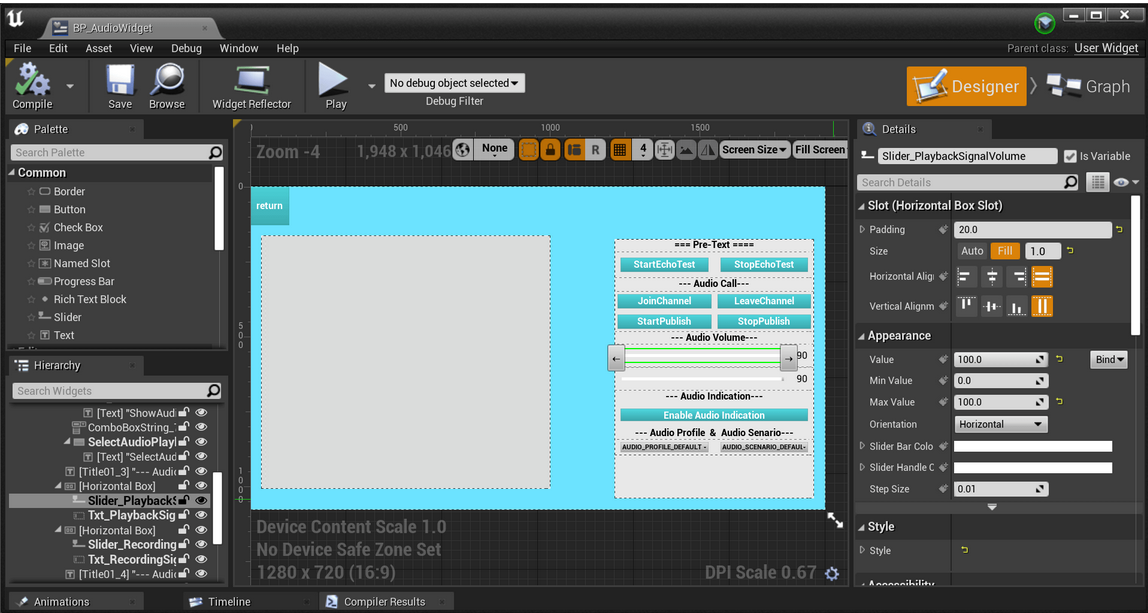
Create a **Slider** widget named **Slider\_PlaybackSignalVolume** for users to drag the volume bar to adjust the playback volume. In this example, set the minimum value to `0` (mute) and the maximum value to `100` (original volume), as shown in the following figure:
2. Bind UI Events
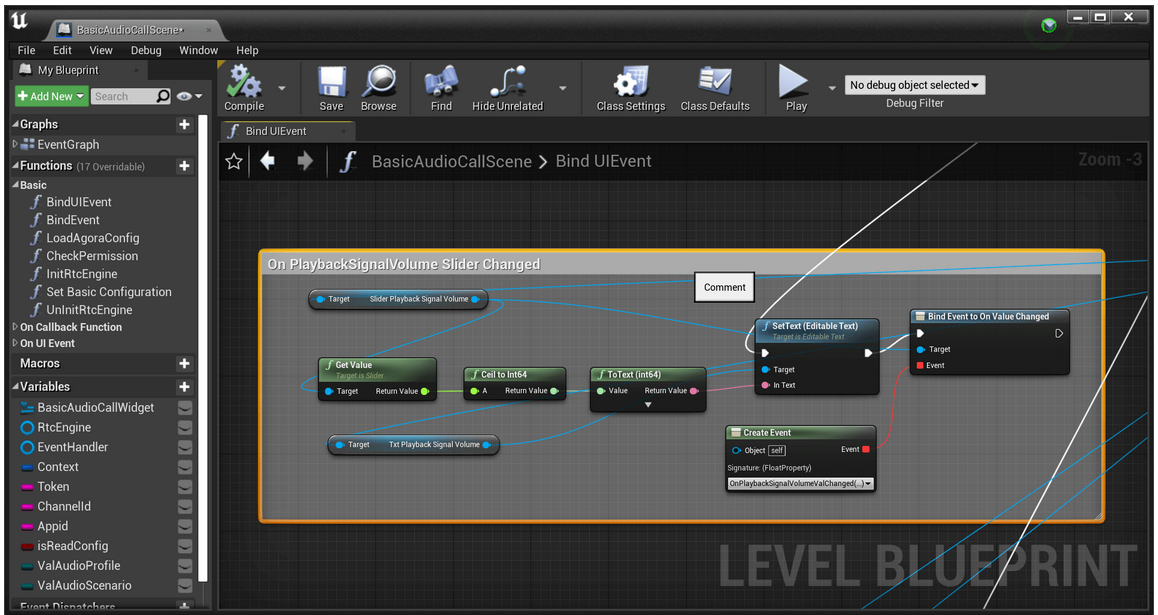
Create a **Bind Event to On Value Changed node** and connect it to the **Slider\_PlaybackSignalVolume** widget and the **OnPlaybackSignalVolumeValChanged** callback. When users drag the volume bar to adjust the audio playback signal, the **OnPlaybackSignalVolumeValChanged** callback is triggered, as shown in the following figure:
3. Implement Callback Function
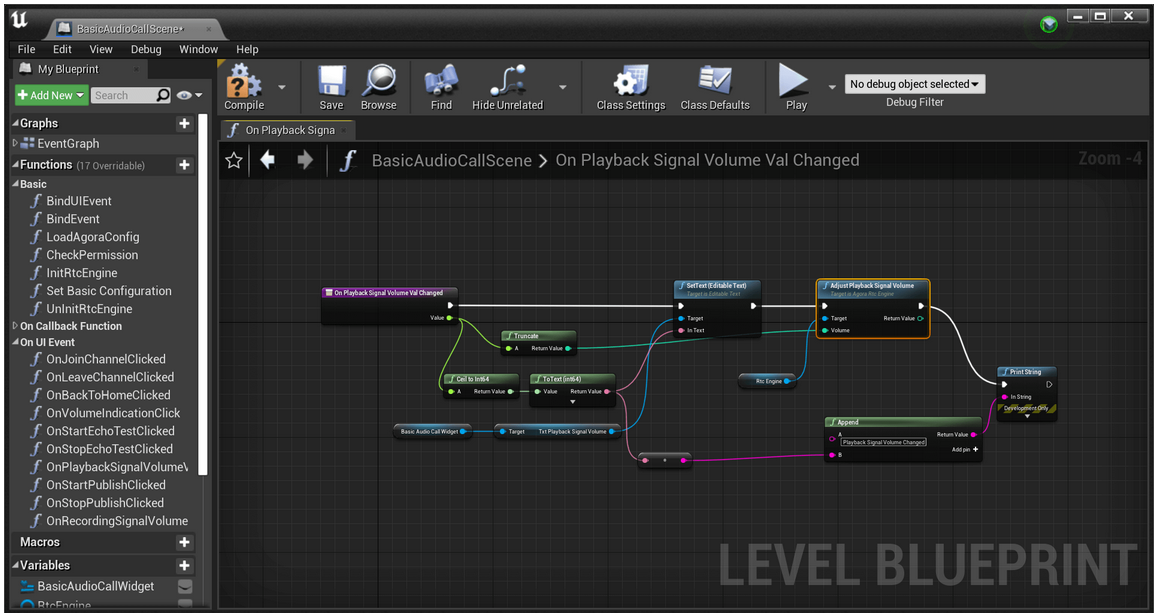
Create **OnPlaybackSignalVolumeValChanged** callback function with the following parameters:
| Input parameter | Data type | Parameter description |
| --------------- | --------- | --------------------- |
| `value` | Float | Playback Volume |
When this callback is triggered, the specified playback volume is obtained and assigned to the Volume parameter of **Adjust Playback Signal Volume**. The **AdjustPlaybackSignalVolume** method is called to adjust the playback volume, as shown in the following figure:
### Adjust recording volume [#adjust-recording-volume]
This section shows you how to adjust the audio recording signal volume using `AdjustRecordingSignalVolume`.
1. Create UMG
Create a **Slider** widget named **Slider\_RecordingSignalVolume** to enable users to adjust the recording volume. For this example, set the minimum value to `0` (mute) and the maximum value to `100` (original volume), as shown in the following figure:
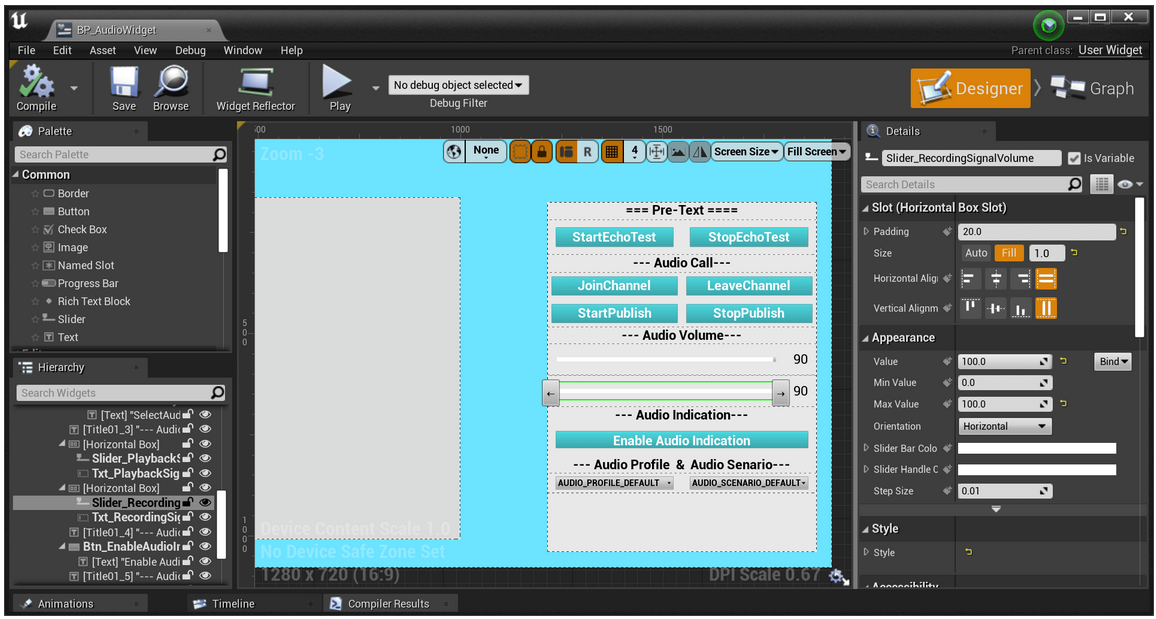
2. Bind UI Events
Create a **Bind Event to On Value Changed node** and connect it to the **Slider\_RecordingSignalVolume** widget and the **OnRecordingSignalVolumeValChanged** callback. When users drag the volume bar to adjust the audio recording signal, the **OnRecordingSignalVolumeValChanged** callback is triggered, as shown in the following figure:
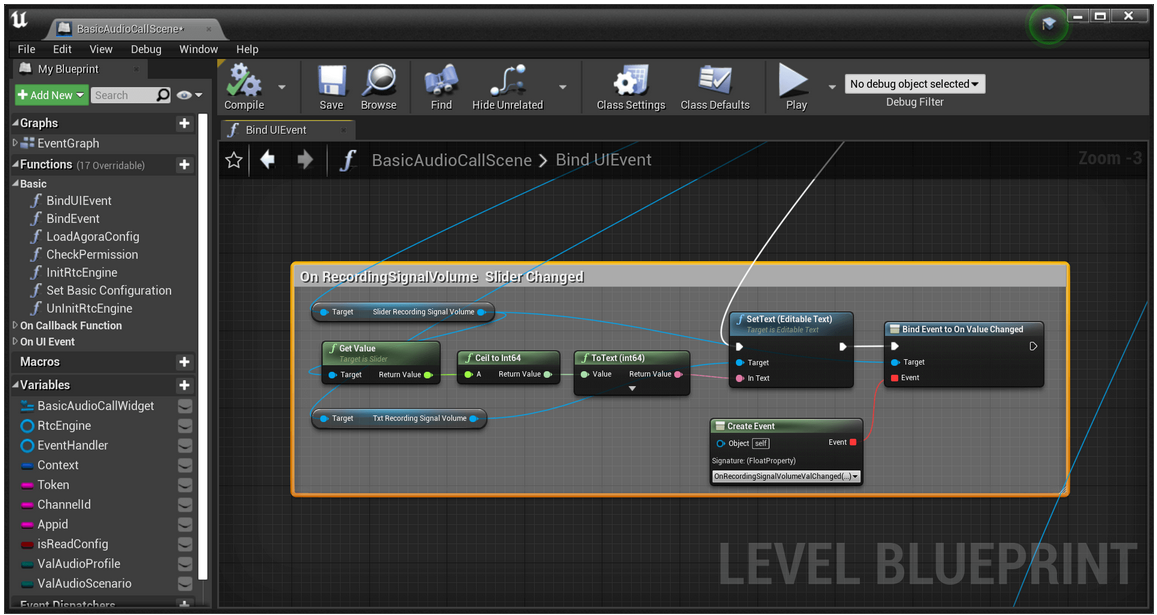
3. Implement UI Events
Create the **OnRecordingSignalVolumeValChanged** callback function with the following parameters:
| Input parameter | Data type | Parameter description |
| --------------- | --------- | --------------------- |
| `value` | Float | Recording Volume |
When the callback is triggered, the specified recording volume is obtained and assigned to the Volume parameter of **Adjust Recording Signal Volume**. The **AdjustRecordingSignalVolume** method is called to adjust the recording volume, as shown in the following figure:
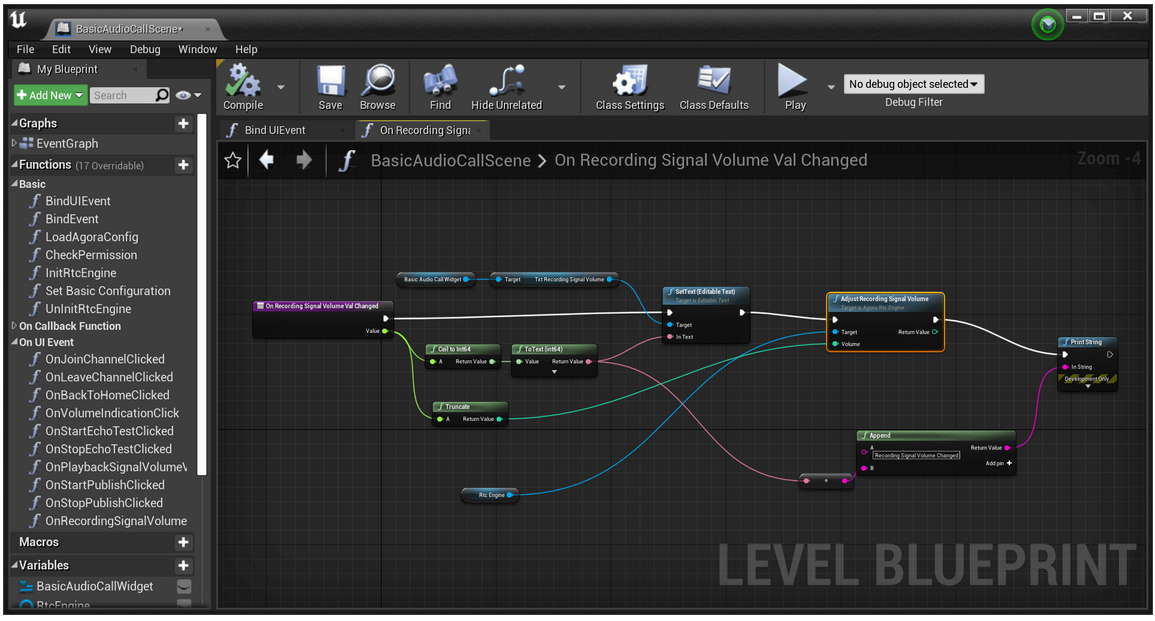
When configuring audio settings, it's essential to understand the default behavior and the options available. Here are the key points to keep in mind:
* The SDK defaults to a device volume of `85` when using the recording device to capture audio signals.
* A volume of `0` means mute, and a volume of `255` represents the maximum volume of the device.
* If the SDK detects that the recording volume is too low in the current environment, it automatically increases the volume of the recording device.
* The volume of the recording device directly influences the global volume of the device.
* If the default recording device volume does not meet your requirements, adjust it by regulating the signal amplitude captured by the microphone or sound card.
### Get volume information of users [#get-volume-information-of-users-10]
Throughout the process of audio recording, mixing, and playback, you can obtain the user IDs and volumes of the three users with the highest instant volumes in the channel using the `FOnAudioVolumeIndication` callback. A returned `uid` of `0` represents the local user. You need to call the `EnableAudioVolumeIndication` method to activate the voice detection function to receive this callback.
1. Create UMG
Create a **Button** widget named **Btn\_EnableAudioIndication** for users to control whether to enable the volume indication. As shown in the following figure:
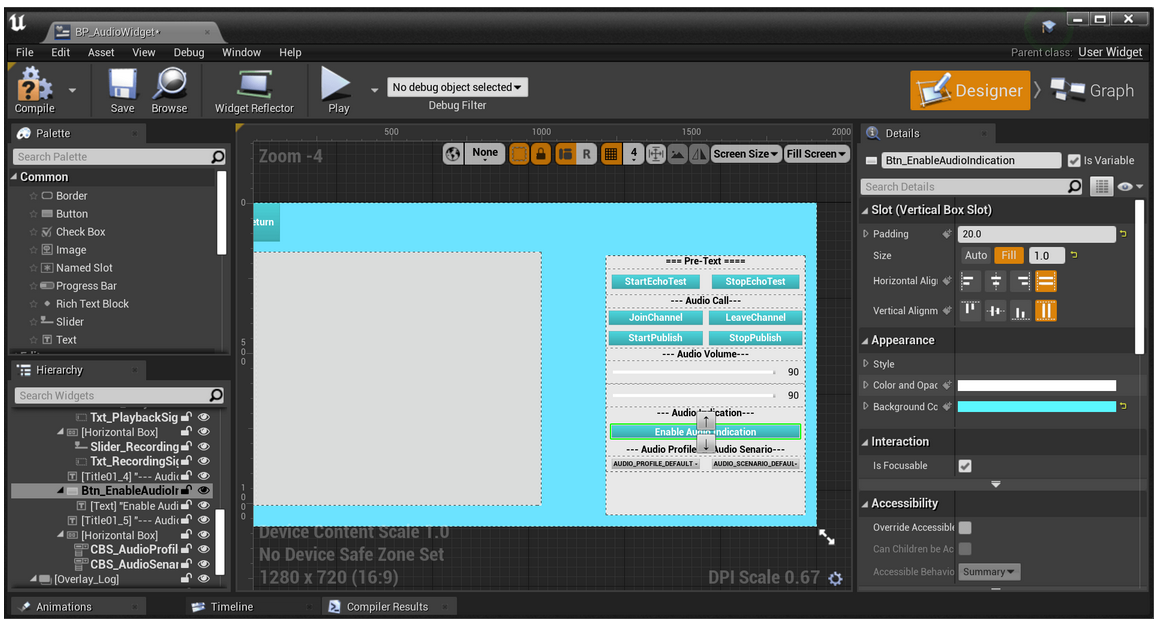
2. Bind UI Events
Create a **Bind Event to On Clicked node** and connect it to the **Btn\_EnableAudioIndication** widget and the **OnVolumeIndicationClick** callback. When users press the button to enable the volume indication, the **OnVolumeIndicationClick** callback is triggered, as shown in the following figure:
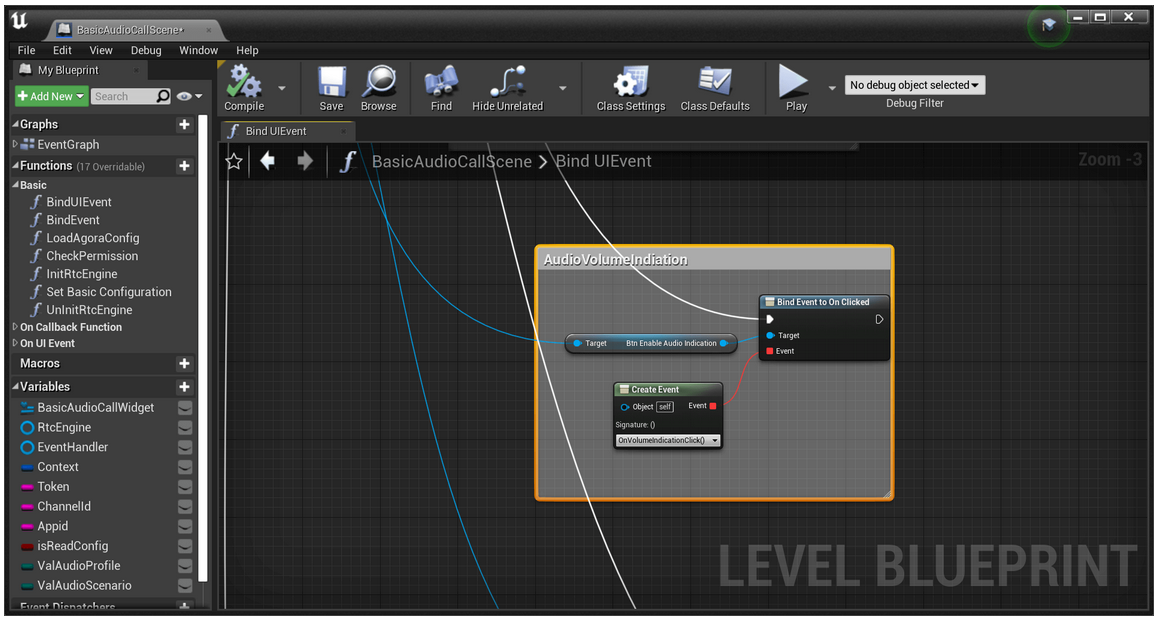
3. Implement UI Events
Create the **OnVolumeIndicationClick** callback function. When this callback is triggered, the **Enable Audio Volume Indication** method is called to enable volume indication. In this example, set the volume indication **Interval** to 200 milliseconds, the smoothing factor **Smooth** to 3, and check **Report Vad** to activate the voice detection function, as shown in the following figure:
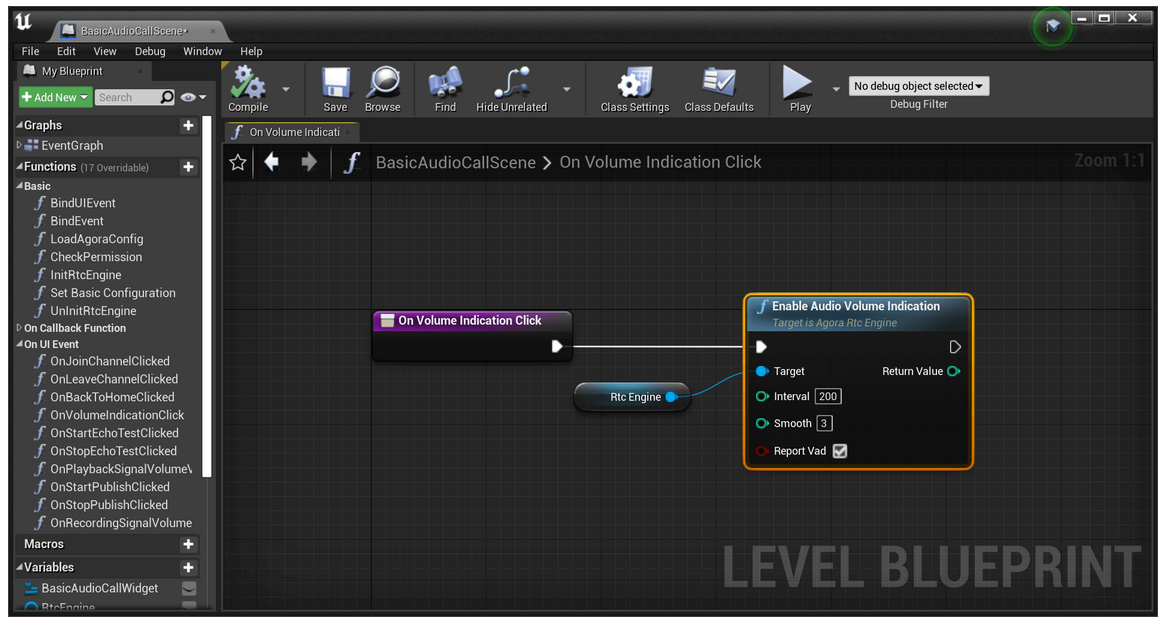
4. Add Callback Event
5. Create the **OnAudioVolumeIndication** callback function with the following parameters:
| Input parameter | Data type | Parameter description |
| --------------- | --------- | ----------------------------------------------------------------------------------------------------------------------------------------------------------------------------------------------------------------------------- |
| `speaker` | Float | Structure Volume information of users, see [FAudioVolumeInfo](https://api-ref.agora.io/en/video-sdk/blueprint/4.x/API/class_irtcengineeventhandler.html#callback_irtcengineeventhandler_onaudiovolumeindication) for details. |
| `totalVolume` | Integer | The total volume after mixing |
2. Enable listening to the **OnAudioVolumeIndication** callback, as shown in the following figure:
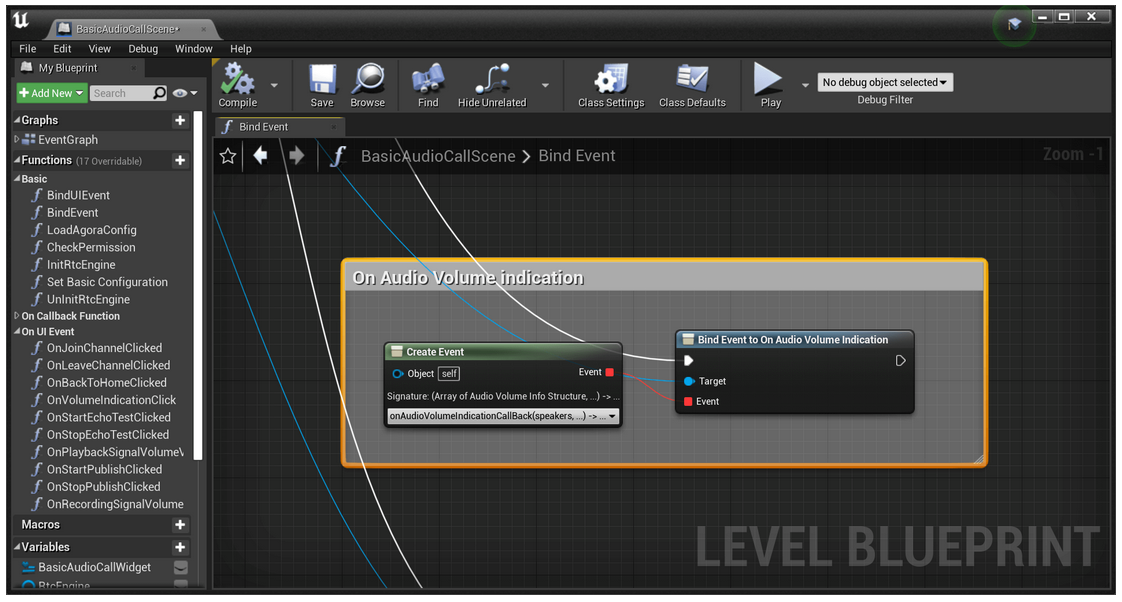
3. When the **OnAudioVolumeIndication** callback is triggered, print the received user volume information, as shown in the following figure:
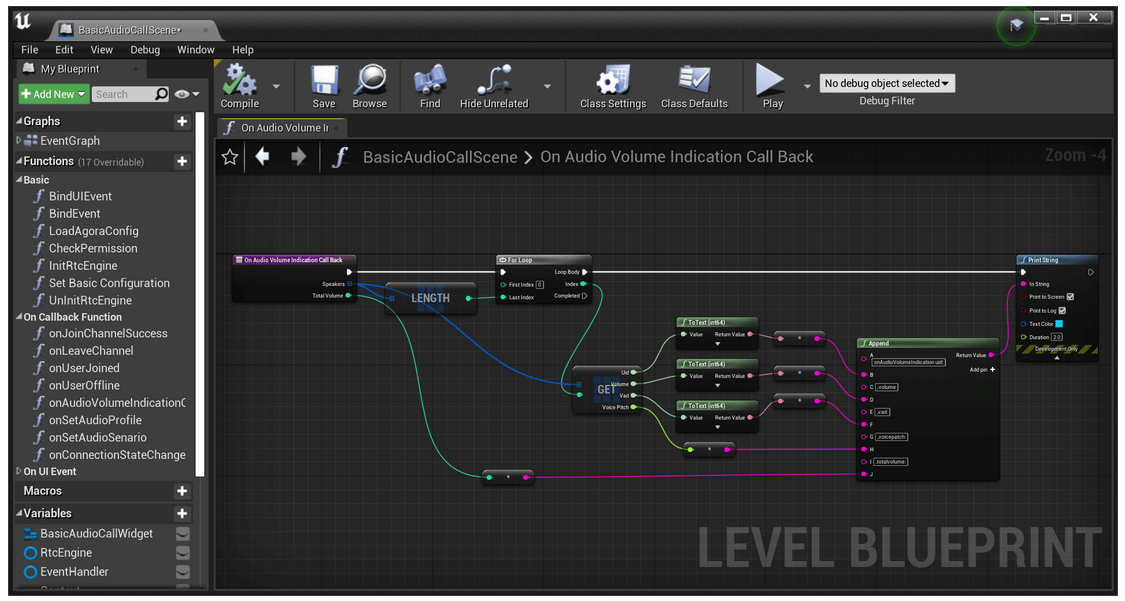
## Reference [#reference-11]
This section contains content that completes the information on this page, or points you to documentation that explains other aspects to this product.
### Sample projects [#sample-projects-9]
Agora provides an open-source [Blueprint sample project](https://github.com/AgoraIO-Extensions/Agora-Unreal-RTC-SDK/tree/main/Agora-Unreal-SDK-Blueprint-Example) on GitHub for your reference.
To learn how to implement call volume adjustment, refer to [JoinChannelAudio](https://github.com/AgoraIO-Extensions/Agora-Unreal-RTC-SDK/tree/main/Agora-Unreal-SDK-Blueprint-Example/Content/API-Example/Basic/JoinChannelAudio) in the sample project.
### Frequently asked questions [#frequently-asked-questions-9]
* [How can I solve the problem of low volume?](/en/api-reference/faq/quality/audio_low)
### API reference [#api-reference-11]
* [`adjustRecordingSignalVolume`](https://api-ref.agora.io/en/video-sdk/blueprint/4.x/API/class_irtcengine.html#api_irtcengine_adjustrecordingsignalvolume)
* [`adjustPlaybackSignalVolume`](https://api-ref.agora.io/en/video-sdk/blueprint/4.x/API/class_irtcengine.html#api_irtcengine_adjustplaybacksignalvolume)
* [`adjustUserPlaybackSignalVolume`](https://api-ref.agora.io/en/video-sdk/blueprint/4.x/API/class_irtcengine.html#api_irtcengine_adjustuserplaybacksignalvolume)
* [`adjustAudioMixingPlayoutVolume`](https://api-ref.agora.io/en/video-sdk/blueprint/4.x/API/class_irtcengine.html#api_irtcengine_adjustaudiomixingplayoutvolume)
* [`FOnAudioVolumeIndication`](https://api-ref.agora.io/en/video-sdk/blueprint/4.x/API/class_irtcengineeventhandler.html#callback_irtcengineeventhandler_onaudiovolumeindication)
### See also [#see-also-11]
* [Custom audio source](custom-audio)
* [Custom video source](custom-video)
<_PlatformProcessedMarker close="true" />
<_PlatformPanel platform="python">
<_PlatformProcessedMarker groupMode="structured" canonicalPlatform="web" platform="python" />
The figure below shows the workflow of adjusting the volume.
**Volume adjust workflow**

**Playback** refers to transmitting an audio signal from a sender to a recipient, where it is played back through a playback device.
**Recording** refers to the process in which audio signals are captured by a recording device and then sent to the transmitter.
If you set the volume too high using the signal volume adjustment methods, it may lead to audio distortion on some devices.
## Prerequisites [#prerequisites-12]
Ensure that you have implemented the [SDK quickstart](../../index) in your project.
## Implement volume control [#implement-volume-control-12]
Use one or more of the following volume control methods to adjust volume settings.
## Reference [#reference-12]
This section contains content that completes the information on this page, or points you to documentation that explains other aspects to this product.
### See also [#see-also-12]
* [Custom audio source](custom-audio)
* [Custom video source](custom-video)
<_PlatformProcessedMarker close="true" />