# Audio mixing and sound effects (/en/realtime-media/broadcast-streaming/build/control-audio-and-devices/audio-mixing-and-sound-effects)
> For AI agents: see the complete documentation index at [llms.txt](/llms.txt).
Video SDK makes it simple for you to publish audio captured through the microphone to subscribers in a channel. In some real-time audio and video use-cases, such as games or karaoke, you need to play sound effects or mix in music files to enhance the atmosphere and add interest. Video SDK enables you to add sound effects and mix in pre-recorded audio.
<_PlatformTabsGroup groupMode="structured" canonicalPlatform="web" platforms="["android","ios","macos","web","windows","electron","react-native","unity"]" showTabs="true">
<_PlatformPanel platform="android">
<_PlatformProcessedMarker groupMode="structured" canonicalPlatform="web" platform="android" />
This page shows you how to implement audio mixing and playing sound effects in your app.
## Understand the tech [#understand-the-tech]
Video SDK provides APIs that enable you to implement:
* **Audio mixing**
Mix in music file such as background music with microphone audio. Using this feature, you can play only one file at a time.
* **Sound effects**
Play audios with a short duration. For example, applause, cheers, or gunshots. You can play multiple sound effects at the same time.
## Prerequisites [#prerequisites]
Ensure that you have:
* Implemented the [SDK quickstart](../../index) in your project.
* Audio files in one of the [supported formats](https://developer.android.com/media/platform/supported-formats).
* Added the required permission to your project
If your project's `targetSdkVersion` is greater than 20, add the following code to the `AndroidManifest.xml` file:
```xml
android:usesCleartextTraffic="true"
android:requestLegacyExternalStorage="true"
```
## Play sound effects and music [#play-sound-effects-and-music]
This section shows you how to implement playing sound effects and add audio mixing in your app.
To manage audio mixing and sound effects, Video SDK provides the following APIs:
| Function | Sound effect | Audio mixing |
| ------------------------------------------- | -------------------------------------------------------------------------------------------------------------------------------- | -------------------------------------------------------------------------------------------------------------------------------------------------------------------------------------------------------------------- |
| Play or stop playing a specific audio file | `preloadEffect`
`unloadEffect`
`playEffect`
`stopEffect`
`stopAllEffects` | `startAudioMixing`
`stopAudioMixing` |
| Pause or resume playing an audio file | `pauseEffect`
`pauseAllEffects`
`resumeEffect`
`resumeAllEffects` | `pauseAudioMixing`
`resumeAudioMixing` |
| Get and adjust playback position and volume | `setEffectPosition`
`getEffectCurrentPosition`
`getEffectsVolume`
`setEffectsVolume`
`setVolumeOfEffect` | `getAudioMixingCurrentPosition`
`setAudioMixingPosition`
`getAudioMixingPublishVolume`
`adjustAudioMixingPublishVolume`
`getAudioMixingPlayoutVolume`
`adjustAudioMixingPlayoutVolume` |
| Report playback status of audio files | `onAudioEffectFinished` | `onAudioMixingStateChanged` |
### Set up file access permissions [#set-up-file-access-permissions]
For Android projects with `targetSdkVersion` greater than or equal to 20, add the following to the project's `AndroidManifest.xml` file:
```xml
android:usesCleartextTraffic="true"
android:requestLegacyExternalStorage="true"
```
### Play sound effects [#play-sound-effects]
To play sound effects, refer to the following code example:
Java
Kotlin
```java
//Import the IAudioEffectManger class
import io.agora.rtc.IAudioEffectManager;
// Call getAudioEffectManager to get the IAudioEffectManager class
private IAudioEffectManager audioEffectManager;
audioEffectManager = mRtcEngine.getAudioEffectManager();
// Set the sound effect ID as a unique identifier for identifying sound effect files
int id = 0;
// If you want to play the sound effect repeatedly, you can preload the file into memory
// If the file is large, do not preload it
// You can only preload local sound effect files
audioEffectManager.preloadEffect(id++, "Your file path");
// Call playEffect to play the specified sound effect file
// Call playEffect multiple times, set multiple sound effect IDs, and play multiple sound effect files at the same time
audioEffectManager.playEffect(
0, // Set the sound effect ID
"Your file path", // Set the sound effect file path
-1, // Set the number of times the sound effect loops. -1 means infinite loop
1, // Set the tone of the sound effect. 1 represents the original pitch
0.0, // Set the spatial position of the sound effect. 0.0 means the sound effect appears directly in front
100, // Set the sound effect volume. 100 represents the original volume
true, // Set whether to publish sound effects to the remote end
0 // Set the playback position of the sound effect file (in ms). 0 means start at the beginning
);
// Pause or resume playing the specified sound effect file
audioEffectManager.pauseEffect(id);
audioEffectManager.resumeEffect(id);
// Set the playback position of the specified local sound effect file
audioEffectManager.setEffectPosition(id, 500);
// Set the playback volume of all sound effect files
audioEffectManager.setEffectsVolume(50.0);
// Set the playback volume of the specified sound effect file
audioEffectManager.setVolumeOfEffect(id, 50.0);
// Release the preloaded sound effect file
audioEffectManager.unloadEffect(id);
// Stop playing all sound effect files
audioEffectManager.stopAllEffects;
@Override
// This callback is triggered when the sound effect file ends playing
public void onAudioEffectFinished(int soundId) {
super.onAudioEffectFinished(soundId);
}
```
```kotlin
// Import the IAudioEffectManager class
import io.agora.rtc.IAudioEffectManager
// Call getAudioEffectManager to get the IAudioEffectManager class
private lateinit var audioEffectManager: IAudioEffectManager
audioEffectManager = mRtcEngine.getAudioEffectManager()
// Set the sound effect ID as a unique identifier for identifying sound effect files
var id = 0
// If you want to play the sound effect repeatedly, you can preload the file into memory
// If the file is large, do not preload it
// You can only preload local sound effect files
audioEffectManager.preloadEffect(id++, "Your file path")
// Call playEffect to play the specified sound effect file
// Call playEffect multiple times, set multiple sound effect IDs, and play multiple sound effect files at the same time
audioEffectManager.playEffect(
0, // Set the sound effect ID
"Your file path", // Set the sound effect file path
-1, // Set the number of times the sound effect loops. -1 means infinite loop
1, // Set the tone of the sound effect. 1 represents the original pitch
0.0, // Set the spatial position of the sound effect. 0.0 means the sound effect appears directly in front
100, // Set the sound effect volume. 100 represents the original volume
true, // Set whether to publish sound effects to the remote end
0 // Set the playback position of the sound effect file (in ms). 0 means start at the beginning
)
// Pause or resume playing the specified sound effect file
audioEffectManager.pauseEffect(id)
audioEffectManager.resumeEffect(id)
// Set the playback position of the specified local sound effect file
audioEffectManager.setEffectPosition(id, 500)
// Set the playback volume of all sound effect files
audioEffectManager.setEffectsVolume(50.0)
// Set the playback volume of the specified sound effect file
audioEffectManager.setVolumeOfEffect(id, 50.0)
// Release the preloaded sound effect file
audioEffectManager.unloadEffect(id)
// Stop playing all sound effect files
audioEffectManager.stopAllEffects()
// This callback is triggered when the sound effect file ends playing
override fun onAudioEffectFinished(soundId: Int) {
super.onAudioEffectFinished(soundId)
}
```
### Incorporate audio mixing [#incorporate-audio-mixing]
Before or after joining a channel, call `startAudioMixing` to play the audio file. When the audio mixing status changes, the SDK triggers the `onAudioMixingStateChanged` callback and reports the reason for the change.
To mix in an audio file, refer to the following code example:
Java
Kotlin
```java
// Start playing a music file
mRtcEngine.startAudioMixing(
"Your file path", // Specify the path of the local or online music file
false, // Set whether to play the music file only locally. false means both local and remote users can hear the music
-1, // Set the number of times the music file should be played. -1 indicates infinite loop
0 // Set the starting playback position of a music file
);
@Override
// Triggered when the playback state of the music file changes
// After receiving the onAudioMixingStateChanged callback, call other mixing APIs, such as pauseAudioMixing or getAudioMixingDuration
public void onAudioMixingStateChanged(int state, int errorCode) {
super.onAudioMixingStateChanged(state, errorCode);
}
// Pause or resume playing the music file
rtcEngine.pauseAudioMixing();
rtcEngine.resumeAudioMixing();
// Get the total duration of the current music file
rtcEngine.getAudioMixingDuration();
// Set the playback position of the current music file. 500 indicates starting playback from the 500th ms of the music file
rtcEngine.setAudioMixingPosition(500);
// Adjust the playback volume of the current music file for remote users
rtcEngine.adjustAudioMixingPublishVolume(50);
// Adjust the playback volume of the current music file locally
rtcEngine.adjustAudioMixingPlayoutVolume(50);
```
```kotlin
// Start playing a music file
mRtcEngine.startAudioMixing(
"Your file path", // Specify the path of the local or online music file
false, // Set whether to play the music file only locally. false means both local and remote users can hear the music
-1, // Set the number of times the music file should be played. -1 indicates infinite loop
0 // Set the starting playback position of a music file
)
// Override callback for audio mixing state changes
override fun onAudioMixingStateChanged(state: Int, errorCode: Int) {
super.onAudioMixingStateChanged(state, errorCode)
}
// Pause or resume playing the music file
rtcEngine.pauseAudioMixing()
rtcEngine.resumeAudioMixing()
// Get the total duration of the current music file
rtcEngine.getAudioMixingDuration()
// Set the playback position of the current music file (e.g., 500 ms)
rtcEngine.setAudioMixingPosition(500)
// Adjust the playback volume of the current music file for remote users
rtcEngine.adjustAudioMixingPublishVolume(50)
// Adjust the playback volume of the current music file locally
rtcEngine.adjustAudioMixingPlayoutVolume(50)
```
Control playback using the following methods:
* `pauseAudioMixing`: Pause playback.
* `resumeAudioMixing`: Resume playback.
* `stopAudioMixing`: Stop playing.
* `setAudioMixingPosition`: Set the playing position of the current audio file.
* `adjustAudioMixingPlayoutVolume`: Adjust the volume of the current audio file played locally.
* `adjustAudioMixingPublishVolume`: Adjust the volume of the current audio file played at the remote end.
If you play a short sound effect file using `startAudioMixing`, or a long music file using `playEffect`, the playback may fail.
## Reference [#reference]
This section contains content that completes the information on this page, or points you to documentation that explains other aspects to this product.
### FAQs [#faqs]
* [Why can't I play the audio file using `startAudioMixing` or `playEffect` on Android 9?](/en/api-reference/faq/integration/android_startaudiomixing_permission)
### Sample project [#sample-project]
Agora provides an open source [Play Audio Files](https://github.com/AgoraIO/API-Examples/blob/main/Android/APIExample-Audio/app/src/main/java/io/agora/api/example/examples/advanced/PlayAudioFiles.java) project on GitHub for your reference. Download or view the source code for a more detailed example.
### API reference [#api-reference]
* [`preloadEffect`](https://api-ref.agora.io/en/video-sdk/android/4.x/APIclass_iaudioeffectmanager.html#api_irtcengine_preloadeffect)
* [`playEffect`](https://api-ref.agora.io/en/video-sdk/android/4.x/API/class_iaudioeffectmanager.html#api_irtcengine_playeffect3)
* [`onAudioEffectFinished`](https://api-ref.agora.io/en/video-sdk/android/4.x/API/class_irtcengineeventhandler.html#callback_irtcengineeventhandler_onaudioeffectfinished)
* [`startAudioMixing`](https://api-ref.agora.io/en/video-sdk/android/4.x/API/class_irtcengine.html#api_irtcengine_startaudiomixing)
* [`onAudioMixingStateChanged`](https://api-ref.agora.io/en/video-sdk/android/4.x/API/class_irtcengineeventhandler.html#callback_irtcengineeventhandler_onaudiomixingstatechanged)
* [`pauseAudioMixing`](https://api-ref.agora.io/en/video-sdk/android/4.x/APIclass_irtcengine.html#api_irtcengine_pauseaudiomixing)
* [`resumeAudioMixing`](https://api-ref.agora.io/en/video-sdk/android/4.x/APIclass_irtcengine.html#api_irtcengine_resumeaudiomixing)
* [`stopAudioMixing`](https://api-ref.agora.io/en/video-sdk/android/4.x/APIclass_irtcengine.html#api_irtcengine_stopaudiomixing)
* [`adjustAudioMixingPlayoutVolume`](https://api-ref.agora.io/en/video-sdk/android/4.x/APIclass_irtcengine.html#api_irtcengine_adjustaudiomixingplayoutvolume)
* [`adjustAudioMixingPublishVolume`](https://api-ref.agora.io/en/video-sdk/android/4.x/APIclass_irtcengine.html#api_irtcengine_adjustaudiomixingpublishvolume)
<_PlatformProcessedMarker close="true" />
<_PlatformPanel platform="ios">
<_PlatformProcessedMarker groupMode="structured" canonicalPlatform="web" platform="ios" />
This page shows you how to implement audio mixing and playing sound effects in your app.
## Understand the tech [#understand-the-tech-1]
Video SDK provides APIs that enable you to implement:
* **Audio mixing**
Mix in music file such as background music with microphone audio. Using this feature, you can play only one file at a time.
* **Sound effects**
Play audios with a short duration. For example, applause, cheers, or gunshots. You can play multiple sound effects at the same time.
## Prerequisites [#prerequisites-1]
Ensure that you have:
* Implemented the [SDK quickstart](../../index) in your project.
* Audio files in one of the [supported formats](https://developer.apple.com/library/archive/documentation/AudioVideo/Conceptual/MultimediaPG/UsingAudio/UsingAudio.html#/apple_ref/doc/uid/TP40009767-CH2-SW28).
## Play sound effects and music [#play-sound-effects-and-music-1]
This section shows you how to implement playing sound effects and add audio mixing in your app.
To manage audio mixing and sound effects, Video SDK provides the following APIs:
| Function | Sound effect | Audio mixing |
| ------------------------------------------- | -------------------------------------------------------------------------------------------------------------------------------- | -------------------------------------------------------------------------------------------------------------------------------------------------------------------------------------------------------------------- |
| Play or stop playing a specific audio file | `preloadEffect`
`unloadEffect`
`playEffect`
`stopEffect`
`stopAllEffects` | `startAudioMixing`
`stopAudioMixing` |
| Pause or resume playing an audio file | `pauseEffect`
`pauseAllEffects`
`resumeEffect`
`resumeAllEffects` | `pauseAudioMixing`
`resumeAudioMixing` |
| Get and adjust playback position and volume | `setEffectPosition`
`getEffectCurrentPosition`
`getEffectsVolume`
`setEffectsVolume`
`setVolumeOfEffect` | `getAudioMixingCurrentPosition`
`setAudioMixingPosition`
`getAudioMixingPublishVolume`
`adjustAudioMixingPublishVolume`
`getAudioMixingPlayoutVolume`
`adjustAudioMixingPlayoutVolume` |
| Report playback status of audio files | `rtcEngineDidAudioEffectFinish` | `audioMixingStateChanged` |
### Play sound effects [#play-sound-effects-1]
Before joining a channel, call `preloadEffect`to preload the sound effect file. After joining the channel, call `playEffect` to play the specified sound effect. Call `playEffect` multiple times to set multiple sound effect IDs and play multiple files simultaneously. After the sound effect has finished playing, the SDK triggers the `rtcEngineDidAudioEffectFinish` callback.
```swift
// Set the effect ID as a unique identifier for the audio effect file
let EFFECT_ID:Int32 = 1
// Specify the path to the audio effect file
let filePath = "your filepath"
// If you want to play the effect repeatedly, you need to preload the audio effect file into memory. Do not preload if the file size is large
// You can only preload local audio effect files
agoraKit.preloadEffect(EFFECT_ID, filePath: filePath)
// Set the number of times the effect will loop. -1 means infinite loop
int loopCount = -1;
// Set the pitch of the effect. 1 means the original pitch
let pitch = 1
// Set the spatial position of the effect. 0.0 means the effect is in front
let pan = 1
// Set the volume of the effect. 100 means the original volume
let gain = 100.0
// Set whether to publish the effect to the remote end
let publish = true
// Call playEffect to play the specified audio effect file
// Multiple calls to playEffect can set multiple effect IDs to play multiple audio effect files simultaneously
agoraKit.playEffect(EFFECT_ID, filePath: filePath, loopCount: Int32(loopCount), pitch: pitch, pan: pan, gain: gain, publish: publish)
// Pause or resume playing the audio effect file
agoraKit.pauseEffect(EFFECT_ID)
agoraKit.resumeEffect(EFFECT_ID)
// Set the playback position of the specified local audio effect file
agoraKit.setEffectPosition(EFFECT_ID, pos: 500)
// Set the playback volume for all audio effect files
agoraKit.setEffectsVolume(volume: 50.0)
// Set the playback volume for the specified audio effect file
agoraKit.setVolumeOfEffect(EFFECT_ID, volume: 50.0)
// Unload the preloaded audio effect file
agoraKit.unloadEffect(EFFECT_ID)
// Pause playing all audio effect files
agoraKit.stopAllEffects()
// Trigger this callback when the audio effect file finishes playing
func rtcEngineDidAudioEffectFinish(_engine: AgoraRtcEngineKit soundId: soundId)
```
### Incorporate audio mixing [#incorporate-audio-mixing-1]
Before or after joining a channel, call `startAudioMixing` to play the audio file. When the audio mixing status changes, the SDK triggers the `audioMixingStateChanged` callback and reports the reason for the change.
To mix in an audio file, refer to the following code example:
```swift
// Specify the path to the local or online music file
let filePath = "your file path"
// Set whether to play the music file only locally. false means both local and remote users can hear the music file
let loopback = false
// The number of times the music file will loop. 1 means play only once
let cycle = 1
// Set the starting position of the music file playback
let startPos = 0
// Call the startAudioMixing method to play the music file
agoraKit.startAudioMixing(filePath, loopback: loopback, cycle: cycle, startPos: startPos)
// This callback is triggered when the music file playback status changes
// After receiving the localAudioMixingStateDidChanged callback, Agora recommends calling other music mixing APIs, such as pauseAudioMixing or getAudioMixingDuration
func rtcEngine(_ engine: AgoraRtcEngineKit,
audioMixingStateChanged state: AgoraAudioMixingStateType,
reasonCode: AgoraAudioMixingReasonCode) {
}
// Pause or resume playback of the music file
agoraKit.pauseAudioMixing()
agoraKit.resumeAudioMixing()
// Get the total duration of the current music file
agoraKit.getAudioMixingDuration()
// Set the playback position of the current music file. 500 means start playing from 500 ms into the music file
agoraKit.setAudioMixingPosition(pos: 500)
// Adjust the playback volume of the current music file on the remote end
agoraKit.adjustAudioMixingPublishVolume(volume: 50)
// Adjust the playback volume of the current music file locally
agoraKit.adjustAudioMixingPlayoutVolume(volume: 50)
```
Control playback using the following methods:
* `pauseAudioMixing`: Pause playback.
* `resumeAudioMixing`: Resume playback.
* `stopAudioMixing`: Stop playing.
* `setAudioMixingPosition`: Set the playing position of the current audio file.
* `adjustAudioMixingPlayoutVolume`: Adjust the volume of the current audio file played locally.
* `adjustAudioMixingPublishVolume`: Adjust the volume of the current audio file played at the remote end.
If you play a short sound effect file using `startAudioMixing`, or a long music file using `playEffect`, the playback may fail.
## Reference [#reference-1]
This section contains content that completes the information on this page, or points you to documentation that explains other aspects to this product.
### Sample project [#sample-project-1]
Agora provides an open source [AudioMixing](https://github.com/AgoraIO/API-Examples/tree/main/iOS/APIExample/APIExample/Examples/Advanced/AudioMixing) project on GitHub for your reference. Download or view the source code for a more detailed example.
### API reference [#api-reference-1]
* [`preloadEffect`](https://api-ref.agora.io/en/video-sdk/ios/4.x/documentation/agorartckit/agorartcenginekit/preloadeffect\(_\:filepath:\))
* [`playEffect`](https://api-ref.agora.io/en/video-sdk/ios/4.x/documentation/agorartckit/agorartcenginekit/playeffect\(_\:filepath\:loopcount\:pitch\:pan\:gain\:publish\:startpos:\))
* [`rtcEngineDidAudioEffectFinish`](https://api-ref.agora.io/en/video-sdk/ios/4.x/documentation/agorartckit/agorartcenginedelegate/rtcenginedidaudioeffectfinish\(_\:soundid:\))
* [`startAudioMixing`](https://api-ref.agora.io/en/video-sdk/ios/4.x/documentation/agorartckit/agorartcenginekit/startaudiomixing\(_\:loopback\:cycle:\))
* [`audioMixingStateChanged`](https://api-ref.agora.io/en/video-sdk/ios/4.x/documentation/agorartckit/agorartcenginedelegate/rtcengine\(_\:audiomixingstatechanged\:reasoncode:\))
* [`pauseAudioMixing`](https://api-ref.agora.io/en/video-sdk/ios/4.x/documentation/agorartckit/agorartcenginekit/pauseaudiomixing\(\))
* [`resumeAudioMixing`](https://api-ref.agora.io/en/video-sdk/ios/4.x/documentation/agorartckit/agorartcenginekit/resumeaudiomixing\(\))
* [`stopAudioMixing`](https://api-ref.agora.io/en/video-sdk/ios/4.x/documentation/agorartckit/agorartcenginekit/stopaudiomixing\(\))
* [`adjustAudioMixingPlayoutVolume`](https://api-ref.agora.io/en/video-sdk/ios/4.x/documentation/agorartckit/agorartcenginekit/adjustaudiomixingplayoutvolume\(_:\))
* [`adjustAudioMixingPublishVolume`](https://api-ref.agora.io/en/video-sdk/ios/4.x/documentation/agorartckit/agorartcenginekit/adjustaudiomixingpublishvolume\(_:\))
<_PlatformProcessedMarker close="true" />
<_PlatformPanel platform="macos">
<_PlatformProcessedMarker groupMode="structured" canonicalPlatform="web" platform="macos" />
This page shows you how to implement audio mixing and playing sound effects in your app.
## Understand the tech [#understand-the-tech-2]
Video SDK provides APIs that enable you to implement:
* **Audio mixing**
Mix in music file such as background music with microphone audio. Using this feature, you can play only one file at a time.
* **Sound effects**
Play audios with a short duration. For example, applause, cheers, or gunshots. You can play multiple sound effects at the same time.
## Prerequisites [#prerequisites-2]
Ensure that you have:
* Implemented the [SDK quickstart](../../index) in your project.
* Audio files in one of the [supported formats](https://developer.apple.com/library/archive/documentation/AudioVideo/Conceptual/MultimediaPG/UsingAudio/UsingAudio.html#/apple_ref/doc/uid/TP40009767-CH2-SW28).
## Play sound effects and music [#play-sound-effects-and-music-2]
This section shows you how to implement playing sound effects and add audio mixing in your app.
To manage audio mixing and sound effects, Video SDK provides the following APIs:
| Function | Sound effect | Audio mixing |
| ------------------------------------------- | -------------------------------------------------------------------------------------------------------------------------------- | -------------------------------------------------------------------------------------------------------------------------------------------------------------------------------------------------------------------- |
| Play or stop playing a specific audio file | `preloadEffect`
`unloadEffect`
`playEffect`
`stopEffect`
`stopAllEffects` | `startAudioMixing`
`stopAudioMixing` |
| Pause or resume playing an audio file | `pauseEffect`
`pauseAllEffects`
`resumeEffect`
`resumeAllEffects` | `pauseAudioMixing`
`resumeAudioMixing` |
| Get and adjust playback position and volume | `setEffectPosition`
`getEffectCurrentPosition`
`getEffectsVolume`
`setEffectsVolume`
`setVolumeOfEffect` | `getAudioMixingCurrentPosition`
`setAudioMixingPosition`
`getAudioMixingPublishVolume`
`adjustAudioMixingPublishVolume`
`getAudioMixingPlayoutVolume`
`adjustAudioMixingPlayoutVolume` |
| Report playback status of audio files | `rtcEngineDidAudioEffectFinish` | `audioMixingStateChanged` |
### Play sound effects [#play-sound-effects-2]
Before joining a channel, call `preloadEffect`to preload the sound effect file. After joining the channel, call `playEffect` to play the specified sound effect. Call `playEffect` multiple times to set multiple sound effect IDs and play multiple files simultaneously. After the sound effect has finished playing, the SDK triggers the `rtcEngineDidAudioEffectFinish` callback.
```swift
// Set the effect ID as a unique identifier for the audio effect file
let EFFECT_ID:Int32 = 1
// Specify the path to the audio effect file
let filePath = "your filepath"
// If you want to play the effect repeatedly, you need to preload the audio effect file into memory. Do not preload if the file size is large
// You can only preload local audio effect files
agoraKit.preloadEffect(EFFECT_ID, filePath: filePath)
// Set the number of times the effect will loop. -1 means infinite loop
int loopCount = -1;
// Set the pitch of the effect. 1 means the original pitch
let pitch = 1
// Set the spatial position of the effect. 0.0 means the effect is in front
let pan = 1
// Set the volume of the effect. 100 means the original volume
let gain = 100.0
// Set whether to publish the effect to the remote end
let publish = true
// Call playEffect to play the specified audio effect file
// Multiple calls to playEffect can set multiple effect IDs to play multiple audio effect files simultaneously
agoraKit.playEffect(EFFECT_ID, filePath: filePath, loopCount: Int32(loopCount), pitch: pitch, pan: pan, gain: gain, publish: publish)
// Pause or resume playing the audio effect file
agoraKit.pauseEffect(EFFECT_ID)
agoraKit.resumeEffect(EFFECT_ID)
// Set the playback position of the specified local audio effect file
agoraKit.setEffectPosition(EFFECT_ID, pos: 500)
// Set the playback volume for all audio effect files
agoraKit.setEffectsVolume(volume: 50.0)
// Set the playback volume for the specified audio effect file
agoraKit.setVolumeOfEffect(EFFECT_ID, volume: 50.0)
// Unload the preloaded audio effect file
agoraKit.unloadEffect(EFFECT_ID)
// Pause playing all audio effect files
agoraKit.stopAllEffects()
// Trigger this callback when the audio effect file finishes playing
func rtcEngineDidAudioEffectFinish(_engine: AgoraRtcEngineKit soundId: soundId)
```
### Incorporate audio mixing [#incorporate-audio-mixing-2]
Before or after joining a channel, call `startAudioMixing` to play the audio file. When the audio mixing status changes, the SDK triggers the `audioMixingStateChanged` callback and reports the reason for the change.
To mix in an audio file, refer to the following code example:
```swift
// Specify the path to the local or online music file
let filePath = "your file path"
// Set whether to play the music file only locally. false means both local and remote users can hear the music file
let loopback = false
// The number of times the music file will loop. 1 means play only once
let cycle = 1
// Set the starting position of the music file playback
let startPos = 0
// Call the startAudioMixing method to play the music file
agoraKit.startAudioMixing(filePath, loopback: loopback, cycle: cycle, startPos: startPos)
// This callback is triggered when the music file playback status changes
// After receiving the localAudioMixingStateDidChanged callback, Agora recommends calling other music mixing APIs, such as pauseAudioMixing or getAudioMixingDuration
func rtcEngine(_ engine: AgoraRtcEngineKit,
audioMixingStateChanged state: AgoraAudioMixingStateType,
reasonCode: AgoraAudioMixingReasonCode) {
}
// Pause or resume playback of the music file
agoraKit.pauseAudioMixing()
agoraKit.resumeAudioMixing()
// Get the total duration of the current music file
agoraKit.getAudioMixingDuration()
// Set the playback position of the current music file. 500 means start playing from 500 ms into the music file
agoraKit.setAudioMixingPosition(pos: 500)
// Adjust the playback volume of the current music file on the remote end
agoraKit.adjustAudioMixingPublishVolume(volume: 50)
// Adjust the playback volume of the current music file locally
agoraKit.adjustAudioMixingPlayoutVolume(volume: 50)
```
Control playback using the following methods:
* `pauseAudioMixing`: Pause playback.
* `resumeAudioMixing`: Resume playback.
* `stopAudioMixing`: Stop playing.
* `setAudioMixingPosition`: Set the playing position of the current audio file.
* `adjustAudioMixingPlayoutVolume`: Adjust the volume of the current audio file played locally.
* `adjustAudioMixingPublishVolume`: Adjust the volume of the current audio file played at the remote end.
If you play a short sound effect file using `startAudioMixing`, or a long music file using `playEffect`, the playback may fail.
## Reference [#reference-2]
This section contains content that completes the information on this page, or points you to documentation that explains other aspects to this product.
### Sample project [#sample-project-2]
Agora provides an open source [AudioMixing](https://github.com/AgoraIO/API-Examples/tree/main/macOS/APIExample/Examples/Advanced/AudioMixing) project on GitHub for your reference. Download or view the source code for a more detailed example.
### API reference [#api-reference-2]
* [`preloadEffect`](https://api-ref.agora.io/en/video-sdk/macos/4.x/documentation/agorartckit/agorartcenginekit/preloadeffect\(_\:filepath:\))
* [`playEffect`](https://api-ref.agora.io/en/video-sdk/macos/4.x/documentation/agorartckit/agorartcenginekit/playeffect\(_\:filepath\:loopcount\:pitch\:pan\:gain\:publish\:startpos:\))
* [`rtcEngineDidAudioEffectFinish`](https://api-ref.agora.io/en/video-sdk/macos/4.x/documentation/agorartckit/agorartcenginedelegate/rtcenginedidaudioeffectfinish\(_\:soundid:\))
* [`startAudioMixing`](https://api-ref.agora.io/en/video-sdk/macos/4.x/documentation/agorartckit/agorartcenginekit/startaudiomixing\(_\:loopback\:cycle:\))
* [`audioMixingStateChanged`](https://api-ref.agora.io/en/video-sdk/macos/4.x/documentation/agorartckit/agorartcenginedelegate/rtcengine\(_\:audiomixingstatechanged\:reasoncode:\))
* [`pauseAudioMixing`](https://api-ref.agora.io/en/video-sdk/macos/4.x/documentation/agorartckit/agorartcenginekit/pauseaudiomixing\(\))
* [`resumeAudioMixing`](https://api-ref.agora.io/en/video-sdk/macos/4.x/documentation/agorartckit/agorartcenginekit/resumeaudiomixing\(\))
* [`stopAudioMixing`](https://api-ref.agora.io/en/video-sdk/macos/4.x/documentation/agorartckit/agorartcenginekit/stopaudiomixing\(\))
* [`adjustAudioMixingPlayoutVolume`](https://api-ref.agora.io/en/video-sdk/macos/4.x/documentation/agorartckit/agorartcenginekit/adjustaudiomixingplayoutvolume\(_:\))
* [`adjustAudioMixingPublishVolume`](https://api-ref.agora.io/en/video-sdk/macos/4.x/documentation/agorartckit/agorartcenginekit/adjustaudiomixingpublishvolume\(_:\))
<_PlatformProcessedMarker close="true" />
<_PlatformPanel platform="web">
<_PlatformProcessedMarker groupMode="structured" canonicalPlatform="web" platform="web" />
In Agora Web SDK, if you publish multiple local audio tracks, the SDK automatically mixes these audios. To achieve the effect of mixing audio files with voice, create and publish multiple local audio tracks.
Try out the [online demo](https://webdemo-global.agora.io/index.html) for [Audio effects and music files](https://webdemo-global.agora.io/example/advanced/audioMixingAndAudioEffect/index.html).
This page shows you how to implement audio mixing and playing sound effects in your app.
## Understand the tech [#understand-the-tech-3]
Video SDK provides APIs that enable you to implement:
* **Audio mixing**
Mix in music file such as background music with microphone audio. Using this feature, you can play only one file at a time.
* **Sound effects**
Play audios with a short duration. For example, applause, cheers, or gunshots. You can play multiple sound effects at the same time.
## Prerequisites [#prerequisites-3]
Ensure that you have:
* Implemented the [SDK quickstart](../../index) in your project.
## Implement audio mixing [#implement-audio-mixing]
To implement audio mixing in your project, take the following steps:
1. **Create a buffer source track**
Video SDK offers the `createBufferSourceAudioTrack` method that enables you to read a local or online audio file, and create a corresponding local audio track object `BufferSourceAudioTrack`:
```javascript
// Create an audio track using online music
const audioFileTrack = await AgoraRTC.createBufferSourceAudioTrack({
source: "https://web-demos-static.agora.io/agora/smlt.flac",
});
console.log("create audio file track success");
```
Audio tracks created from audio files follow a different audio data processing flow than microphone audio tracks. After creating a track using an audio file, if you directly call `audioFileTrack.play` or `client.publish([audioFileTrack])`, you do not hear the music either locally or remotely.
You can publish the following audio tracks in the channel.
1. **MicrophoneAudioTrack**
For microphone audio tracks, the SDK continuously collects the latest audio data (`AudioBuffer`) from the target microphone device.
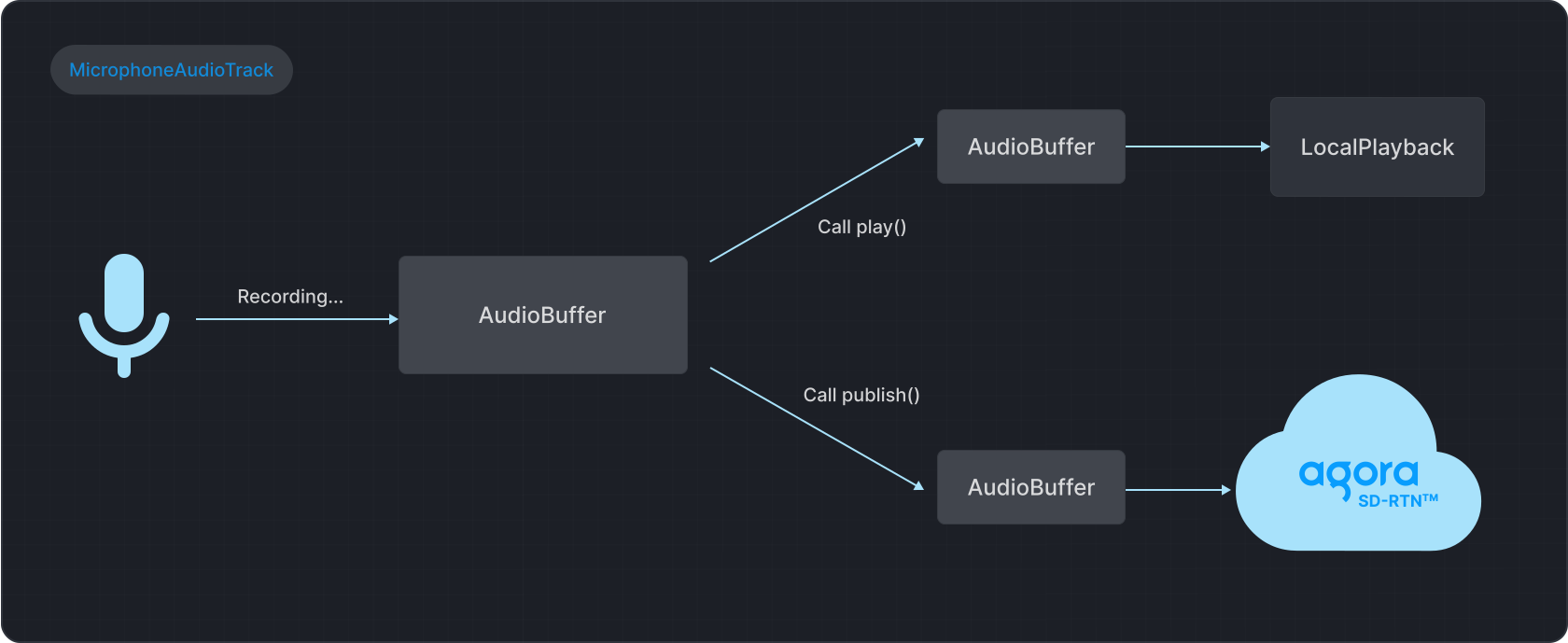
* After you call the `play` method, the audio data is sent to the `LocalPlayback` component, allowing the local user to hear it.
* When the `publish` method is called, the audio data is transmitted to Agora SDRTN® and eventually heard by the remote user.
The microphone audio track continues to acquire audio data until the `close` method is invoked, at which point the audio track becomes unavailable.
2. **BufferSourceAudioTrack**
For audio files, the Video SDK does not collect audio data; instead, it achieves a similar effect by reading files, shown in the following figure.
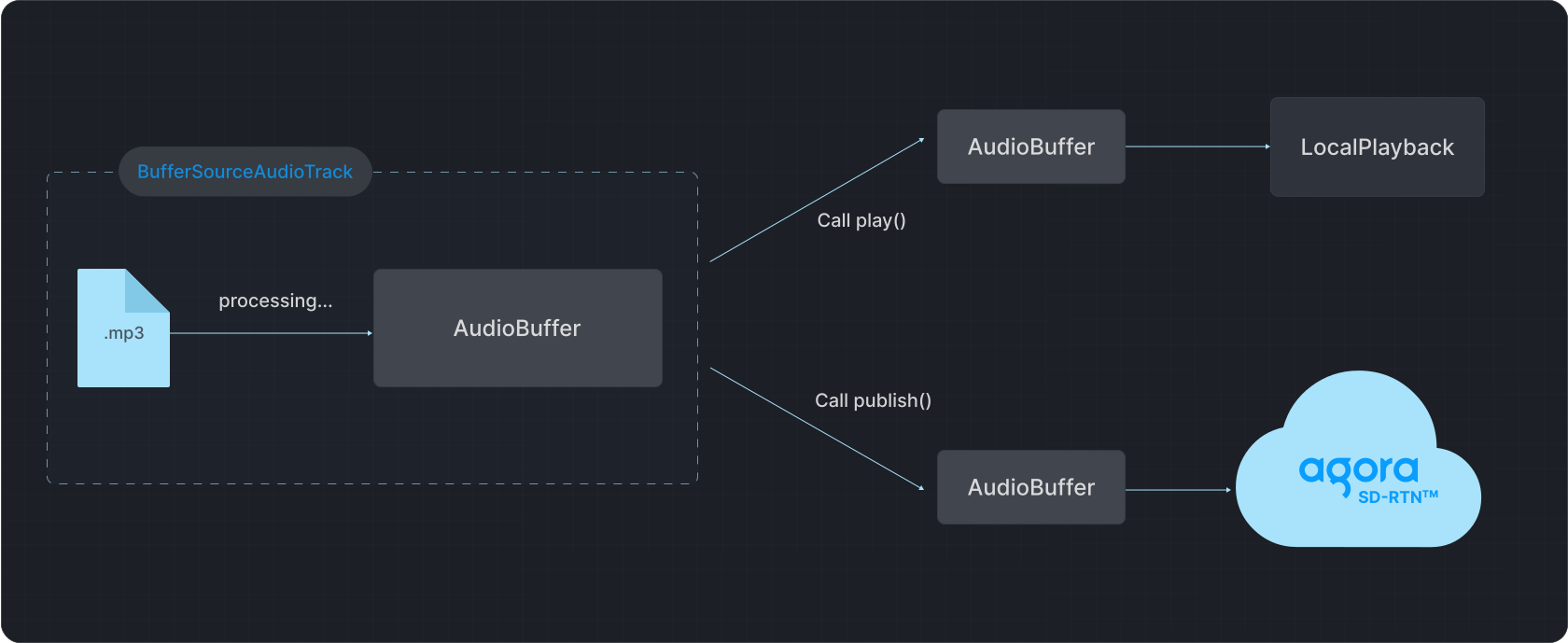
The key distinctions between collecting audio data and reading files are as follows:
1. **Continuous vs. controlled reading:**
* Collection of audio data is continuous and cannot be paused, focusing on capturing the latest audio data.
* File reading provides more flexibility. You can pause, jump to specific positions, or loop playback. These operations are core functions of `BufferSourceAudioTrack`.
2. **Initiating file reading:**
* After creating an audio track from an audio file, the SDK does not automatically read the file. You need to use `BufferSourceAudioTrack`'s `startProcessAudioBuffer` method to initiate the reading and audio data processing. You then call the `play` and `publish` methods to make the audio file audible locally and remotely.
3. **Enable audio mixing**
Video SDK supports publishing multiple audio tracks. You can mix audio by publishing `BufferSourceAudioTrack` together with the audio tracks created through the microphone. To enable audio mixing, refer to the following code:
```javascript
// Create a microphone audio track
const microphoneTrack = await AgoraRTC.createMicrophoneAudioTrack();
// Start processing audio data from the audio file
audioFileTrack.startProcessAudioBuffer();
// Publish both the audio file track and the microphone track to begin mixing
await client.publish([microphoneTrack, audioFileTrack]);
// To stop mixing, either stop processing audio data from the file
audioFileTrack.stopProcessAudioBuffer();
// Or directly unpublish the audio file track
await client.unpublish([audioFileTrack]);
```
3. **Manage audio mixing**
To handle audio mixing, refer to the following code:
```javascript
// Pause processing audio data
audioFileTrack.pauseProcessAudioBuffer();
// Resume processing audio data
audioFileTrack.resumeProcessAudioBuffer();
// Stop processing audio data
audioFileTrack.stopProcessAudioBuffer();
// Start processing audio data in the loop mode
audioFileTrack.startProcessAudioBuffer({ loop: true });
// Get the current playback progress (seconds)
audioFileTrack.getCurrentTime();
// Total duration of the current audio file (seconds)
audioFileTrack.duration;
// Jump to the position at 50 seconds
audioFileTrack.seekAudioBuffer(50);
```
If you play a short sound effect file using `startAudioMixing`, or a long music file using `playEffect`, the playback may fail.
## Reference [#reference-3]
This section contains content that completes the information on this page, or points you to documentation that explains other aspects to this product.
### Development notes [#development-notes]
Consider the following when developing your app:
* To play online audio files, you also need to configure CORS.
* Supported audio formats are MP3, AAC, and other audio formats supported by the browser.
* Local files only support the browser's native [File object](https://developer.mozilla.org/en-US/docs/Web/API/File).
* Safari versions below 12 do not support mixing, so publishing multiple audio tracks is not possible.
* Irrespective of the number of audio tracks published locally, the SDK automatically mixes them into one audio track, so the remote user only receives one `RemoteAudioTrack`.
### API reference [#api-reference-3]
* [`createBufferSourceAudioTrack`](https://api-ref.agora.io/en/video-sdk/web/4.x/interfaces/iagorartc.html#createbuffersourceaudiotrack)
* [`BufferSourceAudioTrack`](https://api-ref.agora.io/en/video-sdk/web/4.x/interfaces/ibuffersourceaudiotrack.html)
* [`publish`](https://api-ref.agora.io/en/video-sdk/web/4.x/interfaces/iagorartcclient.html#publish)
<_PlatformProcessedMarker close="true" />
<_PlatformPanel platform="windows">
<_PlatformProcessedMarker groupMode="structured" canonicalPlatform="web" platform="windows" />
This page shows you how to implement audio mixing and playing sound effects in your app.
## Understand the tech [#understand-the-tech-4]
Video SDK provides APIs that enable you to implement:
* **Audio mixing**
Mix in music file such as background music with microphone audio. Using this feature, you can play only one file at a time.
* **Sound effects**
Play audios with a short duration. For example, applause, cheers, or gunshots. You can play multiple sound effects at the same time.
## Prerequisites [#prerequisites-4]
Ensure that you have:
* Implemented the [SDK quickstart](../../index) in your project.
* Audio files in one of the [supported formats](https://learn.microsoft.com/zh-cn/windows/win32/medfound/supported-media-formats-in-media-foundation).
## Play sound effects and music [#play-sound-effects-and-music-3]
This section shows you how to implement playing sound effects and add audio mixing in your app.
To manage audio mixing and voice effects, Video SDK provides the following APIs:
| Function | Sound effect | Audio mixing |
| ------------------------------------------- | -------------------------------------------------------------------------------------------------------------------------------- | -------------------------------------------------------------------------------------------------------------------------------------------------------------------------------------------------------------------- |
| Play or stop playing a specific audio file | `preloadEffect`
`unloadEffect`
`playEffect`
`stopEffect`
`stopAllEffects` | `startAudioMixing`
`stopAudioMixing` |
| Pause or resume playing an audio file | `pauseEffect`
`pauseAllEffects`
`resumeEffect`
`resumeAllEffects` | `pauseAudioMixing`
`resumeAudioMixing` |
| Get and adjust playback position and volume | `setEffectPosition`
`getEffectCurrentPosition`
`getEffectsVolume`
`setEffectsVolume`
`setVolumeOfEffect` | `getAudioMixingCurrentPosition`
`setAudioMixingPosition`
`getAudioMixingPublishVolume`
`adjustAudioMixingPublishVolume`
`getAudioMixingPlayoutVolume`
`adjustAudioMixingPlayoutVolume` |
| Report playback status of audio files | `onAudioEffectFinished` | `onAudioMixingStateChanged` |
### Play sound effects [#play-sound-effects-3]
Before joining a channel, call `preloadEffect` to preload the sound effect file. After joining the channel, call `playEffect` to play the specified sound effect file. To play multiple sound effect files simultaneously, set multiple sound effect IDs and call `playEffect` multiple times. After a sound effect is played, the Video SDK triggers the `onAudioEffectFinished` callback.
To implement this logic, refer to the following sample code:
```cpp
void CAgoraEffectDlg::OnBnClickedButtonPreload()
{
if (m_cmbEffect.GetCurSel() < 0)
{
return;
}
CString strEffect;
m_cmbEffect.GetWindowText(strEffect);
std::string strPath = cs2utf8(strEffect);
// Preload the sound effect file
m_rtcEngine->preloadEffect(m_mapEffect[strEffect], strPath.c_str());
CString strInfo;
strInfo.Format(_T("preload effect: path:%s"), strEffect);
m_lstInfo.InsertString(m_lstInfo.GetCount(), strInfo);
}
void CAgoraEffectDlg::OnBnClickedButtonUnloadEffect()
{
if (m_cmbEffect.GetCurSel() < 0)
{
return;
}
CString strEffect;
m_cmbEffect.GetWindowText(strEffect);
// Unload the preloaded sound effect file
m_rtcEngine->unloadEffect(m_mapEffect[strEffect]);
CString strInfo;
strInfo.Format(_T("unload effect: path:%s"), strEffect);
m_lstInfo.InsertString(m_lstInfo.GetCount(), strInfo);
}
void CAgoraEffectDlg::OnBnClickedButtonPauseEffect()
{
if (m_cmbEffect.GetCurSel() < 0)
{
return;
}
CString strEffect;
m_cmbEffect.GetWindowText(strEffect);
// Pause playing the specified sound effect file
m_rtcEngine->pauseEffect(m_mapEffect[strEffect]);
CString strInfo;
strInfo.Format(_T("pause effect: path:%s"), strEffect);
m_lstInfo.InsertString(m_lstInfo.GetCount(), strInfo);
}
void CAgoraEffectDlg::OnBnClickedButtonResumeEffect()
{
if (m_cmbEffect.GetCurSel() < 0)
{
return;
}
CString strEffect;
m_cmbEffect.GetWindowText(strEffect);
// Resume playing the specified sound effect file
int ret = m_rtcEngine->resumeEffect(m_mapEffect[strEffect]);
CString strInfo;
strInfo.Format(_T("resume effect ret:%d : path:%s"), ret, strEffect);
m_lstInfo.InsertString(m_lstInfo.GetCount(), strInfo);
}
void CAgoraEffectDlg::OnBnClickedButtonPlayEffect()
{
if (m_cmbEffect.GetCurSel() < 0)
{
return;
}
CString strEffect;
m_cmbEffect.GetWindowText(strEffect);
std::string strFile = cs2utf8(strEffect);
CString strLoops;
m_edtLoops.GetWindowText(strLoops);
int loops = _ttol(strLoops);
if (loops == 0) {
m_edtLoops.SetWindowText(_T("1"));
loops = 1;
}
CString strPitch;
m_edtPitch.GetWindowText(strPitch);
double pitch = _ttof(strPitch);
CString strGain;
m_edtGain.GetWindowText(strGain);
int gain = _ttol(strGain);
CString strPan;
m_cmbPan.GetWindowText(strPan);
double pan = _ttof(strPan);
BOOL publish = m_chkPublish.GetCheck();
// Play the sound effect file
int ret = m_rtcEngine->playEffect(m_mapEffect[strEffect], strFile.c_str(), loops, pitch, pan, gain, publish);
CString strInfo;
strInfo.Format(_T("play effect: path:%s, ret:%d"), strEffect, ret);
m_lstInfo.InsertString(m_lstInfo.GetCount(), strInfo);
strInfo.Format(_T("loops:%d, pitch:%.1f, pan:%.0f, gain:%d, publish:%d"),
loops, pitch, pan, gain, publish);
m_lstInfo.InsertString(m_lstInfo.GetCount(), strInfo);
}
void CAgoraEffectDlg::OnBnClickedButtonStopEffect()
{
if (m_cmbEffect.GetCurSel() < 0)
{
return;
}
CString strEffect;
m_cmbEffect.GetWindowText(strEffect);
// Stop playing the specified sound effect file
m_rtcEngine->stopEffect(m_mapEffect[strEffect]);
CString strInfo;
strInfo.Format(_T("stop effect: path:%s"), strEffect);
m_lstInfo.InsertString(m_lstInfo.GetCount(), strInfo);
}
void CAgoraEffectDlg::OnBnClickedButtonPauseAllEffect()
{
if (!m_pauseAll)
{
// Pause playing all sound effect files
m_rtcEngine->pauseAllEffects();
CString strInfo;
strInfo.Format(_T("pause All Effects"));
m_lstInfo.InsertString(m_lstInfo.GetCount(), strInfo);
m_btnPauseAll.SetWindowText(AudioEffectCtrlResumeEffect);
}
else {
// Resume playing all sound effect files
m_rtcEngine->resumeAllEffects();
CString strInfo;
strInfo.Format(_T("resume All Effects"));
m_lstInfo.InsertString(m_lstInfo.GetCount(), strInfo);
m_btnPauseAll.SetWindowText(AudioEffectCtrlPauseAllEffect);
}
m_pauseAll = !m_pauseAll;
}
void CAgoraEffectDlg::OnBnClickedButtonStopAllEffect2()
{
// Stop playing all sound effect files
m_rtcEngine->stopAllEffects();
CString strInfo;
strInfo.Format(_T("stop All Effects"));
m_lstInfo.InsertString(m_lstInfo.GetCount(), strInfo);
}
```
### Incorporate audio mixing [#incorporate-audio-mixing-3]
To play a music file, call `startAudioMixing` before or after joining a channel. After you successfully call this method, Video SDK triggers the `onAudioMixingStateChanged` callback when the mixing status changes. This callback also reports the reason for the state change.
To implement this logic, refer to the following code:
```cpp
void CAgoraAudioMixingDlg::OnBnClickedButtonMixingStart()
{
CString audioUrl = GetExePath() + _T("\\ID_MUSIC_01.m4a");
// Start playing the music file
int ret = m_rtcEngine->startAudioMixing(cs2utf8(audioUrl).c_str(), false, -1);
CString strInfo;
strInfo.Format(_T("startAudioMixing path:%s, ret:%d"), audioUrl.AllocSysString(), ret);
m_lstInfo.InsertString(m_lstInfo.GetCount(), strInfo);
}
// Listen for the onAudioMixingStateChanged callback
void CAudioMixingEventHandler::onAudioMixingStateChanged(AUDIO_MIXING_STATE_TYPE state, AUDIO_MIXING_REASON_TYPE reason)
{
if (m_hMsgHanlder) {
PAudioMixingState stateChanged = new AudioMixingState;
stateChanged->error = reason;
stateChanged->state = state;
::PostMessage(m_hMsgHanlder, WM_MSGID(EID_REMOTE_AUDIO_MIXING_STATE_CHANED), (WPARAM)stateChanged, 0);
}
}
void CAgoraAudioMixingDlg::OnBnClickedButtonMixingPause()
{ // Pause playback
int ret = m_rtcEngine->pauseAudioMixing();
CString strInfo;
strInfo.Format(_T("pauseAudioMixing ret:%d"), ret);
m_lstInfo.InsertString(m_lstInfo.GetCount(), strInfo);
}
void CAgoraAudioMixingDlg::OnBnClickedButtonMixingResume()
{ // Resume playback
int ret = m_rtcEngine->resumeAudioMixing();
CString strInfo;
strInfo.Format(_T("resumeAudioMixing ret:%d"), ret);
m_lstInfo.InsertString(m_lstInfo.GetCount(), strInfo);
}
void CAgoraAudioMixingDlg::OnBnClickedButtonMixingStop()
{ // Stop playback
int ret = m_rtcEngine->stopAudioMixing();
CString strInfo;
strInfo.Format(_T("stopAudioMixing ret:%d"), ret);
m_lstInfo.InsertString(m_lstInfo.GetCount(), strInfo);
}
void CAgoraAudioMixingDlg::OnNMCustomdrawSliderMixingPlayoutVolume(NMHDR* pNMHDR, LRESULT* pResult)
{
LPNMCUSTOMDRAW pNMCD = reinterpret_cast(pNMHDR);
int pos = m_sldMixingPlayoutVolume.GetPos();
// Adjust the playback volume of the current music file locally
int ret = m_rtcEngine->adjustAudioMixingPlayoutVolume(pos);
*pResult = 0;
}
void CAgoraAudioMixingDlg::OnNMCustomdrawSliderMixingPublishVolume(NMHDR* pNMHDR, LRESULT* pResult)
{
LPNMCUSTOMDRAW pNMCD = reinterpret_cast(pNMHDR);
int pos = m_sldMixingPublishVolume.GetPos();
// Adjust the playback volume of the current music file on the remote end
int ret = m_rtcEngine->adjustAudioMixingPublishVolume(pos);
*pResult = 0;
}
```
If you play a short sound effect file using `startAudioMixing`, or a long music file using `playEffect`, the playback may fail.
## Reference [#reference-4]
This section contains content that completes the information on this page, or points you to documentation that explains other aspects to this product.
### Sample projects [#sample-projects]
Agora provides the following open source sample projects on GitHub for your reference.
* [AudioEffect](https://github.com/AgoraIO/API-Examples/tree/main/windows/APIExample/APIExample/Advanced/AudioEffect)
* [AudioMixing](https://github.com/AgoraIO/API-Examples/tree/main/windows/APIExample/APIExample/Advanced/AudioMixing)
Download or view the source code for more detailed examples.
### API reference [#api-reference-4]
* [`preloadEffect`](https://api-ref.agora.io/en/video-sdk/cpp/4.x/API/class_irtcengine.html#api_irtcengine_preloadeffect)
* [`playEffect`](https://api-ref.agora.io/en/video-sdk/cpp/4.x/API/class_irtcengine.html#api_irtcengine_playeffect3)
* [`onAudioEffectFinished`](https://api-ref.agora.io/en/video-sdk/cpp/4.x/API/class_irtcengineeventhandler.html#callback_irtcengineeventhandler_onaudioeffectfinished)
* [`startAudioMixing`](https://api-ref.agora.io/en/video-sdk/cpp/4.x/API/class_irtcengine.html#api_irtcengine_startaudiomixing)
* [`onAudioMixingStateChanged`](https://api-ref.agora.io/en/video-sdk/cpp/4.x/API/class_irtcengineeventhandler.html#callback_irtcengineeventhandler_onaudiomixingstatechanged)
* [`pauseAudioMixing`](https://api-ref.agora.io/en/video-sdk/cpp/4.x/API/class_irtcengine.html#api_irtcengine_pauseaudiomixing)
* [`resumeAudioMixing`](https://api-ref.agora.io/en/video-sdk/cpp/4.x/API/class_irtcengine.html#api_irtcengine_resumeaudiomixing)
* [`stopAudioMixing`](https://api-ref.agora.io/en/video-sdk/cpp/4.x/API/class_irtcengine.html#api_irtcengine_stopaudiomixing)
* [`adjustAudioMixingPlayoutVolume`](https://api-ref.agora.io/en/video-sdk/cpp/4.x/API/class_irtcengine.html#api_irtcengine_adjustaudiomixingplayoutvolume)
* [`adjustAudioMixingPublishVolume`](https://api-ref.agora.io/en/video-sdk/cpp/4.x/API/class_irtcengine.html#api_irtcengine_adjustaudiomixingpublishvolume)
<_PlatformProcessedMarker close="true" />
<_PlatformPanel platform="electron">
<_PlatformProcessedMarker groupMode="structured" canonicalPlatform="web" platform="electron" />
This page shows you how to implement audio mixing and playing sound effects in your app.
## Understand the tech [#understand-the-tech-5]
Video SDK provides APIs that enable you to implement:
* **Audio mixing**
Mix in music file such as background music with microphone audio. Using this feature, you can play only one file at a time.
* **Sound effects**
Play audios with a short duration. For example, applause, cheers, or gunshots. You can play multiple sound effects at the same time.
## Prerequisites [#prerequisites-5]
Ensure that you have:
* Implemented the [SDK quickstart](../../index) in your project.
* Audio files in one of the formats supported by the target development platform:
* [macOS](https://developer.apple.com/library/archive/documentation/AudioVideo/Conceptual/MultimediaPG/UsingAudio/UsingAudio.html#/apple_ref/doc/uid/TP40009767-CH2-SW28)
* [Windows](https://learn.microsoft.com/zh-cn/windows/win32/medfound/supported-media-formats-in-media-foundation)
## Play sound effects and music [#play-sound-effects-and-music-4]
This section shows you how to implement playing sound effects and add audio mixing in your app.
To manage audio mixing and sound effects, Video SDK provides the following APIs:
| Function | Sound effect | Audio mixing |
| ------------------------------------------- | -------------------------------------------------------------------------------------------------------------------------------- | -------------------------------------------------------------------------------------------------------------------------------------------------------------------------------------------------------------------- |
| Play or stop playing a specific audio file | `preloadEffect`
`unloadEffect`
`playEffect`
`stopEffect`
`stopAllEffects` | `startAudioMixing`
`stopAudioMixing` |
| Pause or resume playing an audio file | `pauseEffect`
`pauseAllEffects`
`resumeEffect`
`resumeAllEffects` | `pauseAudioMixing`
`resumeAudioMixing` |
| Get and adjust playback position and volume | `setEffectPosition`
`getEffectCurrentPosition`
`getEffectsVolume`
`setEffectsVolume`
`setVolumeOfEffect` | `getAudioMixingCurrentPosition`
`setAudioMixingPosition`
`getAudioMixingPublishVolume`
`adjustAudioMixingPublishVolume`
`getAudioMixingPlayoutVolume`
`adjustAudioMixingPlayoutVolume` |
| Report playback status of audio files | `onAudioEffectFinished` | `onAudioMixingStateChanged` |
### Play sound effects [#play-sound-effects-4]
After joining a channel, call `playEffect` to play the specified sound effect file. Call `playEffect` multiple times to set multiple sound effect IDs and play multiple files simultaneously. When the playback is finished, the SDK triggers the `onAudioEffectFinished` callback.
Refer to the following code example:
```typescript
// Register the sound effect playback completion callback
const EventHandler = {
onAudioEffectFinished: (soundId) => {
console.log(`soundId:${soundId}`);
}
}
rtcEngine.registerEventHandler(EventHandler);
// Playing sound files
rtcEngine.playEffect(
soundId: 0, // Sets the sound ID
filePath: 'your file path',
loopCount: 1, // Sets the number of times the sound effect is looped. 1 means looped once.
pitch: 1.0, // Sets the pitch of the sound effect. 1.0 indicates the original pitch.
pan: 0, // Sets the spatial position of the sound effect. 0.0 means the sound effect appears directly in front
gain: 100, // Sets the sound volume. 100 indicates the original volume.
publish: false, // Sets whether or not to publish the sound to the remote users
startPos: 0, // Sets the playback position of the sound effect file in ms. 0 means playback starts at the beginning.
);
```
### Incorporate audio mixing [#incorporate-audio-mixing-4]
Call the `startAudioMixing` method to play a music file. When the music mixing state changes after a successful call to this method, the SDK triggers the `onAudioMixingStateChanged` callback to report the changed music file playback status and the reason for the change.
Refer to the following code example:
```typescript
// Register the music file's playback state has changed callback
const EventHandler = {
onAudioMixingStateChanged: (state, reason) => {
console.log(`state:${state}, reason:${reason}`);
}
}
rtcEngine.registerEventHandler(EventHandler);
// Playing Music Files
rtcEngine.startAudioMixing(
filePath: 'your file path', // Sets the music file path
loopback: false, // Sets whether music files are only played locally. 'false' indicates that files are published to the remote end, and both local and remote users can hear the music
cycle: -1, // Sets the number of times the music file is played. -1 means infinite loop playback
startPos: 0, // Sets the playback position of the music file in ms. 0 means playback starts st the beginning.
);
```
If you play a short sound effect file using `startAudioMixing`, or a long music file using `playEffect`, the playback may fail.
## Reference [#reference-5]
This section contains content that completes the information on this page, or points you to documentation that explains other aspects to this product.
### API reference [#api-reference-5]
* [`playEffect`](https://api-ref.agora.io/en/video-sdk/electron/4.x/API/class_irtcengine.html#api_irtcengine_playeffect3)
* [`onAudioEffectFinished`](https://api-ref.agora.io/en/video-sdk/electron/4.x/API/class_irtcengineeventhandler.html#callback_irtcengineeventhandler_onaudioeffectfinished)
* [`startAudioMixing`](https://api-ref.agora.io/en/video-sdk/electron/4.x/API/class_irtcengine.html#api_irtcengine_startaudiomixing2)
* [`onAudioMixingStateChanged`](https://api-ref.agora.io/en/video-sdk/electron/4.x/API/class_irtcengineeventhandler.html#callback_irtcengineeventhandler_onaudiomixingstatechanged)
<_PlatformProcessedMarker close="true" />
<_PlatformPanel platform="react-native">
<_PlatformProcessedMarker groupMode="structured" canonicalPlatform="web" platform="react-native" />
This page shows you how to implement audio mixing and playing sound effects in your app.
## Understand the tech [#understand-the-tech-6]
Video SDK provides APIs that enable you to implement:
* **Audio mixing**
Mix in music file such as background music with microphone audio. Using this feature, you can play only one file at a time.
* **Sound effects**
Play audios with a short duration. For example, applause, cheers, or gunshots. You can play multiple sound effects at the same time.
## Prerequisites [#prerequisites-6]
Ensure that you have:
* Implemented the [SDK quickstart](../../index) in your project.
* Audio files in one of the formats supported by the target development platform:
* [Android](https://developer.android.com/media/platform/supported-formats)
* [iOS](https://developer.apple.com/library/archive/documentation/AudioVideo/Conceptual/MultimediaPG/UsingAudio/UsingAudio.html#/apple_ref/doc/uid/TP40009767-CH2-SW28)
## Play sound effects and music [#play-sound-effects-and-music-5]
This section shows you how to implement playing sound effects and add audio mixing in your app.
To manage audio mixing and sound effects, Video SDK provides the following APIs:
| Function | Sound effect | Audio mixing |
| ------------------------------------------- | -------------------------------------------------------------------------------------------------------------------------------- | -------------------------------------------------------------------------------------------------------------------------------------------------------------------------------------------------------------------- |
| Play or stop playing a specific audio file | `preloadEffect`
`unloadEffect`
`playEffect`
`stopEffect`
`stopAllEffects` | `startAudioMixing`
`stopAudioMixing` |
| Pause or resume playing an audio file | `pauseEffect`
`pauseAllEffects`
`resumeEffect`
`resumeAllEffects` | `pauseAudioMixing`
`resumeAudioMixing` |
| Get and adjust playback position and volume | `setEffectPosition`
`getEffectCurrentPosition`
`getEffectsVolume`
`setEffectsVolume`
`setVolumeOfEffect` | `getAudioMixingCurrentPosition`
`setAudioMixingPosition`
`getAudioMixingPublishVolume`
`adjustAudioMixingPublishVolume`
`getAudioMixingPlayoutVolume`
`adjustAudioMixingPlayoutVolume` |
| Report playback status of audio files | `onAudioEffectFinished` | `onAudioMixingStateChanged` |
### Play sound effects [#play-sound-effects-5]
After joining a channel, call `playEffect` to play the specified sound effect file. Call `playEffect` multiple times to set multiple sound effect IDs and play multiple files simultaneously. When the playback is finished, the SDK triggers the `onAudioEffectFinished` callback.
Refer to the following code example:
```typescript
// Register the sound effect playback completion callback
const EventHandler = {
onAudioEffectFinished: (soundId) => {
console.log(`soundId:${soundId}`);
}
}
rtcEngine.registerEventHandler(EventHandler);
// Playing sound files
rtcEngine.playEffect(
soundId: 0, // Setting the Sound ID
filePath: 'your file path', // Setting the sound file path
loopCount: 1, // Sets the number of times the sound effect is looped. 1 means looped once.
pitch: 1.0, // Sets the pitch of the sound effect. 1.0 indicates the original pitch.
pan: 0, // Sets the spatial position of the sound effect. 0.0 means the sound effect appears directly in front
gain: 100, // Sets the sound volume. 100 indicates the original volume.
publish: false, // Sets whether or not to publish the sound to the remote end
startPos: 0, // Sets the playback position of the sound effect file. 0 means playback starts from the 0th ms of the sound effect file.
);
```
### Incorporate audio mixing [#incorporate-audio-mixing-5]
Call the `startAudioMixing` method to play a music file. When the music mixing state changes after a successful call to this method, the SDK triggers the `onAudioMixingStateChanged` callback to report the changed music file playback status and the reason for the change.
Refer to the following code example:
```typescript
// Register the music file's playback state has changed callback
const EventHandler = {
onAudioMixingStateChanged: (state, reason) => {
console.log(`state:${state}, reason:${reason}`);
}
}
rtcEngine.registerEventHandler(EventHandler);
// Playing Music Files
rtcEngine.startAudioMixing(
filePath: 'your file path', // Setting the music file path
loopback: false, // Sets whether music files are only played locally. false Indicates that locally played music files are published to the remote end, and both local and remote users can hear the music
cycle: -1, // Sets the number of times the music file is played. -1 means infinite loop playback
startPos: 0, // Sets the playback position of the music file. 0 means playback starts from the 0th ms of the sound file.
);
```
If you play a short sound effect file using `startAudioMixing`, or a long music file using `playEffect`, the playback may fail.
## Reference [#reference-6]
This section contains content that completes the information on this page, or points you to documentation that explains other aspects to this product.
### API reference [#api-reference-6]
* [`playEffect`](https://api-ref.agora.io/en/video-sdk/react-native/4.x/API/class_irtcengine.html#api_irtcengine_playeffect3)
* [`onAudioEffectFinished`](https://api-ref.agora.io/en/video-sdk/react-native/4.x/API/class_irtcengineeventhandler.html#callback_irtcengineeventhandler_onaudioeffectfinished)
* [`startAudioMixing`](https://api-ref.agora.io/en/video-sdk/react-native/4.x/API/class_irtcengine.html#api_irtcengine_startaudiomixing2)
* [`onAudioMixingStateChanged`](https://api-ref.agora.io/en/video-sdk/react-native/4.x/API/class_irtcengineeventhandler.html#callback_irtcengineeventhandler_onaudiomixingstatechanged)
<_PlatformProcessedMarker close="true" />
<_PlatformPanel platform="unity">
<_PlatformProcessedMarker groupMode="structured" canonicalPlatform="web" platform="unity" />
This page shows you how to implement audio mixing and playing sound effects in your game.
## Understand the tech [#understand-the-tech-7]
Video SDK provides APIs that enable you to implement:
* **Audio mixing**
Mix in music file such as background music with microphone audio. Using this feature, you can play only one file at a time.
* **Sound effects**
Play audios with a short duration. For example, applause, cheers, or gunshots. You can play multiple sound effects at the same time.
## Prerequisites [#prerequisites-7]
Ensure that you have:
* Implemented the [SDK quickstart](../../index) in your project.
* Set a valid path to the music or sound effect file to be played.
## Play sound effects and music [#play-sound-effects-and-music-6]
This section shows you how to implement playing sound effects and add audio mixing in your game.
To manage audio mixing and sound effects, Video SDK provides the following APIs:
| Function | Sound effect | Audio mixing |
| ------------------------------------------- | -------------------------------------------------------------------------------------------------------------------------------- | -------------------------------------------------------------------------------------------------------------------------------------------------------------------------------------------------------------------- |
| Play or stop playing a specific audio file | `PreloadEffect`
`UnloadEffect`
`PlayEffect`
`StopEffect`
`StopAllEffects` | `StartAudioMixing`
`StopAudioMixing` |
| Pause or resume playing an audio file | `PauseEffect`
`PauseAllEffects`
`ResumeEffect`
`ResumeAllEffects` | `PauseAudioMixing`
`ResumeAudioMixing` |
| Get and adjust playback position and volume | `SetEffectPosition`
`GetEffectCurrentPosition`
`GetEffectsVolume`
`SetEffectsVolume`
`SetVolumeOfEffect` | `GetAudioMixingCurrentPosition`
`SetAudioMixingPosition`
`GetAudioMixingPublishVolume`
`AdjustAudioMixingPublishVolume`
`GetAudioMixingPlayoutVolume`
`AdjustAudioMixingPlayoutVolume` |
| Report playback status of audio files | `OnAudioEffectFinished` | `OnAudioMixingStateChanged` |
### Play sound effects [#play-sound-effects-6]
Before joining a channel, call `PreloadEffect` to preload the sound effect file. After joining the channel, call `PlayEffect` to play the specified sound effect file. To play multiple sound effect files simultaneously, set multiple sound effect IDs and call `PlayEffect` multiple times. After a sound effect is played, the Video SDK triggers the `OnAudioEffectFinished` callback.
To implement this logic, refer to the following sample code:
```csharp
// Preload sound files before joining a channel
RtcEngine.PreloadEffect(1, "File Path 1", 0);
RtcEngine.PreloadEffect(2, "File Path 2", 0);
RtcEngine.PreloadEffect(3, "File Path 3", 0);
// Play preloaded sound files after joining a channel
RtcEngine.PlayEffect(1, "File Path 1", 1, 0, 0, 0, true, 0);
RtcEngine.PlayEffect(2, "File Path 2", 1, 0, 0, 0, true, 0);
RtcEngine.PlayEffect(3, "File Path 3", 1, 0, 0, 0, true, 0);
// Triggered when local sound file playback ends
public override void OnAudioEffectFinished(int soundId)
{
Debug.Log("effect play finish :" + soundId);
}
```
### Incorporate audio mixing [#incorporate-audio-mixing-6]
To play a music file, call `StartAudioMixing` before or after joining a channel. After you successfully call this method, Video SDK triggers the `OnAudioMixingStateChanged` callback when the mixing status changes. This callback also reports the reason for the state change.
To implement this logic, refer to the following code:
```csharp
RtcEngine.StartAudioMixing("File Path", false, -1);
public override void OnAudioMixingStateChanged(
AUDIO_MIXING_STATE_TYPE state,
AUDIO_MIXING_REASON_TYPE errorCode)
{
Debug.Log(string.Format(
"AUDIO_MIXING_STATE_TYPE: {0}, AUDIO_MIXING_REASON_TYPE: {1}",
state, errorCode));
}
```
Control playback using the following methods:
* `PauseAudioMixing`: Pause playback.
* `ResumeAudioMixing`: Resume playback.
* `StopAudioMixing`: Stop playing.
* `SetAudioMixingPosition`: Set the playing position of the current audio file.
* `AdjustAudioMixingPlayoutVolume`: Adjust the volume of the current audio file played locally.
* `AdjustAudioMixingPublishVolume`: Adjust the volume of the current audio file played at the remote end.
If you play a short sound effect file using `StartAudioMixing`, or a long music file using `PlayEffect`, the playback may fail.
## Reference [#reference-7]
This section contains content that completes the information on this page, or points you to documentation that explains other aspects to this product.
### Sample project [#sample-project-3]
Agora provides an open source [AudioMixing](https://github.com/AgoraIO-Extensions/Agora-Unity-Quickstart/blob/main/API-Example-Unity/Assets/API-Example/Examples/Advanced/AudioMixing/AudioMixing.cs) project on GitHub for your reference. Download or view the source code for a more detailed example.
### API reference [#api-reference-7]
* [`PreloadEffect`](https://api-ref.agora.io/en/video-sdk/unity/4.x/API/class_irtcengine.html#api_irtcengine_preloadeffect)
* [`PlayEffect`](https://api-ref.agora.io/en/video-sdk/unity/4.x/API/class_irtcengine.html#api_irtcengine_playeffect3)
* [`OnAudioEffectFinished`](https://api-ref.agora.io/en/video-sdk/unity/4.x/API/class_irtcengineeventhandler.html#callback_irtcengineeventhandler_onaudioeffectfinished)
* [`StartAudioMixing`](https://api-ref.agora.io/en/video-sdk/unity/4.x/API/class_irtcengine.html#api_irtcengine_startaudiomixing)
* [`OnAudioMixingStateChanged`](https://api-ref.agora.io/en/video-sdk/unity/4.x/API/class_irtcengineeventhandler.html#callback_irtcengineeventhandler_onaudiomixingstatechanged)
* [`PauseAudioMixing`](https://api-ref.agora.io/en/video-sdk/unity/4.x/API/class_irtcengine.html#api_irtcengine_pauseaudiomixing)
* [`ResumeAudioMixing`](https://api-ref.agora.io/en/video-sdk/unity/4.x/API/class_irtcengine.html#api_irtcengine_resumeaudiomixing)
* [`StopAudioMixing`](https://api-ref.agora.io/en/video-sdk/unity/4.x/API/class_irtcengine.html#api_irtcengine_stopaudiomixing)
* [`AdjustAudioMixingPlayoutVolume`](https://api-ref.agora.io/en/video-sdk/unity/4.x/API/class_irtcengine.html#api_irtcengine_adjustaudiomixingplayoutvolume)
* [`AdjustAudioMixingPublishVolume`](https://api-ref.agora.io/en/video-sdk/unity/4.x/API/class_irtcengine.html#api_irtcengine_adjustaudiomixingpublishvolume)
<_PlatformProcessedMarker close="true" />