# Embed in a secure portal (/en/realtime-media/agora-analytics/build/integrate-and-embed/embedded)
> For AI agents: see the complete documentation index at [llms.txt](/llms.txt).
This page explains how to embed Agora Analytics pages in your portal using the **Embed Settings**.
## Prerequisites [#prerequisites]
To use the **Embed** option, ensure that:
* Your internal portal is secure and has a mechanism for managing user access.
* You have subscribed to a [pricing plan](../../reference/pricing.md) that provides the **Embed** option for the page you want.
## Embed Agora Analytics [#embed-agora-analytics]
Follow these steps to embed Agora Analytics in your portal.
### Access embed settings [#access-embed-settings]
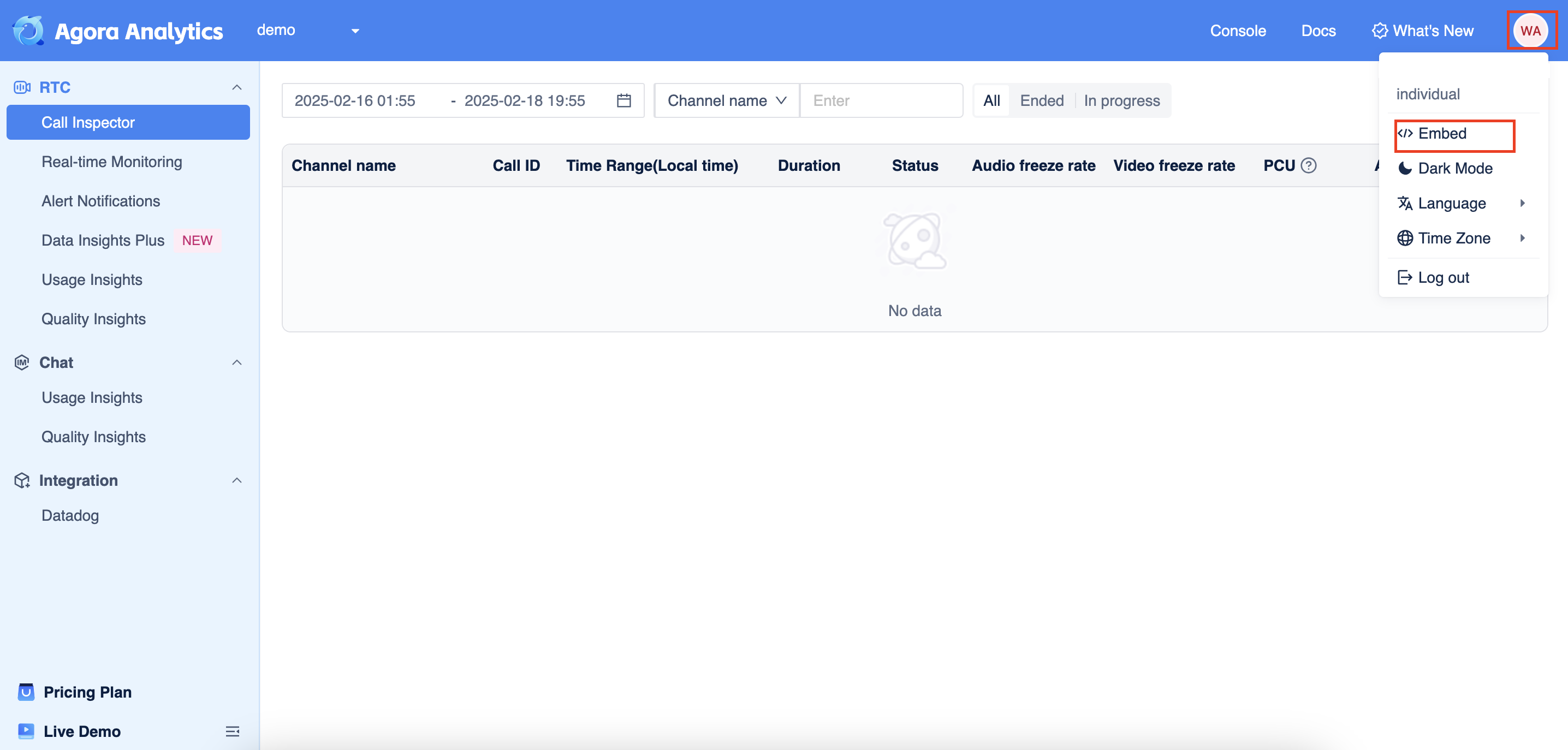
To access **Embed Settings**, do the following:
1. Log in to [Agora Console](https://console.agora.io/v2).
2. In the navigation panel, click Agora Analytics.
3. From the user profile menu, select **Embed**.
### Get the URL of the embedded page [#get-the-url-of-the-embedded-page]
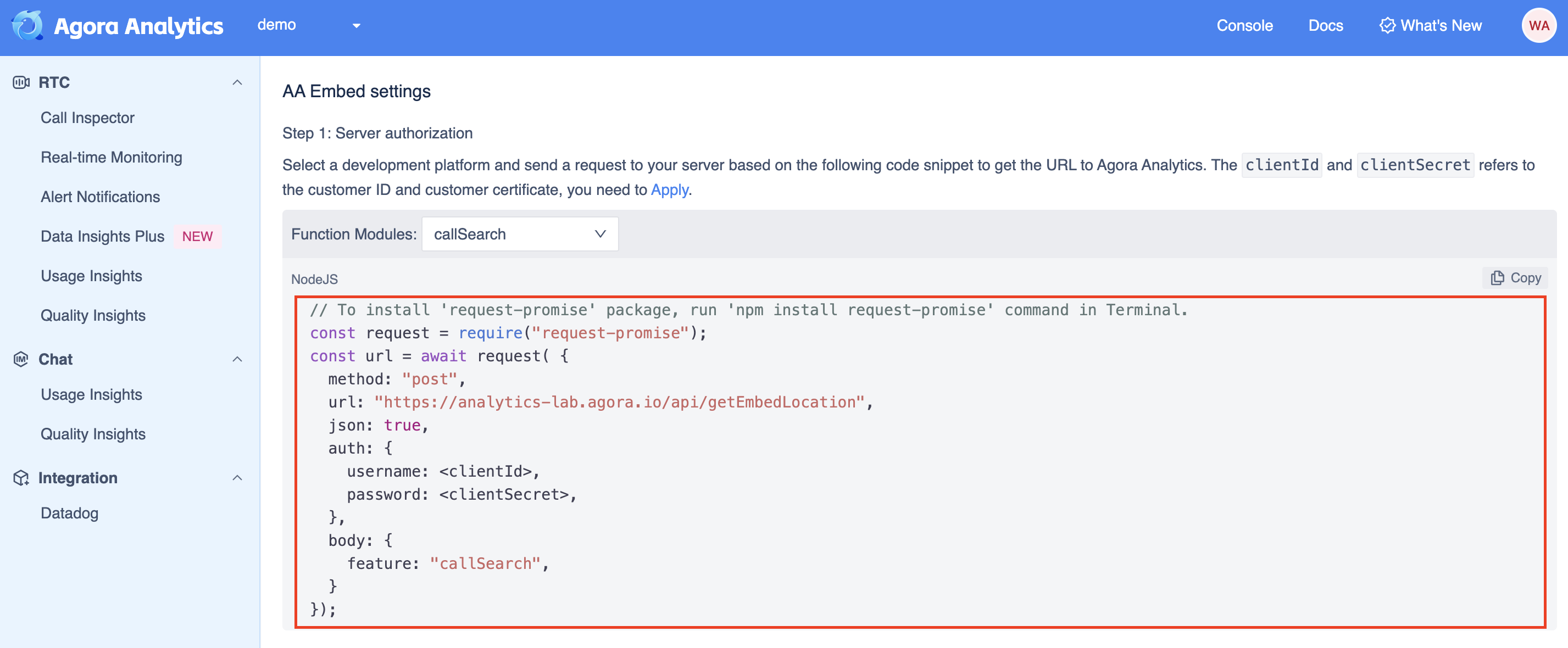
To obtain the URL for embedding Agora Analytics feature page in your portal, send an HTTP request from your server. The **Embed Settings** page shows a `Node.js` code sample to send the request:
#### HTTP request [#http-request]
* Format: JSON
* Method: `POST`
* Endpoint: `https://analytics-lab.agora.io/api/getEmbedLocation`
* Authentication: Use `clientId` and `clientSecret` to generate the Authorization parameter in the request header. To obtain your authentication credentials, click [Apply](https://console.agora.io/credentials).
* Request body parameters:
* `feature`: Specifies the Agora Analytics feature page to embed. Set this to one of the following:
* `callSearch`: **Call Inspector** page.
* `dataInsightUsage`: **Usage Overview** page.
* `realtimeMonitoring`: **Real-time Monitoring** page.
#### HTTP response [#http-response]
The response is in JSON format and returns the URL to the `feature` page you request. For example, if your request specifies `feature` as `callSearch`, the response looks like the following:
```text
https://analytics-lab.agora.io/analytics/call/search?token=xxxxxxxxxxxxxxxxxxxxxx
```
The `token` parameter is a dynamic key that is valid for two hours. You need to renew it every two hours.
If you want to request the URL to a detailed Call Inspector page, see [URL to a detailed Call Inspector page](#url-to-a-detailed-call-inspector-page).
### Customize the URL (Optional) [#customize-the-url-optional]
Use the page attributes panel on the **Embed Settings** page to customize the URL. The settings you select are converted into parameters in the code snippet. Append the page attributes string to the URL to get your customized embed URL.
For example, if you select English as the Language, `&locale=en` is appended to the parameter string.
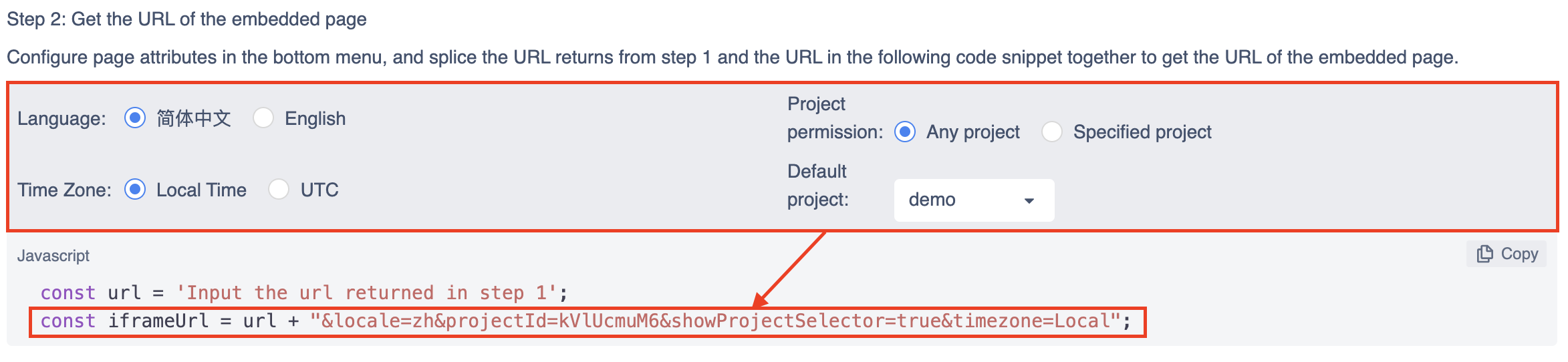
The following table lists the available setting in **Page Attributes** and their corresponding parameters in the code snippet:
| Setting | Description | Parameter | Parameter Values |
| :--------------------- | :---------------------------------------------------------------------------------------------------------------------------------------------------------------------------------------------------------------------- | :----------------------- | :-------------------------------------------------------------------------------------- |
| **Language** | The language of the report. | `locale` | * `zh`: Chinese
* `en`: English |
| **Time Zone** | The timezone used in the report. | `timezone` | - `Local`: The local timezone
- `UTC`: The UTC timezone |
| **Project Permission** | **All projects**: Users can access reports of all projects where the specified `feature` is enabled.
**Specify a project by code**: Users can only access reports of the project you select as **Default Project**. | `showProjectSelector` | * `true`: Show the project selector.
* `false`: Do not show the project selector. |
| **Default Project** | The default project displayed in the report. | *(Optional)* `projectId` | - The ID of the project. Set this parameter only when `showProjectSelector` is `false`. |
### Embed Agora Analytics in your app [#embed-agora-analytics-in-your-app]
Copy the following code snippet into your portal, and replace `iframeUrl` with the complete URL you built from the previous steps.
```tsx
```
## See also [#see-also]
### Get the URL to a detailed Call Inspector page [#get-the-url-to-a-detailed-call-inspector-page]
To get the URL for a detailed Call Inspector page, append the required parameters to the following base URL:
```text
https://analytics-lab.agora.io/api/analytics/research
```
* `token`: The `token` parameter returned in [Get the URL of the embedded page](#get-the-url-of-the-embedded-page) when you set `feature` as `callSearch`.
* `cname`: The channel name. If you enter an invalid channel name, you see a call search page with no research results.
If you only append `token` and `cname` to the URL, the embedded page displays the call search results for the last three days. To get a more detailed page, append the following optional parameters:
* `fromUid`: The user ID of the local client.
* `toUid`: The user ID of the remote client.
* `fromTs`: The start point (Unix timestamp) of the time frame to query.
* `toTs`: The end point (Unix timestamp) of the time frame to query.
For example:
```html
https://analytics-lab.agora.io/api/analytics/research?token=xxxxxxxxxxxxxxx&cname=xxxxx&fromUid=xxxxxx&toUid=xxxxxx
```
### FAQ [#faq]
Q: Why is the embedded page blank in my web portal?
A: Your browser may block the page due to security concerns. You can try the following solutions:
* If your browser has an ad blocker, set the ad blocker to stop blocking the embedded page.
* If you are using Safari, go to **Preferences > Privacy**, and select **Prevent cross-site tracking**.